Posted on Leave a comment

Comparing the six major live TV streaming services for cord cutters

For all the appeal of services like Netflix and HBO Now, some people just can’t bear to part with live TV when they cut the cord. Here are the major options DirecTV Now, Playstation Vue, Sling TV, Hulu with Live TV, YouTube TV, and WatchTV compared, and how to decide which to get — if any.

Fiber optic cables

Sling TV

Sling TV

One of the first internet-only live TV services and still often considered the go-to, Dish Network’s Sling is divided primarily into “Orange” and “Blue” bundles, each costing $25 per month. The first includes 30 channels, while the second includes 42. The biggest difference is that while Blue includes Fox, NBC, and the pair’s sports networks, Orange has ESPN 1, 2, and 3. $40 merges both packages with plenty of overlap.

Instead of selling additional tiers, Sling relies on small add-ons. Most, such as Epix, “Sports Extra,” and “Best of Spanish TV,” are $5 per month. There’s a strong emphasis on international content — indeed for some people Sling may be the only way to go, since it has add-ons for countries you may not find anywhere else, like China and India.

“Premium” channels like HBO, Showtime, and Starz are also available, but usually at a higher cost. HBO for example is $15, as much as a separate HBO Now subscription, although here you get the live feed on top of on-demand content. Basketball freaks can sign up for NBA “Team Passes” that cover specific teams for $18, or the entire league for $29.

Cloud DVR support is another $5 add-on. This includes up to 50 hours of material, so you can’t go berserk picking shows and movies.

Supported Apple devices include iPhones, iPads, and the Apple TV.

PlayStation Vue

PlayStation Vue

In case there was any confusion, PlayStation Vue has long been available on more than just Sony’s PlayStation consoles. As with Sling, it’s on iPhones, iPads, and the Apple TV.

The platform is divided into four tiers: Access, Core, Elite, and Ultra. Access, priced at $45 per month, includes about 47 channels such as AMC, Cartoon Network, SyFy, and ESPN 1 and 2. Notably this includes sports networks from NBC and Fox.

Sony has a pretty hefty amount of sports content included in its default plans, and even some non-sports channels you might have a hard time finding. To sum up though, Core costs $50 for over 60 channels, Elite is $60 for 87, and Ultra is $80 for over 90. Notably, Ultra incorporates HBO and Showtime.

There are far fewer add-on options for Vue than Sling, but some include channels that are missing even from the Ultra package, such as Cinemax or some of the more niche sports channels.

Some perks of the service include up to 10 profiles, the ability to stream on as many as five devices simultaneously, and hold as much DVR content as you want for up to 28 days and 500 programs.

YouTube TV

YouTube TV

This one has just a single $40 plan, but with over 60 channels, some highlights being several ESPN options, and the four major broadcast networks: ABC, CBS, NBC, and Fox, along with a bunch of their affiliated channels. Naturally Google also tosses in YouTube Red Originals.

Showtime, Starz, Shudder, Fox Soccer Plus, and Sundance Now are the only add-ons available, so people wanting the likes of HBO will have to turn elsewhere. It also lacks important channels like Comedy Central, so keep that in mind.

As features go there isn’t much to distinguish YouTube — a subscription includes six accounts, and the ability to stream to three devices simultaneously. The biggest selling point may be its cloud DVR functions, which are practically unlimited since you can keep any and all recordings for as long as nine months.

The service was initially heavily mobile-focused, but you can now watch it on the Apple TV as well as iPhones and iPads.

Hulu with Live TV

Hulu Live TV

Hulu is a relative latecomer to live TV, but it may be hard to beat for the simple reason that $39.99 gets you not just 50-plus channels, but access to the company’s regular on-demand library, including shows and a spattering of movies. Depending on your tastes, a Hulu account could eliminate the need for separate services like Netflix.

Most of the usual suspects are present in the service’s channel lineup, but there are some conspicuous gaps, such as Comedy Central once again. And on-demand content is included in the form of a “Limited Commercials” plan, so expect to be annoyed by advertising that would you wouldn’t run into with Netflix.

All Apple devices are supported, but by default you can only stream on two devices simultaneously. Likewise, cloud DVR functions are normally restricted to 50 hours of material.

Hulu not only charges you for premium channels — $14.99 for HBO, $9.99 for Cinemax, and $8.99 for Showtime — but extra for a 200-hour DVR and/or more screens (unlimited at home, three on the road).

DirecTV Now
DirecTV Now

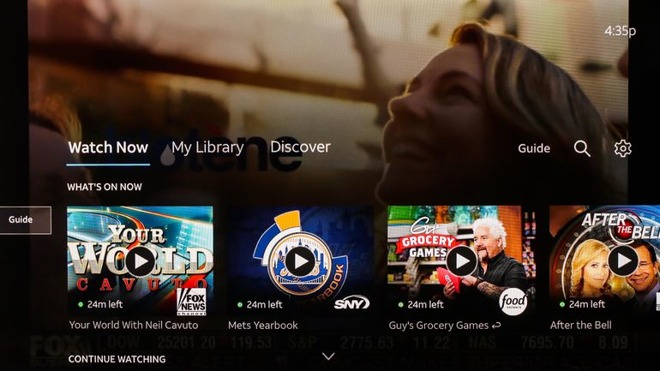
If you absolutely insist on having a cable-like experience, AT&T’s DirecTV Now foregoes anything like a “skinny” bundle. There are five tiers, the smallest offering over 60 channels and the biggest over 120. Every recent Apple device is compatible.

For a while the service was considered something of a bargain, so long as you were willing to put up with early disruptions and a clunky interface. AT&T has tried to clean up the experience, and as of this writing it’s even still offering a free Apple TV 4K if you’re willing to prepay for three months. Prices are going up on Aug. 1 however, such that packages will cost $40, $55, $65, and $75 — roughly aligned with the rest of the market.

The service is also relatively stingy in features, offering just a 20-hour beta DVR and charging customers $5 to stream to a third screen on top of the first two. You can however add HBO or Cinemax for just $5, while Starz and Showtime are $8 apiece.

WatchTV

WatchTV

Another AT&T offering, the newest service on this list is only $15 per month, but currently offers just 31 channels. None of these carry sports, so if you want to watch the NFL, you’re out of luck.

The main reason to subscribe to WatchTV at this stage is if you have one of AT&T’s “Unlimited &More” data plans, in which case the service is free and even lets you add one of several “premium” services at no extra cost. You can add something like HBO or Showtime, but a few non-video services are available too, such as Pandora Premium and Amazon Music Unlimited.

Which should you choose?
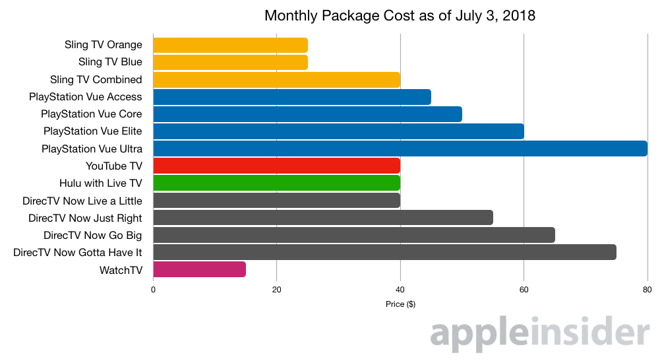
Monthly Package Cost July 2018

Before anything else, make sure to check that a service or package has channels you’ll actually use. Having 120 channels is meaningless if you never see most of them. Accordingly many people will probably be happy with Sling Orange or Blue, and as we said, Hulu may be appealing to people who want more on-demand content.
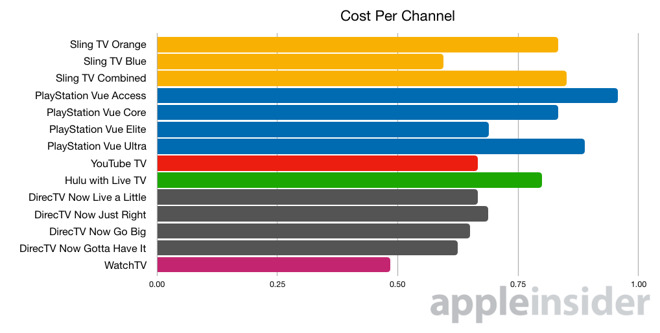
Cost per channel

It’s also worth evaluating whether you like the interface a service has. All of the above options are usable, but some will suit your style of viewing better than others. We found DirecTV Now to be more awkward than Sling or YouTube for example, yet your experience may vary.

We strongly recommend taking advantage of the trials each service offers before making a commitment. There’s no skin lost as long as you’re quick to cancel anything you don’t want to keep.

You may even find yourself questioning the value of live TV. Sports fans don’t have much choice, but people who only care about news, shows, and movies can possibly combine a few on-demand services and still save money — say, Netflix and HBO Now.

Posted on Leave a comment

Review: Marshall multi-room speakers sound great, but lack AirPlay 2

AppleInsider checks out Marshall’s Stanmore and Action multi-room speakers to test out if they are solid options for the wireless speaker fan, even if they only support only the original AirPlay.

[embedded content]

These speakers were added alongside Marshall’s existing Bluetooth models, making the decision that much more difficult for potential buyers.

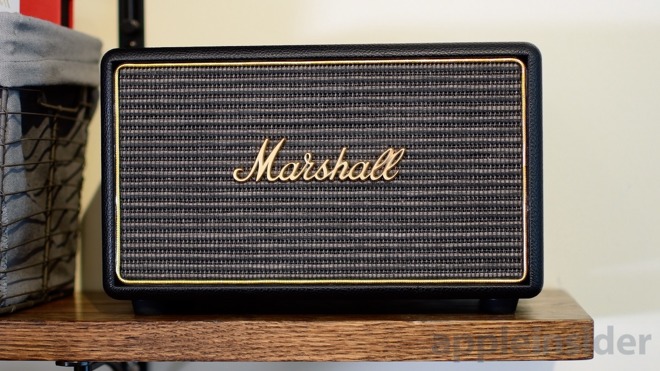
All of Marshall’s speakers share similar aesthetics, a bold retro design to complement the impressive sound that they put out.

Marshall Multi-Room Speakers

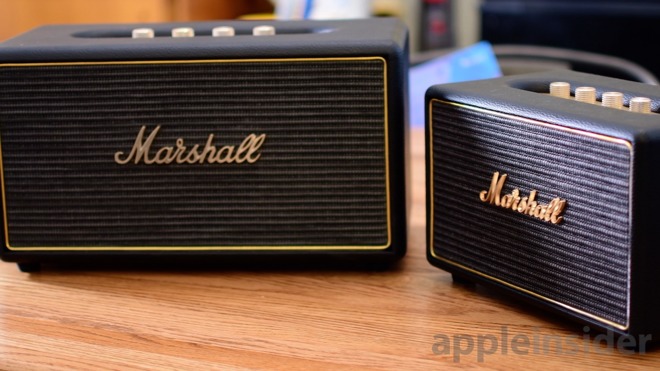
Of all their multi-room speakers, of which there are three models, we played with the smaller two of the three – the Acton and the Stanmore. Not included in this review is the Woburn, though we’ve spent plenty of time with the non-Wi-Fi version of the Woburn in the past. We can touch on that a bit later when we get to audio quality.

Though the exterior may be vintage-inspired, inside it is all new. Each speaker has a wealth of different inputs making them great to use with or without a host device to stream from.

To kickoff our review lets take a look at the build quality and design of these powerful speakers.

Fit and finish

Marshall Multi-Room Speakers Controls

Without a doubt, the design of these speakers can be polarizing. Some people just may not go for that nostalgic design invoked by Marshall’s speakers. For us, we love it. It takes us back to all the live concerts we’ve gone to with countless oversized Marshall amps gracing the stage. Live music is something we’re very passionate about and it is hard not to get that feeling when kicking back and listening to our favorite jams over one of their consumer-targeted home speakers.

Similarly to those giant amps, Marshall’s speakers aren’t small or light. When compared to many other in-home Wi-Fi or Bluetooth models, any of Marshall’s will be larger and weigh more. Acton is the smallest, with roughly the same height as HomePod and twice the width. Since these aren’t designed to be portable, we didn’t have too many qualms with this. The larger size just helped them standout.

The exteriors are made of the same rubber material used on Marshall’s larger stage-destined amps, giving it a bit of a soft touch. On the bottom, four rubber feet help dampen any vibrations that may emanate from playback.

Marshall Multi-Room Speakers Logo

Marshall’s iconic scripted wordmark graces the front atop a screen that covers the array of woofers and tweeters that reside inside. Gold/brass are used frequently as accents, such as on top of the logo, around the front, and liberally along the top.

Speaking of the top, that is where a mess of controls are found above a metal plate. Metal knobs with knurling are used to adjust the volume, treble, bass, and input. They provide a great tactical feel, with just the right amount of tension when adjusting.

Marshall Multi-Room Speakers Knob Input Control

A tiny toggle button is used to switch between multi and single modes, depending on your use cases.

Lastly, on the right, are a pair of previous/next buttons to use during playback.

Inputs galore

Marshall’s multi-room speakers have between five and six inputs depending on the model. Both the larger two (Stanmore and Woburn) have RCA, but the rest all share Chromecast, AirPlay, Bluetooth, aux, Spotify, and 3.5mm options.

Marshall Multi-Room Speakers App

A knob on the top can be used to change inputs, as can the accompanying multi-room app. Using the app, seven presets can be programmed as well to correspond to the favorites on the input knob. Spotify playlists or internet radio stations can make up these favorites.

Those RCA inputs can be useful but would be hard to use in a home theater environment. Even the Stanmore, the smallest with RCA, is far too large to act as a soundbar. A more appropriate use for these inputs would be for another music device such as a turntable.

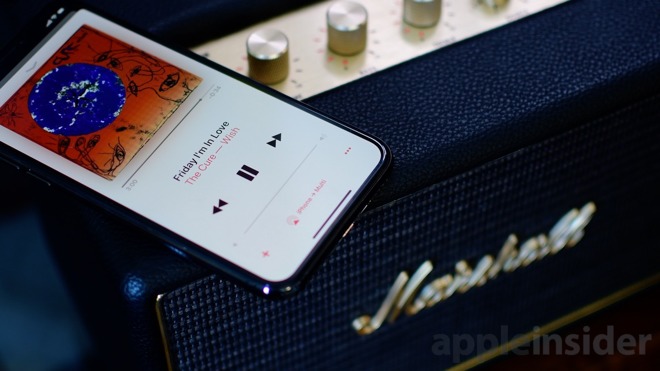
Even though these speakers have AirPlay, a great convenience for Apple users, they do not currently support AirPlay 2.

Multi-room and AirPlay 2

Interestingly, while Marshall was among those listed as backers of AirPlay 2 on stage during the announcement, they’ve yet to commit to bringing AirPlay 2 to any of their devices. When pressed for comment, Marshall said their speakers “are made to be interacted with directly through the controls on the speakers, rather than having users be dependent on their devices. Because of this, and because we already support multi-room playback using any input as a source – including AirPlay – we are only at this point exploring AirPlay 2, but have not made a decision if we will implement it in our product assortment.”

This statement is true, they do have their own multi-room technology that works very well, it won’t be enough to appease many users. AirPlay 2 isn’t just about the ability to stream audio to different rooms simultaneously, though of course, that is a large part of it. AirPlay 2 also increases the buffer, reducing the drops in audio that occasionally happen. It also makes them part of HomeKit, allowing Siri to control music playback, stream Apple Music, and possibly more as Apple adds functionality to HomeKit.

Marshall Multi-Room Speakers AirPlay

That said, Marshall’s multi-room solution does have good sides. It is dead simple to use, just by toggling a button on the top of the speaker. When the light is in the “single” position, the speaker will act as a standalone device. When toggled to “multi”, all Marshall multi-room speakers will play back the same audio, no fuss.

This can be switched inside of the Marshall multi-room app as well, so it doesn’t have to just be done on the speaker itself.

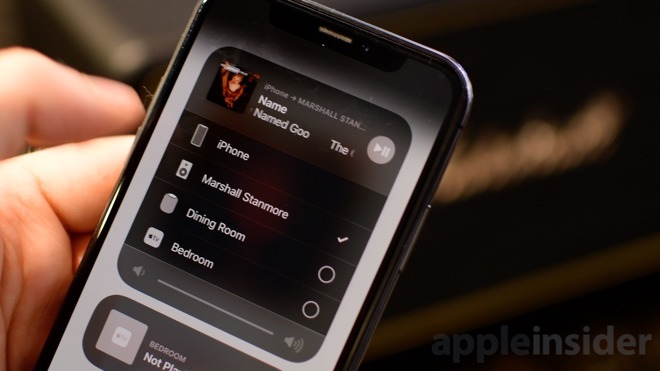
When looking at the speakers through AirPlay, there is a bit of a change. When in single mode, each speaker has its own name and shows in the AirPlay menu. When switched to multi, each speaker will disappear and instead, a single new “Multi” speaker will appear in the AirPlay menu.

AirPlay is super useful for Apple users. Nearly any Apple device – including the Apple TV, Mac, iPhone, iPad, and HomePod – can cast music to an AirPlay-quipped speaker.

We played back a variety of different music through multi-room mode, including from our Apple TV, and tt worked surprisingly well though we did notice some dropped audio that would come out of one speaker but not the other. This happened infrequently and for less than a second each time, but definitely a few times during testing.

Audio quality

Across the board, audio quality was very consistent. Each model had the same balance to it, just with different volumes. We also found more pronounced bass on the larger models, assuming it has a bit of room to breath around the back where the vent lives.

When we increased the volume output to the max, which was very loud on the Stanmore and Woburn, we had no distortion in the quality, which is something we always check for in speakers. Oftentimes audio quality is sacrificed to creep out a few more decibels. In our tests, the Stanmore —at max volume —was far louder than you’d need for a normal sized room. Most people could probably get by with just the Acton, only moving to the Stanmore when a room is larger or more bass is wanted.

Marshall Multi-Room Speakers

Adjusting the audio quality with the knobs is not nearly as drastic as we imagined. It is actually much more subtle of an effect, allowing you to fine-tune it to your tastes, but not dramatically changing the balance of the audio. This is good as it shows Marshall’s confidence in their sound.

When you look at Marshall’s target audience, the sound profile is clear. It is aimed squarely at those listening to predominantly rock or instrument heavy music with distinct vocals. Rap and hip-hop just weren’t the exact genres these speakers were tuned for. It isn’t to say they don’t sound good, but they don’t have the punch or sharpness we’d hear from speakers that aim towards pop and rap listening millennials.

We did notice a huge difference in audio quality when moving between the Bluetooth input and Wi-Fi, with AirPlay clearly offering a much more crisp and lossless audio profile. Wi-Fi is definitely the way to go, with Bluetooth mostly an afterthought if you try to take the speaker with you and don’t have Wi-Fi available.

You’ve got options

Marshall’s lineup of speakers has been growing, originally with a full range of portable and non-portable Bluetooth speakers and now a lineup of Wi-Fi-equipped multi-room speakers. For those with the need to easily travel with their speakers, or even just Bluetooth as a requirement, their original models (Stockwell, Acton, Stanmore, Woburn) will fit the bill.

Marshall Multi-Room Speakers

On the contrary, any of the multi-room (Acton, Stanmore, Woburn) will be ideal for those who want a bit more out of their speakers. Both the Wi-Fi and Bluetooth models share the same names, so it is important to keep an eye out for which version of each model you are shopping for.

Each model has subtle differences, though the biggest differentiator is the volume and output. Bigger models have additional inputs, such as the Stanmore and Woburn each getting RCA ports on the back.

Crank it up

Marshall Multi-Room Speakers

These speakers are clearly targeted to my music tastes. Rockers like Joe Walsh, Don Henley, Steve Miller band, all sound beautiful on these speakers, regardless of which model you pick up. Guitar licks sound clean and powerful and the physical knobs make it dead-easy to really tune your tunes to your tastes.

AirPlay 2 would be nice to have, and I’m hopeful that Marshall, and parent company Zound Industries, devices to implement it later through an update, but as-is these are fantastic speakers for rockers and other music enthusiasts.

Their retro vibe is as eye-catching as it is nostalgia-inducing, making it almost as much a statement piece as much as it is a powerful speaker. Some may not prefer that look, but the list of modern-look speakers is a mile long, giving them endless other options.

Rating: 4.5 out of 5 stars

Where to buy

You’ve got many options when picking out any of Marshall’s speakers. The Marshall Stanmore Multi-Room speaker can be found on Amazon or B&H for $449. B&H and Amazon also have the Marshall Acton Multi-Room speaker for $299. If you really want to increase the volume, the massive Marshall Woburn can be found for $599 on Amazon.

None are much more than the Bluetooth counterparts, so we highly recommend the Wi-Fi models for those interested. Mutli-room, AirPlay, and better audio quality make up for the difference in price.

Need help picking a wireless speaker? Check out AppleInsider’s handy guide!

Posted on Leave a comment

Killer Deal: Apple’s 2017 15″ MacBook Pro for $1,899 ($500 off) with no tax in most states


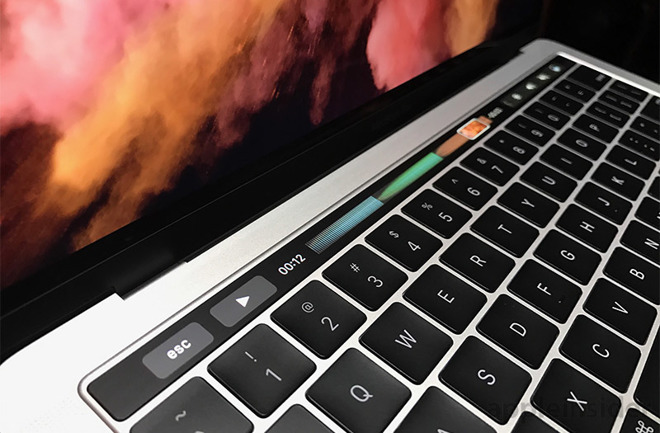
Back by popular demand, Apple’s current 15-inch MacBook Pro with Touch Bar is marked down to $1,899.99, a $500 discount off MSRP. What’s more, sales tax will not be collected on orders shipped outside NY, and shipping is free. Supply is limited, so grab this deal while you can.

2017 15″ MacBook Pro for $1,899.99

Apple 15″ MacBook Pro (2.8GHz, 16GB, 256GB SSD, Radeon 555) | PN: MPTR2LL/A or MPTU2LL/A
On sale for $1,899.99 | eBay
($500 off + no tax outside NY*)
*Dealsfellow will not collect sales tax on orders shipped outside NY.

Back for a limited time, eBay seller dealsfellow has Apple’s current 15-inch MacBook Pro for just $1,899.99, the lowest price we’ve seen to date on the standard model. This configuration in your choice of Silver or Space Gray features a 2.8GHz quad-core processor, 256GB of storage and Radeon 555 graphics. These systems are brand-new and factory sealed, exactly like you would receive from the Apple Store — only $500 cheaper.

In addition to the cash discount, each MacBook Pro also qualifies for free shipping within the United States. Dealsfellow also will not collect sales tax on orders shipped outside New York, making this limited time offer nearly $700 cheaper for many shoppers compared to buying direct.

To put the value in perspective, closeout 2016 15″ MacBook Pros sold out at the same price, making this aggressive discount the best deal we’ve seen on current Mid 2017 models since the product’s launch last year. According to our 15-inch MacBook Pro Price Guide, this deal is also at least $400 cheaper compared to shopping at an Apple authorized reseller.

To take advantage of the $500 discount, simply use one of the pricing links in this post and look for the reduced price.

Additional 15″ deals off eBay

15″ (2.8GHz 16GB 512GB Radeon 555) in Space Gray | PN: Z0UB-MPTR24
On sale for $2,499.00 | B&H
($100 off + no tax outside NY & NJ*)

15″ (2.9GHz 16GB 512GB Radeon 560) in Space Gray | PN: MPTT2LL/A
On sale for $2,549.00 | B&H
($250 off + no tax outside NY & NJ*)

15″ (3.1GHz 16GB 512GB Radeon 560) in Space Gray | PN: Z0UB-MPTR27
On sale for $2,799.00 | B&H
($200 off + no tax outside NY & NJ*)
* B&H will not collect sales tax on orders shipped outside NY & NJ*.

Looking for upgraded closeout models? Check out our exclusive deals offering shoppers up to $1,600 off loaded Late 2016 configs.

Additional Apple Deals

AppleInsider and Apple authorized resellers are also running a handful of additional exclusive promotions this month on Apple hardware that will not only deliver the lowest prices on many of the items, but also throw in discounts on AppleCare, software and accessories. These deals are as follows:

See if there is a Mac, iPad, Apple Watch or Certified Used iPhone deal that will save you $100s by checking out prices.appleinsider.com and deals.appleinsider.com.

Posted on Leave a comment

Review: Olloclip for iPhone X — the best budget lens system

Olloclip released an updated version of their popular mobile lenses, tailor-made for the iPhone X. Included is a wide angle lens, a fisheye lens, and a macro lens —and we’ve been testing it out for a few weeks.

[embedded content]

Olloclip’s lenses have really come a long way since they originally launched, now coming in a neatly integrated package that seems to have considered every use case.

While it took a bit longer than many hoped before coming to the iPhone X, the result is an impressively useful toolset of glass, metal, and plastic.

Overview

Olloclip iPhone X Lens

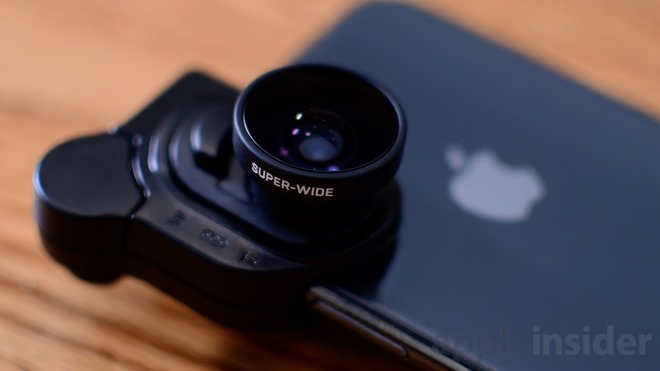
Eager iPhone X owners will receive a total of three lenses with the Olloclip box set, including a super-wide angle lens, a 15x macro lens, and an all-encompassing fisheye. The macro lens actually resides behind the fisheye lens, which needs to be unscrewed before use.

Each of the two primary lenses – the wide angle and fisheye – are attached to a removable plate that fits into the mounting clip. This clip is used to go over the top-right corner of the iPhone X, covering the camera module along the back, as well as the True Depth camera system up front.

Each individual lens can be used in one of three ways. It can be used on the rear wide-angle lens, on the rear telelens, and on the front-facing selfie camera. Between three different lenses and three different orientations, it can be quite difficult to keep straight.

Olloclip iPhone X Lens

After using the Olloclip lenses on our iPhone X for a while, we noticed a few issues with the design. For starters, the shape of the mounting clip can be a bit confusing to align correctly. There is, in fact, a “front” and a “back” though they can be nearly indistinguishable when trying to quickly put into place. Additionally, a few times we thought it was in place, though it actually wasn’t. We tried to grab the lens and it slipped off. Considering the Olloclip lenses don’t work with a case, it is scary that we nearly dropped our device doing this. Clearly it is good practice to not grab the lens at all, but even more so if it isn’t locked in place.

Olloclip Face ID on iPhone X

A bigger issue though is when attached, Face ID is unable to function. As we mentioned, when in place, the mounting clip will cover the True Depth camera system in near totality. It is necessary when actually using the lens on the front facing camera, but when trying to unlock your phone, it is impossible. It got quite frustrating in our use not being able to get into our phones with the ease we’ve been accustomed to.

Build quality

We’ve used many Olloclip lenses over the years, and the build quality here is consistent with what we’ve come to expect from the brand. It fits squarely in the middle between the more premium offers and the dirt-cheap junk found in bulk on Amazon.

The lenses themselves are made out of a lightweight metal and glass, though they get affixed to a plastic mount. This plastic mounting clip is the weakest-feeling portion of the whole kit, and the way it expands to clip onto the keychain or the phone feels a bit sloppy. We do worry about this holding up over time, but luckily this would be the easiest (and cheapest) to replace if need be.

Photo quality

Any mobile lens needs to be able to shoot some pretty stellar photos to warrant their inclusion in our pocket. After shooting dozens and dozens of photos, we were solidly happy with two out of the three lenses.

Olloclip iPhone X Selfie Camera

Of the three, the macro was the one we used least, but it yielded some really impressive photos. We shot quite a few images that really stood out to us and were crystal clear. Olloclip’s macro lens is also 15x which is a bit more magnification than we typically see.

Most people will get spend the majority of time shooting on the super-wide angle lens. It is by far the most practical lens of the three, fitting into most situations. It can make the wide-angle lens even wider, or it can help the 2x tele lens fit more into frame. Not only does the wide angle let you get more coverage, it does so with very little distortion.

When we come to the fisheye lens, it certainly had the instantly recognizable curvature you’d expect. However, it adds some crazy clipping/vignetting on each of the corners. To use one of these images, it would need to be cropped quite substantially or used with blacked out areas.

Premium options

Olloclip is hands-down preferred over the bulk of mobile lenses out there. It is portable, fits exactly over the camera housing, and has many options between the multiple lenses and orientations.

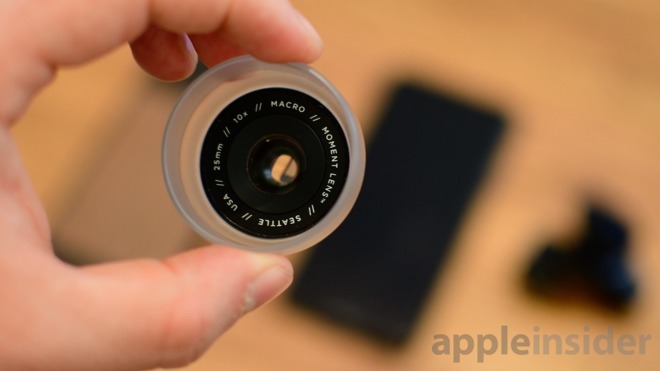
Moment Macro Lens

It isn’t, however, the most premium lens system in town. Our two favorites hail from Moment and Sandmarc. Both of these manufacturers produce high quality, premium lenses that cost significantly more than Olloclip.

Fortunately, Olloclip has other benefits instead of just price. The integrated and portable package is much easier to carrier around, and no extra case is required to use. Moment and Sandmarc require a specially made case to attach the lenses the phone.

Without a doubt Moment and Sandmarc put out superior glass, but most people won’t have the need for such high-end lenses. With lenses, you can often get 90 percent of the way there for a fraction of the price. But to go from where Olloclip is, to the last 10 percent, takes a lot more time, effort, and money to do correctly.

To get 90 percent of the way for 1/3 the price, seems like a fair trade-offf.

Get shooting

Olloclip Lens

Olloclip is a decent package for any photographer, experienced or novice, who wants to shoot better photos on their phone. Compared to others, there is a lot to take in. A portable keychain, multiple lenses, several orientations.

Photo quality was more than sufficient, letting us get a lot of great shots without much fuss. Adding a wide-angle lens to your mobile arsenal is a great move whether shooting landscapes, indoors, or taking selfies with a group.

There are certainly downsides such as Face ID being blocked, the questionable long-term integrity of the clip, and awkward mount design, but that can all be largely overlooked in the short term for the practicality and usefulness of these lenses.

If Face ID’s occlusion isn’t a deal-breaker for you, then the Olloclip for iPhone X gets a

Rating 3.5 out of 5

Where to buy

Those interested can pick up each individual lens by themselves, or as a whole set. Both the fisheye/macro lens and the super-wide angle can be had for $59.99 each, or the whole box set can be found for $99.99 either on Amazon, or direct from Olloclip.

Posted on Leave a comment

Review: Elgato’s Eve Aqua water controller is for HomeKit diehards

As the British might say, the Eve Aqua “does what it says on the tin,” even if it could stand refinements in some areas.

When Apple launched iOS 11 last year, one of the key additions it made to HomeKit was support for sprinklers and faucets. People have been automating these products for years, especially in hydroponics, so it’s only natural that Apple would join in.

The Eve Aqua is one of the first products made with this support in mind. Elgato describes it as a “smart water controller,” and that’s as good a description as any. It sits between an outdoor faucet and a self-supplied hose, turning water on and off on command.

Installation is simple overall, but tricky in its first step: inserting two bundled AA batteries, of all things. You wouldn’t think that would be trouble, but the Aqua’s design requires you to press on a panel that slides up not just the battery compartment but the entire front panel of the accessory. It puts up a lot of resistance, such that we had to fight for a few minutes to make it work.

With that overcome, the next step is to open the Eve app on an iPhone or iPad, and use it to add the accessory to both that software and HomeKit. You can then connect the Aqua to a hose and faucet, lastly making sure the faucet is left on.

We connected our hose to a rotating sprinkler, but conceivably you can hook one up to anything or nothing depending on your needs.

If you really want to, you can abandon the Eve app entirely at this point. Siri or the iOS Home app will turn the Aqua on and off, and going into the Home app’s Details panel will let you set a shutoff delay. Oddly enough, you can’t add the Aqua to any HomeKit scenes or automations. This seems to be Apple’s fault, not Elgato’s, but may be something worth considering for potential buyers.

iOS Home app

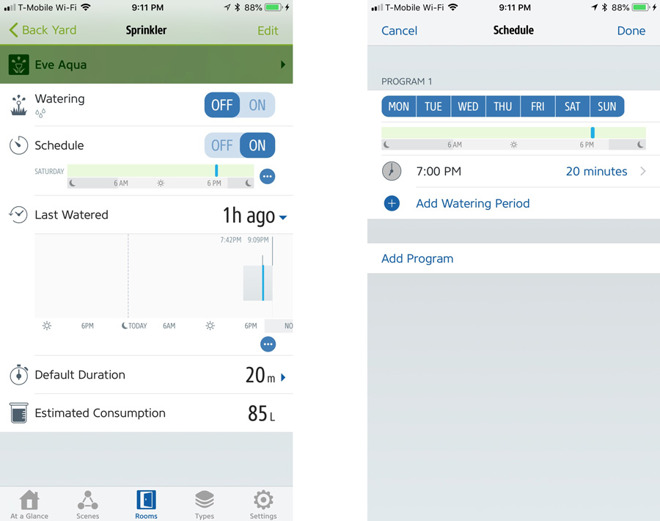
This is why you probably will end up using the Eve app, since it’s necessary to configure schedules. You can assign an Aqua to run for 10 minutes at 6:15 a.m. and 10 minutes at 7 p.m on Wednesday and Saturdays, for example. This is particularly useful in regions with severe watering restrictions like Texas.

Elgato’s app also lets you check battery levels, activity history, and estimated consumption. Some people might be shocked to learn how much water a sprinkler can put out, in which case the Aqua would be handy for lowering utility bills and helping the environment.

Elgato Eve app

In our testing the device proved semi-reliable with Siri or app-based requests, but fully dependable with locally-saved schedules. We wish it were a little more responsive, especially since water is involved, but we don’t have any major complaints. In a pinch a physical button can be used to toggle water manually.

This ties into a recurring problem with the Eve line, which is Elgato’s insistence on using Bluetooth instead of Wi-Fi. To change the programming on the Aqua you have to bring your iPhone or iPad within close range, which may mean having to go outside depending on where your faucet is. It’s not a huge hassle, but does feel a little silly given that you can get water controllers that don’t depend on phones, tablets, or the internet.

For even basic control outside of Bluetooth range you’ll need an Apple TV, iPad, or HomePod that is within range, operating as a Home hub. That may be a tall order for some people — even if you’re rocking multiple hubs, you may not have one near your yard. We were lucky to have an Apple TV 4K near the backyard of our test house.

Admittedly, Wi-Fi may not be best option for an outdoor product either. It does tend to have better range though, and it wouldn’t require you to be deeply invested in the Apple ecosystem.

Elgato’s strict focus on HomeKit is beginning to feel myopic. The Aqua lacks integration with platforms like Amazon Alexa, Google Assistant, or even Android. In 2018 many of us mix and match devices rather than stick to a single manufacturer, and can’t afford to change things up for one or two accessories.

Conclusions

If you’re certain you’ll have an iPhone, iPad, and/or a Home hub for years, the Eve Aqua will get the job done. Yes, you may potentially have to stand outside in the hot sun to change your watering schedule, but chances are you’ll set it once and forget about it until it’s time to change batteries or bring things inside for the winter.

The greater concern, as we’ve suggested, is how the product fits into your lifestyle. If Alexa or Google Home devices are as integral to your smarthome setup as HomeKit, you may want to think twice. Likewise if remote access is essential and you can’t see situating a Home hub where it’s needed. IFTTT integration would be fantastic, letting you prevent a sprinkler from going off when frost or snow is forecast.

Elgato is generally on the right track with its smarthome gear, but if it’s not going to switch to built-in Wi-Fi, it should at least follow Belkin’s lead and put out a bridge.

Score: 3.5 out of 5

Where to buy

Retailing for $99.95, the Aqua can be purchased directly from Eve. Or if you’re willing to wait, Amazon.com is also accepting backorders for the smart water controller.

Posted on Leave a comment

How to turn Live Photos into animated GIFs in iOS

Taken a Live Photo on your iPhone or iPad and want to share it around on social media as a GIF, potentially creating a meme in the process? AppleInsider shows how to convert the clip into one of the most commonly used animated image formats found online.

Introduced in 2015 in iOS 9, Live Photos is a feature of the iOS camera that records the period of time surrounding the moment when the user takes a photograph. Along with the still image, Live Photos can also play the 1.5 seconds before and after the shot as a 15fps video, telling viewers the story about the shot.

Shortly after its creation, various apps and services started to support the image type, enabling them to be shared with other users. There are also options in the Photos app to share the Live Photo with others on social networks and messaging apps, and for most people, that’s more than enough for their needs.

In cases where an app or service simply won’t accept a Live Photo as an image or animation, or if you want to slightly change how it appears, the best option is to create an animated GIF.

Creating the Image

Load up the Photos app and select the Albums tab. In that section, select the Live Photos folder, then tap the specific Live Photo you want to use to bring it fullscreen.

Swipe upwards in the middle of the screen to bring up extra information about the shot. The main element we are interested in is the animation effects selection.

There are four options here, with Live effectively leaving the image as it is, playing just once. Another is Long Exposure, which combines all the frames of the Live Photo into a single image, which can create some artistic effects. Ignore both of these options.

For this, we are interested in the Loop and Bounce options. Loop continuously plays the animation, while Bounce will constantly play the clip forwards then backwards. Select one of these two options.

Navigate back to the Albums tab and select a folder called Animated, which contains any and all animated GIF-style content created on the iPad. If the folder didn’t exist previously, Photos will automatically create it.

Opening the animation in the folder will display the created GIF file. Photos will also display in the top-left corner what kind of animation option was selected for the image.

At this point, the image can be shared via the normal sharing options, or you could email it to yourself as a GIF file.

Further Notes

While this may be seen as a waste of time creating a GIF rather than directly sharing, creating the animation before sharing can help prevent some issues. Not all apps will accept a Live Photo directly as an animation

For example, adding a Live Photo as an attachment in Gmail will result in a JPEG file instead of a GIF, while sending the version from the Animation folder returns the intended GIF.

There is also the added benefit of being able to control how it will be displayed on other platforms, as there’s no guarantee that it will automatically loop on your chosen service.

Users wanting more control over how GIFs appear, or to create GIFs from video clips, can find a wealth of apps in the App Store for the task.

Posted on Leave a comment

Hands on: Master and Dynamic MW50+ headphones

Recently, premium headphone manufacturer Master & Dynamic upgraded their popular MW50 headphones, appending a + to the end to signify the newly launched model —and AppleInsider has a set.

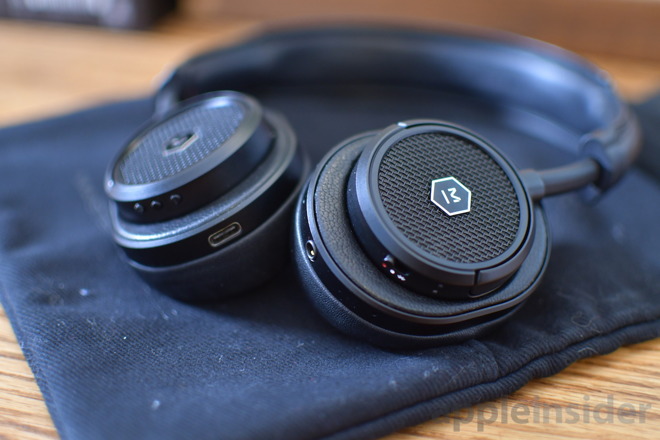
Most of the internals have stayed the same, with the enhancements coming to the exterior. Instead of needing to choose between on-ear and over-ear headphones, the MW50+ offer the unique option of being able to swap between the two at any time.

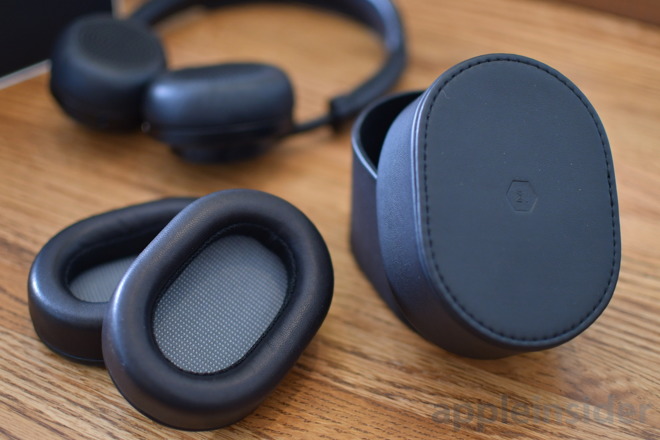
Using magnets, the earpieces can easily be removed to alternate between on- and over-ear, depending on your listening environment. As frequent travelers, we love this idea for a set of headphones. On-ear can be great for general use, but over-ear can better isolate sound and thrive in noisier environments like planes.

In the box

Opening the box, you are greeted by the headphones, coming with the on-ear pads equipped by default. Underneath them, you’ll find a few cables, a canvas carrying bag, and a leather-wrapped box containing the over-ear pads.

At first blush, everything seems really spot on. Each and every component oozes quality, down to the canvas bag and cables. We particularly love their cables, some of which were recently released. We took a look at their new Lightning to 3.5mm audio jack when they were updated earlier this year and the quality really holds up.

The headphones

Without getting to much into the details just yet, the headphones themselves seem crafted from high-quality materials.

The leather-wrapped headband is exceptionally soft and supple and was really comfortable in our limited listening time thus far. A lot of the metalwork is stainless steel which gives quite a bit more heft than a lightweight alloy cheaper models adapt.

We were thrilled to see that the MW50+ also utilize USB-C for charging rather than micro USB. This is always appreciated and helps integrate with modern products. The only downside we see right now is that they include a USB-A to USB-C cable, which means to charge on our MacBook Pro we still need to provide our own USB-C to USB-C cable, or use something like an iPhone AC adapter plug.

Earpieces

The biggest story here is the earpieces. Either option is super comfortable and the leather is, once again, super soft.

Swapping them couldn’t be simpler —there is no twisting or pulling to get them in place. Magnets keep them in their groove and cover up those 42mm custom drivers.

Between the two, we slightly preferred the on-ear set, finding the over-ear a bit stiff. This will (hopefully) loosen up over time and we will certainly find out in our full review.

Audio quality

Much more listening time needs to be put in before a definite answer can be provided on audio quality, but we clearly had to try these out as soon as we got them. Thus far, audio sounds pretty great. We found plenty of detail and sufficient bass listening to a few Eagles and other classic rock tracks.

Volume also wasn’t an issue here, though we haven’t taken them into any extremely noisy environments quite yet.

Stay tuned for our full review to see further impressions on audio quality, but so far we are very pleased.

Where to buy

Master & Dynamic’s upgraded MW50+ convertible on-ear and over-ear wireless headphones are available in three different finishes for $399, the same price as the older model. You can buy them directly from Master & Dynamic’s website.

Posted on Leave a comment

Review: Amazon’s Fire TV Cube isn’t that much better than older models

Amazon has started shipping the Fire TV Cube, a media player aiming at the Apple TV 4K. But, can it bring as much to the table as Apple’s device does, for just a little bit less money?

[embedded content]

Quite literally, the device is Amazon’s 2017 Fire TV with more storage and a built-in Echo Dot. At regular price, those two items come out to $120, exactly what the Cube costs. Amazon is currently offering the combo for only $95.

Last year’s Fire TV and the Cube share the same exact hardware specs, other than a bump to 16GB of storage. The regular 2017 Fire TV has the same exact processor, the same 2GB of RAM, the same MIMO WiFi, and can support the same 4K Ultra HD resolution, HDR10, and Dolby Atmos surround sound.

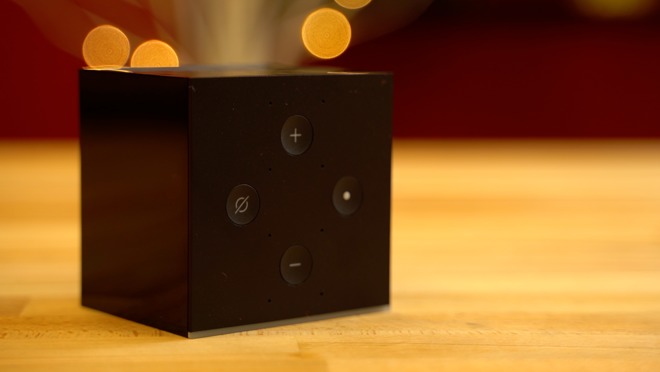
Amazon Fire TV Cube

Where wired Ethernet is an add-on for the Fire TV, the Cube does include an Amazon Ethernet Adapter in the box.

Most of the Fire TV Cube Reviews out there focus on the basics surrounding the device, how it works, and what it can do, but unfortunately, a lot of them fail to mention some of its biggest problems.

For those of us who already have an Echo device in our homes, buying the Cube makes little sense.

The previous Fire TV models can also do pretty much everything the Cube can do if you’ve got an Echo in the same room as your TV, with one addition —the Cube is able to control many third-party devices with just your voice, including your TV.

Google Home and Chromecast allow users to turn supported TV’s on and off, but the Cube shines because you can control other devices like an Xbox, Playstation, cable boxes, and more through Alexa integration, HDMI CEC, or an IR Blaster repeater.

This leads us to our first problem, if you’ve already got an Echo in your living room, is being able to control some of your other devices worth the extra money? Plus, if you do have an Echo, it might cause problems with Cube. Amazon recommends you relocate your Echo to another room or change its wake word.

One of our testers had no problem with the same wake word between devices. Another kept having a problem with the Fire TV Cube picking up commands intended for the Echo.

If you have the more expensive $100 Echo, or the Echo Plus, and prefer to play music on it instead of the tv, this could be a problem.

The Fire TV Cube’s iron

Cube’s second major issue is cheap and outdated hardware. It uses the same 1.5GHz quad-core processor from the 2017 Fire TV, as well as the Mali 450 MP3 graphics that’s based on architecture from 2012! The reviews of the Fire TV are littered with people complaining about an overall slow and buggy experience. Some even decided to go back to an older generation Fire TV because of it.

In our experience, Cube’s UI animations on the main screen seemed fairly smooth, although it took a bit for them to start at times. Loading certain apps took longer than we expected them too, like Netflix for example. More on this in practice, in a bit.

The Apple TV 4K is $40 more expensive than the Cube, but at least it’s using one the most powerful mobile chips available, the A10X. That’s the same chip powering last year’s iPad Pro.

With performance like that, you know the Apple TV 4K will remain current for years, but you can’t say the same for Amazon’s Fire TV Cube.

Video Playback, and app shopping

The Amazon Fire TV Cube does what it says it will do. After it buffers, it will play back your Amazon Prime Video either through a wired Ethernet connection with the dongle, or on Wi-Fi.

On Ethernet, speeds hit around 11 megabytes per second from the router. While we’d prefer Gigabit on the Fire TV Cube, both speeds are more than enough for 4K streaming with no buffering breaks in the middle of the event. The 802.11ac Wi-Fi speeds started better, at about 80 megabytes per second, but prone to big dips down to less than 5 megabytes per second for reasons we couldn’t pin down.

Because of the strange speed excursions on Wi-Fi, we had a better streaming experience with the wired Ethernet connection than we did on the Wi-Fi. Looking at Amazon’s customer reviews for the Fire TV, we don’t seem to be alone in that regard.

Amazon Fire TV Ethernet adapter

But, again, our biggest issue is the janky interface. A dropped frame now and again isn’t a giant problem with interfaces. But, with half-second lock-ups of the interface while scrolling through a list, you wonder if Amazon should have charged $10 more and used a beefier processor.

The Fire TV Cube has a robust app selection, rivaling the Apple TV in many ways. This isn’t really a credit to Amazon, but a ding on Apple. We’ve said it before, and we’ll say it again —Apple had an opportunity to lock-down the TV-based apps market when it launched the fourth generation Apple TV, and it blew it because of an assortment of choices about limitations on developers.

Alexa Voice Remote isn’t any better on the new hardware

Moving on to our third problem, you get basically the same old Alexa Voice Remote that comes with the old Fire TV.

The Cube has Alexa built-in, so Amazon says you don’t really need the remote, but in our experience, it takes so much longer to navigate. It also can be kind of awkward when you have guests over, so for those reasons, we would much rather use a standard remote control.

Looking at the remote’s reviews on Amazon, however, reveals yet another snag. The device has almost as many 1 star ratings as it does 5 star. Users complain of corroded batteries or extreme battery drain. There’s also more than a fair share of users who had their remotes completely stop working, forcing them to get a replacement.

The fourth issue is related to remote issues. Let’s say your Alexa Voice Remote stops working or you lose it, you can just use the Cube’s built-in voice controls. At least in theory.

When AppleInsider tried in two different locations, we had Alexa misunderstand our commands in both environments multiple times, and when searching for certain categories of movies, it gave us different results than it did when we used the remote. We would try to search for Prime movies, for example, but the UI would mix in shows that are only available for purchase or rent.

The worst is when you’re using your voice to manually navigate the UI. You have to constantly repeat, “Alexa, scroll right,” over and over again. It just takes forever!

The situation only got worse when we had the volume cranked up on the TV. I had to yell “Alexa” multiple times at the Cube after she didn’t hear my first couple of attempts, and that happened quite a few times.

Amazon says they added an extra microphone into the Cube to help hear your commands, but in my experience, it doesn’t seem any better than the other Echo devices.

With those problems aside, Cube works fairly well for its core purpose, playing video. We’ll do a long-term review and talk about any problems we run into as we use it in a few months.

Alexa home automation status

Having Alexa built-in definitely has its perks, but if you have any smart home accessories, you probably already own an Echo device.

Visually seeing the weather and other information that Alexa gives you on the big screen is definitely a plus, and probably one of the best things about it, right next to the ability to turn on your TV and control all of your devices with just your voice.

Amazon is currently offering the Fire TV Cube in a bundle with their Cloud Cam, and upon installation, it syncs up instantly with the Cube. So, you can just ask Alexa to show the cloud cam, and it’s up after that same delay that seems to infect every other action on the device.

However, when your TV is off, it takes even longer to appear as the device wakes. We were seeing almost half a minute for the cam to show up.

But, once it gets going, the lag between what’s going on in front of the camera and what you see on the TV isn’t too bad —and you have audio as well.

Amazon Fire TV Cube and the Apple TV

We’ll be doing a more direct comparison to the Apple TV 4K on AppleInsider soon to help you decide which streaming box is right for you, but in short, if you’re just looking at Amazon Prime Video or Netflix, either device will do. But, if you need iTunes streaming, the Apple TV 4K is the only way to go.

Otherwise, the Amazon Fire TV Cube is a decent device, but not a great one. If you’ve got a home server set up at home, you can point something like Plex or Infuse at your iTunes library to get them to stream to your Cube —but it isn’t a native solution and will require a little fiddling on your end.

What would have made it great? Charging $10 more and opting for a faster processor.

Overall, if you’re embedded in the Apple ecosystem, we give the Amazon Fire TV a:

Score: 3 out of 5

Amazon has continued its trend of “good enough” devices at a relatively low cost, with little panache or flair again in the Amazon Fire TV Cube. If that’s okay, and you have no need for iTunes streaming at all, and don’t care about the UI jank, it’s a bit better at 4 out of 5.

Posted on Leave a comment

2018 Back to School Buyers Guide: Should you pick Apple’s iPad or Mac for college?

You’re going back to school this fall, and you need a new computer. If you’ve chosen Apple, you’ve got a few options for what to buy: You can get a Mac, or an iPad. AppleInsider discusses which is the right device for you.

All of those choices have advantages and disadvantages, but with either one, you’ll have the advantage of portability, as well as not needing to depend on a large, bulky desktop computer, as previous generations were.

Apple has attempted to dominate the education market for computers for most of its existence, and deals it made with elementary and secondary schools were a big part of the company’s growth in the early 1980s. When the Macintosh arrived, Apple reached agreements with numerous universities to get that product into college classrooms.

Apple, however, began losing its education advantage as time passed, and by 2017, had fallen to third place in the education marketplace behind Google and Microsoft, who offer cheaper devices.

The company, as of earlier this year, has begun a push to get back its mojo in that regard, starting with a March “Field Trip” event in Chicago, where it both emphasized its education efforts and introduced a new, $329 iPad aimed at the educational market.

[embedded content]

“For 40 years, Apple has helped teachers unleash the creative potential in every student,” Apple’s education website states. “And today, we do that in more ways than ever. Not only with powerful products, but also with tools, inspiration, and curricula to help you create magical learning experiences.”

This is the first full school year since Apple’s renewed education push, so let’s take a look at the pros and cons of each option.

The case for iPad

The advantages of an iPad for educational use begin with portability, and cost.

You can, of course, carry an iPad with you everywhere you want, with relative ease, whether home or to class. The iPad, no matter what size, is light and doesn’t take up a lot of space.

The iPad starts at $329, for the new 2018 version, with Wi-Fi only and 32GB of storage. The iPad mini starts at $399 for the 128GB Wi-Fi version, while the least expensive, 10.5-inch iPad Pro starts at $649 for the 64GB Wi-Fi edition. The 12.9-inch iPad Pro starts at $799, also for 64GB.

However, with Apple’s student discounts, the iPad starts at $309, the iPad mini 4 at $379 and the iPad Pro at $629. The greatest savings, though, can be found at Apple authorized resellers thanks to cash discounts and tax incentives, regardless of whether you’re a student, teacher or staff member.

Apple’s latest 2018 iPad is periodically on sale for as low as $299, while the iPad Pro is routinely discounted by up to $250 off. Many resellers do not collect sales tax on most orders with free shipping as well. For a large number of students and parents, this can equate to an additional $25 to $100 in savings compared to buying from Apple.

If you’re using the iPad as your primary device, a keyboard is a must. All of the latest models work with Bluetooth keyboards, most of which run around $100, while both iPad Pro models are compatible with smart keyboards ($159 and $169, for the two sizes). Additionally, the new 2018 iPad is compatible with the Apple Pencil ($99), as well as with all apps that support that accessory.

Brydge Bluetooth Keyboard for Apple's 10.5


Brydge Bluetooth Keyboard for Apple’s 10.5″ iPad Pro

But beyond that, as time goes on, there are more and more things that students can do with iPads. At the March event, Apple unveiled an updated iWork suite, a new version of Garage Band and debuted the new Digital Books app.

It’s very clear that Apple is highly committed to pushing the iPad for education. On Apple’s education homepage, nearly every photo contains an iPad, and there are no photos included of any other Apple device. So if you’re going by Apple’s priorities, that’s a clue.

As demonstrated by this AppleInsider video from last August, the latest iPad Pro can be had for $1,167, if you choose the $799 256GB edition and toss in a $99 Apple Pencil and $169 Smart Keyboard — less than a 12-inch MacBook. It also marked the first iPad to ever beat out a MacBook in Geekbench benchmark performance:

[embedded content]

The Case for Mac

When it comes to the Mac, the advantage starts with power, and features. Macs, in most cases, offer a better processor, a bigger and higher-resolution screen, considerably more RAM and storage, and more ports.

For all that, though, you’ll be paying a lot more. The least expensive MacBook is the 13-inch MacBook Air, which starts at $999 MSRP, but can be found on sale for as low as $799. The standard MacBook starts at $1,299, as does the 13-inch MacBook Pro, the latter which offers a beefier dual-core 7th-generation processor and multiple USB-C ports. Both the MacBook and the MacBook Pro are on sale now, with the 13-inch Pro priced as low as $1,099 for a limited time. This makes it a better buy than the 12-inch MacBook at this point in the back-to-school shopping season.

As for desktop iMacs, the 21.5-inch model starts at $1,099, with the 27-inch model beginning at $1,799. The 27-inch version offers, in addition to the larger screen, a Retina 5K display, better processors and a Fusion Drive of up to 3TB. With back-to-school discounts in effect at Apple authorized resellers, students can get into a 2017 iMac for as low as $999.

The more expensive iMac Pro retails for much higher than the iMac HD and 5K, with a starting price of $4,999. Overall, iMacs sacrifice portability, but add a great deal of computing power in exchange. If you’re not going into a computationally demanding curriculum, it’s hard to recommend the iMac Pro for back to school. It is a lot of power, but it is also total overkill for 99 percent of Mac users. However, if you do need more than four cores, AppleInsider partner Adorama is offering AI readers up to $500 off every single iMac Pro with no interest financing when paid in full within 12 months.

Apple’s Mac Pro and Mac mini are also still available, but unless something changes dramatically, we can’t really recommend them to anybody for educational purposes. Neither the Mac mini nor the Mac Pro are current, and both haven’t seen an update in years.

How to save money as a student

With Apple’s student discounts, the cheapest MacBook Air begins at $849, with the MacBook and MacBook Pro at $1,249, the iMac at $1,049 and iMac Pro at $4,599.

According to Apple, student discounts are “available to current and newly accepted college students and their parents, as well as faculty, staff, and homeschool teachers of all grade levels.”

However, as mentioned above, additional savings can be found at Apple authorized resellers —and the discounts are valid for everyone, not just college students and faculty. These retailers, which sell the same factory sealed systems as Apple, offer a variety of incentives from instant rebates to sales tax that’s collected in only a handful of states. It pays to shop around and compare prices in the AppleInsider Price Guide for deals on every current Mac and a variety of closeout configs. Supplies are growing increasingly limited on 2015 iMacs and 2016 MacBook Pros, but many configs still remain with discounts of up to $1,600 off. For students on a budget, this can free up cash for textbooks, tuition and more.

Conclusion

When it comes to deciding which is better for you, iPad or Mac, a lot of depends on what you most value. If you prefer power and features, the Mac is your best choice. If portability, and affordability is more important, than you’re better off choosing the iPad.

You can almost certainly do more with a Mac, but Apple’s latest iPad and iPad Pro are great for annotating and note-taking, especially when paired with the Apple Pencil.

Where to buy

If you’re shopping for a new Mac or iPad for high school or college, be sure to check out our Price Guides linked below to find the best deals and lowest prices on Apple hardware. Updated throughout the day, shoppers can redeem exclusive coupon discounts, as well as instant rebates on current and closeout models at Apple authorized resellers. Many retailers also only collect sales tax in a handful of states and tack on free expedited shipping to a number of products, further adding to the benefits of shopping online.

Need help redeeming an offer? Send us a note at priceguides@gmail.com and we will do our best to assist.

iPad Price Guides

MacBook Price Guides

iMac Price Guides

Posted on Leave a comment

Best Buy ‘Mission: Impossible’, music festival iPhone thefts, World Cup warning and more on the Apple crime blotter

Stealing $100,000 of product via rappelling, mass iPhone theft at the Firefly festival, and a warning about Russian hackers. The latest in an occasional AppleInsider feature: A look at Apple-related crime.

Apple crime

Best Buy theft involves sophisticated rappelling

In a crime seemingly inspired by Tom Cruise in the first “Mission: Impossible” movie, burglars executed a theft at a Georgia Best Buy that involved stealing more than $100,000 in Apple products by rappelling from the ceiling.

According to WSB-TV, the thieves entered through a hole in the ceiling, burrowed into a storage room, and stole iPhones, iPads and MacBooks. Police suspect the theft may be related to similar crimes in Texas and Florida.

Man arrested for stealing 27 iPhones at Firefly Music Festival

The Find My iPhone feature led to the recovery of an iPhone stolen from an attendee of the Firefly Music Festival in Delaware- leading to the arrest of a man in possession of 27 stolen iPhones as fruit of a festival pickpocketing ring. According to the Associated Press, the 34-year-old man has been charged with multiple theft counts.

And in other Find my iPhone news:

World Cup attendees warned about device hacking

Americans traveling to Russia for the World Cup have been warned by a cybersecurity expert not to bring electronic devices because of the likelihood that the devices would be hacked by “criminals or the Russian government.”

William Evanina, an FBI agent and director of the U.S. National Counterintelligence and Security Center, told Reuters that while corporate and government officials are more likely to be targeted, anyone else could be as well.

ID theft case leads to delivery of iPhone X

This feature regularly tells you about stolen iPhones, but one recent story involved the unauthorized delivery of one. According to the Bismark Tribune, five recent identity theft cases in the Bismark, N.D., area have resulted in the unauthorized creation of Verizon Wireless accounts without users’ knowledge, with one of them receiving an iPhone X in the mail that she had not ordered.

The iPhone came with a bill including $1,320 in unauthorized Verizon service charges. The woman hadn’t previously been a customer of Verizon.

iPhone thieves dressed up for thefts, were “really bold”

Three thieves have been caught on camera stealing iPhones from a T-Mobile store in Mississippi, and then a AT&T store next door 30 minutes later. According to Local Memphis, one thief was dressed as a construction worker, another wore a security shirt, they left in a Jaguar, and “they were really bold about it,” the T-Mobile district manager said.

iPhone texts detail South Florida rental car theft scam

A Florida theft ring that entailed stealing rental cars by enlisting “homeless people or drug addicts to rent vehicles using stolen ID’s and credit cards,” and later flipping the cars at auctions was busted. An iPhone found in one of the cars included text messages that spelled out “shopping lists” of cars to steal, and instructions for how to flip VIN numbers.

According to the News Press, four were arrested for their parts in the scheme, and face charges including conspiracy, grand theft of a vehicle, possessing stolen credit cards, and multiple drug charges.

Man made $4,000 Apple Store purchase with stolen card

A man who police say sued a stolen credit card for a $4,000 purchase at the Apple Store in Santa Barbara, Calif., was caught on security footage. According to a photo published in The Independent, the accused thief is a stocky man in a Hawaiian shirt, khakis a cap and a large smartphone indentation in his left pants pocket.

Apple Store thieves cleared table

A group of burglars stole “a whole table’s worth of merchandise” in the middle of the day from a crowded Apple Store in San Luis Obispo, Calif. According to KSBY, the thieves stole the merchandise and ran out of the store, escaping in a Chevy Malibu with tape over the rear license plat.

Kid left in car catches thieves

A couple who stole an iPad and other items from a parked van at a Kroger location in Ohio were caught- after the 11-year-old boy waiting in that same car identified them. According to the Herald Star the boy, who had elected to stay in the car while his parents shopped, was able to both identify the thieves and note that they had gotten on a city bus. Both were later arrested.

Have an Apple-related crime story for AppleInsider? Send us an email.