Posted on Leave a comment

Chart JS Bar Chart Example

by Vincy. Last modified on January 11th, 2023.

In this tutorial, we will see examples of using the Chartjs JavaScript library to create bar charts.

This quick example gives you the code to display a simple bar chart on the browser.

The below JavaScript code shows how to include and initiate the ChartJS library. It uses static data to set the bar chart labels and dataset in JavaScript.

Quick example – Simple bar chart example via ChartJS

<!DOCTYPE html>
<html>
<head>
<title>Chart JS Bar Chart Example</title>
<link rel='stylesheet' href='style.css' type='text/css' />
</head>
<body> <div class="phppot-container"> <h1>Chart JS Bar Chart Example</h1> <div> <canvas id="bar-chart"></canvas> </div> </div> <script src="https://cdn.jsdelivr.net/npm/[email protected]/dist/chart.umd.min.js"></script> <script> // Bar chart new Chart(document.getElementById("bar-chart"), { type: 'bar', data: { labels: ["Elephant", "Horse", "Tiger", "Lion", "Jaguar"], datasets: [ { label: "Animals Count", backgroundColor: ["#51EAEA", "#FCDDB0", "#FF9D76", "#FB3569", "#82CD47"], data: [478, 267, 829, 1732, 1213] } ] }, options: { legend: { display: false }, title: { display: true, text: 'Chart JS Bar Chart Example' } } }); </script>
</body>
</html>

Output:

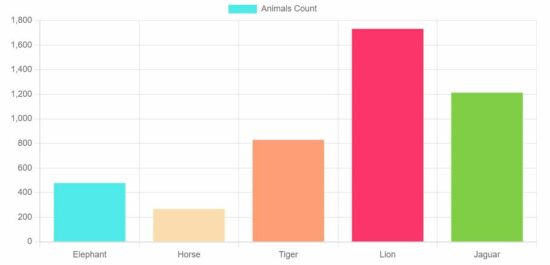
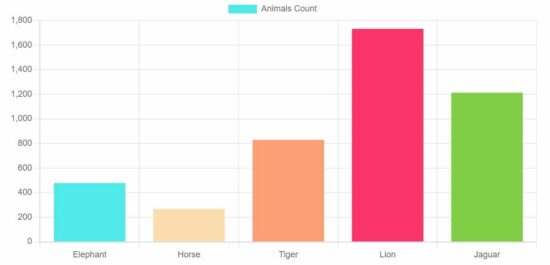
This example sets the chart parameters to the ChartJS data and the options array and displays the following bar chat to the browser.

This is a very easy client-side solution to display professional graphical representation in the form of a bar chart.

You can simply use this code in your project by tweaking the data points slightly.
Example 2: Horizontal bar chart

This library supports creating both vertical and horizontal bar charts. But, the default is the vertical bar chart.

In this example, it creates a horizontal bar chart using the ChartJS plugin.

For the vertical or horizontal bar charts, the direction depends on the indexAxis option.

This example sets indexAxis=’y’ to display the bars horizontally.

<!DOCTYPE html>
<html>
<head>
<title>Chart JS Horizontal Bar Chart Example</title>
<link rel='stylesheet' href='style.css' type='text/css' />
</head>
<body> <div class="phppot-container"> <h1>Chart JS Horizontal Bar Chart Example</h1> <div> <canvas id="horizontal-bar-chart"></canvas> </div> </div> <script src="https://cdn.jsdelivr.net/npm/[email protected]/dist/chart.umd.min.js"></script> <script> new Chart(document.getElementById("horizontal-bar-chart"), { type: 'bar', data: { labels: ["Elephant", "Horse", "Tiger", "Lion", "Jaguar"], datasets: [{ label: "Animals count", backgroundColor: ["#51EAEA", "#FCDDB0", "#FF9D76", "#FB3569", "#82CD47" ], data: [478, 267, 829, 1732, 1213] }] }, options: { indexAxis: 'y', legend: { display: false }, title: { display: true, text: 'Chart JS Horizontal Bar Chart Example' } } }); </script>
</body>
</html>

Output:

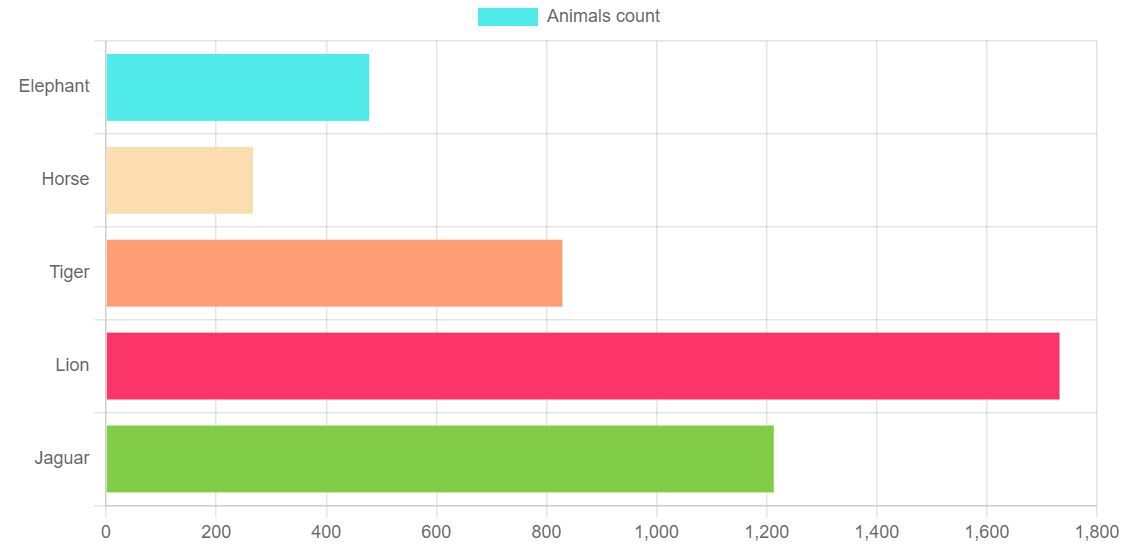
This output screenshot plots the bar chart data index on the ‘y’ axis and has the readings on the ‘x-axis.
Previously, we used this JS library to create a pie chart using this ChartJS library. But, it is not supporting to display of 3D pie charts. See the linked article that uses Google charts for creating the 3D pie chart.

Example 3: Grouped bar chart

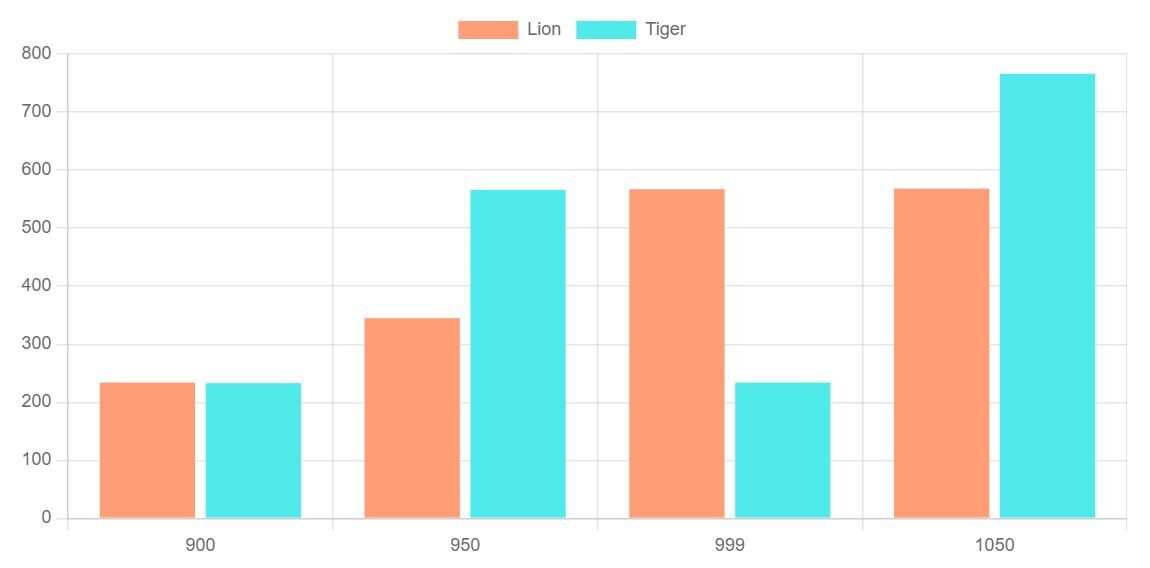
Grouped bar charts are useful for showing a comparative reading.

<!DOCTYPE html>
<html>
<head>
<title>Chart JS Grouped Bar Chart Example</title>
<link rel='stylesheet' href='style.css' type='text/css' />
</head>
<body> <div class="phppot-container"> <h1>Chart JS Grouped Bar Chart Example</h1> <div> <canvas id="bar-chart"></canvas> </div> </div> <script src="https://cdn.jsdelivr.net/npm/[email protected]/dist/chart.umd.min.js"></script> <script> new Chart(document.getElementById("bar-chart"), { type: 'bar', data: { labels: ["900", "950", "999", "1050"], datasets: [{ label: "Lion", backgroundColor: "#FF9D76", data: [234, 345, 567, 568] }, { label: "Tiger", backgroundColor: "#51EAEA", data: [233, 566, 234, 766] }] }, options: { legend: { display: false }, title: { display: true, text: 'Chart JS Grouped Bar Chart Example' } } }); </script>
</body>
</html>

Output:

It displays the record of two animals’ counts at a particular point. This will help compare the readings of two or more indexes.
ChartJS type parameter

ChartJS is a dependable JS library to create and display graphs on a webpage.

In a previous tutorial, we have seen how to create a line chart using this ChartJS library.

Also, it supports generating more types of charts. The type parameter is used to define the type of the chart.

The dataset and the options definition may vary based on the type of chart.
Download

↑ Back to Top

Posted on Leave a comment

jsPDF HTML Example with html2canvas for Multiple Pages PDF

by Vincy. Last modified on December 9th, 2022.

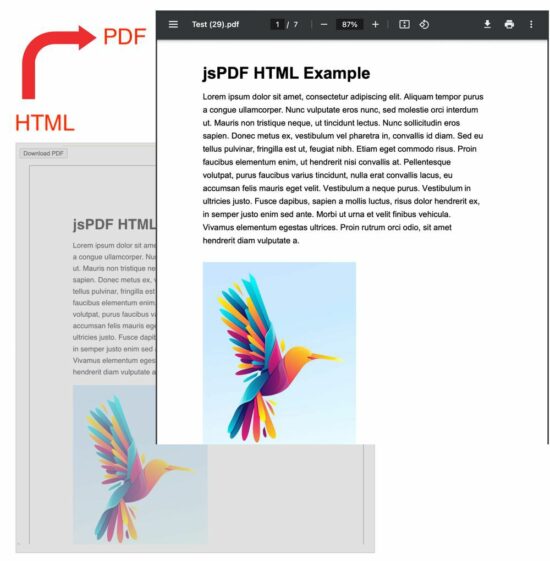
The jsPDF with html2canvas library is one of the best choices which gives the best output PDF from HTML.

You need to understand the dependent libraries to get better out of it. Effort-wise it is easier to create a PDF from HTML.

Before getting into the theory part, I want to give the solution directly to save your time :-). Then, I will highlight the area to strengthen the basics of jsPDF and html2canvas.

Quick solution

window.jsPDF = window.jspdf.jsPDF;
function generatePdf() { let jsPdf = new jsPDF('p', 'pt', 'letter'); var htmlElement = document.getElementById('doc-target'); // you need to load html2canvas (and dompurify if you pass a string to html) const opt = { callback: function (jsPdf) { jsPdf.save("Test.pdf"); // to open the generated PDF in browser window // window.open(jsPdf.output('bloburl')); }, margin: [72, 72, 72, 72], autoPaging: 'text', html2canvas: { allowTaint: true, dpi: 300, letterRendering: true, logging: false, scale: .8 } }; jsPdf.html(htmlElement, opt);
}

View Demo

jspdf html example

Steps to create the HTML example of generating a Multi-page PDF

This JavaScript imports the jsPDF and loads the html2canvas libraries. This example approaches the implementation with the following three steps.

  1. It gets the HTML content.
  2. It sets the html2canvas and jsPDF options of PDF display properties.
  3. It calls the jsPDF .html() function and thereby invokes a callback to output the PDF.

In a previous code, we have seen some small examples of converting HTML to PDF using the jsPDF library.

HTML code for Multi-page PDF content

This example HTML has the content target styled with internal CSS properties. These styles are for setting fonts, and spacing while converting this HTML to PDF.

The #doc-target is the PDF’s content target in this HTML. But, the #outer is the outer container to take care of the UI perception.

That means the PDF will reflect the styles from the #doc-target level of the HTML DOM. The #outer is for synchronizing the UI preview and the PDF result for the sake of the perception.

If you want to show a preview before PDF generation, there is an example for it before generating an invoice PDF.

These styles are

<HTML>
<HEAD> <TITLE>jsPDF HTML Example with html2canvas for Multiple Pages PDF</TITLE> <style> #doc-target { font-family: sans-serif; -webkit-font-smoothing: antialiased; color: #000; line-height: 1.6em; margin: 0 auto; } #outer { padding: 72pt 72pt 72pt 72pt; border: 1px solid #000; margin: 0 auto; width: 550px; } </style>
</HEAD>
<BODY> <div id="container"> <p> <button class="btn" onclick="generatePdf()">Download PDF</button> </p> <div id="outer"> <div id="doc-target"> <h1>jsPDF HTML Example</h1> <div id="lipsum"> <p> Lorem ipsum dolor sit amet, consectetur adipiscing elit. Aliquam tempor purus a congue ullamcorper. Nunc vulputate eros nunc, sed molestie orci interdum ut. Mauris non tristique neque, ut tincidunt lectus. Nunc sollicitudin eros sapien. Donec metus ex, vestibulum vel pharetra in, convallis id diam. Sed eu tellus pulvinar, fringilla est ut, feugiat nibh. Etiam eget commodo risus. Proin faucibus elementum enim, ut hendrerit nisi convallis at. Pellentesque volutpat, purus faucibus varius tincidunt, nulla erat convallis lacus, eu accumsan felis mauris eget velit. Vestibulum a neque purus. Vestibulum in ultricies justo. Fusce dapibus, sapien a mollis luctus, risus dolor hendrerit ex, in semper justo enim sed ante. Morbi ut urna et velit finibus vehicula. Vivamus elementum egestas ultrices. Proin rutrum orci odio, sit amet hendrerit diam vulputate a. </p> </div> </div> </div> </div> <script src="https://cdnjs.cloudflare.com/ajax/libs/jspdf/2.5.1/jspdf.umd.min.js"></script> <script src="https://cdnjs.cloudflare.com/ajax/libs/html2canvas/1.4.1/html2canvas.min.js" integrity="sha512-BNaRQnYJYiPSqHHDb58B0yaPfCu+Wgds8Gp/gU33kqBtgNS4tSPHuGibyoeqMV/TJlSKda6FXzoEyYGjTe+vXA==" crossorigin="anonymous" referrerpolicy="no-referrer"></script>
</BODY>
</HTML>

JavaScript jsPDF options for getting a multi-page PDF

In this example code, the JavaScript jsPDF code sets some options or properties. These are required for the below purposes

  • It sets the PDF content’s display properties
  • It defines the callback function to save or open the output PDF.

The below list has a short description of each option and its properties used in this example.

  • callback – It is a client-side method that is invoked when the output PDF is ready.
  • margin – It is the jsPDF option to specify the top, right, bottom and left margins of the PDF.
  • autoPaging – It is required when creating a multi-page PDF from HTML with the auto page break.
  • html2canvas – The jsPDF depends on html2canvas library. Knowing how to use these properties will help to get a satisfactory PDF output.
    • allowTaint – It allows the cross-origin images to taint the canvas if it is set as true. The default is false.
    • dpi – It is dots per inch. Giving 300 will be good which is a printing quality.
    • letterRendering – It allows rendering the letter properly with specified or supported fonts.
    • logging – It writes a log to the developer’s console while creating a PDF. The default is true, but this example disables it.
    • scale – Without specifying this option, it takes the browser’s device pixel ratio.

More references for the available options of creating a full-fledged jsPDF example

These are the library documentation links that guide to creating PDFs from HTML.

  1. jsPDF core inbuilt
  2. jsPDF html.js plugin
  3. Options – html2canvas

The jsPDF core alone has many features to create PDF documents on the client side. But, for converting HTML to a multi-page PDF document, the core jsPDF library is enough.

The latest version replaces the fromHTML plugin with the html.js plugin to convert HTML to PDF.

Above all the jsPDF depends on html2canvas for generating a PDF document. It hooks the html2canvas by supplying enough properties for creating a PDF document.

We used the html2canvas library to capture a screenshot of a webpage. It is a reputed and dependable library to generate and render canvas elements from HTML.

View DemoDownload

↑ Back to Top

Posted on Leave a comment

Chart JS Pie Chart Example

by Vincy. Last modified on December 7th, 2022.

In this tutorial, we are going to learn how to create a pie chart using JavaScript libraries. We have used Chart.js library for the generating the pie charts. As an alternate option, I have also presented a 3d pie chart example using Google charts library.

Let us see the following examples of creating a pie chart using JavaScript.

  • Quick example – Simple pie chart example via ChartJS.
  • 3D pie chart with Google Charts library.
  • Responsive ChartJS pie chart.

Quick example – Simple pie chart example via ChartJS

<!DOCTYPE html>
<html>
<head>
<title>Chart JS Pie Chart</title>
<link rel='stylesheet' href='style.css' type='text/css' />
</head>
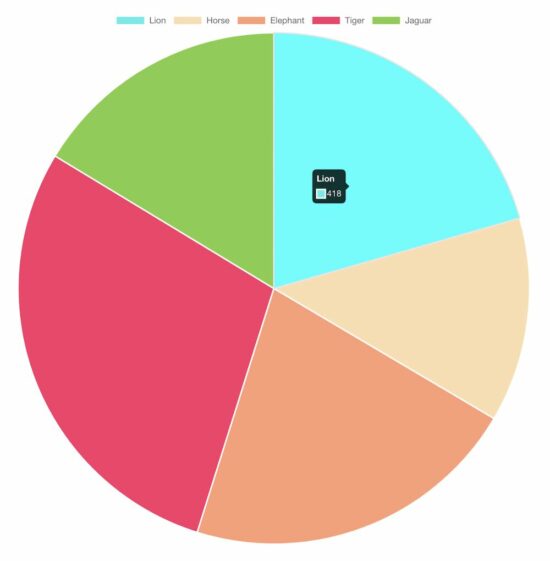
<body> <div class="phppot-container"> <h1>Responsive Pie Chart</h1> <div> <canvas id="pie-chart"></canvas> </div> </div> <script src="https://cdn.jsdelivr.net/npm/[email protected]/dist/chart.umd.min.js"></script> <script> new Chart(document.getElementById("pie-chart"), { type : 'pie', data : { labels : [ "Lion", "Horse", "Elephant", "Tiger", "Jaguar" ], datasets : [ { backgroundColor : [ "#51EAEA", "#FCDDB0", "#FF9D76", "#FB3569", "#82CD47" ], data : [ 418, 263, 434, 586, 332 ] } ] }, options : { title : { display : true, text : 'Chart JS Pie Chart Example' } } }); </script>
</body>
</html>

Creating a ChartJS pie chart is a three-step process as shown below.

  1. Add the ChartJS library include to the head section of your HTML.
  2. Add a canvas element to the HTML.
  3. Add the ChartJS class initiation and invoking script before closing the HTML body tag.

About the ChartJS pie chart script

The script sets the following properties to initiate the ChartJS library.

  • type – The type of the chart supported by the ChartJS library.
  • data – It sets the chart labels and datasets. The dataset contains the data array and the display properties.
  • options – It sets the chart title text and its display flag as a boolean true to show it on the browser.

Output:

chartjs pie chart

In a previous tutorial, we have seen the various ways of creating line charts using the Chart JS library.

View Demo

Creating 3D pie chart

There is no option for a 3D pie chart using chart JS. For those users who have landed here looking for a 3D pie chart, you may try Google Charts.

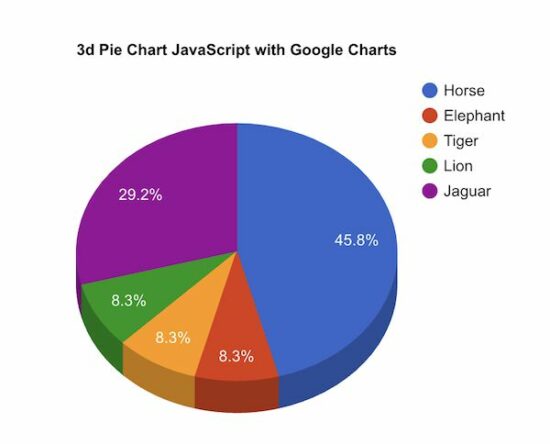
This example uses Google Charts to create a 3D pie chart for a webpage. In a previous code, we use Google Charts to render a bar chart to show students’ attendance statistics.

The Google Charts JavaScript code prepares the array of animal distribution data. This array is for sending it to the chart data table which helps to draw the pie chart.

The Google Charts library accepts the is3D with a boolean true to output a 3D pie chart.

It creates a chart visualization object with the reference with respect to the UI element target. Then, it calls the Google Charts library function to draw and render the chart.

<!DOCTYPE html>
<html>
<head>
<title>3d Pie Chart JavaScript with Google Charts</title>
<link rel='stylesheet' href='style.css' type='text/css' /> <script type="text/javascript" src="https://www.gstatic.com/charts/loader.js"></script>
<script type="text/javascript"> google.charts.load("current", { packages : [ "corechart" ] }); google.charts.setOnLoadCallback(drawChart); function drawChart() { var data = google.visualization.arrayToDataTable([ [ 'Animal', 'Distribution' ], [ 'Horse', 11 ], [ 'Elephant', 2 ], [ 'Tiger', 2 ], [ 'Lion', 2 ], [ 'Jaguar', 7 ] ]); var options = { title : '3d Pie Chart JavaScript with Google Charts', is3D : true, }; var chart = new google.visualization.PieChart(document .getElementById('3d-pie-chart')); chart.draw(data, options); }
</script>
</head>
<body> <div class="phppot-container"> <h1>3d Pie Chart JavaScript with Google Charts</h1> <div id="3d-pie-chart" style="width: 700px; height: 500px;"></div> </div>
</body>
</html>

3d pie chart

Responsive pie chart using Chart JS

The Chart JS library provides JavaScript options to make the output pie chart responsive.

This example script uses those options to render a responsive pie chart in a browser.

The JavaScript code to render a responsive pie chart is the same as we have seen in the quick example above.

The difference is nothing but to set responsive: true in the ChartJS options properties.

If you want to create a responsive chart using Google Charts, then the linked article has an example.

<!DOCTYPE html>
<html>
<head>
<title>Responsive Pie Chart</title>
<link rel='stylesheet' href='style.css' type='text/css' />
<meta name="viewport" content="width=device-width, initial-scale=1">
</head>
<body> <div class="phppot-container"> <h1>Responsive Pie Chart</h1> <div> <canvas id="pie-chart"></canvas> </div> </div> <script src="https://cdn.jsdelivr.net/npm/[email protected]/dist/chart.umd.min.js"></script> <script> new Chart(document.getElementById("pie-chart"), { type : 'pie', data : { labels : [ "Lion", "Horse", "Elephant", "Tiger", "Jaguar" ], datasets : [ { backgroundColor : [ "#51EAEA", "#FCDDB0", "#FF9D76", "#FB3569", "#82CD47" ], data : [ 418, 263, 434, 586, 332 ] } ] }, options : { title : { display : true, text : 'Responsive Pie Chart' }, responsive : true } }); </script>
</body>
</html>

View DemoDownload

↑ Back to Top

Posted on Leave a comment

phpMyAdmin – How to Import a Database?

by Vincy. Last modified on December 5th, 2022.

In this tutorial, we are going to learn how to import MySQL database using phpMyAdmin. There are two ways to do the import via this PHP application.

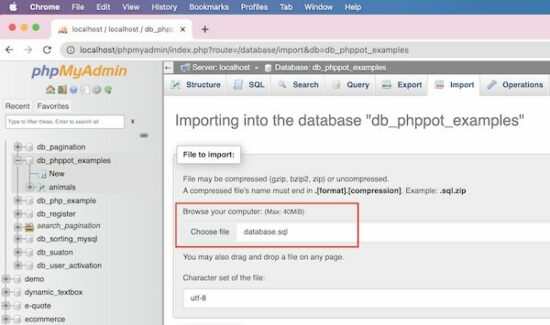
  1. Go to the “Import” tab in the phpMyAdmin and upload a file(SQL, CSV …) source that contains the database dumb.
  2. Choose a database and drag and drop the import file to the phpMyAdmin interface.

How to import?

Open the phpMyAdmin application and create a connection by logging in with the host, user and password. Then, follow the below steps to import a database.

1) Choose the “Database” link and create a new or select an existing database. In a previous tutorial, we have seen the possible options of creating a database using phpMyAdmin.

create database

2) Choose the file in .sql (or other phpMyAdmin-supported) format.

choose import file

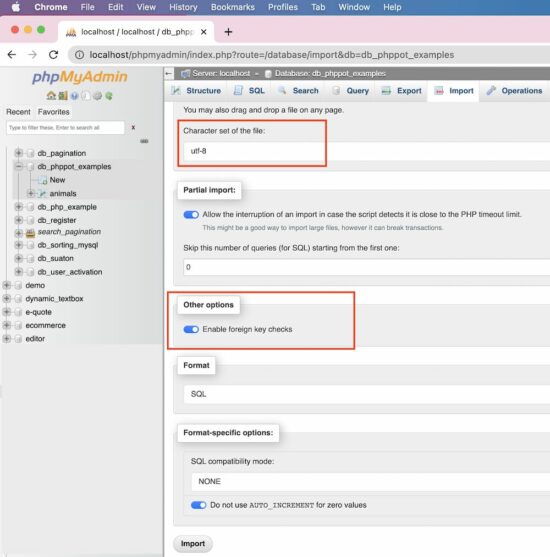
3) [optional] Choose char-set, SQL compatibility modes and other options like,

  • Foreign key checks.
  • Partial import.

phpmyadmin import options

Click “Go” to complete the import.

Import CSV

If you have the SQL dumb in a form of a CSV file, the phpMyAdmin allows that format to import.

Change the format to the CSV from the default format. The SQL is the default format that the phpMyAdmin populates under the “Format” section.

It is suitable to import a database containing a single table. If the import file contains multiple tables then the import will merge all into one.

It creates auto-generated columns like COL1, COL2… and stores the other comma-separated values as data.

Note the following CSV format to import a database table.

"id","question","answer" "1"," What are the widely used array functions in PHP?","Answer1" "2","How to redirect using PHP?","Answer2" "3"," Differentiate PHP size() and count():","Answer3" "4","What is PHP?","Answer4" "5","What is php.ini?","Answer5"

Import large SQL file

Note the maximum file size allowed to upload via the phpMyAdmin application. It is near the “Choose File” option on the Import page.

If the import file is too large, then it interrupts to skip the number of queries during the import.

It is better to process import via Terminal if the import file exceeds the allowed limit. It will prevent the data inconsistency that may occur because of the partial import.

Note the below Terminal command to process importing larger SQL files.

#path-to-mysql#mysql -u root -p #database_name# < #path-of-the-sql-file#

Replace the following variable in the above command

  • #path-to-mysql# – Path where the MySQL is. Example: /Applications/XAMPP/bin/mysql
  • #database_name# – The target database where the import is going to happen.
  • #path-of-the-sql-file# – The path of the source SQL to import. Example: /Users/vincy/Desktop/db_phppot_example.sql

The command line execution is also used to connect the remote server. It is in case of facing restrictions to access a remote MySQL server via phpMyAdmin.

Features of the phpMyAdmin Import

The phpMyAdmin “Import” functionality provides several features.

  • It allows the import of files in the following formats. The default format is SQL.
    • CSV
    • ESRI shape file
    • MediaWiki table
    • OpenDocument spreadsheet
    • SQL
    • XML
  • It allows choosing character sets and SQL compatibility modes.
  • It allows partial imports by allowing interruptions during the import of larger files.

Things to remember

When you import a database or table certain things to remember.

Database resource “Already exists” error

This error will occur if the importing file contains statements of existing resources.

Example:
If the importing file has the query to create an existing table, then phpMyAdmin will show this error.

So, it is important to clean up the existing state before importing a database to avoid this problem.

Access denied error

If the users have no permission to import or create databases/tables, then it will return this error.

If the user can import and can’t create tables, the file must contain allowed queries only.

Note: If you are importing via remote access, give the right credentials to connect. Make sure about the user access privileges to import or related operations.

↑ Back to Top

Posted on Leave a comment

Chart JS Line Chart Example

by Vincy. Last modified on December 1st, 2022.

It is one of the free and best JS libraries for charts. It supports rendering more types of chart in client side.

In this tutorial, we will see examples of rendering different types of line charts using the Chart.js library.

Quick example

The Chart JS library requires 3 things to be added to the webpage HTML to render the graph.

  1. Step 1: Include the Chart JS library file to the target HTML page.
  2. Step 2: Create a HTML canvas element to render the line chart.
  3. Step 3: Initiate the Chart JS library function with the data and other required options.
<canvas id="line-chart"></canvas>
<script src="https://cdn.jsdelivr.net/npm/[email protected]/dist/chart.umd.min.js"></script>
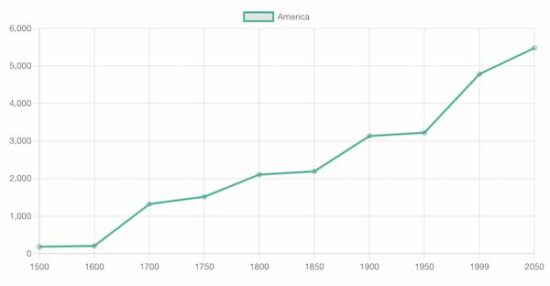
<script> new Chart(document.getElementById("line-chart"), { type : 'line', data : { labels : [ 1500, 1600, 1700, 1750, 1800, 1850, 1900, 1950, 1999, 2050 ], datasets : [ { data : [ 186, 205, 1321, 1516, 2107, 2191, 3133, 3221, 4783, 5478 ], label : "America", borderColor : "#3cba9f", fill : false }] }, options : { title : { display : true, text : 'Chart JS Line Chart Example' } } });
</script>

The above script refers to the target canvas element on initiating the library class.

It pinpoints the graph readings with data properties. In addition, it specifies the line label, and border color. This quick example will output the following line chart to the browser.

Output:

chartjs line chart output

View Demo

A line chart is the best way to display analytics in a form of a catchy line graph. It also helps to compare one or more analytical lines.

In previous tutorials, we used different libraries to render different types of charts on a web page. See the below links if you want to refer.

More examples of line charts using Chart JS

The Chart JS supports creating a variety of line charts to plot the different perspectives of the data points.

  1. It supports drawing multiple lines of data points in a line chart which shows comparisons of data.
  2. It supports creating a linear line chart by applying formulas with x, and y coordinates.
  3. Rending sin waves in a Chart JS line chart with JS Math functions.

In the below sections, we will see examples of creating the following type of line charts using the Chart JS library.

  1. Multiple lines in a line chart.
  2. Gridlines – Line chart

Chart JS Multiple Lines Example

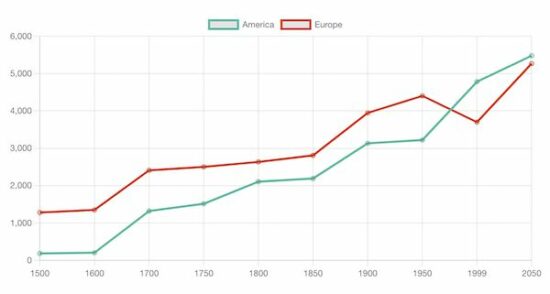
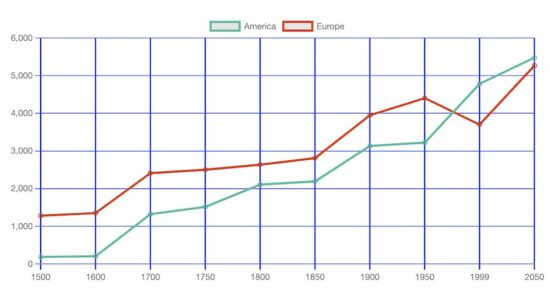
It outputs a Chart JS graph with two line charts. The script sets the dataset array for the two lines to be displayed on the graph.

The dataset is configured with the following display properties apart from the data points of the line chart.

  • label – to show with a tooltip on hovering a data point.
  • borderColor – Line border color.
  • fill – to enable or disable highlighting the chart area.

In this multi-line chart, the fill property is set to false, since the two chart areas overlap each other.

<!DOCTYPE html>
<html>
<head>
<title>Chart JS Multiple Lines Example</title>
<link rel='stylesheet' href='style.css' type='text/css' />
</head>
<body> <div class="phppot-container"> <h1>Chart JS Multiple Lines Example</h1> <div> <canvas id="line-chart"></canvas> </div> </div> <script src="https://cdn.jsdelivr.net/npm/[email protected]/dist/chart.umd.min.js"></script> <script> new Chart(document.getElementById("line-chart"), { type : 'line', data : { labels : [ 1500, 1600, 1700, 1750, 1800, 1850, 1900, 1950, 1999, 2050 ], datasets : [ { data : [ 186, 205, 1321, 1516, 2107, 2191, 3133, 3221, 4783, 5478 ], label : "America", borderColor : "#3cba9f", fill : false }, { data : [ 1282, 1350, 2411, 2502, 2635, 2809, 3947, 4402, 3700, 5267 ], label : "Europe", borderColor : "#e43202", fill : false } ] }, options : { title : { display : true, text : 'Chart JS Multiple Lines Example' } } }); </script>
</body>
</html>

chartjs multi line chart

Chart JS Gridlines – Line Chart Example

This JS script configures the same settings like as the above multi-line chart example. In addition, it configures the Chart JS scale properties to draw the grid in the x and y-axis.

The following display properties are used to show the grid in both axis of the. Chart JS graph.

  • display – a boolean value to enable or disable grid display on the chart.
  • color – the grid line border-color.
  • lineWidth – the stroke size of the grid line.
<!DOCTYPE html>
<html>
<head>
<title>Chart JS Gridlines - Line Chart Example</title>
<link rel='stylesheet' href='style.css' type='text/css' />
</head>
<body> <div class="phppot-container"> <h1>Chart JS Gridlines - Line Chart Example</h1> <div> <canvas id="line-chart"></canvas> </div> </div> <script src="https://cdn.jsdelivr.net/npm/[email protected]/dist/chart.umd.min.js"></script> <script> new Chart( document.getElementById("line-chart"), { type : 'line', data : { labels : [ 1500, 1600, 1700, 1750, 1800, 1850, 1900, 1950, 1999, 2050 ], datasets : [ { data : [ 186, 205, 1321, 1516, 2107, 2191, 3133, 3221, 4783, 5478 ], label : "America", borderColor : "#3cba9f", fill : false }, { data : [ 1282, 1350, 2411, 2502, 2635, 2809, 3947, 4402, 3700, 5267 ], label : "Europe", borderColor : "#e43202", fill : false } ] }, options : { title : { display : true, text : 'Chart JS Gridlines - Line Chart Example' }, scales : { x : { grid : { display : true, color: "#0046ff", lineWidth: 2 } }, y : { grid : { display : true, color: "#0046ff" } } } } }); </script>
</body>
</html>

chartjs grid line chart

More details about the basics of the Chart JS library

Knowing more about this very good JS library will be useful to use this graph confidently in production.

Without specifying dataset options or display properties, the default options will be applied. The following list shows the level of Chart.js options that will be resolved about the context. Read more about option resolution documentation provided by the Chart JS library.

Dataset and element properties with respect to the data and options

  • data.datasets[index] – options for this dataset only.
  • options.datasets.line – options for all line datasets.
  • options.elements.line – options for all line elements.
  • options.elements.point – options for all point elements.
  • options – options for the whole chart.

Display properties

  • backgroundColor
  • borderColor
  • borderWidth
  • fill
  • hoverBorderColor
  • label
  • pointStyle
  • xAxisID
  • yAxisID

Custom options

The Chart JS accepts a custom callback to be called on rendering each data point.

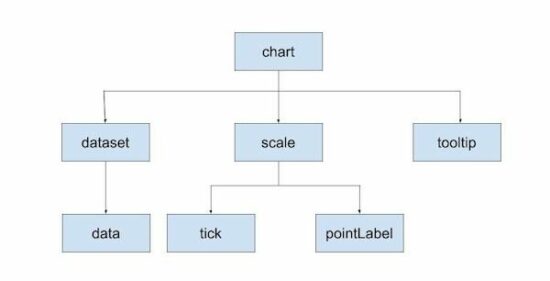
The callback function accepts the context reference to get the UI scope. The context hierarchy is shown in the below diagram.

chartjs context level

Indexable options

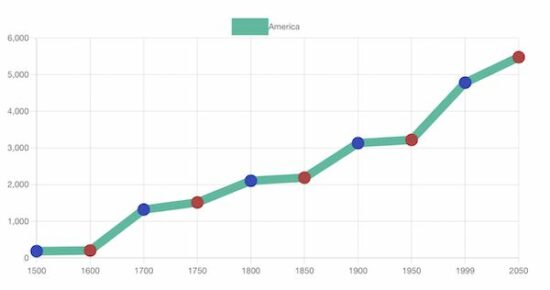
Indexable options are used to define properties for the chart.js data item at a particular index.

It has a mapping array to link a property at a particular index to the data point of the chart at the same index.

If the array options property array length is less than the data array, then the property will be looped over.

The below code contains the options of setting line chart point color. It has only three pointBackgroundColor in the array. It will loop over to the data array of 10 elements.

datasets : [{ data : [ 186, 205, 1321, 1516, 2107, 2191, 3133, 3221, 4783, 5478 ], label : "America", borderColor : "#3cba9f", pointBackgroundColor: [ '#354abb', '#bb3c43' ], pointBorderColor: [ '#354abb', '#bb3c43' ], fill: false, borderWidth: 12
}]

chartjs index option

Other chart types supported by the Chart.js library

The Chart JS library also supports creating other types of charts listed below. Let us see the example of creating a few of the below charts in the future.

  1. Area chart
  2. Bar chart
  3. Bubble chart
  4. Doughnut chart
  5. Line chart
  6. Mixed chart
  7. Polar Area chart
  8. Radar chart
  9. Scatter chart

View DemoDownload

↑ Back to Top

Posted on Leave a comment

phpMyAdmin – How to Create a Database?

by Vincy. Last modified on November 22nd, 2022.

PHPMyAdmin is one of the widely used database clients for PHP MySQL developers. It provides a simple user interface that can be easily adapted by beginners.

We can blindly say that PHPMyAdmin as the de-facto database client used by PHP developers for MySQL / MariaDB. It is hugely popular and that is because of its simplicity and ease of use.

It allows many database operations. Example,

  1. Creating databases and the corresponding tables.
  2. Adding and managing data.
  3. Altering the existing structure and attributes defined.
  4. Import, and export operations.

In this article, we will see how to create a MySQL database using PHPMyAdmin.

How to create a database?

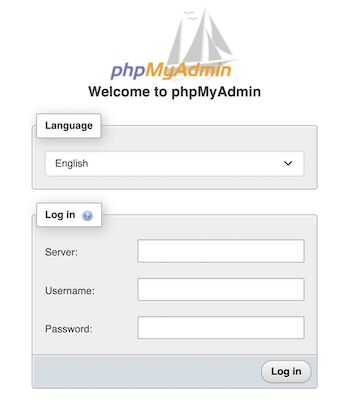
First login to the PHPMyAdmin client to go to the database control panel.

phpmyadmin login

After login, it redirects to the PHPMyAdmin control panel which allows doing the following.

  1. To manage and manipulate MySQL database assets.
  2. To perform CRUD or other database-related operations.

phpmyadmin create database

If you want to see code to perform the MySQL database CRUD operations from a PHP application, the linked article has the source,

Ways to create a database using PHPMyAdmin

There are 4 ways to create a new MySQL database using the PHPMyAdmin client interface.

  1. Via the left panel navigation.
  2. Via the header tab control navigation.
  3. By executing a CREATE statement via the SQL tab.
  4. By importing a CREATE statement SQL script via the Import tab.

1. Create database via left panel

In the PHPMyAdmin left panel, it contains a New link. It redirects to the page to create a new database.

2. Create database via header tab

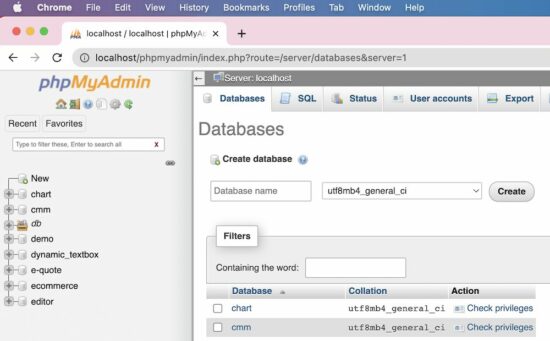
The PHPMyAdmin UI shows tabs like Database, Import, Export and more. The Database tab redirects to show a list of existing databases with an option to create a new one.

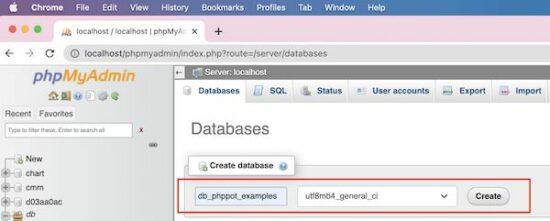
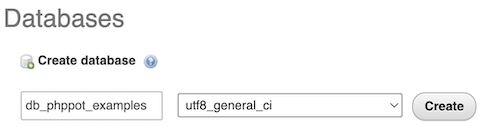
Both of these navigation controls will display the UI as shown in the figure.

database create form

The database create-form shows two fields.

  1. To type the name of the database to be created.
  2. To choose a collation that is encoding type.

In the above screenshot, the utf8_unicode_ci collation is selected.

The other two methods are for the one who has the SQL script for creating a new MySQL database.

Sometimes the database SQL will be provided. In that case, it is not required to use the interface to input the database name and the collation.

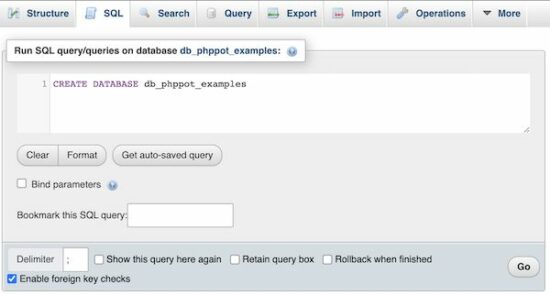
3. Create database via SQL tab, by running a CREATE SQL query

Choose the SQL tab from the PHPMyAdmin header. It will show a textarea to paste the CREATE database query.

Then, execute the entered query to see the created database among the existing list.

phpmyadmin sql tab

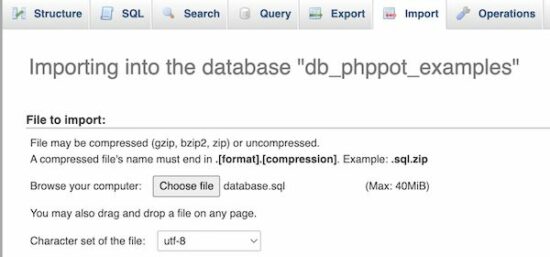
4. Create database via Import tab, by uploading a SQL script

If you have the database CREATE statement Choose the Import tab from the PHPMyAdmin header. Then browse the SQL script that contains the CREATE statement.

Then click the “Go” button to process the import. It will result in displaying a new database imported.

phpmyadmin import database

We have seen PHP code for importing Excel data into a database using a custom code.

After creating a MySQL database

After creating a MySQL database using PHPMyAdmin, the next job is to start adding the tables.

The PHPMyAdmin has the option to “Check privileges” to map roles and MySQL database operations.

But, this is a rarely used feature. If the database is associated with more than one user, then this feature will be used.

How to create tables in a database?

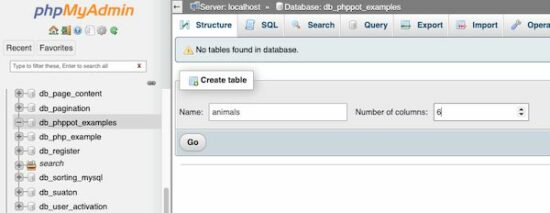
After creating a database, the PHPMyAdmin shows a form to a create table. That form show fields to enter the table name and the number of columns of the table.

create database table

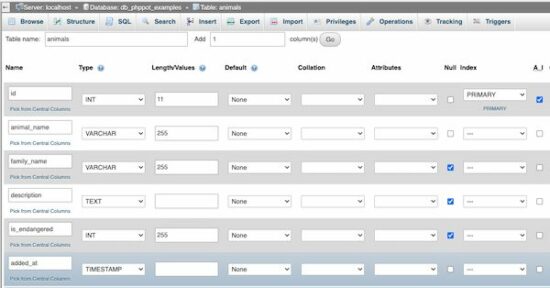
After specifying the table name and the “Number of columns”, the PHPMyAdmin panel will show inputs to add the table column specification.

See the following screen that is added with the column names with their corresponding types and more details.

create table column

Add user accounts and set privileges

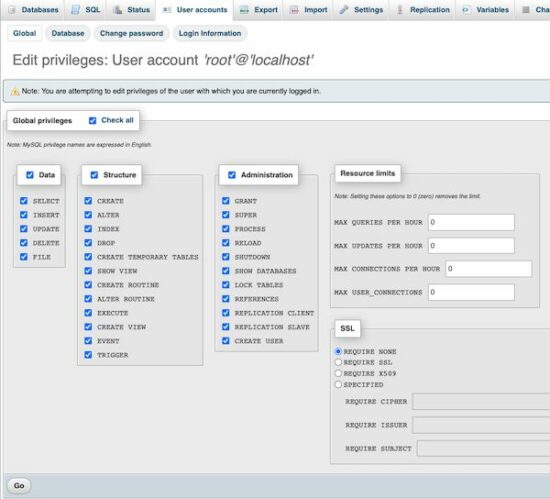
Select the “User accounts” tab to see the number of existing user accounts. The PHPMyAdmin also allows adding a new user via the interface.

The “Create user” page will have the option to select the user account details and set the permission to perform operations like,

  • CRUD operations on the Data.
  • CREATE, ALTER, DROP and more operations on the MySQL database Structure.
  • Access Administration tools.
  • Setting resource limits like making the number of simultaneous connections.

See the screenshot below to allow or deny access permissions of the user created for a MySQL database.

create and set privileges

↑ Back to Top

Posted on Leave a comment

phpMyAdmin – How to Create a Database?

by Vincy. Last modified on November 22nd, 2022.

PHPMyAdmin is one of the widely used database clients for PHP MySQL developers. It provides a simple user interface that can be easily adapted by beginners.

We can blindly say that PHPMyAdmin as the de-facto database client used by PHP developers for MySQL / MariaDB. It is hugely popular and that is because of its simplicity and ease of use.

It allows many database operations. Example,

  1. Creating databases and the corresponding tables.
  2. Adding and managing data.
  3. Altering the existing structure and attributes defined.
  4. Import, and export operations.

In this article, we will see how to create a MySQL database using PHPMyAdmin.

How to create a database?

First login to the PHPMyAdmin client to go to the database control panel.

phpmyadmin login

After login, it redirects to the PHPMyAdmin control panel which allows doing the following.

  1. To manage and manipulate MySQL database assets.
  2. To perform CRUD or other database-related operations.

phpmyadmin create database

If you want to see code to perform the MySQL database CRUD operations from a PHP application, the linked article has the source,

Ways to create a database using PHPMyAdmin

There are 4 ways to create a new MySQL database using the PHPMyAdmin client interface.

  1. Via the left panel navigation.
  2. Via the header tab control navigation.
  3. By executing a CREATE statement via the SQL tab.
  4. By importing a CREATE statement SQL script via the Import tab.

1. Create database via left panel

In the PHPMyAdmin left panel, it contains a New link. It redirects to the page to create a new database.

2. Create database via header tab

The PHPMyAdmin UI shows tabs like Database, Import, Export and more. The Database tab redirects to show a list of existing databases with an option to create a new one.

Both of these navigation controls will display the UI as shown in the figure.

database create form

The database create-form shows two fields.

  1. To type the name of the database to be created.
  2. To choose a collation that is encoding type.

In the above screenshot, the utf8_unicode_ci collation is selected.

The other two methods are for the one who has the SQL script for creating a new MySQL database.

Sometimes the database SQL will be provided. In that case, it is not required to use the interface to input the database name and the collation.

3. Create database via SQL tab, by running a CREATE SQL query

Choose the SQL tab from the PHPMyAdmin header. It will show a textarea to paste the CREATE database query.

Then, execute the entered query to see the created database among the existing list.

phpmyadmin sql tab

4. Create database via Import tab, by uploading a SQL script

If you have the database CREATE statement Choose the Import tab from the PHPMyAdmin header. Then browse the SQL script that contains the CREATE statement.

Then click the “Go” button to process the import. It will result in displaying a new database imported.

phpmyadmin import database

We have seen PHP code for importing Excel data into a database using a custom code.

After creating a MySQL database

After creating a MySQL database using PHPMyAdmin, the next job is to start adding the tables.

The PHPMyAdmin has the option to “Check privileges” to map roles and MySQL database operations.

But, this is a rarely used feature. If the database is associated with more than one user, then this feature will be used.

How to create tables in a database?

After creating a database, the PHPMyAdmin shows a form to a create table. That form show fields to enter the table name and the number of columns of the table.

create database table

After specifying the table name and the “Number of columns”, the PHPMyAdmin panel will show inputs to add the table column specification.

See the following screen that is added with the column names with their corresponding types and more details.

create table column

Add user accounts and set privileges

Select the “User accounts” tab to see the number of existing user accounts. The PHPMyAdmin also allows adding a new user via the interface.

The “Create user” page will have the option to select the user account details and set the permission to perform operations like,

  • CRUD operations on the Data.
  • CREATE, ALTER, DROP and more operations on the MySQL database Structure.
  • Access Administration tools.
  • Setting resource limits like making the number of simultaneous connections.

See the screenshot below to allow or deny access permissions of the user created for a MySQL database.

create and set privileges

↑ Back to Top

Posted on Leave a comment

Convert JSON String to JavaScript Object

by Vincy. Last modified on November 10th, 2022.

The JSON string is a convenient format to transfer data between terminals. Almost all of the API responses you see are in JSON string format.

The JSON string should be parsed to read the data bundled with this string.

JSON.parse function is used to convert a JSON string into a JavaScript object.

Quick example

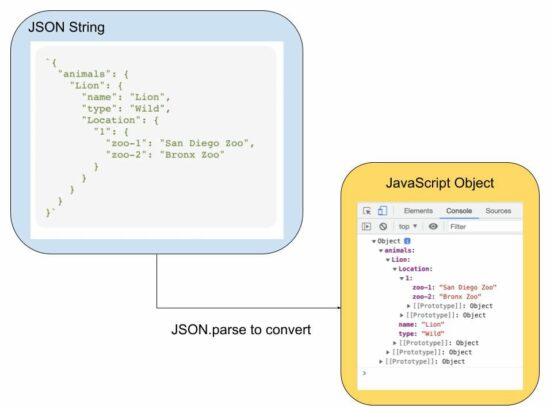
The below quick example has an input JSON string having properties of animals. The properties are stored in a multi-level hierarchy.

The JSON.parse() JS function converts this JSON string input into an object array.

const jsonString = `{ "animals": { "Lion": { "name": "Lion", "type": "Wild", "Location": { "1": { "zoo-1": "San Diego Zoo", "zoo-2": "Bronx Zoo" } } } }
}`; javaScriptObject = JSON.parse(jsonString)
console.log(javaScriptObject);

The above code will log the output of the converted JSON into the browser’s developer console.

Output:

animals: Lion: Location: 1: zoo-1: "San Diego Zoo" zoo-2: "Bronx Zoo" name: "Lion" type: "Wild"

json string to javascript object

The source JSON string can be from many different resources. For example,

  1. It can be stored in the database that is to be parsed.
  2. It can be a response to an API.

The JSON string will contain many types of data like dates, functions and more.

The following examples give code to learn how to convert a JSON string that contains different types of data. In the previous article, we have seen how to convert a JavaScript object to JSON.

How the date in the JSON string will be converted

If the input JSON string contains date values, the JSON.parse() JS function results in a date string.

For example, the date in 2014-11-25 into Tue Nov 25 2014 05:30:00 GMT+0530.

It will be converted later into a JavaScript date object.

// JSON string with date to JavaScript object
const jsonString = '{"animal":"Lion", "birthdate":"2014-11-25", "zoo":"Bronx Zoo"}';
const jsObject = JSON.parse(jsonString);
jsObject.birthdate = new Date(jsObject.birthdate);
console.log(jsObject.birthdate);

Output:

Tue Nov 25 2014 05:30:00 GMT+0530

JSON input script with function to JavaScript object

If a JSON script contains a function as its value, the below code shows how to parse the input JSON. In an earlier tutorial, we have see many functions of JSON handling using PHP.

It applied JSON.parse as usual and get the scope of the function by using JavaScript eval(). The JavaScript object index gets the scope to access the function in the input JSON string.

Note: Using the JS eval() is a bad idea if you are working with sensitive data. So avoid using functions as a string inside a JS JSON input.

// JSON string with a function to JavaScript object and invoke the function
const jsonString = '{"animal":"Lion", "birthdate":"2014-11-25", "id":"function () {return 101;}"}';
const jsObject = JSON.parse(jsonString);
jsObject.id = eval("(" + jsObject.id + ")");
console.log(jsObject.id());
// also be aware that, when you pass functions in JSON it will lose the scope

JSON.parse reviver to convert the date string to a JavaScript object

In a previous example, we parsed the date as a string and then converted it into a Date object.

Instead of converting the resultant Date string into a Date object later, this program uses JSON.parse() with its reviver parameter.

The reviver parameter is a callback function created below to convert the input date into a Date object.

Using this method, the output Javascript object will include the date object as converted by the reviver method.

// JSON string with a date to JavaScript object using the reviver parameter of JSON.parse
const jsonString = '{"animal": "Lion", "birthdate": "2014-11-25", "zoo": "Bronx Zoo"}';
const jsObject = JSON.parse(jsonString, function(key, value) { if (key == "birthdate") { return new Date(value); } else { return value; }
}); jsObject.birthdate = new Date(jsObject.birthdate);
console.log(jsObject.birthdate);

The reviver parameter is optional while using the JSOM.parse function. The callback defined as a reviver will check each item of the input JSON string.

↑ Back to Top

Posted on Leave a comment

JavaScript Confirm Dialog Box with Yes No Alert

by Vincy. Last modified on November 10th, 2022.

confirm() is a well-known JavaScript basic function.

Many user actions need to be confirmed if the change is going to be permanent. For example, the delete operation of CRUD functionality.

It needs to get confirmation from the user before permanently deleting the data.

This tutorial will explain more about this JavaScript basic concept with examples.

Quick example

This quick example shows the JS script to do the following.

  • It shows a confirm box with a consent message passed as an argument to the confirm() function.
  • It handles the yes or no options based on the user’s clicks on the OK or ‘cancel’ button of the confirm box.
if (confirm('Are you sure?')) { //action confirmed console.log('Ok is clicked.');
} else { //action cancelled console.log('Cancel is clicked.');
}

javascript confirm

Key points of javascript confirm box.

The JavaScript confirm box is a consent box to let the user confirm or cancel the recent action.

The Javascript confirm() function accepts an optional message to be shown on the consent box.

It also displays the OK and ‘Cancel’ buttons to allow users to say yes or no about the confirmation consent.

This function returns a boolean true or false based on the button clicks on the confirm dialog box.

Syntax

confirm(message);

Example 2: Show JavaScript confirm box on a button click

This example connects the on-click event and the JS handler created for showing the confirm box.

This JS code contains the HTML to display two buttons “Edit” and “Delete”. Each has the onClick attribute to call the JavaScript custom handler doAction().

This handler shows JavaScript confirm dialog and monitors the users’ option between yes and no. This program logs the user’s action based on the yes or no option.

<button onClick='doAction("Edit", "Are you sure want to edit?");'>Edit</button>
<button onClick='doAction("Delete", "Delete will permanently remove the record. Are you sure?");'>Delete</button>
<script> function doAction(action, message) { if (confirm(message)) { //If user say 'yes' to confirm console.log(action + ' is confirmed'); } else { //If user say 'no' and cancelled the action console.log(action + ' is cancelled'); }
};
</script>

Example 3: Call confirm dialog inline

This calls the confirm() function inline with the HTML onClick attribute.

Most of the time this inline JS of calling confirm dialog is suitable. For example, if no callback has to be executed based on the users’ yes or no option, this method will be useful.

In this example, it gets user confirmation to submit the form to the server side.

<form onSubmit='return confirm("Are you sure you want to send the data")'>
<input type="text" name="q" />
<input type="submit" name="submit" value="Send" />
</form>

Example 4: Pass confirm message using data attribute

This example contains a JS script to map the HTML button’s click event to show the confirmation dialog box.

It minimizes the effort of defining JS functions and calling them with the element to show the JavaScript confirmation.

It simplifies the number of lines in the code. It adds an on-click event listener for each button element shown in the HTML.

It uses JavaScript forEach to get the target button object for this event mapping. On each on-click event, it calls the confirm() function to show the dialog box.

<button data-confirm-message="Are you sure want to edit?">Edit</button>
<button data-confirm-message="Delete will permanently remove the record. Are you sure?">Delete</button>
<script> document.querySelectorAll('button').forEach(function(element) { element.addEventListener('click', function(e) { if(confirm(e.target.dataset.confirmMessage)) { console.log("confirmed"); } });
});
</script>

More about JavaScript confirm box

The JavaScript confirm box is a kind of dialog box. It requires user action to confirm or cancel a recently triggered action. It is the method of the JavaScript window object.

There are more functions in JavaScript to display the dialog with controls. Examples,

  1. alert() – Alert box with an Okay option.
  2. prompt() – Prompt dialog with an input option.

Note:

While displaying the JavaScript dialog box, it stops window propagations outside the dialog.

In general, displaying a dialog window on a web page is not good practice. It will create friction on the end-user side.

We have already seen a custom dialog using jQuery. Let us see how to display the jQuery confirm dialog in the next article. With custom dialog, it has the advantage of replacing the default button controls.
Download
↑ Back to Top

Posted on Leave a comment

How to Read a CSV to Array in PHP

by Vincy. Last modified on November 2nd, 2022.

There are many ways to read a CSV file to an array. Online hosted tools provide interfaces to do this. Also, it is very easy to create a custom user interface for the purpose of reading CSV to the array.

In PHP, it has more than one native function to read CSV data.

  • fgetcsv() – It reads the CSV file pointer and reads the line in particular to the file handle.
  • str_getcsv() -It reads the input CSV string into an array.

This article provides alternate ways of reading a CSV file to a PHP array. Also, it shows how to prepare HTML from the array data of the input CSV.

Quick example

This example reads an input CSV file using the PHP fgetcsv() function. This function needs the file point to refer to the line to read the CSV row columns.

<?php // PHP function to read CSV to array
function csvToArray($csv)
{ // create file handle to read CSV file $csvToRead = fopen($csv, 'r'); // read CSV file using comma as delimiter while (! feof($csvToRead)) { $csvArray[] = fgetcsv($csvToRead, 1000, ','); } fclose($csvToRead); return $csvArray;
} // CSV file to read into an Array
$csvFile = 'csv-to-read.csv';
$csvArray = csvToArray($csvFile); echo '<pre>';
print_r($csvArray);
echo '</pre>';
?>

This program sets the CSV file stream reference and other parameters to read the records in a loop.

The loop iteration pushes the line data into an array. The PHP array push happens using one of the methods we have seen in the linked article.

Save the below comma-separated values to a csv-to-array.csv file. It has to be created as an input of the above program.

csv-to-array.csv

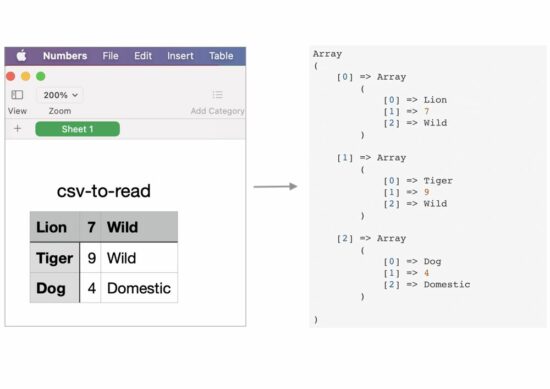
Lion,7,Wild
Tiger,9,Wild
Dog,4,Domestic

Output:

The above program returns the following array after reading the input CSV file data.

Array
( [0] => Array ( [0] => Lion [1] => 7 [2] => Wild ) [1] => Array ( [0] => Tiger [1] => 9 [2] => Wild ) [2] => Array ( [0] => Dog [1] => 4 [2] => Domestic ) )

csv to PHP array

Map str_getcsv() to read CSV and convert it into a PHP array

This program will be suitable if you want to skip the step of writing a loop. It saves the developer’s effort. But the background processing will be the same as the above program.

The PHP file() converts the entire CSV into an array. Then, the array_map sets the str_getcsv() function as a callback to iterate the array of CSV file rows.

The str_getcsv() imports the CSV row data into an array. In a previous article, we have seen about handling CSV file read and other operations like import, and export.

The resultant $csvArray variable will contain the complete CSV data in a multi-dimensional array.

The output of this program will be similar to that of the quick example.

<?php
// a one-line simple option to reade CSV to array
// it uses PHP str_getcsv
$csvArray = array_map('str_getcsv', file('csv-to-read.csv'));
echo '<pre>';
print_r($csvArray);
echo '</pre>';
?>

Convert CSV to Array and then convert array to HTML

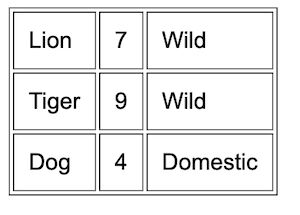
This example will be useful if you want to display the CSV content in the UI in a tabular form.

Mostly, this code must be more useful since it has the possibility of using it in real-time projects. But, the other examples are basics which are also important to learn about reading CSV using PHP.

This code iterates the CSV row and reads the column data using fgetcsv() as did in the quick example.

Then, it forms the HTML table structure using the CSV array data. In a previous tutorial, we saw code to convert an HTML table into an excel.

<?php // PHP script to read CSV and convert to HTML table // create file handle to read CSV file
$csvFile = fopen('csv-to-read.csv', 'r'); if ($csvFile !== FALSE) { echo "<table border=1 cellpadding=10>"; while (($csvArray = fgetcsv($csvFile, 100, ',')) !== FALSE) { echo "<tr>"; for ($i = 0; $i < count($csvArray); $i ++) { echo "<td>" . $csvArray[$i] . "</td>"; } echo "</tr>"; } echo "</table>"; fclose($csvFile);
}
?>

Output:

This program will display the HTML table on the screen. The row data is from the input CSV file.

csv to html
Download
↑ Back to Top