Posted on Leave a comment

4 cool new projects to try in Copr for December 2025

4 package to try from the Copr repos

This article series takes a closer look at interesting projects that recently landed in Copr.

Copr is a build-system for anyone in the Fedora community. It hosts thousands of projects with a wide variety of purposes, targeting diverse groups of users. Some of them should never be installed by anyone, some are already transitioning into the official Fedora repositories, and others fall somewhere in between. Copr allows you to install third-party software not found in the standard Fedora repositories, try nightly versions of your dependencies, use patched builds of your favourite tools to support some non-standard use-cases, and experiment freely.

If you don’t know how to enable a repository or if you are concerned about whether is it safe to use Copr, please consult the project documentation.

Vicinae

Vicinae is a fast application launcher written in C++/QT. Inspired by tool Raycast, it provides instant app and file search and clipboard history. It also includes built-in utilities such as a calculator and web search, along with support for extensions written in TypeScript. It is designed to be highly responsive and native for Wayland environment. Therefore, if you like keeping your hands on the keyboard or want a customizable, extensible launcher for your desktop, Vicinae may be worth trying.

Vicinae launcher in action.

Installation instructions

The repo currently provides vicinae for Fedora 42, 43, and Fedora Rawhide. To install it, use these commands:

sudo dnf copr enable scottames/vicinae
sudo dnf install vicinae

UZDoom

UZDoom is a modern DOOM source port that builds upon classic GZDoom engine, offering hardware-accelerated rendering, an updated scripting system, improved mod support, and high-quality audio playback. At the same time, it maintains compatibility with classic WAD files while making the experience smooth on current systems.

Whether you are playing the original episodes or diving into extensive mod packs, UZDoom offers a convenient way to enjoy them.

Installation instructions

The repo currently provides uzdoom for Fedora 42, 43, and Fedora Rawhide. To install it, use these commands:

sudo dnf copr enable nalika/uzdoom
sudo dnf install uzdoom

Plasma Panel Colorizer

Plasma Panel Colorizer is a widget for KDE Plasma that allows you to customize the panel’s appearance. In addition, it offers options for background tinting, blur, custom opacity levels, shadows, floating panels, or themes that differ from the stock Plasma look. It also includes full blur support and is updated for Plasma 6, making it easy to adjust your panel exactly the way you want.

Different looks you can get with the Plasma Panel Colorizer.

Installation instructions

The repo currently provides plasma-panel-colorizer  for Fedora 42, 43, and Fedora Rawhide. To install it, use these commands:

sudo dnf copr enable peridot-augustus/plasma-panel-colorizer
sudo dnf install plasma-panel-colorizer

sfizz-ui

Sfizz-ui is the graphical interface for the sfizz sampler engine, which is an open-source player for SFZ instrument libraries. The UI provides an accessible way to load SFZ instruments, adjust parameters, and integrate the sampler into your workflow. It also includes plugin support such as LV2 and VST3, making it suitable for music creation in a Linux DAW environment.

For musicians, sound designers, or anyone using SFZ sample libraries, sfizz-ui offers a polished interface.

Installation instructions

The repo currently provides sfizz-ui for Fedora 41, 42, and 43. To install it, use these commands:

sudo dnf copr enable lexridge/sfizz-ui
sudo dnf install sfizz-ui
Posted on Leave a comment

Video content creation with Kdenlive

Fedora Linux packages a suite of graphical software for content creators. This article introduces a use case and suggestions for creating tutorial videos with Kdenlive.

Plan tutorial

A question that you need to address is whether text and images are appropriate to share your knowledge. If you create resources for learners of graphical software, a tutorial video is something to consider.

Review abstract and draft script

An abstract in content writing helps reviewers look for key points of your tutorial. Depending on your workflow, you can submit this abstract to reviewers for comments, questions, or updates.

Once an abstract of the tutorial video is agreed upon by the reviewers, a video script is created and works like a manuscript for your tutorial. Break down process steps into each sequence. Check this link for an example.

Screen recording

Use your preferred recording tool that comes with the desktop environment or enable the ‘Screen Grab’ option in Kdenlive in the ‘View’ menu. Alternatively, you can install OBS Studio.

Kdenlive can process various container formats. You should transcode to a high-quality lossless matroska file (.mkv) that ensures high quality and compression ratio.

Installation

Kdenlive supports Linux, Mac, Windows and FreeBSD, which encourages collaboration among content creators. If you are Linux users, go to the packager manager of your distro to install Kdenlive. If you use Fedora Linux, we recommend the Fedora Linux RPM version or Flatpak.

Set up Kdenlive

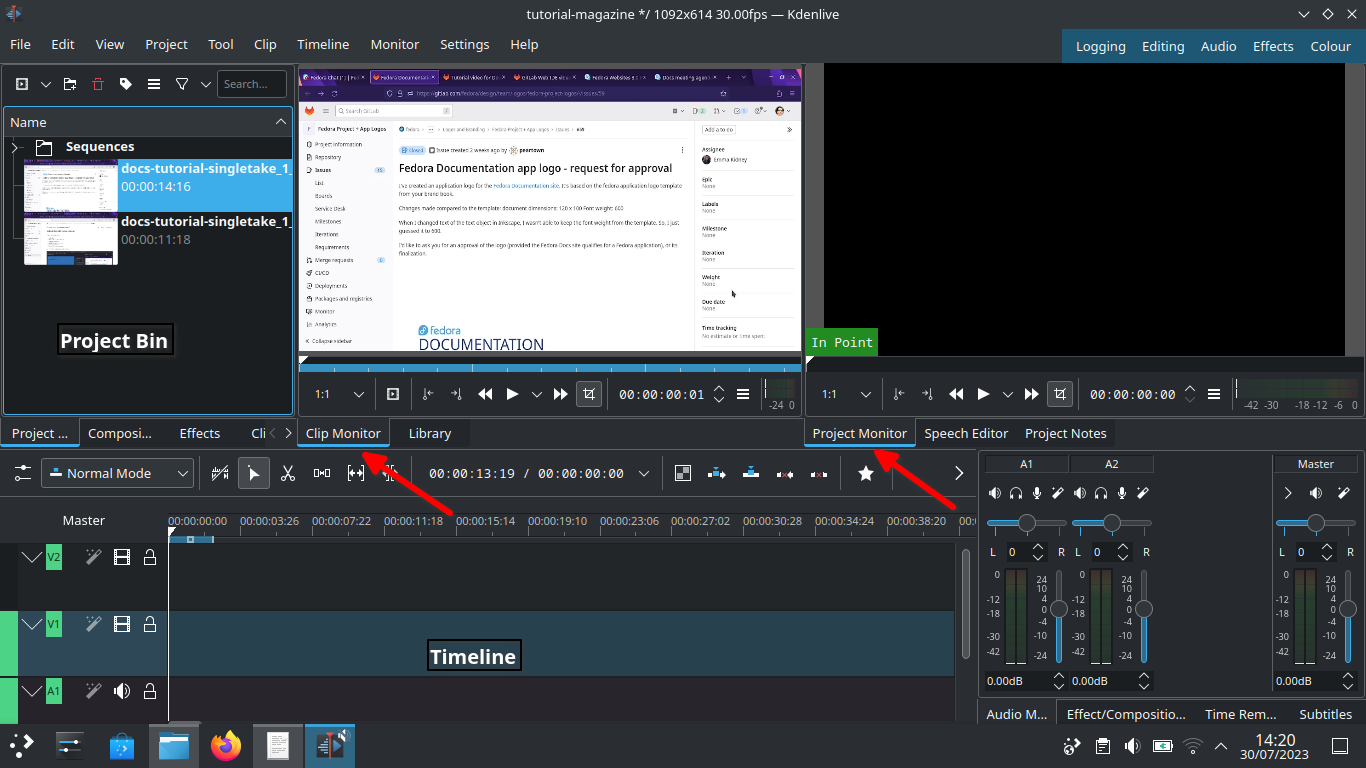
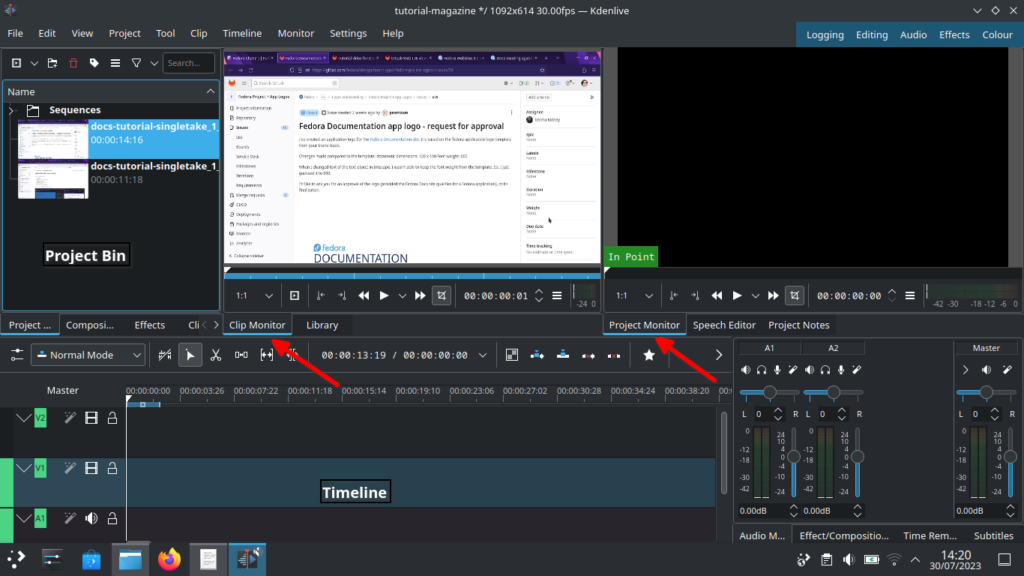
Let’s start with Kdenlive’s user interface and focus on three sections – Project bin, Monitors and Timeline.

Kdenlive user interface

Project bin

Load video clips into Project Bin on the upper left. The Project Bin lists all the clips that are associated with your project. You can drag and drop the clips onto Project Bin.

Monitors

Clip Monitor on the left window displays the unedited clip that is currently selected in The Project Bin. If you have loaded multiple takes of the same scene (process steps), you need to know which one you’re going to choose and edit. If you changed your mind during editing processes, that’s no problem. You can move around a sequence with timeline and tracks after the initial cut.

The Project Monitor is a place to watch your edited footage.

Timeline

Timeline is a place for all selected clips you edit. Drag and drop the clips directly on to the Timeline from the Project Bin.

Editing processes

Cut and stitch

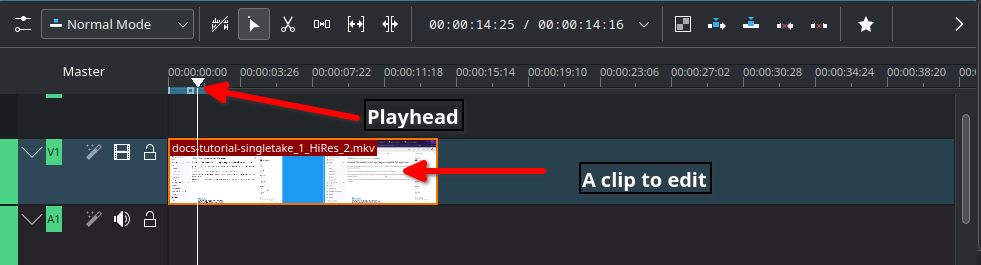
Timeline cursor, also known as playhead, indicates the position of clips you are working on and previewing in the Project Monitor.

Timeline

The initial cut means editing on a scene by scene basis until you’re ready to stitch tracks together into a complete piece.

Cut when;
– Delayed, boring or repetitive part was recorded. This happens often when recording a scene for loading apps or waiting for rendering on web browser
– Transition pieces when a scene starts and ends
– Trim off a few frames before you tidy up
– Ensure basic continuity – let it flow!

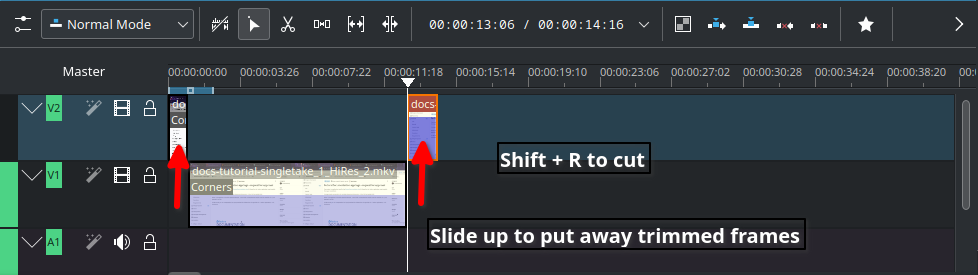
In Timeline, video tracks (V2, V1) are cascaded up whereas audio tracks (A1, A2) are cascaded down as default.

Slide up trimmed video track and stitch frames you want to keep. Delete trimmed frames when you’re sure you don’t need them.

Cut

Timeline works like chef’s chopping board and takes time for new users to get familiar with it. Check the upstream documentation on this link.

Text effects with Titles

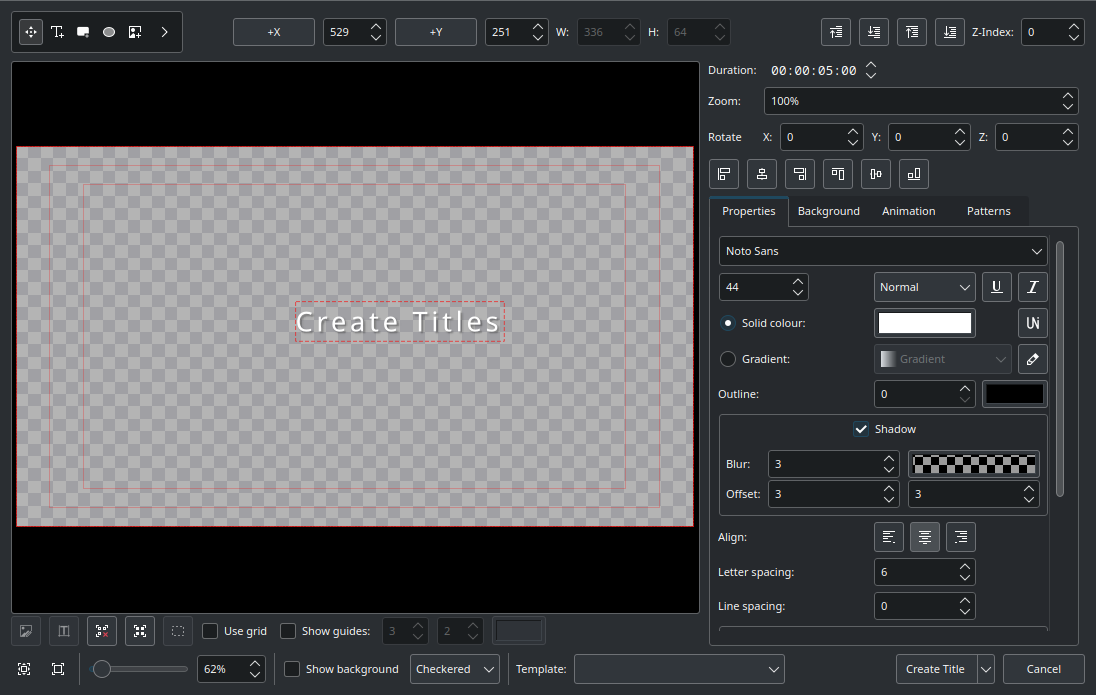
Titles are text elements that you can overlay to the timeline. To create Titles, right-click in the The Project Bin and open the Titles window as shown below. Select ‘Create Title’ to save it. Drag and drop the Title to the video track 2 in timeline. Check this link for more information.

Titler

Sound effects

Ambient music could jazz up your video tutorial for the audience.

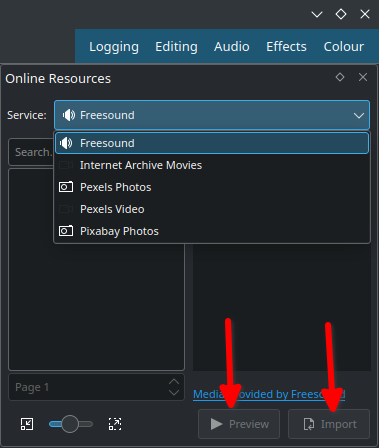
Go to top left corner of the Project Bin and select the arrow to list options. Select ‘Online Resources’. At the top right, ‘Service’ drop-down menu, choose ‘Freesound’. Select ‘Preview’ to play back and import to download and overlay to A1 audio track.

Sound

Transition and finishing touch

Text and sounds effects will blend well if tracks have transitions. Check this link for fine-tuning your final cut video.

Rendering

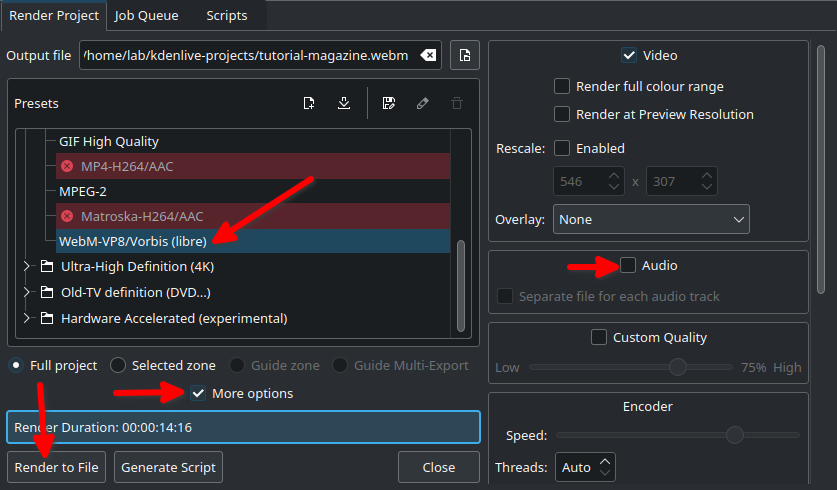
In the Render dialogue box (Ctrl + Return) on Project Bin, choose WebM as output file, select ‘More options’ to de-select the Export Audio option, and select ‘Render to File’ to save the clip.

Rendering

WebM offers good compression and output.

Rendering speed is dependent on the number of CPU cores in your computer. If you work with high quality footage and visual effects in a computer with low-end CPU and RAM, adapt your workflow with proxy clips and use script for rendering.

Share your tutorial video

PeerTube is a video sharing platform that runs on GNU/Linux infra, and Open Source/Free Software. Just like Vimeo or YouTube, you can embed your content to your documentation site from PeerTube.

Credits and acknowledgements

Big thanks to Seth Kenlon who provided me with a great deal of inspiration from his publication in Opensource.com and Kdenlive workshop.

Kdenlive Version 23.04.2 was used for this article.

Posted on Leave a comment

4 cool new projects to try in COPR from December 2020

COPR is a collection of personal repositories for software that isn’t carried in Fedora. Some software doesn’t conform to standards that allow easy packaging. Or it may not meet other Fedora standards, despite being free and open-source. COPR can offer these projects outside the Fedora set of packages. Software in COPR isn’t supported by Fedora infrastructure or signed by the project. However, it can be a neat way to try new or experimental software.

This article presents a few new and interesting projects in COPR. If you’re new to using COPR, see the COPR User Documentation for how to get started.

Blanket

Blanket is an application for playing background sounds, which may potentially improve your focus and increase your productivity. Alternatively, it may help you relax and fall asleep in a noisy environment. No matter what time it is or where you are, Blanket allows you to wake up while birds are chirping, work surrounded by friendly coffee shop chatter or distant city traffic, and then sleep like a log next to a fireplace while it is raining outside. Other popular choices for background sounds such as pink and white noise are also available.

Blanket

Installation instructions

The repo currently provides Blanket for Fedora 32 and 33. To install it, use these commands:

sudo dnf copr enable tuxino/blanket
sudo dnf install blanket

k9s

k9s is a command-line tool for managing Kubernetes clusters. It allows you to list and interact with running pods, read their logs, dig through used resources, and overall make the Kubernetes life easier. With its extensibility through plugins and customizable UI, k9s is welcoming to power-users.

k9s

For many more preview screenshots, please see the project page.

Installation instructions

The repo currently provides k9s for Fedora 32, 33, and Fedora Rawhide as well as EPEL 7, 8, Centos Stream, and others. To install it, use these commands:

sudo dnf copr enable luminoso/k9s
sudo dnf install k9s

rhbzquery

rhbzquery is a simple tool for querying the Fedora Bugzilla instance. It provides an interface for specifying the search query but it doesn’t list results in the command-line. Instead, rhbzquery generates a Bugzilla URL and opens it in a web browser.

rhbzquery

Installation instructions

The repo currently provides rhbzquery for Fedora 32, 33, and Fedora Rawhide. To install it, use these commands:

sudo dnf copr enable petersen/rhbzquery
sudo dnf install rhbzquery

gping

gping is a more visually intriguing alternative to the standard ping command, as it shows results in a graph. It is also possible to ping multiple hosts at the same time to easily compare their response times.

gping

Installation instructions

The repo currently provides gping for Fedora 32, 33, and Fedora Rawhide as well as for EPEL 7 and 8. To install it, use these commands:

sudo dnf copr enable atim/gping
sudo dnf install gping
Posted on Leave a comment

4 cool new projects to try in COPR from October 2020

COPR is a collection of personal repositories for software
that isn’t carried in Fedora. Some software doesn’t conform to
standards that allow easy packaging. Or it may not meet other Fedora
standards, despite being free and open-source. COPR can offer these
projects outside the Fedora set of packages. Software in COPR isn’t
supported by Fedora infrastructure or signed by the project. However,
it can be a neat way to try new or experimental software.

This article presents a few new and interesting projects in COPR. If
you’re new to using COPR, see the COPR User Documentation
for how to get started.

Dialect

Dialect translates text to foreign languages using Google Translate. It remembers your translation history and supports features such as automatic language detection and text to speech. The user interface is minimalistic and mimics the Google Translate tool itself, so it is really easy to use.

Installation instructions

The repo currently provides Dialect for Fedora 33 and Fedora
Rawhide. To install it, use these commands:

sudo dnf copr enable lyessaadi/dialect
sudo dnf install dialect

GitHub CLI

gh is an official GitHub command-line client. It provides fast
access and full control over your project issues, pull requests, and
releases, right in the terminal. Issues (and everything else) can also
be easily viewed in the web browser for a more standard user interface
or sharing with others.

Installation instructions

The repo currently provides gh for Fedora 33 and Fedora
Rawhide. To install it, use these commands:

sudo dnf copr enable jdoss/github-cli
sudo dnf install github-cli

Glide

Glide is a minimalistic media player based on GStreamer. It
can play both local and remote files in any multimedia format
supported by GStreamer itself. If you are in need of a multi-platform
media player with a simple user interface, you might want to give Glide a try.

Installation instructions

The repo currently provides Glide for Fedora 32, 33, and
Rawhide. To install it, use these commands:

sudo dnf copr enable atim/glide-rs
sudo dnf install glide-rs

Vim ALE

ALE is a plugin for Vim text editor, providing syntax and
semantic error checking. It also brings support for fixing code and
many other IDE-like features such as TAB-completion, jumping to
definitions, finding references, viewing documentation, etc.

Installation instructions

The repo currently provides vim-ale for Fedora 31,
32, 33, and Rawhide, as well as for EPEL8. To install it, use these
commands:

sudo dnf copr enable praiskup/vim-ale
sudo dnf install vim-ale

Editors note: Previous COPR articles can be found here.

Posted on Leave a comment

4 cool new projects to try in COPR for May 2020

COPR is a collection of personal repositories for software that isn’t carried in Fedora. Some software doesn’t conform to standards that allow easy packaging. Or it may not meet other Fedora standards, despite being free and open source. COPR can offer these projects outside the Fedora set of packages. Software in COPR isn’t supported by Fedora infrastructure or signed by the project. However, it can be a neat way to try new or experimental software.

This article presents a few new and interesting projects in COPR. If you’re new to using COPR, see the COPR User Documentation for how to get started.

Ytop

Ytop is a command-line system monitor similar to htop. The main difference between them is that ytop, on top of showing processes and their CPU and memory usage, shows graphs of system CPU, memory, and network usage over time. Additionally, ytop shows disk usage and temperatures of the machine. Finally, ytop supports multiple color schemes as well as an option to create new ones.

Installation instructions

The repo currently provides ytop for Fedora 30, 31, 32, and Rawhide, as well as EPEL 7. To install ytop, use these commands with sudo:

sudo dnf copr enable atim/ytop
sudo dnf install ytop

Ctop

Ctop is yet another command-line system monitor. However, unlike htop and ytop, ctop focuses on showing resource usage of containers. Ctop shows both an overview of CPU, memory, network and disk usage of all containers running on your machine, and more comprehensive information about a single container, including graphs of resource usage over time. Currently, ctop has support for Docker and runc containers.

Installation instructions

The repo currently provides ctop for Fedora 31, 32 and Rawhide, EPEL 7, as well as for other distributions. To install ctop, use these commands:

sudo dnf copr enable fuhrmann/ctop
sudo dnf install ctop

Shortwave

Shortwave is a program for listening to radio stations. Shortwave uses a community database of radio stations www.radio-browser.info. In this database, you can discover or search for radio stations, add them to your library, and listen to them. Additionally, Shortwave provides information about currently playing song and can record the songs as well.

Installation instructions

The repo currently provides Shortwave for Fedora 31, 32, and Rawhide. To install Shortwave, use these commands:

sudo dnf copr enable atim/shortwave
sudo dnf install shortwave

Setzer

Setzer is a LaTeX editor that can build pdf documents and view them as well. It provides templates for various types of documents, such as articles or presentation slides. Additionally, Setzer has buttons for a lot of special symbols, math symbols and greek letters.

Installation instructions

The repo currently provides Setzer for Fedora 30, 31, 32, and Rawhide. To install Setzer, use these commands:

sudo dnf copr enable lyessaadi/setzer
sudo dnf install setzer
Posted on Leave a comment

4 cool new projects to try in COPR for January 2020

COPR is a collection of personal repositories for software that isn’t carried in Fedora. Some software doesn’t conform to standards that allow easy packaging. Or it may not meet other Fedora standards, despite being free and open source. COPR can offer these projects outside the Fedora set of packages. Software in COPR isn’t supported by Fedora infrastructure or signed by the project. However, it can be a neat way to try new or experimental software.

This article presents a few new and interesting projects in COPR. If you’re new to using COPR, see the COPR User Documentation for how to get started.

Contrast

Contrast is a small app used for checking contrast between two colors and to determine if it meets the requirements specified in WCAG. The colors can be selected either using their RGB hex codes or with a color picker tool. In addition to showing the contrast ratio, Contrast displays a short text on a background in selected colors to demonstrate comparison.

Installation instructions

The repo currently provides contrast for Fedora 31 and Rawhide. To install Contrast, use these commands:

sudo dnf copr enable atim/contrast
sudo dnf install contrast

Pamixer

Pamixer is a command-line tool for adjusting and monitoring volume levels of sound devices using PulseAudio. You can display the current volume of a device and either set it directly or increase/decrease it, or (un)mute it. Pamixer can list all sources and sinks.

Installation instructions

The repo currently provides Pamixer for Fedora 31 and Rawhide. To install Pamixer, use these commands:

sudo dnf copr enable opuk/pamixer
sudo dnf install pamixer

PhotoFlare

PhotoFlare is an image editor. It has a simple and well-arranged user interface, where most of the features are available in the toolbars. PhotoFlare provides features such as various color adjustments, image transformations, filters, brushes and automatic cropping, although it doesn’t support working with layers. Also, PhotoFlare can edit pictures in batches, applying the same filters and transformations on all pictures and storing the results in a specified directory.

Installation instructions

The repo currently provides PhotoFlare for Fedora 31. To install Photoflare, use these commands:

sudo dnf copr enable adriend/photoflare
sudo dnf install photoflare

Tdiff

Tdiff is a command-line tool for comparing two file trees. In addition to showing that some files or directories exist in one tree only, tdiff shows differences in file sizes, types and contents, owner user and group ids, permissions, modification time and more.

Installation instructions

The repo currently provides tdiff for Fedora 29-31 and Rawhide, EPEL 6-8 and other distributions. To install tdiff, use these commands:

sudo dnf copr enable fif/tdiff sudo dnf install tdiff
Posted on Leave a comment

4 cool new projects to try in COPR for October 2019

COPR is a collection of personal repositories for software that isn’t carried in Fedora. Some software doesn’t conform to standards that allow easy packaging. Or it may not meet other Fedora standards, despite being free and open source. COPR can offer these projects outside the Fedora set of packages. Software in COPR isn’t supported by Fedora infrastructure or signed by the project. However, it can be a neat way to try new or experimental software.

This article presents a few new and interesting projects in COPR. If you’re new to using COPR, see the COPR User Documentation for how to get started.

Nu

Nu, or Nushell, is a shell inspired by PowerShell and modern CLI tools. Using a structured data based approach, Nu makes it easy to work with commands that output data, piping through other commands. The results are then displayed in tables that can be sorted or filtered easily and may serve as inputs for further commands. Finally, Nu provides several builtin commands, multiple shells and support for plugins.

Installation instructions

The repo currently provides Nu for Fedora 30, 31 and Rawhide. To install Nu, use these commands:

sudo dnf copr enable atim/nushell
sudo dnf install nushell

NoteKit

NoteKit is a program for note-taking. It supports Markdown for formatting notes, and the ability to create hand-drawn notes using mouse. In NoteKit, notes are sorted and organized in a tree structure.

Installation instructions

The repo currently provides NoteKit for Fedora 29, 30, 31 and Rawhide. To install NoteKit, use these commands:

sudo dnf copr enable lyessaadi/notekit
sudo dnf install notekit

Crow Translate

Crow Translate is a program for translating. It can translate text as well as speak both the input and result, and offers a command line interface as well. For translation, Crow Translate uses Google, Yandex or Bing translate API.

Installation instructions

The repo currently provides Crow Translate for Fedora 30, 31 and Rawhide, and for Epel 8. To install Crow Translate, use these commands:

sudo dnf copr enable faezebax/crow-translate
sudo dnf install crow-translate

dnsmeter

dnsmeter is a command-line tool for testing performance of a nameserver and its infrastructure. For this, it sends DNS queries and counts the replies, measuring various statistics. Among other features, dnsmeter can use different load steps, use payload from PCAP files and spoof sender addresses.

Installation instructions

The repo currently provides dnsmeter for Fedora 29, 30, 31 and Rawhide, and EPEL 7. To install dnsmeter, use these commands:

sudo dnf copr enable @dnsoarc/dnsmeter
sudo dnf install dnsmeter
Posted on Leave a comment

How to contribute to Fedora

One of the great things about open source software projects is that users can make meaningful contributions. With a large project like Fedora, there’s somewhere for almost everyone to contribute. The hard part is finding the thing that appeals to you. This article covers a few of the ways people participate in the Fedora community every day.

The first step for contributing is to create an account in the Fedora Account System. After that, you can start finding areas to contribute. This article is not comprehensive. If you don’t see something you’re interested in, check out What Can I Do For Fedora or contact the Join Special Interest Group (SIG).

Software development

This seems like an obvious place to get started, but Fedora has an “upstream first” philosophy. That means most of the software that ends up on your computer doesn’t originate in the Fedora Project, but with other open source communities. Even when Fedora package maintainers write code to add a feature or fix a bug, they work with the community to get those patches into the upstream project.

Of course, there are some applications that are specific to Fedora. These are generally more about building and shipping operating systems than the applications that get shipped to the end users. The Fedora Infrastructure project on GitHub has several applications that help make Fedora happen.

Packaging applications

Once software is written, it doesn’t just magically end up in Fedora. Package maintainers are the ones who make that happen. Fundamentally, the job of the package maintainer is to make sure the application successfully builds into an RPM package and to generally keep up-to-date with upstream releases. Sometimes, that’s as simple as editing a line in the RPM spec file and uploading the new source code. Other times, it involves diagnosing build problems or adding patches to fix bugs or apply configuration settings.

Packagers are also often the first point of contact for user support. When something goes wrong with an application, the user (or ABRT) will file a bug in Red Hat Bugzilla. The Fedora package maintainer can help the user diagnose the problem and either fix it in the Fedora package or help file a bug in the upstream project’s issue tracker.

Writing

Documentation is a key part of the success of any open source project. Without documentation, users don’t know how to use the software, contributors don’t know how to submit code or run test suites, and administrators don’t know how to install and run the application. The Fedora Documentation team writes release notes, in-depth guides, and short “quick docs” that provide task-specific information. Multi-lingual contributors can also help with translation and localization of both the documentation and software strings by joining the localization (L10n) team.

Of course, Fedora Magazine is always looking for contributors to write articles. The Contributing page has more information. [We’re partial to this way of contributing! — ed.]

Testing

Fedora users have come to rely on our releases working well. While we emphasize being on the leading edge, we want to make sure releases are usable, too. The Fedora Quality Assurance team runs a broad set of test cases and ensures all of the release criteria are met before anything ships. Before each release, the team arranges test days for various components.

Once the release is out, testing continues. Each package update first goes to the updates-testing repository before being published to the main testing repository. This gives people who are willing to test the opportunity to try updates before they go to the wider community. 

Graphic design

One of the first things that people notice when they install a new Fedora release is the desktop background. In fact, using a new desktop background is one of our release criteria. The Fedora Design team produces several backgrounds for each release. In addition, they design stickers, logos, infographics, and many other visual elements for teams within Fedora. As you contribute, you may notice that you get awarded badges; the Badges team produces the art for those.

Helping others

Cooperative effort is a hallmark of open source communities. One of the best ways to contribute to any project is to help other users. In Fedora, that can mean answering questions on the Ask Fedora forum, the users mailing list, or in the #fedora IRC channel. Many third-party social media and news aggregator sites have discussion related to Fedora where you can help out as well.

Spreading the word

Why put so much effort into making something that no one knows about? Spreading the word helps our user and contributor communities grow. You can host a release party, speak at a conference, or share how you use Fedora on your blog or social media sites. The Fedora Mindshare committee has funds available to help with the costs of parties and other events.

Other contributions

This article only shared a few of the areas where you can contribute to Fedora. What Can I Do For Fedora has more options. If there’s something you don’t see, you can just start doing it. If others see the value, they can join in and help you. We look forward to your contributions!


Photo by Anunay Mahajan on Unsplash.

Posted on Leave a comment

GNOME 3.34 released — coming soon in Fedora 31

Today the GNOME project announced the release of GNOME 3.34. This latest release of GNOME will be the default desktop environment in Fedora 31 Workstation. The Beta release of Fedora 31 is currently expected in the next week or two, with the Final release scheduled for late October.

GNOME 3.34 includes a number of new features and improvements. Congratulations and thank you to the whole GNOME community for the work that went into this release! Read on for more details.

GNOME 3.34 desktop environment at work

Notable features

The desktop itself has been refreshed with a pleasing new background. You can also compare your background images to see what they’ll look like on the desktop.

There’s a new custom application folder feature in the GNOME Shell Overview. It lets you combine applications in a group to make it easier to find the apps you use.

You already know that Boxes lets you easily download an OS and create virtual machines for testing, development, or even daily use. Now you can find sources for your virtual machines more easily, as well as boot from CD or DVD (ISO) images more easily. There is also an Express Install feature available that now supports Windows versions.

Now that you can save states when using GNOME Games, gaming is more fun. You can snapshot your progress without getting in the way of the fun. You can even move snapshots to other devices running GNOME.

More details

These are not the only features of the new and improved GNOME 3.34. For an overview, visit the official release announcement. For even more details, check out the GNOME 3.34 release notes.

The Fedora 31 Workstation Beta release is right around the corner. Fedora 31 will feature GNOME 3.34 and you’ll be able to experience it in the Beta release.

Posted on Leave a comment

4 cool new projects to try in COPR for August 2019

COPR is a collection of personal repositories for software that isn’t carried in Fedora. Some software doesn’t conform to standards that allow easy packaging. Or it may not meet other Fedora standards, despite being free and open source. COPR can offer these projects outside the Fedora set of packages. Software in COPR isn’t supported by Fedora infrastructure or signed by the project. However, it can be a neat way to try new or experimental software.

Here’s a set of new and interesting projects in COPR.

Duc

Duc is a collection of tools for disk usage inspection and visualization. Duc uses an indexed database to store sizes of files on your system. Once the indexing is done, you can then quickly overview your disk usage either by its command-line interface or the GUI.

Installation instructions

The repo currently provides duc for EPEL 7, Fedora 29 and 30. To install duc, use these commands:

sudo dnf copr enable terrywang/duc sudo dnf install duc

MuseScore

MuseScore is a software for working with music notation. With MuseScore, you can create sheet music either by using a mouse, virtual keyboard or a MIDI controller. MuseScore can then play the created music or export it as a PDF, MIDI or MusicXML. Additionally, there’s an extensive database of sheet music created by Musescore users.

Installation instructions

The repo currently provides MuseScore for Fedora 29 and 30. To install MuseScore, use these commands:

sudo dnf copr enable jjames/MuseScore
sudo dnf install musescore

Dynamic Wallpaper Editor

Dynamic Wallpaper Editor is a tool for creating and editing a collection of wallpapers in GNOME that change in time. This can be done using XML files, however, Dynamic Wallpaper Editor makes this easy with its graphical interface, where you can simply add pictures, arrange them and set the duration of each picture and transitions between them.

Installation instructions

The repo currently provides dynamic-wallpaper-editor for Fedora 30 and Rawhide. To install dynamic-wallpaper-editor, use these commands:

sudo dnf copr enable atim/dynamic-wallpaper-editor
sudo dnf install dynamic-wallpaper-editor

Manuskript

Manuskript is a tool for writers and is aimed to make creating large writing projects easier. It serves as an editor for writing the text itself, as well as a tool for organizing notes about the story itself, characters of the story and individual plots.

Installation instructions

The repo currently provides Manuskript for Fedora 29, 30 and Rawhide. To install Manuskript, use these commands:

sudo dnf copr enable notsag/manuskript sudo dnf install manuskript