Posted on Leave a comment

Introducing the new Microsoft Teams

Today, we embark on the next chapter of the Microsoft Teams story with the public preview of the new Microsoft Teams app for Windows.

From its inception in 2017, our vision for Teams has always been to bring together all your communication and collaboration tools in one place, from chat and meetings to apps and files. Whether used for work, school, or life, over 280 million people rely on Teams every month to stay productive and connected with colleagues, partners, customers, friends, and family. Teams has also enabled amazing innovation from third-party independent software vendors (ISVs), corporate developers, and system integrators—resulting in over 1,900 apps in the store as well as over 100,000 custom apps that integrate seamlessly with the Teams platform. These applications, when combined with a broad ecosystem of Teams certified devices and rooms, help you stay productive and in the flow of work.

We have been listening to your feedback which has culminated in a reimagining of Teams from the ground up. The new app is built on a foundation of speed, performance, flexibility, and intelligence—delivering up to two times faster performance while using 50 percent less memory so you can save time and collaborate more efficiently. We have also streamlined the user experience so that it is simpler to use and easier to find everything in one place. These enhancements also provide the foundation for game-changing new AI-powered experiences, such as Copilot for Microsoft Teams, announced earlier this month.1

While we have already been making a steady stream of improvements in the existing Teams apps, the biggest breakthroughs will only be available with new Teams. Below is a summary of the most significant areas of improvement but you can deep dive into the full list in our Tech Community blog.

The new Microsoft Teams: Faster, simpler, more flexible, and smarter

Faster. Our North Star for new Teams is to make it twice as fast while using half the system resources. To achieve this, we have made a ground-up investment to overhaul the platform to optimize the data, network, chat, and video architecture for speed and performance. We are by no means done optimizing the performance of new Teams, but we have already seen very promising data even from the public preview build rolling out today. We have worked with the independent benchmarking firm GigaOm to quantify some of the performance gains, which reports that both app launch and join meeting are already twice as fast, and memory consumption has decreased by half when testing the new Teams preview compared with classic Teams.2

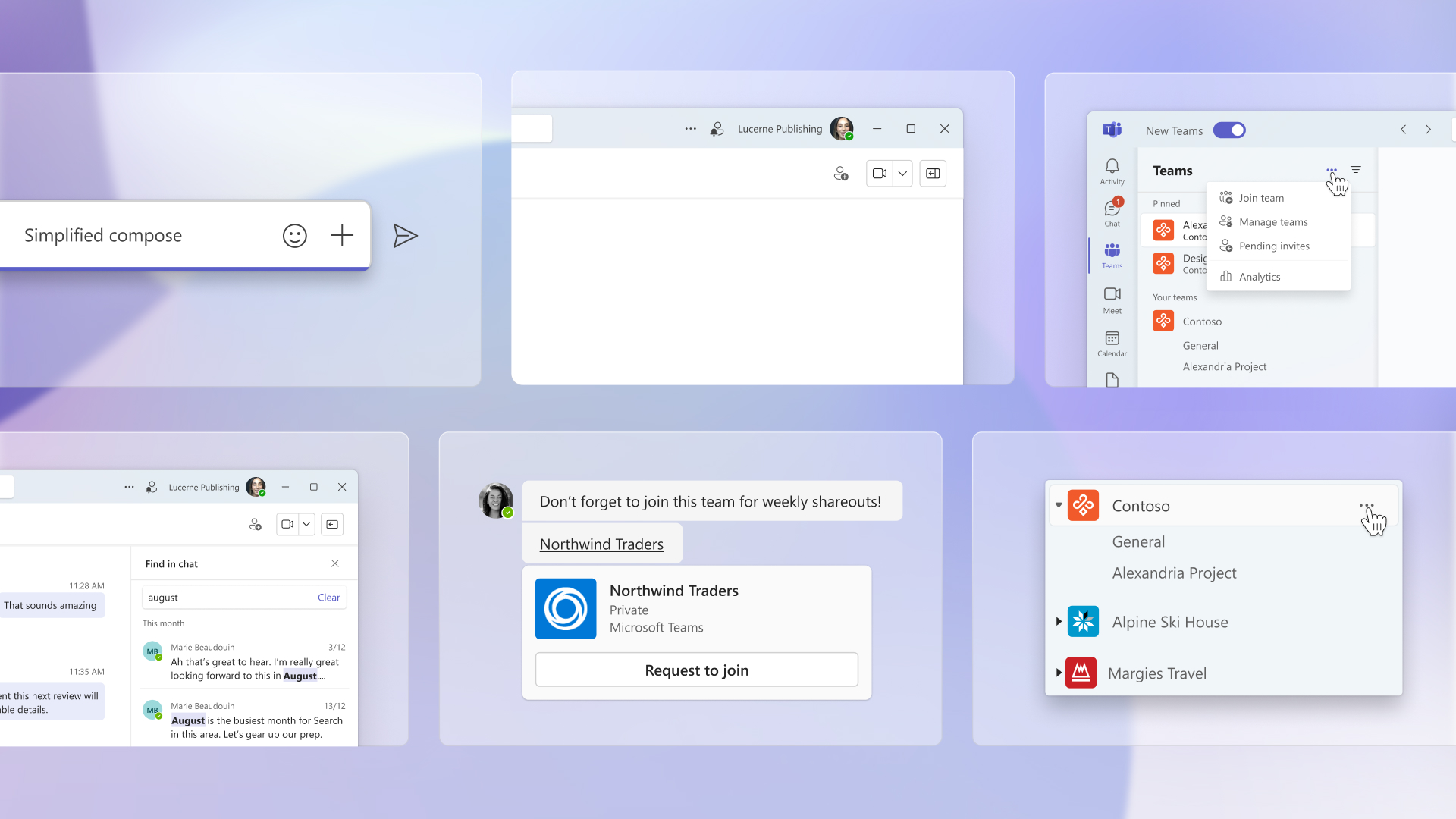
Simpler. We are always looking for ways to provide a simpler yet feature-rich experience for our diverse and growing user base. That’s why we are excited to roll out enhancements to the core Teams experience that will make it easier for you to stay on top of your notifications, search for information, manage your messages, and organize your channels—all with fewer clicks. For more information on the design journey of new Teams, take a look at this blog post from Microsoft Design.

Collage of usability improvements in new Microsoft Teams app.

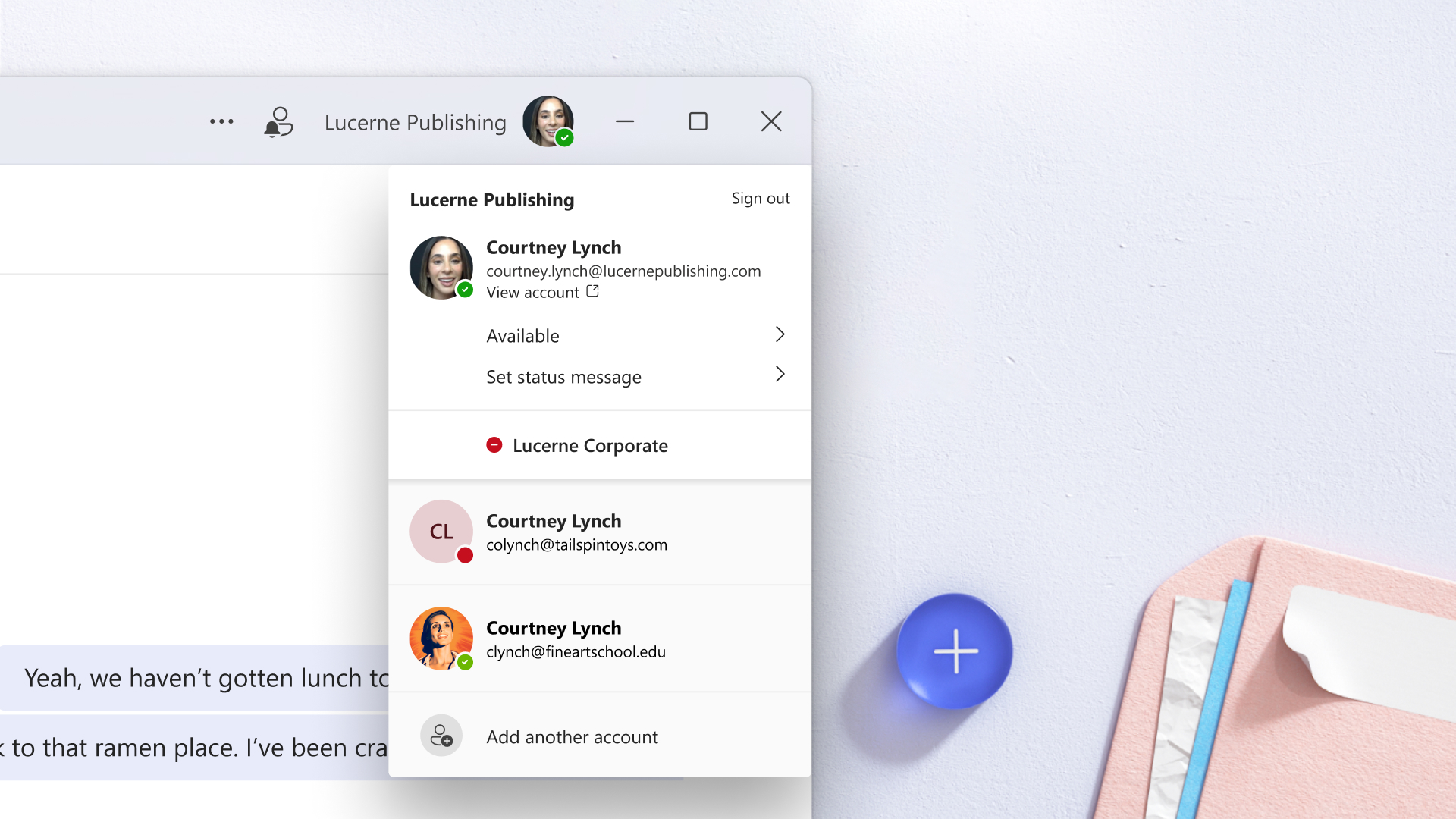
More flexible. We know that many of our customers have organizations that span multiple tenants and accounts. That’s why we have made a major investment in our support for these scenarios. We have improved our authentication model, synchronization, and notification systems to provide a seamless and consistent experience. For example, many customers need to collaborate with people across organizational boundaries, which sometimes means they use Teams across multiple tenants or accounts. Instead of logging in and out of different tenants and accounts, you can now stay signed in across them all—receiving notifications no matter which one you are currently using.

A drop-down panel within the new Microsoft Teams app showing multiple tenants and accounts.

Smarter. The new Teams will be the foundation for next-generation AI experiences, including those we’ve previously announced, such as intelligent recap and Copilot for Microsoft Teams. We will use AI to take the work out of working together by getting you up to speed on what happened before you joined a meeting or chat and answering your questions all in the flow of the discussion. We’re only just beginning to see the potential of AI inside of Teams, and we will have lots more to share in the future.

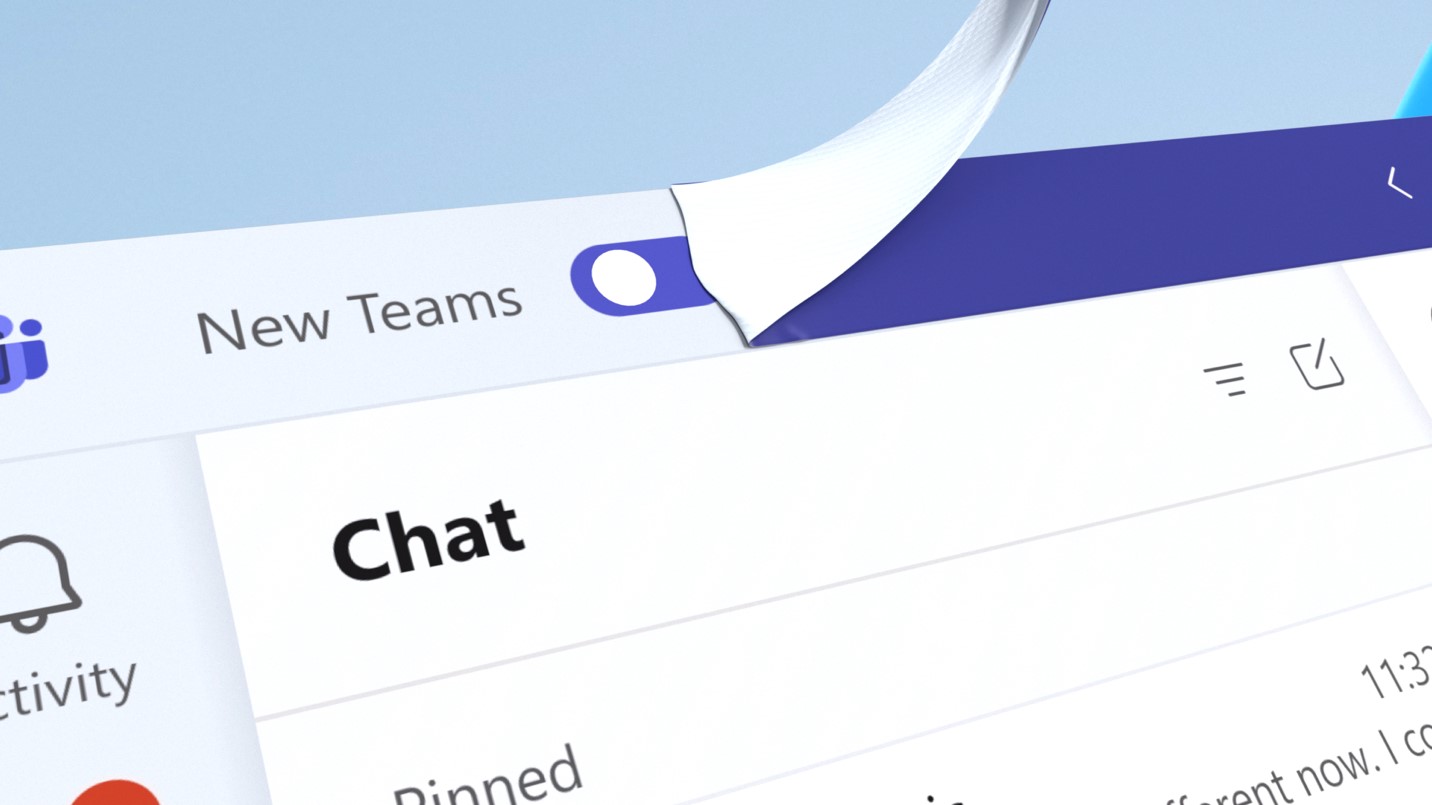
We are targeting the general availability of new Teams later this year in 2023. In the meantime, we encourage our commercial customers using Windows to try the public preview, which is rolling out starting today. We intend to extend the preview release to a broader set of customers, including those using Macs later this year. While users in our Public Preview program will have access to new Teams right away, our broader set of commercial customers will need an admin to first opt-in, after which users will see a simple toggle to switch to the new Teams. You’ll also be able to switch back to classic Teams at any time.

The Teams app showing the new Teams toggle switch and the Classic Teams user experience being peeled away.

Get started today

Today marks the new era of Microsoft Teams, and we are just getting started. As the world continues to evolve, Teams is here to be your modern workplace. For a sneak peek of all the new experiences we are building on new Teams, watch the video below.

While new Teams is a big leap forward in the Teams journey, it’s not the only thing we are announcing today. For a deep dive into the 50-plus additional new features coming to Teams, be sure to check out this Tech Community blog post which summarizes all the announcements we are making this week at Enterprise Connect.

Thank you for using Teams—we are thrilled to introduce the faster, simpler, and more flexible app starting today. I would encourage you to try it out and share your thoughts with us. We look forward to hearing from you and helping you get the most out of Teams.

If you’re an admin, learn how to enable the new Teams today.


1Introducing Microsoft 365 Copilot—A whole new way to work, Colette Stallbaumer, Microsoft 365 Blog. March 16, 2023.

Posted on Leave a comment

What’s new in Microsoft Teams for December

Can you believe it’s already December of 2022? The new year is peeking in, and we are so excited about what 2023 will bring for Microsoft Teams. With people going back to the office, we continue to define new ways for async and collaboration experiences. This month, we offer even more ways to enhance meetings with new Whiteboard features, ways to clear up your chats, and new certified devices so you never miss a moment to be successful!

Speaking of sneak peeks, check out the opportunity to try out new Teams Premium features today! aka.ms/TeamsPremium 

Chat and Collaboration

Devices

Platform

Frontline Workers

Government

Chat and collaboration

Delete Chats

Organize and easily remove chat conversations you no longer need without impacting other participants in the same chat.

Delete Chat.png

Expanded reactions

Express feedback more creatively with over 800 Teams emojis for every situation. Communicate reactions to celebrate, express your agreement, or emphasize the completion of tasks.

Expanded reactions.png

Add people to a group chat with @mention
Add new participants to the chat with @mention, removing the need to navigate to the add-dialog. When adding new participants, you can control how much of the chat history to share.

Add people to group chat.png

Recommended people when creating a new message
Save time looking for the right stakeholders. Using AI, Teams chat will assist you in initiating new conversations by recommending colleagues based on your previous collaborations. This feature will be generally available by the end of the year.

Recommended people when creating a new message.png

Receive all group chat messages with resource-specific consent
The resource-specific consent (RSC) permissions model, originally developed for Teams Graph APIs, has been extended for chat and channel scope. Using RSC, you can request team owners to consent for a bot to receive user messages across standard group chats without being @mentioned.

Sign Language View and always-on captions in meetings
Prioritize up to two other participants’ videos for sign language in meetings so they stay visible even while content is shared. Additionally, you can set captions to stay on across all meetings.

Devices

Microsoft Teams Rooms on Android—new touch and collaboration experiences
The newly released Microsoft Teams Rooms on Android Update 3 (App version: 1449/1.0.96.2022120503) includes several touch-enabled experiences to enhance the meeting and collaboration experience on touch-enabled devices. See below for more information on these new features, including walk up and use Microsoft Whiteboard, bring Whiteboard into an ad hoc meeting, a redesigned share menu and Whiteboard support, and touch awareness and 4K display support. Learn more.

Walk up and use Microsoft Whiteboard
With Microsoft Teams Rooms on Android displays whiteboard sessions can be started from a supported displays home screen at any time, including outside of a formal meeting. With one touch, a Microsoft Whiteboard session can be launched allowing for instant collaboration Admins can enable this feature with the “Allow initiate Whiteboard” setting on the device.

walk up whiteboard.gif

Bring Microsoft Whiteboard into an ad hoc meeting
Seamlessly switch from a local collaboration experience to an online co-creation space by tapping “Start meeting” on the local Whiteboard screen. ”Start meeting” quickly kicks off an ad hoc meeting and automatically presents the Whiteboard already started on the home screen onto the meeting stage. Simply add remote participants to the meeting and contribute across the same board in real time. Instead of having to choose between viewing the gallery or the shared board, remote participants can now be seen side by side with Microsoft Whiteboard using the Content + Gallery layout, allowing for collaboration with greater ease and efficiency.

Bring whiteboard to ad-hoc meeting.gif

Redesigned share menu and Microsoft Whiteboard support for resource accounts
Content sharing in a meeting is now more accessible with the redesigned share menu. When you tap “Share” in the meeting control bar, you can find all content options that can be shared in one place, including Microsoft Whiteboard. This Whiteboard sharing experience in a meeting is now supported on resource accounts. Click here to see instructions on managing Whiteboard sharing in Teams.

Redesigned share menu and Microsoft Whiteboard support for resource accounts.png

Touch awareness and 4K display support
Touch screens now allow you to control the room system from both the touch display at the front of the room as well as the touch console, making it convenient to operate a Teams Room using whichever device is closest to reach. Admins can turn on this feature with the “Enable touch screen controls” setting on the device. Additionally, 4K display now is supported to further enhance the meeting experience on large-screen devices.

Touch awareness and 4K display support.png

Chat bubbles during meetings
Microsoft Teams Rooms on Android can now display chats sent during a Teams meeting on the front-of-room display. Chat messages are displayed as chat bubbles over the current view, enabling in-room participants to engage with the conversation happening in the chat.

Chat bubbles during meetings.png

Hardware occupancy sensor integration
With supported occupancy sensor hardware, a notification banner is displayed on the Teams panel if the room is occupied when it is available or if the room is not occupied when it is reserved. The room also will be automatically checked in when the sensor detects occupancy if check-in is enabled. Learn more.

Hardware occupancy sensor integration.png

Certified devices

Neat Bar Pro 
Neat Bar Pro packs a stack of tech into a simple and elegant device and joins the rest of the Neat device portfolio certified for medium-sized Microsoft Teams. Neat Bar Pro natively runs Teams Rooms on Android, delivering an immersive, natural meeting experience. It supports up to two large screens, making it easy to see people and content together more clearly, and offers high-quality audio and video through two extreme-resolution cameras, a multiple microphone array, and three full-range speakers. Learn more.

Neat Bar Pro supports Neat’s unique experiences to make video meetings more engaging and natural for today’s hybrid workforce. This includes the patented Neat Symmetry, which presents everyone in the meeting room equally up close, whether they’re sitting, standing, or moving around. Its powerful microphone array and Neat Audio Processing also ensure clear vocal pickup, minimizing background noise. As with all Neat devices, it is easy to set up and manage, and Neat Bar Pro comes with a dedicated Neat Pad controller to make it easy to start and manage meetings.

Neat Bar Pro.jpg

Jabra Evolve Buds
Evolve Buds are truly wireless earbuds engineered for hybrid working and certified for Microsoft Teams. Utilizing BlueTooth Multipoint keeps them connected to a laptop and phone at the same time. Jabra MultiSensor Voice reduces disruptive background noise, allowing you to take calls from anywhere.

Jabra Evolve Buds.png

Jabra Evolve 2 55 Headset 
The Evolve2 55 headset is specially engineered to go with your flow, so it’s ready to
work the way you do and is certified for Microsoft Teams. Because no hybrid workday is the same, Evolve2 55 is designed to make things easy no matter where you are. It’s action-ready right out of the box, with easy pairing and dual connectivity—Bluetooth® for on-the-go speedy access and a professional USB adapter for instant plug-and-play connection to your laptop. A wireless range of up to 30 meters or 100 feet provides even more flexibility to go where you need to. Learn more.

Jabra Evolve 2 55 Headset .png

EPOS EXPAND Vision 1
The EXPAND Vision 1 is a compact, portable USB webcam delivering ultra-sharp video and exceptional voice pickup whether you work from home, on the go, or in an individual office space. EXPAND Vision 1 makes you look and sound professional with EPOS Audio™ and a 4K camera optimized to produce high-quality video in any light conditions. The EPOS webcam delivers effortless video conferencing with two noise-canceling microphones. Additionally, the picture can be adjusted quickly and easily in just a few clicks, with control over key settings like field of view, light, and color.

EPOS EXPAND Vision 1.png

Platform

Approvals as PDFs can be saved, printed, and transferred 
Approval creators can save a completed approval request to a PDF file and have the option to print it. This feature allows customers to easily transfer their proof of approval as a PDF to another system or store it as a file.

Adobe Acrobat streamlines the PDF experience in Teams
Building on the momentum of collaborative apps in Teams, Adobe has released the new integration of Adobe Acrobat into Microsoft Teams. Adobe Acrobat can now be set as the default PDF app in Teams. This makes it easier to share and review PDFs, collaborate with comments and annotations, easily access PDFs stored in Microsoft SharePoint and Microsoft OneDrive, and more. Learn how this new experience can help organizations become more efficient, improve their security, and reduce their costs.

Manage PDFs in Microsoft Teams with Adobe Acrobat.png

Frontline workers

Frontline workers using shared devices can use Edge and Yammer apps on Android alongside Teams 
Microsoft’s shared device mode allows frontline workers to easily authenticate by automatically signing users in and out of all the apps that have enabled this feature. In addition to Microsoft Teams and Managed Home Screen being generally available, Edge and Yammer apps on Android are now in public preview. Learn more.

Government

These features currently available to Microsoft’s commercial customers in multi-tenant cloud environments are now rolling out to customers in the US Government Community Cloud (GCC), US Government Community Cloud High (GCC-High), and/or the United States Department of Defense (DoD).

View meeting transcripts on Microsoft Teams on Android and iOS for Government clouds 
You can now start transcription for your meetings and view meeting transcripts on Microsoft Teams for iOS and Android.

Posted on Leave a comment

Connect, collaborate and share with new communities in Microsoft Teams

The ways in which we interact with one another have certainly shifted over the last few years. Thanks to technology, we have the ability to work from almost anywhere and minimize nonessential face-to-face appointments. But some things haven’t changed in a hybrid world: our need for human connection and community.

Today, we’re excited to announce communities in Microsoft Teams—a new experience that enables people to come together, connect, share, and collaborate. Whether your group is a recreational sports team, event planning committee, parent-teacher association, or even a small business, this new experience gives groups of all kinds a digital space to stay connected before, during, and after gatherings. Communities is currently rolling out in the free version of Microsoft Teams.1  

Share information, organize events, and keep your community groups in sync

In addition to everything you can already do in Microsoft Teams—including sending chats, calling people, and sharing photos or files—you can now create a space for community groups to come together, organize, and share ideas.

Woman sitting in kitchen working on 2-in-1 tabletin laptop mode.

Communities in Microsoft Teams

Easily bring together your communities in one place.

With this new community experience, you’ll be able to:

  • Easily post messages to everyone in the group.
  • Organize events and add them to the community calendar for everyone to see.
  • Share and store documents dedicated to group activity.
  • Filter content to quickly access photos, videos, events, and links.

Get started with your community

It’s easy to get started. Simply create a community with our suggested community types on the home screen.2 You can also add branding elements like a group picture for your community. Then, invite group members through their email address or phone number, or by sharing a link or QR code so they can join directly.3

You’ll be able to easily manage the online community, too. Community owners have the ability to manage settings, set community guidelines, and moderate content by adding or removing participants and posts as needed to help community members feel safe.

Organize and host community events

Communities in Teams includes a new events experience for organizing virtual, hybrid, or in-person events. For instance, you can add new events or meetings to your community calendar, invite guests, track attendance, and follow up with attendees through direct private chats. When it comes to online events, you can easily add dial-in details and a link so your participants can join seamlessly. And for in-person events, you can add a location and give attendees precise directions with a visual map.

Hybrid and virtual guests can join events from any device through audio or video. And features such as adding an event cover image, together mode, and screen sharing can help you foster a sense of unity and engagement during meetings—no matter where everyone’s located.

Collage featuring young kids playing soccer, students collaborating, and young adults working. Six logos in bottom right hand corner: American Youth Soccer Organization, USA Hockey, California School of the Deaf, Riverside, SignUpGenius, Indian Institute of Technology, Madras, and AISECT.

Learn how others are using Teams to connect as a community

Today, we’re pleased to announce that we’re working with organizations such as the American Youth Soccer Organization (AYSO); USA Hockey; California School for the Deaf, Riverside; Indian Institute of Technology, Madras (IIT Madras); and AISECT.

  • AYSO plans to use Teams to help connect volunteers, centralize communications, and create a single location for its 500,000-member community group off the field. Coaches can learn more about their players, set practice schedules and field availability, make announcements about upcoming practices, and discuss enrollments for next season.
  • USA Hockey, the largest youth-based hockey organization in the US, plans to use communities in Teams to advance and grow the game of ice hockey beginning at the youth grassroots level. Their vast coast-to-coast network of volunteers, coaches, officials, and parents will use Teams to ease the coordination of games, trainings, and development programs, on and off the ice.
  • California School for the Deaf, Riverside uses Teams to connect staff, students, and families. The staff uses Teams to share ASL vocabulary videos, weekly events, and details about upcoming classes, and to conduct Q&A sessions. Teams is helping families bridge the gap and stay connected.
  • IIT Madras will be using Teams to enable mentorship-led communities for its data science program. Mentors will be able to help students with course curriculum and technical questions, both asynchronously and with live online office hours, in one place.
  • AISECT is one of India’s leading social enterprises and aims to upskill women, job seekers, people with disabilities, and nano entrepreneurs to improve workforce participation. With Teams, AISECT will be able to publish training calendars, schedule and share details about recurring classes, broadcast announcements pre- and post-sessions, run surveys on training quality, and address other needs in real-time.

Coming soon

In 2023, people can access SignUpGenius within Teams to recruit volunteers, coordinate events, and manage a variety of sign ups. SignUpGenius is a leading solution within the Lumaverse Technologies platform, which empowers people to change the world together by simplifying scheduling, volunteer and member management, event planning, and fundraising.

We look forward to partnering with more organizations and communities in 2023 and beyond as we continue to build out new and exciting experiences in Teams.

A photograph of two businesswomen talking while sitting at a table with a Microsoft Surface tablet outside a cafe.

Use the communities in Teams features for your small business

A tight-knit small business with a dedicated following can function similarly to a community group. Help nurture and support these more friendly working relationships by enabling your team and customers to come together in shared spaces online.

With communities in Teams, your small business can move seamlessly from customer calls to team events and everything in between. You can create a virtual community group with diehard customers to announce a new sale, or just as easily create a Carpool Community for coworkers who want to share a ride to the office.

Whatever you need to collaborate on, communities in Teams allows you to create different places and organize groups to meet, chat, share, and plan—together.

How to access communities in Teams

The new community experience empowers communities to come together to achieve more—whether you’re a virtual, hybrid, or in-person community, Teams can help you connect simply and securely. Communities in Teams is available for all iOS and Android customers using the free version of Microsoft Teams.1 It’s also coming soon to desktop.

When signed in with a Microsoft account, you can access communities in Teams through the Home tab in the mobile app. To switch between accounts, tap on your profile picture and add your Microsoft account.4

To create a community, click on Home to get started. If you already use Microsoft Teams for work or school on mobile, simply switch accounts. There’s no need to download another app, and no data is shared with your employer.


1Communities is available in Microsoft Teams (free), Teams Essentials when you sign in with a Microsoft account, Microsoft 365 Personal, and Microsoft 365 Family.

2Learn more about creating a community in Teams.

3Learn more about sharing and joining a community.

4Learn more about a Microsoft account.

Posted on Leave a comment

New integration of Adobe Acrobat streamlines the PDF experience in Microsoft Teams

Apps designed for collaboration can help keep employees in the flow of work by bringing the apps, data, and workflows to the user. With Adobe Acrobat Sign and Adobe Creative Cloud, Adobe has played a vital role in bringing collaborative apps to Teams. Building on this momentum, we’re excited to announce the new integration of Adobe Acrobat into Microsoft Teams. This new experience helps remove the friction of switching between apps for organizations that prefer to work with their PDFs through Adobe Acrobat. This new integration may help result in more efficiency, improved security, and reduce costs.

Managing PDFs in Microsoft Teams with Adobe Acrobat

This deep integration allows Acrobat to be set as the default app for PDFs in Teams. People can stay in the flow of work by securely accessing and collaborating on PDFs directly from within the Acrobat viewer in Teams. This includes the ability to share and review PDFs, collaborate in real time with comments and annotations, get notifications of comments, and easily access PDFs that are stored in Microsoft SharePoint and OneDrive. Here’s what’s now available:

Adobe Acrobat Comparison Full.jpg

Set Adobe Acrobat as the default PDF experience for Microsoft Teams

To access this new integration, your IT admin must set Acrobat as the default PDF app through the Teams admin center. Once the app is set as default, all PDF files from chat, channels, and files will open directly in the Acrobat app within Teams. Users won’t need an Adobe Acrobat subscription or Adobe ID to view PDF files, but will need an Acrobat Standard or Pro account for premium features listed above. Learn more about getting started with Adobe Acrobat for Microsoft Teams.

Building on a foundation of security and trust

Protecting sensitive information is core to every person and organization. From a digital security standpoint, PDFs collaborated on are sent to Adobe Document Cloud servers in the region in which the user is located for transient processing. They are then deleted within 24 hours. The documents remain encrypted both in transit and at rest during this process. Discover more about security for Acrobat.

Moving forward

This integration is just one of many ways we are working with Adobe to help increase efficiency across your organization. With Adobe tools and services built into Microsoft 365, everyone can transact business and collaborate faster in their favorite Microsoft 365 apps. We look forward to sharing our updates with you on our collaboration with Adobe. Please reach out to [email protected] with any questions about the Adobe Acrobat Teams integration.

Adobe Acrobat Microsoft Teams_1920x1080.png

Posted on Leave a comment

What’s new in Microsoft Teams for November

From meetings to devices, from large meetings to 1;1 chats, we keep finding ways to innovate in a fashion that you can continue to easily collaborate. Between finding devices to ensure everyone in the meetings in included to leveraging AI enhancements for transcription, Microsoft Teams ensure that you have the information at your fingertips. Learn more about the November features in the What’s New in Microsoft Teams!

Meetings

Calling

Devices

Chat and Collaboration

Management

Government

Meetings

Use a 1-click Instant Poll for a quick check-in during Teams meetings
Defined binary responses to get immediate answers to your spoken poll question (yes/no, thumb up/down, heart/broken heart). Presenters can launch these polls without preparing in advance – say your question out loud then click the corresponding response icon. Microsoft Polls is the only app offering a 1-click instant binary poll. With our competitors, presenters must take time to draft a poll in advance.

Instant poll_2_Use if only 1 image.png

Instant poll_1.png

Support PSTN dial-in, dial-out, and call-me attendees in meetings to join Breakout Rooms
Enabling dial-in, dial-out and call-me PSTN participants to join breakout rooms and come back to the main room when breakout rooms end.

Automatically view up to 49 videos (7×7) in Teams meeting
Microsoft Teams Meetings currently supports a maximum of 9 videos (3×3) on the screen by default (i.e., Gallery view). For seeing more than 9 videos, user needs to manually select the Large Gallery view. With this update, users will be able to automatically see up to 49 videos (7×7) on their screen by default without an explicit action. The actual number of videos seen by a user will depend on hardware/device capabilities.

Modern meeting experience on the web
The modern meeting and calling experience will be available for Teams on the web in Chrome and Edge browsers – including improved pre-join, dynamic view, and the updated control bar.

Calling

Screen pop for incoming PSTN calls
Admins can enable this policy in the Teams Admin Center, so that on acceptance of a PSTN call, an automatic browser launch can happen alongside Teams, displaying relevant information (CRM data, case data, etc.) to the user. This feature can also now be turned off in user settings.

Transcription for calls on Microsoft Teams for Android 
Transcription for 1:1 calls and group calls is now available on the Teams app for Android for whenever you’re on the go or just don’t have a notepad handy.

Devices

Microsoft Teams Rooms Companion Device Experience Enhancement

Utilizing Proximity Join, Microsoft Teams Rooms on Windows will now suppress the video streams of in-room participants on the front of room display, to optimize the meeting experience. When joining an existing meeting in Teams Rooms with a personal laptop, the video galleries on both the Teams Room and the in-room laptops will be optimized to display only remote attendees video streams.

Microsoft Companion Device Experience.gif

Hot Desking in portrait mode for Teams Displays
Teams displays will now support hot desking in portrait mode. Hot desking on Teams display makes finding a space to work easier by allowing you to locate and reserve flexible workspaces.

In addition to reserving hotdesks, you can now extend reservations (if hotdesk is available) and choose the end-time of a hotdesking session. Once signed-in, you will be directed to the personal ambient user experience. At the end of the hot desk session, you will be automatically signed out.

Hot Desking in portrait mode for Teams Displays.png

Licensing Updates
The existing Common Area Phone (CAP) license has been rebranded to the Teams Shared Devices license to enable broader functionalities for shared devices including Teams displays.

The Teams Shared Devices license on Teams displays will now offer the hotdesking experience. With this license, you can reserve a desk and make a call on Teams displays as well as accessing your meetings, chats and files, by signing into the hot desk device with your personal credentials. Learn More.

Certified Devices

Poly G7500
Poly G7500 is a modular system connecting cameras, microphones, and additional components and is now certified for large meeting rooms for Microsoft Teams on Android. The system is easy to configure to your specifications, providing rich collaboration experiences. Learn More.

Poly G7500.jpg

Chat & Collaboration

Teams users can now accept or block a group chat invitation from an unmanaged user
The ability to accept or block a one-on-one chat from an unmanaged user already exists for Team users. We are extending the additional safety layer for Teams users to also accept or block a group chat invitation from an unmanaged user.

accept or block a group chat invitation from an unmanaged user.png

Schedule send
With more people working remotely or with flexible work hours and in different time zones, it can prove challenging to coordinate around your colleague’s work schedule when sending a message without disrupting their work-off hours. Similar to delaying the delivery of emails in Outlook, you now can manually select the future date and time you would like a chat message to be delivered. Users can simply right-click the send button to schedule send and have the confidence their message will be delivered as scheduled.

Schedule send.png

Start a Teams Chat with Distribution Groups, Mail-enabled Security Groups, and Office 365 Groups
You will now be able to start a Teams Chat with Distribution Groups, Mail-enabled Security Groups, and O365 Groups. This feature will respect the limits on members in a group chat, currently set to 250 members.

Click on search message results to view the entire chat conversation history
Users who click on the chat message search result will now be presented with the entire message thread, regardless of the age of the message. This update creates efficiency as it ensures the user has the full context of the conversation.

Click on search message results to view the entire chat conversation history.png

Unread toggle
Users will now find it easier to view, triage and catch up with their unread chat message notifications by easily turning on the unread toggle button in their activity feed panel. Alternatively, users will also be able to turn off the unread toggle to view both read and unread notifications.

Unread toggle.png

Upload documents form OneDrive for Business in E-signature Approvals
When creating an e-signature request in Approvals, users can now upload a document to be signed from OneDrive for Business directly. This enables access to your document from anywhere and on any device.

Upload documents form OneDrive for Business in E-signature Approvals.png

Management

Manage Surface Hubs as Teams devices from Teams admin center
Administrators can manage the entire lifecycle of Surface Hubs as Teams devices from the Teams admin center. Available features include remote restart, download of logs, configuration of settings, and detailed device information.

Unread Toggle on Activity Feed
Unread Toggle will help the user review only unread items on the activity feed easily and efficiently.

Government

These features currently available to Microsoft’s commercial customers in multi-tenant cloud environments are now rolling out to our customers in US Government Community Cloud (GCC), US Government Community Cloud High (GCC-High), and/or United States Department of Defense (DoD).

Connectors in GCC
Teams Connectors, which support webhook integrations, will be made available in GCC.

Casting from Teams desktop client to Microsoft Teams Rooms in GCC-H
For quick ad-hoc sessions that don’t require setting up a formal meeting, users can leverage Teams casting to wirelessly connect to a Teams Room and display content from the Teams desktop client (Windows and Mac). Users can broadcast their screen and cast content stored locally on their computer or accessible via Office 365.

Posted on Leave a comment

Introducing Sign Language View for Teams meetings

Watch this announcement in ASL above.

Today we are pleased to announce sign language view, a new meeting experience in Microsoft Teams that helps signers – people who are Deaf/hard of hearing, interpreters, and others who use sign language – keep one another prioritized on center stage, in a consistent location, throughout every meeting.

Interpreter.png

As a Deaf person who uses Teams for several meetings a day, I am all too familiar with the challenges that virtual meetings pose to Deaf and hard of hearing (D/HH) users. I face them too. About a year ago, I took on the role of Accessibility Architect for Microsoft Teams Calling, Meeting and Devices, and one of my primary responsibilities has been to build out the vision for creating a best-in-class experience for the D/HH community in Teams. The most important piece of that work has been making our efforts in this space more community-driven. Inclusive design starts with the community telling us how they want to be able to use the product – not us telling you how to use it. In order for us to learn, we have talked with many of you, listened to your feedback, and built out a roadmap that I’m excited about as both a creator and a user. We are grateful for every bit of feedback you have shared. And we’re announcing availability of one of the first elements of that vision today: Sign language view, which will enable you to prioritize up to two other participants’ videos so they stay visible and in a consistent location throughout the meeting.

Sign language view is a first step toward addressing several asks from the D/HH community, including:

  • Keeping interpreters and other signers’ video feeds in a consistent location,
  • Ensuring that video feeds are an appropriate shape and size for sign language to be visible,
  • Empowering participants to have up to two other signers in view throughout each meeting, and
  • Reducing repetitive meeting setup tasks like pinning interpreters and turning on captions at the start of each meeting.

When sign language view is enabled, the prioritized video streams automatically appear at the right aspect ratio and at the highest available quality. Like pinning and captioning, sign language view is personal to you and will not impact what others see in the meeting. And it adapts to whatever your needs are: you can enable sign language view on the fly in a meeting or as a setting that persists across all y….

With sign language view turned on, the video feeds of the individuals you have designated stay visible on center stage as long as their video is on. Other participants can also be pinned or spotlighted without encroaching on the sign language interpreter.
Gallery.png

When someone shares content in the meeting, the prioritized signer video shifts positions, but remains high quality and at a larger size than the video feeds of other participants.

Content.png

And finally, we’ve made preferences sticky – no more fiddling with features and views when you join a meeting. In the new Accessibility pane in the Settings menu you can turn sign language view on by default across all your meetings, and pre-identify a set of preferred signers that you work with inside your organization on a regular basis – for example, your regular interpreters (or for interpreters, your regular clients). The pane also provides an option to toggle captions on across all your meetings. Setting these preferences in advance makes it easier to join calls more quickly, so you can catch those first few minutes of chitchat or dive right into a deeper conversation.

Meeting Settings.png

Sign language view and the accessibility settings pane are currently available in Public Preview, and will be rolling out to GA for the Teams desktop and web clients for commercial and GCC customers in the coming weeks. Public preview can be enabled on a per-user basis, though the option to turn on public preview is controlled in an admin policy. For detailed instructions on how to enable, please refer to Public preview in Microsoft Teams on Microsoft Learn.

Help us continue to improve

These features are just the beginning – one step along a much longer road. We are committed to creating a Teams meeting experience that is not just accessible, but delightful, for Deaf and hard of hearing participants. And for that, we need your input and engagement. The simplest way to provide feedback is via the Help menu within Teams itself. U.S. customers can also provide feedback and get assistance in ASL – on any Microsoft product, not just this one – through the Disability Answer Desk (DAD) via videophone at (+1 503-427-1234). Or, if you’d like to engage more directly with the people behind the product, we’d welcome you to join us for an AMA – “Ask Microsoft Anything” – on the the topic of Teams accessibility for D/HH participants, here on the here on the Tech Community on December 13 at 9 AM Pacific time. The team working on these features will be available at that time to address questions, concerns, and feedback directly. We look forward to continuing the conversation.

Posted on Leave a comment

Build connections with Games for Work, a new Microsoft Teams app

Connect with your coworkers through play? Yes, please.

People everywhere are struggling to build trust, create connections, and improve team morale. Why not play games to help? Playing games with coworkers has a powerful ability to foster relationships and collaboration. Although some may consider games at work a distraction, the benefits are plentiful. In fact, according to a study by Brigham Young University, teams who played short video games together were 20 percent more productive than those who participated in more traditional team-building activities.1

Games for Work app

Bring your team together through Microsoft Teams.

With the move to remote and hybrid work, our social capital has weakened, impacting cross-group collaboration and employee retention.2 In fact, over 40 percent of leaders consider building relationships to be the greatest challenge in hybrid or remote environments, according to the Work Trend Index.3 Games can be an easy way to connect and build trust with our teammates. Along with our morning caffeine, sometimes we need a brain teaser or some friendly competition to get relationships going, infuse levity into our workday, and build a sense of community.

Build work connections through play

Today, I am excited to introduce the Games for Work app,* developed by Microsoft Casual Games, an Xbox Games Studio.** Now, you can easily add a game in the context of where work happens: in Microsoft Teams meetings. Choose from a selection of favorite casual games including Microsoft IceBreakers, Wordament, Minesweeper, and Solitaire—all easy to play in quick, interactive, and multi-player versions (from 2 to 250 players). They are safe for work (verifiably “E” rated) and ad-free. To address the various needs of teams, each game within the app emphasizes a different element of team building.

Over 3 billion people around the world play games, serving a crucial role in bringing people together – especially during these last few years,” said Jill Braff, General Manager of Integrations and Casual Games, Microsoft. “Games promote creativity, collaboration and communication in powerful and unique ways, and we can’t wait to see the how the Games for Work app on Microsoft Teams inspires productivity and helps foster connections in the workplace.”

Games for Work app includes a variety of games to encourage fun collaboration in meetings including Solitaire, Wordament, Minesweeper, and IceBreakers.

Microsoft IceBreakers

Encourage new teams to communicate and learn about each other with ease. It’s a variation on this or that—pineapple or pepperoni on your pizza? It’s so simple and intuitive, you can’t help but answer the question. It can also spur lively and, at times, passionate conversation to foster connections and build team morale.

Microsoft Minesweeper

The most cooperative game of the bunch. This game encourages individuals to come together to solve problems and accomplish objectives quickly. Does this sound like something your team could use?

Minesweeper group play in Teams for Games for Work app.

Microsoft Wordament

Exercise your brain and create some healthy team competition over a word challenge. Wordament easily accommodates large groups, designed to play with up to 250 participants.

Microsoft Solitaire Collection

And fan favorite Microsoft Solitaire Collection provides a head-to-head competition encouraging group participation. This might sound like an oxymoron—the multi-player capability and enhanced spectator mode allows everyone, whether actively playing that round or not, to follow the action and engage with the players on-screen. It’s like calling out the answers while watching a game show or assisting a friend with a word puzzle.

The Games for Work app integrates directly into the flow of the workday—once the app is added, you and your co-workers can seamlessly enjoy the experience inside Teams meetings, on desktop and mobile. With the safety and security of Microsoft, you can access all four games for free today.  

Games for Work mobile lobby start screen.

Explore other social apps in Teams

In addition to the Games for Work app, there are more apps in Teams to help strengthen your team’s relationships, boost productivity, and, of course, have fun!

  • Polly in Teams: Run live polls, surveys, quizzes, trivia, and Q&A for an instant, live engagement. Get hands raised, minds activated, and creative juices flowing. Put your team at ease and encourage candid responses and lively conversation. Polly can be used in a Teams chat, meeting, or channel. Watch How to use Polly in Microsoft Teams to learn more.
  • Kahoot! in Teams: Launch a live game to bring people together and facilitate team learning. For those colleagues that can’t join a live game or are on the go, assign a challenge that is self-paced, with questions and answers displayed on players’ devices. You can even track progress with a leaderboard for some friendly competition. Kahoot! can be used in a Teams chat or channel.

You can expect more apps powered by our ecosystem of partners to come in the next calendar year.

Learn more

Check out the new Games for Work app designed to bring people together in Microsoft Teams meetings by sparking conversation, creativity, and community through play. Please send us your feedback—these games will continue to evolve, and we will add new games based on your recommendations.


*Available for Microsoft Teams Enterprise and Education customers only; if not available in your Teams app, reach out to your IT admin for support.

**Games for Work is a pilot app and its performance as well as feedback from users will influence the casual game roadmap in Microsoft Teams; the current Microsoft Teams gaming policy is unchanged until we complete the pilot.  

1Study: Collaborative video games could increase office productivity, Todd Hollingshead, Brigham Young University. January 28, 2019.

2Four ways to rebuild your team’s social capital, Nicole Herskowitz, LinkedIn. May 20, 22.

3Hybrid Work Is Just Work. Are We Doing It Wrong? Work Trend Index Special Report, Microsoft. September 22, 2022.

Posted on Leave a comment

What’s new in Microsoft Teams for October

Ignite was here and gone before we could blink! The cool thing, Ignite shared so many of our incredible investments, announcements and new fun features we are all extremely excited about. Please take a read, learn about new integrations for PDFs, ways to collaborate using Video and the enhancements for Frontline Workers. Take a read, leave your comments and we thank you for being as enthusiastic about the October features as we are!

Meetings

Calling

Devices

Chat and Collaboration

Power Platform and custom development

Management

Teams for Education

Frontline Workers

Government

Meetings

Assign seats in Together Mode
Together mode makes meeting participants feel more like they’re in the same room during virtual meetings. With this latest innovation, meeting organizers and presenters can now assign seats to participants in Together mode.

Assign seats in Together Mode.gif

Pop out shared content into a separate window
Previously, you could pop out individual Teams chat conversation, meeting, and calling experiences into a separate in window to help streamline the workflow. We are now bringing the ability for users to also pop out shared meeting content in a separate window so you can see both shared content and meeting participants with ease.

Pop out shared content into a separate window.png

Live Translated Captions in Teams Premium 
Live translated captions for Microsoft Teams delivers AI-powered, real-time translations from 40 spoken languages so meeting participants can read captions in their own language. This helps break down language barriers for your global meetings and calls to be productive and effortless.

Live translated captions is temporarily available for all customers. Once Teams Premium is available, each user will need a Microsoft Teams Premium license. If an organizer has Teams Premium, all meeting attendees can enjoy live translated captions. For more information, see Teams Premium add-on for Microsoft Teams.

Updated companion mode for Android users
For a better hybrid meeting experience, we have updated companion mode in Teams mobile to give in-room attendees quick access to engagement features like chat, live reactions, and Microsoft Whiteboard. We are making it easier to access meeting and device controls, like the ability to join a meeting, cast a PowerPoint, mute the room, turn room cameras on and off, and more. Here are some areas companion mode in Teams mobile makes hybrid meetings better:

  1. Users can use a single tap to join a meeting on both their device and Microsoft Teams Room.
  2. Users can easily access chat, participant list (see who’s in the meeting), live reactions, and raise hands to easily participate from the room
  3. Audio on the mobile device will automatically turn off to ensure echo doesn’t happen.

This updated companion mode was previously available in iOS and now available in Android. Learn more.

Calling

Detailed call history
Get a more comprehensive view of your call history to see how calls arrived, whether calls were transferred or forwarded, and how they were controlled once received. This detailed call history, combined with the ability to access call recordings and transcriptions from within call details, gives you the context you need to be efficient and productive.

Detailed Call History.png

Creation of Contact Groups in Calls App
Creation of Contact Groups is now available in the right rail pane of the Calls App. Users can now create new groups, and edit the membership of existing groups via the Calls App.

Creation of Contact Groups in Calls App.png

Certified Devices

Crestron Flex
Crestron Flex Displays for Microsoft Teams provide a dedicated conferencing companion for Microsoft Teams-based collaboration that gives quick access to channels, chats, files, calendars, and all other Microsoft Teams features. The ideal desktop solution for both in-office hot desks and remote home offices, the Crestron Flex Display for Microsoft Teams were designed to facilitate cleaner management of daily workflow and activity while freeing up other devices for more specialized work.

Crestron Flex.png

Sony YY2969 Earbuds
Sony’s new LinkBuds headphones improve convenience of participating in online meetings with a truly wireless audio experience. The newly developed ring driver unit features an open central diaphragm for audio transparency, enabling users to tune in to their call and direct surroundings, which is ideal for multi-tasking and on-the-go work.

Calls can be easily operated by tapping the headphones. For instance, to mute the microphone, tap the right earbud three times, a useful feature when you step away from your PC during a meeting and want to speak up in a hurry. These Microsoft Teams certified headphones also boast Teams specific features like joining a meeting, receiving calls, and raising hands for meetings in Microsoft Teams.

By connecting to your PC through the included USB transceiver and mobile phone via Bluetooth, you can seamlessly switch between your PC and phone to ensure you don’t miss anything said. For instance, users can switch their Microsoft Teams meeting from their phone to their PC without having to reconnect their LinkBuds.

Sony YY2969 Earbuds.png

Neat Frame

Neat Frame is a portable, portrait-oriented personal video device that pairs well with laptops and desktop computers. This device caters to flexible hybrid work scenarios because it can be used in various environments: at home, in the office, in focus pods, or for hot desking. Users can sign into Microsoft Teams on Neat Frame and sync their calendar, files, and chats.

Neat Frame Teams.png

Chat & Collaboration

Microsoft 365 connected templates
We are combining the best of Microsoft Teams templates with SharePoint site templates – into the same flow of creation. When you create a new team using a default template – for example the Manage a Project template, the project management channels and apps, and the connected SharePoint template gets applied automatically.

Adobe PDF experience
Tenant admins can set Adobe Acrobat as the default app in Teams admin center to view and edit PDF files in the Microsoft Teams. End-users can view, search, comment and annotate PDF files without an Adobe Acrobat subscription or an Adobe ID. This feature is in public preview.

Learn how to set up Adobe Acrobat as the default app.

Adobe.png

Suggested Replies in Group Chat
Instead of spending time typing a routine response to an incoming message, simply reply with one click by choosing a suggested response to your group chat. Suggested replies uses machine learning to generate responses that are most relevant to the conversation.

Suggested reply group chat.png

Video clip
You can now create short, lightweight, rich video clips allow you to express yourself, deliver a more personal touch and strengthen your connections. Simply record, send and view a video clip in chat. The recipient of the video clip can easily reply with a chat message or a video clip of their own. Generally available in desktop and will be in public preview in mobile by end of the year.

Delete or rename files in a channel and in your OneDrive folder in Teams
To rename or delete a file in a channel, go to the files tab and find the file you want. Then select More options (the three dots) on the file. To rename or delete a file from your OneDrive, select More at the bottom of the app, then select Files. Once you find the file you want, select the three dots and choose to rename or delete it.

Teams calendar now includes scheduling form pop-outs
In a Teams calendar, users will now be able to pop-out an existing meeting using the pop-up icon in a Teams calendar scheduling form. Users will be able to pop out the meeting and have it visible while creating a new meeting. This feature will allow users to view multiple meetings in separate windows while also being able to check their chats or edit their files without the need to switch apps.

Teams calendar now includes scheduling form pop-outs.jpg

Power Platform and custom development

ISV App Subscriptions instead of 3P app subscriptions in Teams Admin Center
Ability for Admins to view and manage in single place all third-party app subscriptions they’ve purchased from Teams Admin Center, easily adding more licenses for the purchased subscriptions, cancel, upgrade and downgrade subscriptions and access invoices.

Simplified app update experience
Users will have a clear and transparent app update experience. Users will only need to approve an update once per app, and the new version will take effect seamlessly in all their chats, channels and meetings.

Teams Platform Apps in One-on-One VOIP Calls
All the familiar functionalities of meeting apps – tabs, bots, in-meeting dialogue, and meeting stage – will be supported in Teams VOIP Calls. Users of your apps will enjoy the same familiar app experience as seen in Teams Meetings, in their Teams VOIP Calls.

Teams Platform Apps in Group VOIP Calls
All the familiar functionalities of meeting apps – tabs, bots, in-meeting dialogue, and meeting stage – will be supported in Teams VOIP Calls. Users of your apps will enjoy the same familiar app experience as seen in Teams Meetings, in their Teams VOIP Calls.

Zero install link unfurling
Users can now see a preview card when a pasted link unfurls even when they don’t have the app installed.

Management

Upgraded usage analytics for Teams administrators and users
Updates and improvements were made to Teams related usage report in the Microsoft 365 admin center (and corresponding graph APIs) to be more accurate and upgraded. We are bringing consistency across different reporting surfaces, we are updating the Teams admin center usage reports and end user analytics in Teams with same underlying data source as Microsoft 365 Admin Center Teams usage reports.

  • Individual usage metrics reported in different reports and in the end user analytics in Teams, as well as the Graph APIs for the usage data will have data consistency across Teams and M365 admin center usage reports.
  • In addition to 7/30/90 days of aggregated metrics, Teams admin center usage reports and end user analytics for teams will have additional 180 days aggregated metrics. Thus, historical usage data up to 180 days will be available for reporting.
  • Teams app usage report is updated to include more reporting metrics, data quality fixes for reported metrics and usage for Line of business applications as well. (Available only for Public/worldwide cloud customers)
  • Team App usage and Teams team usage report will be available in both Teams admin center as well as M365 admin center.
  • Teams user activity report and Team usage report is updated to include shared channel related usage metrics.

To learn more: Microsoft 365 admin center activity reports – Microsoft 365 admin | Microsoft Learn , Microsoft Teams analytics and reporting – Microsoft Teams | Microsoft Learn, View analytics for your teams (microsoft.com), Microsoft 365 usage reports in Microsoft Graph | Microsoft Learn 

Enhancement to app usage report - support for Line of Business apps
An updated version of Teams app usage report with support for Live of business apps in alignment with Teams app usage in M365 admin center. The new enhancements includes the support for usage of line of business (LoB) apps, Tenant level install trend, enhanced quality of metrics reported, tenant wide usage of Microsoft, 3P and LoB apps etc. These enhancements will help the admin measure the usage of Teams app across their organization and to categorize them.

Teams for Education

We’re showcasing one of this months Teams for Education features here but be sure to take a look at the monthly Teams for Education blog for a look at the great new updates.

Education Insights – Student Support Card
New AI-based Student Support spotlight in Education Insights helps educators better support students before they fall behind.

Frontline Workers

Approvals as a PDFs can be saved, printed and transferred
Approval creators will be able to save a completed approval request to a PDF file and have the option to print it. This feature will also allow customers to easily transfer their proof of approval as a PDF to another system or store as a file.

Approvals in integrated SharePoint Lists
List users will now be able to create and manage simple approval requests directly within integrated SharePoint Lists.

Assign Approvals to a Tag in Teams
For an approval assigned to a tag, the tag will expand and send to the correct members when the approval requestor hits submit.

Rich notes in Tasks field
Tasks will also support rich text support in the notes field, so you can include more detailed instructions with the help of rich formatting such as bold, italic, and underlined text, bulleted and number lists, and hyperlinks. Learn more about how to get started with Tasks in Teams.

Government

These features currently available to Microsoft’s commercial customers in multi-tenant cloud environments are now rolling out to our customers in US Government Community Cloud (GCC), US Government Community Cloud High (GCC-High), and/or United States Department of Defense (DoD).

Enhancement to app usage report – support for Line of Business apps
An updated version of Teams app usage report with support for Live of business apps in alignment with Teams app usage in M365 admin center. This will help admins track all app usage metrics over time.

Music on hold for Voice over IP calls, consultative transfer, and call transfer for GCCH and DOD
Music on hold is available for VoIP calls placed on hold, as well as VoIP and PSTN placed on hold for a call transfer and consultative transfer.

Live Share SDK support for meeting extensions
Live Share is a new developer capability designed to transform Teams meeting apps into collaborative multi-user experiences without writing any dedicated back-end code. Live Share SDK support for meeting extensions enables general-purpose collaboration features, turn-key media synchronization to co-watch videos in meetings, and inking, cursors & annotations.

Text prediction for Teams mobile in GCC-High and DoD
When you compose or reply to a message in Teams, Editor Text Predictions anticipates your writing and suggests a suitable word or phrase inline. This saves time and helps you reduce typos.

Connectors in GCC
Teams Connectors, which support webhook integrations, will be made available in GCC.

Firefox Meeting Support for Outgoing Screen Sharing
Extend outgoing screen sharing capabilities for Teams Meetings from the Firefox browser.

Updated companion mode for Android users for GCC, GCC-High and DoD
For a better hybrid meeting experience, we have updated companion mode in Teams mobile to give in-room attendees quick access to engagement features like chat, live reactions, and Microsoft Whiteboard. We are making it easier to access meeting and device controls, like the ability to join a meeting, cast a PowerPoint, mute the room, turn room cameras on and off, and more. Here are some areas companion mode in Teams mobile makes hybrid meetings better:

  1. Users can use a single tap to join a meeting on both their device and Microsoft Teams Room.
  2. Users can easily access chat, participant list (see who’s in the meeting), live reactions, and raise hands to easily participate from the room
  3. Audio on the mobile device will automatically turn off to ensure echo doesn’t happen.

This updated companion mode was previously available in iOS and now available in Android.

Posted on Leave a comment

How Microsoft enabled company-wide emergency calling in the U.S. with Microsoft Teams Phone

Intuitive and reliable emergency calling is fundamental to the health and safety of any organization. For Microsoft, meeting e911 calling requirements for 172 buildings spread across the United States posed technical and geographic challenges. But thoughtful planning and inclusive participation was critical to enabling this functionality, on time and under budget.

As communications have expanded beyond fixed lines to modern calling solutions such as Microsoft Teams Phone that include VoIP, shared devices, and mobile capabilities, companies are required to support direct dialing of emergency services. It is also a company’s responsibility for ensuring “dispatchable location” information is conveyed with 911 calls. RAY BAUM’s Act and Kari’s Law represent legislation designed to ensure people have the ability to connect with emergency services through multi-line telephone systems that support many users across a single campus, building, or facility.

The obvious statements are worth saying. Microsoft has many employees. In many locations. All across the United States (not to mention, globally). Enabling compliance with these important safety policies required the planning and effort of many, but it was made possible through a thoughtful well-implemented plan.

Success starts with a good plan

In alignment with regulatory requirements, Microsoft Digital Employee Experience began by defining it’s per-building compliance approach. The approach was implemented by a team leveraging the current Teams emergency calling technical capabilities. The plan which faciliatated this effort was focused on ensuring e911 compliance across Microsoft’s footprint of 172 United States buildings. The goal included mapping roughly 140,000 network jack/wireless access points with physical locations so that a 911 call from Teams would be dynamically routed to the most appropriate emergency response center. Success would mean that any e911 call details include the civic address of the building as well as an accurate location of the user requiring emergency assistance.

Best practices of identifying stakeholders, defining roles and responsibilities, establishing milestones and metrics, and assigning budgets were also key to making sure everyone worked in sync. Microsoft’s approach included the following efforts:

  • Defined per-building compliance approach using a combination of wireless BSSID, ethernet switch, ethernet switch/port, subnet.
  • Secured budget and identified vendors to conduct wired/wireless civic address location mapping of the 172 in-scope buildings.
  • Created a milestone framework to provide consistent visibility to stakeholders for the multi-semester initiative.
  • Developed change management plans covering technical and organizational resources and ensuring the integrity of the e911 location database while incorporating future changes.
  • Conducted twice-monthly cross-org steering meetings to ensure all necessary e911 requirements were on track.
  • Completed proofs-of-concept related to building audits, location configurations and testing of dynamic e911 feature capabilities in Teams and call routing to hosted Emergency Routing Service (ERS).
  • Communication and training were foundational for the ongoing success of this program and service. Awareness of emergency services capabilities via Teams Phone were posted internally and regularly communicated to internal groups.


Technical implementation

Teams provides the framework to implement emergency calling. However, there are many actions each customer must complete to make e911 fully functional. The customer-driven technical configurations are the pieces that define specifics about your environment and users. Here’s how Microsoft addressed a few of the most critical components:

  • Configured e911 call routing with an emergency call routing service partner to ensure appropriate routing on the calls based on address information within the call ‘SiIP header’.
  • Established the trusted IP addresses which are the external IP addresses of the enterprise network. Once implemented, these determine whether the user’s endpoint is inside or outside of the corporate network before checking for a specific emergency address and network identifier.
  • Assigned emergency addresses for all Microsoft buildings within the United States, this assignment includes the civic address as well as the associated geo codes. 
  • Associated network identifiers (wireless BSSID, ethernet switch, ethernet switch/port, subnet) with these emergency address locations.
  • Created and assigned the emergency call routing policy to our in-scope users. This policy configures the emergency ‘mask’ numbers (911), and the PSTN route per number.
  • Created and assigned the emergency calling policy to in-scope users. This policy configures the security desk notification experience when an emergency call is made. In addition, this is where we set the external lookup functionality, allowing end users to configure their emergency address when they are working from a network location outside the corporate network. Finally, we used this policy to set the emergency service disclaimer to show a banner to remind end users to confirm their emergency location.

Future-proofing emergency calling

Few things are constant. That especially applies to employees, office locations, technology, and legislation. With this in mind, project leads developed a change readiness framework that included a cadence of ongoing compliance audits and built-in flexibility to accommodate future needs.

  • Developed an e911 change management solution used for making ongoing database updates when network infra changes occur.
  • Refined change management processes in partnership with the legal team, support tiers, venture integration team, network team, and real estate team in support of long-term e911 data integrity across wired and wireless networks.
  • Deploy, test, validate, repeat the e911 mapping exercises with existing and new real estate spaces. Alignment of network data with civic address location was quality tested with the initial effort and will be repeated annually to ensure quality of datasets.

Configuring Teams Phone e911 capabilities in your organization

Enabling Teams Phone e911 capabilities in your organization can play a critical role in ensuring the safety of your staff and patrons. Regardless of whether you use Microsoft Calling Plans, Operator Connect, or Direct Routing, be sure to reference the guidance for managing emergency calling policies in Microsoft Teams.

Posted on Leave a comment

Language interpretation now generally available in Microsoft Teams meetings

Today, we are happy to announce that language interpretation is Generally Available (GA) for Microsoft Teams Meetings! Here at Microsoft, we serve a diverse set of global customers, including governmental institutions that hold parliament meetings in multiple languages, multinational and multilingual corporations, businesses that work with vendors around the world, and many more. This feature was built to support customers and users who need to communicate in the virtual world across languages.

Our language interpretation feature will allow professional interpreters to convert the speaker’s message into another language without disrupting the speaker’s original flow or delivery. This simultaneous interpretation will lead to more inclusive meetings, where participants who speak different languages can fully collaborate with each other.

Language interpretation will allow users to:

  • Listen to a meeting in the language they are most comfortable using.
  • Collaborate in meetings where multiple languages are spoken.
  • Support inclusivity in meetings by making spoken content more accessible to all participants.

Organizers can invite interpreters to a meeting from Meeting options once the meeting is scheduled/saved. Organizers can also promote a participant to interpreter during a meeting.

Interpreters can start interpreting immediately after joining a meeting.

When participants join a meeting with language interpretation enabled, they can select a language channel to listen to during the meeting. They should then be able to hear the interpreter’s translation at a louder volume than the main speaker.

You can read more about this feature here

Meeting Option to enable language interpretationMeeting Option to enable language interpretation.

In-meeting roster promotion of a participant to an interpreterIn-meeting roster promotion of a participant to an interpreter

Attendee selection of language channel to listen toAttendee selection of language channel to listen to

Today’s announcement is yet another effort in our journey to break communication and language barriers. More to come.