Posted on Leave a comment

Fedora Linux Flatpak cool apps to try for September

This article introduces projects available in Flathub with installation instructions.

Flathub is the place to get and distribute apps for all of Linux. It is powered by Flatpak, allowing Flathub apps to run on almost any Linux distribution.

Please read “Getting started with Flatpak“. In order to enable flathub as your flatpak provider, use the instructions on the flatpak site.

Flatseal

Flatseal is a graphical utility to review and modify permissions from your Flatpak applications. This is one of the most used apps in the flatpak world, it allows you to improve security on flatpak applications. However, it needs to be used with caution because you can make your permissions be too open.

It’s very simple to use: Simply launch Flatseal, select an application, and modify its permissions. Restart the application after making the changes. If anything goes wrong just press the reset button.

You can install “Flatseal” by clicking the install button on the web site or manually using this command:

flatpak install flathub com.github.tchx84.Flatseal

Also available as rpm on fedora’s repositories

Reco

Reco is an audio recording app that helps you recall and listen to things you listened to earlier.

Some of the features include:

  • Recording sounds from both your microphone and system at the same time.
  • Support formats like ALAC, FLAC, MP3, Ogg Vorbis, Opus, and WAV
  • Timed recording.
  • Autosaving or always-ask-where-to-save workflow.
  • Saving recording when the app quits.

I used it a lot to help me record interviews for the Fedora Podcast

You can install “Reco” by clicking the install button on the web site or manually using this command:

flatpak install flathub com.github.ryonakano.reco

Mini Text

Mini Text is a very small and minimalistic text viewer with minimal editing capabilities. It’s meant as a place to edit text to be pasted, it doesn’t have saving capabilities. It uses GTK4 and it’s interface integrates nicely with GNOME.

I found this to be very useful just to keep data that I want to paste anywhere, it doesn’t have unwanted and/or unneeded rich text capabilities, just plain text with minimal editing features.

You can install “Mini Text” by clicking the install button on the web site or manually using this command:

flatpak install flathub io.github.nokse22.minitext

Tagger

Tagger is a tag editor for those of us that still save the music locally.

Some of the features are:

  • Edit tags and album art of multiple files, even across subfolders, all at once
  • Support for multiple music file types (mp3, ogg, flac, wma, and wav)
  • Convert filenames to tags and tags to filenames with ease

You can install “Tagger” by clicking the install button on the web site or manually using this command:

flatpak install flathub org.nickvision.tagger
Posted on Leave a comment

Fedora Linux Flatpak cool apps to try for August

This article introduces projects available in Flathub with installation instructions.

Flathub is the place to get and distribute apps for all of Linux. It is powered by Flatpak, allowing Flathub apps to run on almost any Linux distribution.

Please read “Getting started with Flatpak“. In order to enable flathub as your flatpak provider, use the instructions on the flatpak site.

Authenticator

Authenticator is a simple app that allows you to generate Two-Factor authentication codes. It has a very simple and elegant interface with support for a a lot of algorithms and methods. Some of its features are:

  • Time-based/Counter-based/Steam methods support
  • SHA-1/SHA-256/SHA-512 algorithms support
  • QR code scanner using a camera or from a screenshot
  • Lock the application with a password
  • Backup/Restore from/into known applications like FreeOTP+, Aegis (encrypted / plain-text), andOTP, Google Authenticator

You can install “Authenticator” by clicking the install button on the site or manually using this command:

flatpak install flathub com.belmoussaoui.Authenticator

Secrets

Secrets is a password manager that integrates with GNOME. It’s easy to use and uses the KeyPass file format. Some of its features are:

  • Supported Encryption Algorithms:
    • AES 256-bit
    • Twofish 256-bit
    • ChaCha20 256-bit
  • Supported Derivation algorithms:
    • Argon2 KDBX4
    • Argon2id KDBX4
    • AES-KDF KDBX 3.1
  • Create or import KeePass safes
  • Add attachments to your encrypted database
  • Generate cryptographically strong passwords
  • Quickly search your favorite entries
  • Automatic database lock during inactivity
  • Support for two-factor authentication

You can install “Secrets” by clicking the install button on the site or manually using this command:

flatpak install flathub org.gnome.World.Secrets

Flatsweep

Flatsweep is a simple app to remove residual files after a flatpak is unistalled. It uses GTK4 and Libadwaita to provide a coherent user interface that integrates nicely with GNOME, but you can use it on any desktop environment.

You can install “Flatsweep” by clicking the install button on the site or manually using this command:

flatpak install flathub io.github.giantpinkrobots.flatsweep

Solanum

Solanum is a time tracking app that uses the pomodoro technique. It uses GTK4 and it’s interface integrates nicely with GNOME.

You can install “Solanum” by clicking the install button on the site or manually using this command:

flatpak install flathub org.gnome.Solanum
Posted on Leave a comment

What’s new in Fedora Workstation 38

Fedora Workstation 38 is the latest version of the leading-edge Linux desktop OS, made by a worldwide community, including you! This article describes some of the user-facing changes in this new version of Fedora Workstation. Upgrade today from GNOME Software, or use dnf system-upgrade in a terminal emulator!

GNOME 44

Fedora Workstation 38 features the newest version of the GNOME desktop environment. GNOME 44 features subtle tweaks and revamps all throughout, most notably in the Quick Settings menu and the Settings app. More details about can be found in the GNOME 44 release notes.

File chooser

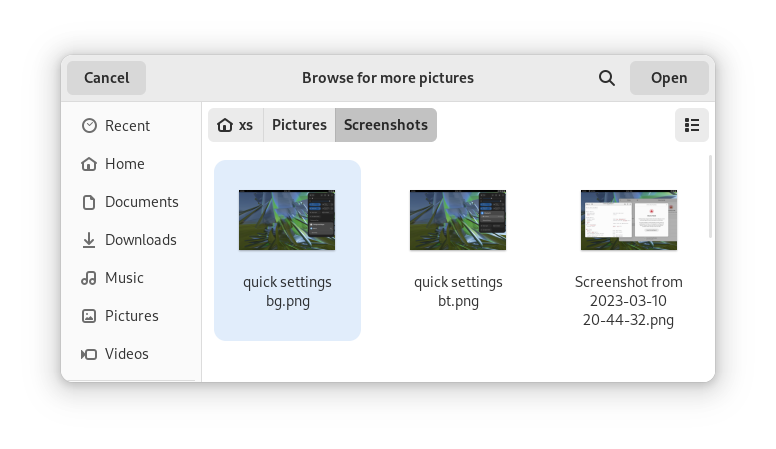
Most of the GNOME applications are built on GTK 4.10. This introduces a revamped file chooser with an icon view and image previews.

GTK 4.10's new file chooser, showing the icon view with image previews.
Icon view with image previews, new in GTK 4.10

Quick Settings tweaks

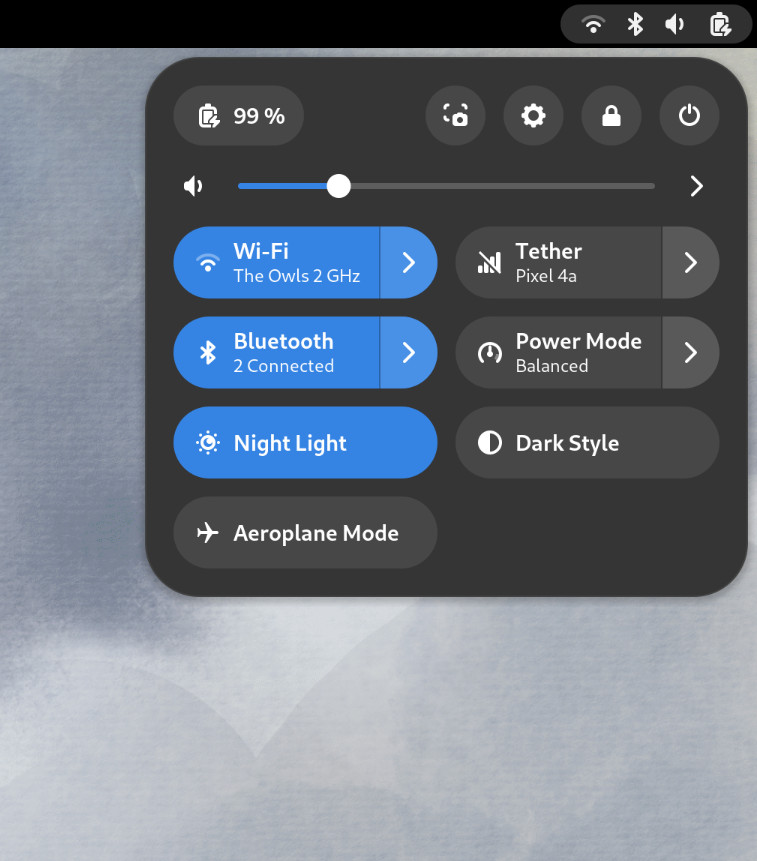
For GNOME 44 There have been a number of improvements to the Quick Settings menu. The new version includes a new Bluetooth menu, which introduces the ability to quickly connect and disconnect known Bluetooth devices. Additional information is available in each quick settings button, thanks to new subtitles.

The Bluetooth menu can now be used to connect to known devices

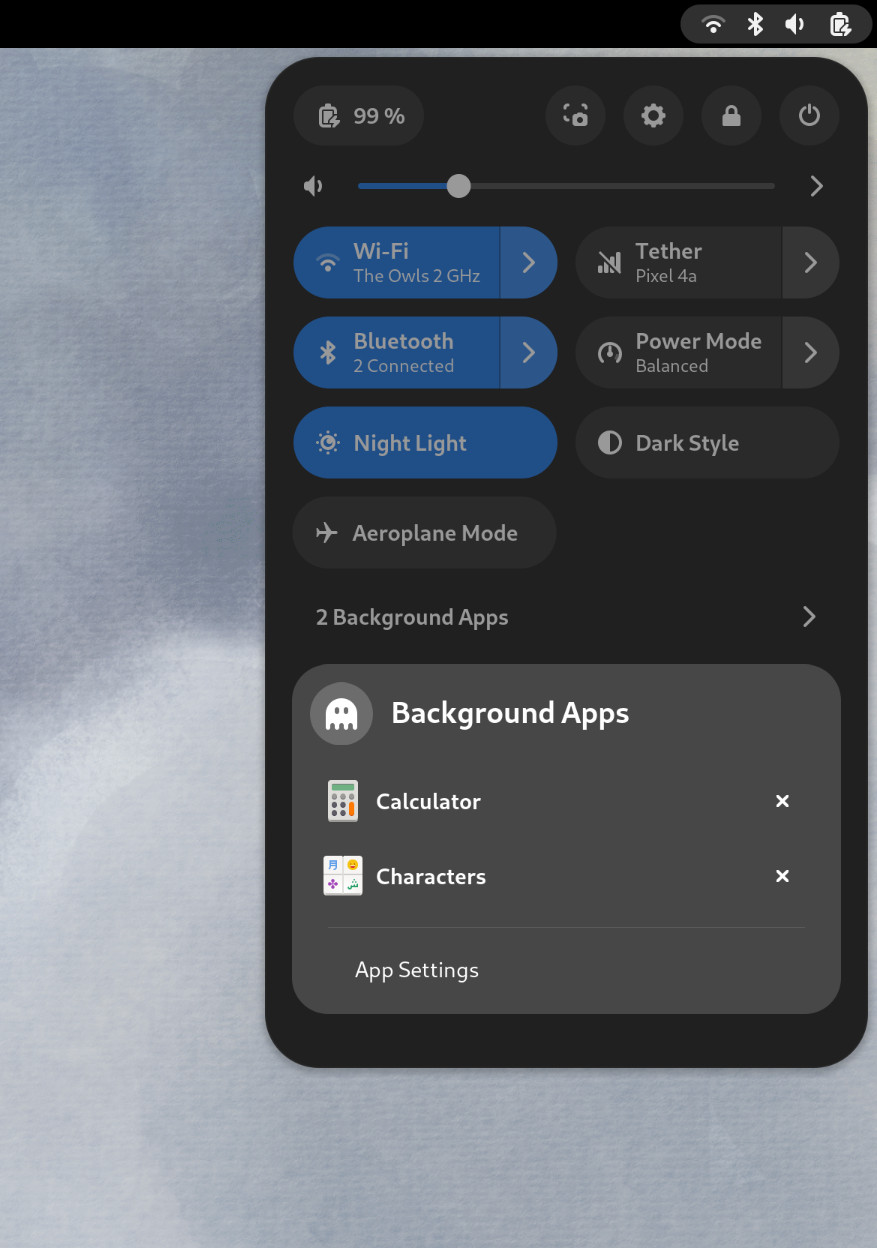
Also in the quick settings menu, a new background apps feature lists Flatpak apps which are running without a visible window.

Background Apps lets you see sandboxed apps running without a visible window and close them

Core applications

GNOME’s core applications have received significant improvements in the new version.

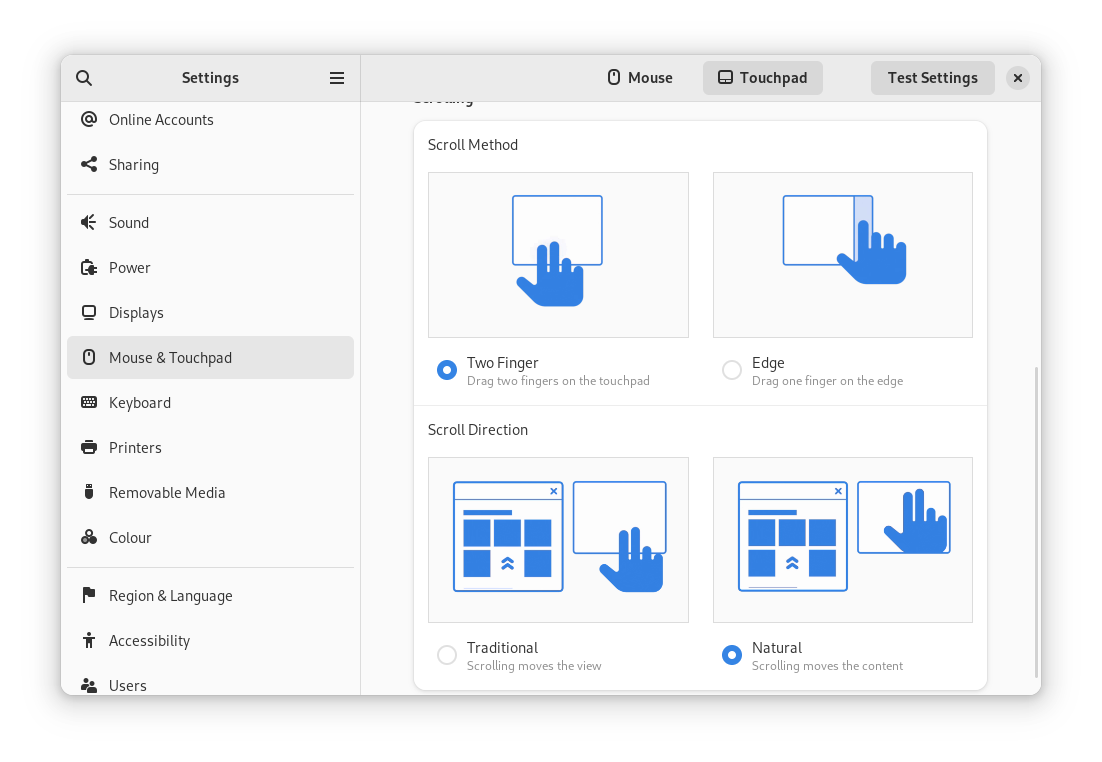
Settings has seen a round of updates, focused on improving the experience in each of the settings panels. Here are some notable changes:

  • Major redesigns of Mouse & Touchpad and Accessibility significantly improves usability.
  • Updated Device Security now uses clearer language.
  • Redesigned sound now includes new windows for the volume mixer and alert sound.
  • You can now share your Wi-Fi credentials to another device through a QR code.
The Mouse & Touchpad panel in the GNOME Settings app, showing the Touchpad settings.
The revamped Mouse & Touchpad panel in Settings

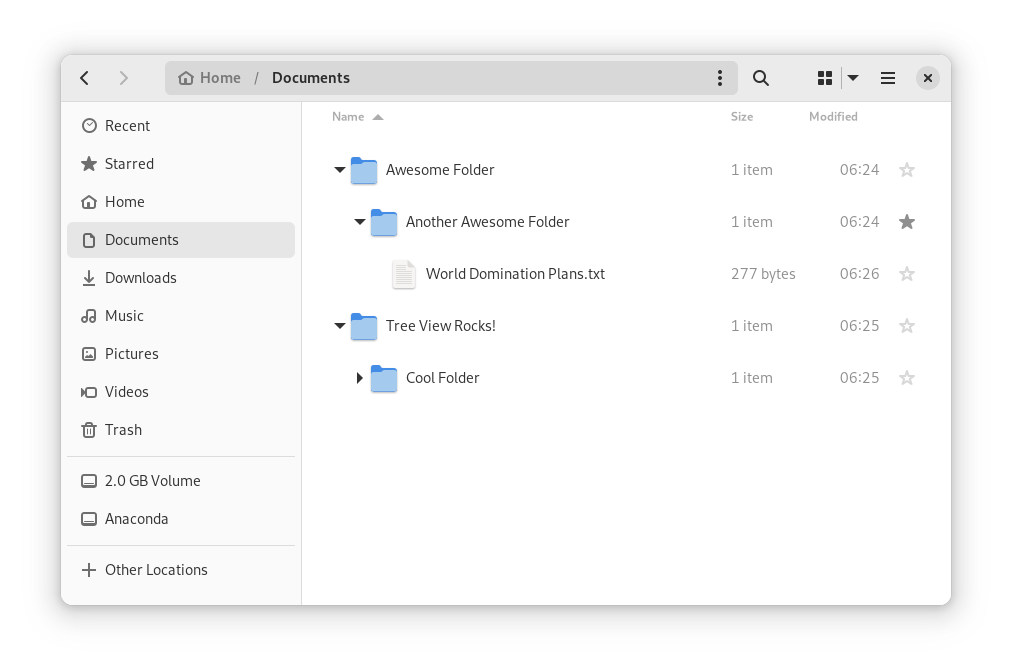
In Files, there is now an option to expand folders in the list view.

The tree view can be turned on in Files’ settings

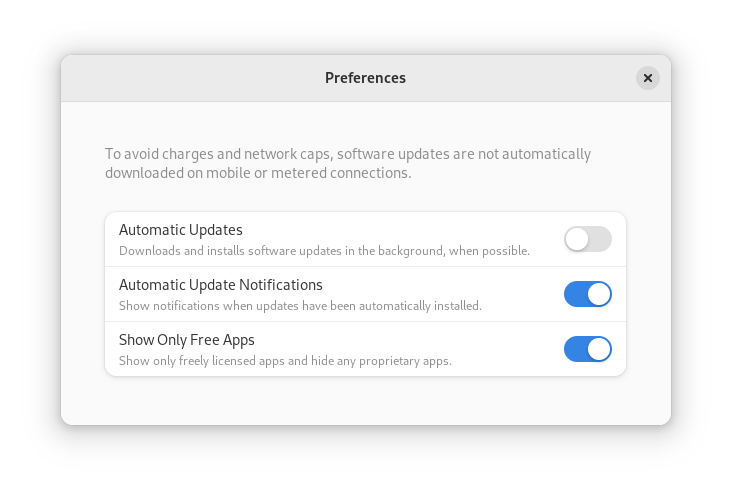
GNOME Software now automatically checks for unused Flatpak runtimes and removes them, saving disk space. You can also choose to only allow open source apps in search results.

In Contacts, you can now share a contact through a QR code, making it super easy to share a contact from your desktop to your phone!

Third-party repositories

Fedora’s third-party repositories feature makes it easy to enable a selection of additional software repos. Previous versions included a filtered version of Flathub, which included a small number of apps. For Fedora 38, filtering of Flathub content no longer occurs. This means that the third party repos now provide full access to all of Flathub.

The third party repos must still be manually enabled, and individual repositories may be disabled from the GNOME Software settings. If you want to keep proprietary apps from showing up in your search results, you can also do that in GNOME Software’s preferences menu.

You are in control.

Under-the-hood changes throughout Fedora Linux 38

Fedora Linux 38 features many under the hood changes. Here are some notable ones:

  • The latest Linux kernel, version 6.2, brings extended hardware support, bug fixes and performance improvements.
  • The length of time that system services may block shutdown has been reduced. This means that, if a service delays your machine from powering off, it will be much less disruptive than in the past.
  • RPM now uses the Rust-written Sequoia OpenGPG parser for better security.
  • The Noto fonts are now the default for Khmer and Thai. The variable versions of the Noto CJK fonts are now used for Chinese, Japanese, and Korean. This reduces disk usage.
  • Profiling will be easier from Fedora 38, thanks to changes in its default build configuration. The expectation is that this will result in performance improvements in future versions.

Also check out…

Official spins for the Budgie desktop environment and Sway tiling Wayland compositor are now available!

Posted on Leave a comment

Anaconda Web UI preview image now public!

We are excited to announce the first public preview image of the new Anaconda web interface!  Our vision is to reimagine and modernize our installer’s user experience (see our blog post “Anaconda is getting a new suit”). We are doing this by redesigning the user experience on all fronts to make it more easy and approachable for everyone to use.

Today, we would like to introduce our plans for the public preview release, as our new project has already reached a point where core code functionality is already developed and the new interface can be used for real installations. 

So, we’re giving you something to play with! 🙂

Installation progress of the preview image

Why public preview image?

By giving you a working ISO as soon as we can, you have the opportunity to help us to define this new UI. This task allows us to rethink what we have and find new ways to overcome the challenges of the UI instead of re-creating what we had already. Please take this opportunity and reach us with your feedback to help us to create the best OS installer ever!

Please let us know what you require from Anaconda. What features are important to you and why are these important? That will allow us to prioritize our focus on development and design. See below for how to contact us.

How to get public preview image?

Download the Anaconda preview image here

Thanks a lot to the Image Builder team for providing us with a way to build ISO with the Fedora 37 Workstation GA content. We are planning to provide additional images with an updated installer to give you the newest features and fixes with the link above. There are no updates to the installation payload (installed system data) yet. We will announce important updates of the ISO image by sending mail to anaconda-devel@lists.fedoraproject.org with CC to devel@lists.fedoraproject.org. Please subscribe to either of these to get information about the news. This way we will be able to iterate on your feedback.

What you will get with the preview ISO

The ISO will allow you to install the system and let you get a taste of the new UI, so you can provide us early feedback. However, it is pretty early in the development cycle. We advise you to not use this ISO to install critical infrastructure or machines where you have important data.

Let’s go to the more interesting part of what you can do with the ISO:

  • Choose installation language
  • Select your disks
  • Automatically partition the disks. BEWARE! This will erase everything on the selected disks.
  • Automatically install Fedora 37 GA Workstation system
  • Basic review screen of your selections
  • Installation progress screen
  • Built-in help (on Installation destination screen only)

Known issues:

  • In the bootloader menu you’ll see “Install Fedora 38”, it’s expected because the installation environment is from Rawhide. However, the content installed will be Fedora 37 GA, so don’t worry.
  • Virtual Box on Mac might have resolution issues. We are working on resolving this issue.
  • Aspect ratio and window handling. We know we need to solve this better, feedback is welcome.

How to provide feedback?

Your feedback is critical to have a project which you and we can be proud of, so please share it with us. To give us feedback:

Please take your time to play with the UI and tell us what you think. What works great, what is not working and what you would like to have. Ideally, follow future updates and tell us if the situation is better or worse. 

We are really counting on your feedback and we are thankful to have you all supporting us in this journey!

Posted on Leave a comment

What’s new in Fedora Workstation 37

Fedora Workstation 37 is the latest version of the Fedora Project’s desktop operating system, made by a worldwide community dedicated to pushing forward innovation in open source. This article describes some of the new user-facing features in Fedora Workstation 37. Upgrade today from GNOME Software, or by using dnf system-upgrade in your favourite terminal emulator!

GNOME 43

Fedora Workstation 37 features the latest version of the GNOME desktop environment which sees more core applications ported to GTK 4, user interface tweaks, and performance tune-ups. Check out the GNOME 43 release notes for more information!

Redesigned Quick Settings menu

No need to open Settings just to change to and from Dark Mode

The new Quick Settings menu offers more control and convenience. You can now easily switch your Wi-Fi network in the menu instead of being taken to a full-screen dialogue box, change between default and dark modes, and enable Night Light without opening the Settings app. A convenient button for taking screenshots and screencasts is also now present.

Core applications

The GNOME core applications included in Fedora Workstation 37 have seen a round of tweaks and improvements.

  • Files has been ported to GTK 4, and the user interface has seen many improvements. Here are just some of them:
    • It is now adaptive – meaning it automatically adjusts to a narrower size, making better use of the available space.
    • The list view has been re-architected to make rubber-band selections easier.
    • The “Properties” and “Open With…” dialogues have been redesigned.
Rubber-band selection in Files 43
  • Calendar features a new sidebar that shows your upcoming events at a glance. It, along with Contacts, now feature adaptive user interfaces.
  • Characters now shows you different skin tone, hair colour, and gender options for emoji.
  • The package source selector in Software has been redesigned and moved to a more visible location.
  • Maps has been ported to GTK 4.
  • Settings includes a new Device Security panel, allowing you to easily see the hardware security features your devices offers – or lacks!
Uh oh!

New supplemental default wallpapers

Fedora Workstation 37 ships with a new set of supplemental wallpapers. See how they were made here!

The six new wallpapers come in both light and dark variants

Under-the-hood changes throughout Fedora Linux 37

Fedora Linux 37 features many under-the-hood changes. Here are some notable ones:

  • The Raspberry Pi 4 single-board computer is now officially supported, including 3D acceleration!
  • New installs on BIOS systems will use the GPT disk layout instead of the legacy MBR layout. The installer images will also now use GRUB instead of syslinux to boot on BIOS systems.
  • If you disable and then re-enable SELinux, or run the fixfiles onboot command, the file system relabelling processes will now be done in parallel, allowing for a significant speed boost.
  • The default fonts for Persian has been changed from DejaVu and Noto Sans Arabic to Vazirmatn, providing a more consistent experience for those who use Fedora Linux in Persian.

Also check out…

Cool happenings throughout the Fedora Project!

  • Fedora CoreOS and Fedora Cloud Base have been promoted to Edition status!
  • Preview installer images with a new GUI for Anaconda, the Fedora Linux system installer, will become available in about a week. An article will be published with more details, so watch this space!
Posted on Leave a comment

4 cool new projects to try in Copr for May 2022

Copr is a build system for anyone in the Fedora community. It hosts thousands of projects for various purposes and audiences. Some of them should never be installed by anyone, some are already being transitioned to the official Fedora Linux repositories, and the rest are somewhere in between. Copr gives you the opportunity to install third-party software that is not available in Fedora Linux repositories, try nightly versions of your dependencies, use patched builds of your favorite tools to support some non-standard use cases, and just experiment freely.

If you don’t know how to enable a repository or if you are concerned about whether it is safe to use Copr, please consult the project documentation.

This article takes a closer look at interesting projects that recently landed in Copr.

Python-QT6

Do you miss QT6 Python bindings for Fedora Linux? Here they are. https://copr.fedorainfracloud.org/coprs/g/kdesig/python-qt6/

KDE SIG owns this project. Therefore, it should be a quality one. And one day, it may land in Fedora Linux. 

Example of usage:

$ python Python 3.10.4 (main, Mar 25 2022, 00:00:00) [GCC 12.0.1 20220308 (Red Hat 12.0.1-0)] on linux Type "help", "copyright", "credits" or "license" for more information. >>> import PyQt6 >>> from PyQt6.QtWidgets import QApplication, QWidget >>> import sys >>> app = QApplication(sys.argv) >>> window = QWidget() >>> window.show() >>> app.exec() 0 

More documentation can be found at 

https://www.pythonguis.com/tutorials/pyqt6-creating-your-first-window/.

Installation instructions

This package is available for Fedora Linux 36 and Rawhide. To install it, enter these commands:

sudo dnf copr enable @kdesig/python-qt6
sudo dnf install python3-qt6

Cloud-Native Utilities

A collection of cloud-native development tools.

These packages do not follow Fedora packaging guidelines, are statically built, and opt to bundle all dependencies.

Currently available packages:

  • Terraform – terraform
  • Packer – packer
  • Helm – helm
  • Tekton CLI – tektoncd-cli tektoncd-cli-doc
  • Knative CLI – knative-client knative-client-doc
  • Buildpack CLI – pack

All build recipes can be viewed in dist-git or from Pagure: https://pagure.io/mroche/cloud-utilities

Installation instructions

These packages are available for Fedora 36 Linux and Rawhide. To install them, enter this command:

sudo dnf copr enable mroche/cloud-native-utilities

DNF 5

You may be aware the DNF team is working on DNF5. There is a change proposal for Fedora Linux 38. The benefit is that every package management software — including PackageKit, and DNFDragora — should use a common libdnf library. If you have an application that handles RPM packages, you should definitely check out this project.

https://copr.fedorainfracloud.org/coprs/rpmsoftwaremanagement/dnf5-unstable/

Another similar project from the DNF team is 

https://copr.fedorainfracloud.org/coprs/jmracek/dnf5-alternatives/.

Installation instructions

These packages are available for Fedora Linux 35, 36 and Rawhide. To install them, enter these commands:

sudo dnf copr enable  rpmsoftwaremanagement/dnf5-unstable
sudo dnf install dnf5
sudo dnf copr enable jmracek/dnf5-alternatives
sudo dnf install microdnf-deprecated 

Hare

Hare is a systems programming language designed to be simple, stable and robust. Hare uses a static type system, manual memory management, and a minimal runtime. It is well suited to writing operating systems, system tools, compilers, networking software, and other low-level, high-performance tasks. A detailed overview can be found in these slides.

My summary is: Hare is simpler than C. It can be easy. But if you insist on shooting in your legs, Hare will allow you to do it.

Copr project.

Installation Instructions

These packages are available for Fedora Linux 35, 36 and Rawhide. They are also available for OpenSUSE Leap and Tumbleweed. To install them, enter these commands:

sudo dnf copr enable sentry/qbe
sudo dnf copr enable sentry/hare
sudo dnf install hare harec qbe 
Posted on Leave a comment

Using Sourcegraph to Search 34,000+ Fedora Repositories

In October 2021, a Fedora Linux user asked a question about licensing. Fedora Project Leader Matthew Miller left a response: “Since we don’t have a complete, exploded, searchable repository of all of the packages in Fedora, I don’t have a quick way to check.” 

Followed by: “…or possibly pay Sourcegraph to do it for us. They seem like nice people.” He is correct, we (Sourcegraph) are nice people, but we don’t want your money. Instead, we wanted to team up with the Fedora community.

The Fedora Community can now search their universe of open source code—currently over 34,000 repositories and counting.

Introduction to code search

For those who aren’t familiar with the concept of code search, it enables teams to onboard to a new codebase and find answers faster, helps to identify security risks, and many other use cases. Sourcegraph has indexed over two-million repositories across multiple code hosts such as GitHub and GitLab. This article is going to focus strictly on code search for src.fedoraproject.org. Sourcegraph provides both a web app and CLI interface.

Using the Web app

When using the Sourcegraph web app you will need to start each search with repo:^src.fedoraprojects.org before entering any search queries. Using this link to the web app will include this initial string as shown here:

Sourcegraph web app interface

The following sections will provide some web app examples of searches that might be of interest.

Find repositories using popular OSI-approved licenses 

The following query will scan all the repositories for software that is compatible with the “Open Source Definition” (OSD).

repo:^src.fedoraproject.org/ lang:"RPM Spec" License: ^.*apache|bsd|gpl|lgpl|mit|mpl|cddl|epl.*$
License search

Find files with TODOs

The following query can find TODOs in 34k repositories. This is great for those looking to contribute to projects that need help.

repo:^src.fedoraproject.org/ "TODO"
Search for TODO

Find files being served via FTP

A co-worker of mine from back in the day told me “FTP is a dead protocol”. Is it? You can add to this query to find any other protocol such as irc, https, etc.

repo:^src.fedoraproject.org/ (?:ftp)://[A-Za-z0-9-]{0,63}(.[A-Za-z0-9-]{0,63})+(:d{1,4})?/*(/*[A-Za-z0-9-._]+/*)*(?.*)?(#.*)?
Search for protocol

Find files with a vulnerable version of Log4j

This query will find any files that are possibly vulnerable (false positives can happen) to CVE-2021-44228 aka Log4j. You can also search for other vulnerabilities that can then be reported to project maintainers.

repo:^src.fedoraproject.org/ org.apache.logging.log4j 2.((0|1|2|3|4|5|6|7|8|9|10|11|12|13|14|15)(.[0-9]+)) count:all
Search for log4j

Use the CLI

Sourcegraph also has a command-line interface tool called src, which allows you to do everything I just mentioned above, plus other useful commands like getting results in JSON for programmatic consumption.

src search -json 'repo:^src.fedoraproject.org/ lang:"RPM Spec" License: ^.*apache|bsd|g
pl|lgpl|mit|mpl|cddl|epl.*$'

JSON output

JSON output

Search Syntax

The examples shown may be a good starting point but are by no means the only queries that may be made. You can view all search query syntaxes and create your own as needed.

Conclusion

As you can see, with Sourcegraph, the Fedora Linux community can now quickly search for all code hosted at src.fedoraproject.org, regardless of whether they are literal or complex regex queries.

I appreciate the Fedora Linux community being so helpful and welcoming. If you have anything you want to add or questions, my team and I will be in the comments section below. You can also join us on Slack.

Special thanks to Vanesa Ortiz for making this collaboration happen, Ben Venker for his help fixing my broken regex (multiple times), as well as Rebecca Dodd and Nick Moore for their help with editing.

Posted on Leave a comment

4 cool new projects to try in COPR from December 2020

COPR is a collection of personal repositories for software that isn’t carried in Fedora. Some software doesn’t conform to standards that allow easy packaging. Or it may not meet other Fedora standards, despite being free and open-source. COPR can offer these projects outside the Fedora set of packages. Software in COPR isn’t supported by Fedora infrastructure or signed by the project. However, it can be a neat way to try new or experimental software.

This article presents a few new and interesting projects in COPR. If you’re new to using COPR, see the COPR User Documentation for how to get started.

Blanket

Blanket is an application for playing background sounds, which may potentially improve your focus and increase your productivity. Alternatively, it may help you relax and fall asleep in a noisy environment. No matter what time it is or where you are, Blanket allows you to wake up while birds are chirping, work surrounded by friendly coffee shop chatter or distant city traffic, and then sleep like a log next to a fireplace while it is raining outside. Other popular choices for background sounds such as pink and white noise are also available.

Blanket

Installation instructions

The repo currently provides Blanket for Fedora 32 and 33. To install it, use these commands:

sudo dnf copr enable tuxino/blanket
sudo dnf install blanket

k9s

k9s is a command-line tool for managing Kubernetes clusters. It allows you to list and interact with running pods, read their logs, dig through used resources, and overall make the Kubernetes life easier. With its extensibility through plugins and customizable UI, k9s is welcoming to power-users.

k9s

For many more preview screenshots, please see the project page.

Installation instructions

The repo currently provides k9s for Fedora 32, 33, and Fedora Rawhide as well as EPEL 7, 8, Centos Stream, and others. To install it, use these commands:

sudo dnf copr enable luminoso/k9s
sudo dnf install k9s

rhbzquery

rhbzquery is a simple tool for querying the Fedora Bugzilla instance. It provides an interface for specifying the search query but it doesn’t list results in the command-line. Instead, rhbzquery generates a Bugzilla URL and opens it in a web browser.

rhbzquery

Installation instructions

The repo currently provides rhbzquery for Fedora 32, 33, and Fedora Rawhide. To install it, use these commands:

sudo dnf copr enable petersen/rhbzquery
sudo dnf install rhbzquery

gping

gping is a more visually intriguing alternative to the standard ping command, as it shows results in a graph. It is also possible to ping multiple hosts at the same time to easily compare their response times.

gping

Installation instructions

The repo currently provides gping for Fedora 32, 33, and Fedora Rawhide as well as for EPEL 7 and 8. To install it, use these commands:

sudo dnf copr enable atim/gping
sudo dnf install gping
Posted on Leave a comment

4 cool new projects to try in COPR from October 2020

COPR is a collection of personal repositories for software
that isn’t carried in Fedora. Some software doesn’t conform to
standards that allow easy packaging. Or it may not meet other Fedora
standards, despite being free and open-source. COPR can offer these
projects outside the Fedora set of packages. Software in COPR isn’t
supported by Fedora infrastructure or signed by the project. However,
it can be a neat way to try new or experimental software.

This article presents a few new and interesting projects in COPR. If
you’re new to using COPR, see the COPR User Documentation
for how to get started.

Dialect

Dialect translates text to foreign languages using Google Translate. It remembers your translation history and supports features such as automatic language detection and text to speech. The user interface is minimalistic and mimics the Google Translate tool itself, so it is really easy to use.

Installation instructions

The repo currently provides Dialect for Fedora 33 and Fedora
Rawhide. To install it, use these commands:

sudo dnf copr enable lyessaadi/dialect
sudo dnf install dialect

GitHub CLI

gh is an official GitHub command-line client. It provides fast
access and full control over your project issues, pull requests, and
releases, right in the terminal. Issues (and everything else) can also
be easily viewed in the web browser for a more standard user interface
or sharing with others.

Installation instructions

The repo currently provides gh for Fedora 33 and Fedora
Rawhide. To install it, use these commands:

sudo dnf copr enable jdoss/github-cli
sudo dnf install github-cli

Glide

Glide is a minimalistic media player based on GStreamer. It
can play both local and remote files in any multimedia format
supported by GStreamer itself. If you are in need of a multi-platform
media player with a simple user interface, you might want to give Glide a try.

Installation instructions

The repo currently provides Glide for Fedora 32, 33, and
Rawhide. To install it, use these commands:

sudo dnf copr enable atim/glide-rs
sudo dnf install glide-rs

Vim ALE

ALE is a plugin for Vim text editor, providing syntax and
semantic error checking. It also brings support for fixing code and
many other IDE-like features such as TAB-completion, jumping to
definitions, finding references, viewing documentation, etc.

Installation instructions

The repo currently provides vim-ale for Fedora 31,
32, 33, and Rawhide, as well as for EPEL8. To install it, use these
commands:

sudo dnf copr enable praiskup/vim-ale
sudo dnf install vim-ale

Editors note: Previous COPR articles can be found here.

Posted on Leave a comment

4 cool new projects to try in COPR for May 2020

COPR is a collection of personal repositories for software that isn’t carried in Fedora. Some software doesn’t conform to standards that allow easy packaging. Or it may not meet other Fedora standards, despite being free and open source. COPR can offer these projects outside the Fedora set of packages. Software in COPR isn’t supported by Fedora infrastructure or signed by the project. However, it can be a neat way to try new or experimental software.

This article presents a few new and interesting projects in COPR. If you’re new to using COPR, see the COPR User Documentation for how to get started.

Ytop

Ytop is a command-line system monitor similar to htop. The main difference between them is that ytop, on top of showing processes and their CPU and memory usage, shows graphs of system CPU, memory, and network usage over time. Additionally, ytop shows disk usage and temperatures of the machine. Finally, ytop supports multiple color schemes as well as an option to create new ones.

Installation instructions

The repo currently provides ytop for Fedora 30, 31, 32, and Rawhide, as well as EPEL 7. To install ytop, use these commands with sudo:

sudo dnf copr enable atim/ytop
sudo dnf install ytop

Ctop

Ctop is yet another command-line system monitor. However, unlike htop and ytop, ctop focuses on showing resource usage of containers. Ctop shows both an overview of CPU, memory, network and disk usage of all containers running on your machine, and more comprehensive information about a single container, including graphs of resource usage over time. Currently, ctop has support for Docker and runc containers.

Installation instructions

The repo currently provides ctop for Fedora 31, 32 and Rawhide, EPEL 7, as well as for other distributions. To install ctop, use these commands:

sudo dnf copr enable fuhrmann/ctop
sudo dnf install ctop

Shortwave

Shortwave is a program for listening to radio stations. Shortwave uses a community database of radio stations www.radio-browser.info. In this database, you can discover or search for radio stations, add them to your library, and listen to them. Additionally, Shortwave provides information about currently playing song and can record the songs as well.

Installation instructions

The repo currently provides Shortwave for Fedora 31, 32, and Rawhide. To install Shortwave, use these commands:

sudo dnf copr enable atim/shortwave
sudo dnf install shortwave

Setzer

Setzer is a LaTeX editor that can build pdf documents and view them as well. It provides templates for various types of documents, such as articles or presentation slides. Additionally, Setzer has buttons for a lot of special symbols, math symbols and greek letters.

Installation instructions

The repo currently provides Setzer for Fedora 30, 31, 32, and Rawhide. To install Setzer, use these commands:

sudo dnf copr enable lyessaadi/setzer
sudo dnf install setzer