Posted by: xSicKxBot - 03-30-2020, 06:00 PM - Forum: Windows
- No Replies
The top 10 reasons to switch to the new Microsoft Edge
New features provide peace of mind, help you stay in the flow and connect to the information you want
The last few weeks have been unlike anything I’ve ever experienced. As a working mom I’m certainly used to having a full schedule, getting pulled in different directions, balancing the needs of my family with those of my job, and generally feeling stretched. But these last several weeks have taken my everyday reality to a whole new level. And I suspect I’m not alone. I’ve found myself at home jumping from Teams call to Teams call while trying to keep things moving forward at work (recognizing I’m lucky in this regard) while also now homeschooling my kids. It feels like the volume of everything has been turned up significantly. There’s more email, more information and news, more screaming (as I write this, my kids are fighting right outside my room), more video chats, more anxiety and frankly, I’ve found it hard to make sense of it all.
One of the things I’ve noticed is that the browser – a thing I might not think too much about if it weren’t for the work I do every day – is an even more indispensable tool than ever before. Whether it’s reading the latest COVID-19 news, using Teams online for meetings, collaborating on Word documents with my team online, researching lesson plans for my kids, or shopping for toilet paper – I’m turning to the browser all day long. It’s a tool we all rely on and have for years.
My browser habits have not changed, but the world has, and at an incredible rate. These days we worry about what information online can be trusted. We worry about the safety of our personal data, our identity and the safety of our children online. At Microsoft, we are starting to question the browser status quo. Perhaps it’s time to expect more from the web.
Last year, we started our re-imagining of the web by rebuilding our Microsoft Edge browser from the ground up based on the Chromium engine. This ensured we could deliver world class speed, performance and website compatibility with the sites and extensions you use every day. But we believe that’s not enough. It’s time to expect more from our browsers – more control over our data and our family’s online information, new ways to organize our online research and more value back as we browse.
Here are a few of my favorite new features in the new Microsoft Edge.
1. Organize your research with Collections
If you’re having to suddenly design your child’s academic curriculum, or maybe spending more time at home has you rediscovering your inner chef, Collections can be a big help. Collections allows you to easily collect information from different websites, organize it, export it into various files or just come back to your research at a later time and pick up right where you left off. Today it can be difficult to do this – especially across a large number of different websites and multiple devices.
Just click on the Collections button and a pane on the right of your browser opens, where you can easily drag and drop webpages, text, or images into a group – without having to open another page or application. You can then send your collection to Word or Excel. I use Collections to help me create lesson plans for my kids. I search the web for all kinds of cool ideas, then drag them over to the Collections pane on the right, and when I’m done, with one press it exports the collection to a beautiful Word doc that I can print out for the kids. You can also share your collection by copying and pasting into Outlook or another email service.
Today we announced that Collections will also be coming to mobile later this spring making it easy to create, access and sync your Collections across all your devices. Collections for desktop is in the Insider channels now and will be coming to the Stable channel soon.
2. Work efficiently with vertical tabs
If you are like me when you research online, you find yourself with dozens of tabs open at any given time. When that happens, there’s less space for me to see which tab is which. I find myself losing track or I’ll accidentally close a tab as a result. Utterly frustrating as that is usually exactly the one page I needed.
Today we announced vertical tabs, a feature that helps you easily find and manage many open tabs at once. Microsoft Edge is the only browser that allows you to manage your tabs on the side with a single click. Vertical tabs is expected in the Insider channels in the next few months.
3. Save time with smart copy
My favorite technology features are always the ones that seem the simplest and where I find myself asking, “how did I live without this before?” How often do you cut and paste content from the web into documents only to see the beautiful web content reformatted into an ugly mess of text that you then need to clean up? Smart copy makes it easier to select, copy and paste the exact content you want from the web and preserve the rich web format. You can use your cursor to select any area or type of content. When you paste it will retain the formatting, including any images or links. It’s something that sounds so simple, but believe me, it’s a life-changer. Smart copy is expected in the Insider channels next month.
4. Take back control with tracking prevention
I’ll be honest, I love to shop. So yes, I sometimes do find personalized ads helpful. I’ve found various new products online this way that I may not have otherwise. But for many others and particularly for my kids, personalized ads that follow you around the web can sometimes feel intrusive, if not even creepy. The tracking prevention feature in Microsoft Edge is designed to protect you from being tracked by websites that you aren’t accessing directly, giving you more control over what you see and what you don’t. Whether on mobile or desktop, you can select one of three settings that’s right for you – Basic, Balanced or Strict. Depending on which setting you choose, Microsoft Edge will adjust the types of third-party trackers blocked. When I browse, I like to use Balanced mode which is the default setting. But I set my kids’ browsers to Strict mode. Tracking prevention makes understanding who’s tracking you online easier to see and easy to manage, and it’s available now.
5. Know if your passwords have been compromised on the dark web with Password Monitor
Each year, millions of online personal credentials are exposed in data breaches and end up for sale on the dark web.
Today, we’re announcing Password Monitor in Microsoft Edge to help keep your online accounts safe from hackers. When enabled, Password Monitor is a feature that notifies you if the credentials you’ve saved to autofill have been detected on the dark web. If Microsoft Edge uncovers a match with any of your saved username + passwords, you will receive a notification from within the browser prompting you to take action. Through a dashboard in Settings, you can view a list of all leaked credentials and get routed to their respective websites to change your password. Once the password has been changed, save the new credential to autofill and continue browsing with peace of mind knowing that Microsoft Edge and Password Monitor have your back. Again, such a simple, easy solution that makes me feel SO much better about browsing the web. One less thing to worry about. Password Monitor is expected in the Insider channels in the next few months.
6. Maintain truly private browsing and search with enhancements to InPrivate mode
Sometimes you want extra online privacy. If I’m sharing a device with other members of my family, for example, I may not want them to see the gift I’m researching for their birthday because I want to keep it a surprise! It’s for times like those that I like to use InPrivate because it automatically deletes my history, cookies and site data when I finish a web browsing session. In addition, Microsoft Edge is the only desktop browser that offers built-in InPrivate search with Bing. So, when I’m browsing in InPrivate mode, my searches aren’t tied to me or my account. InPrivate browsing is available now. The addition of InPrivate search in Bing is available in the Insider channels now and is coming to the Stable channel soon.
7. Immersive Reader enables everyone to learn and benefit from the web
Immersive Reader, built into Microsoft Edge, makes reading online easier and more accessible for everyone. Reading is one of the most common activities on the web but it can be difficult to do if you have dyslexia or other reading disabilities. Clicking on the Immersive Reader icon removes distractions on the screen and creates a simplified environment that helps you focus. You can also access a variety of tools that help personalize the experience that works best for you, like the ability to hear the article read aloud or to adjust the text. Immersive Reader is available now with more features like line focus coming soon.
8. Microsoft Edge delivers the best immersive viewing experience in 4K and Dolby Audio
These days, many of us are watching a lot more Netflix than before. Our goal is to provide the best high definition entertainment experience when viewing content on the web. Microsoft Edge is the only browser on Windows 10 that lets you watch 4K on Netflix. It’s also the only browser that supports Dolby Audio and Dolby Vision on Windows 10. Through our partnership with Netflix, you and your friends can stream your favorite movies and shows like “Spenser Confidential,” “Locke and Key” and “Night on Earth” in 4K from anywhere on your Windows 10 PC. There are hundreds of 4K Netflix titles to choose from. This feature is available now.
9. Make a difference: Give with Bing
With everything that’s happening these days, one thing that I am trying to keep in mind and model for my kids is how small things can make a big difference. Whether that’s self-care or looking out for others. Today, we are introducing Give with Bing and the Give Mode feature in Bing, a new way to help you to support the causes you care about. It’s a simple thing but it has the potential for real impact. If you choose to search in Bing you can earn reward points for those searches as part of the Microsoft Rewards program. By turning on the new Give Mode feature within your rewards settings, you can donate your reward points to the cause of your choice. There is no cost to you, just search with Bing. With more than 1 million nonprofits to choose from, you can support a cause that you really care about – including the CDC Foundation and others that are supporting the COVID response. In fact, through the end of June, Microsoft Rewards will match all donations to help make an even bigger impact. Try it. Join Microsoft Rewards, and switch on Give Mode and give with Bing. Give Mode is available now.
10. Microsoft Edge is ready for you (and it’s easy to switch)
data-video-id=”yg5cUyPBHjI”>
The new Microsoft Edge is ready for anyone to download today by visiting Microsoft.com/Edge. It’s available for Windows, Mac, iOS and Android. If you’re a Windows 10 customer and don’t have the new Microsoft Edge yet, you can download it today or look for it to come to your PC starting next month as we continue the roll-out. And whether you download it yourself or wait for it to come to your PC, it’s super easy to switch with your favorites, passwords, form fill information and basic settings carrying over to the new Microsoft Edge with just a single click. If you’ve never used Microsoft Edge before, we’re excited to have you give it a try.
We will continue to be quality driven as we release new features. That means that all features will be tested in the Insider channels, starting in Canary and progressing to Stable only when we are satisfied with the level of stability and quality. If you downloaded the new Edge, all you have to do is wait. We’ll update your browser when the features are ready. If you want to use them today, you can join the Microsoft Edge Insiders.
We’ve worked hard to address the evolving needs of today’s savvy web surfers. With the new Microsoft Edge, we hope you’ll see great performance, more control over your data and better ways to connect to and make sense of information. Because it’s time to expect more from the web.
Using data from spreadsheets in Fedora with Python
Python is one of the most popular and powerful programming languages available. Because it’s free and open source, it’s available to everyone — and most Fedora systems come with the language already installed. Python is useful for a wide variety of tasks, but among them is processing comma-separated value (CSV) data. CSV files often start off life as tables or spreadsheets. This article shows how to get started working with CSV data in Python 3.
CSV data is precisely what it sounds like. A CSV file includes one row of data at a time, with data values separated by commas. Each row is defined by the same fields. Short CSV files are often easily read and understood. But longer data files, or those with more fields, may be harder to parse with the naked eye, so computers work better in those cases.
Here’s a simple example where the fields are Name, Email, and Country. In this example, the CSV data includes a field definition as the first row, although that is not always the case.
Name,Email,Country

John Q. Smith,jqsmith@example.com,USA

Petr Novak,pnovak@example.com,CZ

Bernard Jones,bjones@example.com,UK
Reading CSV from spreadsheets
Python helpfully includes a csv module that has functions for reading and writing CSV data. Most spreadsheet applications, both native like Excel or Numbers, and web-based such as Google Sheets, can export CSV data. In fact, many other services that can publish tabular reports will also export as CSV (PayPal for instance).
The Python csv module has a built in reader method called DictReader that can deal with each data row as an ordered dictionary (OrderedDict). It expects a file object to access the CSV data. So if our file above is called example.csv in the current directory, this code snippet is one way to get at this data:
f = open('example.csv', 'r')

from csv import DictReader

d = DictReader(f)

data = []

for row in d: data.append(row)
Now the data object in memory is a list of OrderedDict objects :
>>> print(data[0]['Country'])

USA

>>> print(data[2]['Email'])

bjones@example.com
By the way, if you have to deal with a CSV file with no header row of field names, the DictReader class lets you define them. In the example above, add the fieldnames argument and pass a sequence of the names:
d = DictReader(f, fieldnames=['Name', 'Email', 'Country'])
A real world example
I recently wanted to pick a random winner from a long list of individuals. The CSV data I pulled from spreadsheets was a simple list of names and email addresses.
Fortunately, Python also has a helpful random module good for generating random values. The randrange function in the Random class from that module was just what I needed. You can give it a regular range of numbers — like integers — and a step value between them. The function then generates a random result, meaning I could get a random integer (or row number!) back within the total number of rows in my data.
So this small program worked well:
from csv import DictReader

from random import Random d = DictReader(open('mydata.csv'))

data = []

for row in d: data.append(row) r = Random()

winner = data[r.randrange(0, len(data), 1)]

print('The winner is:', winner['Name'])

print('Email address:', winner['Email'])
Obviously this example is extremely simple. Spreadsheets themselves include sophisticated ways to analyze data. However, if you want to do something outside the realm of your spreadsheet app, Python may be just the trick!
Random: Pichu Player Shocks Himself While He Plays Smash Bros. Ultimate
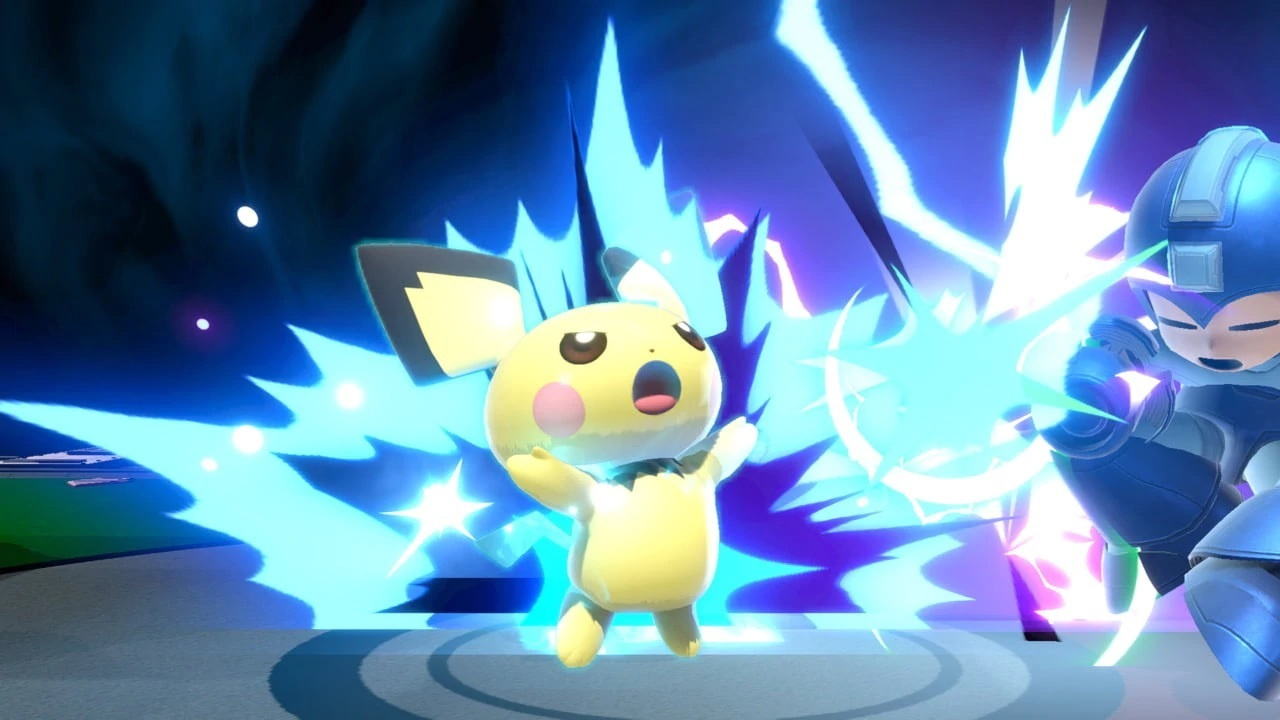
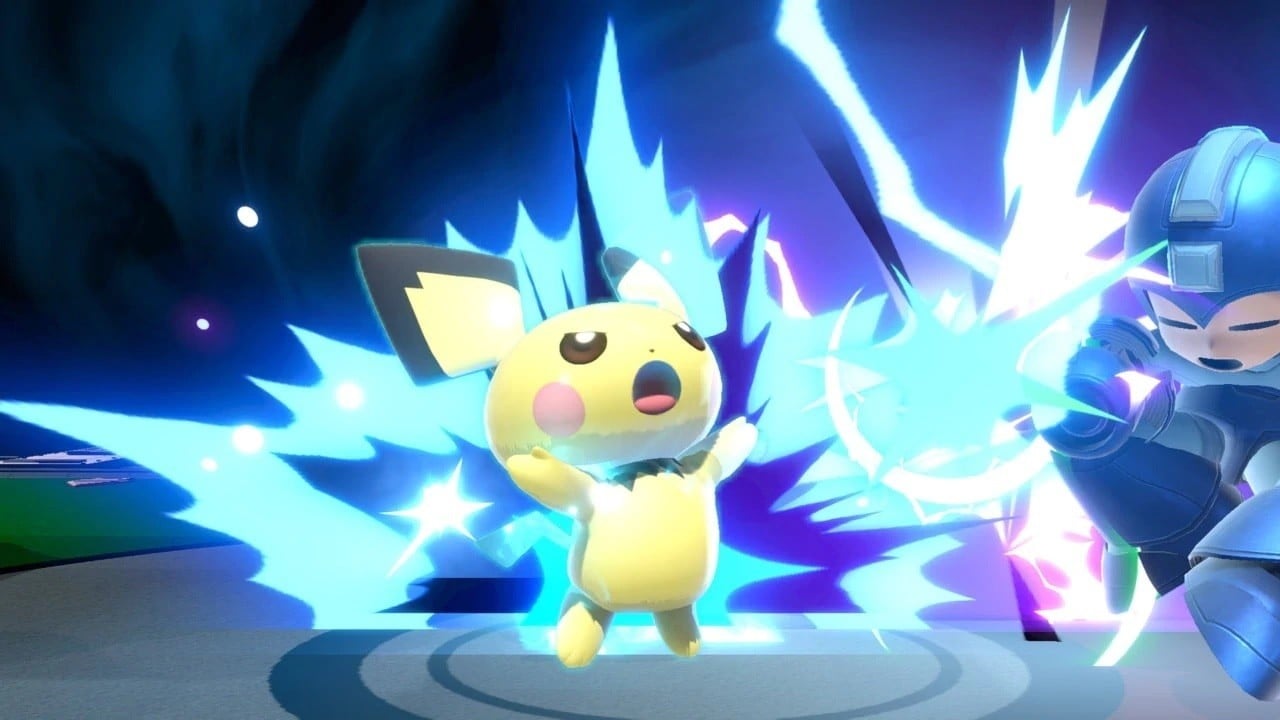
Super Smash Bros. Ultimate fan and mechanical engineer, Eric Heckman, came up with an electric idea to wire a taser to a GameCube controller, so he could shock himself while he played as the Pokémon fighter, Pichu.
In an email to Kotaku, Heckman explained how it’s was a “pretty simple” design. Apart from the controller, system, and a copy of Smash Bros. on Switch, the components included an Arduino microcontroller, a relay switch and a cheap taser. The entire assembly took around two hours to wire, and the rest of the time was spent coding:
The controller has delays built in so that the taser activates at the same time Pichu takes damage within the game.
As noted, the whole invention relies on the electric mouse hurting itself (in-game) when it performs a special attack. This is all supposedly tied to the fact it’s still learning how to control its electrical powers.
Heckman was unable to adjust the taser’s voltage to match the power of each move, so he instead made it zap longer – depending on which move is executed. The taser also mimics the delivery of each attack. For example, Thunder Jolt is a brief shock, while the move Thunder unleashes a world of pain when the rumble motor movement is detected.
You can view more of this Eric’s work over on his YouTube channel, Insert Controller Here. He’s done various other experiments like this before if you feel like watching more. Else, take a look at the video at the top of this page to see his shocking play session with Pichu.
Do not attempt to recreate the device in the video above.
Disney's The Call Of The Wild Has Received An Early Digital Release
With movie cinemas closed in order to prevent large congregations of large crowds and stem the spread of COVID-19 (coronavirus), many movies are getting early digital releases. Now, another Disney cinema release from 2020 is available digitally much earlier than expected.
Variety is reporting that The Call of the Wild is now available digitally. The film, which released in cinemas on February 21, 2020, can now be viewed from home for $15. The film, which stars Harrison Ford, flopped at the box office, but might fare better with audiences who are now self-isolating and looking for entertainment.
The film, which is adapted from Jack London's 1903 novel, is a family-friendly adventure film with a lovable dog at its heart. It's the live-action debut of director Chris Sanders (Lilo & Stitch, How To Train Your Dragon). There's no word yet on when the movie will arrive on streaming service Disney Plus.
Review: Gigantosaurus: The Game – Yet Another Poor Licensed Tie-In
Licensed games continue to be incredibly hit and miss. There are certainly examples of titles that have got it right, such as South Park: The Stick of Truth and its sequel, but sadly there are countless other games that just simply feel like shameless cash grabs, relying solely on the popularity of the property over compelling gameplay. This is unfortunately the case with Gigantosaurus: The Game, a soulless husk of a platform game that takes many cues from Super Mario Odyssey, yet fails to implement them in any meaningful way.
It’s important to note right away that Gigantosaurus: The Game is fully intended for very young gamers: we’re talking age 6 and under. The way in which the narrative is delivered makes this fairly obvious from the start: cutscenes occur at regular intervals when completing a certain task or level, and the plot is told entirely through simple, rhyming narration. None of the characters themselves can actually talk, which is a shame in a way, but the simplicity of the plot’s delivery means that youngsters will at least be able to follow along without much trouble.
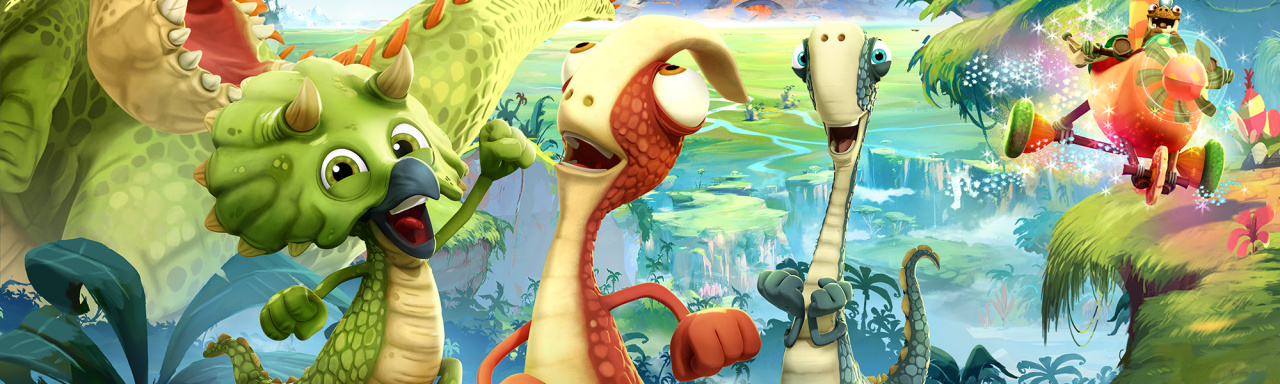
You play as one of four young dinosaurs: Tiny, Rocky, Mazu, and Bill. You can switch between the four on the go, or grab up to three friends and play cooperatively. The game is split into several levels of decent size, and your main priority in each level is to collect dinosaur eggs scattered throughout the environment and bring them back to their individual nests. There are a few optional side quests in addition to this, but they all consist of collecting different items, and quite frankly the main story quest is monotonous enough as it is.
Each of the four playable dinosaurs is endowed with a special ability that will allow access to certain areas. So for example, Tiny is an adorable Triceratops, and can use her thick skull to smash into poles, granting you a handy makeshift bridge when they come crashing to the ground. Playing cooperatively with friends means you’ll need to communicate which player is required for the task at hand, but if you’re on your own, you’ll need to cycle through the dinosaurs until you reach the right one, which can be frustrating after the umpteenth time.
There’s absolutely no doubt that Gigantosaurus: The Game has taken inspiration from Super Mario Odyssey, in that the task of collecting the dinosaur eggs is incredibly similar to collecting moons. A good bit of exploration is required to find each of them, but given the game’s intended audience, the difficulty is more or less non-existent. In fact, it’s not until the fourth level that you’ll actually come across any creatures that can physically harm you – at least, from our experience. We could put this down to the game catering to its intended audience, but heck, games when we were young were tough as nails. However, to give credit where it’s due, the level design itself is impressive, and some of the platforming required is great fun, with sections that include moving platforms on conveyor belts, and tornadoes that pull you into the sky.
Surprisingly, Gigantosaurus: The Game is actually two genres in one. We’ve covered the platforming side, but in between each level, the game becomes a kart racer – not a very comprehensive one, mind. It’s actually a decent way to break up the repetitive nature of the main game, as you’re required to take part in races in order to travel from one location to the next. Again, you can choose from one of the four main characters, but we couldn’t detect any discernible difference between any of them in terms of speed or handling.
You’ll race along the tracks, collecting boosts and various other collectibles along the way, but sadly there aren’t any weapons available. It’s almost insultingly easy to win, but again, we need to keep reminding ourselves that it’s for young kids. Nevertheless, the controls are fairly decent here, even if they lack staple karting mechanics such as drifting. You can also choose just to race right from the main menu if you want a bit of a break from the main game, which is a nice little touch.
In terms of its general performance, Gigantosaurus: The Game is about as smooth as a spinosaurus’s backside. The frame rate is constantly sketchy and really starts to struggle when the screen gets busy. Additionally, we’re all used to game assets fading away when the camera gets in too close, but in this case objects like huge trees and rocks disappear immediately when you walk up to them, so you’ll find yourself frequently walking into invisible objects – given the rather basic nature of the graphics (we’re talking GameCube/Wii quality at best), this is simply inexcusable, and makes for an infuriating gameplay experience.
Conclusion
We cannot wholeheartedly recommend Gigantosaurus: The Game to anyone. Young children who love the animated show may well get some limited enjoyment out of it, but with poor graphics, a total lack of any discernible challenge, and shocking technical issues, it’s yet another licensed title that feels like it was designed as a quick cash grab. Games like this need to become extinct, and fast.
There is reportedly an issue with the game’s online multiplayer component. While there’s no mention of a cross-play feature in the official Nintendo description, right now, PC players are able to join Switch matches and it’s causing all sorts of trouble.
Here’s exactly what’s going on, according to ResetEra user Max Payment:
I was excited to play this game online, so I picked it up immediately. I joined a game where 1 player was absolutely mopping the floor with us and he had .twitchtv in his username.
Sure enough, I looked him up and he was playing on PC in a switch server absolutely decimating everyone.
Apparently all you have to do is take the server IP from a console match, which is clearly visible on console, and enter it in the PC server browser and join.
A number of Twitter users have reported the same issues in the Switch release. There’s even some cheating happening:
Although Aspyr didn’t include multiplayer of any sorts in the Switch version of Star Wars: Jedi Knight II: Jedi Outcast, it did make an effort to patch the solo experience when certain issues were reported. With any luck, it will resolve this problem with its latest release right away.
How’s your experience been with Jedi Academy on the Switch so far? Comment below.
Posted by: xSicKxBot - 03-30-2020, 07:48 AM - Forum: Lounge
- No Replies
Game Release Dates Of April 2020: PS4, Switch, Xbox One, PC
If you thought March already had enough to keep you busy with big games like Animal Crossing: New Horizons and Doom Eternal, then you're mistaken. April is nearly upon us, and with it comes riveting dose of nostalgia in the form of top-tier classic game remakes, Final Fantasy VII and Resident Evil 3. Another notable standout this month is Microsoft's Gears Tactics, an XCOM-style spin-off of the Gears of War franchise, which comes alongside several other releases both big and small.
To give you a look at what's ahead for PS4, Xbox One, PC, and Switch, we've rounded up all the biggest games of April 2020 below. For a broader look at the titles still to come this year, be sure to check out our list of game release dates in 2020.
Resident Evil 3 (PS4, Xbox One, PC) -- April 3
Following the success of last year's Resident Evil 2 remake, Capcom is already giving us a remake of Resident Evil 3. As returning series protagonist Jill Valentine, you embark on a perilous journey to survive the early days of Raccoon City's zombie outbreak. All the while, a towering bioweapon known as Nemesis hunts you at every turn, making your struggle to escape that much more difficult. Like its predecessor, RE3 reimagines the events of the original to create a unique survival-horror experience that looks to defy the expectations of longtime series fans, while also terrifying and surprising newcomers.
[freebies.indiegala.com] R.C. Cars, our newest FREEbie, is an exciting arcade racing game featuring the world of highly realistic toy radio controlled cars.
[www.indiegala.com] Embark on a journey to the ends of hell to unlock your past and escape your living nightmare in CODE VEIN. https://youtu.be/sfIqOpfdh98 If you are a fan of both Dark Souls-like games, as well as the Anime-aesthetic, you will not want to miss one of our finest Crackerjack Deal at the moment.
The 166th GalaQuiz will be LIVE soon, win up to $50 in GalaCredit!
[www.indiegala.com] The GalaQuiz will take place in less than 10 minutes from this announcement Today's GalaQuiz[www.indiegala.com] hints are up. The theme will be Animals Redux.
Posted by: xSicKxBot - 03-30-2020, 01:43 AM - Forum: Lounge
- No Replies
Fortnite Dog House Locations: Where To Destroy Dog Houses
Fortnite's Week 6 challenges of Season 2 are now live, and like last week's batch, these are themed around the Meowscles skin. That means that you'll need to do some cat-like things to complete a few of the missions, such as destroying dog houses. If you're not sure where those can be found, we've put together the map and guide below to help you out.
Where Are The Dog House Locations?
Dog houses aren't exactly prominent fixtures, so you may have some trouble tracking them down. Fortunately, there are quite a few of them scattered around the map, so it shouldn't be too difficult to find three and complete this challenge. Many can be found by houses in big residential areas like Pleasant Park and Holly Hedges, so you'll definitely want to narrow your search to places like that. To make it easier, we've marked down some areas where you can reliably find dog houses on the map below.
Couldn't really find a tutorial on the net about installing Plugins/Mods on your dedicated server.
So further more I have you here!
First find some Plugins/Mods over at this link:
Hidden Content
Reply to this thread to unlock the contents
2nd: Download them Locally and to the Server
I personally like Revenhearst Mod Pack (Overhaul)
Link:
Hidden Content
Reply to this thread to unlock the contents
How to download to the server: A16 Valmod plugin has a Github download link.
So we will use Git to extract the link to Ubuntu/Debian systems.
How to Install Server Side:
Find 7 Days to Die Local Files (Ubuntu system first)
FILEZILLA Method:
Open the Ravenhearst zip. Open the first folder inside. Inside is a Data and Mods folder. Drag and drop these folders into the main game's directory.
From Terminal:
Valmod is a github link so we will use wget
Navigate to your 7daystodie folder. Usually inside /home/user/steamcmd/7daystodie.
Command:
Code:
cd /home/usersteamcmd/7daystodie_Data
wget https://gitlab.com/jaxteller718/ravenhearst_6_2_server_files/-/archive/master/ravenhearst_6_2_server_files-master.zip
unzip ravenhearst_6_2_server_files-master.zip
rm ravenhearst_6_2_server_files-master.zip
cd ravenhearst_6_2_server_files-master
cp -r Mods ../
cp -r Data ../
cp -r 7DaysToDieServer_Data ../
mv serverconfig.xml ../
cd ..
rm -rf ravenhearst_6_2_server_files-master
With these mods you have todisable EAC though. Just FYI
How to Install Client Side:
Right Click 7 Days To Die and select properties
Click the Local Files Tab
Click the Browse local files button.
Download Client files here:
Hidden Content
Reply to this thread to unlock the contents
Inside Master folder, Drag and drop these folders into the game's directory, overwriting when prompted.
**How to start 7 Days to Die without EAC: In your steam directory for 7 days to die, there are to .exe (executables) one with EAC and one without. Click the one without.








 in GalaCredit!