Bricksburg is in ruins and Emmet’s friends have been taken! Team up with Emmet and a host of heroic characters to save their friends from the strange inhabitants of the Systar System. Journey into outer space, discover new worlds, and test your Master Building skills.
Watch these devs compete to make the best game pitch at GDC Pitch 2019!
We’re just weeks away from the 2019 Game Developers Conference, and organizers want to let you know about the courageous developers who will be participating in the popular GDC Pitch event at GDC Play this year!
If you’ve never been to GDC Play, know that it’s a showcase for some of the most interesting emerging/independent developers and their games. GDC Pitch is a special event where select GDC Play devs hone their game-pitching skills in front of a panel of expert judges — as well as a live audience!
This year GDC Pitch will take place Wednesday and Thursday (March 20th and 21st) during GDC 2019, and it will again be hosted by Jason Della Rocca of investment platform Execution Labs. 10 selected dev teams will each be offered pitch prep and training, then get 5 minutes to pitch, followed by questions, advice, and feedback from the judges.
Each day the judges will declare a “Best Pitch” and award each a complimentary All Access pass to GDC 2019. It’s always an exciting event, so leave some time in your GDC 2019 schedule to drop by and check it out!
GDC Play exhibitors opt-in to participate in GDC Pitch via GDC Connect. Selected studios are given strict format instructions and rules, as well as a time slot on one of the two days. As you can see, each of these events is expected to run about an hour and will take place at the Career Center Theater in the North Hall of San Francisco’s Moscone Convention Center.
It promises to be an engaging high-energy competition, so leave time to check it out as you’re planning out your conference schedule via the online GDC 2019 Session Scheduler!
Bring your team to GDC! Register a group of 10 or more and save 10 percent on conference passes. Learn more here.
Windows Gaming and more State of Decay slots now available!
Thank you to everyone who signed up for the State of Decay flight on version 18334. We received an overwhelming response to the flight and are very grateful for your support!
Today, in addition to State of Decay we also have some exciting news to share about flighting additional Windows Gaming features. In the coming days / weeks / months – you will find us using this flight ring to give you a preview of the latest and greatest things we are building for our gaming audience.
To get everything this ring has to offer, we would recommend that you are on Windows 10 version 18329 or higher. But there is something even for those of you who are on older versions of Windows 10 (17763).
REMINDER: BattlEye software (used by Fortnite, PlayerUnknown’s Battlegrounds and other popular games) does not work correctly with builds flighted to the Windows Insider Fast ring since December. If you have a machine that is not already enrolled in Windows Insider Fast, and you play games that use BattlEye software, we recommend you do not join Windows Insider Fast on that personal computer. We are working closely with BattlEye and individual games are being updated with new BattlEye software to make sure they work properly with new Windows builds.
Here is a quick overview of the instructions to join the ring:
If you have an Xbox Live Gamertag (you most likely have one already if you are reading this!), go to step 2 below. If you don’t have a Gamertag, use your Microsoft Account (MSA) to log into https://account.xbox.com and create an Xbox account. Once completed, you will see your Gamertag in the top right of the page.
Install the Xbox Insider Hub app on the PC you’ll be flighting on (link opens in Store app).
Sign in to the Xbox Insider Hub with your Gamertag.
Select Insider Content in the upper left
Select Windows Gaming
If you are on 18329 or higher, you will be automatically enrolled into Game bar. You can then manually enroll into the flight for State of Decay: Year One
If you are on 17763, you will be automatically enrolled only into the Game bar flight
For details on how to get the latest version of Windows, scroll down to the bottom of this post. Now, the fun part!
State of Decay: Year One (Windows 10 version 18329 or higher)
Try out State of Decay on a new version of Windows
We’re pleased to announce that we have a new Windows version (18342) with fixes and improvements that we can’t wait to have folks try out!
If you have already tried State of Decay and everything worked: we’d appreciate you uninstalling State of Decay and then trying the install again, to make sure everything works.
If you have already tried State of Decay and something didn’t work: please try again and see if your issue has been addressed. If not, it would help us a lot if you let us know using the Feedback Hub in Windows (instructions). Even if you already sent feedback on the issue before, it’s very helpful to know that it’s still happening on a new version of Windows.
If you were not able to get a slot for State of Decay: we’ve opened up more slots now, so please try again
If you see any problems downloading or installing the game, or if important functionality like game saving isn’t working, please be sure to use the Feedback Hub to tell us. And thank you again for helping us find any issues!
Game bar (Windows 10 version 17763 or higher)
Early access to new Game bar features
By joining this program, you will get access to the newest features and fixes of Game bar before the general public.
In this early preview for Game bar, you will get:
The new controller battery UI—just connect an Xbox One controller and then hit Nexus/Xenon or Win+G to bring up Game bar! This was the top ask for Game bar at Xbox Ideas, and we’re excited to deliver it!
A new Settings layout to make it easier to find your settings within Game bar
Other fixes and polish to our experiences around Game capturing and Sharing to Twitter
In the coming weeks you will be the first to receive the latest and greatest updates for the Game bar.
Instructions on how to get the latest version of Windows
Go to Start -> Settings -> Update & Security -> Windows Insider program to enroll in the Windows Insider Fast flight ring (Need more information? Check out the details on the Windows Insider Program)
Restart your machine when prompted.
Go to Start -> Settings -> Update & Security and click “Check for Updates”. You will be updated to 18342 or later.
Explore over-the-top action and physics-bending motorcycle racing in the latest opus of the Trials franchise. With new tracks in exotic places all over the world and more ways to compete, Trials® Rising is the best one yet.
We got a fever and the only prescription is more cowbell.
A full summary of the content available in this snapshot can be found in the changelog on Minecraft.net.
Added new Note block sounds
Fixed bugs
Sprites for particles can now be configured in resource packs (though particle still controls how they will be used)
NOTE BLOCK
5 new Note block sounds have been added: Iron Xylophone, Cow Bell, Didgeridoo, Bit, and Banjo
1 previously existing, but unused, sound effect has now been made available: Pling
The new Note block sounds can be heard by using Iron Blocks, Soul Sand, Pumpkins, Emerald Blocks, Hay Blocks, or Glowstone
To get snapshots, open your launcher and go to the “launch options” tab. Check the box saying “Enable snapshots” and save. To switch between the snapshot and normal version, you can find a new dropdown menu next to the “Play” button. Back up your world first or run the game on in a different folder (In the “launch options” page).
Please report any and all bugs you find in Minecraft to bugs.mojang.com.
Snapshots can corrupt your world, please backup and/or run them in a different folder from your main worlds.
Share your thoughts on how 1.14 is shaping up in the comments below!
At this stage of our Bash basics series, it would be hard not to see some crossover between topics. For example, you have already seen a lot of brackets in the examples we have shown over the past several weeks, but the focus has been elsewhere.
For the next phase of the series, we’ll take a closer look at brackets, curly, curvy, or straight, how to use them, and what they do depending on where you use them. We will also tackle other ways of enclosing things, like when to use quotes, double-quotes, and backquotes.
This week, we’re looking at curly brackets or braces: {}.
Array Builder
You have already encountered curly brackets before in The Meaning of Dot. There, the focus was on the use of the dot/period (.), but using braces to build a sequence was equally important.
As we saw then:
echo {0..10}
prints out the numbers from 0 to 10. Using:
echo {10..0}
prints out the same numbers, but in reverse order. And,
echo {10..0..2}
prints every second number, starting with 10 and making its way backwards to 0.
Then,
echo {z..a..2}
prints every second letter, starting with z and working its way backwards until a.
And so on and so forth.
Another thing you can do is combine two or more sequences:
echo {a..z}{a..z}
This prints out all the two letter combinations of the alphabet, from aa to zz.
Is this useful? Well, actually it is. You see, arrays in Bash are defined by putting elements between parenthesis () and separating each element using a space, like this:
This last one is particularly interesting because dec2bin now contains all the binary numbers for an 8-bit register, in ascending order, starting with 00000000, 00000001, 00000010, etc., until reaching 11111111. You can use this to build yourself an 8-bit decimal-to-binary converter. Say you want to know what 25 is in binary. You can do this:
Here the braces {} are not being used as apart of a sequence builder, but as a way of generating parameter expansion. Parameter expansion involves what it says on the box: it takes the variable or expression within the braces and expands it to whatever it represents.
In this case, month is the array we defined earlier, that is:
And, item 3 within the array points to "Apr" (remember: the first index in an array in Bash is [0]). That means that echo ${month[3]}, after the expansion, translates to echo "Apr".
Interpreting a variable as its value is one way of expanding it, but there are a few more you can leverage. You can use parameter expansion to manipulate what you read from variable, say, by cutting a chunk off the end.
Suppose you have a variable like:
a="Too longgg"
The command:
echo ${a%gg}
chops off the last two gs and prints “Too long“.
Breaking this down,
${...} tells the shell to expand whatever is inside it
a is the variable you are working with
% tells the shell you want to chop something off the end of the expanded variable (“Too longgg”)
and gg is what you want to chop off.
This can be useful for converting files from one format to another. Allow me to explain with a slight digression:
ImageMagick is a set of command line tools that lets you manipulate and modify images. One of its most useful tools ImageMagick comes with is convert. In its simplest form convert allows you to, given an image in a certain format, make a copy of it in another format.
The following command takes a JPEG image called image.jpg and creates a PNG copy called image.png:
convert image.jpg image.png
ImageMagick is often pre-installed on most Linux distros. If you can’t find it, look for it in your distro’s software manager.
Okay, end of digression. On to the example:
With variable expansion, you can do the same as shown above like this:
i=image.jpg convert $i ${i%jpg}png
What you are doing here is chopping off the extension jpg from i and then adding png, making the command convert image.jpg image.png.
You may be wondering how this is more useful than just writing in the name of the file. Well, when you have a directory containing hundreds of JPEG images, you need to convert to PNG, run the following in it:
for i in *.jpg; do convert $i ${i%jpg}png; done
… and, hey presto! All the pictures get converted automatically.
If you need to chop off a chunk from the beginning of a variable, instead of %, use #:
There’s quite a bit more to parameter expansion, but a lot of it makes sense only when you are writing scripts. We’ll explore more on that topic later in this series.
Output Grouping
Meanwhile, let’s finish up with something simple: you can also use { ... } to group the output from several commands into one big blob. The command:
echo "I found all these PNGs:"; find . -iname "*.png"; echo "Within this bunch of files:"; ls > PNGs.txt
will execute all the commands but will only copy into the PNGs.txt file the output from the last ls command in the list. However, doing
{ echo "I found all these PNGs:"; find . -iname "*.png"; echo "Within this bunch of files:"; ls; } > PNGs.txt
creates the file PNGs.txt with everything, starting with the line “I found all these PNGs:“, then the list of PNG files returned by find, then the line “Within this bunch of files:” and finishing up with the complete list of files and directories within the current directory.
Notice that there is space between the braces and the commands enclosed within them. That’s because { and } are reserved words here, commands built into the shell. They would roughly translate to “group the outputs of all these commands together” in plain English.
Also notice that the list of commands has to end with a semicolon (;) or the whole thing will bork.
Next Time
In our next installment, we’ll be looking at more things that enclose other things, but of different shapes. Until then, have fun!
The best apps for editing and redacting PDFs on your iPad or iPhone
The iPad and iPhone have always been great for reading PDFs, and lately Apple has added more tools for annotating them. Yet, there are third-party alternatives that are so exceptionally good that you need them whenever you’re working with PDFs.
Apple’s own tools make iPads and larger-screen iPhones exceptional for reading PDFs. If you add third-party apps, though, you can make iOS be the best way to edit, change and redact them too.
First, though, it’s still the case that getting a PDF onto your device in order to do any editing is sometimes clunky. There are ways to make that easier, however, and once you’ve got the PDF on your iPad, turning it around and sending it out to someone else is straightforward.
Getting PDFs into your editor
If you are sent a PDF over email or you download it from a website, the way to get that into your editing app is exactly the same as for simply reading it. You just tap on the Share icon in Safari. In Mail, you tap once to open the PDF and then again on the Share icon that appears.
In both cases you get Apple’s share sheet and can pick which app to send it too.
However, you can also AirDrop a PDF onto your iPad or iPhone and tell iOS to open it directly in your editor of choice.
It’s not the best-designed menu on iOS but through AirDrop you can send a PDF directly your preferred app
That’s very useful for sending over a single PDF but it’s less great when you want to load up your iOS device with many of them. There really isn’t a perfect way to put a bundle of PDFs to work on but the major PDF editing apps offer some options.
PDFpen and PDF Expert both let you open documents from iCloud Drive, for instance. They both let you connect to Dropbox to do the same thing, too.
PDF Expert goes further, however, in that it offers Wi-Fi transfer. Open PDF Expert on your iOS device and then on your Mac go to wifipfd.com where you’re shown a QR code. Point the iOS device at that code and you link the two machines. Thereafter, until you quit PDF Expert, close the browser window or move off the same Wi-Fi network, the two are connected.
PDF Expert offers a Wi-Fi Transfer option for getting documents onto your iOS device
You can upload PDFs from your Mac to this Safari page and they appear on PDF Expert for iOS’s Documents folder. You can create folders on either the Mac or the iPad/iPhone. On iOS you can also drag PDFs into those folders while on the Mac it’s a little less smooth. You have to go into the folder and then upload the PDFs into it.
It would be good to be able to upload entire folders at once but at least you can shift-click to select as many individual PDFs as you need.
Have you gathered that we like PDF Expert a lot? It also offers a “Nearby” option to let you browse through your Mac from your iOS device.
PDF Expert also offers a rather similar-sounding feature called Nearby. However, it’s a way for your iOS device to see your entire Mac, if it’s next to your iPad, and let you pick through the folders to whatever you need. When a folder on your Mac contains PDFs or images, you can view them in PDF Expert for iOS.
Then you can save images to PDF Expert as they are or choose Convert to PDF first.
Once you’ve got PDFs into any editing app, though, they tend to work the same way.
If you want to redact text, look elsewhere. If you need to change any of the actual contents of the PDF, then LiquidText is not for you.
LiquidText is little use for editing and redacting, but utterly marvellous at everything else
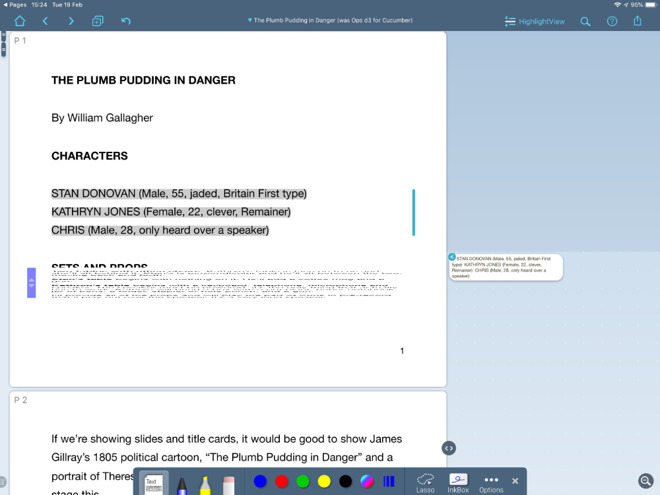
However, for marking up, for taking excerpts of important passages, and for squeezing sections of the PDF down so that you can just read the bits you want, LiquidText is astonishing. It’s a PDF editor but it isn’t. LiquidText is a research and reading and ideas tool that happens to be based on PDFs.
Other than LiquidText, though, PDF editing apps are all good enough that you’d be happy with any of them. There are differences, though.
One small exception
Hats off to Adobe for creating the entire idea of PDF, but hats back on for how poor its own apps can be. The Mac one has the ability to redact slightly more than you actually wanted, for instance, and the free iOS one is little more than an advert for an Adobe subscription.
It’s fair enough to have to pay for great software, but we’d like to know first that it is great. If you’ve already got an Adobe Creative Cloud subscription, you might as well use the iOS Adobe Acrobat app because you’re paying for it.
Acrobat is the most expensive of the iOS PDF editing apps, though, and it doesn’t earn that by being better. PDFpen and PDF Expert for iOS both beat it for features – though neither is quite complete.
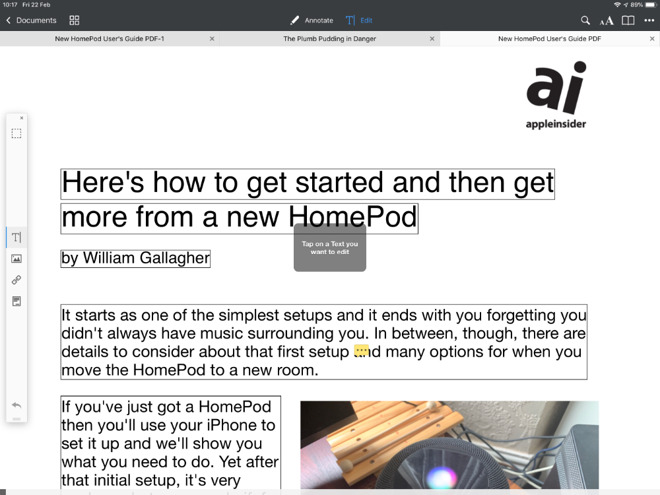
In PDF Expert, you tap the Edit button at the top of the screen and then the rather similar Text icon in the toolbar that appears. PDF Expert puts bounding boxes around every paragraph of text and if you tap anywhere on the page, you can directly type into the paragraph.
Tap the Edit button at the top of the screen, then the T-shaped one in the tool bar, and now you can edit whole paragraphs in PDF Expert
Similarly, tap the image button on that toolbar and you can resize or replace photos.
PDFpen needs fewer taps to get to changing text but it’s less obvious. There are editing tools at the top of the screen and two look like they’re for text. Tap either and you get three or four more options that also look like they could be for this editing.
However, to change text, you ignore all of these and instead press-and-hold on a word. No matter how much of a paragraph you want to change, you have to press on one word first. You get popup options that include Correct Text and if you tap on that, PDFpen lets you edit the entire line that the word is on.
PDFpen for iOS lets you press-and-hold on a word to bring up its Correct Text option
It’s the PDF format itself that limits editing like this as, always, if you need to make substantial changes you should go back to the app where you created the PDF. Still, PDF Expert’s ability to let you edit a whole paragraph is substantially better than PDFpen’s limit of one line at a time.
Redact
So PDF Expert has this superior editing feature and it also has more options for getting PDFs into the app. There is one more thing that it does well —it redacts.
Tap on Edit, tap on an icon that looks like a note and then you can swipe over any text you choose. This is true redaction, too. It does put a black highlight bar over where the text was, but it also removes it from the PDF.
If you open the PDF in another app, select all of the text and then copy/paste it into somewhere else, you won’t get the redacted part. Nicely, you won’t even get blank spaces where the redacted words used to be. All you get is the rest of the text, the non-redacted parts.
PDF Expert does this and, surprisingly, PDFpen does not.
However, PDFpen has an advantage in that you can OCR PDF documents —if you use a companion app.
PDFpen Scan+ ($6.99) lets you photograph a paper document and it will then OCR the text in it. You’ll rarely get fully accurate results but PDFpen Scan+ is very good at getting most of it. You then have a PDF plus what’s called the OCR layer. You can choose to see the original PDF or to be shown just what text has been scanned from it.
Then you can send that PDF over to PDFpen for editing. There’s something odd with this part we consistently found that sending to PDFpen meant we were automatically switched to that app, but the document never appeared.
You can, though, email the PDF and then tell Mail to open it in PDFpen —but then you can equally well email it into PDF Expert.
Look what you can do
PDF is going to go away someday. We used to have paper, now we have PDF documents that look like paper. In the future, we’ll surely just stop needing documents that look like we used to have them.
In the meantime, though, the tools for creating and editing them are now remarkably strong. Given how rarely we happen to need to scan actual paper documents anymore, we think PDF Expert leads the pack by a long way.
Yet if you do a lot of work with PDFs, it won’t break the bank to buy more than one app and that would increase what you can do with these documents on iOS.
If you’re one of the many who’ve been eying iOS users with envy as they’ve been enjoying Farming Simulator/RPG Stardew Valley, you need not worry anymore – we now have a concrete release date for the game’s Android release.
Comes March 14th, 2019 Android users will be able to get stuck in as they try to rebuild their grandfather’s farm in a village in the middle of nowhere. Probably Wales.
The Android version will cost the same as the iOS version ($7.99 / $7.99 / €8,99), and you can head on over to the Google Play store to pre-register right now. It will also come with the following improvements that the mobile version has enjoyed since launching on iOS:
Save at any time – even when you close the app!
Pinch-zoom functionality, allowing players to handily zoom in to track down your Junimos or zoom out to get a full view of your farm.
New control systems including virtual joystick and invisible joystick options, ‘action / attack’ button option, improved auto-attack and Joypad adjuster tool with complete customization of your onscreen controls.
Additional supported languages – Korean, Italian, French and Turkish (these will be patched into the iOS version of the game at a later date).
While ConcernedApe made the PC & Console version, the mobile version was developed by The Secret Police.
Jordan Peele's Candyman Now Has Its Titular Character
Nothing is set in stone just yet, but word around the campfire is that Yahya Abdul-Mateen II will be taking on the iconic role of Candyman in the 2020 sequel, produced by Jordan Peele.
Abdul-Mateen II is currently in talks to star in the upcoming movie, according to Variety. The actor is most recently known for his portrayal of Black Manta in Aquaman. The movie will be directed by Nia DaCosta, best known for her 2018 film Little Woods.
The next installment of Candyman is not a reboot, but considered more of a spiritual sequel. It will center around the same place as the original film, Cabrini-Green, the notorious Chicago housing project which was widely considered to be one of the most dangerous places in the city during the early '90s. However, since then, the projects have been torn down, and the area has been gentrified. Where the projects once stood is a park, expensive town homes, and a Target. Modern day Cabrini-Green will be the centerpiece for the next movie.
"[Peele, Win Rosenfeld, and DaCosta] have created a story that will not only pay reverence to Clive Barker's haunting and brilliant source material, but is also thoroughly modern and will bring in a whole new generation of fans," said MGM Motion Picture Group president Jonathan Glickman (via Variety).
The original film followed a graduate student investigating a local legend and myth surrounding "Candyman," a game like Bloody Mary where people say a name into a mirror. Then, they end up dead.
Candyman's production is expected to begin next sping, with the movie hitting theaters on June 12, 2020.