Every day I find myself in a position where I have to take daily backup of a certain folder named Reports and store it in my Google drive. This is an essential folder for me since I store all the necessary documents (especially reports). Hence, keeping a backup of this folder in the cloud gives me a cushion in case of any fault in my local system.
However, this involves a long and repetitive manual process wherein I have to sign in to my google account, navigate to the folder where I store my backup files and then copy and paste new files to this folder. This consumes some time, and I was thinking of automating the entire process. That is when I came up with a wonderful automation script that not only saved me all the hassle of manually backing up my files but also ensured that I could do so without the help of any fancy third-party software application.
So, this is what my script does –
It connects me to Google Drive automatically.
Uploads a fresh copy of my backup folder every time by replacing the old files.
The entire backup script is triggered every day at 12:00 AM, thereby ensuring that I do not have to run it manually on a daily basis.
Thus, in this article, I will guide you through implementing the same automated backup technique to store files from your local system to Google drive on a daily basis using Python. So, without further delay, let’s discover the power of Python automation through our project.
Step 1: Setting up Google Drive API
Before you start writing your script, it is essential to ensure that you have set up your Google Drive API properly. Simply put, the Drive API allows you to interact with Google Drive storage and supports several popular programming languages, such as Java, JavaScript, and Python.
Go ahead and log in to your GCP console using your gmail ID.
After logging in, create a new Project. Let’s name it FileBackup.
Now, you will need to configure and download the client configuration secrets JSON file. So, head over to APIs and Services ⮕ Select OAuth consent screen.
Select User Type as External and click Create.
Fill in the necessary App Information and click on Save and Continue.
No need to fill in Scopes for now and proceed to the next step by clicking on Save and Continue.
Add a Test User. Simply enter your email ID here, or you may choose to add another user. However, to keep things simple, I entered my email ID.
You are done with the first step. Now we need the Credentials that will authorise us when we talk to the Google Drive API from our script.
Click on Credentials⮕CREATE CREDENTIALS ⮕ Select OAuth client ID.
Fill in the required details and click on Create.
A screen pops up, and you can see your client ID and secret. Download the JSON and make sure to store it in your Project folder with the name client_secrets.json.
The final step is to enable the Google Drive API so that you can communicate with it using the credentials from your script.
Select Enabled APIs and services ⮕ click ENABLE APIS AND SERVICES ⮕ Search Google Drive ⮕ Select the Google Drive API ⮕ Click on Enable
That’s it! You are now all set to communicate with the Google Drive API using your script to connect and store files in your Google Drive.
Step 2: Create the Automation Script
Now that everything is ready, we are now ready to write a program to generate daily backups on the cloud. To contact the API, you will need the help of the PyDrive library. So, go ahead and install it from your terminal as pip3 install PyDrive
After installing the PyDrive library, create a new file in your project directory and name it backup.py. This is our driver file.
First, import the necessary libraries and modules that will help you throughout the course of your script.
from pydrive.drive import GoogleDrive

from pydrive.auth import GoogleAuth

import os
Secondly, you need need to set up an authentication with google drive API. As soon as this code is executed, your default browser will open up and ask you for user permissions to access your drive contents.
IMPORTANT NOTE: Ensure that the client_secrets.json file is in the same directory as our Python file. Also, keep the json file a secret and take special care that it is not leaked online.
gauth = GoogleAuth()

gauth.LoadCredentialsFile("mycreds.txt")

if gauth.credentials is None: gauth.LocalWebserverAuth()

elif gauth.access_token_expired: gauth.Refresh()

else: gauth.Authorize()

gauth.SaveCredentialsFile("mycreds.txt")

drive = GoogleDrive(gauth)
Note that even after you have set up the pydrive and the google API such that my secret_client.json works, it will still require web authentication for G-Drive access every time you run your script. To deal with this issue, you need to make a minor adjustment so that your app doesn’t have to ask the client to authenticate every time you run the app. You just need to use LoadCredentialsFile and SaveCredentialsFile as we did in the code above. This way, you will need to provide access the first time you run your script and never again will Google ask you to authenticate it (unless, off course your access token expires).
Next, it is time to access the folder/file you want to backup from the local drive and store it in your Google Drive.
def upload_file_to_drive(): for x in os.listdir(path): file_list = drive.ListFile( {'q': "'16jhq7j-SWZmKF_vU0MmKNX' in parents and trashed = False"}).GetList() try: for file1 in file_list: if file1['title'] == os.path.join(path, x): file1.Delete() except: pass
Explanation: The key value pair 'q': "'16jhq7j-SWZmKF_vU0MmKNX' denotes the folder ID of the folder within your Google drive where you want to save the files. This is how you can get the folder ID of the required folder:
Simply copy it and paste it in your script.
A major problem here is whenever you copy the files and store them in your Google drive folder, the pre-existing files also get copied and duplicate files cover up the space unnecessarily. Thus, instead of simply copying the files blindly, you can opt to replace them instead. So, you can follow a two-step process – (i) Delete the pre-existing files (ii) Store a fresh copy of all the files in the folder. That is exactly what has been done in the above script.
Putting it all Together
All that remains to be done now is to put all the bits and pieces together to compile the entire code. So this is how the complete script looks like –
from pydrive.drive import GoogleDrive

from pydrive.auth import GoogleAuth

import os gauth = GoogleAuth()

gauth.LoadCredentialsFile("mycreds.txt")

if gauth.credentials is None: gauth.LocalWebserverAuth()

elif gauth.access_token_expired: gauth.Refresh()

else: gauth.Authorize()

gauth.SaveCredentialsFile("mycreds.txt")

drive = GoogleDrive(gauth)

path = r"C:\reports"

def upload_file_to_drive(): for x in os.listdir(path): file_list = drive.ListFile( {'q': "'16jhq7j-SWZmKF_vUehGalNf6Yr0MmKNX' in parents and trashed = False"}).GetList() try: for file1 in file_list: if file1['title'] == os.path.join(path, x): file1.Delete() except: pass f = drive.CreateFile({'parents': [{'id': '16jhq7j-SWZmKF_vUehGalNf6Yr0MmKNX'}]}) f.SetContentFile(os.path.join(path, x)) f.Upload() f = None upload_file_to_drive()
Output:
Schedule Regular Backup
One final task that needs to be taken care of is ensuring that the backup script runs at a particular time every day. There are different ways of doing this. You can use the schedule library in Python to do so within your script itself. However, using schedule has its own downside and it needs the script to keep on running.
Hence, I would suggest using the windows task scheduler. Windows Task Scheduler is built-in windows program that facilitates you with the ability to schedule and automate tasks in Windows by running scripts or programs automatically at a given moment.
Search for “Task Scheduler”.
Click Actions ⮕ Create Task
Give your task a Name
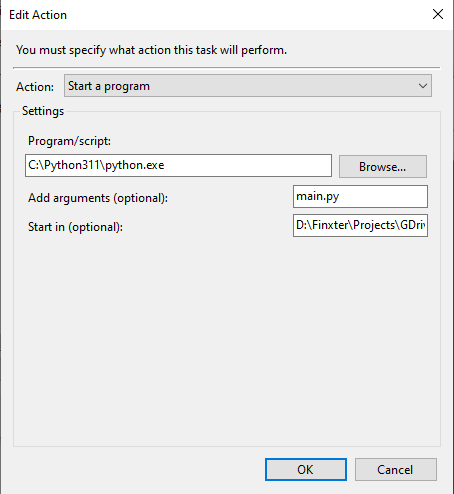
Then select Actions ⮕ New
Find the Python Path using where python in the command line and copy the path from the command line.
Go to the folder where your Python script is actually located. Hold the Shift Key on your keyboard and right-click on the file and select Copy as path
In the "Add arguments (optional)” box, add the name of your Python file.
In the "Start in (optional)" box, paste the location of the Python file that you copied previously.
Click “OK”
Go to “Triggers” ⮕ Select “New”
Choose the repetition that you want. Here you can schedule Python scripts to run daily, weekly, monthly or just one time.
Click “OK”
Once, you have set this up, your trigger is now active and your Python script will run automatically every day.
Summary
Hurrah! You have successfully set up your automated backup script to take the necessary backups on a scheduled time every day without the need to do anything manually. I hope the complete walkthrough of the project helped you! Subscribe and stay tuned for more interesting projects in the future.
[www.indiegala.com] Tons of winter sales, holiday freebies, surprise giveaways & up to 3 BONUS games are all snowballing into a magical time for everyone.
https://www.youtube.com/watch?v=76O5KaJHEA0 Any store checkout brings a secret scratchy gift. Surpassing $3/€3/£3 will bring you a Santa Rockstar Steam key. That's not all! Get a Yuletide Legends if you spend $7/€7/£7 or more, while Steam keys stocks last. [www.indiegala.com]
This giveaway is on gog.com gog is a platform for games that is dedicated to drm-free games (those are games that do not require login or registration to play the game)
How to grab Greak: Memories of Azur - Go to the home page of https://www.gog.com/#giveaway - Login and Register - Go to the home page again - Wait for 10 seconds then start searching for Greak: Memories of Azur - on the home page look for "Deal of the Day" (above it there should be a banner) - on the banner there is a button "Yes, and claim the game" click it - Thats it
We are welcoming everyone to join our discord[discord.gg]. We are more active there on finding giveaways, small or large, and there are daily raffles you can participate.
As Lord Of The Rings: Two Towers Turns 20, Weta Boss Reflects On The Milestone
The Lord of the Rings: The Two Towers celebrated its 20th anniversary this week. To mark the milestone, the CEO and creative director of the props company behind the film series published a heartfelt note on Facebook reflecting on the milestone.
Richard Taylor of Weta Workshop, who won four Academy Awards for his work on The Lord of the Rings film series, specifically discussed Two Towers' epic Helm's Deep battle sequence. He shared a photo of himself standing atop a rock structure next to the main Orc, saying he feels a range of emotions thinking back on that day.
"It really does seem like a lifetime ago. I had climbed up on the rock to do final makeup and armor checks for the actor who about to deliver their 'big moment.' The first Assistant Director was sharing some thoughts that I was to pass onto the actor. I had stopped what I was doing and was intently trying to hear over the rumble of the army that was spread out below us. It causes me a unique mix of emotions seeing these photos again, as I recall the sense that I had standing up there looking down on this incredible scene, from this unique vantage point, and feeling somewhat in awe of the moment," Taylor said.
Take up your sword, channel your magic or board your Mech. Chained Echoes is a 16-bit SNES style RPG set in a fantasy world where dragons are as common as piloted mechanical suits. Follow a group of heroes as they explore a land filled to the brim with charming characters, fantastic landscapes and vicious foes.
Can you bring peace to a continent where war has been waged for generations and betrayal lurks around every corner?
Chained Echoes is a story-driven game where a group of heroes travel around the vast continent of Valandis to bring an end to the war between its three kingdoms. In the course of their journey, they will travel through a wide array of diverse landscapes spanning from wind-tanned plateaus and exotic archipelagos to sunken cities and forgotten dungeons.
Plotly Dash and Streamlit are both open-source Python libraries for creating interactive web applications for data visualization and analysis. The libraries are designed to make it easy for developers to create visually appealing and informative dashboards and reports that can be shared with others through a web browser.
Dashboarding capabilities: Plotly Dash is a full-featured framework for building dashboards and applications, while Streamlit primarily focuses on creating data visualization and exploration tools.
Programming style: Plotly Dash uses a traditional web application programming model, with a server-side rendering of the dashboard and client-side interactivity. Streamlit, on the other hand, uses a more interactive programming style, with the developer writing code in a script and the library automatically generating the web application.
Data handling: Both libraries can handle large datasets and support streaming data, but Plotly Dash has more advanced capabilities for managing and manipulating data.
Supported programming language: While Streamlit is limited to Python, Plotly Dash also supports R, Julia, and F# (experimental).
Ultimately, the choice between Plotly Dash and Streamlit depends on your specific needs and preferences.
If you are looking for a more full-featured framework for building complex dashboards and applications, Plotly Dash may be the better choice.
If you want a more streamlined tool for creating simple visualizations and data exploration tools, Streamlit may be a better fit.
Plotly Dash is built on top of the Plotly.js library for creating interactive charts and plots, and the Flask web framework for building web applications.
React: Streamlit uses the React JavaScript library to build interactive user interfaces. React allows you to build complex UI components using reusable and modular code, making it easy to build interactive dashboards and data visualization applications.
The application runs on the server side and the user interacts with it through a web browser.
The server sends the HTML, CSS, and JavaScript to the client, and the client’s web browser renders the application and handles user interactions.
Dash uses a declarative syntax called “Dash HTML Components” to build the application, which allows developers to define the layout and interactivity of the application in a simple, intuitive way.
Under the hood, Streamlit uses several technologies and libraries to provide its functionality. Some of these technologies include:
HTML, CSS, and JavaScript: Streamlit generates web pages that are rendered in the user’s web browser. These pages are written in HTML, CSS, and JavaScript, which are the three main technologies used to build modern web applications.
React: Streamlit uses the React JavaScript library to build interactive user interfaces.
Both Plotly Dash and Streamlit use JavaScript libraries to provide interactivity and visualizations in the web browser. However, the way that these libraries are used and integrated into the overall application is different in the two frameworks.
Pros and Cons Plotly Dash
Here are some pros and cons of using Plotly Dash:
Pros
(1) Full-featured framework: Plotly Dash is a comprehensive framework for building dashboards and web applications. It provides various tools and features for creating interactive visualizations, handling and manipulating data, and building complex layouts and interactions.
(2) Strong visualization capabilities: Plotly Dash is built on top of the Plotly.js library, which provides a wide range of chart types and options for visually appealing and informative visualizations.
(3) Active community: Plotly Dash has a large and active user base, with extensive documentation and support resources available, including forums, tutorials, and examples.
Cons
(1) Steep learning curve: Plotly Dash is a powerful and feature-rich framework, which can make it a bit more difficult to learn than some other libraries. It may take some time to become familiar with all of the features and capabilities of the library.
(2) Performance: Depending on the complexity of the application and the amount of data being processed, Plotly Dash applications can sometimes be slower to render and interact with than some other libraries.
(3) Complexity: Because Plotly Dash is a full-featured framework, it can be somewhat more complex than other libraries focused on a specific use case. This can make it a bit more challenging for new users to get started with the library.
(1) Simplicity: Streamlit is designed to be easy to use and learn, with a streamlined API and automatic web application generation. This makes it a good choice for developers who want to quickly create simple visualizations and data exploration tools.
(2) Interactive programming style: Streamlit uses an interactive programming style, allowing the developer to write a script and see the results immediately in the web browser. This can be a more intuitive and interactive way of working compared to traditional web application frameworks.
(3) Good performance: Streamlit applications tend to be fast and responsive, even with large datasets and complex visualizations.
Cons
(1) Limited capabilities: Streamlit is primarily focused on creating simple visualizations and data exploration tools, and may not have all of the features and capabilities of a more full-featured framework like Plotly Dash.
(2) Limited layout options: Streamlit provides a limited set of layout options compared to some other libraries, which can make it more difficult to create complex layouts and interactions.
Which Community Is Larger?
It’s difficult to say for certain which community is larger, as both Plotly Dash and Streamlit have active user bases and are widely used in the data science and web development communities.
Both libraries have substantial documentation and support resources, including extensive documentation, tutorials, and examples on their websites, as well as active forums and communities where users can ask questions and get help.
In general, Plotly Dash may have a slightly larger community, as it has been around longer and is a more full-featured framework for building dashboards and web applications. Streamlit, on the other hand, has gained popularity more recently and is focused on a specific use case (creating data visualization and exploration tools) rather than being a general-purpose framework.
Fig. 1: Popularity of Plotly Dash and Streamlit (and other frameworks) on Github.
Ultimately, the choice between Plotly Dash and Streamlit will depend on your specific needs and preferences, as well as the resources and support available in the community for the library you choose.
This code creates a Dash application with a single page containing a line chart. The chart is defined using the dcc.Graph component, which takes a figure argument that specifies the data and layout of the chart. The figure argument is a dictionary containing two keys:
data, which is a list of traces (i.e. data series) to plot on the chart, and
layout, which is a dictionary of layout options for the chart.
In this example, the chart has two data series, y1 and y2, with x and y values specified for each series. The type of each trace is set to 'line' to create a line chart. The layout options specify a title for the chart.
Finally, the application is started by calling app.run_server(). This will start a local web server and open the application in a web browser. The debug=True argument enables debugging mode, which allows the application to be reloaded automatically when the code is changed.
You run the app via
python app.py
In your terminal following message (or similar) should appear.
Fig. 2: Typical terminal messages after starting the Dash app.
Fig. 3: Screenshot of Dash app.
Streamlit code example line chart
A simple app displaying two line charts could be created by the following code:
import streamlit as st data = {'x': [1,2,3], 'y1': [4,1,2], 'y2': [2,4,5]}

st.line_chart(data= data, x='x')
This code creates a line chart with two data series, y1 and y2, using the line_chart function. The x and y values for each series are specified as separate lists. The x_axis parameter specifies the values for the x-axis.
Supposing you saved the above code as ‘app.py’ you start the app via
streamlit run app.py
In your terminal following message (or similar) should appear.
Fig. 4: Typical terminal messages after starting the Streamlit app.
In case the app doesn’t automatically open a tab in your browser you can open the app by following the ‘Local URL’ or ‘Network URL’ links.
Fig. 5: Screenshot of Streamlit app.
The line_chart function automatically generates the web application and displays the chart in the browser. There is no need to write any code to define the layout or interactivity of the application.
Streamlit also provides a wide range of other functions for creating different types of charts and visualizations, as well as tools for building custom layouts and interactions. You can find more information and examples in the Streamlit documentation.





 Recommended Tutorial:

 Recommended:


