


Fedora 28 Workstation ships with a feature that allows you to quickly search, select and input emoji using your keyboard. Emoji, cute ideograms that are part of Unicode, are used fairly widely in messaging and especially on mobile devices. You may have heard the idiom “A picture is worth a thousand words.” This is exactly what emoji provide: simple images for you to use in communication. Each release of Unicode adds more, with over 200 new ones added in past releases of Unicode. This article shows you how to make them easy to use in your Fedora system.
It’s great to see emoji numbers growing. But at the same time it brings the challenge of how to input them in a computing device. Many people already use these symbols for input in mobile devices or social networking sites.
[Editors’ note: This article is an update to a previously published piece on this topic.]
Enabling Emoji input on Fedora 28 Workstation
The new emoji input method ships by default in Fedora 28 Workstation. To use it, you must enable it using the Region and Language settings dialog. Open the Region and Language dialog from the main Fedora Workstation settings, or search for it in the Overview.
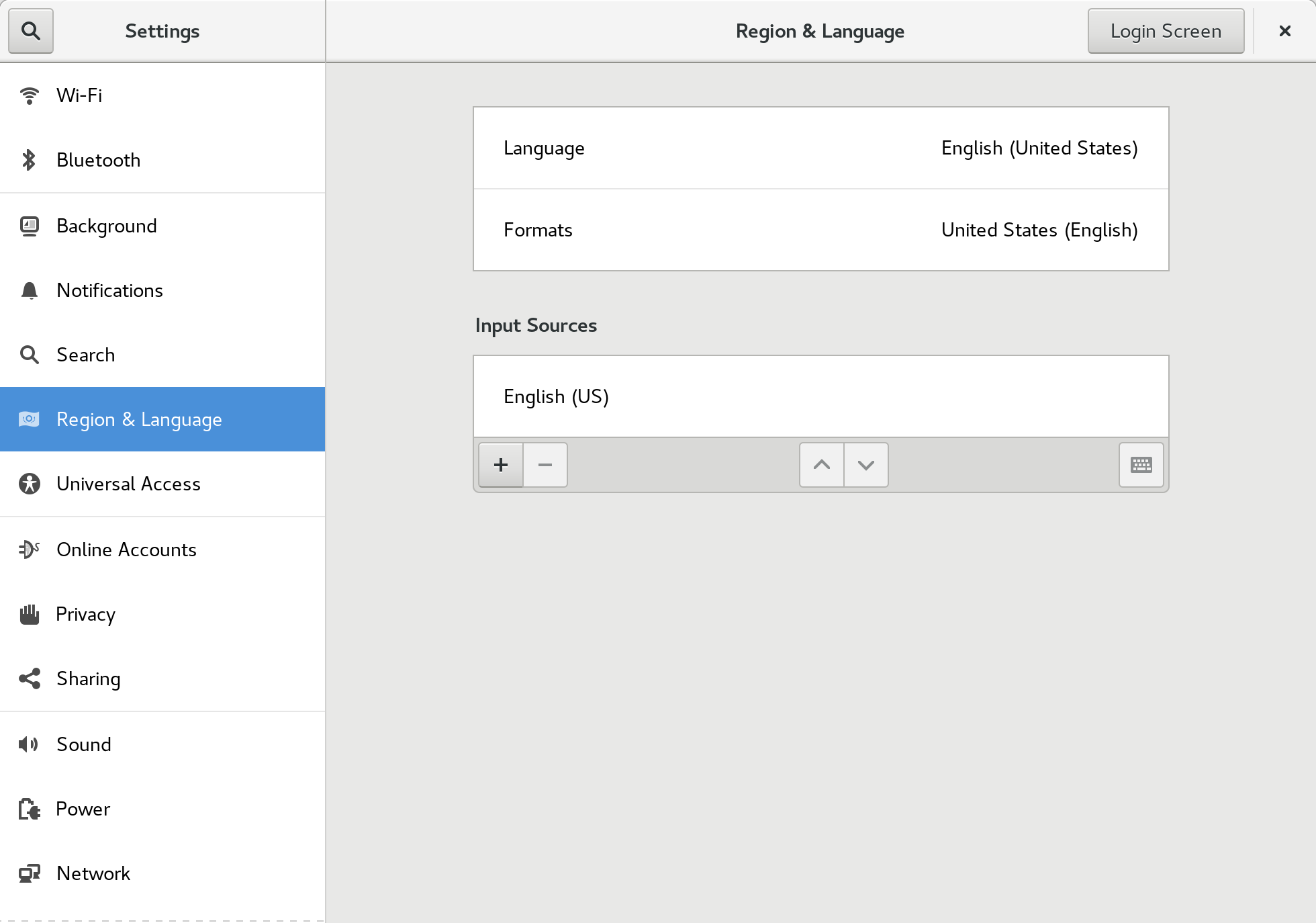
Choose the + control to add an input source. The following dialog appears:
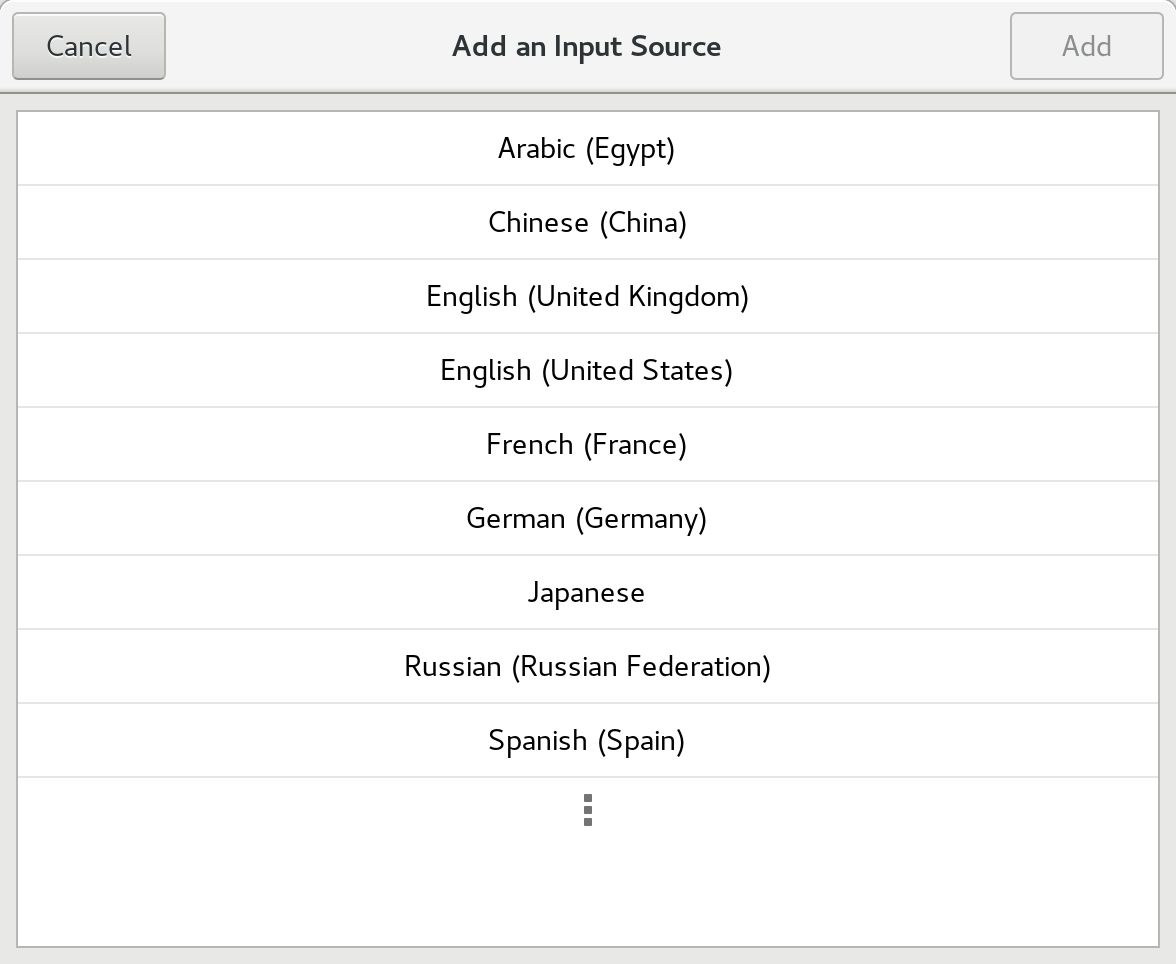
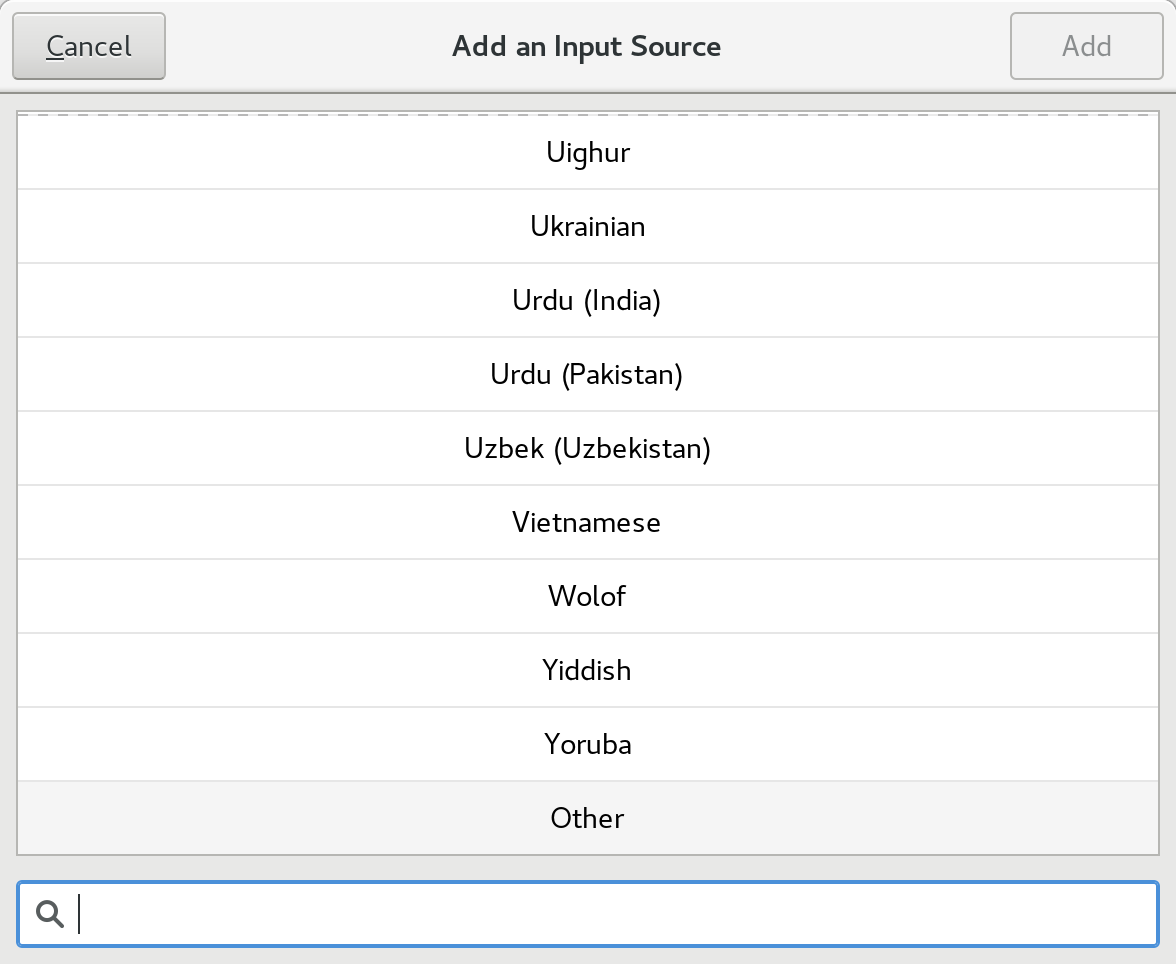
Choose the final option (three dots) to expand the selections fully. Then, find Other at the bottom of the list and select it:
In the next dialog, find the Typing booster choice and select it:
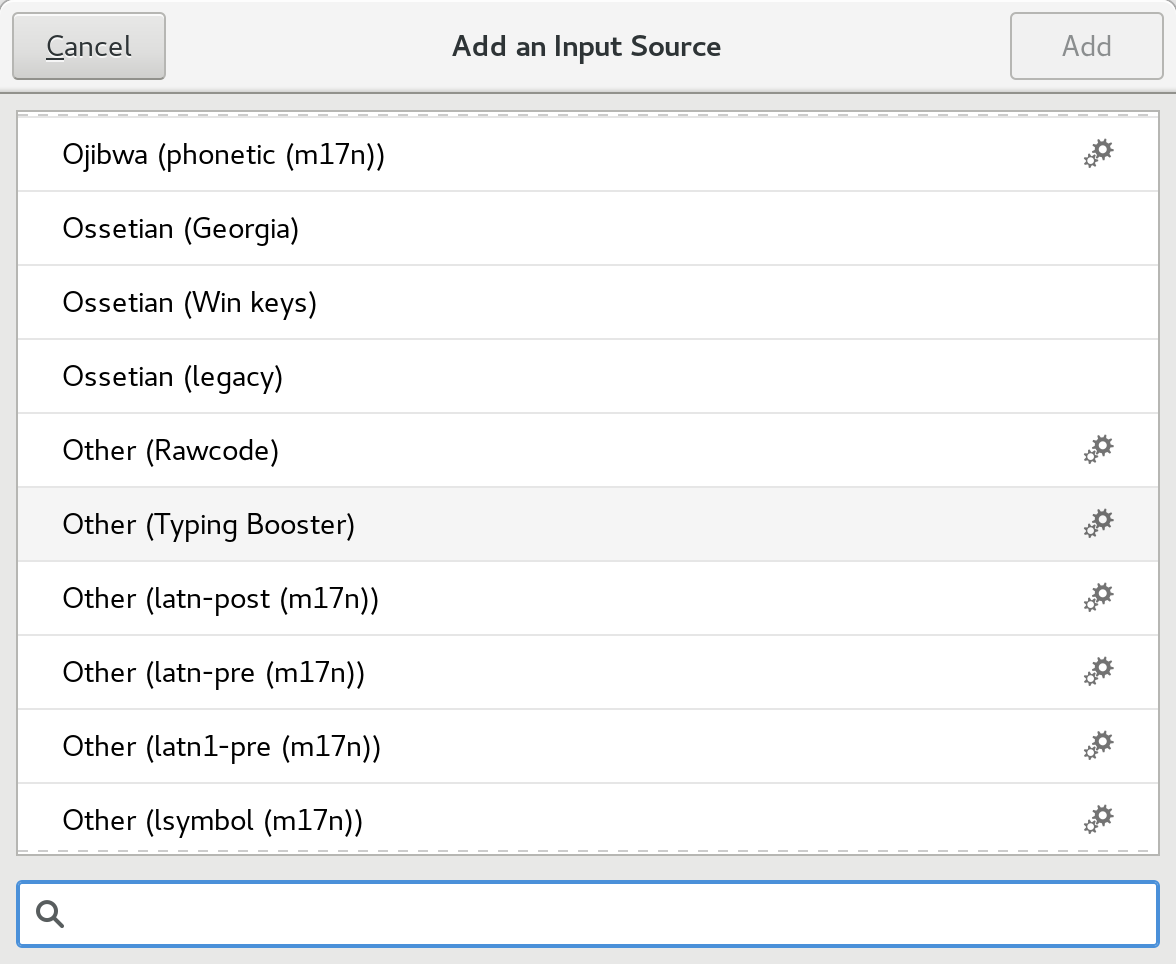
This advanced input method is powered behind the scenes by iBus. The advanced input methods are identifiable in the list by the cogs icon on the right of the list.
The Input Method drop-down automatically appears in the GNOME Shell top bar. Ensure your default method — in this example, English (US) — is selected as the current method, and you’ll be ready to input.
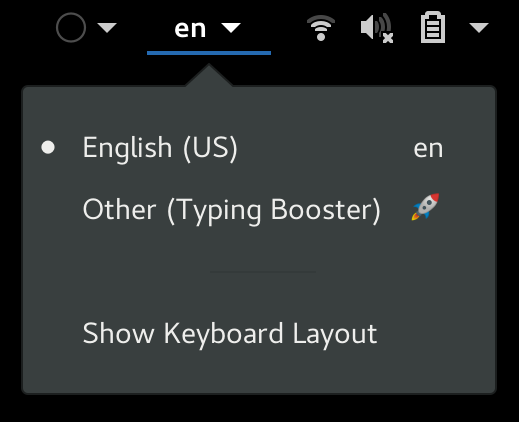
Using the new Emoji input method
Now the Emoji input method is enabled, search for emoji by pressing the keyboard shortcut Ctrl+Shift+E. A pop-over dialog appears where you can type a search term, such as smile, to find matching symbols.
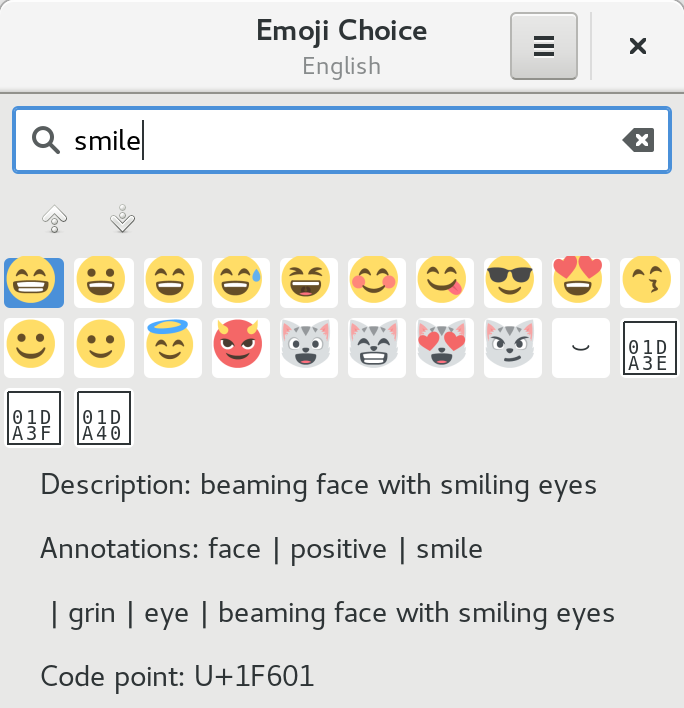
Use the arrow keys to navigate the list. Then, hit Enter to make your selection, and the glyph will be placed as input.