Posted by: xSicKxBot - 02-16-2019, 01:58 AM - Forum: Windows
- No Replies
Feb. 28 webcast offers lessons on securing education data
Explore how to use Microsoft Threat Protection to transform digital security for education organizations while enabling IT teams to combat modern phishing attacks.
It’s every educational institution’s goal to successfully get students to graduation and prepare them for the future—and it’s a lot of work. The last thing busy school administrators and faculty want to worry about is the digital security of their classroom technology.
Adopting technology that is easy to use and functions seamlessly allows IT administrators to focus on addressing the needs of their organization and securing the digital infrastructure in and outside of the classroom. With limited school budgets and already hardworking school staff, it’s important to develop a technology strategy that is easy to implement and enhances their work in the classroom while providing administrators peace of mind. And in today’s digital-first world, a big part of that peace of mind includes reliable digital security.
More organizations each year are realizing the value of having strong digital security measures in place. The cost of cybercrime to the global economy is projected to be $8 trillion by 2022.
Education organizations face their own unique set of challenges when it comes to data security. For example, the high visibility and public nature of most education organizations means that valuable information is more readily available to potential bad agents. The date for a school’s new location opening, plans for a new university-wide technology initiative, important dates for student FAFSA processing, are all at risk. In addition, a potential bad actor can often view organizational leadership and staff online to identify key employees to target directly. For education organizations, data breaches could compromise bank account information and result in thousands of dollars in stolen stipends or paychecks, or could lead to hundreds of thousands of dollars in lost technology.
One of the most common kinds of security breaches comes in the form of phishing attacks. These malicious cyberattacks present low risk for bad actors combined with the possibility of very high reward. As cyberattacks become more advanced, technology to successfully combat them must do the same.
Transformative approach to modern digital security with Microsoft Threat Protection
Microsoft’s cutting-edge cybersecurity solution, Microsoft Threat Protection (MTP), is designed to enhance data protection with a smarter, more comprehensive technology strategy. Powered by the cloud and built on Azure and Microsoft 365, MTP uses machine learning and other digital innovation to improve how the system recognizes and prevents phishing attacks. Rather than relying on a singular, siloed security solution, MTP leverages capabilities and insights from a collection of Microsoft solutions. For example, MTP runs on Microsoft 365’s all up security solutions stack to maximize its security offerings and ensure world class protection. The system can also expertly identify and consider comprehensive attack signatures, including location, specific behaviors, and recognizable patterns. As a result, MTP acts as a smart security tool that is versatile and agile enough to successfully combat even the most calculated phishing attacks.
One of the most valuable parts of the Microsoft Threat Protection software is its education and learning component. Because of its machine learning technology, the system has the capacity to evolve as the threat evolves—rather than building a whole new security measure each time a new threat arises. IT leaders and administrators can use the cloud-powered technology to learn how to adjust and develop the MTP solution to best fit the security needs of their specific organization. IT experts can take ownership of the overall tech strategy for their team to gain valuable insights into modern phishing trends. So, in addition to leveraging a cutting-edge digital security solution, education organizations can also empower and grow the skills of their in-house IT team.
Powering a secure organization with a better enabled IT team
Enabling IT teams to focus their energy and efforts on securing the classroom is top-of-mind for school administrators and IT leaders in education. Ensuring valuable personal data and digital interactions are secure and protected across technology platforms is critical. While phishing is estimated to have originated in the mid-1990s, this kind of data breach will likely be around well into the future—and education organizations need to be prepared. With Microsoft Threat Protection, IT decision makers and school administrators can feel more confident their technology infrastructure is being protected. And with the system’s strategic technology, education organizations can also benefit from IT staff that leverages relevant insights to expand their skills, grow their knowledge, and better protect their investments.
To learn more, register for the webcastand download the full infographicwith more details.
Intruders: Hide and Seek is a first-person stealth game, an intense thriller combining psychological terror with the point of view of a defenseless boy. Three dangerous intruders slip into the house, and your only option is? to hide.
Mainframes are, and will continue to be, a bedrock for industries and organizations that run mission-critical applications. In one way or another, all of us are mainframe users. Every time you make an online transaction or make a reservation, for example, you are using a mainframe.
According to IBM, corporations use mainframes for applications that depend on scalability and reliability. They rely on mainframes in order to:
Perform large-scale transaction processing (thousands of transactions per second)
Support thousands of users and application programs concurrently accessing numerous resources
Manage terabytes of information in databases
Handle large-bandwidth communication
Often when people hear the word mainframe, though, they think of dinosaurs. It’s true mainframes have aged, and one challenge the mainframe community faces is that they struggle to attract fresh developers who want to use latest and shiniest technologies.
Zowe milestones
Zowe, a Linux Foundation project under the umbrella of Open Mainframe Project is changing all that. Through this project, industry heavyweights including IBM, Rocket Software, and Broadcom came together to modernize mainframes running z/OS.
New Rainbow Six Siege Y4S1 Update Revealed; Patch Notes Listed
Ubisoft has announced the changes scheduled to go live in Rainbow Six: Siege with the Y4S1 patch. The changes will first go live in Siege's test server on PC, where Ubisoft will monitor player feedback and make any necessary adjustments before pushing the update on all systems.
Most of the changes coming in the Y4S1 patch are buffs and nerfs for Operators. In terms of buffs, the area of effect on Capitao's bolts is being increased to make him more ideal for denying other Operators. For nerfs, the damage for Lesion's Gu mines is being reduced, Clash is losing the muzzle brake for her machine pistol, Dokkaebi's phone calls are being made shorter, the time it takes for Maverick to switch between his SURI torch and a weapon is being increased, and Ash is losing the ACOG sight for her R4-C.
The patch will also address breaching charges as well, which Ubisoft wants--as stated in a blog post--to be "safer and more comfortable" for Attackers to use. The charges are still rather dangerous for Defenders on the other side of the wall though. Although no changes are scheduled at this time, Ubisoft is also considering reworks for how shield-wielding Operators work, as well as buffs for Lion and Glaz and a nerf for Blitz.
We've outlined the changes scheduled for the Rainbow Six: Siege Y4S1 patch below. Siege is available on Xbox One, PS4, and PC.
Rainbow Six: Siege Y4S1 Update Patch Notes
Operator Changes
Ash
Removed ACOG from R4-C
Maverick
Increase swap time between SURI Torch and weapons
Dokkaebi
After 18 seconds, phone calls from Dokkaebi will hang up on their own
Being in range of Mute jammers will prevent Dokkaebi from calling you
Walking into range of Mute jammers will hang up phone calls during the call
Capitao
Increasing area of effect size
Reducing damage per tick from 19 to 12
Clash
Removing Muzzle Brake on Machine Pistol
Lesion
Reduced Gu Mines damage per tick from 8 to 4
General Changes
Breaching Charges
Deployment animation is much faster
Damage on Attacker’s side is reduced from 150 to 50
Damage area of effect on Defender side is increased
Lethal damage area of effect on Defender side is reduced
Reminder: Piranha Plant, King K. Rool and Ice Climbers amiibo Are Out Today
The next batch of amiibo for the Super Smash Bros. line available today from all good retailers. Joining the roster are Piranha Plant, King K. Rool, and Ice Climbers, all of which will look rather lovely on your gaming shelf. Heck, you might even want to use the NFC functionality and train them up to be a formidable fighter. We won’t judge you if you just want to admire them for their looks alone, of course.
If you didn’t pre-order these, worry not. Various retailers are still taking orders today; below are your best bets for securing these potentially rare (one day, at least) amiibo.
Please note that some of the links on this page are affiliate links. If you click them and make a purchase we may receive a small percentage of the sale which helps support the site. Please read our FTC Disclosure for more information.
Piranha Plant amiibo
The Piranha Plant is an enemy in the Super Mario series with a round head and a mouthful of teeth that will pop out of a pipe when you least expect it. This one is a bit of a shock inclusion to the Smash line-up!
King K. Rool amiibo
King K. Rool is the leader of the Kremling Krew, who he repeatedly orders to steal Donkey Kong and Diddy Kong’s Banana Hoard. He also likes kidnapping Kong Family members while he’s at it. A nasty piece of work, but a fine amiibo for your shelf!
Ice Climbers amiibo
The Ice Climbers, Popo and Nana, are the stars of the NES game Ice Climber. These adventurers are equipped for even the coldest climates, and will make a fine addition to your amiibo collection.
amiibo stock has vastly improved since the scary early days, where literally no one’s orders were safe, but if you’re 100% sure that you want these figures it’s definitely worth getting your order in now, just in case.
Again, at the time of writing, King K. Rool and Ice Climbers are also available from Amazon UK for £14.99 each should you want or need a different option.
Make sure to let us know in the comments if you decide to snap these up!
Guide: How To Claim Battle Royale Victory In Tetris 99
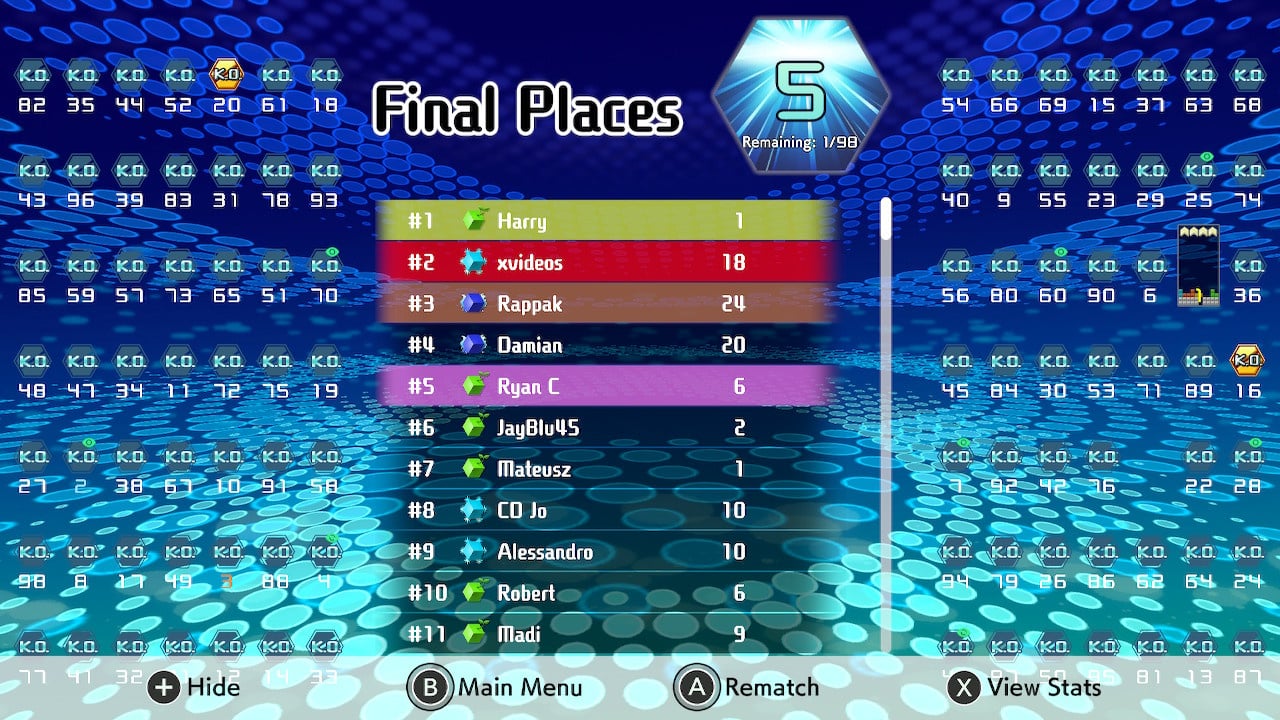
Tetris 99 is, amazingly, the newest and freshest ‘Battle Royale’ on the block, T-spinning its way into a heated battle against the likes of Fortnite and Apex Legends for world domination. Okay – it might not be in quite the same league as those gaming heavyweights – but it certainly brings an equal amount of fun to the table, and arguably even more challenge.
Facing off against 98 others players in real time is hard and, let’s be honest, the game really isn’t very good at telling you how to play. With that in mind, we’ve been practising like crazy to bring you this super-useful list of tips and tricks. What do the attacks in Tetris 99 do? How do you win? What even are the controls? We’ve got you covered…
The Basics of Tetris (and Tetris 99’s controls)
How To Play
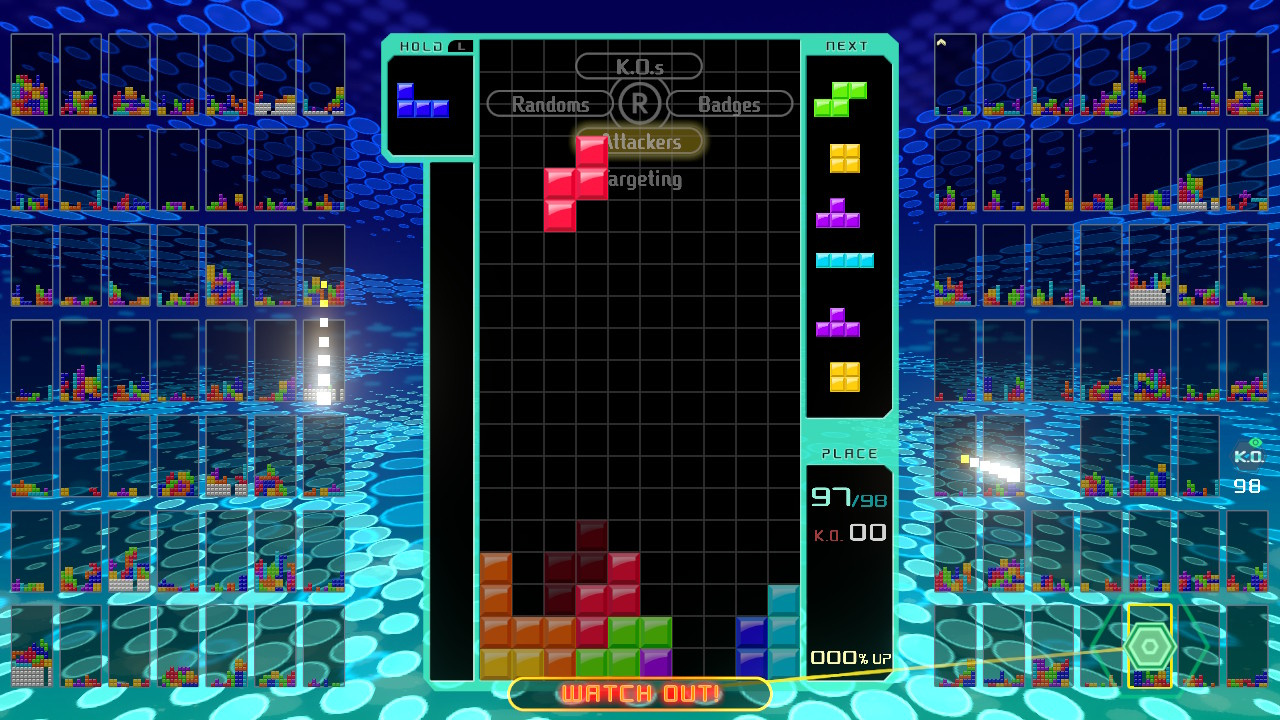
Let’s kick things off with the basics (feel free to scroll on down if you already know how to play the main game). When loading up a game, you’ll see differently-coloured Tetriminos – blocks made up of different shapes – fall from the top of the screen. Your job is to rotate, drop, and carefully place these at the bottom of your screen to create full lines. Doing so clears that line from the board, and you can even clear multiple lines in one go with clever block placement.
In a usual game of Tetris, the aim is to simply survive for as long as possible, or get crazy high scores by clearing lots of lines or getting combos. Tetris 99 changes things up, however, as we’ll find out later on.
The Controls
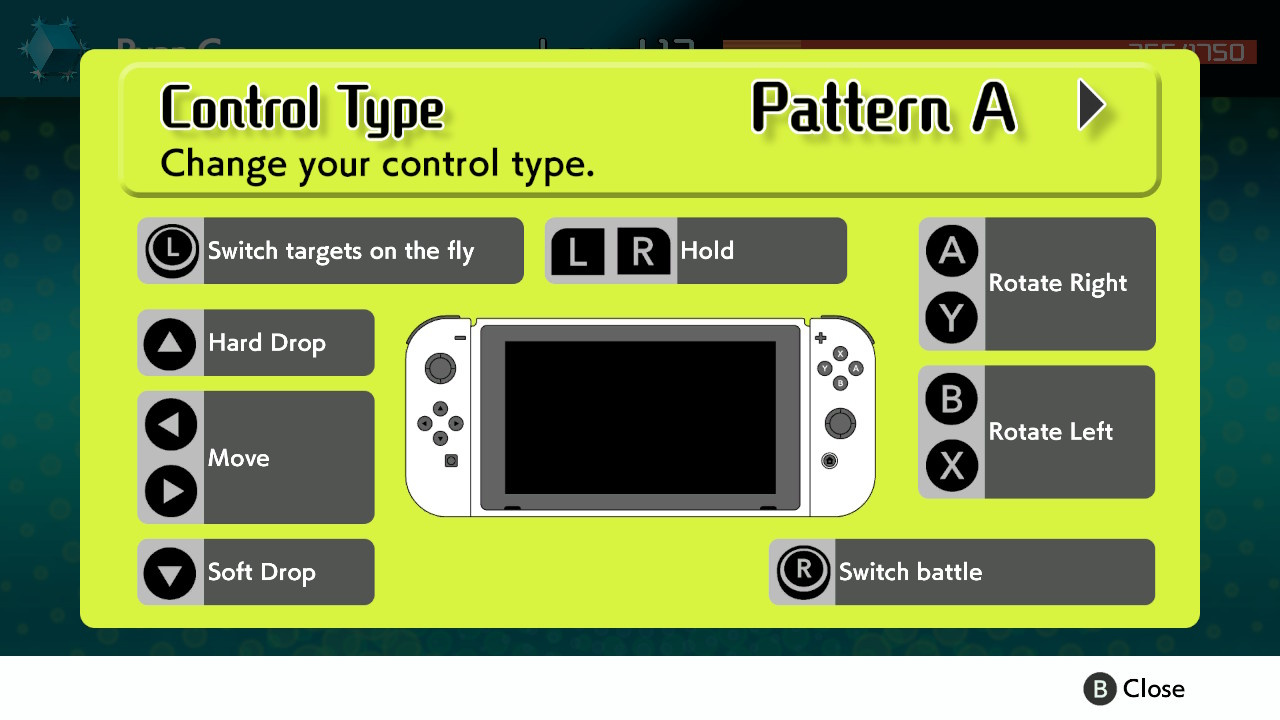
If you’ve never played a game of Tetris before, or if you’re feeling a little rusty, you’re going to have a pretty hard time learning the basics in Tetris 99. Before jumping into a full match, make sure to memorise these controls:
A/Y: Rotate Right – This will rotate your current, falling Tetrimino block to the right by 90 degrees.
B/X: Rotate Left – This will rotate your current, falling Tetrimino block to the left by 90 degrees.
L/R: Hold – This stores one block for later use, which can then be activated whenever you like by pressing the button again. Perfect for holding back tricky-to-place blocks, or saving an ‘I’ block to slot in at a later time.
D-Pad Left/Right: Move – This will move your current, falling block to the left or right.
D-Pad Up: Hard Drop – Pressing up will cause your current block to automatically snap to its destination. Once you’ve moved and rotated your block to where you like, press this to move on quickly.
D-Pad Down: Soft Drop – Just like the hard drop, except this allows you to manually drop at your own pace.
Left Stick/Touchscreen: Select target – The left stick and touchscreen allow you to manually pick an opponent to attack during the Battle Royale.
Right Stick: Switch attack mode – The right stick toggles through the different attack mode options in Battle Royale (explained further down in this guide).
It’s also worth noting that you can switch the left and right stick options around in the settings, should you prefer them the opposite way around.
The ‘Battle Royale’ Twist
In Tetris 99, you’ll be playing against 98 other players in real time. Players can attack each other during the game, sending ‘junk’ lines to an opponent’s screen, and the last one standing after all the mayhem is declared the winner.
There are a surprising number of things to think about here, such as your attack, defence, and keeping an eye on what your opponents are doing. Hopefully, these tips will help you on your way to victory.
How To Send ‘Junk’ Lines
You can send ‘junk’ lines to opponents by clearing more than one line of blocks at a time (or sometimes even with just one if you’ve racked up combos or badges).
Clearing two lines will send one to your selected opponent; clearing three will send two, and clearing four will send four. Generating combos (successfully clearing lines with every block which falls from the top without a break) can add to these numbers.
What Are Badges And How Do They Work?
Badges add multiplier bonuses to your attacks, essentially adding to the number of lines you’ll send over to your opponent. Every time you wipe out another player, you’ll secure a portion of a badge, and you’ll also get any badges they were currently holding, too.
Reddit user Wiwiweb has managed to calculate exactly how these badges work. You can have up to four badges on you at any one time (the brackets below show how many badge portions you’ll need to make up that complete badge, and the attack bonus for owning each badge is shown afterwards).
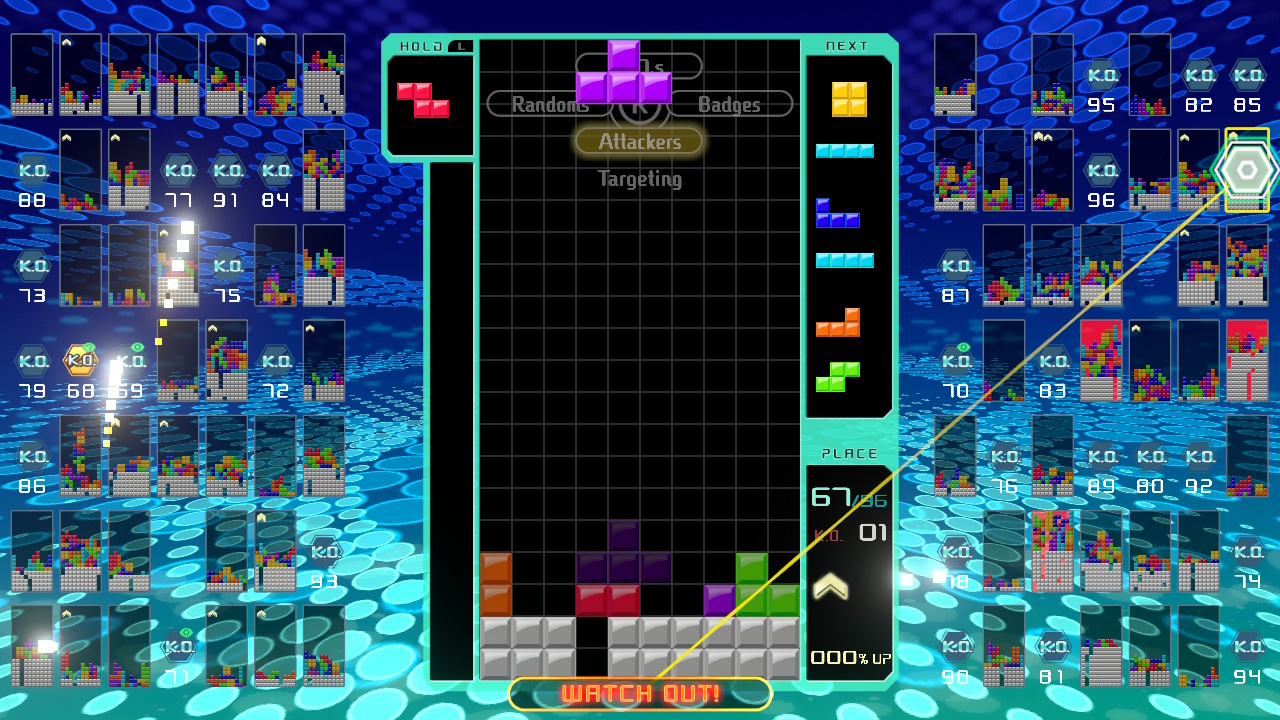
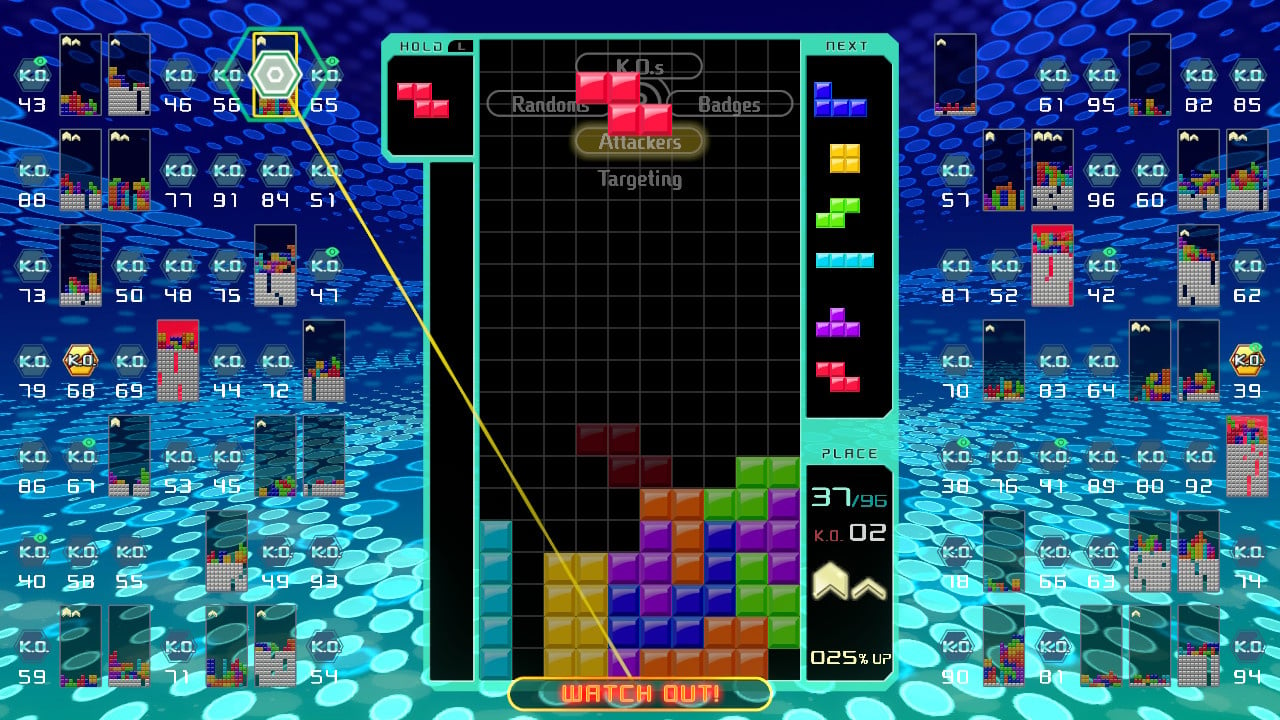
You can see how many badges you have just below your K.O. count. In this image below, we have one complete badge and are working towards a second.
How To Prevent Attacks
Sometimes, it feels like everyone is attacking you and there’s absolutely no hope in sight. Luckily, there is a way to monitor incoming attacks, and ways to deal with them.
Every attack sent your way will show up in a tall column on the side of your main screen, all as various coloured blocks. These pesky blocks are queueing up to throw themselves onto your main board, and will rise up from the bottom. They’re usually yellow to begin with, but will change to red and then an angry flashing red as time progresses. These colours indicate how soon the enemy lines will enter your screen – flashing red blocks will jump over when you’ve placed your next block.
When you have enemy blocks in this column, any ‘junk’ lines you send will actually fight against these blocks, rather than be sent to your opponent. If you see enemy blocks building up, you need to start clearing lines on your screen to clear them out – even clearing single lines delays the enemy block from entering your screen.
If you’re wanting to play defensively, it can help to save a block which can clear lots of lines with the L/R button, before deploying it as soon as your enemy block column starts to fill.
Which Attack Mode Should You Choose In Tetris 99?
As we’ve mentioned several times above, flicking the right stick allows you to choose from four different targetting or attack modes. These different options essentially target a different group of enemies from the other 98 players on your screen. Below, we explain how each of the four modes work and when best to use them – you’ll find that switching between them depending on your situation can often be the best way to play.
K.O.s (Right Stick Up)
The K.O.s option targets those who are currently in danger of seeing their blocks reach the top of their screen. By targetting these players, you theoretically have a higher chance of immediately claiming a K.O. when attacking them with ‘junk’ lines, gaining at least a portion of a badge in the process for multiplayer damage.
The problem is that, sometimes, a player will be wiped out before your ‘junk’ line attacks them, meaning you don’t get the kill or the badge reward. If you’re really wanting to go for kills, this isn’t a bad way to do it, but it can never be 100% reliable.
Badges (Right stick Right)
This option will target the player who currently has the most badges, allowing you steal them all for yourself should you wipe them out.
It’s worth noting that the player with the most badges is likely to be highly skilled, and could well be hard to beat. If they happen to be playing in ‘Attackers’ mode (below), this could also mean real problems for you, as their junk will be sent your way. We’d suggest ignoring this option until you’re feeling confident; switching to this mode towards the end of a battle can be a good way to assert your dominance and become the most powerful player on the field for the final 10 or 20, but it’s not to be used lightly.
Attackers (Right Stick Down)
Ironically, Attackers is probably your best defensive option, and will probably be the best friend of new players who are simply trying to survive for a decent length of time.
This mode targets those who are currently attacking you, and will actually split your attack across each of those players. This means that, by sending ‘junk’ lines their way, you can distract anyone trying to destroy your game and potentially take out multiple opponents at once. As your attack is divided between all of those attacking you, the number of lines sent to opponents will naturally be less per player, however, so getting kills isn’t as likely here.
Randoms (Right Stick Left)
As the name suggests, Randoms appears to select players at complete random. If we’re honest, this mode doesn’t seem all that useful in any scenario, and we’d suggest choosing one of the others (Attackers if you’re just starting out). Your attacks will buzz around from one player to another, hardly ever doing enough damage to completely wipe them out.
Manual (Left Stick/Touchscreen)
By using the left control stick or the touchscreen, you can manually select whichever of the other 98 players you like, sending all of your attacks their way. As you can imagine, this is quite an advanced tactic – keeping an eye on each individual player while clearing your own lines is incredibly tricky.
If you can manage all of this, though, then selecting players can be a good way to go. Perhaps you’d like to wipe out a strong player to claim their lovely badges, or maybe player number 87 just rubs you up the wrong way? If you’re a beginner, we’d ignore this feature for now, but it’s worth bearing in mind as you get better and better.
Tetris 99 Hints And Tips
‘Holding’ a long, thin block is always a good tactic if you’re looking to clear loads of blocks in one go, so don’t waste these precious commodities.
While there’s always the temptation to rush and score as many lines as possible, remember that you’re not going for a score here. Sometimes, especially early on the game when the pressure is off, it pays to take things slowly and build up your blocks so you’re in a good position to clear them out once a long, thin block appears.
Getting junk dumped on your screen isn’t much fun, but ironically, it can be the key to success. Dumped blocks have a thin gap which can be exploited if you have a long, thin block. It’s possible to send all those junk blocks right back at the person who gave them to you if you’re set to ‘Attackers’ mode.
When the game speeds up, you need all the time you can get to really think about your next move, so don’t ‘Hard Drop’ pieces if you can help it. Instead, let them fall at their normal speed (which will still be pretty quick at this point) and use that additional second or two to glance at the block that’s coming next (shown on the right-hand side of the playfield) so you can plan where you’re going to place it.
Switching to your ‘Hold’ piece is a good way to get out of a pickle, especially when the game gets faster. This is because switching to piece – even when your current piece is quite far down the screen – places the ‘new’ piece back at the top of the screen, buying you more time. The catch is that you can only switch to your ‘Hold’ piece once per drop.
It’s possible to keep rotating your current piece even when it looks like it’s totally dropped – exploit this to get yourself out of tight spots and buy yourself time.
Hopefully, this guide has helped you to get a decent grip on the game and work towards those tasty victories. If you have any more tips, make sure to post them below in the comment section for other readers to see!
Also, if you’re wanting to learn even more about the game, make sure to check out our Tetris 99 review!
Do you want to know when a new version of your favorite project is released? Do you want to make your job as packager easier? If so, this article is for you. It introduces you to the world of release-monitoring.org. You’ll see how it can help you catch up with upstream releases.
What is release-monitoring.org?
The release-monitoring.org is a combination of two applications: Anitya and the-new-hotness.
Anitya is what you can see when visiting release-monitoring.org. You can use it to add and manage your projects. Anitya also checks for new releases periodically.
The-new-hotness is an application that catches the messages emitted by Anitya. It creates a Bugzilla issue if the project is mapped to a Fedora package.
How to use release-monitoring.org
Now that you know how it works, let’s focus on how you can use it.
Index page of release-monitoring.org
First think you need to do is to log in. Anitya provides a few options you can use to log in, including the Fedora Account System (FAS), Yahoo!, or a custom OpenID server.
Login page
When you’re logged in, you’ll see new options in the top panel.
Anitya top panel
Add a new project
Now you can add a new project. It’s always good to check whether the project is already added.
Add project form
Next, fill in the information about the project:
Project name – Use the upstream project name
Homepage – Homepage of the project
Backend – Backend is simply the web hosting where the project is hosted. Anitya offers many backends you can chose from. If you can’t find a backend for your project, you can use the custom backend. Every backend has its own additional fields. For example, BitBucket has you specify owner/project.
Version scheme – This is used to sort received versions. Right now, Anitya only supports RPM version scheme.
Version prefix – This is the prefix that is stripped from any received version. For example, if the tag on GitHub is version_1.2.3, you would use version_ as version prefix. The version will then be presented as 1.2.3. The version prefix v is stripped automatically.
Check latest release on submit – If you check this, Anitya will do an initial check on the project when submitted.
Distro – The distribution in which this project is used. This could be also added later.
Package – The project’s packaged name in the distribution. This is required when the Distro field is filled in.
When you’re happy with the project, submit it. Below you can see how your project may look after you submit.
Project page
Add a new distribution mapping
If you want to map the project to a package on a specific distribution, open up the project page first and then click on Add new distribution mapping.
Add distribution mapping form
Here you can chose any distribution already available in Anitya, fill in the package name, and submit it. The new mapping will show up on the project page.
Automatic filing of Bugzilla issues
Now you created a new project and created a mapping for it. This is nice, but how does this help you as a packager? This is where the-new-hotness comes into play.
Every time the-new-hotness sees a new update or new mapping message emitted by Anitya, it checks whether this project is mapped to a package in Fedora. For this to work, the project must have a mapping to Fedora added in Anitya.
If the package is known, the-new-hotness checks the notification setting for this package. That setting can be changed here. The last check the-new-hotness does is whether the version reported by Anitya is newer than the current version of this package in Fedora Rawhide.
If all those checks are positive, the new Bugzilla issue is filed and a Koji scratch build started. After the Koji build is finished, the Bugzilla is updated with output.
Future plans for release-monitoring.org
The release-monitoring.org system is pretty amazing, isn’t it? But this isn’t all. There are plenty of things planned for both Anitya and the-new-hotness. Here’s a short list of future plans:
Anitya
Add libraries.io consumer – automatically check for new releases on libraries.io, create projects in Anitya and emit messages about updates
Use Fedora package database to automatically guess the package name in Fedora based on the project name and backend
Change current cron job to service: Anitya checks for new versions periodically using a cron job. The plan is to change this to a service that checks projects using queues.
Support for more than one version prefix
the-new-hotness
File Github issues for Flathub projects when a new version comes out
Create pull requests in Pagure instead of filing a Bugzilla issue
Move to OpenShift – this should make deployment much easier than how it is now
Convert to Python 3 (mostly done)
Both
Conversion to fedora-messaging – This is already in progress and should make communication between Anitya and the-new-hotness more reliable.
The Weekender: Fully Armed and Operational Edition
Your regular weekly update is back, and we’ve got plenty to catch up on – it’s been a pretty good couple of weeks all things considered, with some interesting new releases and game updates, as well as a healthy amount of sale action to see you into the weekend. For some of you in the UK it’ll be school holidays next week, so you may want to read this week’s update with interest.
Highlights from this week include catch-up reviews on The Escapists 2 (which is pretty good) and Invaders from Dimension X! (which is a bit rough around the edges, but a neat war game that we’re glad to see exist).
There’s not much more to say about this game beyond what we stated in our review, so go give that a read. Suffice to say, if you like board games, there’s a high chance you’ll like this game. Better yet, you can try it out for yourself for free!
The art style on this one reminds me of our 2018 GOTY, Meteorfall and makes me wonder if the same artist was involved. This is a premium card game/dungeon crawler where players can re-arrange the dungeon cards themselves. Plenty of collectables and plenty of replayability by the sounds of things, and we’ll get you a full review as soon as we can.
One of our favourite strategy titles is now on Android! Woot! The pricing model is slightly different to what is on iOS, but it’s basically the same as Plague Inc. – you can try it out for free, and then there’s an IAP to unlock the ‘Premium’ version. There are additional IAPs beyond that, but these are exactly the same as what iOS users have.
From last week there was also text-based strategy game A Few Minutes of Glory (iOS), which we’ll have a full review for next week, as well as Throne Quest (iOS & Android), an action RPG that’s also on our list to take a deeper look at.
Finally, Victory Point Games released one of their solitaire board games in digital format called Gem Rush (iOS, Android). It’s an unfortunate title for the mobile app store, but we’ll get you a full review as soon as we can.
The Trese Brothers have updated two of their catalogue recently – Templar Battleforce continues to get refined with improved iPad Pro support, and recently released Star Traders: Frontiers get a new content drop in the form of a new high-difficulty role and play-style. The link may be from steam, but it’s worth paying attention to the PC page because that’s where they talk about their plans and updates for the game (across all platforms).
The iconic farming simulator/RPG is finally making its way to Android. Pre-registration is open right now, so if you click on the above link you can sign up to notified when the game is released. The generally consensus is that it’ll be premium and cost the same as the iOS version, and also have all of the same functionality bar multiplayer. No news yet as to the ‘when’, but I’m sure we’ll find out soon.
Sales
There’s actually quite a lot of games on sale this week, so this section is going to have to be a bit brief:
Holy Potatoes! We’re in Space!? (Review) (iOS): $2.99 – only the second time it’s been on sale
Holy Potatoes! A Weapon Shop!? (Review) (iOS & Android): $1.99 – only the second time it’s been on sale
Potion Explosion (Review) (iOS & Android): $2.99 – not the cheapest price
Also available at a discount are Asmodee’s digital ports of Love Letter and Patchwork.
That’s everything in this week’s update – enjoy your weekends and we’ll see you next week. If you’ve seen anything else you think deserves as mention, let us know in the comments!
Linux isn’t just for developers. I know that might come as a surprise for you, but the types of users that work with the open source platform are as varied as the available distributions. Take yours truly for example. Although I once studied programming, I am not a developer.
The creating I do with Linux is with words, sounds, and visuals. I write books, I record audio, and a create digital images and video. And even though I don’t choose to work with distributions geared toward those specific tasks, they do exist. I also listen to a lot of music. I tend to listen to most of my music via vinyl. But sometimes I want to listen to music not available in my format of choice. That’s when I turn to digital music.
Having a Linux distribution geared specifically toward playing music might not be on the radar of the average user, but to an audiophile, it could be a real deal maker.
This bring us to Audiophile Linux. Audiophile Linux is an Arch Linux-based distribution geared toward, as the name suggests, audiophiles. What makes Audiophile Linux special? First and foremost, it’s optimized for high quality audio reproduction. To make this possible, Audiophile Linux features:
System and memory optimized for quality audio
Custom Real-Time kernel
Latency under 5ms
Direct Stream Digital support
Lightweight window manager (Fluxbox)
Pre installed audio and video programs
Lightweight OS, free of unnecessary daemons and services
Although Audiophile Linux claims the distribution is easily installed, it’s very much based on Arch Linux, so the installation is nowhere near as easy as, say, Ubuntu. At this point, you might be thinking, “But there’s already Ubuntu Studio, which is as easy to install as Ubuntu, and contains some of the same features!” That may be true, but there are users out there (even those of a more artistic bent) who prefer a decidedly un-Ubuntu distribution. On top of which, Ubuntu Studio would be serious overkill for anyone just looking for high-quality music reproduction. For that, there’s Audiophile Linux. Let’s install it and see what’s what.
Installation
As I mentioned, Audiophile is based on Arch Linux. Unlike some distributions based on Arch, however, Audiophile Linux doesn’t include a pretty, user-friendly GUI installer. Instead, what you must do is download the ISO image, burn the ISO to either a USB or CD/DVD, and boot from the device. Once booted, you’ll find yourself at a command prompt. Once at that prompt, here are the steps to install.
Create the necessary partition by issuing the command:
fdisk /dev/sdX
where X is the drive letter (discovered with the command fdisk -l).
Type n to create a new partition and then type p to make the partition a primary. When that completes, type w to write the changes. Format the new partition with the command:
mkfs.ext4 /dev/sda1
Mount the new partition with the command:
mount /dev/sda1 /mnt
Finish up the partition with the following commands;
time cp -ax / /mnt arch-chroot /mnt /bin/bash cd /etc/apl-files
Install the base packages (and create a username/password with the command:
./runme.sh
Take care of the GRUB boot loader with the following commands:
Set the hardware clock and autologin with the following commands:
hwclock --systohc --utc ./autologin.sh
Reboot the system with the command:
reboot
It Gets a Bit Dicey Now
There’s a problem to be found, which is related to the pacman update process. If you immediately go to update the system with the pacman -Suy command, you’ll find Xorg broken and seemingly no way to repair it. This problem has been around for some time now and has yet to be fixed. How do you get around it? First, you need to remove the libxfont package with the command:
sudo pacman -Rc libxfont
That’s not all. There’s another package that must be removed (Cantata – the Audiophile music player). Issue the command:
sudo pacman -Rc ffmpeg2.8
Now, you can update Audiophile Linux with the command:
sudo pacman -Suy
Once updated, you can finish up the installation with the command:
When this completes, reboot and log into your desktop.
The Desktop
As mentioned earlier, Audiophile Linux opts for lightweight desktop environment, Fluxbox. Although I understand why the developers would want to make use of this desktop (because it’s incredibly lightweight), many users might not enjoy working with such a minimal desktop. And since most audiophiles are going to be working with hardware that can tolerate a more feature-rich desktop. If you want to opt to go that route, you can install a desktop like GNOME with the command:
sudo pacman -S gnome
However, if you want to be a purist (and get the absolute most out of this hardware/software combination), stick with the default Fluxbox. I recommend sticking with Fluxbox especially since you’ll only be using Audiophile Linux for one purpose (listening to music).
Fluxbox uses an incredibly basic interface. Right-click anywhere on the desktop and a menu will appear (Figure 1).
From that menu, you won’t find a lot of applications (Figure 2).
That’s okay, because you only need one—Cantata (listed in the menu as Play music). However, after the installation, Cantata won’t run. Why? Because of a QT5 problem. To get around this, you need to issue the following commands:
Once you’ve taken care of the above, Cantata will run and you can start playing all of the music you’ve added to the library (Figure 3).
Worth The Hassle?
I have to confess, at first I was fairly certain Audiophile Linux wouldn’t be worth the trouble of getting it up and running … for the singular purpose of listening to music. However, once those tunes started spilling from my speakers, I was sold.
Although the average listener might not notice the difference with this distribution, audiophiles will. The clarity and playback of digital music on Audiophile Linux far exceeded that on both Elementary OS and Ubuntu Linux. So if that appeals to you, I highly recommend giving Audiophile Linux a spin.
Learn more about Linux through the free “Introduction to Linux” course from The Linux Foundation and edX.
The 22nd D.I.C.E. Awards took place in Las Vegas tonight, and Sony's God of War was a big winner. The PlayStation 4 exclusive took home nine total awards, including the highly coveted overall Game of the Year.
In addition to that award, God of War won Outstanding Achievement in Game Direction, Outstanding Achievement in Game Design, Adventure Game of the Year, Outstanding Achievement in Story, Outstanding Achievement in Sound Design, Outstanding Achievement in Original Music Composition, Outstanding Achievement in Character (Kratos), and Outstanding Achievement in Art Direction.
God of War wasn't the only game that won multiple awards, as Celeste picked up Action Game of the Year and Outstanding Achievement for an Independent Game. Florence won Portable Game of the Year, Super Smash Bros. Ultimate took home Fighting Game of the Year, and Monster Hunter: World picked up Role-Playing Game of the Year. Fortnite, meanwhile, won for Outstanding Achievement in Online Gameplay. Rockstar's Red Dead Redemption 2 won for Outstanding Technical Achievement, but that was the only award it took home tonight.
You can see the full list of categories and winners below. The D.I.C.E. Awards are not connected to the Swedish developer DICE.
Also during the D.I.C.E. Awards, Bonnie Ross was inducted into the Academy of Interactive Arts and Sciences' Hall of Fame. The longtime Microsoft employee and head of Halo developer 343 Industries, Ross was praised for her work in growing the Halo franchise and for spearheading efforts to promote STEM and diversity in video games. She is the first woman in the AIAS Hall of Fame, and she joins other big names like Mario creator Shigeru Miyamoto, Valve founder Gabe Newell, and Metal Gear designer Hideo Kojima, among others.
22nd DICE Award Winners
Game of the Year
God of War
Publisher: Sony Interactive Entertainment
Developer: SIE Santa Monica Studio
Outstanding Achievement in Game Direction
God of War
Publisher: Sony Interactive Entertainment
Developer: SIE Santa Monica Studio
Outstanding Achievement in Game Design
God of War
Publisher: Sony Interactive Entertainment
Developer: SIE Santa Monica Studio
Portable Game of the Year
Florence
Publisher: Annapurna Interactive
Developer: Mountains
Outstanding Achievement for an Independent Game
Celeste
Publisher: Matt Makes Games
Developer: Matt Makes Games
Immersive Reality Game of the Year
Beat Saber
Publisher: Beat Games
Developer: Beat Games
Immersive Reality Technical Achievement
Tónandi
Publisher: Magic Leap
Developer: Magic Leap and Sigur Rós
Outstanding Achievement in Online Gameplay
Fortnite
Publisher: Epic Games
Developer: Epic Games
Strategy/Simulation Game of the Year
Into the Breach
Publisher: Subset Games
Developer: Subset Games
Sports Game of the Year
Mario Tennis Aces
Publisher: Nintendo Co., Ltd.
Developer: Nintendo Co., Ltd. and Camelot Co. Ltd.
Role-Playing Game of the Year
Monster Hunter: World
Publisher: CAPCOM
Developer: CAPCOM
Racing Game of the Year
Forza Horizon 4
Publisher: Microsoft Studios
Developer: Playground Games
Fighting Game of the Year
Super Smash Bros. Ultimate
Publisher: Nintendo of America
Developer: Nintendo, Sora Ltd., and BANDAI NAMCO Studios Inc.
Family Game of the Year
Unravel Two
Publisher: Electronic Arts
Developer: ColdWood Interactive
Adventure Game of the Year
God of War
Publisher: Sony Interactive Entertainment
Developer: SIE Santa Monica Studio
Action Game of the Year
Celeste
Publisher: Matt Makes Games
Developer: Matt Makes Games
Outstanding Technical Achievement
Red Dead Redemption 2
Publisher: Rockstar Games
Developer: Rockstar Games
Outstanding Achievement in Story
God of War
Publisher: Sony Interactive Entertainment
Developer: SIE Santa Monica Studio
Outstanding Achievement in Sound Design
God of War
Publisher: Sony Interactive Entertainment
Developer: SIE Santa Monica Studio
Outstanding Achievement in Original Music Composition