| Welcome, Guest |
You have to register before you can post on our site.
|
| Forum Statistics |
» Members: 19,834
» Latest member: vict0ry
» Forum threads: 21,467
» Forum posts: 22,294
Full Statistics
|
| Online Users |
There are currently 1540 online users.
» 0 Member(s) | 1535 Guest(s)
Applebot, Baidu, Bing, Google, Yandex
|
|
|
| Zephyr Project Embraces RISC-V with New Members and Expanded Board Support |
|
Posted by: xSicKxBot - 08-18-2018, 02:30 AM - Forum: Linux, FreeBSD, and Unix types
- No Replies
|
 |
Zephyr Project Embraces RISC-V with New Members and Expanded Board Support

The Linux Foundation’s Zephyr Project, which is developing the open source Zephyr real-time operating system (RTOS) for microcontrollers, announced six new members, including RISC-V members Antmicro and SiFive. The project also announced expanded support for developer boards. Zephyr is now certified to run 100 boards spanning ARM, x86, ARC, NIOS II, XTENSA, and RISCV32 architectures.
Antmicro, SiFive, and DeviceTone, which makes IoT-savvy smart clients, have signed up as Silver members, joining Oticon, runtime.io, Synopsys, and Texas Instruments. The other three new members — Beijing University of Posts and Telecommunications, The Institute of Communication and Computer Systems (ICCS), and Northeastern University – have joined the Vancouver Hack Space as Associate members.
The Platinum member leadership of Intel, Linaro, Nordic Semiconductor, and NXP remains the same. NXP, which has returned to an independent course after Qualcomm dropped its $44 billion bid, supplied one of the first Zephyr dev boards – its Kinetis-based FRDM-K64F (Freedom-K64F) – joining two Arduino boards and Intel’s Galileo Gen 2. Like Nordic, NXP is a leading microcontroller unit (MCU) chipmaker in addition to producing Linux-friendly Cortex-A SoCs like the i.MX8.
RTOSes go open source
Zephyr is still a toddler compared to more established open source RTOS projects like industry leader FreeRTOS, and the newer Arm Mbed, which has the advantage of being sponsored by the IP giant behind Cortex-M MCUs. Yet, the growing migration from proprietary to open source RTOSes signals good times for everyone.
“There is a major shift going on the RTOS space with so many things driving the increase in preference for open source choices,” said Thea Aldrich, the Zephyr Project’s new Evangelist and Developer Advocate, in an interview with Linux.com. “In a lot of ways, we’re seeing the same factors and motivations at play as happened with Linux many years ago. I am the most excited to see the movement on the low end.”
RISC-V alignment
The decision to align Zephyr with similarly future-looking open source projects like RISC-V appears to be a sound strategic move. “Antmicro and SiFive bring a lot of excitement and energy and great perspective to Zephyr,” said Aldrich.
With SiFive, the Zephyr Project now has the premiere RISC-V hardware player on board. SiFive created the first MCU-class RISC-V SoC with its open source Freedom E300, which powers its Arduino-compatible HiFive1 and Arduino Cinque boards. The company also produced the first Linux-friendly RISC-V SoC with its Freedom U540, the SoC that powers its HiFive Unleashed SBC. (SiFive will soon have RISC-V-on-Linux competition from an India-based project called Shakti.)
Antmicro is the official maintainer of RISC-V in the Zephyr Project and is active in the RISC-V community. Its open source Renode IoT development framework is integrated in the Mi-V platform of Microsemi, the leading RISC-V soft-core vendor. Antmicro has also developed a variety of custom software-based implementations of RISC-V for commercial customers.
Antmicro and SiFive announced a partnership in which SiFive will provide Renode to its customers as part of “a comprehensive solution covering build, debug and test in multi-node systems.” The announcement touts Renode’s ability to simulate an entire SoC for RISC-V developers, not just the CPU.
Zephyr now supports RISC-V on QEMU, as well as the SiFive HiFive1, Microsemi’s FPGA-based, soft-core M2GL025 Mi-V board, and the Zedboard Pulpino. The latter is an implementation of PULP’s open source PULPino RISC-V soft core that runs on the venerable Xilinx Zynq based ZedBoard.
Other development boards on the Zephyr dev board list include boards based on MCUs from Microchip, Nordic, NXP, ST, and others, as well as the BBC Microbit and 96Boards Carbon. Supported SBCs that primarily run Linux, but can also run Zephyr on their MCU companion chips, include the MinnowBoard Max, Udoo Neo, and UP Squared.
Zephyr 1.13 on track
The Zephyr Project is now prepping a 1.13 build due in September, following the usual three-month release cycle. The release adds support for Precision Time Protocol PTP and SPDX license tracking, among other features. Zephyr 1.13 continues to expand upon Zephyr’s “safety and security certifications and features,” says Aldrich, a former Eclipse Foundation Developer Advocate.
Aldrich first encountered Zephyr when she found it to be an ideal platform for tracking her cattle with sensors on a small ranch in Texas. “Zephyr fits in really nicely as the operating system for sensors and other devices way out on the edge,” she says.
Zephyr has other advantages such as its foundation on the latest open source components and its support for the latest wireless and sensor devices. Aldrich was particularly attracted to the Zephyr Project’s independence and transparent open source governance.
“There are a lot of choices for open source RTOSes and each has its own strengths and weaknesses,” continued Aldrich, “We have a lot of really strong aspects of our project but the community and how we operate is what comes to mind first. It’s a truly collaborative effort. For us, open source is more than a license. We’ve made it transparent how technical decisions are made and community input is incorporated.”
Join us at Open Source Summit + Embedded Linux Conference Europe in Edinburgh, UK on October 22-24, 2018, for 100+ sessions on Linux, Cloud, Containers, AI, Community, and more.
|

|
|
| AppleInsider - How to get more speed and features out of Safari on Mac and iOS |
|
Posted by: xSicKxBot - 08-18-2018, 02:30 AM - Forum: Apples Mac and OS X
- No Replies
|
|
How to get more speed and features out of Safari on Mac and iOS
 Maybe it’s just because it comes free on your Mac and iOS devices, but somehow it never seems fashionable to like Safari. Yet this is a remarkably capable app and it has hidden depths. AppleInsider delves into using Safari.
Safari doesn’t get enough credit as being a fast and capable browser, but that is partly it’s own fault. On iOS in particular, Safari gets out of your way so that you just see the website you want. You’re meant to forget that you’re using a browser at all and unfortunately that means you do tend to miss just how much Safari is doing for you —and what more it can do too.
Browsers are a matter of personal taste, so if you don’t like Safari, we’re not going to change your mind. Yet, we’re going to try and if you use any of them at all, these tips will show you just how much more power there is in this ubiquitous yet somehow also disregarded app.
Settings for this website (macOS)
Go to any website in Safari on the Mac and when it’s loaded, click on the Safari menu, then Settings for this website.
A drop-down dialog appears under the website’s address bar. It doesn’t have many options and they vary a little depending on the site but they are all handy to know.
There’s one marked Enable content blockers and this is one of macOS’s tools for battling the more intrusive of web ads. By default, it’s switched on and it’s hard to guess why you’d change that but you can.
You’re more likely to change a setting called Auto-Play. This is the tool that prevents a loud video playing when you first visit a site. By default, this is set to Stop Media with Sound which lets videos play but keeps them silent.
Instead, you can say you don’t even want the videos to play at all or you can go back to old days and have sound and video blasting out at you.
There are also options here for whether a site can use your location, your camera or your microphone. Each one is automatically set to require the site to ask you for permission but again you can apply a blanket allow or deny.
That’s a blanket permission for this site and this site alone. Similarly, on this same dialog you can choose Use Reader when available and that applies only to this website.
Use Reader view (macOS and iOS)
Reader or Reader View is when Safari attempts to strip away all of a website’s graphics and just display the text of the article you’re reading. It’s not always effective: you’ll find that sometimes text is missing from the article because of how the website has arranged its page.
Also, usually you want the graphics. Yet when a site is just so ferociously blinding with ads and popups and videos, being able to dismiss it all and get on with what you want to read is a boon.
On the Mac, you could use the same Settings for this website and Safari would remember to switch to Reader view every time you visited.
However, just click on the icon to the side of the website’s address —if there is one. The icon you need is a symbol showing four lines representing text but you won’t see it on the front or menu pages of a site. You have to go into an article first.
When you’re there, the icon appears and on the Mac you can click it to switch on Reader mode immediately. On iOS, you tap the same icon and get the same result.
What’s less commonly known is that this icon comes with more options. On the Mac, click and hold on it to get these extra settings and on iOS, press and hold for a moment.
On both platforms, the options you then get are to do with when Safari should automatically switch to Reader mode and when it shouldn’t. You can tell it that every single time you visit any page on the current site, Safari should switch on Reader. Or in the same place you can say that you want this to happen for every website ever.
Safari remembers this and if you change your mind, you click or tap and hold on that same Reader icon for a moment. Then the options are to automatically switch Reader off.
It’s not just about reading (macOS)
We may not like it when a video we weren’t expecting starts playing and we jump out of our seats. Yet the web is at least as much about video as it is text and Safari has ways to make watching better too.
As of macOS Sierra, you’ve been able to use Safari to watch Picture in Picture. It’s like being able to tear off a video from a site and drag it somewhere on your screen.
So you can keep a news channel running in one corner, for instance. Or if you’re watching a YouTube video about using some software, you can have that on screen next to the app.
For many websites including Vimeo, you find the video you want and start playing it. When it’s begun, there will typically be a Picture in Picture button on the bottom. Click that and your video pops out into this side panel: no website around it, no controls, just the video itself.
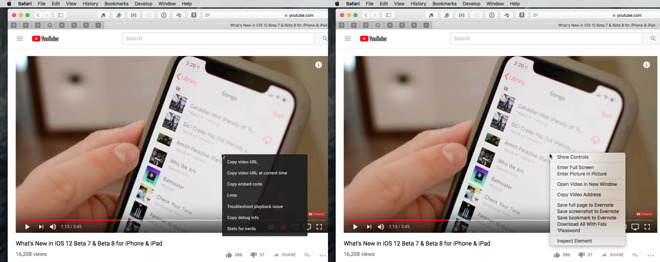
Unfortunately, not every site plays this nicely and that includes YouTube. For YouTube, you have to fiddle. Find a video, set it running and then right-click in the middle of the image. Ignore the menu that appears and instead right-click again.
Seriously. Right-click, then right-click again. The first time you do it you get a menu from YouTube but if you do it again immediately, you get a menu from Safari instead. Choose Enter Picture in Picture from that and you’re done.
Or nearly. Picture in Picture defaults to appearing in the top right of your display but you can move it —within limits. You can actually drag it anywhere and while you’re dragging, it will continue to play but then when you let go it will snap to the nearest corner.
You can resize it. Click on an edge and you can drag to increase the size to about a quarter of your screen or reduce it to a postage stamp. Unfortunately you can’t change the size and then restore it to the default unless you close the video and do it again.
To close it, move your cursor over the video image and you’ll get controls for pausing the video or popping it back into its website.
There’s no way to rewind or fast-forward and you can’t have more than one video playing Picture in Picture. That’s not even if you open a second tab or try to play videos from different sites.
Plus you do have to keep the original tab open. You can minimize it but the original tab or Safari window is also how you mute the sound of the video alone.
Extensions (macOS)
Arguably Google Chrome is famous for how you can download extensions that add various extra pieces of functionality for it but certainly Safari isn’t. Which is at least partly because there aren’t as many available —and possibly because there is an oddity in how Apple shows you them.
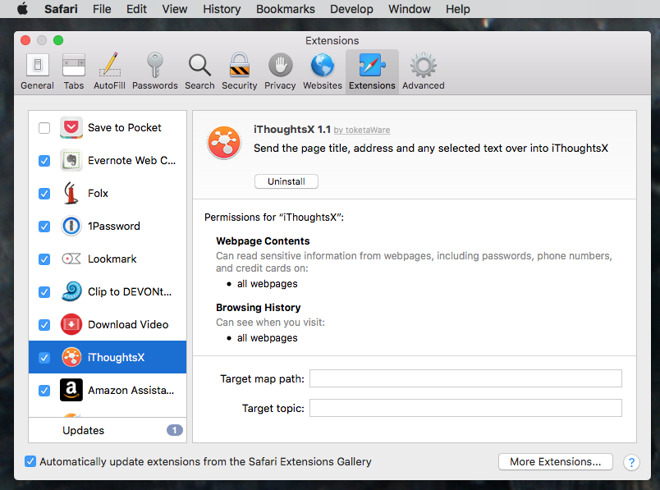
On the Mac, choose the Safari menu and then do not choose Safari Extensions. Instead, choose Preferences and click on the Extensions tab.
This is where you see what extensions you may already have and it’s where you uninstall or update them. There’s also a More Extensions button which takes you to Apple’s online store of these. That’s actually where the menu item Safari Extensions takes you so perhaps it’s useful the very first time you look at this.
It’s just that you don’t often go into your extensions so whenever you do, it is ridiculously easy to assume you want to choose the menu item with Extensions in its name.
These extensions really all make Safari automatically do something that you could already use it for in some automatic way. There’s an iThoughts extension that takes the current website’s address and adds it to a mind map in that application.
Or probably the most useful example of them all is the 1Password extension.
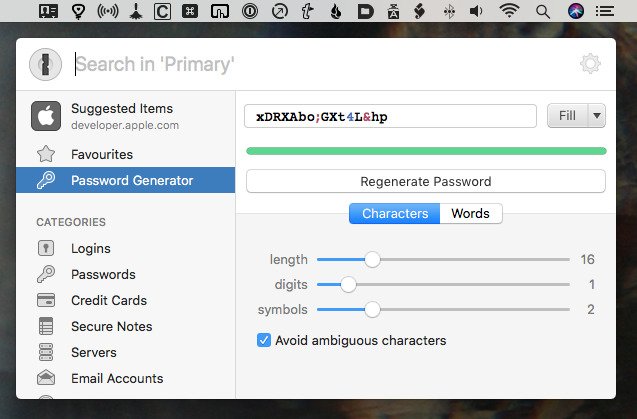
With this installed in Safari, you can tap a keystroke or click an icon and call up this password manager. It will pop passwords into place for you, it will quickly generate new ones, it will show you all your credit card details, or it will fill in forms.
The main 1Password app does all of this but the Safari Extension puts it all a keystroke away.
It’s all about speed
Safari is a fast browser. There, we’ve said it. Chrome and Firefox fans tend to say their browser is quicker and we daresay if we ever find an Internet Explorer user they might claim the same. This is because part of speed is how used you are to the slightly different ways browsers work.
Safari is very good at speeding up jobs for you. As well as the Safari Extensions which bring extra tools to your mouse click or keyboard tap, there are the Reader view settings that make reading quicker. Then, though, there are the now almost silly number of ways Safari can get you to the sites you want and remember them afterwards.
As with any browser, you can hold down the Command key and tap L to move the cursor up to the address bar. It moves the cursor and it also selects everything there so if you want to type a completely new address, you just start typing and the old one is immediately replaced.
If you want to change the existing address, just tap the right or left arrow keys and now the selection is gone and your cursor is at the start or end of the address.
Safari will auto-complete the names of sites you’ve been to before. Once you’re there, you can click on the Bookmarks menu and choose Add Bookmark.
If you’ve opened a lot of tabs then right next to that option there is a command to bookmark all of them. It applies only to the ones in the current window so if you also have multiple windows, you have to go to each one first.
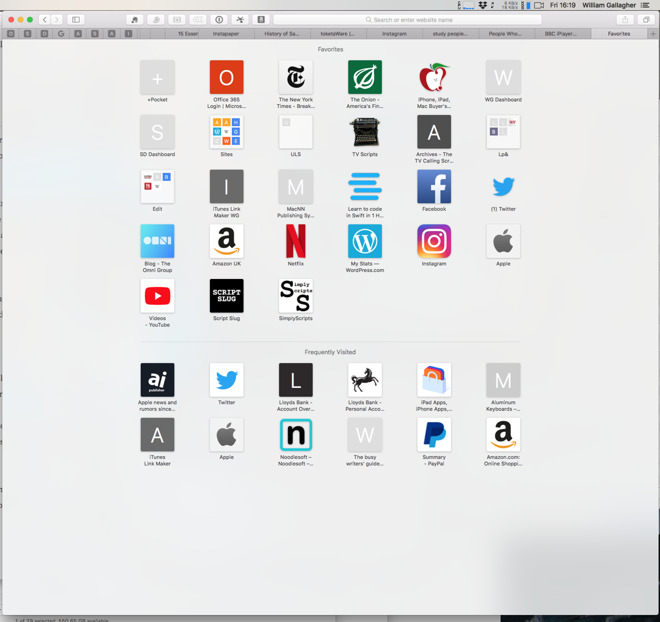
Bookmarks are so 1990s, though. Click in the Safari address bar and delete the address there. Safari then shows you a Favorites screen which by default includes a section with sites you frequently visit.
Pinned tabs
If you really visit them frequently, though, you can pin them. This is the same as loading the page but instead of taking up a whole tab in the menubar, you’re using a favicon-sized one.
To add a site to this collection that’s always displayed at the side of every Safari window, start by going to a site you want. When it’s loaded, you can click on its favicon to the left of the site name in the address bar and drag it over to the other pinned tabs.
Sometimes clicking on that favicon is fiddly, though, so you can instead click and hold on the tab itself. Drag on that and you can slide it over into the pinned tabs and let go.
For sheer speed of access, pinned tabs are excellent. However, they have a problem.
Safari is now very good at preventing sites from blasting you with sound from auto-playing videos. Plus if you have two dozen tabs open and one of them is playing audio, you can now see which one because Safari puts an icon in that tab. It also gives you the option to right-click on that icon and mute the sound without ever going to that tab.
There’s no room for that icon in the pinned tabs. So you can still have sound playing and not know where it’s coming from.
Also, even though you make these pinned tabs by dragging a site’s little favicon, what you get in the tab bar is rarely that favicon. It’s more common to get just a single letter. If you pin AppleInsider then it will become a little button marked “A.” That’s fine until you pin Amazon and now you’ve got two pins with the same letter.
For that reason, it’s best to severely limit the number of tabs you pin because the time saved using them can be lost in hunting for the right one.
There’s another reason to limit them, though. Every tab in every browser takes up some resources from your Mac, even if Safari is good at limiting this. You can end up with a site in a pinned tab that is slowing your Mac down.
So don’t regard pinned tabs as a way of bookmarking, see them instead as where you keep your most urgently and often used sites.
Everything’s adjustable
You could rearrange your pinned tabs to spell out words. Or you could unpin one by right-clicking on choosing from the options that pop up.
That’s Safari at its very heart: you see only a simple interface but you get many more options by right-clicking or choosing Preferences.
The aim is to leave you thinking about the sites you’re visiting and that is laudable. It just also means that you often miss the features that make Safari genuinely superb.
|
|
|
|
| Mobile - The Weekender: The Bear & the Maiden Fair Edition |
|
Posted by: xSicKxBot - 08-18-2018, 02:30 AM - Forum: New Game Releases
- No Replies
|
|
The Weekender: The Bear & the Maiden Fair Edition
 Welcome to the Weekender, your weekly look at the best new games, sales, and updates. We’ve got a few new games and content updates, including a great action option. This week’s sales feature a host of RPG options as well as a Civ VI price drop.
We’ve had a bunch of great content pop up on the website this week; refreshes of a couple of key guides mark the start of a new season of updates. We‘ve got new ones in the pipelines, but we’re going to get more regular with updating older stuff as well. A good week for reviews too – from King and Assassins to Football Manager Touch 2018. We’ve also been trying to keep on top of important news, like Rome: Total War’s iPhone release date.
Out Now
The highlight of the week is action-RPG Barbearian. Combat is frenetic and features huge hits against massive hordes of enemies, loads of fun and effective special weapons, and challenging tactical choices. Check out my five-star review for more info on the game.
[embedded content]
Mars Power Industries (iOS Universal) – Full Review Coming Soon!
Mars Power Industries is a minimalist puzzle game, which means there’s no high scores, no time limits, no stars…just you and the puzzle. You goal is to build powers stations in a Martian colony such that power is supplied to all buildings. As you play a mystery is revealed through the game’s imagery. It’s a very chill game and would work nicely for more laid-back gaming sessions.
[embedded content]
The Draugr (iOS Universal) – Full review coming soon!
The Draugr is a tabletop card game where reanimated dead with magical powers invade and seek to corrupt the town of Stjørdal with their foul influence. You play as a revenant hunter who has come to protect the town and slay the Draugr. To win you have to slay four of the six Draugr.
The game is played out over two phases. In the first phase the Draugr spread their corruption and in the second the hunter tracks and attempts to destroy them. The game plays pretty well and I like the simple yet attractive graphics. It does work much better if you understand the game going in. The rules are referenceable but there isn’t much of a tutorial.
Updates
Zach Gage’s take on pool games, Pocket Run Pool, just got a nice content update. Two new payout tables and five new betting conditions have been added, which increases the options nicely. Pocket Run Pool is free with in-app-purchases to unlock certain features. It’s well worth a look.
Mini Metro is a great simulation/puzzle game where you must build a train system for a well-known metropolitan area and handle increasingly savage congestion. Several new features have been added since launch and now a new one is available: Challenge Mode. In it you pick an achievement challenge and attempt to build your metro under some additional constraints.
Sales
Amirali Rajan’s minimalist RPG/adventure A Noble Circle is surprisingly deep for a two-dimensional game. It’s also full of surprises and thought-provoking story. Oh, and its free right now, so there’s zero reason not to grab it!
If you’re ready to make some tough choices in a grim, dystopian future now’s your chance. Beholder, a game where you run an apartment building and must spy on and rat out your unpatriotic neighbors, is on sale for $1.99 (normally $5).
Aspyr Media has a nice sale going with its mobile RPG catalog. We’ll kick it off with Jade Empire, currently half off. It’s inspired by the myths and legends of ancient China and full of places to explore and plots to uncover.
Star Wars Knights of the Old Republic (iOS Universal and Android: $4.99)
Star Wars: Knights of the Old Republic is a little dated at this point but has long been enshrined as one of the best RPGs of all time. It’s also half off and worthy of inclusion in your mobile-game collection if you’re into Star Wars, RPGs, or nostalgia.
Civilization VI (Full game IAP) (iPad: $23.99)
The big-hitter of Aspyr’s lineup is also on sale. Normally $60, you can unlock the full Civ VI experience for your iPad for $24. The in-app content packs, normally $5 to $9, are also on sale for $2 to $3. If you enjoy Civilization and want it on your iPad, this is a great deal, as the mobile port is really quite good.
Seen anything else you like? Played any of the above? Let us know in the comments!
|
|
|
|
| PS4 - F1 2018 |
|
Posted by: xSicKxBot - 08-17-2018, 01:54 PM - Forum: New Game Releases
- No Replies
|
|
F1 2018
The 2018 season sees the return of the French Grand Prix for the first time since 2008, at the Circuit Paul Ricard, which last hosted the French Grand Prix in 1990. The German Grand Prix also returns to the Championship after not featuring last year, with the Hockenheimring hosting the race in July. F1 2018 features all of the official teams, the drivers and circuits of the 2018 season. [Codemasters] Publisher: Codemasters Release Date: Aug 24, 2018
|
|
|
|
| AryaLinux: A Distribution and a Platform |
|
Posted by: xSicKxBot - 08-17-2018, 01:54 PM - Forum: Linux, FreeBSD, and Unix types
- No Replies
|
|
AryaLinux: A Distribution and a Platform

Most Linux distributions are simply that: A distribution of Linux that offers a variation on an open source theme. You can download any of those distributions, install it, and use it. Simple. There’s very little mystery to using Linux these days, as the desktop is incredibly easy to use and server distributions are required in business.
But not every Linux distribution ends with that idea; some go one step further and create both a distribution and a platform. Such is the case with AryaLinux. What does that mean? Easy. AryaLinux doesn’t only offer an installable, open source operating system, they offer a platform with which users can build a complete GNU/Linux operating system. The provided scripts were created based on the instructions from Linux From Scratch and Beyond Linux From Scratch.
If you’ve ever attempted to build you own Linux distribution, you probably know how challenging it can be. AryaLinux has made that process quite a bit less stressful. In fact, although the build can take quite a lot of time (up to 48 hours), the process of building the AryaLinux platform is quite easy.
But don’t think that’s the only way you can have this distribution. You can download a live version of AryaLinux and install as easily as if you were working with Ubuntu, Linux Mint, or Elementary OS.
Let’s get AryaLinux up and running from the live distribution and then walk through the process of building the platform, using the special builder image.
The Live distribution
From the AryaLinux download page, you can get a version of the operating system that includes either GNOME or Xfce. I chose the GNOME route and found it to be configured to include Dash to dock and Applications menu extensions. Both of these will please most average GNOME users. Once you’ve downloaded the ISO image, burn it to either a DVD/CD or to a USB flash drive and boot up the live instance. Do note, you need to have at least 25GB of space on a drive to install AryaLinux. If you’re planning on testing this out as a virtual machine, create a 30-40 GB virtual drive, otherwise the installer will fail every time.
Once booted, you will be presented with a login screen, with the default user selected. Simply click the user and login (there is no password required).
To locate the installer, click the Applications menu, click Activities Overview, type “installer” and click on the resulting entry. This will launch the AryaLinux installer … one that looks very familiar to many Linux installers (Figure 1).
In the next window (Figure 2), you are required to define a root partition. To do this, type “/” (no quotes) in the Choose the root partition section.
If you don’t define a home partition, it will be created for you. If you don’t define a swap partition, none will be created. If you have a need to create a home partition outside of the standard /home, do it here. The next installation windows have you do the following:
That’s all there is to the installation. Once it completes, reboot, remove the media (or delete the .iso from your Virtual Machine storage listing), and boot into your newly-installed AryaLinux operating system.
What’s there?
Out of the box, you should find everything necessary to use AryaLinux as a full-functioning desktop distribution. Included is:
The caveats
It should be noted that this is the first official release of AryaLinux, so there will be issues. Right off the bat I realized that no matter what I tried, I could not get the terminal to open. Unfortunately, the terminal is a necessary tool for this distribution, as there is no GUI for updating or installing packages. In order to get to a bash prompt, I had to use a virtual screen. That’s when the next caveat came into play. The package manager for AryaLinux is alps, but its primary purpose is working in conjunction with the build scripts to install the platform. Unfortunately there is no included man page for alps on AryaLinux and the documentation is very scarce. Fortunately, the developers did think to roll in Flatpak support, so if you’re a fan of Flatpak, you can install anything you need (so long as it’s available as a flatpak package) using that system.
Building the platform
Let’s talk about building the AryaLinux platform. This isn’t much harder than installing the standard distribution, only it’s done via the command line. Here’s what you do:
-
Download the AryaLinux Builder Disk.
-
Burn the ISO to either DVD/CD or USB flash drive.
-
Boot the live image.
-
Once you reach the desktop, open a terminal window from the menu.
-
Change to the root user with the command sudo su.
-
Change directories with the command cd aryalinux/base-system
-
Run the build script with the command ./build-arya
You will first be asked if you want to start a fresh build or resume a build (Figure 3). Remember, the AryaLinux build takes a LOT of time, so there might be an instance where you’ve started a build and need to resume.
To start a new build, type “1” and then hit Enter on your keyboard. You will now be asked to define a number of options (in order to fulfill the build script requirements). Those options are:
-
Bootloader Device
-
Root Partition
-
Home Partition
-
Locale
-
OS Name
-
OS Version
-
OS Codename
-
Domain Name
-
Keyboard Layout
-
Printer Paper Size
-
Enter Full Name
-
Username
-
Computer Name
-
Use multiple cores for build (y/n)
-
Create backups (y/n)
-
Install X Server (y/n)
-
Install Desktop Environment (y/n)
-
Choose Desktop Environment (XFCE, Mate, KDE, GNOME)
-
Do you want to configure advanced options (y/n)
-
Create admin password
-
Create password for standard user
-
Install bootloader (y/n)
-
Create Live ISO (y/n)
-
Select a timezone
After you’ve completed the above, the build will start. Don’t bother watching it, as it will take a very long time to complete (depending upon your system and network connection). In fact, the build can take anywhere from 8-48 hours. After the build completes, reboot and log into your newly built AryaLinux platform.
Who is AryaLinux for?
I’ll be honest, if you’re just a standard desktop user, AryaLinux is not for you. Although you can certainly get right to work on the desktop, if you need anything outside of the default applications, you might find it a bit too much trouble to bother with. If, on the other hand, you’re a developer, AryaLinux might be a great platform for you. Or, if you just want to see what it’s like to build a Linux distribution from scratch, AryaLinux is a pretty easy route.
Even with its quirks, AryaLinux holds a lot of promise as both a Linux distribution and platform. If the developers can see to it to build a GUI front-end for the alps package manager, AryaLinux could make some serious noise.
Learn more about Linux through the free “Introduction to Linux” course from The Linux Foundation and edX.
|
|
|
|
| News - $12 PC Game Bundle Available Now, And It Gives You A Choice |
|
Posted by: xSicKxBot - 08-17-2018, 05:34 AM - Forum: Lounge
- No Replies
|
|
$12 PC Game Bundle Available Now, And It Gives You A Choice
Most PC gamers are probably aware of the Humble Monthly gaming subscription. For $12 per month, you get a monthly bundle of games worth over $100. The catch is that some of the games you'll get are a mystery until after you've already paid. But as an assurance, you always get to unlock at least one game early. For the September 2018 Humble Bundle, you actually get a choice. You can either unlock Rise of the Tomb Raider or a trio of games: Sniper Elite 4, Tales of Berseria, and Staxel. Rise of the Tomb Raider has appeared in Humble Monthly before, but if you haven't played it, it's a good choice. Not only is it an excellent game (see our 9/10 Rise of the Tomb Raider review), but you'd probably have time to finish it before Shadow of the Tomb Raider comes out on September 14. In either case, a handful of additional games will be revealed at the end of the month (though occasionally a game or two will unlock a couple weeks in). The games come in the form of Steam codes that are saved in your Humble account. Unlike some other game subscription services, you get to keep and play your Humble Monthly games forever, whether you have an active subscription or not. Humble Monthly subscribers get a number of additional bonuses as well. All active subscribers get 10% off every game in the Humble Store and access to subscriber-only deals. You also get access to the Humble Trove, a collection of mostly well-received indie games you can play as long as your subscription lasts. You get slightly better deals for subscribing for three or six months at a time. Subscribe for a full year, and you get a free month. Plus, 5% of Humble's proceeds go to charity. All in all, Humble Monthly is one of the best deals in PC gaming. And with a choice of early unlocks for September, you have more control than usual over which games you receive.
|
|
|
|
| PC - State of Mind |
|
Posted by: xSicKxBot - 08-17-2018, 01:39 AM - Forum: New Game Releases
- No Replies
|
|
State of Mind
State of Mind is a futuristic thriller game delving into transhumanism. The game explores themes of separation, disjuncture and reunification, in a world that is torn between a dystopian material reality and a utopian virtual future. Publisher: Daedalic Entertainment Release Date: Aug 15, 2018
|
|
|
|
| News - [Live Now] Play Rainbow Six Siege Free This Weekend On PS4, Xbox One, And PC |
|
Posted by: xSicKxBot - 08-16-2018, 10:55 PM - Forum: Lounge
- No Replies
|
|
[Live Now] Play Rainbow Six Siege Free This Weekend On PS4, Xbox One, And PC
Anyone who hasn't picked up Tom Clancy's Rainbow Six Siege yet will have a chance to give the online shooter a try for free this weekend. Between now and August 20, anyone with an Xbox One, PS4, or PC can play the full game for free, including all maps, modes, and Operators. PC players can grab the free version from their Uplay PC Launcher. PS4 owners can also get the trial version from Rainbow Six Siege product page on the PlayStation Store; a PS Plus membership is required to play. Those with an Xbox One can get it from the game's page on the Xbox Store. And for the first time, Xbox One owners don't need an Xbox Live Gold subscription to participate--the free Silver level will suffice. Note that you still need Gold to play if you end up buying it. If you decide to buy the game, you can pick it up at a discounted rate on the various digital stores for a limited time. Any progress you make during the free weekend will carry over into the full game. Here's the date range for the sale. - PC (Uplay) -- August 16-27
- PC (Steam) -- August 16-20
- Xbox One -- August 16-27
- PS4 -- August 14-25
This is all going on to celebrate the upcoming Year 3, Season 3's Operation Grim Sky, which will be revealed during Six Major Paris August 17-19. The event will be streamed live via Twitch. You can find more information about the free Rainbow Six Siege weekend here.
|
|
|
|
| News - Treasure Hunters Fanclub is funding five new indie games |
|
Posted by: xSicKxBot - 08-16-2018, 10:55 PM - Forum: Lounge
- No Replies
|
|
Treasure Hunters Fanclub is funding five new indie games
 Treasure Hunters Fanclub, an indie investment group founded by Australian indie label Fellow Traveller (previously known as Surprise Attack Games), has announced it’s investing in five new independent games, bringing its overall total committed funding to $500,000.
As detailed in a press release, Treasure Hunters Fanclub is adding two new members to its roster, including the developer of Fez, Phil Fish and Twitter founding team member Britt Selvitelle.
The new games to be funded include noir adventure Genesis Noir, planet exploration game In Other Waters, survival game Neo Cab, asymmetrical VR multiplayer game Panoptic, and solitary farm sim The Stillness of the Wind.
The investment group works to find interesting projects in need of funding, and after deciding which projects to back, provide mentorship from experienced members of the industry and marketing support via a publishing deal with Fellow Traveller.
“I’m so proud to be helping these amazing and diverse teams to bring their visions to life,” said Chris Wright, managing director at The Treasure Hunters FanClub. “Developers have responded very positively to our model as an alternative to traditional publishing terms and we hope to grow the group of members to be able to meet the demand from the studios we are talking with.”
Treasure Hunters FanClub is also accepting pitches from developers with unique and original projects, and more information on how to pitch and the kinds of games that are suitable can be found here.
|
|
|
|
| News - Video: Teaching rapid prototyping through creating a game a week |
|
Posted by: xSicKxBot - 08-16-2018, 10:55 PM - Forum: Lounge
- No Replies
|
|
Video: Teaching rapid prototyping through creating a game a week
 In this GDC 2018 talk, game developers and professors Douglas Wilson and Bennett Foddy present a close look at the “Game a Week” model of game education and discuss the challenges involved in successfully running such a class.
Inspired by the Experimental Gameplay Project, Foddy and Wilson discuss how they’ve been teaching two versions of a class in which students (working alone or in pairs) make a digital game every week of the semester.
The two also go over the results this method has produced: a body of critically successful prototypes as well as students who have rapidly improved in terms of technical competence, design flexibility, and creative vision.
It’s an informative talk that’s definitely worth watching, so developers shouldn’t miss the opportunity to do so now that it’s freely available on the official GDC YouTube channel!
In addition to this presentation, the GDC Vault and its accompanying YouTube channel offers numerous other free videos, audio recordings, and slides from many of the recent Game Developers Conference events, and the service offers even more members-only content for GDC Vault subscribers.
Those who purchased All Access passes to recent events like GDC or VRDC already have full access to GDC Vault, and interested parties can apply for the individual subscription via a GDC Vault subscription page. Group subscriptions are also available: game-related schools and development studios who sign up for GDC Vault Studio Subscriptions can receive access for their entire office or company by contacting staff via the GDC Vault group subscription page. Finally, current subscribers with access issues can contact GDC Vault technical support.
Gamasutra and GDC are sibling organizations under parent UBM Americas.
|
|
|
|
|
|
| Latest Threads |
(Free Game Key) Steam | T...
Last Post: xSicKxBot
9 hours ago
|
News - Double Fine, Ninja...
Last Post: xSicKxBot
9 hours ago
|
Black Ops (BO1, T5) DLC's...
Last Post: vict0ry
Yesterday, 04:54 PM
|
(Free Game Key) Steam & G...
Last Post: xSicKxBot
Yesterday, 06:05 AM
|
News - Everything Announc...
Last Post: xSicKxBot
Yesterday, 06:05 AM
|
XB36Hazard / Xbox 360 Too...
Last Post: LilMaruchan
06-16-2026, 10:38 PM
|
(Free Game Key) Epic | So...
Last Post: xSicKxBot
06-16-2026, 01:38 PM
|
News - Ben Starr Audition...
Last Post: xSicKxBot
06-16-2026, 01:38 PM
|
(Free Game Key) Steam | W...
Last Post: xSicKxBot
06-15-2026, 09:15 PM
|
News - September Is So Bu...
Last Post: xSicKxBot
06-15-2026, 09:15 PM
|
|