This game is free to claim for less than 72 hours until
We are welcoming everyone to join our discord[discord.gg]. We are more active there on finding giveaways, small or large, and there are daily raffles you can participate.
Ghostbusters: Spirits Unleashed is coming to a platform near you. As a Ghostbuster, join with other Ghostbusters to chase and trap ghosts in museums, prisons, hotels, and more, and capture the ghosts before they can fully haunt the areas. Or, as the Ghost, hide, sneak, surprise, scare, and of course, slime Ghostbusters and civilians until the everything has gone completely spooky. Use trickery, deception, and Ectoplasm to gain the upper hand and drive the Ghostbusters out.
Posted by: xSicKxBot - 11-01-2022, 09:08 AM - Forum: Lounge
- No Replies
Apex Legends Season 15 Patch Notes Reveal A Revamped UI, But No Legend Tweaks
Apex Legends Season 15: Eclipse, is set to launch tomorrow, and developer Respawn Entertainment just posted the upcoming season's patch notes in a new blog on EA's official Apex Legends website. Of course, much of the changes aren't too shocking--the notes mention more about the new Broken Moon map, including the other two maps that will be in rotation this season: World's Edge and Olympus. This confirms players won't be seeing Storm Point or Kings Canyon in standard battle royale mode, at least not for the first half of the season.
But the one surprising part of the Season 15 patch notes isn't what they contain--it's what they don't contain: Any legend nerfs or buffs whatsoever. For a game that now boasts a cast of 23 playable legends (counting Season 15's newest addition to the squad, Catalyst), it's surprising how short the patch notes are--and they don't mention any legend ability tweaks. Unlike the legends, however, plenty of weapons are getting a makeover this season.
Weapons
The Mastiff is coming out of the Supply Drop and the RE-45 will take its place, equipped with the Disruptor Rounds hop-up. When it comes to the Replicator, the P2020 and Havoc will return to the floor, with the Spitfire and Peacekeeper replacing them. This season's gold weapons include the R-301, 30-30 Repeater, Devotion, EVA-8, and Prowler.
Posted by: xSicKxBot - 10-31-2022, 05:36 AM - Forum: Python
- No Replies
How to Filter Data from an Excel File in Python with Pandas
5/5 – (1 vote)
Problem Formulation and Solution Overview
This article will show different ways to read and filter an Excel file in Python.
To make it more interesting, we have the following scenario:
Sven is a Senior Coder at K-Paddles. K-Paddles manufactures Kayak Paddles made of Kevlar for the White Water Rafting Community. Sven has been asked to read an Excel file and run reports. This Excel file contains two (2) worksheets, Employees and Sales.
To follow along, download the kp_data.xlsx file and place it into the current working directory.
Question: How would we write code to filter an Excel file in Python?
We can accomplish this task by one of the following options:
The first line in the above code snippet imports the Pandas library. This allows access to and manipulation of the XLSX file. Just so you know, the openpyxl library must be installed before continuing.
The following line defines the four (4) columns to retrieve from the XLSX file and saves them to the variable cols as a List.
Note: Open the Excel file and review the data to follow along.
Import the Excel File to Python
On the next line in the code snippet, read_excel() is called and passed three (3) arguments:
The name of the Excel file to import (kp_data.xlsx).
The worksheet name. The first worksheet in the Excel file is always read unless stated otherwise. For this example, our Excel file contains two (2) worksheets: Employees and Sales. The Employees worksheet can be referenced using sheet_name=0 or sheet_name='Employees'. Both produce the same result.
The columns to retrieve from the Excel workheet (usecols=cols).
The results save to df_emps.
Filter the DataFrame
The highlighted line applies a filter that references the DataFrame columns to base the filter on and the & operator to allow for more than one (1) filter criteria.
Give me the DataFrame rows for all employees who work in the Sales Department, and earn more than $55,000/annum.
These results save to sales_55.xlsx with a worksheet ‘Sales Salaries Greater Than 55K‘ and placed into the current working directory.
Contents of Filtered Excel File
Method 2: Use read_excel() and loc[]
This method uses the read_excel() function to read an XLSX file into a DataFrame and loc[] to filter the results. The loc[] function can access either a group of rows or columns based on their label names.
This example imports the above-noted Excel file into a DataFrame. The Employees worksheet is accessed, and the following filter is applied:
Give me the DataFrame rows for all employees who work in the IT Department, and live in the United States.
The first line in the above code snippet imports the Pandas library. This allows access to and manipulation of the XLSX file. Just so you know, the openpyxl library must be installed before continuing.
The following line imports openpyxl. This is required, in this case, to save the filtered results to a new worksheet in the same Excel file.
The following line defines the four (4) columns to retrieve from the XLSX file and saves them to the variable cols as a List.
Note: Open the Excel file and review the data to follow along.
Import the Excel File to Python
On the next line in the code snippet, read_excel() is called and passed three (3) arguments:
The name of the Excel file to import (kp_data.xlsx).
The worksheet name. The first worksheet in the Excel file is always read unless stated otherwise. For this example, our Excel file contains two (2) worksheets: Employees and Sales. The Employees worksheet can be referenced using sheet_name=0 or sheet_name='Employees'. Both produce the same result.
The columns to retrieve from the Excel worksheet (usecols=cols).
The results save to df_it.
Filter the DataFrame
The highlighted line applies a filter using loc[] and passes the filter to return specific rows from the DataFrame.
Give me the DataFrame rows for all employees who work in the IT Department, and live in the United States.
Saves Results to Worksheet in Same Excel File
In the bottom highlighted section of the above code, the Excel file is re-opened using load_workbook(). Then, a writer object is declared, the results filtered, and written to a new worksheet, called IT - US and the file is saved and closed.
Method 3: Use read_excel() and iloc[]
This method uses the read_excel() function to read an XLSX file into a DataFrame and iloc[] to filter the results. Theiloc[] function accesses either a group of rows or columns based on their location (integer value).
This example imports required Pandas library and the above-noted Excel file into a DataFrame. The Sales worksheet is then accessed.
This worksheet contains the yearly sale totals for K-Paddles paddles. These results are filtered to the first six (6) rows in the DataFrame and columns shown below.
This method uses the read_excel() function to read an XLSX file into a DataFrame in conjunction with index[] and loc[] to filter the results. The loc[] function can access either a group of rows or columns based on their label names.
This example imports the required Pandas library and the above-noted Excel file into a DataFrame. The Sales worksheet is then accessed. This worksheet contains the yearly sale totals for K-Paddles paddles.
These results are filtered to view the results for the Pinnacle paddle using index[] and passing it a start and stop position (stop-1).
This method uses the read_excel() function to read an XLSX file into a DataFrame using isin() to filter the results. The isin() function filters the results down to the records that match the criteria passed as an argument.
This example imports required Pandas library and the above-noted Excel file into a DataFrame. The Employees worksheet is then accessed.
These results are filtered to view the results for all employees who reside in Chicago.
This article has provided five (5) ways to filter data from an Excel file using Python to select the best fit for your coding requirements.
Good Luck & Happy Coding!
Programmer Humor – Blockchain
“Blockchains are like grappling hooks, in that it’s extremely cool when you encounter a problem for which they’re the right solution, but it happens way too rarely in real life.”source – xkcd
Posted by: xSicKxBot - 10-31-2022, 05:36 AM - Forum: Lounge
- No Replies
Madden Movie Features Daughter Controlling Football Star Dad Via Madden 23
The first trailer for the upcoming Madden movie, Fantasy Football, has arrived, and it's basically one giant ad for Madden. The film is an original sports comedy from Nickelodeon that's set to arrive on Paramount+ on November 25, the day after the Thanksgiving.
The conceit is that a formerly great NFL star, played by Omari Hardwick, gets a second chance in the NFL after his daughter, played by Marsai Martin, becomes able to control him via Madden NFL 23. She gets the magical ability to do this in the parking lot of a donut shop called "Dee's Donuts," so that's pretty great.
The movie also stars Kelly Rowland from the group Destiny's Child and Rome Flynn from How to Get Away with Murder. Check out the trailer below.
[www.indiegala.com] Frightening Freebies, Deadly Deals & Gruesome Giveaways are coming! Every store checkout will bring a sweet treat: a FREE Key for you to keep.
Embark on a heartrending journey into a brutal, breathtaking world twisted by supernatural forces.
After escaping their devastated homeland, Amicia and Hugo travel far south, to new regions and vibrant cities. There, they attempt to start a new life and control Hugo's curse. But, when Hugo's powers reawaken, death and destruction return in a flood of devouring rats. Forced to flee once more, the siblings place their hopes in a prophesized island that may hold the key to saving Hugo.
Discover the cost of saving those you love in a desperate struggle for survival. Strike from the shadows or unleash hell, overcoming foes and challenges with a variety of weapons, tools and unearthly powers.
Question: Given a hexadecimal string such as '0xf' in Python. How to convert it to a hexadecimal number in Python so that you can perform arithmetic operations such as addition and subtraction?
The hexadecimal string representation with the '0x' prefix indicates that the digits of the numbers do have a hexadecimal base 16.
In this article, I’ll show you how to do some basic conversion and arithmetic computations using the hexadecimal format. So, let’s get started!
Convert Hex to Decimal using int()
You can convert any hexadecimal string to a decimal number using the int() function with the base=16 argument. For example, '0xf' can be converted to a decimal number using int('0xf', base=16) or simply int('0xf', 16).
>>> int('0xf', base=16)

15

>>> int('0xf', 16)

15
Hexadecimal Number to Integer Without Quotes
Note that you can also write the hexadecimal number without the string quotes like so:
>>> 0xf

15
The 0x prefix already indicates that it is a hexadecimal number.
Using the eval() Function
That’s why an alternative way to convert a hexadecimal string to a numerical value (integer, base 10) is to use the eval('0xf') function like so:
>>> eval('0xf')

15
However, I wouldn’t recommend it over the int() function as the eval() function is known to be a bit tricky and poses some security risks.
Hex Arithmetic Operators
You can simply add or subtract two hexadecimal numbers in Python by using the normal + and - operators:
>>> 0xf + 0x1

16

>>> 0xf - 0xa

5

>>> 0x1 + 0x1

2
The result is always shown in decimal values, i.e., with base=10.
You can display the result with base=16 by converting it back to a hexadecimal format using the hex() built-in function. For example, the expression hex(0x1 + 0x1) yields the hexadecimal string representation '0x2'.
In the last line, you multiply with the base 16 which essentially shifts the whole number one digit and inserts a 0 digit at the right—much like multiplying with base 10 in a decimal system.
Adding Two Hex Strings
In the following example, you add together two hex strings '0xf' and '0xf'—both representing the decimal 15 so the result is decimal 30:
>>> int('0xf', 16) + int('0xf', 16)

30
If you need the result as a hex string, you can pass the whole computation into the hex() built-in function to obtain a hexadecimal representation of the decimal 30:
>>> hex(int('0xf', 16) + int('0xf', 16)) '0x1e'
Subtracting and Multiplying Two Hex Strings
You can also subtract or multiply two hex strings by converting them to integers from their base 16 representations using int(hex_str, 16), doing the computation in the decimal system using the normal - and * operators, and converting back to hexadecimal strings using the hex() function on the result.
To print the hexadecimal string such as '0xffffff' without the '0x' prefix, you can simply use slicinghex_string[2:] starting from the third character and slice all the way to the right.
PHP array_push() function add elements to an array. It can add one or more trailing elements to an existing array.
Syntax
array_push(array &$array, mixed ...$values): int
$array – The reference of a target array to push elements.
$values – one or more elements to be pushed to the target array.
When we see the PHP array functions, we have seen a short description of this function.
All possible ways of doing array push in PHP
In this tutorial, we will see all the possibilities for adding elements to an array in PHP. Those are,
Array push by assigning values to an array variable by key.
Pushing array elements in a loop.
When seeing the examples, it will be very simple and may be too familiar also. But recollecting all the methods at one glance will help to rejuvenate the skillset on basics.
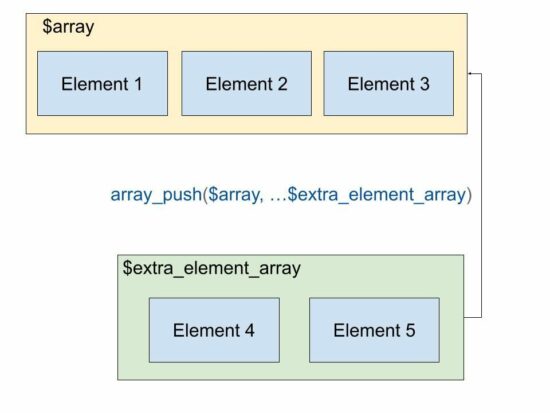
How to add an array of elements to a target array using array_push()
This example uses the PHP array_push() function to push an array of elements into a target array.
<?php

$animalsArray = array( "Lion", "Tiger"

);

$anotherArray = array( "Elephant", "Crocodile"

); array_push($animalsArray, ...$anotherArray);

print_r($animalsArray);

// this method adds elements from two arrays sequentially into the target array

// this is similar to merge

?>
<?php

// alternate to use array_push when you have a key value

// add elements as key value via index

$animalsArray['a1'] = 'Lion';

$animalsArray['a2'] = 'Tiger';

$animalsArray['a3'] = 'Elephant';

$animalsArray['a4'] = 'Horse';

print_r($animalsArray);

?>
Pushing elements into an array in a loop without using array_push
This code is the same as above but with a PHP for a loop. It pushes only the value to the array variable with a square bracket.
The output will have the array with a numerical key.
<?php

// another alternate to array_push

// add elements to an array with just []

$array = array();

for ($i = 1; $i <= 10; $i ++) { $array[] = $i;

}

print_r($array);

?>
If you want to push the key-value pair to form an associative array with a loop, the following code will be helpful.
Adding elements into an array using PHP array_merge()
The array_merge() and the array_push($array, …$array_sequence) gives same output.
It merges two array variables and results in a consolidated element array. If you want to merge JSON array or object in PHP the linked article has the code.
<?php

$animalsArray = array( "Lion", "Tiger"

);

$moreAnimalsArray = array( "Elephant", "Horse"

);

// to add elements in an array from existing arrays

$array = array_merge($animalsArray, $moreAnimalsArray);

print_r($array);

?>
PHP function to add elements to the beginning of an array
PHP also contains functions to add elements to an array at the beginning of an array. The array_unshift() function is used for this. See the following code that adds elements to an array using array_shift().



 Question: How would we write code to filter an Excel file in Python?
 Give me the DataFrame rows for all employees who work in the Sales Department, and earn more than $55,000/annum.
 Note: Open the Excel file and review the data to follow along.