Posted by: xSicKxBot - 07-13-2022, 10:43 AM - Forum: Lounge
- No Replies
Exoprimal Is A Surprisingly Smart Dinosaur-Killing Machine
From trailers and gameplay videos, it can be tough to get a handle on Exoprimal. The team-based multiplayer game has players running around in mechanical mech suits, fighting waves of dinosaurs that pour out of huge portals floating in the sky. Gunning down thousands of raptors in a robot super-suit sounds weird at best, but in practice, it turns out Exoprimal is a thoughtful cooperative shooter that puts a premium on teamwork and team composition to defeat all manner of prehistoric menaces--as well as other players.
We played about three hours of Exoprimal during its recent closed network test, which gave a sense of some of its multiplayer modes and the mech suit character classes you can use within them. While matches involve fighting off waves of prehistoric creatures, your actual goal is to beat another team of mech-suited dino hunters. It's all about appeasing the seemingly homicidal artificial intelligence Leviathan, which is endlessly gathering combat data based on your performance in order to create better mech suits and put down the extra-dimensional dinosaur threat once and for all.
In the Exoprimal matches we played, you jump onto a team with four other players, either from your party or added to your session through matchmaking. The typical mode we saw was Dino Survival, in which you're dropped into a semi-destroyed location and are forced to fight off waves of dinosaurs at different points. Your dinosaur battles actually constitute a race against another team, however, and the goal is to complete your objectives more quickly than the other squad.
The season starts now – grab your racket and become the world’s next tennis champion! Your opponent is on the court and the crowd waits for a promising challenger for the grand finale… Are you ready for Matchpoint?
In this tutorial we will unearth the solutions to three commonly asked questions that users come across while dealing with huge sets of data.
Problem Formulation
Given: Consider the following csv file (Note: You need to use it as a Pandas DataFrame).
import pandas as pd df = pd.read_csv('countries.csv')

print(df)
 Country Capital Population Area

0 Germany Berlin 84,267,549 348,560

1 France Paris 65,534,239 547,557

2 Spain Madrid 46,787,468 498,800

3 Italy Rome 60,301,346 294,140

4 India Delhi 1,404,495,187 2,973,190

5 USA Washington 334,506,463 9,147,420

6 China Beijing 1,449,357,022 9,388,211

7 Poland Warsaw 37,771,789 306,230

8 Russia Moscow 146,047,418 16,376,870

9 England London 68,529,747 241,930
Here’s the list of the questions that we will be focusing upon in this article:
How to get the last N rows of a Pandas DataFrame?
How to get last N rows from last N columns of a Pandas DataFrame?
How to read last N rows of a large csv file in Pandas?
Without further delay, let us dive into the solutions to the first question and learn how to get the last N rows of a Pandas DataFrame.
Method 1: Using iloc
Approach: Use the iloc property as pandas.DataFrame.iloc[-n:].
The iloc property is used to get or set the values of specified indices. Select the last n rows using the square bracket notation syntax [-n:] with the iloc property. Here, -n represents the index of the last n rows of the given pandas DataFrame.
 Country Capital Population Area

5 USA Washington 334,506,463 9,147,420

6 China Beijing 1,449,357,022 9,388,211

7 Poland Warsaw 37,771,789 306,230

8 Russia Moscow 146,047,418 16,376,870

9 England London 68,529,747 241,930
Method 2: Using tail()
Approach: Use the pandas.DataFrame.tail(n) to select the last n rows of the given DataFrame.
The tail(n) method returns n number of methods from the bottom end of the DataFrame. Here, n represents an integer that denotes the number of rows you want to fetch from the bottom end of the DataFrame.
 Country Capital Population Area

5 USA Washington 334,506,463 9,147,420

6 China Beijing 1,449,357,022 9,388,211

7 Poland Warsaw 37,771,789 306,230

8 Russia Moscow 146,047,418 16,376,870

9 England London 68,529,747 241,930
Well, that brings us to the next question in line – “How to get the last N rows from last N columns of a Pandas DataFrame?”
Method 1: Integer Based Indexing
Approach: Call pandas.DataFrame.iloc[-n:, -m:] to display last n rows from the last m columns of the given DataFrame.
Code: In the following code snippet we will fetch the last 5 rows from the last 2 columns, i.e., Population and Area.
 Population Area

5 334,506,463 9,147,420

6 1,449,357,022 9,388,211

7 37,771,789 306,230

8 146,047,418 16,376,870

9 68,529,747 241,930
Method 2: Name Based Indexing
In case, you happen to know the names of the specific columns and you want to get the last N records from the DataFrame from those columns then you can follow a two step process.
Call the Pandas.DataFrame.loc(:, 'start_column_name':'end_column_name') selector. It allows you to use slicing on column names instead of integer identifiers which can be more comfortable.
.loc is for label based indexing. Hence, the negative indices are not found and reindexed to NaN. Thus, to deal with this you have to use the tail() method to extract the last N records from the selected columns.
Code: The following code snippet shows how you can use the column names and fetch the corresponding values from the last 5 rows of the given Dataframe.
 Population Area

5 334,506,463 9,147,420

6 1,449,357,022 9,388,211

7 37,771,789 306,230

8 146,047,418 16,376,870

9 68,529,747 241,930
Last but not least, let us solve the third and final problem of today’s tutorial – “How to read last N rows of a large csv file in Pandas?”
Unfortunately, read_csv() does not facilitate us with any parameter that allows you to directly read the last N lines from a file. This can be a troublesome issue to handle when you are dealing with large datasets.
Thus, a workaround to this problem is to first find out the total number of lines/records in the file. Then use the skiprows parameter to directly jump to the row/line from which you want to select the records.
Code: In the following code snippet we will fetch the first 5 rows from the csv file into our DataFrame.
import pandas as pd def num_of_lines(fname): with open(fname) as f: for i, _ in enumerate(f): pass return i + 1 num_lines = num_of_lines("countries.csv")

n = 5

df = pd.read_csv("countries.csv", skiprows=range(1, num_lines - n))

print(df)
Output:
 Country Capital Population Area

0 USA Washington 334,506,463 9,147,420

1 China Beijing 1,449,357,022 9,388,211

2 Poland Warsaw 37,771,789 306,230

3 Russia Moscow 146,047,418 16,376,870

4 England London 68,529,747 241,930
Conclusion
Phew! We have successfully solved all the problems that were presented to us in this tutorial. I hope this tutorial helped you to sharpen your coding skills. Please stay tuned and subscribe for more interesting coding problems.
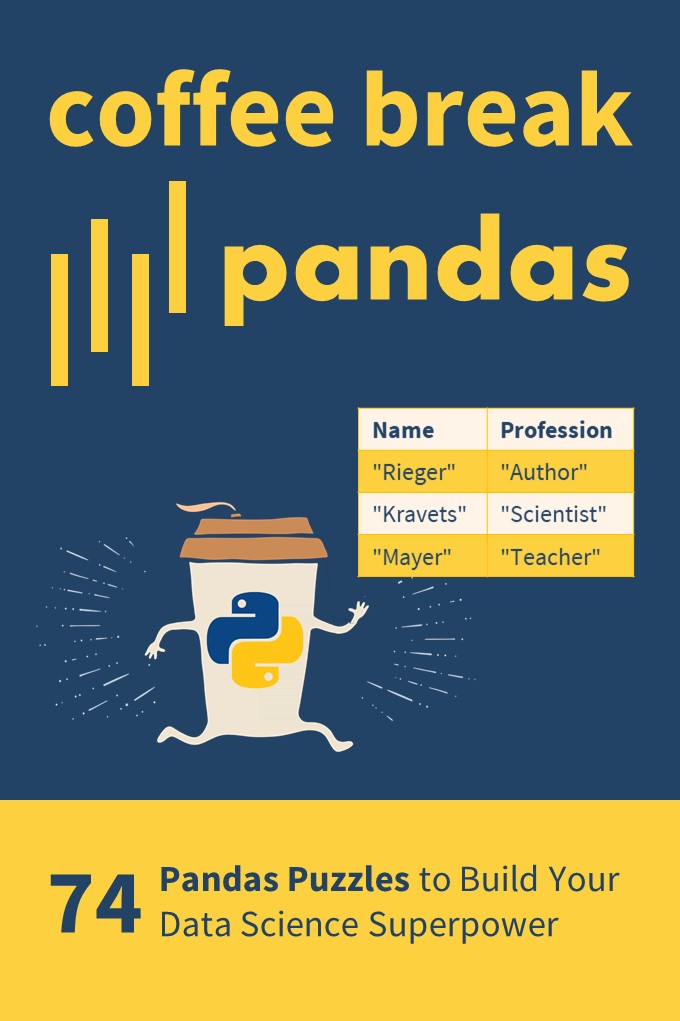
If you want to boost your Pandas skills, consider checking out my puzzle-based learning book Coffee Break Pandas (Amazon Link).
It contains 74 hand-crafted Pandas puzzles including explanations. By solving each puzzle, you’ll get a score representing your skill level in Pandas. Can you become a Pandas Grandmaster?
Coffee Break Pandas offers a fun-based approach to data science mastery—and a truly gamified learning experience.
[www.indiegala.com] A new exclusive music bundle passed through the atmosphere and has impacted our souls with its electronic/cyberpunk beats by Meteor & Cyborg.
Future 80s Tunes Bundle | 15 Music Albums | 94% OFF
[www.indiegala.com] Synthwave, Retro Electro, Dreamwave, Spacesynth, the past travels to the future via the soundwaves of time, bringing us a turbo radical collection for the journey of a generation. (Happy Hour live) [www.indiegala.com]
Prime Day Deal: Grab Ratchet And Clank: Rift Apart For Just $40
Amazon Prime Day has once again seen a number of big discounts hit the gaming section, and if you're on PS5, you can grab one of the best games on that system right now for a very attractive price. Ratchet & Clank: Rift Apart was a technical showcase with plenty of heart when it arrived last year, and if you missed it, then now's a good time to reunite with the lovable PlayStation duo.
Not just a good-looking game that could put Pixar films to shame, Ratchet and Clank: Rift Apart feels like a blast from the past to play. It's classic PlayStation platforming action made even better by the fine-tuned DualSense controls and a host of other features that makes the game a standout title. It also has a great cast, a wacky assortment of weapons to wield, and a variety of graphical options to make the game shine on your TV.
You are a point of light in a new open world Strand-type game. Create pathways through the darkness, nurture the creatures of the Forest, repair ancient structures, and ultimately: confront the Witch who broke this place.
How to convert .blf from a CAN bus to .csv in Python?
What is BLF? The Binary Logging Format (BLF) is a proprietary CAN log format from the automative company Vector Informatik GmbH.
What is CAN? The Controller Area Network (CAN bus) is a message-based protocol standard for microcontrollers in vehicles to communicate without a host computer.
Method 1: Using BLF Reader and CSV Writer
To convert the BLF file 'my_file.blf' to the CSV file 'my_file.csv', you can first iterate over the bus messages using can.BLFReader('my_file.csv') and add the data to a list of lists. Then, you can use the csv.writer() approach to write the list of lists to a CSV file.
Here’s an example that improves upon this SO thread:
import can

import csv log = [] for msg in list(can.BLFReader("my_file.blf")): msg = str(msg) row = [msg[18:26], msg[38:40], msg[40:42], msg[46], msg[62], msg[67:90]] log.append(row) with open("my_file.csv", "w", newline='') as f: writer = csv.writer(f, delimiter=',', quotechar='\"', quoting=csv.QUOTE_ALL) writer.writerows(log)
A more sophisticated version of this code is provided in this Github repository. Here’s a screenshot of the code — notice the more advanced processing of a single message compared to our solution:
The candas library provides utility functions to work with .blf files and the CAN bus. Among other things, it helps you with the conversion from BLF to CSV as outlined here.
This is the provided example:
import candas as cd db = cd.load_dbc("dbc_folder") # This is the BLF file 'my_file.blf':

log = cd.from_file("my_file") # This prints a signal from the messages in the BLF:

print(log["AVGcellTemperature"])
Method 3: Using Custom Solution from python-can Library
You can use your tailor-made solutions by combining the Readers and Writers provided in the python-can library.
It provides multiple utility functions such as:
Listener
BufferedReader
RedirectReader
Logger
Printer
CSVWriter
SqliteWriter
ASC
Log
BLF
Chances are you’ll find what you’re looking for when going over those functions!
Related Video
Still not satisfied? I found the following relevant video when searching for a solution to this problem. I think you’ll find some nice tricks in the video!
It's time for another week of Wordle! Today is July 11 and our word today is a fun one for me personally. It's an old-fashioned word, so don't beat yourself up if it's not exactly the first word that comes to mind. However, it's also an interesting word because of its structure. Five letters leaves very little room for how to structure a word beyond a prefix and a suffix, but if you think hard enough about it, you might understand why I find it cool. Otherwise, you'll also see why that's the case in the hints down below.
Have you tried today's Wordle yet? It's a formality and not one that we hear all that often these days. Despite that, I do believe it's common enough that you'd all be able to get it once you figure out some of the letters. Today's word also exemplifies the tactic of eliminating all vowels as early as possible in Wordle. I won't spoil which one it is just yet, but finding the right letter gave me the whole structure of the word once I'd narrowed things down. If you want some words to use in order to do the same strategy, you should check out our list of the best starting words in the game. You're bound to find some gold there that'll help you on your journey to become a Wordle master.
Today's Wordle Answer - July 11, 2022
As always, your answer awaits you at the very bottom, but I've got a handful of hints for you all right here that should provide a helping hand.
Enter the new era of Formula 1® in EA SPORTS™ F1® 22, the official videogame of the 2022 FIA Formula One World Championship™. Take your seat for a new season as redesigned cars and overhauled rules redefine race day, test your skills around the new Miami International Autodrome, and get a taste of the glitz and glamour in F1® Life. Race the stunning new cars of the Formula 1® 2022 season with the authentic lineup of all 20 drivers and 10 teams, and take control of your race experience with new immersive or broadcast race sequences. Create a team and take them to the front of the grid with new depth in the acclaimed My Team career mode, race head-to-head in split-screen or multiplayer, or change the pace by taking supercars from some of the sport’s biggest names to the track in our all new Pirelli Hot Laps feature.
You can convert a CSV file to a NumPy array simply by calling np.loadtxt() with two arguments: the filename and the delimiter string. For example, the expression np.loadtxt('my_file.csv', delimiter=',') returns a NumPy array from the 'my_file.csv' with delimiter symbols ','.
Here’s an example:
import numpy as np array = np.loadtxt('my_file.csv', delimiter=',')

print(array)
Output:
[[9. 8. 7.] [6. 5. 4.] [3. 2. 1.]]
Method 2: np.loadtxt() with Header
np.loadtxt() + header
You can convert a CSV file with first-line header to a NumPy array by calling np.loadtxt() with three arguments: the filename, skiprows=1 to skip the first line (header), and the delimiter string. For example, the expression np.loadtxt('my_file.csv', skiprows=1, delimiter=',') returns a NumPy array from the 'my_file.csv' with delimiter symbols ',' while skipping the first line.
Figure: Skip the first header line in the CSV using the skiprows argument of the np.loadtxt() function.
Here’s an example:
import numpy as np array = np.loadtxt('my_file.csv', skiprows=1, delimiter=',')

print(array)
Output:
[[9. 8. 7.] [6. 5. 4.] [3. 2. 1.]]
Method 3: CSV Reader
CSV Reader
To convert a CSV file 'my_file.csv' into a list of lists in Python, use the csv.reader(file_obj) method to create a CSV file reader. Then convert the resulting object to a list using the list() constructor. As a final step, you can convert the nested list to a NumPy array by using the np.array(list) constructor.
Here’s an example:
import numpy as np

import csv csv_filename = 'my_file.csv' with open(csv_filename) as f: reader = csv.reader(f) lst = list(reader) print(lst)
You can convert a CSV file to a NumPy array simply by calling np.genfromtxt() with two arguments: the filename and the delimiter string. For example, the expression np.genfromtxt('my_file.csv', delimiter=',') returns a NumPy array from the 'my_file.csv' with delimiter symbol ','.
Here’s an example:
import numpy as np array = np.loadtxt('my_file.csv', delimiter=',')

print(array)
Output:
[[9. 8. 7.] [6. 5. 4.] [3. 2. 1.]]
Method 5: Pandas read_csv() and df.to_numpy()
read_csv() and df.to_numpy()
A quick and efficient way to read a CSV to a NumPy array is to combine Pandas’ pd.read_csv() function to read a given CSV file to a DataFrame with the df.to_numpy() function to convert the Pandas DataFrame to a NumPy array.







 How to convert
  What is BLF? The Binary Logging Format (



 Related Tutorial: