Posted by: xSicKxBot - 11-11-2022, 12:43 AM - Forum: Python
- No Replies
Python | Split String and Keep Newline
Rate this post
Summary: Use 'given_string'.splitlines(True) to split the string and also keep the new line character.
Minimal Example:
text = 'abc\nlmn\nxyz'

print(text.splitlines(True)) # OUTPUT: ['abc\n', 'lmn\n', 'xyz']
Problem Formulation
Problem: Given a string. How will you split the string into a list of substrings and keep the new line character intact?
Example: Let’s have a look at a test case to understand the given problem.
# Input

text = """Sun

Earth

Moon""" # Expected Output:

['Sun\n', 'Earth\n', 'Moon']

OR

['Sun', '\n', 'Earth', '\n', 'Moon']
Without further ado, let us now dive into the different solutions for the given problem.
Method 1: Use splitlines(True)
Approach: The splitlines() method is used to split the string at all line breaks. If you pass True as a parameter within the splitlines method, then the resultant list includes the newline character along with the substring/item.
The re.split(pattern, string) method matches all occurrences of the pattern in the string and divides the string along the matches resulting in a list of strings between the matches. For example, re.split('a', 'bbabbbab') results in the list of strings ['bb', 'bbb', 'b']. Read more here – Python Regex Split.
Approach: Use re.split('(\W)', 'given_string') where the brackets() ensure the separators/delimiters are also stored in the list along with the word characters and \W is a special sequence that returns a match where it does not find any word characters in the given string. Here it is used to find the delimiters while splitting the string.
Code:
import re

text = """Sun

Earth

Moon"""

print(re.split('(\W)', text)) # OUTPUT: ['Sun', '\n', 'Earth', '\n', 'Moon']
Note: Instead of “\W” you are free to use any other expression that suits your needs however, make sure to enclose it within brackets to ensure that the newline characters (delimiter) are also included.
In case you do not want to include the separators as independent items, instead, you want to include them along with the split substrings/items, then you can simply split the given string using “\n” as the separator and then append or concatenate the newline character to each substring/item one by one except the last item. This is what you can do:-
import re

text = """Sun

Earth

Moon"""

res = re.split('\n', text)

output = []

for i in range(len(res)-1): output.append(res[i]+"\n")

output.append(res[-1])

print(output) # Alternate Formulation

res = [x+"\n" for x in re.split('\n', text)]

res[-1] = res[-1].strip('\n')

print(res) # OUTPUT: ['Sun\n', 'Earth\n', 'Moon']
Do you want to master the regex superpower? Check out my new book The Smartest Way to Learn Regular Expressions in Python with the innovative 3-step approach for active learning: (1) study a book chapter, (2) solve a code puzzle, and (3) watch an educational chapter video.
Approach: Use a list comprehension to split the given string using a for loop and the split() method and return each substring as an item and concatenate the separator (“new line character” in this case) along with the item. Note that the resultant list will have an extra “\n” character at the end. You can simply strip this new line character from the last element of the list.
Code:
text = """Sun

Earth

Moon"""

# split string and keep "\n"

res = [x+"\n" for x in text.split()]

# remove the extra "\n" character from the last item of the list res[-1] = res[-1].strip('\n')

print(res) # OUTPUT: ['Sun\n', 'Earth\n', 'Moon']
If you want the separator as an independent item in the list then go for the following expression –
text = """Sun

Earth

Moon"""

res = [u for x in text.split('\n') for u in (x, '\n')]

res.pop(-1)

print(res) # OUTPUT: ['Sun', '\n', 'Earth', '\n', 'Moon']
Conclusion
We have successfully solved the given problem using different approaches. I hope this article helped you in your Python coding journey. Please subscribe and stay tuned for more interesting articles.
But before we move on, I’m excited to present you my new Python book Python One-Liners (Amazon Link).
If you like one-liners, you’ll LOVE the book. It’ll teach you everything there is to know about a single line of Python code. But it’s also an introduction to computer science, data science, machine learning, and algorithms. The universe in a single line of Python!
The book was released in 2020 with the world-class programming book publisher NoStarch Press (San Francisco).
It needs to get confirmation from the user before permanently deleting the data.
This tutorial will explain more about this JavaScript basic concept with examples.
Quick example
This quick example shows the JS script to do the following.
It shows a confirm box with a consent message passed as an argument to the confirm() function.
It handles the yes or no options based on the user’s clicks on the OK or ‘cancel’ button of the confirm box.
if (confirm('Are you sure?')) { //action confirmed console.log('Ok is clicked.');

} else { //action cancelled console.log('Cancel is clicked.');

}
Key points of javascript confirm box.
The JavaScript confirm box is a consent box to let the user confirm or cancel the recent action.
The Javascript confirm() function accepts an optional message to be shown on the consent box.
It also displays the OK and ‘Cancel’ buttons to allow users to say yes or no about the confirmation consent.
This function returns a boolean true or false based on the button clicks on the confirm dialog box.
Syntax
confirm(message);
Example 2: Show JavaScript confirm box on a button click
This example connects the on-click event and the JS handler created for showing the confirm box.
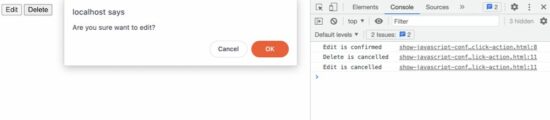
This JS code contains the HTML to display two buttons “Edit” and “Delete”. Each has the onClick attribute to call the JavaScript custom handler doAction().
This handler shows JavaScript confirm dialog and monitors the users’ option between yes and no. This program logs the user’s action based on the yes or no option.
<button onClick='doAction("Edit", "Are you sure want to edit?");'>Edit</button>
<button onClick='doAction("Delete", "Delete will permanently remove the record. Are you sure?");'>Delete</button>
<script> function doAction(action, message) { if (confirm(message)) { //If user say 'yes' to confirm console.log(action + ' is confirmed'); } else { //If user say 'no' and cancelled the action console.log(action + ' is cancelled'); }
};
</script>
Example 3: Call confirm dialog inline
This calls the confirm() function inline with the HTML onClick attribute.
Most of the time this inline JS of calling confirm dialog is suitable. For example, if no callback has to be executed based on the users’ yes or no option, this method will be useful.
In this example, it gets user confirmation to submit the form to the server side.
<form onSubmit='return confirm("Are you sure you want to send the data")'>
<input type="text" name="q" />
<input type="submit" name="submit" value="Send" />
</form>
Example 4: Pass confirm message using data attribute
This example contains a JS script to map the HTML button’s click event to show the confirmation dialog box.
It minimizes the effort of defining JS functions and calling them with the element to show the JavaScript confirmation.
It simplifies the number of lines in the code. It adds an on-click event listener for each button element shown in the HTML.
It uses JavaScript forEach to get the target button object for this event mapping. On each on-click event, it calls the confirm() function to show the dialog box.
<button data-confirm-message="Are you sure want to edit?">Edit</button>

<button data-confirm-message="Delete will permanently remove the record. Are you sure?">Delete</button>

<script> document.querySelectorAll('button').forEach(function(element) { element.addEventListener('click', function(e) { if(confirm(e.target.dataset.confirmMessage)) { console.log("confirmed"); } });

});

</script>
More about JavaScript confirm box
The JavaScript confirm box is a kind of dialog box. It requires user action to confirm or cancel a recently triggered action. It is the method of the JavaScript window object.
There are more functions in JavaScript to display the dialog with controls. Examples,
alert() – Alert box with an Okay option.
prompt() – Prompt dialog with an input option.
Note:
While displaying the JavaScript dialog box, it stops window propagations outside the dialog.
In general, displaying a dialog window on a web page is not good practice. It will create friction on the end-user side.
We have already seen a custom dialog using jQuery. Let us see how to display the jQuery confirm dialog in the next article. With custom dialog, it has the advantage of replacing the default button controls. Download
[www.indiegala.com] A new day, a new opportunity to explore the vast anime universe through videogames with a fresh new selection of titles: Project Heartbeat, Skautfold: Usurper, Jester / King, Neko Journey, My Inner Darkness Is A Hot Anime Girl!, Twilight Town: A Cyberpunk Day In Life.
Shadow Tactics is a recurring giveaway, being given once on the Epic Store on Dec 2019. The games are free to keep if claimed by Thursday, 17th November 2022 16:00 UTC
Next weeks freebies: Dark Deity Evil Dead: The Game
We are welcoming everyone to join our discord[discord.gg]. We are more active there on finding giveaways, small or large, and there are daily raffles you can participate.
Posted by: xSicKxBot - 11-11-2022, 12:43 AM - Forum: Lounge
- No Replies
Steven Spielberg Criticizes Shift Away From Theaters And Toward Streaming
Steven Spielberg has weighed in with his thoughts on the shift away from theatrical releases in favor of streaming. Speaking to The New York Times, Spielberg said the pandemic created an opportunity for media executives to throw filmmakers under the bus and then pay them off to help promote their upstart streaming services.
"The pandemic created an opportunity for streaming platforms to raise their subscriptions to record-breaking levels and also throw some of my best filmmaker friends under the bus as their movies were unceremoniously not given theatrical releases," he said. "They were paid off and the films were suddenly relegated to, in this case, HBO Max. The case I'm talking about. And then everything started to change."
Batman is dead. It is now up to the Batman Family - Batgirl, Nightwing, Red Hood and Robin - to protect Gotham City, bring hope to its citizens, discipline to its cops, and fear to its criminals. You must evolve into the new Dark Knight and save Gotham from chaos. Your legacy begins now. Step into the Knight. Gotham Knights is a brand-new open world, third-person action RPG featuring the Batman Family as players step into the roles of Batgirl, Nightwing, Red Hood and Robin, a new guard of trained DC Super Heroes who must rise up as the protectors of Gotham City in the wake of Batman's death. An expansive, criminal underworld has swept through the streets of Gotham, and it is now up to these new heroes to protect the city, bring hope to its citizens, discipline to its cops and fear to its criminals. Players must save Gotham from descent into chaos and reinvent themselves into their own version of the Dark Knight.
How to Create and Run a Batch File That Runs a Python Script?
5/5 – (1 vote)
Problem Formulation and Solution Overview
This article will show you how to create and execute a batch file in Python.
Info: A batch or .bat file is a file that contains commands to be executed in the order specified. This file type can organize and automate tasks that need to be run regularly without requiring user input. These files can be created using a text editor, such as Notepad.
To make it more interesting, we have the following running scenario:
The Sales Manager of Suppliworks has asked you to create and send him a Monthly Sales Report. This file will arrive as an unsorted, unfiltered CSV. You will need to filter this criterion based on the current month and save it as an Excel file to the current working directory.
Download the sales.csv file to follow along with our article.
Question: How would we write code to create and execute a batch file in Python?
We can accomplish this task by completing the following steps:
Install the Batch Runner Extension
Create the Python Script
Create the .bat file
Execute
Install Batch Runner Extension
To run/execute a bat file, an extension will need to be installed in the IDE.
To install this extension, navigate to the IDE, Extensions area. In the VSC IDE, this can be found on the far left panel bar shown below.
In the Search textbox, enter Batch Runner. While entering this text, the IDE automatically searches for extensions that match the criteria entered.
Once the desired extension is found, click the Install button to the left of the Batch Runner extension to start the installation process.
Once the installation has been completed, the Install button converts to a Settings icon. The extension is now ready to use!
Note: Feel free to install the Batch Extension of your choosing.
Create Python Script
This section creates a Python file that reads in a CSV, sorts, filters and saves the output to an Excel file.
You can replace this with any Python file you want to run. For this example, we’ll need two libraries:
The pandas library will need to be installed for this example, as the code reads in and filters a CSV file.
The openpyxl library will need to be installed for this example, as the code exports the filtered DataFrame to an Excel file. To install this library, navigate to the IDE terminal command prompt. Enter and run the code snippet shown below.
To install those libraries, navigate to the IDE terminal command prompt. Enter and run the two commands to install both libraries:
pip install pandas

pip install openpyxl
In the current working directory, create a Python file called sales.py.
Copy and paste the code snippet below into this file and save it.
The first three (3) lines in the above code snippet import references to the libraries necessary to run this code error-free.
The following line retrieves the current date using datetime.now()from the datetime library. The results save to the variable today. If the contents were output to the terminal, the following displays:
2022-11-08 07:59:00.875656
The next line declares a List containing the DataFrame Columns to retrieve from the CSV file and export to the Excel file. The results save to cols.
Then, the sales.csv file is opened, and columns specified in cols are retrieved. The results save to the DataFrame df. If df was output to the terminal, the following snippet displays:
Top Five (5) Records of sales.csv
OrderDate
Region
Item
Units
0
11/6/2022
East
Pencil
95
1
11/23/2022
Central
Binder
50
2
11/9/2022
Central
Pencil
36
3
11/26/2022
Central
Pen
27
4
11/15/2022
West
Pencil
56
The next line converts the OrderDate into a proper Date format.
OrderDate
Region
Item
Units
0
2022-11-06
East
Pencil
95
1
2022-11-23
Central
Binder
50
2
2022-11-09
Central
Pencil
36
3
2022-11-26
Central
Pen
27
4
2022-11-15
West
Pencil
56
As you can see, the DataFrame, df, is not in any kind of sort order. The next line takes care of this by sorting on the OrderDate field in ascending order. The results save back to the DataFrame df.
OrderDate
Region
Item
Units
22
2022-01-15
Central
Binder
46
23
2022-02-01
Central
Binder
87
24
2022-02-18
East
Binder
4
25
2022-03-07
West
Binder
7
26
2022-03-24
Central
Pen Set
50
This script’s final two (2) lines filter the DataFrame, df, based on the current month. The results save to df_monthly. These results are then exported to Excel and placed into the current working directory.
If you run this code, you will see that the Excel file saved the appropriate filtered results into the monthly_rpt.xlsx file.
Great! Now let’s create a Batch file to run this script!
Create Batch File
In this section, a bat file is created to run the Python file sales.py.
In the current working directory, create a bat file called sales.bat.
Copy and paste the code snippet below into this file and save it.
@echo off "C:\Python\python.exe" "sales.py"
The first line of the code snippet turns off any output to the terminal.
The following line specifies the following:
The location of the python.exe file on your computer.
The Python script to execute.
Let’s see if this works!
Execute
This section executes the bat file, which calls and runs the code inside the sales.py file.
To run the bat file, navigate to the IDE, and click to select the sales.bat file.
Press the F5 key on the keyboard to execute.
If successful, the monthly_rpt.xlsx file will appear in the current working directory!
Summary
This article has shown you have to create and run a .bat file that executes a Python script. This file can execute a simple Python script as well as an intricate one.
You Can Play Dark Souls Remastered Online Again On PC
Servers for the PC Dark Souls games were shut down earlier this year, and developer From Software remained silent for months about their return. Now, the servers for the PC version are finally back, but those for the original Dark Souls: Prepare to Die Edition will remain dead in the water.
Online features for the PC version of #DarkSouls: Remastered have been reactivated. Thank you once again for your patience, understanding, and support. pic.twitter.com/IZ8lsfx3Tx
Back in January, From Software took down the servers for the entire Dark Souls series after fans discovered an exploit that allows hackers to take control of an opponent's computer. However, it took Dark Souls streamer The Grim Sleeper demonstrating the exploit in action in order to finally spur From Software to fix it.
Dark Souls Remastered was the last of the trilogy to enjoy restored multiplayer, as Dark Souls 2 and 3 were restored earlier this year, in reverse order. Recently, From Software announced that the original port of Dark Souls, Prepare to Die Edition, will not be restored, due to "an aging system." While that edition of the game is beloved by certain fans, warts and all, it's arguably one of the most-maligned PC ports ever, due to its lack of support for modern resolutions and frame rate cap of 30fps. Fanmade mod "DSfix" corrected many of that version's shortcomings, but it seems that the famous invasions of the past will remain sealed.
Prepare for an all-new RPG experience in Persona 5 Royal based in the universe of the award-winning series, Persona! Don the mask of Joker and join the Phantom Thieves of Hearts. Break free from the chains of modern society and stage grand heists to infiltrate the minds of the corrupt and make them change their ways! Persona 5 Royal is packed with new characters, confidants, story depth, new locations to explore, and a new grappling hook mechanic for stealthy access to new areas. With a new semester at Shujin Academy, get ready to strengthen your abilities in the metaverse and in your daily life. Persona 5 Royal presents a unique visual style and award nominated composer Shoji Meguro returns with an all-new soundtrack. Explore Tokyo, unlock new Personas, customize your own personal Thieves Den, discover a never-before-seen story arc, cutscenes, alternate endings, and more! Even for the most seasoned Phantom Thieves among us, Persona 5 Royal is a new challenge to defy conventions, discover the power within, and fight for justice. Wear the mask. Reveal your truth.
How to Fix Error: No Module Named ‘urlparse’ (Easily)
4/5 – (1 vote)
You may experience the following error message in your Python code when trying to import urlparse:
ModuleNotFoundError: No module named 'urlparse'
>>> import urlparse

Traceback (most recent call last): File "<pyshell#3>", line 1, in <module> import urlparse

ModuleNotFoundError: No module named 'urlparse'
How to fix it and what is the reason this error occurs?
This error usually occurs because urlparse has been renamed to urllib.parse. So you need to pip install urllib and then import urllib and call urllib.parse to make it work.
To accomplish this, follow the tutorial outlined next or simply try running this command in your terminal, console, shell, or command line:
pip install urllib
After that, you can use urllib.parse like so (source):
from urllib.parse import urlparse

urlparse("scheme://netloc/path;parameters?query#fragment") o = urlparse("http://docs.python.org:80/3/library/urllib.parse.html?" "highlight=params#url-parsing")

print(o)


 Problem: Given a string. How will you split the string into a list of substrings and keep the new line character intact?
 Related Tutorial:




 Info: A batch or
  Question: How would we write code to create and execute a batch file in Python?

 Note: Feel free to install the Batch Extension of your choosing.

 Recommended Tutorial: