Matplotlib Animation – A Helpful Illustrated Guide
Creating animations in matplotlib is reasonably straightforward. However, it can be tricky when starting, and there is no consensus for the best way to create them. In this article, I show you a few methods you can use to make amazing animations in matplotlib.
Matplotlib Animation Example
The hardest thing about creating animations in matplotlib is coming up with the idea for them. This article covers the basic ideas for line plots, and I may cover other plots such as scatter and 3D plots in the future. Once you understand these overarching principles, you can animate other plots effortlessly.
There are two classes you can use to create animations: FuncAnimation and ArtistAnimation. I focus on FuncAnimation as this is the more intuitive and more widely used one of the two.
To use FuncAnimation, define a function (often called animate), which matplotlib repeatedly calls to create the next frame/image for your animation.
To create an animation with FuncAnimation in matplotlib, follow these seven steps:
Have a clear picture in your mind of what you want the animation to do
Import standard modules and FuncAnimation
Set up Figure, Axes, and Line objects
Initialize data
Define your animation function – animate(i)
Pass everything to FuncAnimation
Display or save your animation
Let’s create a sin wave that matplotlib ‘draws’ for us. Note that this code may look strange to you when you first read it. Creating animations with matplotlib is different from creating static plots.
# Standard imports

import numpy as np

import matplotlib.pyplot as plt

from matplotlib.animation import FuncAnimation
Import NumPy and matplotlib using their standard aliases and FuncAnimation from matplotlib.animation.
# Set up empty Figure, Axes and Line objects

fig, ax = plt.subplots()

# Set axes limits so that the whole image is included

ax.set(xlim=(-0.1, 2*np.pi+0.1), ylim=(-1.1, 1.1))

# Draw a blank line

line, = ax.plot([], [])
Set up the Figure and Axes objects using plt.subplots() and – using ax.set() – set the x- and y-axis limits to the same size as a normal sine curve – from 0 to 2π on the x-axis and from -1 to 1 on the y-axis. Note that I included padding of 0.1 on each axis limit so that you can see the whole line matplotlib draws.
Then, I did something you have probably never done before: I drew a blank line. You need to do this because animate modifies this line, and it can only modify something that already exists. You can also think of it as initializing an empty line object that you will soon fill with data.
Note that you must include a comma afterline,! The plot method returns a tuple, and you need to unpack it to create the variable line.
# Define data - one sine wave

x = np.linspace(0, 2*np.pi, num=50)

y = np.sin(x)
Next, define the data you want to plot. Here, I am plotting one sine wave, so I used np.linspace() to create the x-axis data and created y by calling np.sin() on x. Thanks to numpy broadcasting, it is easy to apply functions to NumPy arrays!
# Define animate function

def animate(i): line.set_data(x[:i], y[:i]) return line,
Define the animate(i) function. Its argument i is an integer starting from 0 and up to the total number of frames you want in your animation. I used the line.set_data() method to draw the first i elements of the sine curve for both x and y. Note that you return line, with a comma again because you need to return an iterable and adding a comma makes it a tuple.
Create a FuncAnimation object. First, pass the Figure and animate function as positional arguments.
Next, set the number of frames to len(x)+1 so that it includes all the values in x. It works like the range() function, and so even though x has length 50, python only draws frames 0 to 49 and not the 50th member. So, add on one more to draw the entire plot.
The interval is how long in milliseconds matplotlib waits between drawing the next part of the animation. I’ve found that 30 works well as a general go-to. A larger number means matplotlib waits longer between drawing and so the animation is slower.
Finally, set blit=True so that it only redraws parts that have not been drawn before. It doesn’t make much difference for this example, but once you create more complex plots, you should use this; it can take quite a while for matplotlib to create animations (waiting several minutes is common for large ones).
# Save in the current working directory

anim.save('sin.mp4')
I saved the animation as a video called ‘sin.mp4’ to the current working directory.
Open your current working directory, find the saved video, and play it. Congratulations! You’ve just made your first animation in matplotlib!
Some of the steps you take to create animations are unique and may feel unusual the first time you try them. I know I felt strange the first time I used them. Don’t worry, the more you practice and experiment, the easier it becomes.
Here’s the full code:
# Standard imports

import numpy as np

import matplotlib.pyplot as plt

from matplotlib.animation import FuncAnimation # Set up empty Figure, Axes and Line objects

fig, ax = plt.subplots()

# Set axes limits so that the whole image is included

ax.set(xlim=(-0.1, 2*np.pi+0.1), ylim=(-1.1, 1.1))

# Draw a blank line

line, = ax.plot([], []) # Define data - one sine wave

x = np.linspace(0, 2*np.pi, num=50)

y = np.sin(x) # Define animate function

def animate(i): line.set_data(x[:i], y[:i]) return line, # Pass to FuncAnimation

anim = FuncAnimation(fig, animate, frames=len(x)+1, interval=30, blit=True) # Save in the current working directory

anim.save('sin.mp4')
Note that if this final step did not work for you, it’s probably because you don’t have the right libraries installed – I’ll show you what to install right now.
To save your animation in matplotlib, use the .save() method on your FuncAnimation object. You can either save them as mp4 videos or gifs.
Matplotlib Animation Save Mp4
To save animations as mp4 videos, first, install the FFmpeg library. It’s an incredibly powerful command-line tool, and you can download it from their official site, Github, or, if you use anaconda, by running conda install ffmpeg.
Once you have created your animation, run anim.save('name.mp4', writer='ffmpeg'), and python saves your animation as the video ‘name.mp4’ in your current working directory.
Note that the default writer is FFmpeg, and so you don’t have to explicitly state it if you don’t want to.
Matplotlib Animation Save Gif
To save animations as gifs, first, install the ImageMagick library. It is a command-line tool, and you can download it from their official site, GitHub, or if you use anaconda, by running conda install -c conda-forge imagemagick.
Once you have created your animation, run anim.save('name.gif', writer='imagemagick'), and python saves your animation as the gif ‘name.gif’ in your current working directory.
anim.save('sin.gif', writer='imagemagick')
Note that both ImageMagick and FFmpeg are command-line tools and not python libraries. As such, you cannot install them using pip. There are some python wrappers for those tools online, but they are not what you need to install.
Matplotlib Animation Jupyter
If you write your code in Jupyter notebooks (something I highly recommend), and don’t want to save your animations to disk every time, you may be disappointed to hear that your animations do not work out of the box. By default, Jupyter renders plots as static png images that cannot be animated.
To fix this, you have a couple of options to choose from:
The %matplotlib notebook magic command, or
Changing the plt.rcParams dictionary
If you run %matplotlib notebook in a code cell at the top of your notebook, then all your plots render in interactive windows.
# Run at the top of your notebook

%matplotlib notebook
As I cannot show you interactive Jupyter windows in a blog post, the above video shows you the result of running the sin drawing curve above.
This method is by far the simplest but gives you the least control. For one thing, the buttons at the bottom do nothing. Plus, it keeps running until you click the off button at the top… but when you do, you have no way to turn it on again!
I much prefer using the default %matplotlin inline style for all my plots, but you are free to choose whichever you want.
The other option is to change the plt.rcParams dictionary. This dictionary controls the default behavior for all your matplotlib plots such as figure size, font size, and how your animations should display when you call them.
If you print it to the screen, you can see all the parameters it controls.
The one you are interested in is animation.html, which is none by default. The other options are: 'html5' and 'jshtml'.
Let’s see what happens when you set plt.rcParams to those options. First, let’s look at 'html5'.
plt.rcParams['animation.html'] = 'html5'

anim
Now the animation is rendered as an HTML5 video that plays as a loop. You can start/stop it using the play/pause buttons, but that’s about it. In my experience, this video plays much smoother than the interactive windows produced by %matplotlib notebook.
Now let’s look at the much more powerful option: 'jshtml' which stands for Javascript HTML.
plt.rcParams['animation.html'] = 'jshtml'

anim
Now your animations are displayed in interactive javascript windows! This option is by far the most powerful one available to you.
Here are what each of the keys do (starting from the far left):
speed up/slow down: + / –
jump to end/start: |<< / >>|
move one frame backwards/forwards: |< / >|
play it backwards/forwards: < / >
pause with the pause key
Moreover, you can choose to play it ‘Once’, ‘Loop’ infinitely or play forwards and backward indefinitely using ‘Reflect’.
To have all your animations render as either HTML5 video or in interactive javascript widgets, set plt.rcParams at the top of your code.
Conclusion
Excellent! You now know how to create basic animations in matplotlib. You know how to use FuncAnimaton, how to save them as videos or gifs, and plot animations in Jupyter notebooks.
You’ve seen how to create ‘drawing’ plots, but there are many other things you can do, such as creating moving plots, animating 3D plots, and even scatter graphs. But we’ll leave them for another article.
Where To Go From Here?
Do you wish you could be a programmer full-time but don’t know how to start?
Check out the pure value-packed webinar where Chris – creator of Finxter.com – teaches you to become a Python freelancer in 60 days or your money back!
It doesn’t matter if you’re a Python novice or Python pro. If you are not making six figures/year with Python right now, you will learn something from this webinar.
These are proven, no-BS methods that get you results fast.
This webinar won’t be online forever. Click the link below before the seats fill up and learn how to become a Python freelancer, guaranteed.
The 181st GalaQuiz will be LIVE soon, win up to $50 in GalaCredit!
[www.indiegala.com] The GalaQuiz will take place in less than 15 minutes from this announcement Today's GalaQuiz[www.indiegala.com] hints are up. The theme will be Marvel Cinematic Universe
Store Top Picks
Get a BONUS Steam copy of Men of War: Assault Squad when spending a minimum of $8/€7/£6 in the IndieGala Store per basket (while stocks last).
As with all Humble Bundles, you decide how your money is allocated, between Humble, charity, the publisher and if you so choose (and thanks if you do!) to support GFS using this link. You can learn more about this bundle in the video below.
Apple might have exclusive on Intel’s 28W ‘Ice Lake’ processors
Intel appears to have made its speediest 10th-generation Ice Lake mobile processors exclusive to Apple’s MacBook lineup.
The chipmaker seems to have replaced that chip with the Core i7-1068NG7 SKU, the 10nm, 28-watt processor found in the new 13-inch MacBook Pro, as well as a new Core i5-1038NG67 chip.
Per NotebookCheck and Geekbench results, the “N” designation in the moniker is reserved for Apple-exclusive chips. In other words, Intel now appears to be marking certain 28W Ice Lake processors as chips unique to Apple notebooks.
Video: Getting A Real Feel For Xenoblade Chronicles: Definitive Edition
After two (sort of) sequels, the original Xenoblade Chronicles is heading to Nintendo Switch under the swanky new guise of Xenoblade Chronicles: Definitive Edition, and we’ve had a right ruddy good go at it. It’s not just a shiny new coat of paint though, there’s also a brand new bonus story mission called Future Connected, and we’ve also had a pop at that along with it’s slightly altered and adjusted mechanics.
Make sure to check out the video above to hear all we have to say and see the game in action, and leave a comment below letting us know what you think of this souped-up Switch port.
MC-174568 – Rail updates are 3-4x times laggier since 1.13
MC-174909 – Endermen don’t teleport when on magma blocks
MC-175251 – Fish are spawning in with extremely high numbers. Over 200 different entities of cod every five minutes
MC-177839 – Blackstone and blackstone walls use the blackstone side face on the bottom, while blackstone stairs and slabs use the blackstone top face on the bottom
MC-178487 – Saddles on untamed horses no longer render
MC-179989 – Smithing Table and Anvil UI does not have “Inventory” title above player inventory
MC-180064 – Piglins would rather use an unenchanted crossbow instead of an enchanted crossbow
MC-180297 – Player name color in list appears too dark
MC-180407 – Piglin bartering is limited to dropping a single item stack from the loot table
MC-180410 – Enderman spawn rate seems very low on upgraded worlds
MC-180575 – Dispensers now always plays “dispenser failed” when dispensing glowstone
MC-181353 – Warped and Crimson Doors have no hinges
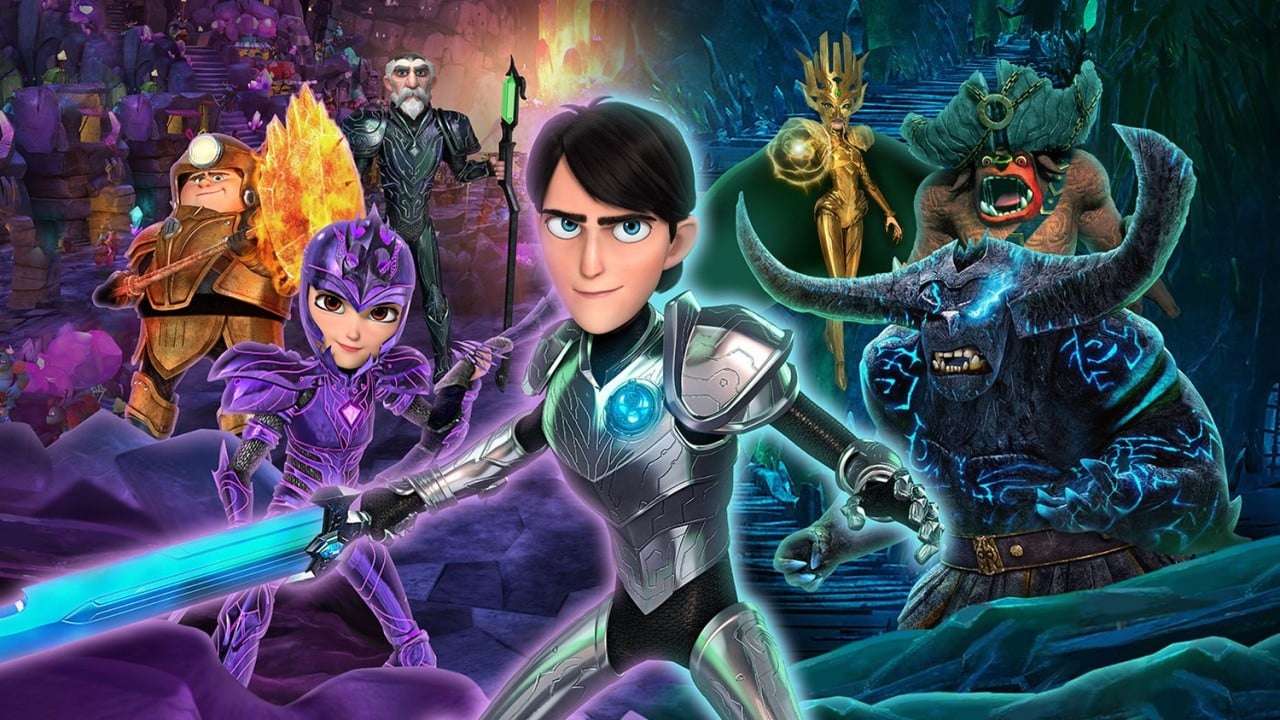
Netflix And DreamWorks Animation Trollhunters Is Getting Its Very Own Game
A brand new video game based on the hit Netflix series, Trollhunters: Tales of Arcadia, has been revealed for Nintendo Switch and other platforms. Trollhunters Defenders of Arcadia will release later this year.
The new game is being developed by Wayforward (Shantae, River City Girls), and is set to feature an all-star voice cast that includes original talent from the show – Emile Hirsch, Charlie Saxton, Lexi Medrano and David Bradley. Jim Molinets, SVP of Production at Universal Games and Digital Platforms, has shared the following in a press release:
“DreamWorksTrollhunters Defender of Arcadia will take players on an intriguing and authentic new adventure that showcases the series’ key pillars of friendship, loyalty and fantasy. Expanding on the bold and creative story that has delighted fans for years, the game brings to life the vivid world of Arcadia Oaks in fun and surprising ways.”
Here’s a list of key features for you:
KEY FEATURES: ● All-Star Voice Talent – Featuring all-new content recorded for the game from the stars of the Netflix series including: ○ Emile Hirsch as Jim Lake Jr. ○ David Bradley as Merlin ○ Charlie Saxton as Toby ○ Lexi Medrano as Claire
● An original story – Jump into the world of Trollhunters as Jim Lake Jr. and prepare to stop the Time-pocalypse
● Encounter familiar faces – Journey through unique worlds as favorite characters from the hit series
● Become the hero of Arcadia – Level up armor and abilities to become more powerful than ever, and get a helping hand from beloved characters in local co-op mode
The game is scheduled to launch on all current platforms on 25th September. The final instalment of the Tales of Arcadia trilogy, Wizards, is also set to air later this year on Netflix.
Mini Review: Jet Lancer – Outrageously Enjoyable Aerial Combat Action
There’s no denying the incredible impact Japanese developers have made on the shoot ’em up genre, from the foundation laid down by Space Invaders right up to more recent examples, such as the superb Rolling Gunner. The influence of Japanese design can be felt keenly in the western-developed Jet Lancer, although its 360-degree levels mean that it also owes a debt to titles like Devolver Digital’s WW2 aerial combat title Luftrausers.
You control an experimental fighter jet which looks a lot like the craft from Hudson’s seminal Soldier Blade, striking from your mobile carrier which serves as a hub from which you can obtain mission briefings, upgrade elements of your jet and determine your unique loadout for each sortie. When not in combat you can freely explore the 3D game world, moving your aircraft carrier around between locations (assuming you have the part required to get there, of course).
Missions range from simple destruction to defending friendly targets or stealing data from transmission towers. Every now and then you’ll face off against a boss enemy, and these titanic battles prove to be Jet Lancer’s undisputed highlight; not only are these massive foes impressive from a visual perspective, but they also require unique tactics and deft movement to defeat.
Thankfully, Jet Lancer controls brilliantly. Your thrust and afterburners are mapped to the shoulder triggers, and you can unleash special charge attacks with the smaller shoulder buttons. Standard shots and a handy dodge manoeuvre are mapped to the face buttons, which means you can perform multiple commands simultaneously without getting your fingers in a muddle. The setup does take a while to become accustomed to, but thankfully the developers have included accessibility features, such as the ability to have your main guns fire automatically so you don’t have to worry about them (although, it’s worth noting you are rated on your accuracy, so to get the best score you’ll want to switch to manual control).
In fact, Jet Lancer goes above and beyond when it comes to these accessibility features, offering the opportunity to disable elements like screen shake and even allowing you to make the ship totally invincible. Some might decry this as cheapening the experience, but in reality, it means that anyone can get the most enjoyment out of the game – after all, you don’t have to use the feature if you don’t need to.
Jet Lancer’s pixel-heavy presentation avoids being too samey and the music is uniformly excellent; the only downside is that the visuals are quite plain in places which might put some players off. This is a common issue with these 2D aerial combat titles, as there’s the need to keep craft small and background detail sparse so the player can see what’s happening during heated moments.
While Jet Lancer does become slightly repetitive in places, the tight controls, enjoyable action and massive, massive explosions all combine to create a shooter which is well worth a look – especially if you’re a fan of this particular genre.
We know you’re busy and might miss out on all the exciting things we’re talking about on Xbox Wire every week. If you’ve got a few minutes, we can help remedy that. We’ve pared down the past week’s news into one easy-to-digest article for all things Xbox! Or, if you’d rather watch than read, you can feast your eyes on our weekly video show above. Be sure to come back every Friday to find out what’s happening This Week on Xbox!
How Xbox Game Pass is Helping Friends Stay Connected For many of us, the current global health situation has made it more difficult to spend time with friends, family, and the people we care about most. We are heartened to see many people using games to be entertained, to find inspiration… Read more
Gears Tactics is “Excellent,” Now Available for PC Today, a new chapter in the Gears saga begins with the launch of Gears Tactics, a fast-paced, turn-based strategy game developed from the ground up for PC, now available with Xbox Game Pass for PC (Beta), Steam and Windows 10 PC… Read more
New Games with Gold for May 2020 Start May the right way with the new Games with Gold lineup. On Xbox One, handle extreme and challenging courses around the world in V-Rally 4 and combat demons of the Chaos Gods in the action-RPG… Read more
Face Your Own Childhood Fears in The Inner Friend As you dive into your subconscious mind through an Alice in Wonderland type world, you will be confronted by your deepest childhood fears. The player will have to deal with a heavy atmosphere, manage the tension… Read more
Violent Puzzles and a Party of Five in Desperados III We knew that creating a new adventure for gun-slinging, knife-fighter John Cooper, nearly twenty years after his initial debut, meant we needed a completely fresh take on the Desperados franchise. The team at Mimimi Games… Read more
SnowRunner Available Today on Xbox One Get behind the wheel, SnowRunners, there’s work to be done! The great wilderness of SnowRunner is home to all kinds of jobs, places to discover, and challenges to take on. With this article, we aim to give you a better understanding… Read more
Assassin’s Creed Valhalla Explores the Age of Vikings Assassin’s Creed Valhallabrings players to the ninth century and the height of the Viking age, when armies of Norse warriors nearly conquered England. As Eivor, a fearsome Viking raider, you will lead your clan from desolation in Norway… Read more
Doug Hates His Job Clocks in Today on Xbox One Doug hates his job, but you’ll enjoy this game. We’ve been working on it for over a year now and we’re delighted to have the opportunity to share it with Xbox gamers. Doug is a mockumentary comedic game inspired by TV shows like… Read more
Frosty Map Vikendi Returns to PUBG Today with Season 7 Back in Season 6, when we debuted our new map Karakin, we also announced that Vikendi was rotating out of normal matchmaking so that we could work on a full revamp of our frosty map. As we’re about to kick off Season 7, we’re thrilled… Read more
Next Week on Xbox: May 5 to 8 Welcome to Next Week on Xbox, where we cover all the new games coming soon to Xbox One and Windows 10 PC! Every week the team at Xbox aims to deliver quality gaming content for you to enjoy on your favorite gaming console… Read more
Video Game Deep Cuts: The Donkey Kong Snowrunning Team
The following blog post, unless otherwise noted, was written by a member of Gamasutras community. The thoughts and opinions expressed are those of the writer and not Gamasutra or its parent company.
[Like slogging through the mud in a busted-up truck? Snowrunner’s your game!]
And here’s another installment of Video Game Deep Cuts on Substack, in our 932nd week of self-isolation. That’s about right, huh? At least our digital video games & interesting articles/videos still seem to arriving promptly. Bon appetit!
– Simon, curator
The Current: New Games To Consider
Levelhead (Xbox Game Pass, PC, Switch, iOS, Android) is a ‘leaving Early Access’ super-fun ‘platformer maker’ game from the Crashlands devs.



 in GalaCredit!