Posted on Leave a comment

Integrate Google Maps in React for Real-Time Location Tracking

by Vincy. Last modified on November 28th, 2025.

Integrating Google Maps into a React app is a powerful location-based feature. It helps for live user tracking to delivery routes, geo-fencing, and real-time movement progression. It is one of the simplest jobs with the help of the Google Maps JavaScript API and React libraries.

Real-time location tracking improves the usability of your apps. It can be implemented for dashboards, for tracking location on Duty, or anything that involves dynamic location-based requirements.

This React example helps to integrate Google Maps into React. It renders dynamic maps to the UI and displays markers to pinpoint the live location. It continuously updates the user’s position using the browser’s Geolocation API.

React Google Maps Realtime Location Tracking

Google Maps Integration steps

These are the few steps to enable required Google API services and configure the key credentials with the React App. This process builds a channel between the enduser and the Google cloud services for which they are registered with.

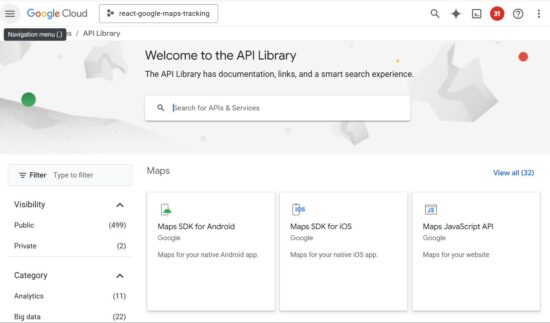
google cloud api library services

  1. Login with Google Cloud Console and create a new project.
  2. Choose APIs and Services and enable Maps JavaScript API.
  3. Go to Credentials menu and CREATE CREDENTIALS -> API Key to generate API key.
  4. Install React Google Maps library in your app using npm install @react-google-maps/api.
  5. Configure this key to your React app when loading React Google Maps JS library.

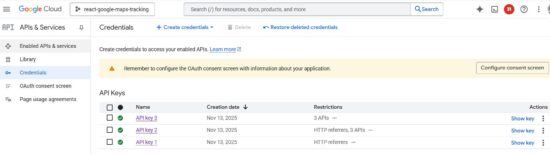
The credentials page shows the list of API keys generated. You can restrict the keys for specific domains or for using particular Google API services.

google cloud api credential

Rendering Google Maps with current location

The TrackLocation JSX shows HTML components for displaying the Google Map and a location search option.

If the location search is not applied, it is showing the marker on the users current location.

react google map landing page

src/components/TrackLocation.jsx

import { useState } from "react";
import SearchBox from "./SearchBox";
import MapContainerComponent from "./MapContainerComponent"; export default function TrackLocation() { const [searchQuery, setSearchQuery] = useState("");
return ( <div style={{ display: "flex" }}> <SearchBox onSearch={setSearchQuery} /> <MapContainerComponent searchQuery={searchQuery} /> </div> );
}

React Google Maps Component

This is the main component which initiates the React Google Maps library by configuring the Google Cloud API service key.

It manages React states for having the Map instance, map marker location and the searched location. The marker location is depends on two factors. It will be changed dynamically to show the real-time location of the user. Also, it is changed when the search is applied.

With the help of the client side Geo location capabilities, navigator.geolocation gets the latitude and longitude of the user’s position. Then it is used to build the location object to plot the marker to the map.

src/components/MapContainerComponent.jsx

import { useEffect, useState } from "react";
import { GoogleMap, useJsApiLoader } from "@react-google-maps/api";
import LocationMarker from "./LocationMarker"; export default function MapContainerComponent({ searchQuery }) { const [map, setMap] = useState(null); const [userLocation, setUserLocation] = useState(null); const [searchLocation, setSearchLocation] = useState(null); const { isLoaded } = useJsApiLoader({ googleMapsApiKey: "YOUR API KEY", libraries: ["places"], }); useEffect(() => { if (navigator.geolocation) { const watchId = navigator.geolocation.watchPosition( (pos) => { const newLoc = { lat: pos.coords.latitude, lng: pos.coords.longitude, }; setUserLocation(newLoc); if (map && !searchLocation) { map.setCenter(newLoc); map.setZoom(13); } }, (err) => console.error("Location error:", err), { enableHighAccuracy: true, maximumAge: 1000 } ); return () => navigator.geolocation.clearWatch(watchId); } else { console.error("Geolocation not supported"); } }, [map, searchLocation]); useEffect(() => { if (!searchQuery || !window.google || !map) return; const geocoder = new window.google.maps.Geocoder(); geocoder.geocode({ address: searchQuery }, (results, status) => { if (status === "OK" && results[0]) { const loc = results[0].geometry.location; const newSearchLoc = { lat: loc.lat(), lng: loc.lng() }; setSearchLocation(newSearchLoc); if (userLocation) { const bounds = new window.google.maps.LatLngBounds(); bounds.extend(userLocation); bounds.extend(newSearchLoc); map.fitBounds(bounds); } else { map.setCenter(newSearchLoc); map.setZoom(12); } } else { console.warn("Location not found for:", searchQuery); } }); }, [searchQuery, map, userLocation]); const zoomToLocation = (loc) => { if (!map || !loc) return; map.panTo(loc); map.setZoom(15); }; return ( <div className="map-container"> {isLoaded && ( <GoogleMap mapContainerStyle={{ width: "100%", height: "100vh" }} center={userLocation || { lat: 20.5937, lng: 78.9629 }} zoom={userLocation ? 13 : 5} onLoad={setMap} options={{ streetViewControl: false, mapTypeControl: false, fullscreenControl: false, }}> <LocationMarker position={userLocation} title="Your Location" onClick={() => zoomToLocation(userLocation)} /> <LocationMarker position={searchLocation} title="Tracked Location" onClick={() => zoomToLocation(searchLocation)} /> </GoogleMap> )} {userLocation && ( <button className="floating-btn" onClick={() => zoomToLocation(userLocation)}> My Location </button> )} </div> );
}

This LocationMarker component is part of the main React component that accepts the users location or searched location. It pins the marker to the Map based on the location details.

src/components/LocationMarker.js

import React from "react";
import { Marker } from "@react-google-maps/api"; export default function LocationMarker({ position, title, onClick }) { return position ? <Marker position={position} title={title} onClick={onClick} /> : null;
}

Google Maps Search feature

The search form contains interface to enter the place to mark on the Map. When the search is applied, the LocationMarker rendered with the position:searchLocation shows the marker on the right place.

src/components/SearchBox.jsx

import { useState } from "react"; export default function SearchBox({ onSearch }) { const [query, setQuery] = useState(""); const handleSubmit = (e) => { e.preventDefault(); if (query.trim()) onSearch(query); }; return ( <div className="search-sidebar"> <h3 className="sidebar-title">Track Location</h3> <form onSubmit={handleSubmit}> <input type="text" placeholder="Enter a place" value={query} onChange={(e) => setQuery(e.target.value)} className="search-input" /> <button type="submit" className="search-btn"> Search </button> </form> </div> );
}

Conclusion

Real-time location tracking in React becomes easy with the joint capabilities of the Geolocation API and Google Maps. It changes the user’s position on movement. This example enriches user experience with a live movement tracking feature. And, it will be easy to use in a location-based React application that needs to render users’ live locations.

References:

  1. React Google Maps API wrapper.
  2. Google Maps rendering best practices.

Download

Vincy
Written by Vincy, a web developer with 15+ years of experience and a Masters degree in Computer Science. She specializes in building modern, lightweight websites using PHP, JavaScript, React, and related technologies. Phppot helps you in mastering web development through over a decade of publishing quality tutorials.

↑ Back to Top

Posted on Leave a comment

How to Build a Responsive React Navbar with Dropdown and Mobile Menu

by Vincy. Last modified on November 25th, 2025.

A responsive navigation bar is a one of a must-needed requirement of any modern web application. It is an easy job if the navigation bar contains single level menu and action controls. But, it will be complex it is a multi-level menu to fit the layout into a small viewport.

With this React example code you’ll learn how to build a responsive React navbar. It includes a multi-level dropdown menu for different view port. It will a plugable and reusable React component for your different application frontend.

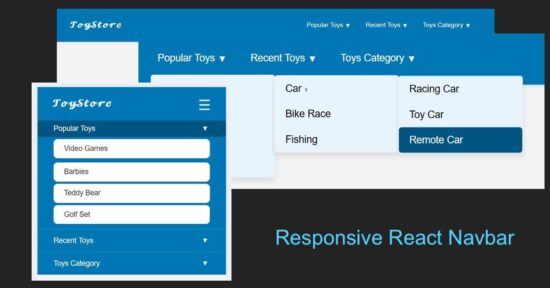
Responsive React Navbar Dropdown Mobile Menu

Responsive navbar in React header

This React JSX code has the a responsive navigation bar component. It provides 1) menu bar with Desktop and mobile variants, 2)sub menu bar with click-to-expand effect.

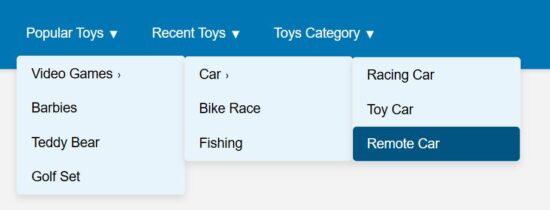
The menuData contains the array of multi-level menu items. The image shown below renders the horizontal menu on the site header.

react drop down navbar

src/components/Navbar/Navbar.jsx

import { useState } from "react";
import menuData from "./MenuData";
import Dropdown from "./DropDown";
import "../../../public/assets/css/style.css"; const Navbar = () => { const [menuOpen, setMenuOpen] = useState(false); const [openIndex, setOpenIndex] = useState(null); const toggleSubmenu = (index, e) => { if (window.innerWidth <= 768) { e.preventDefault(); setOpenIndex(openIndex === index ? null : index); } };
return ( <nav className="navbar"> <div className="navbar-container"> <h2 className="logo"></h2> <button className="menu-toggle" onClick={() => setMenuOpen(!menuOpen)} aria-label="Toggle menu" > ☰ </button> <ul className={`menu ${menuOpen ? "open" : ""}`}> {menuData.map((menu, i) => ( <li key={i} className="menu-item has-submenu"> <a href="#" onClick={(e) => toggleSubmenu(i, e)}> {menu.title} <span className="expand">▼</span> </a> {menu.subMenu && ( <Dropdown items={menu.subMenu} className={openIndex === i ? "open" : ""} /> )} </li> ))} </ul> </div> </nav>
);
};
export default Navbar;

These are the main and submenu items defined for this React example.

src/components/Navbar/MenuData.js

const menuData = [ { title: "Popular Toys", subMenu: [ { title: "Video Games", subMenu: [ { title: "Car", subMenu: ["Racing Car", "Toy Car", "Remote Car"] }, "Bike Race", "Fishing" ] }, "Barbies", "Teddy Bear", "Golf Set" ] }, { title: "Recent Toys", subMenu: [ "Yoyo", "Doctor Kit", { title: "Fun Puzzle", subMenu: ["Cards", "Numbers"] }, "Uno Cards" ] }, { title: "Toys Category", subMenu: [ "Battery Toys", { title: "Remote Toys", subMenu: ["Cars", "Aeroplane", "Helicopter"] }, "Soft Toys", "Magnet Toys" ] }
]; export default menuData;

React menu dropdown hooks to toggle submenu

A component Dropdown returns the submenu look-and-feel. The React state openIndex has the menu open/close state by its index.

The Dropdown component’s expand/collapse state is depends on the menuOpen set with a toggle action. The menu toggle effect is for the mobile view to slide down the menu options on clicking a burger icon.

react drop down navbar menu

src/components/Navbar/DropDown.jsx

import { useState } from "react"; const Dropdown = ({ items, className }) => { const [openIndex, setOpenIndex] = useState(null); const toggleSubmenu = (index, e) => { if (window.innerWidth <= 768) { e.preventDefault(); setOpenIndex(openIndex === index ? null : index); } }; return ( <ul className={`dropdown ${className || ""}`}> {items.map((item, i) => typeof item === "string" ? ( <li key={i}> <a href="#">{item}</a> </li> ) : ( <li key={i} className="has-submenu"> <a href="#" onClick={(e) => toggleSubmenu(i, e)}> {item.title} <span className="expand">›</span> </a> {item.subMenu && ( <Dropdown items={item.subMenu} className={openIndex === i ? "open" : ""} /> )} </li> ) )} </ul> );
};
export default Dropdown;

Mobile menu navbar view

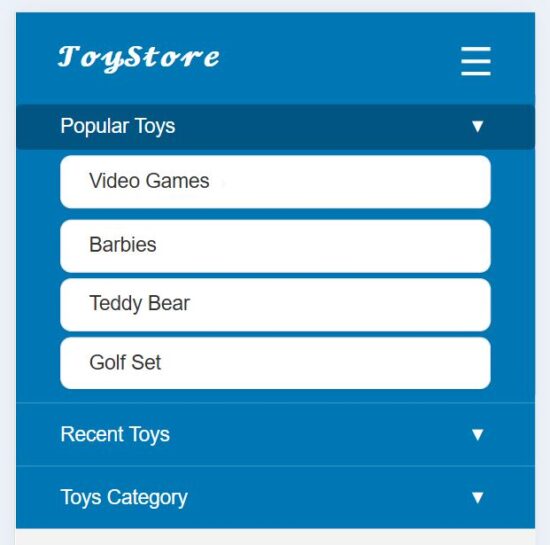
This heading shows the mobile view of this responsive navbar. In the mobile view, a burger icon will be appeared on the top right corner of the web layout.

This icon’s click event is bound to toggle a sliding menu. In this sliding menu, each menu items are vertically expandable to show its submenu.
react drop down navbar mobile responsive

References:

  1. Navigation bar modals with Material Design.
  2. Free navigation bar templates by Figma.

Download

Vincy
Written by Vincy, a web developer with 15+ years of experience and a Masters degree in Computer Science. She specializes in building modern, lightweight websites using PHP, JavaScript, React, and related technologies. Phppot helps you in mastering web development through over a decade of publishing quality tutorials.

↑ Back to Top

Posted on Leave a comment

React File Upload with Preview and Drag-and-Drop Support

by Vincy. Last modified on November 20th, 2025.

This example contains a React drag-and-drop file upload with file type and size validation. It connects backend to upload files to the server via Axios.

The workflow allows users to drop files to upload and shows file preview below the drop area. This file upload example includes the following featured functionalities.

  1. Drag and drop
  2. File validation
  3. Uploading to backend
  4. Saving file path to database
  5. Preview after upload
  6. Error handling

It is easy to integrate into any React application, since it is structured with separate components for the upload and preview UI.

React File Upload Preview Drag Drop

React UI with file upload interface

Two React components created for this file upload UI. Those are UploadBox and FilePreview.

The UploadBox is the drop area for dragged files to be uploaded. Once upload completed, file thumbnails are shown in a preview box by using the FilePreview component.

The FileUpload JSX handles the following processes before uploading a file.

  1. File validation about its extension and size.
  2. Handling errors or success acknowledgement for UI.
  3. Preparing form data with the file binaries.

react file upload empty state

src/components/FileUpload.jsx

import { useState } from "react";
import axios from "axios";
import SERVER_SIDE_API_ROOT from "../../config";
import FilePreview from "./FilePreview";
import UploadBox from "./UploadBox";
import "../../public/assets/css/style.css";
const FileUpload = () => { const [files, setFiles] = useState([]); const [dragActive, setDragActive] = useState(false); const [uploading, setUploading] = useState(false); const [errorMsg, setErrorMsg] = useState(""); const allowedExtensions = ["jpg", "jpeg", "png", "gif", "pdf", "doc", "docx", "txt"]; const MAX_FILE_SIZE = 2 * 1024 * 1024; const uploadFiles = async (fileList) => { setErrorMsg(""); const safeFiles = []; const rejectedFiles = []; fileList.forEach((file) => { const ext = file.name.split(".").pop().toLowerCase(); if (!allowedExtensions.includes(ext)) return rejectedFiles.push("Invalid file type"); if (file.size > MAX_FILE_SIZE) return rejectedFiles.push("Maximum file size is 2MB."); if (file.size <= 0) return rejectedFiles.push("Empty file"); safeFiles.push(file); }); if (rejectedFiles.length > 0) { setErrorMsg(rejectedFiles[0]); setUploading(false); return; } if (!safeFiles.length) return; const formData = new FormData(); safeFiles.forEach((file) => formData.append("files[]", file)); setUploading(true); const delay = new Promise((resolve) => setTimeout(resolve, 800)); try { const res = await Promise.all([ axios.post(`${SERVER_SIDE_API_ROOT}/file-upload.php`, formData, { headers: { "Content-Type": "multipart/form-data" }, }), delay, ]); const uploadedFiles = res[0].data.files.filter((f) => f.status === "uploaded"); setFiles((prev) => [...prev, ...uploadedFiles.map(f => safeFiles.find(sf => sf.name === f.name))]); } catch { setErrorMsg("Server error — please try again later."); } setUploading(false); }; const handleDrop = async (e) => { e.preventDefault(); setDragActive(false); await uploadFiles(Array.from(e.dataTransfer.files)); }; return ( <div className="upload-wrapper"> <UploadBox dragActive={dragActive} uploading={uploading} errorMsg={errorMsg} handleDrop={handleDrop} setDragActive={setDragActive} > </UploadBox> <FilePreview files={files} uploading={uploading} /> </div> );
};
export default FileUpload;

PHP file upload endpoint

The PHP script validates the received file binary before uploading to the server directory. If the validation passes, this script give name to the file with a unique random id.

Once the PHP move_uploaded_file() saves the files to the directory, this code inserts the target path to the database.

drag-drop-file-upload-api/file-upload.php

<?php
header("Access-Control-Allow-Origin: *");
header("Access-Control-Allow-Methods: POST, GET, OPTIONS");
header("Access-Control-Allow-Headers: Content-Type");
include "db.php";
$uploadDir = "uploads/";
$response = [];
if (!file_exists($uploadDir)) { mkdir($uploadDir, 0777, true);
}
$allowedExtensions = ['jpg', 'jpeg', 'png', 'gif', 'pdf', 'txt', 'doc', 'docx'];
$maxFileSize = 2 * 1024 * 1024; foreach ($_FILES['files']['name'] as $key => $name) { $tmpName = $_FILES['files']['tmp_name'][$key]; $extension = strtolower(pathinfo($name, PATHINFO_EXTENSION)); $size = $_FILES['files']['size'][$key]; if (!in_array($extension, $allowedExtensions)) { $response[] = [ "name" => $name, "status" => "blocked", "message" => "File type not allowed (.{$extension})" ]; continue; } if ($size > $maxFileSize) { $response[] = [ "name" => $name, "status" => "blocked", "message" => "Maximum file size is 2M." ]; continue; } if ($size <= 0) { $response[] = [ "name" => $name, "status" => "blocked", "message" => "Empty file" ]; continue; } $uniqueName = uniqid() . "_" . basename($name); $targetPath = $uploadDir . $uniqueName; if (move_uploaded_file($tmpName, $targetPath)) { $stmt = $conn->prepare("INSERT INTO uploaded_files (file_name, file_path) VALUES (?, ?)"); $stmt->bind_param("ss", $uniqueName, $targetPath); $stmt->execute(); $response[] = [ "name" => $name, "path" => $targetPath, "status" => "uploaded" ]; } else { $response[] = [ "name" => $name, "status" => "failed", "message" => "Error moving uploaded file." ]; }
}
echo json_encode(["success" => true, "files" => $response]);
?>

Drop area to place the dragged files

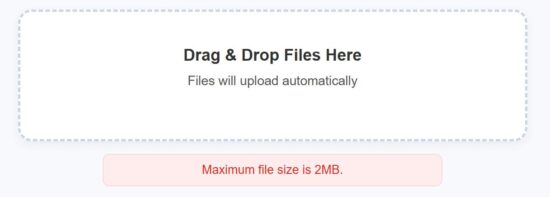
It contains UI elements to define the file drop area. The drop box uses onDragOver callback to highlight the drop area on hover.

And, the onDrop callback prepares the form data to post the dropped file binary to the server.

react file upload error state

src/components/UploadBox.jsx

const UploadBox = ({ dragActive, uploading, errorMsg, handleDrop, setDragActive }) => ( <> <div className={`upload-box ${dragActive ? "active" : ""}`} onDragOver={(e) => { e.preventDefault(); setDragActive(true); }} onDragLeave={() => setDragActive(false)} onDrop={handleDrop} > <h3 className="upload-title">Drag & Drop Files Here</h3> <p className="upload-text">Files will upload automatically</p> </div> {uploading && <p className="uploading-text">Uploading...</p>} {errorMsg && <p className="error-text">{errorMsg}</p>} </>
); export default UploadBox;

Showing file preview with thumbnails

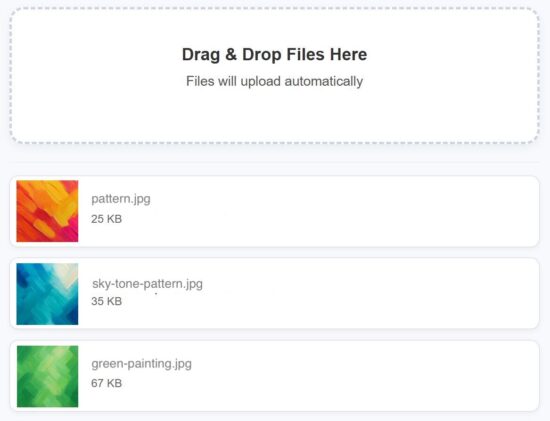
The FilePreview component displays the uploaded files in a list format. It will show its thumbnail, name and size.

If an image upload, the preview will show the image thumbnail. It a document type file is uploaded, the default icon is shown to the preview screen.
React File Upload Success Case Output

src/components/FilePreview.jsx

const FilePreview = ({ files, uploading }) => { if (!files.length) return null; return ( <div className="preview-list"> {files.map((file, i) => ( <div key={i} className="preview-row"> {file.type?.startsWith("image/") ? ( <div className="preview-thumb-wrapper"> <img src={URL.createObjectURL(file)} alt={file.name} className={`preview-thumb ${uploading ? "blurred" : ""}`} /> {uploading && ( <div className="preview-loader"> <img src="/assets/image/loader.svg" alt="Loading..." /> </div> )} </div> ) : ( <div className="file-icon"></div> )} <div className="file-info"> <p className="file-name">{file.name}</p> <p className="file-size">{Math.round(file.size / 1024)} KB</p> </div> </div> ))} </div> );
};
export default FilePreview;

How to set up this application

The below steps help to set up this example to run in your environment. After these steps, start the npm dev server and run the React drag and drop app.

  1. Download the source and unzip into your computer.
  2. Copy the drag-drop-file-upload-api into the PHP web root.
  3. Create a database file_upload_db and import the SQL script in the drag-drop-file-upload-api/sql
  4. Configure database details with db.php
  5. Configure the PHP endpoint URL in React in src/config.js

Conclusion

I hope the React code provides a modern file upload interface. The drag-and-drop, file validation, preview rendering and database insert is a stack of features enriches the example code. This code well-structured and ready to integrate with an application easily. If you want any add-on feature to this example, please let me know.

References:

  1. HTML drag and drop UI
  2. Axios API request config option

Download

Vincy
Written by Vincy, a web developer with 15+ years of experience and a Masters degree in Computer Science. She specializes in building modern, lightweight websites using PHP, JavaScript, React, and related technologies. Phppot helps you in mastering web development through over a decade of publishing quality tutorials.

↑ Back to Top

Posted on Leave a comment

Build a Multi-Step Form in React with Validation and Progress Bar

by Vincy. Last modified on November 18th, 2025.

A multi-step form is one of the best ways to replace a long form to make the customer feel easy. Example: a student enrolment form will usually be very long. If it is partitioned into multi-steps with section-wise sub forms, it encourages enduser to proceed forward. And importantly the merit is that it will increase your signup rate.

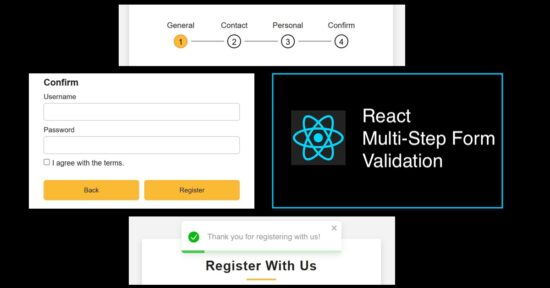
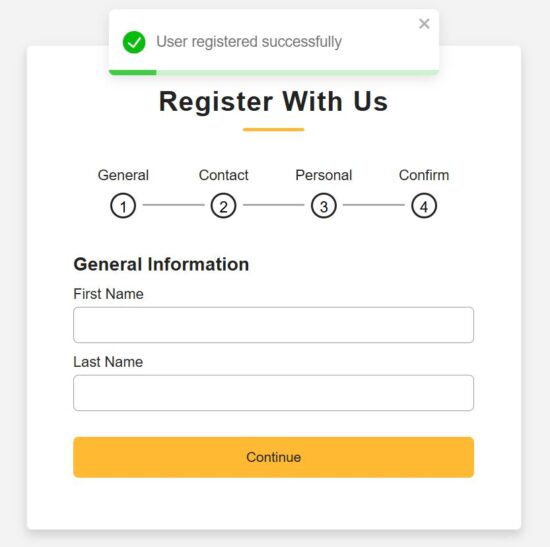
In this React tutorial, a registration form is partitioned into 4 steps. Those are to collect general, contact, personal, and authentication details from the users. Each step loads a sub-form with corresponding sections. Each subform is a separate component with proper structure and easy maintainability.

React Multi Step Form Validation Progress Bar

Rendering multi-step registration form

This RegisterForm is created as a parent React Form component. It loads all the sub-components created for rendering a multi-step form with validation and a progress bar.

It requires the following custom React component created for this example.

  1. GeneralInfo – to collect basic information, first and last names.
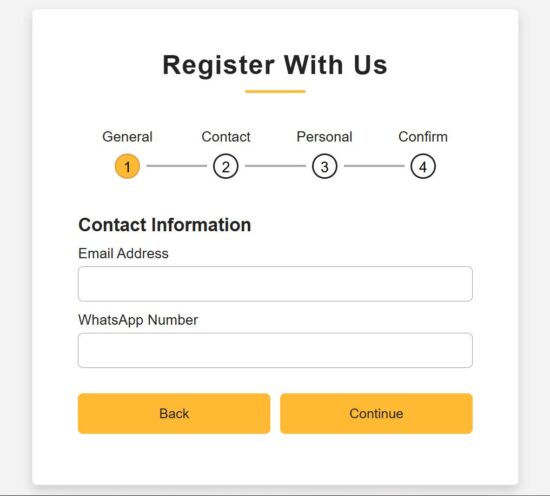
  2. ContactInfo – to collect phone or WhatsApp numbers.
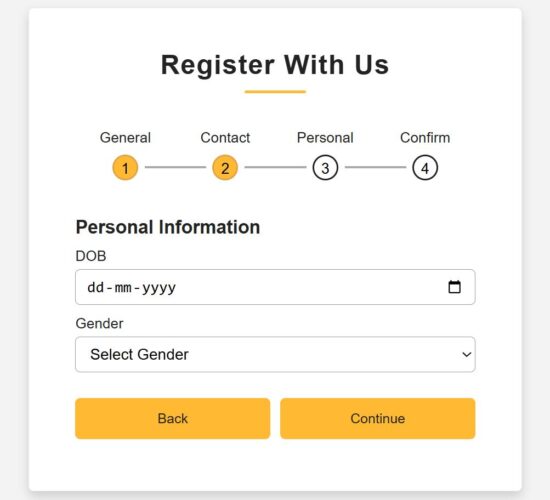
  3. PersonalInfo – to collect a person’s date of birth and gender.
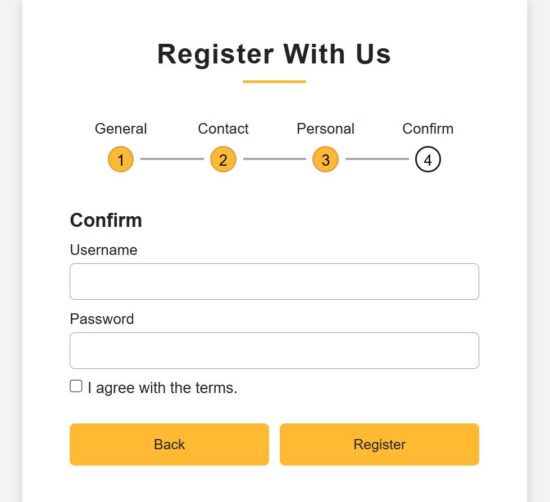
  4. ConfirmInfo – is a last step to register confidential information and confirm registration.

All information is stored in the formData by using the corresponding handleChange hook.

Additionally, this JSX has a Toast container to display success or error responses on the user-entered data.

There is a step navigation interface that helps to move along the registration steps. The step navigation helps to verify the data before clicking confirmation.

src/components/RegisterForm.jsx

import { useState } from "react";
import { ToastContainer } from "react-toastify";
import "react-toastify/dist/ReactToastify.css";
import ProgressBar from "./ProgressBar";
import GeneralInfo from "./FormSteps/GeneralInfo";
import ContactInfo from "./FormSteps/ContactInfo";
import PersonalInfo from "./FormSteps/PersonalInfo";
import Confirmation from "./FormSteps/Confirmation";
import "../../public/assests/css/RegisterForm.css";
const RegisterForm = () => { const [step, setStep] = useState(1); const [formData, setFormData] = useState({ first_name: "", last_name: "", email: "", phone: "", dob: "", gender: "", username: "", password: "", terms: false, }); const nextStep = () => setStep(prev => prev + 1); const prevStep = () => setStep(prev => prev - 1); const handleChange = (e) => { const { name, value, type, checked } = e.target; setFormData({ ...formData, [name]: type === "checkbox" ? checked : value, }); };
return (
<div className="container"> <header>Register With Us</header> <ProgressBar step={step} /> <div className="form-outer"> {step === 1 && <GeneralInfo formData={formData} handleChange={handleChange} nextStep={nextStep} />} {step === 2 && <ContactInfo formData={formData} handleChange={handleChange} nextStep={nextStep} prevStep={prevStep} />} {step === 3 && <PersonalInfo formData={formData} handleChange={handleChange} nextStep={nextStep} prevStep={prevStep} />} {step === 4 && <Confirmation formData={formData} handleChange={handleChange} prevStep={prevStep} setFormData={setFormData} setStep={setStep} />} </div> <ToastContainer position="top-center" autoClose={3000} hideProgressBar={false} newestOnTop closeOnClick pauseOnHover/>
</div>
);
};
export default RegisterForm;

Form progress bar with numbered in-progress state of registration

When a multi-step form interface is used, the progress bar and prev-next navigation controls are very important usability.

This example provides both of these controls which will be useful to learn how to make this for other similar cases.

The progress bar contains circled, numbered nodes represent each step. This node is a container that denotes the title and the step number. It checks the useState for the current step and highlights the node accordingly.

The conditional statements load the CSS className ‘active’ dynamically when loading the progress bar to the UI.

All the completed steps are highlighted by a filled background and shows clarity on the current state.

src/components/ProgressBar.jsx

const ProgressBar = ({ step }) => {
return (
<div className="progress-bar"> <div className={`step ${step >= 1 ? "active" : ""}`}> <p>General</p> <div className={`bullet ${step > 1 ? "active" : ""}`}> <span className="black-text">1</span> </div> </div> <div className={`step ${step >= 2 ? "active" : ""}`}> <p>Contact</p> <div className={`bullet ${step > 2 ? "active" : ""}`}> <span className="black-text">2</span> </div> </div> <div className={`step ${step >= 3 ? "active" : ""}`}> <p>Personal</p> <div className={`bullet ${step > 3 ? "active" : ""}`}> <span className="black-text">3</span> </div> </div> <div className={`step ${step >= 4 ? "active" : ""}`}> <p>Confirm</p> <div className="bullet"> <span className="black-text">4</span> </div> </div>
</div>
);
};
export default ProgressBar;

React Form components collecting types of user information

We have seen all 4 sub-form components created for this React example. Those component purposes are described in the explanation of the parent React container.

Each form component accepts the formData, handleChange, nextStep references. The parent component has the scope of reading all the sub-form field data. It supplies the data with the corresponding handleChange hook to each step.

The main RegisterForm JSX contains conditional statements to check the current step. Then, it load the corresponding sub form components based on the in-progressing step managed in a React useState.

Step 1 – Collecting general information

react registered multi step form

src/components/FormSteps/GeneralInfo.jsx

import { useState } from "react";
const GeneralInfo = ({ formData, handleChange, nextStep }) => { const [errors, setErrors] = useState({}); const validate = () => { const newErrors = {}; if (!formData.first_name.trim()) newErrors.first_name = "First name is required"; if (!formData.last_name.trim()) newErrors.last_name = "Last name is required"; setErrors(newErrors); return Object.keys(newErrors).length === 0; }; return ( <div className="page slidepage"> <div className="title">General Information</div> <div className="field"> <div className="label">First Name</div> <input type="text" name="first_name" value={formData.first_name} onChange={handleChange} className={errors.first_name ? "is-invalid" : ""} /> {errors.first_name && <div className="ribbon-alert">{errors.first_name}</div>} </div> <div className="field"> <div className="label">Last Name</div> <input type="text" name="last_name" value={formData.last_name} onChange={handleChange} className={errors.last_name ? "is-invalid" : ""} /> {errors.last_name && <div className="ribbon-alert">{errors.last_name}</div>} </div> <div className="field nextBtn"> <button type="button" onClick={() => validate() && nextStep()}> Continue </button> </div> </div> );
};
export default GeneralInfo;

Step 2: Collecting contact information

React Contact Info Form

src/components/FormSteps/ContactInfo.jsx

import { useState } from "react";
const ContactInfo = ({ formData, handleChange, nextStep, prevStep }) => { const [errors, setErrors] = useState({}); const validate = () => { const newErrors = {}; const emailRegex = /^[^\s@]+@[^\s@]+\.[^\s@]+$/; if (!formData.email.trim()) newErrors.email = "Email is required"; else if (!emailRegex.test(formData.email)) newErrors.email = "Enter a valid email address"; if (formData.phone.length < 10) newErrors.phone = "Phone number must be at least 10 digits"; setErrors(newErrors); return Object.keys(newErrors).length === 0; }; return ( <div className="page"> <div className="title">Contact Information</div> <div className="field"> <div className="label">Email Address</div> <input type="text" name="email" value={formData.email} onChange={handleChange} className={errors.email ? "is-invalid" : ""} /> {errors.email && <div className="ribbon-alert">{errors.email}</div>} </div> <div className="field"> <div className="label">WhatsApp Number</div> <input type="number" name="phone" value={formData.phone} onChange={handleChange} className={errors.phone ? "is-invalid" : ""} /> {errors.phone && <div className="ribbon-alert">{errors.phone}</div>} </div> <div className="field btns"> <button type="button" onClick={prevStep}>Back</button> <button type="button" onClick={() => validate() && nextStep()}>Continue</button> </div> </div> );
};
export default ContactInfo;

Step3 – Collecting personal information

react personal info form

src/components/FormSteps/PersonalInfo.jsx

import { useState } from "react";
const PersonalInfo = ({ formData, handleChange, nextStep, prevStep }) => { const [errors, setErrors] = useState({}); const validate = () => { const newErrors = {}; if (!formData.dob) newErrors.dob = "Please select your date of birth"; if (!formData.gender) newErrors.gender = "Please select your gender"; setErrors(newErrors); return Object.keys(newErrors).length === 0; };
return ( <div className="page"> <div className="title">Personal Information</div> <div className="field"> <div className="label">DOB</div> <input type="date" name="dob" value={formData.dob} onChange={handleChange} className={errors.dob ? "is-invalid" : ""} /> {errors.dob && <div className="ribbon-alert">{errors.dob}</div>} </div> <div className="field"> <div className="label">Gender</div> <select name="gender" value={formData.gender} onChange={handleChange} className={errors.gender ? "is-invalid" : ""} > <option value="">Select Gender</option> <option>Male</option> <option>Female</option> <option>Other</option> </select> {errors.gender && <div className="ribbon-alert">{errors.gender}</div>} </div> <div className="field btns"> <button type="button" onClick={prevStep}>Back</button> <button type="button" onClick={() => validate() && nextStep()}>Continue</button> </div> </div>
);
};
export default PersonalInfo;

Step 4 – Collecting user consent and confidential information

react confirm info form

src/components/FormSteps/Confirmation.jsx

import { useState } from "react";
import { toast } from "react-toastify";
import "react-toastify/dist/ReactToastify.css";
import axios from "axios";
import SERVER_SIDE_API_ROOT from "../../config";
const Confirmation = ({ formData, handleChange, prevStep, setFormData, setStep }) => { const [errors, setErrors] = useState({}); const handleSubmit = async (e) => { e.preventDefault(); const newErrors = {}; if (!formData.username) newErrors.username = "Username is required"; if (!formData.password) newErrors.password = "Password is required"; else if (formData.password.length < 6) newErrors.password = "Password must be at least 6 characters"; if (!formData.terms) newErrors.terms = "You must agree to the terms"; setErrors(newErrors); if (Object.keys(newErrors).length > 0) return; try { const res = await axios.post(`${SERVER_SIDE_API_ROOT}/multi-step-form.php`, formData); if (res.data.success) { toast.success(res.data.message || "User registered successfully!"); setFormData({ first_name: "", last_name: "", email: "", phone: "", dob: "", gender: "", username: "", password: "", terms: false, }); setStep(1); setErrors({}); } else { toast.error(res.data.message || "Registration failed!"); } } catch (err) { console.error(err); toast.error("Error while saving user data."); } }; const renderError = (field) => errors[field] ? <div className="ribbon-alert">{errors[field]}</div> : null;
return ( <div className="page"> <div className="title">Confirm</div> <div className="field"> <div className="label">Username</div> <input type="text" name="username" value={formData.username} onChange={handleChange} className={errors.username ? "is-invalid" : ""} /> {renderError("username")} </div> <div className="field"> <div className="label">Password</div> <input type="password" name="password" value={formData.password} onChange={handleChange} className={errors.password ? "is-invalid" : ""} /> {renderError("password")} </div> <div className="field-terms"> <label> <input type="checkbox" name="terms" checked={formData.terms} onChange={handleChange} />{" "} I agree with the terms. </label> {renderError("terms")} </div> <div className="field btns"> <button type="button" onClick={prevStep}>Back</button> <button type="submit" onClick={handleSubmit}>Register</button> </div> </div>
);
};
export default Confirmation;

PHP endpoint processing multi-step form data

It is a usual PHP file which not need to describe if you are already familiar with how the PHP user registration works. It reads the form data posted by the front-end multi-step React form.

With this form data, it builds the database insert query to save the user-entered information to the backend.

This example has the server-side validation for a few fields. If the validation process catches any problem with the submitted data, then it composes an error response to the React frontend.

Mainly, it validates email format and password-strength (minimally by its length). Password strength checking has no limitations. Based on the application sensitivity we are free to add as much validation as possible which is good for a security point of view.

Note: The SQL script for the user database is in the downloadable source code attached with this tutorial in multi-step-form-validation-api/users.sql.

multi-step-form-validation-api/multi-step-form.php

<?php
header("Access-Control-Allow-Origin: *");
header("Access-Control-Allow-Headers: Content-Type");
header("Access-Control-Allow-Methods: POST");
header("Content-Type: application/json");
include 'db.php';
$data = json_decode(file_get_contents("php://input"), true);
$firstName = $data["first_name"] ?? "";
$lastName = $data["last_name"] ?? "";
$email = $data["email"] ?? "";
$phone = $data["phone"] ?? "";
$dob = $data["dob"] ?? "";
$gender = $data["gender"] ?? "";
$username = $data["username"] ?? "";
$password = $data["password"] ?? "";
if (!$firstName || !$email || !$password) { echo json_encode(["success" => false, "message" => "Required fields missing"]); exit;
}
if (!filter_var($email, FILTER_VALIDATE_EMAIL)) { echo json_encode(["success" => false, "message" => "Invalid email"]); exit;
}
if (strlen($password) < 6) { echo json_encode(["success" => false, "message" => "Password too short"]); exit;
}
$hashedPassword = password_hash($password, PASSWORD_BCRYPT);
$stmt = $conn->prepare("INSERT INTO users (first_name, last_name, email, phone, dob, gender, username, password) VALUES (?, ?, ?, ?, ?, ?, ?, ?)");
$stmt->bind_param("ssssssss", $firstName, $lastName, $email, $phone, $dob, $gender, $username, $hashedPassword);
if ($stmt->execute()) { echo json_encode(["success" => true, "message" => "User registered successfully"]);
} else { echo json_encode(["success" => false, "message" => "DB insert failed"]);
}
?>

How to set up this application

The below steps help to set up this example to run in your environment.

  1. Download the source code into your React project directory.
  2. Copy the multi-step-form-validation-api into your PHP root.
  3. Create a database multistep_form_validation_db and import the user.sql
  4. Configure database details with db.php
  5. Configure the PHP endpoint URL in React in src/config.js
  6. Run npm install and then, npm run dev.
  7. Copy the dev server URL and run it to render the React Multi-step form.

Conclusion:

So, we have seen a simple React example to understand how to create and manage the state of a multi-step form. By splitting the mail and sub form components we had a structural code base that is more feasible for enhancements.

The navigation between steps gives a scope for verification before confirm the signup. And the progress bar indicates the state in progress at a quick glance.

Definitely, the PHP validation and database processing can have add-on features to make the backend more solid. If you have a requirement to create a multi-step form in React, share your specifications in the comments.

Download

Vincy
Written by Vincy, a web developer with 15+ years of experience and a Masters degree in Computer Science. She specializes in building modern, lightweight websites using PHP, JavaScript, React, and related technologies. Phppot helps you in mastering web development through over a decade of publishing quality tutorials.

↑ Back to Top

Posted on Leave a comment

Send Email from React Using EmailJS (No Backend Required)

by Vincy. Last modified on November 13th, 2025.

EmailJS is a cloud service that supports to enable the frontend to send email without any backend. All we need is to create an EmailJS account and configure it to the frontend application.

This tutorial shows the step-by-step procedure to learn how to enable email sending in a React application using EmialJS.

Send Email From React Using EmailJS

Steps to allow EmailJS to send mail

1. Signup with EmailJS service

First signup and login with EmailJS dashboard. It’s a free and enables mail sending via various services supported.

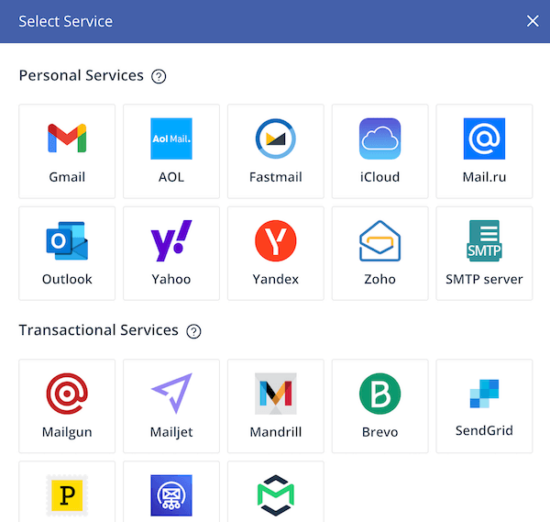
Select Email Sending Service

2. Choose service provider via Add New Service -> Select Service

It supports various services like Gmail, Yahoo and etc. It also have settings to configure custom SMTP server  with this online solution.
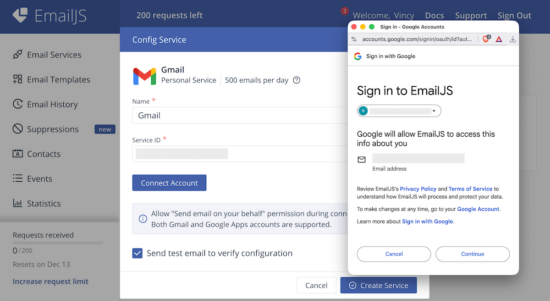
Permit EmailJS To Access Mail Account

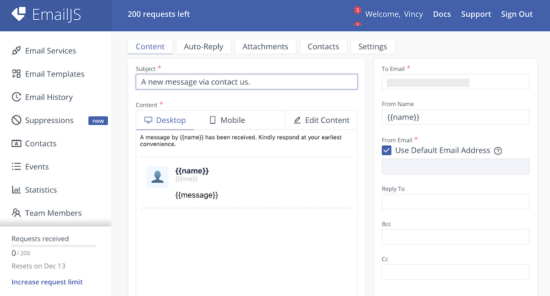
3. Design mail template by Email Templates -> Create New Template -> Select Template

There are various built-in templates in the EmailJS dashboard. I selected the “Contact Us” template for this example.

Template edit interface has the option to change the design and the content. It allows to add dynamic variables as part of the mail content.

When calling the EmailJS service, the request will have values to replace this variables. This feature will help to send a personalized email content.

Copy the Template ID once created an email template.

Design EmailJS Template

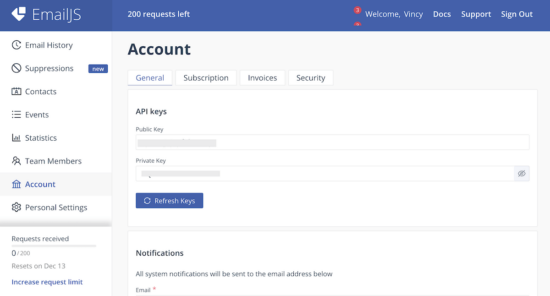
4. Get EmailJS API Public Key

Added Service ID, Template ID the EmailJS Public Key  is also need to initiate the library class from the frontend React App.

Navigate via Account using the left menu to open the API keys section. Copy Public Key from the EmailJS dashboard.

Get EmailJS Account Public Key

Initiate EmailJS library to React App

Create a React app and install the EmailJS library to it using this command.

npm install emailjs-com

This example code contains this library installed. So, just run npm install to bring the dependancies into your node_modules.

Then, import the emailjs-com to the React JSX and initiate the EmailJS service as shown below. This script shows how the emailjs instance is used in the form handle submit.

import emailjs from "emailjs-com"; const handleSubmit = (e) => { e.preventDefault(); const SERVICE_ID = "Your Serivce ID"; const TEMPLATE_ID = "Your Template ID"; const PUBLIC_KEY = "EmailJS API Public key here"; emailjs .send(SERVICE_ID, TEMPLATE_ID, formData, PUBLIC_KEY) .then(() => { toast.success("Email sent successfully!", { position: "top-center" }); setFormData({ name: "", email: "", message: "" }); }) .catch(() => { toast.error("Failed to send email. Please try again.", { position: "top-center", }); }); };

Example React form to send email

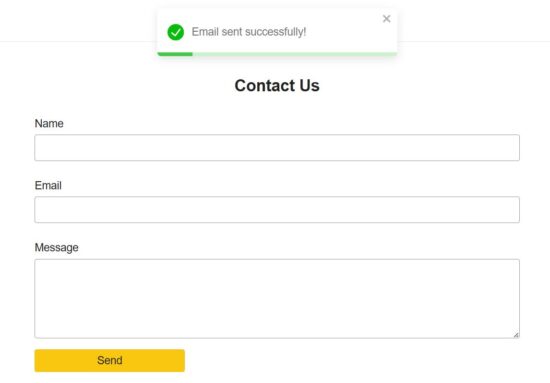
This example provides component for the email sending form fields. The fields UI code is moved to a separate file and made as a component. It is imported into the parent container in the EmailForm component.

It renders Name, Email and Message fields. Each fields is validated with a handleChange hook.

react send mail form

src/components/EmailFormFields.jsx

const EmailFormFields = ({ formData, handleChange }) => {
return ( <> <div className="form-group"> <label className="form-label">Name</label> <input type="text" name="name" value={formData.name} onChange={handleChange} className="form-input" required /> </div> <div className="form-group"> <label className="form-label">Email</label> <input type="email" name="email" value={formData.email} onChange={handleChange} className="form-input" required /> </div> <div className="form-group"> <label className="form-label">Message</label> <textarea name="message" value={formData.message} onChange={handleChange} className="form-input" rows="6" required ></textarea> </div> </>
);
};
export default EmailFormFields;

React JSX to load EmailJS and EmailFormFields Component

This JSX defines the handleChange and handleSubmit hooks for validation and mail sending respectively.

The form container includes the <EmailFormFields />, Submit button and a <ToastContainer />.

After sending email via emailjs, the handleSubmit action resets the form and make it ready for the next submit.

When submitting the form, the handleSubmit function sends the formData with the API keys and IDs. Configure your EmailJS keys and IDs to this React script to make this example to send email.

src/components/EmailForm.jsx

import { useState } from "react";
import emailjs from "emailjs-com";
import { ToastContainer, toast } from "react-toastify";
import "react-toastify/dist/ReactToastify.css";
import "../../public/assets/css/phppot-style.css";
import EmailFormFields from "./EmailFormFields"; const EmailForm = () => { const [formData, setFormData] = useState({ name: "", email: "", message: "", }); const handleChange = (e) => { const { name, value } = e.target; setFormData((prev) => ({ ...prev, [name]: value })); }; const handleSubmit = (e) => { e.preventDefault(); const SERVICE_ID = "Your Serivce ID"; const TEMPLATE_ID = "Your Template ID"; const PUBLIC_KEY = "EmailJS API Public key here"; emailjs .send(SERVICE_ID, TEMPLATE_ID, formData, PUBLIC_KEY) .then(() => { toast.success("Email sent successfully!", { position: "top-center" }); setFormData({ name: "", email: "", message: "" }); }) .catch(() => { toast.error("Failed to send email. Please try again.", { position: "top-center", }); }); }; return ( <div className="form-wrapper"> <h2 className="form-title">Contact Us</h2> <form onSubmit={handleSubmit} className="payment-form"> <EmailFormFields formData={formData} handleChange={handleChange} /> <button type="submit" className="submit-btn"> Send </button> </form> <ToastContainer /> </div> );
};
export default EmailForm;

Note: Form data is in an associate array format, where the array keys matches the email template variables. For example, if the email template body in the EmailJS dashboard contains Hi {{name}}, then the form data will have the key-value as name: submitted-name to replace the variable.

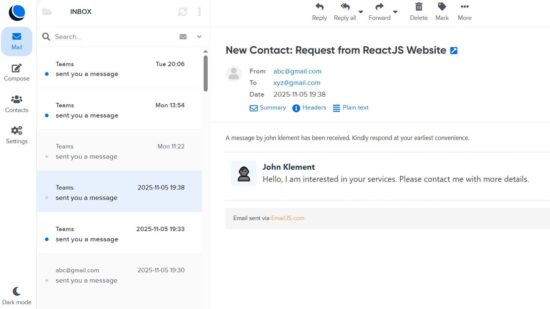
The receive email signature and the mail body design will be as configured in the EmailJS dashboard. The following diagram shows the received email output.

React Received Web Mail

Conclusion

Thus, we have created a frontend in React for sending email without any backend set up. I hope, you find EmailJS very simple to integrate into an application. And its registration process is very simple. And, the features to customize the email body is very useful to have a thematic email template for different applications.

Download

Vincy
Written by Vincy, a web developer with 15+ years of experience and a Masters degree in Computer Science. She specializes in building modern, lightweight websites using PHP, JavaScript, React, and related technologies. Phppot helps you in mastering web development through over a decade of publishing quality tutorials.

↑ Back to Top

Posted on Leave a comment

Save React Form Data to Google Sheets Without a Backend (Step-by-Step Guide)

by Vincy. Last modified on November 12th, 2025.

React form can be tied to a Google Sheets to store the submitted data. It maintains the form responses in an Excel format without database. This can be done by deploying a Google App Script for the target sheet.

In this tutorial, you will learn the steps to create a new Google App Script and deploy it for a Google Sheets.

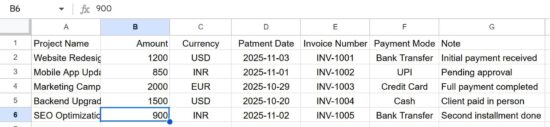
The Google Sheets will have columns relevant to the React form fields. The Google web app script URL parameters are in the same order as the column. In a previous tutorial, we saw how to connect Google Sheets via API from a PHP application.

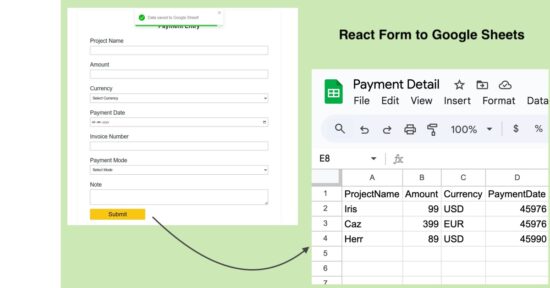
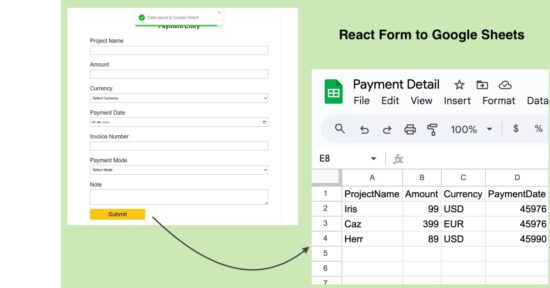
React Google Sheets No Backend Form

Steps to get Google Sheets URL to post form data

There are 5 simple steps to get the Google Sheets web app URL by registering an app script for a target sheet. At the end of these 5 steps, it will generate a URL that has to be configured in the React frontend code.

In the frontend, this URL will have a form data bundle to process the data row insertion as coded in the app script.

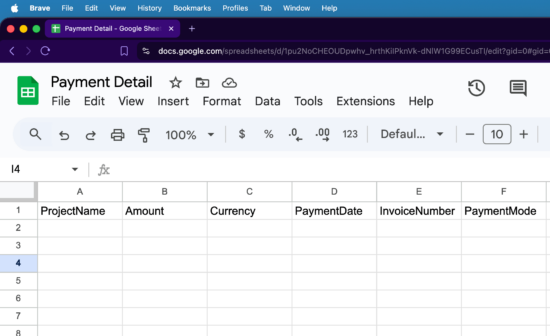
1. Create a Google sheet with the column relevant to the React form

Target Google Sheet

2. Navigate Extension -> App Script to add JS script to build row to insert

Append Row via JavaScript

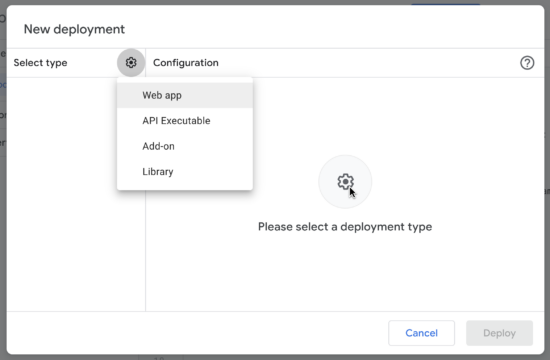
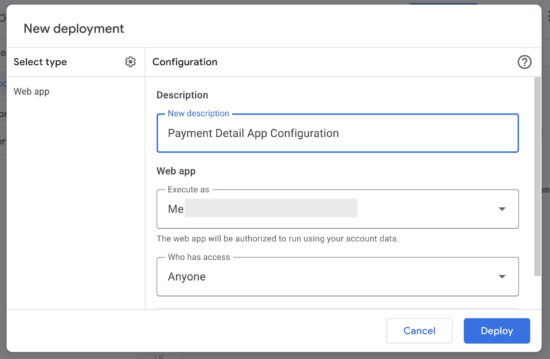
3. Choose Deploy -> New Deployment to configure web app

Configure Web App Type

4. Set ownership configurations and authorize the app

Configure Web App Restriction Settings

5. Click Deploy and copy the Google Sheets web app URL

Web App URL Generation

React frontend form JSX with required handlers

The ReactForm JSX component includes the form UI and hooks to process the form submit. This simple form collects payment details to store in the Google Sheets.

In the above steps we get the Google App script URL to target the sheet from the frontend. This URL is used in this JSX with the form’s handleSubmit function. This URL is added to the GOOGLE_SHEET_URL variable and used in the form action hook.

The URLSearchParams builds the argument list with the submitted React form data. Google Sheets URL will receive these arguments in key1=value1&key2=value2.. format.

Once the submitted data is added to the Google Sheets, the frontend will clear the form and show a success toast message to the user.

react google sheet form

src/components/ReactForm.jsx

import { useState } from "react";
import axios from "axios";
import { ToastContainer, toast } from "react-toastify";
import "react-toastify/dist/ReactToastify.css";
import "../../public/assets/css/react-style.css";
import PaymentFormFields from "./PaymentFormFields";
const GOOGLE_SHEET_URL = "Paste your Google Apps Script Web App URL here";
const ReactForm = () => { const [formData, setFormData] = useState({ projectName: "", amount: "", currency: "", paymentDate: "", invoiceNumber: "", paymentMode: "", note: "", }); const handleChange = (e) => { const { name, value } = e.target; setFormData((prev) => ({ ...prev, [name]: value })); }; const handleSubmit = async (e) => { e.preventDefault(); try { const params = new URLSearchParams(formData).toString(); const response = await axios.post(`${GOOGLE_SHEET_URL}?${params}`); if (response.data.status === "success") { toast.success("Data saved to Google Sheet!", { position: "top-center" }); setFormData({ projectName: "", amount: "", currency: "", paymentDate: "", invoiceNumber: "", paymentMode: "", note: "", }); } else { toast.error("Failed to save data. Try again.", { position: "top-center" }); } } catch (error) { console.error("Error:", error); toast.error("Something went wrong while submitting.", { position: "top-center", }); } }; return ( <div className="form-wrapper"> <h2 className="form-title">Payment Entry</h2> <form onSubmit={handleSubmit} className="payment-form"> <PaymentFormFields formData={formData} handleChange={handleChange} /> <button type="submit" className="submit-btn disabled={loading}"> {loading ? "Processing..." : "Submit"} </button> </form> <ToastContainer /> </div> );
};
export default ReactForm; 

src/components/PaymentFormFields.jsx

const PaymentFormFields = ({ formData, handleChange }) => { return ( <> <div className="form-group"> <label className="form-label">Project Name</label> <input type="text" name="projectName" value={formData.projectName} onChange={handleChange} className="form-input" required /> </div> <div className="form-group"> <label className="form-label">Amount</label> <input type="number" name="amount" value={formData.amount} onChange={handleChange} className="form-input" required /> </div> <div className="form-group"> <label className="form-label">Currency</label> <select name="currency" value={formData.currency} onChange={handleChange} className="form-input" required > <option value="">Select Currency</option> <option value="USD">USD</option> <option value="INR">INR</option> <option value="EUR">EUR</option> </select> </div> <div className="form-group"> <label className="form-label">Payment Date</label> <input type="date" name="paymentDate" value={formData.paymentDate} onChange={handleChange} className="form-input" required /> </div> <div className="form-group"> <label className="form-label">Invoice Number</label> <input type="text" name="invoiceNumber" value={formData.invoiceNumber} onChange={handleChange} className="form-input" required /> </div> <div className="form-group"> <label className="form-label">Payment Mode</label> <select name="paymentMode" value={formData.paymentMode} onChange={handleChange} className="form-input" required > <option value="">Select Mode</option> <option value="Cash">Cash</option> <option value="Bank Transfer">Bank Transfer</option> <option value="Credit Card">Credit Card</option> <option value="UPI">UPI</option> </select> </div> <div className="form-group"> <label className="form-label">Note</label> <textarea name="note" value={formData.note} onChange={handleChange} className="form-input" rows="3" ></textarea> </div> </> );
}; export default PaymentFormFields;

Appending new row to the Google Sheets using the Web App Script

I gave the web app script in the downloadable source code added to this tutorial. This JS script is added to the Google Sheets App script extension.

This script will be executed when the form post action calls the web app URL.  The doPost() function builds the Google Sheets row instance with the parameters posted from the form.

With the line sheet.appendRow(row); we can return the ContentService with a success response.

The formatOnly step is optional to maintain all the rows with the same styles as the sheet header has. For example, if you highlight any column with a bright background, that will be carried over to the next rows added by the app script.

react google sheet form data

google-sheet-app/app-script-target.js

function doPost(e) { if (!e || !e.parameter) { return ContentService .createTextOutput(JSON.stringify({ status: "error", message: "No parameters received" })) .setMimeType(ContentService.MimeType.JSON); } const sheet = SpreadsheetApp.getActiveSpreadsheet().getSheetByName("Sheet1"); const row = [ e.parameter.projectName || "", e.parameter.amount || "", e.parameter.currency || "", e.parameter.paymentDate || "", e.parameter.invoiceNumber || "", e.parameter.paymentMode || "", e.parameter.note || "", ]; sheet.appendRow(row); const lastRow = sheet.getLastRow(); const lastColumn = sheet.getLastColumn(); const headerRange = sheet.getRange(1, 1, 1, lastColumn); const newRowRange = sheet.getRange(lastRow, 1, 1, lastColumn); headerRange.copyTo(newRowRange, { formatOnly: true }); return ContentService .createTextOutput(JSON.stringify({ status: "success" })) .setMimeType(ContentService.MimeType.JSON);
}

Conclusion

By linking a React form to a Google Sheets via the Google Apps Script, form data is stored in excel format. This will be very useful to maintain form responses without a backend database. The App Script created for this tutorial provided a feature to keep the row column formatting with the newly added rows.

As an enhancement, we can extend this code to read Google sheets and show the latest records to the UI.

References

  1. Google Apps Script Web App documentation.
  2. Bundling form data with URL parameters.

Download

Vincy
Written by Vincy, a web developer with 15+ years of experience and a Masters degree in Computer Science. She specializes in building modern, lightweight websites using PHP, JavaScript, React, and related technologies. Phppot helps you in mastering web development through over a decade of publishing quality tutorials.

↑ Back to Top

Posted on Leave a comment

React + Node + MySQL CRUD App Tutorial (Full-Stack API Integration)

by Vincy. Last modified on November 6th, 2025.

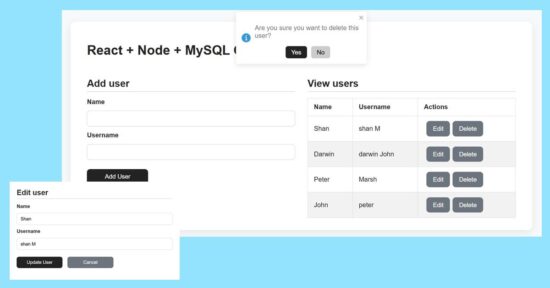
This tutorial has a React NodeJS example for building a full-stack CRUD application. It gives easy guidelines to design the frontend and backend. The frontend React connects the NodeJS API controllers to interact for creating, reading, updating, and deleting. This will provide persistent storage with a MySQL database connected via API DAOs.

React Node Mysql Crud Full Stack Tutorial

Add form design and user creation with NodeJS and MySQL

The user-create form contains only two fields to simplify the example. So, the React frontend assets manages states and props to carry these inputs’ data to post.

The addUser() props triggers the add action request to post the form data to the server.

It executes the insert query on clicking the ‘Add User’ button. The response will have the auto-generated key created on successful insert action of the CRUD functionality.

src/components/form/AddUserForm.jsx

import { useState } from 'react'
const AddUserForm = props => { const initialFormState = { id: null, name: '', username: '' } const [ user, setUser ] = useState(initialFormState) const handleInputChange = event => { const { name, value } = event.target setUser({ ...user, [name]: value }) }
return ( <form onSubmit={event => { event.preventDefault() if (!user.name || !user.username) return props.addUser(user) setUser(initialFormState) }}> <label>Name</label> <input type="text" name="name" value={user.name} onChange={handleInputChange} /> <label>Username</label> <input type="text" name="username" value={user.username} onChange={handleInputChange} /> <div className="action-buttons"> <button type="submit">Add User</button> </div> </form>
)
}
export default AddUserForm

part of userControllers.js

export const addUser = (req, res) => { const { name, username } = req.body; db.query("INSERT INTO users (name, username) VALUES (?, ?)", [name, username], (err, result) => { if (err) return res.status(500).json({ error: err.message }); res.json({ id: result.insertId, name, username }); });
};

react crud add user

Displaying user data rows with edit and delete action controls

The UserTable component displays the data table dynamically from the MySQL database. The prop.users tree map is used to form these rows to the UI.

Each row contains edit and delete controls that are bound to editRow and deleteUser functions respectively.

src/components/table/UserTable.jsx

import React from 'react'
const UserTable = props => ( <table> <thead> <tr> <th>Name</th> <th>Username</th> <th>Actions</th> </tr> </thead> <tbody> {props.users.length > 0 ? ( props.users.map(user => ( <tr key={user.id}> <td>{user.name}</td> <td>{user.username}</td> <td> <button onClick={() => { props.editRow(user) }} className="button muted-button" > Edit </button> <button onClick={() => props.deleteUser(user.id)} className="button muted-button" > Delete </button> </td> </tr> )) ) : ( <tr> <td colSpan={3}>No users</td> </tr> )} </tbody> </table>
)
export default UserTable

In NodeJS the getUsers() module reads all users into an JSON response array as built below.

part of userControllers.js

export const getUsers = (req, res) => { db.query("SELECT * FROM users", (err, results) => { if (err) return res.status(500).json({ error: err.message }); res.json(results); });
};

Updating current user by ID using update API in NodeJS

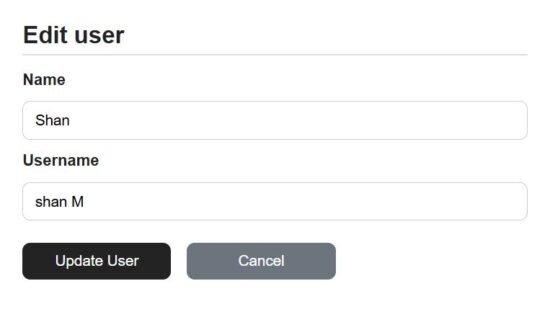
The add and edit forms are exactly same except that this edit form populated the existing user data. The currentUser props contains the exiting user details read by id.

On clicking the ‘Edit’ button the user id is passed to send the read request with the id.

Once the enduser edits the detail and submit, it request the NodeJS API to perform the update operation of the CRUD module.

Both add and edit button clicks prevents the default submit and requests the API via network call.

The edit form is used to view or edit the user details. When clicking cancel the editing directive is set to false to switch to the view mode.

src/components/form/EditUserForm

import { useState, useEffect } from 'react'
const EditUserForm = props => { const [user, setUser] = useState(props.currentUser) useEffect( () => { setUser(props.currentUser) }, [props] ) const handleInputChange = event => { const { name, value } = event.target setUser({ ...user, [name]: value }) }
return ( <form onSubmit={event => { event.preventDefault() props.updateUser(user.id, user) }} > <label>Name</label> <input type="text" name="name" value={user.name} onChange={handleInputChange} /> <label>Username</label> <input type="text" name="username" value={user.username} onChange={handleInputChange} /> <div className="action-buttons"> <button type="submit">Update User</button> <button onClick={() => props.setEditing(false)} className="button muted-button"> Cancel </button> </div> </form>
)
}
export default EditUserForm

In the NodeJS, the backend user controller has an exclusive handle to prepare the user update query.

It binds the request parameter to the update query to go with the update operation.

part of userControllers.js

export const updateUser = (req, res) => { const { id } = req.params; const { name, username } = req.body; db.query("UPDATE users SET name=?, username=? WHERE id=?", [name, username, id], (err) => { if (err) return res.status(500).json({ error: err.message }); res.json({ id, name, username }); });
};

react crud edit user

Deleting a user row via NodeJS controller

As like as an edit request, the delete action is also receives the user’s unique id in the request parameter.

The backend Node API receives the id and process the delete operation.

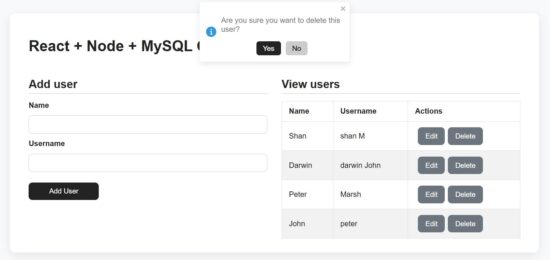
In the React frontend, it shows confirmation message in a toast box to avoid the mistakes.

part of userControllers.js

export const deleteUser = (req, res) => { const { id } = req.params; db.query("DELETE FROM users WHERE id=?", [id], (err) => { if (err) return res.status(500).json({ error: err.message }); res.json({ message: "User deleted" }); });
};

react crud delete user

How to run the React + NodeJS example?

Set up the MySQL database:

First find the /api/sql/users.sql file from the downloadable source code given in this React + NodeJS CRUD example.

Create a database and import that SQL script into that. Then Configure the database details to the db.js file in the NodeJS API root.
Start the backend NodeJS server:

Go to the NodeJS api path and start the server via npm. It will return the server running path http://localhost:5000/

In this example this backend api URL is configured with a specific constant for convenience. It avoid the overhead of changing in multiple places based on the environment.

cd /path/api npm install npm start node server.js

Start the frontend React dev:

Go to the app location path and start the dev server. This will start the dev server http://localhost:5173/

cd react-node-mysql-crud-full-stack-tutorial npm install npm run dev

Conclusion

This tutorial built a simple code for React + Node.js + MySQL CRUD. The code for designing frontend and connecting the NodeJS API together gives a full stack execution sample. I hope, you learned how to read and display dynamic data from backend to React components and also how to manipulate them. The server controller is with appropriate cases to handle the CRUD with MySQL to store, retrieve, update, and delete data. With this base, it is easy to add more features to this CRUD utility.

References:

  1. Installing MySQL client in NodeJS
  2. Secured database accessing with prepared statements.

Download

Vincy
Written by Vincy, a web developer with 15+ years of experience and a Masters degree in Computer Science. She specializes in building modern, lightweight websites using PHP, JavaScript, React, and related technologies. Phppot helps you in mastering web development through over a decade of publishing quality tutorials.

↑ Back to Top

Posted on Leave a comment

Best Ways to Remove Unicode from List in Python

5/5 – (1 vote)

When working with lists that contain Unicode strings, you may encounter characters that make it difficult to process or manipulate the data or handle internationalized content or content with emojis 😻. In this article, we will explore the best ways to remove Unicode characters from a list using Python.

You’ll learn several strategies for handling Unicode characters in your lists, ranging from simple encoding techniques to more advanced methods using list comprehensions and regular expressions.

Understanding Unicode and Lists in Python

Combining Unicode strings and lists in Python is common when handling different data types. You might encounter situations where you need to remove Unicode characters from a list, for instance, when cleaning or normalizing textual data.

😻 Unicode is a universal character encoding standard that represents text in almost every writing system used today. It assigns a unique identifier to each character, enabling the seamless exchange and manipulation of text across various platforms and languages. In Python 2, Unicode strings are represented with the u prefix, like u'Hello, World!'. However, in Python 3, all strings are Unicode by default, making the u prefix unnecessary.

⛓ Lists are a built-in Python data structure used to store and manipulate collections of items. They are mutable, ordered, and can contain elements of different types, including Unicode strings.

For example:

my_list = ['Hello', u'世界', 42]

While working with Unicode and lists in Python, you may discover challenges related to encoding and decoding strings, especially when transitioning between Python 2 and Python 3. Several methods can help you overcome these challenges, such as encode(), decode(), and using various libraries.

Method 1: ord() for Unicode Character Identification

One common method to identify Unicode characters is by using the isalnum() function. This built-in Python function checks if all characters in a string are alphanumeric (letters and numbers) and returns True if that’s the case, otherwise False. When working with a list, you can simply iterate through each string item and use isalnum() to determine if any Unicode characters are present.

The isalnum() function in Python checks whether all the characters in a text are alphanumeric (i.e., either letters or numbers) and does not specifically identify Unicode characters. Unicode characters can also be alphanumeric, so isalnum() would return True for many Unicode characters.

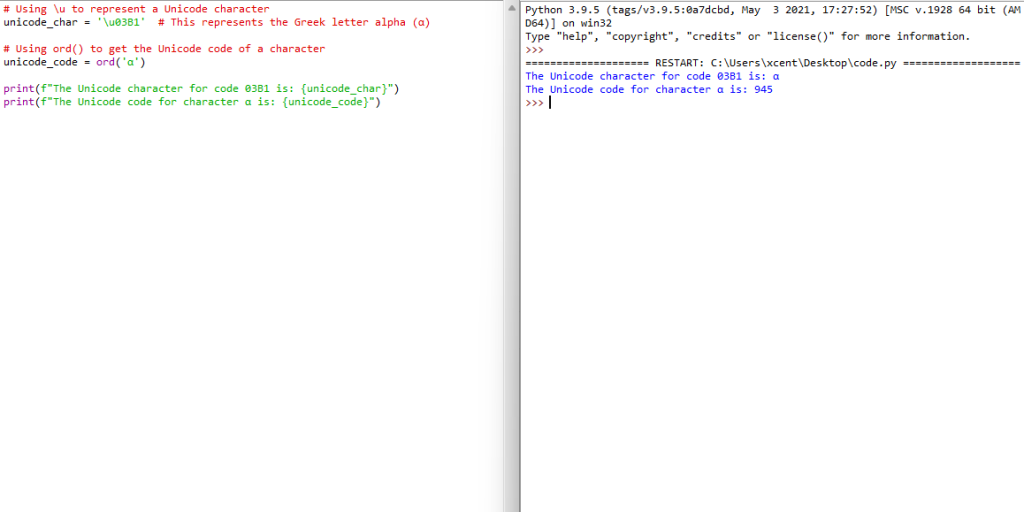
To identify or work with Unicode characters in Python, you might use the ord() function to get the Unicode code of a character, or \u followed by the Unicode code to represent a character. Here’s a brief example:

# Using \u to represent a Unicode character
unicode_char = '\u03B1' # This represents the Greek letter alpha (α) # Using ord() to get the Unicode code of a character
unicode_code = ord('α') print(f"The Unicode character for code 03B1 is: {unicode_char}")
print(f"The Unicode code for character α is: {unicode_code}")

In this example:

  • \u03B1 is used to represent the Greek letter alpha (α) using its Unicode code.
  • ord('α') returns the Unicode code for the Greek letter alpha, which is 945.

If you want to identify whether a string contains non-ASCII characters (which might be what you’re interested in when you talk about identifying Unicode characters), you might use something like the following code:

def contains_non_ascii(s): return any(ord(char) >= 128 for char in s) # Example usage:
s = "Hello α"
print(contains_non_ascii(s)) # Output: True print(contains_non_ascii('Hello World')) # Output: False

In this function, contains_non_ascii(s), it checks each character in the string s to see if it has a Unicode code greater than or equal to 128 (i.e., it is not an ASCII character). If any such character is found, it returns True; otherwise, it returns False.

Method 2: Regex for Unicode Identification

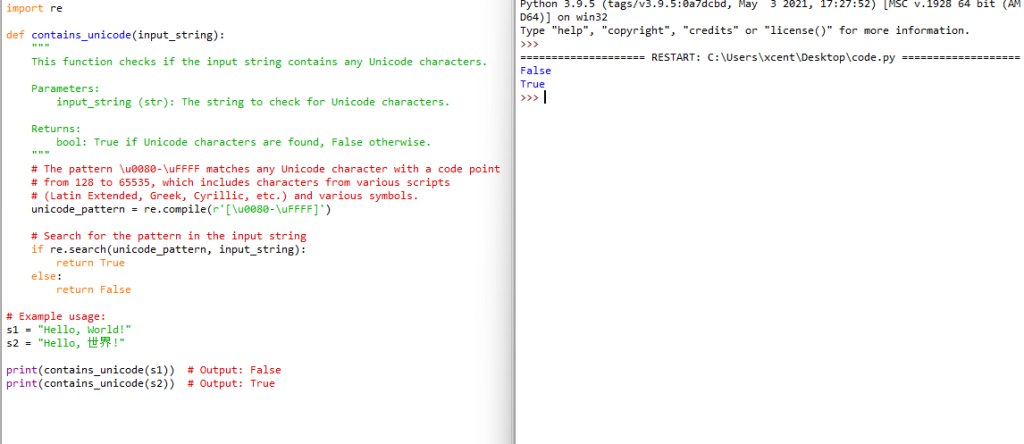
Using regular expressions (regex) is a powerful way to identify Unicode characters in a string. Python’s re module can be utilized to create patterns that can match Unicode characters. Below is an example method that uses a regular expression to identify whether a string contains any Unicode characters:

import re def contains_unicode(input_string): """ This function checks if the input string contains any Unicode characters. Parameters: input_string (str): The string to check for Unicode characters. Returns: bool: True if Unicode characters are found, False otherwise. """ # The pattern \u0080-\uFFFF matches any Unicode character with a code point # from 128 to 65535, which includes characters from various scripts # (Latin Extended, Greek, Cyrillic, etc.) and various symbols. unicode_pattern = re.compile(r'[\u0080-\uFFFF]') # Search for the pattern in the input string if re.search(unicode_pattern, input_string): return True else: return False # Example usage:
s1 = "Hello, World!"
s2 = "Hello, 世界!" print(contains_unicode(s1)) # Output: False
print(contains_unicode(s2)) # Output: True

Explanation:

  • [\u0080-\uFFFF]: This pattern matches any character with a Unicode code point from U+0080 to U+FFFF, which includes various non-ASCII characters.
  • re.search(unicode_pattern, input_string): This function searches the input string for the defined Unicode pattern.
  • If the pattern is found in the string, the function returns True; otherwise, it returns False.

This method will help you identify strings containing Unicode characters from various scripts and symbols. This pattern does not match ASCII characters (code points U+0000 to U+007F) or non-BMP characters (code points above U+FFFF).

If you want to learn about Python’s search() function in regular expressions, check out my tutorial and tutorial video:

YouTube Video

Method 3: Encoding and Decoding for Unicode Removal

When dealing with Python lists containing Unicode characters, you might find it necessary to remove them. One effective method to achieve this is by using the built-in string encoding and decoding functions. This section will guide you through the process of Unicode removal in lists by employing the encode() and decode() methods.

First, you will need to encode the Unicode string into the ASCII format. It is essential because the ASCII encoding only supports ASCII characters, and any Unicode characters that are outside the ASCII range will be automatically removed. For this, you can utilize the encode() function with its parameters set to the ASCII encoding option and error handling set to 'ignore'.

For example:

string_unicode = "𝕴 𝖆𝖒 𝕴𝖗𝖔𝖓𝖒𝖆𝖓!"
string_ascii = string_unicode.encode('ascii', 'ignore')

After encoding the string to ASCII, it is time to decode it back to a UTF-8 format. This step is essential to ensure the list items retain their original text data and stay readable. You can use the decode() function to achieve this conversion. Here’s an example:

string_utf8 = string_ascii.decode('utf-8')

Now that you have successfully removed the Unicode characters, your Python list will only contain ASCII characters, making it easier to process further. Let’s take a look at a practical example with a list of strings.

list_unicode = ["𝕴 𝖆𝖒 𝕴𝖗𝖔𝖓𝖒𝖆𝖓!", "This is an ASCII string", "𝕿𝖍𝖎𝖘 𝖎𝖘 𝖚𝖓𝖎𝖈𝖔𝖉𝖊"]
list_ascii = [item.encode('ascii', 'ignore').decode('utf-8') for item in list_unicode] print(list_unicode)
# ['𝕴 𝖆𝖒 𝕴𝖗𝖔𝖓𝖒𝖆𝖓!', 'This is an ASCII string', '𝕿𝖍𝖎𝖘 𝖎𝖘 𝖚𝖓𝖎𝖈𝖔𝖉𝖊'] print(list_ascii)
# [' !', 'This is an ASCII string', ' ']

In this example, the list_unicode variable comprises three different strings, two with Unicode characters and one with only ASCII characters. By employing a list comprehension, you can apply the encoding and decoding process to each string in the list.

💡 Recommended: Python List Comprehension – The Ultimate Guide

Remember always to be careful when working with Unicode texts. If the string with Unicode characters contains crucial information or an essential part of the data you are processing, you should consider keeping the Unicode characters and using proper Unicode-compatible solutions.

Method 4: The Replace Function for Unicode Removal

When working with lists in Python, it is common to come across Unicode characters that need to be removed or replaced. One technique to achieve this is by using Python’s replace() function.

The replace() function is a built-in method in Python strings, which allows you to replace occurrences of a substring within a given string. To remove specific Unicode characters from a list, you can first convert the list elements into strings, then use the replace() function to handle the specific Unicode characters.

Here’s a simple example:

original_list = ["Róisín", "Björk", "Héctor"]
new_list = [] for item in original_list: new_item = item.replace("ó", "o").replace("ö", "o").replace("é", "e") new_list.append(new_item) print(new_list) # ['Roisin', 'Bjork', 'Hector']

When dealing with a larger set of Unicode characters, you can use a dictionary to map each character to be replaced with its replacement. For example:

unicode_replacements = { "ó": "o", "ö": "o", "é": "e", # Add more replacements as needed.
} original_list = ["Róisín", "Björk", "Héctor"]
new_list = [] for item in original_list: for key, value in unicode_replacements.items(): item = item.replace(key, value) new_list.append(item) print(new_list) # ['Roisin', 'Bjork', 'Hector']

Of course, this is only useful if you have specific Unicode characters to remove. Otherwise, use the previous Method 3.

Method 5: Regex Substituion for Replacing Non-ASCII Characters

When working with text data in Python, non-ASCII characters can often cause issues, especially when parsing or processing data. To maintain a clean and uniform text format, you might need to deal with these characters and remove or replace them as necessary.

One common technique is to use list comprehension coupled with a character encoding method such as .encode('ascii', 'ignore'). You can loop through the items in your list, encode them to ASCII, and ignore any non-ASCII characters during the encoding process. Here’s a simple example:

data_list = ["𝕴 𝖆𝖒 𝕴𝖗𝖔𝖓𝖒𝖆𝖓!", "Hello, World!", "你好!"]
clean_data_list = [item.encode("ascii", "ignore").decode("ascii") for item in data_list]
print(clean_data_list)
# Output: [' m mn!', 'Hello, World!', '']

In this example, you’ll notice that non-ASCII characters are removed from the text, leaving the ASCII characters intact. This method is both clear and easy to implement, which makes it a reliable choice for most situations.

Another approach is to use regular expressions to search for and remove all non-ASCII characters. The Python re module provides powerful pattern matching capabilities, making it an excellent tool for this purpose. Here’s an example that shows how you can use the re module to remove non-ASCII characters from a list:

import re data_list = ["𝕴 𝖆𝖒 𝕴𝖗𝖔𝖓𝖒𝖆𝖓!", "Hello, World!", "你好!"]
ascii_only_pattern = re.compile(r"[^\x00-\x7F]")
clean_data_list = [re.sub(ascii_only_pattern, "", item) for item in data_list]
print(clean_data_list) # Output: [' !', 'Hello, World!', '']

In this example, we define a regular expression pattern that matches any character outside the ASCII range ([^\x00-\x7F]). We then use the re.sub() function to replace any matching characters with an empty string.

Frequently Asked Questions

How can I efficiently replace Unicode characters with ASCII in Python?

To efficiently replace Unicode characters with ASCII in Python, you can use the unicodedata library. This library provides the normalize() function which can convert Unicode strings to their closest ASCII equivalent. For example:

import unicodedata def unicode_to_ascii(s): return ''.join(c for c in unicodedata.normalize('NFD', s) if unicodedata.category(c) != 'Mn')

This function will replace Unicode characters with their ASCII equivalents, making your Python list easier to work with.

What are the best methods to remove Unicode characters in Pandas?

Pandas has a built-in method that helps you remove Unicode characters in a DataFrame. You can use the applymap() function in conjunction with the lambda function to remove any non-ASCII character from your DataFrame. For example:

import pandas as pd data = {'col1': [u'こんにちは', 'Pandas', 'DataFrames']}
df = pd.DataFrame(data) df = df.applymap(lambda x: x.encode('ascii', 'ignore').decode('ascii'))

This will remove all non-ASCII characters from the DataFrame, making it easier to process and analyze.

How do I get rid of all non-English characters in a Python list?

To remove all non-English characters in a Python list, you can use list comprehension and the isalnum() function from the str class. For example:

data = [u'こんにちは', u'Hello', u'안녕하세요'] result = [''.join(c for c in s if c.isalnum() and ord(c) &#x3C; 128) for s in data]

This approach filters out any character that isn’t alphanumeric or has an ASCII value greater than 127.

What is the most effective way to eliminate Unicode characters from an SQL string?

To eliminate Unicode characters from an SQL string, you should first clean the data in your programming language (e.g., Python) before inserting it into the SQL database. In Python, you can use the re library to remove Unicode characters:

import re def clean_sql_string(s): return re.sub(r'[^\x00-\x7F]+', '', s)

This function will remove any non-ASCII characters from the string, ensuring that your SQL query is free of Unicode characters.

How can I detect and handle Unicode characters in a Python script?

To detect and handle Unicode characters in a Python script, you can use the ord() function to check if a character’s Unicode code point is outside the ASCII range. This allows you to filter out any Unicode characters in a string. For example:

def is_ascii(s): return all(ord(c) < 128 for c in s)

You can then handle the detected Unicode characters accordingly, such as using replace() to substitute them with appropriate ASCII characters or removing them entirely.

What techniques can be employed to remove non-UTF-8 characters from a text file using Python?

To remove non-UTF-8 characters from a text file using Python, you can use the following method:

  1. Open the file in binary mode.
  2. Decode the file’s content with the ‘UTF-8’ encoding, using the ‘ignore’ or ‘replace’ error handling mode.
  3. Write the decoded content back to the file.
with open('file.txt', 'rb') as file: content = file.read() cleaned_content = content.decode('utf-8', 'ignore') with open('cleaned_file.txt', 'w', encoding='utf-8') as file: file.write(cleaned_content)

This will create a new text file without non-UTF-8 characters, making your data more accessible and usable.

Footnotes

  1. 7 Best Ways to Remove Unicode Characters in Python
  2. What is the simplest way to remove unicode ‘u’ from a list

The post Best Ways to Remove Unicode from List in Python appeared first on Be on the Right Side of Change.

Posted on Leave a comment

Disruptive Innovation – A Friendly Guide for Small Coding Startups

5/5 – (1 vote)

Disruptive innovation, a concept introduced in 1995, has become a wildly popular concept explaining innovation-driven growth.

The Disruptive Innovation Model

Clayton Christensen’s “Disruptive Innovation Model” refers to a theory that explains how smaller companies can successfully challenge established incumbent businesses. Here’s a detailed breakdown:

📈 Disruptive Innovation refers to a new technology, process, or business model that disrupts an existing market. Disruptive innovations often start as simpler, cheaper, and lower-quality solutions compared to existing offerings. They often target an underserved or new market segment. They often create a different value network within the market. However, truly disruptive innovation companies improve over time and eventually displace existing market participants.

In fact, there are two general types of disruptive innovation models:

  • Low-End Disruption: Targets the least profitable customers who are typically overserved by the incumbent’s existing offering.
  • New-Market Disruption: Targets customers with needs previously unserved by existing incumbents. You may have heard of the “blue ocean strategy”.

Low-end disruption is exemplified by Southwest Airlines and BIC Disposable Razors. Southwest Airlines disrupted the aviation industry by focusing on providing basic, reliable, and cost-effective air travel, appealing to price-sensitive customers and those who might opt for alternative transportation. BIC, on the other hand, introduced affordable disposable razors, offering a satisfactory solution for customers unwilling to pay a premium for high-end razors, thereby securing a substantial market share.

In terms of new-market disruption, Tesla Motors and Coursera stand out. Tesla targeted environmentally conscious consumers, offering electric vehicles that didn’t compromise on performance or luxury, creating a new market for high-performance electric vehicles and prompting other manufacturers to expedite their EV programs. After introducing the high-end luxury cars, Tesla subsequently moved down market and even announced in the “Master Plan Part 3” that they plan to release a $25k electric car. Coursera disrupted the traditional educational model by providing online courses from renowned universities to a global audience, creating a new market for online education.

The Blue Ocean Strategy, which is somewhat related to new-market disruption, emphasizes innovating and creating new demand in unexplored market areas, or “Blue Oceans”, instead of competing in saturated markets, or “Red Oceans”. An example of this strategy is the Nintendo Wii, which carved out a new market space by targeting casual gamers with simpler, family-friendly games and innovative controllers, thereby reaching an entirely new demographic of consumers and avoiding direct competition with powerful gaming consoles like Xbox and PlayStation.

The disruptive innovation process often plays out like so:

  • Introduction: The innovation is introduced, often with skepticism from established players.
  • Evolution: The innovation evolves and improves, gradually becoming more appealing to a wider customer base.
  • Disruption: The innovation becomes good enough to meet the needs of most customers, disrupting the status quo.
  • Domination: The innovators often come to dominate the market, replacing the previous incumbents.

Technological advancements typically undergo an S-curve progression, as seen with smartphones, which experienced slow initial adoption, followed by rapid uptake, and eventually, market saturation.

Companies often align innovations with their existing value networks, ensuring new products resonate with their established customer base, like how Apple’s product ecosystem is meticulously designed to ensure customer retention and continuous engagement.

The implications of disruptive innovation are profound, with established companies, such as Kodak, often facing dilemmas and organizational inertia in adopting new technologies due to a deep-rooted focus on existing offerings and customer bases.

To navigate through disruptive waters, incumbents might employ strategies like establishing separate units dedicated to innovation, akin to how Google operates Alphabet to explore varied ventures, adopting agile methodologies for nimble operations, and maintaining a relentless focus on evolving customer needs to stay relevant and competitive in the market.

📈🧑‍💻 Here’s my personal key take-away (not financial advice):

It is tough to create a huge disruptive startup. It is easy to disrupt a tiny niche.

A great strategy that I found extremely profitable is to focus on a tiny niche within your career, keep optimizing daily, and invest your income in star businesses, i.e., disruptive innovation companies in high-growth markets (>10% per year) that are also market leaders.

Only invest in companies or opportunities that are both, in a high-growth market and leader of this market.

Bitcoin, for example, is the leader of a high-growth market (=digital store of value). Tesla, another example, is the leader of a high-growth market (=autonomous electric vehicles).

A Short Primer on the Star Principle — And How It’ll Make You Rich

The Star Principle, articulated by Richard Koch, underscores the potency of investing in or creating a ‘star venture’ to amass wealth and success in business.

A star venture is characterized by two pivotal attributes: (1) it is a leader in a high-growth market and (2) it operates within a niche that is expanding rapidly.

The allure of a star business emanates from its ability to combine niche leadership with high niche growth, enabling it to potentially command price premiums, lower costs, and subsequently, attain higher profits and cash flow.

The principle asserts that positioning is the key to success, provided that the positioning is truly exceptional and the venture is a star business. However, it’s imperative to note that star ventures are not devoid of risks; the primary pitfall being the loss of leadership within its niche, which can drastically diminish its value.

While star ventures are relatively rare, with perhaps one in twenty startups being a star, they are not so scarce that they cannot be discovered or created with thoughtful consideration and patience.

The principle emphasizes that whether you are an employee, an aspiring venture leader, or an investor, aligning yourself with a star venture can pave the way to a prosperous and enriched life.

Here’s a list of 20 example star businesses from the past (some are still stars ⭐):

  1. Apple: Dominates various tech niches, offering premium products that command higher prices.
  2. Amazon: A leader in e-commerce and cloud computing, consistently expanding into new markets.
  3. Google (Alphabet): Dominates the search engine market and has successful ventures like YouTube.
  4. Facebook (Meta): Leads in social media through platforms like Facebook, Instagram, and WhatsApp.
  5. Microsoft: A leader in software, cloud services, and hardware, with a vast, growing ecosystem.
  6. Tesla: Revolutionizing the electric vehicle market and autonomous technologies. The bot!
  7. Netflix: A dominant player in the streaming service industry, with a massive global subscriber base.
  8. Alibaba: A leader in e-commerce, cloud computing, and various other sectors in China and globally.
  9. Shopify: A giant in the e-commerce platform space, enabling myriad online stores globally.
  10. Zoom: Became essential for virtual communication, especially during the pandemic, and continues to grow.
  11. Spotify: Leading the music streaming industry with a vast library and substantial subscriber base.
  12. PayPal: A major player in the digital payments space, facilitating global e-commerce.
  13. Adobe: Dominates several software niches, including graphic design and document management.
  14. Salesforce: Leads in customer relationship management (CRM) software and platform technology.
  15. NVIDIA: A dominant force in GPUs, expanding into AI, machine learning, and autonomous vehicles.
  16. Airbnb: Revolutionized the hospitality industry, becoming a go-to platform for home-sharing.
  17. Square: Innovating in the financial and mobile payment sectors, providing solutions for small businesses.
  18. Uber: Despite controversies, it remains a significant player in ride-hailing and has expanded into food delivery.
  19. Tencent: A conglomerate leader in various sectors, including social media, gaming, and fintech, particularly in China.
  20. Samsung: A leader in various tech niches, including smartphones, semiconductors, and consumer electronics.

These businesses have demonstrated leadership in their respective niches and have experienced significant growth, aligning with the Star Principle’s criteria of operating in high-growth markets and being a leader in those markets.

Let’s dive into some practical strategies you can use as a small coding business owner to become more innovative, possibly disruptive in a step-by-step manner:

9-Step Guide to Leverage the Disruptive Innovation Model for a Small Coding Business

Step 1: Identify Underserved Needs

Imagine embarking on a journey to create a startup named “ChatHealer,” an online platform that uses Large Language Models (LLMs) and the OpenAI API to provide instant, empathetic, and anonymous conversational support for individuals experiencing stress or emotional challenges.

Step 2: Define Your Value Proposition

In the initial phase, identifying underserved needs is crucial. A thorough market research might reveal that there’s a gap in providing immediate, non-clinical emotional support to individuals in a highly accessible and non-judgmental platform.

⭐ The unique value proposition of ChatHealer would be its ability to offer instant, 24/7 emotional support through intelligent and empathetic conversational agents, ensuring user anonymity and privacy.

Step 3: Develop a Minimum Viable Product (MVP) to Validate and Iterate

The development of a Minimum Viable Product (MVP) would involve creating a basic version of ChatHealer, focusing on core functionalities like user authentication, basic conversational abilities, and ensuring data security. The MVP would be introduced to a select group of users, and their feedback would be paramount in validating and iterating the product, ensuring it aligns with user expectations and experiences.

💡 Recommended: Minimum Viable Product (MVP) in Software Development — Why Stealth Sucks

Step 4: Utilize LLMs and AI to Scale Labor and Find a Business Model

Leveraging LLMs and AI, ChatHealer could enhance its conversational agents to understand and respond to user inputs more empathetically and contextually, providing a semblance of genuine human interaction.

📈 The business model might adopt a freemium approach, offering basic conversational support for free while providing a premium subscription that includes additional features like personalized emotional support journeys, and perhaps, priority access to human professionals.

Step 5: Focus on Customer Experience and Scale Gradually

Ensuring a seamless and supportive customer experience would be pivotal, as the nature of ChatHealer demands a safe and nurturing environment. As the platform gains traction, gradual scaling would involve introducing ChatHealer to wider demographics and possibly integrating multilingual support to cater to a global audience.

Step 6: Continuous Improvements

Continuous improvement would be embedded in ChatHealer’s operations, ensuring that the platform evolves with technological advancements and user needs. Building partnerships, perhaps with mental health professionals and organizations, could enhance its credibility and provide a pathway for users to access further support if needed.

Step 7: Manage Finances Wisely

Prudent financial management would ensure that funds are judiciously utilized, maintaining a balance between technological development, marketing, and operations. Cultivating a culture of innovation within the team ensures that ChatHealer remains at the forefront of technological and therapeutic advancements, always exploring new ways to provide support to its users.

📈 Recommended: The Math of Becoming a Millionaire in 13 Years

Step 8: Adaptability and Compliance

Adaptability would be key, as ChatHealer would need to be ready to pivot its strategies and offerings in response to user needs, technological advancements, and market trends. Ensuring that all operations, especially data handling and user interactions, adhere to legal and compliance standards would be paramount to maintain user trust and regulatory adherence.

Step 9: Measure and Analyze Throughout the Process

Lastly, employing analytics to measure and analyze user engagement, subscription conversions, and user feedback would be instrumental in shaping ChatHealer’s future strategies and innovations, ensuring that it not only remains a disruptive innovation but also a sustained, valuable service in the emotional support domain.

Case Study: Is Uber a Disruptive Innovation?

In this section, we will explore whether Uber is a disruptive innovation by examining its origins and how its quality compares to the mainstream market expectations.

Disruptive Innovations Start with Low-End or New-Market Footholds

Disruptive innovations typically begin in low-end or new-market footholds, as incumbents often focus on their most profitable and demanding customers. This focus can lead to less attention being paid to less-demanding customers, allowing disruptors to introduce products that cater to these neglected market segments.

However, Uber did not originate with either a low-end or new-market foothold. It did not start by targeting non-consumers or finding a low-end opportunity. Instead, Uber was launched in San Francisco, which already had a well-established taxi market. Its primary customers were individuals who already had the habit of hiring rides. Therefore, Uber did not follow the typical pattern of disruptive innovations that begin with low-end or new-market footholds.

Quality Must Align with Mainstream Expectations in Disruptive Innovations

Disruptive innovations are initially perceived as inferior in comparison to the offerings by established companies. Mainstream customers are hesitant to adopt these new, typically cheaper, alternatives until their quality satisfies their expectations.

In the case of Uber, most elements of its strategy appear to be sustaining innovations. Its service is often regarded as equal or superior to existing taxi services, with convenient booking, cashless payments, and a passenger rating system. Additionally, Uber generally offers competitive pricing and reliable service. In response to Uber, established taxi companies have implemented similar technologies and challenged the legality of some of Uber’s offerings.

Based on these factors, Uber cannot be considered a true disruptive innovation. While it has certainly impacted the taxi market and incited changes among traditional taxi companies, it did not originate from classic low-end or new-market footholds, and its service quality aligns with mainstream expectations rather than being perceived as initially inferior.

Frequently Asked Questions

What makes disruptive innovation different from regular innovations?

Disruptive innovation refers to a process where a smaller company with fewer resources challenges established businesses by entering at the bottom of the market and moving up-market. This is different from traditional or incremental innovations, which usually improve existing products or services for existing customers.

Can you give some examples of disruptive innovation in the healthcare sector?

Some examples of disruptive innovation in healthcare include:

  • Telemedicine: Remote consultations through video calls, making healthcare services more accessible.
  • Wearable health technology: Wearable devices that monitor and track health data, empowering individuals to take control of their health.
  • Electronic health records (EHR): Digitizing patient records for more efficient and secure management of information.

Which companies have successfully implemented disruptive innovation?

Some well-known companies that implemented disruptive innovation strategies include:

  • Netflix (transforming the way we consume video content)
  • Uber (redefining transportation services)
  • Airbnb (disrupting the hospitality industry)
  • Slack (changing team communication and collaboration)

Could you share some low-end disruptive innovation examples?

Low-end disruption refers to innovations targeting customers who are not well-served by the incumbent companies due to high prices or complex products. Examples include:

  • IKEA (providing affordable and stylish furniture)
  • Southwest Airlines (offering low-cost air travel)
  • Xiaomi (manufacturing and selling high-quality smartphones at affordable prices)

What is the process for introducing disruptive innovations?

Launching disruptive innovations typically involves the following steps:

  1. Identify an underserved market segment or new niche.
  2. Develop a cost-effective, simple, and efficient solution targeting this segment.
  3. Iterate and improve the product or service offering as you learn more about customers and the market.
  4. Gradually move up-market, improving the product or service as it gains traction and market share.

Can you provide examples of new market disruptions?

New market disruptions typically create entirely new markets that did not exist before. Examples include:

  • E-commerce platforms like Amazon (creating a massive online marketplace)
  • Social media platforms like Facebook (connecting people worldwide and creating an advertising market)
  • Streaming music services like Spotify (transforming how individuals listen to music and generating revenue through subscriptions and ads)

If you want to keep learning disruptive technologies, why not becoming an expert prompt engineer with our Finxter Academy Courses (all-you-can-learn) such as this one: 👇

The post Disruptive Innovation – A Friendly Guide for Small Coding Startups appeared first on Be on the Right Side of Change.

Posted on Leave a comment

5 Expert-Approved Ways to Remove Unicode Characters from a Python Dict

5/5 – (1 vote)

The best way to remove Unicode characters from a Python dictionary is a recursive function that iterates over each key and value, checking their type.

✅ If a value is a dictionary, the function calls itself.
✅ If a value is a string, it’s encoded to ASCII, ignoring non-ASCII characters, and then decoded back to a string, effectively removing any Unicode characters.

This ensures a thorough cleansing of the entire dictionary.

Here’s a minimal example for copy&paste

def remove_unicode(obj): if isinstance(obj, dict): return {remove_unicode(key): remove_unicode(value) for key, value in obj.items()} elif isinstance(obj, str): return obj.encode('ascii', 'ignore').decode('ascii') return obj # Example usage
my_dict = {'key': 'valüe', 'këy2': {'kêy3': 'vàlue3'}}
cleaned_dict = remove_unicode(my_dict)
print(cleaned_dict)

In this example, remove_unicode is a recursive function that traverses the dictionary. If it encounters a dictionary, it recursively cleans each key-value pair. If it encounters a string, it encodes the string to ASCII, ignoring non-ASCII characters, and then decodes it back to a string. The example usage shows a nested dictionary with Unicode characters, which are removed in the cleaned_dict.


Understanding Unicode and Dictionaries in Python

You may come across dictionaries containing Unicode values. These Unicode values can be a hurdle when using the data in specific formats or applications, such as JSON editors. To overcome these challenges, you can use various methods to remove the Unicode characters from your dictionaries.

One popular method to remove Unicode characters from a dictionary is by using the encode() method to convert the keys and values within the dictionary into a different encoding, such as UTF-8. This can help you eliminate the 'u' prefix, which signifies a character is a Unicode character. Similarly, you can use external libraries, like Unidecode, that provide functions to transliterate Unicode strings into the closest possible ASCII representation (source).

💡 Recap: Python dictionaries are a flexible data structure that allows you to store key-value pairs. They enable you to organize and access your data more efficiently. A dictionary can hold a variety of data types, including Unicode strings. Unicode is a widely-used character encoding standard that includes a huge range of characters from different scripts and languages.

When working with dictionaries in Python, you might encounter Unicode strings as keys or values. For example, a dictionary might have keys or values in various languages or contain special characters like emojis (🙈🙉🙊). This diversity is because Python supports Unicode characters to allow for broader text representation and internationalization.

To create a dictionary containing Unicode strings, you simply define key-value pairs with the appropriate Unicode characters. In some cases, you might also have nested dictionaries, where a dictionary’s value is another dictionary. Nested dictionaries can also contain Unicode strings as keys or values.

Consider the following example:

my_dictionary = { "name": "François", "languages": { "primary": "Français", "secondary": "English" }, "hobbies": ["music", "فنون-القتال"]
}

In this example, the dictionary represents a person’s information, including their name, languages, and hobbies. Notice that both the name and primary language contain Unicode characters, and one of the items in the hobbies list is also represented using Unicode characters.

When working with dictionary data that contains Unicode characters, you might need to remove or replace these characters for various purposes, such as preprocessing text for machine learning applications or ensuring compatibility with ASCII-only systems. Several methods can help you achieve this, such as using Python’s built-in encode() and decode() methods or leveraging third-party libraries like Unidecode.
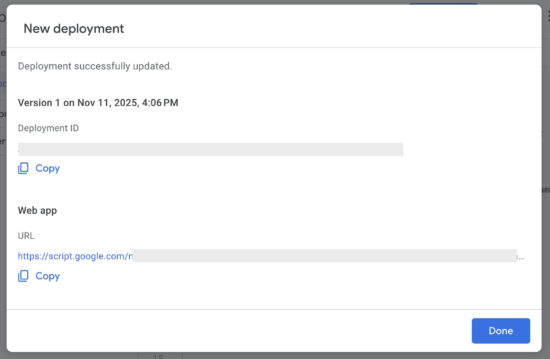
Now that you have a better understanding of Unicode and dictionaries in Python, you can confidently work with dictionary data containing Unicode characters and apply appropriate techniques to remove or replace them when necessary.
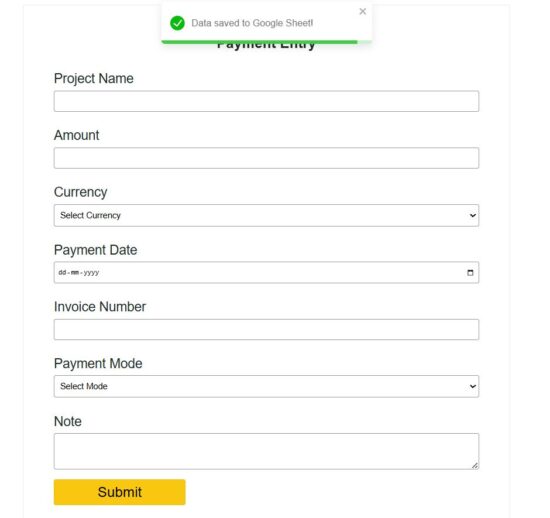
Challenges with Unicode in Dictionaries

Your data may contain special characters from different languages. These characters can lead to display, sorting, and searching problems, especially when your goal is to process the data in a way that is language-agnostic.

One of the main challenges with Unicode characters in dictionaries is that they can cause compatibility issues when interacting with certain libraries, APIs, or external tools. For instance, JSON editors may struggle to handle Unicode properly, potentially resulting in malformed data. Additionally, some libraries may not be specifically designed to handle Unicode, and even certain text editors may not display these characters correctly.

💡 Note: Another issue arises when attempting to remove Unicode characters from a dictionary. You may initially assume that using functions like .encode() or .decode() would be sufficient, but these functions can sometimes leave the 'u' prefix, which denotes a unicode string, in place. This can lead to confusion and unexpected results when working with the data.

To address these challenges, various methods can be employed to remove Unicode characters from dictionaries:

  1. Method 1: You could try converting your dictionary to a JSON object, and then back to a dictionary with the help of the json library. This process can effectively remove the Unicode characters, making your data more compatible and easier to work with.
  2. Method 2: Alternatively, you can use a library like unidecode to convert Unicode to ASCII characters, which can be helpful in cases where you need to interact with systems or APIs that only accept ASCII text.
  3. Method 3: Another option is to use list or dict comprehensions to iterate over your data and apply the .encode() and .decode() methods, effectively stripping the unicode characters from your dictionary.

Below are minimal code snippets for each of the three approaches:

Method 1: Using JSON Library

import json my_dict = {'key': 'valüe'}
# Convert dictionary to JSON object and back to dictionary
cleaned_dict = json.loads(json.dumps(my_dict, ensure_ascii=True))
print(cleaned_dict)

In this example, the dictionary is converted to a JSON object and back to a dictionary, ensuring ASCII encoding, which removes Unicode characters.

Method 2: Using Unidecode Library

from unidecode import unidecode my_dict = {'key': 'valüe'}
# Use unidecode to convert Unicode to ASCII
cleaned_dict = {k: unidecode(v) for k, v in my_dict.items()}
print(cleaned_dict)

Here, the unidecode library is used to convert each Unicode string value to ASCII, iterating over the dictionary with a dict comprehension.

Method 3: Using List or Dict Comprehensions

my_dict = {'key': 'valüe'}
# Use .encode() and .decode() to remove Unicode characters
cleaned_dict = {k.encode('ascii', 'ignore').decode(): v.encode('ascii', 'ignore').decode() for k, v in my_dict.items()}
print(cleaned_dict)

In this example, a dict comprehension is used to iterate over the dictionary. The .encode() and .decode() methods are applied to each key and value to strip Unicode characters.

💡 Recommended: Python Dictionary Comprehension: A Powerful One-Liner Tutorial

Fundamentals of Removing Unicode

When working with dictionaries in Python, you may sometimes encounter Unicode characters that need to be removed. In this section, you’ll learn the fundamentals of removing Unicode characters from dictionaries using various techniques.

Firstly, it’s important to understand that Unicode characters can be present in both keys and values of a dictionary. A common scenario that may require you to remove Unicode characters is when you need to convert your dictionary into a JSON object.

One of the simplest ways to remove Unicode characters is by using the str.encode() and str.decode() methods. You can loop through the dictionary, and for each key-value pair, apply these methods to remove any unwanted Unicode characters:

new_dict = {}
for key, value in old_dict.items(): new_key = key.encode('ascii', 'ignore').decode('ascii') if isinstance(value, str): new_value = value.encode('ascii', 'ignore').decode('ascii') else: new_value = value new_dict[new_key] = new_value

Another useful method, particularly for removing Unicode characters from strings, is the isalnum() function. You can use this in combination with a loop to clean your keys and values:

def clean_unicode(string): return "".join(c for c in string if c.isalnum() or c.isspace()) new_dict = {}
for key, value in old_dict.items(): new_key = clean_unicode(key) if isinstance(value, str): new_value = clean_unicode(value) else: new_value = value new_dict[new_key] = new_value

As you can see, removing Unicode characters from a dictionary in Python can be achieved using these techniques.

Using Id and Ast for Unicode Removal

Utilizing the id and ast libraries in Python can be a powerful way to remove Unicode characters from a dictionary. The ast library, in particular, offers an s-expression parser which makes processing text data more straightforward. In this section, you will follow a step-by-step guide to using these powerful tools effectively.

First, you need to import the necessary libraries. In your Python script, add the following lines to import json and ast:

import json
import ast

The next step is to define your dictionary containing Unicode strings. Let’s use the following example dictionary:

my_dict = {u'Apple': [u'A', u'B'], u'orange': [u'C', u'D']}

Now, you can utilize the json.dumps() function and ast.literal_eval() for the Unicode removal process. The json.dumps() function converts the dictionary into a JSON-formatted string. This function removes the Unicode 'u' from the keys and values in your dictionary. After that, you can employ the ast.literal_eval() s-expression parser to convert the JSON-formatted string back to a Python dictionary.

Here’s how to perform these steps:

json_string = json.dumps(my_dict)
cleaned_dict = ast.literal_eval(json_string)

After executing these lines, you will obtain a new dictionary called cleaned_dict without the Unicode characters. Simply put, it should look like this:

{'Apple': ['A', 'B'], 'orange': ['C', 'D']}

By using the id and ast libraries, you can efficiently remove Unicode characters from dictionaries in Python. Following this simple yet effective method, you can ensure the cleanliness of your data, making it easier to work with and process.

Replacing Unicode Characters with Empty String

When working with dictionaries in Python, you might come across cases where you need to remove Unicode characters. One efficient way to do this is by replacing Unicode characters with empty strings.

To achieve this, you can make use of the encode() and decode() string methods available in Python. First, you need to loop through your dictionary and access the strings. Here’s how you can do it:

for key, value in your_dict.items(): cleaned_key = key.encode("ascii", "ignore").decode() cleaned_value = value.encode("ascii", "ignore").decode() your_dict[cleaned_key] = cleaned_value

In this code snippet, the encode() function encodes the string into ‘ASCII’ format and specifies the error-handling mode as ‘ignore’, which helps remove Unicode characters. The decode() function is then used to convert the encoded string back to its original form, without the Unicode characters.

💡 Note: This method assumes your dictionary contains only string keys and values. If your dictionary has nested values, such as lists or other dictionaries, you’ll need to adjust the code to handle those cases as well.

If you want to perform this operation on a single string instead, you can do this:

cleaned_string = original_string.encode("ascii", "ignore").decode()

Applying Encode and Decode Methods

When you need to remove Unicode characters from a dictionary, applying the encode() and decode() methods is a straightforward and effective approach. In Python, these built-in methods help you encode a string into a different character representation and decode byte strings back to Unicode strings.

To remove Unicode characters from a dictionary, you can iterate through its keys and values, applying the encode() and decode() methods. First, encode the Unicode string to ASCII, specifying the 'ignore' error handling mode. This mode omits any Unicode characters that do not have an ASCII representation. After encoding the string, decode it back to a regular string.

Here’s an example:

input_dict = {"𝕴𝖗𝖔𝖓𝖒𝖆𝖓": "𝖙𝖍𝖊 𝖍𝖊𝖗𝖔", "location": "𝕬𝖛𝖊𝖓𝖌𝖊𝖗𝖘 𝕿𝖔𝖜𝖊𝖗"}
output_dict = {} for key, value in input_dict.items(): encoded_key = key.encode("ascii", "ignore") decoded_key = encoded_key.decode() encoded_value = value.encode("ascii", "ignore") decoded_value = encoded_value.decode() output_dict[decoded_key] = decoded_value

In this example, the output_dict will be a new dictionary with the same keys and values as input_dict, but with Unicode characters removed:

{"Ironman": "the hero", "location": "Avengers Tower"}

Keep in mind that the encode() and decode() methods may not always produce an accurate representation of the original Unicode characters, especially when dealing with complex scripts or diacritic marks.

If you need to handle a wide range of Unicode characters and preserve their meaning in the output string, consider using libraries like Unidecode. This library can transliterate any Unicode string into the closest possible representation in ASCII text, providing better results in some cases.

Utilizing JSON Dumps and Literal Eval

When dealing with dictionaries containing Unicode characters, you might want an efficient and user-friendly way to remove or bypass the characters. Two useful techniques for this purpose are using json.dumps from the json module and ast.literal_eval from the ast module.

To begin, import both the json and ast modules in your Python script:

import json
import ast

The json.dumps method is quite handy for converting dictionaries with Unicode values into strings. This method takes a dictionary and returns a JSON formatted string. For instance, if you have a dictionary containing Unicode characters, you can use json.dumps to obtain a string version of the dictionary:

original_dict = {"key": "value with unicode: \u201Cexample\u201D"}
json_string = json.dumps(original_dict, ensure_ascii=False)

The ensure_ascii=False parameter in json.dumps ensures that Unicode characters are encoded in the UTF-8 format, making the JSON string more human-readable.

Next, you can use ast.literal_eval to evaluate the JSON string and convert it back to a dictionary. This technique allows you to get rid of any unnecessary Unicode characters by restricting the data structure to basic literals:

cleaned_dict = ast.literal_eval(json_string)

Keep in mind that ast.literal_eval is more secure than the traditional eval() function, as it only evaluates literals and doesn’t execute any arbitrary code.

By using both json.dumps and ast.literal_eval in tandem, you can effectively manage Unicode characters in dictionaries. These methods not only help to remove Unicode characters but also assist in maintaining a human-readable format for further processing and editing.

Managing Unicode in Nested Dictionaries

Dealing with Unicode characters in nested dictionaries can sometimes be challenging. However, you can efficiently manage this by following a few simple steps.

First and foremost, you need to identify any Unicode content within your nested dictionary. If you’re working with large dictionaries, consider looping through each key-value pair and checking for the presence of Unicode.

One approach to remove Unicode characters from nested dictionaries is to use the Unidecode library. This library transliterates any Unicode string into the closest possible ASCII representation. To use Unidecode, you’ll need to install it first:

pip install Unidecode

Now, you can begin working with the Unidecode library. Import the library and create a function to process each value in the dictionary. Here’s a sample function that handles nested dictionaries:

from unidecode import unidecode def remove_unicode_from_dict(dictionary): new_dict = {} for key, value in dictionary.items(): if isinstance(value, dict): new_value = remove_unicode_from_dict(value) elif isinstance(value, list): new_value = [remove_unicode_from_dict(item) if isinstance(item, dict) else item for item in value] elif isinstance(value, str): new_value = unidecode(value) else: new_value = value new_dict[key] = new_value return new_dict

This function recursively iterates through the dictionary, removing Unicode characters from string values and maintaining the original structure. Use this function on your nested dictionary:

cleaned_dict = remove_unicode_from_dict(your_nested_dictionary)

Handling Special Cases with Regular Expressions

When working with dictionaries in Python, you may come across special characters or Unicode characters that need to be removed or replaced. Using the re module in Python, you can leverage the power of regular expressions to effectively handle such cases.

Let’s say you have a dictionary with keys and values containing various Unicode characters. One efficient way to remove them is by combining the re.sub() function and ord() function. First, import the required re module:

import re

To remove special characters, you can use the re.sub() function, which takes a pattern, replacement, and a string as arguments, and returns a new string with the specified pattern replaced:

string_with_special_chars = "𝓣𝓱𝓲𝓼 𝓲𝓼 𝓪 𝓽𝓮𝓼𝓽 𝓼𝓽𝓻𝓲𝓷𝓰."
clean_string = re.sub(r"[^\x00-\x7F]+", "", string_with_special_chars)

ord() is a useful built-in function that returns the Unicode code point of a given character. You can create a custom function utilizing ord() to check if a character is alphanumeric:

def is_alphanumeric(char): code_point = ord(char) return (code_point >= 48 and code_point <= 57) or (code_point >= 65 and code_point <= 90) or (code_point >= 97 and code_point <= 122)

Now you can use this custom function along with the re.sub() function to clean up your dictionary:

def clean_dict_item(item): return "".join([char for char in item if is_alphanumeric(char) or char.isspace()]) original_dict = {"𝓽𝓮𝓼𝓽1": "𝓗𝓮𝓵𝓵𝓸 𝓦𝓸𝓻𝓵𝓭!", "𝓽𝓮𝓼𝓽2": "𝓘 𝓵𝓸𝓿𝓮 𝓟𝔂𝓽𝓱𝓸𝓷!"}
cleaned_dict = {clean_dict_item(key): clean_dict_item(value) for key, value in original_dict.items()} print(cleaned_dict)
# {'1': ' ', '2': ' '}

Frequently Asked Questions

How can I eliminate non-ASCII characters from a Python dictionary?

To eliminate non-ASCII characters from a Python dictionary, you can use a dictionary comprehension with the str.encode() method and the ascii codec. This will replace non-ASCII characters with their escape codes. Here’s an example:

original_dict = {"key": "value with non-ASCII character: ę"}
cleaned_dict = {k: v.encode("ascii", "ignore").decode() for k, v in original_dict.items()}

What is the best way to remove hex characters from a string in Python?

One efficient way to remove hex characters from a string in Python is using the re (regex) module. You can create a pattern to match hex characters and replace them with nothing. Here’s a short example code:

import re
text = "Hello \x00World!"
clean_text = re.sub(r"\\x\d{2}", "", text)

How to replace Unicode characters with ASCII in a Python dict?

To replace Unicode characters with their corresponding ASCII characters in a Python dictionary, you can use the unidecode library. Install it using pip install unidecode, and then use it like this:

from unidecode import unidecode
original_dict = {"key": "value with non-ASCII character: ę"}
ascii_dict = {k: unidecode(v) for k, v in original_dict.items()}

How can I filter out non-ascii characters in a dictionary?

To filter out non-ASCII characters in a Python dictionary, you can use a dictionary comprehension along with a string comprehension to create new strings containing only ASCII characters.

original_dict = {"key": "value with non-ASCII character: ę"}
filtered_dict = {k: "".join(char for char in v if ord(char) < 128) for k, v in original_dict.items()}

What method should I use to remove ‘u’ from a list in Python?

If you want to remove the ‘u’ Unicode prefix from a list of strings, you can simply convert each element to a regular string using a list comprehension:

unicode_list = [u"example1", u"example2"]
string_list = [str(element) for element in unicode_list]

How do I handle and remove special characters from a dictionary?

Handling and removing special characters from a dictionary can be accomplished using the re module to replace unwanted characters with an empty string or a suitable replacement. Here’s an example:

import re
original_dict = {"key": "value with special character: #!"}
cleaned_dict = {k: re.sub(r"[^A-Za-z0-9\s]+", "", v) for k, v in original_dict.items()}

This will remove any character that is not an alphanumeric character or whitespace from the dictionary values.


If you learned something new today, feel free to join my free email academy. We have cheat sheets too! ✅

The post 5 Expert-Approved Ways to Remove Unicode Characters from a Python Dict appeared first on Be on the Right Side of Change.