Posted on Leave a comment

Alien Technology: Catching Up on LLMs, Prompting, ChatGPT Plugins & Embeddings

5/5 – (2 votes)

What is a LLM?

💡 From a technical standpoint, a large language model (LLM) can be seen as a massive file on a computer, containing billions or even trillions of numerical values, known as parameters. These parameters are fine-tuned through extensive training on diverse datasets, capturing the statistical properties of human language.

However, such a dry description hardly does justice to the magic of LLMs. From another perspective, they function almost like an oracle. You call upon them with a query, such as llm("What is the purpose of life"), and they may respond with something witty, insightful, or enigmatic, like "42" (a humorous nod to Douglas Adams’ The Hitchhiker’s Guide to the Galaxy).

By the way, you can check out my article on using LLMs like this in the command line here: 👇

💡 Recommended: How to Run Large Language Models (LLMs) in Your Command Line?

Isn’t it wild to think about how Large Language Models (LLMs) can turn math into something almost magical? It’s like they’re blending computer smarts with human creativity, and the possibilities are just getting started.

Now, here’s where it gets really cool.

These LLMs take all kinds of complex patterns and knowledge and pack them into binary files full of numbers. We don’t really understand what these numbers represent but together they encode a deep understanding of the world. LLMs are densely compressed human wisdom, knowledge, and intelligence. Now imagine having these files and being able to copy them millions of times, running them all at once.

It’s like having a huge team of super-smart people, but they’re all in your computer.

So picture this: Millions of brainy helpers in your pocket, working day and night on anything you want.

👨‍⚕️ You know how doctors are always trying to figure out the best way to treat illnesses? Imagine having millions of super-smart helpers to quickly find the answers.

📈 Or think about your savings and investments; what if you had a team of top financial experts guiding you 24/7 to make the smartest choices with your money?

🏫 And for kids in school, picture having a personal tutor for every subject, making sure they understand everything perfectly. LLMs is like having an army of geniuses at your service for anything you need.

LLMs, what Willison calls alien technology, have brought us closer to solving the riddle of intelligence itself, turning what was once the exclusive domain of human cognition into something that can be copied, transferred, and harnessed like never before.

I’d go as far as to say that the age-old process of reproducing human intelligence has been transcended. Intelligence is solved. LLMs will only become smarter from now on. Like the Internet, LLMs will stay and proliferate and penetrate every single sector of our economy.

How Do LLMs Work?

The underlying mechanism of Large Language Models (LLMs) might seem almost counterintuitive when you delve into how they operate. At their core, LLMs are essentially word-prediction machines, fine-tuned to anticipate the most likely next word (more precisely: token) in a sequence.

For example consider ChatGPT’s LLM chat interface that has reached product market fit and is used by hundreds of millions of users. The ingenious “hack” that allows LLMs to participate in a chat interface is all about how the input is framed. In essence, the model isn’t inherently conversing with a user; it’s continuing a text, based on a conversational pattern it has learned from vast amounts of data.

Consider this simplified example:

You are a helpful assistant User: What is the purpose of life?
Assistant: 42
User: Can you elaborate?
Assistant:

Here’s what’s happening under the hood:

  1. Setting the Scene: The introductory line, "You are a helpful assistant" sets a context for the LLM. It provides an instruction to guide its responses, influencing its persona.
  2. User Input: The following lines are framed as a dialogue, but to the LLM, it’s all part of a text it’s trying to continue. When the user asks, "What is the purpose of life?" the LLM looks at this as the next part of a story, or a scene in a play, and attempts to predict the next word or phrase that makes the most sense.
  3. Assistant Response: The assistant’s response, "42" is the model’s guess for the next word, given the text it has seen so far. It’s a clever completion, reflecting the model’s training on diverse and creative texts. In the second run, however, the whole conversation is used as input and the LLM just completes the conversation.
  4. Continuing the Conversation: When the user follows up with "Can you elaborate?" the LLM is once again seeking to continue the text. It’s not consciously leading a conversation but following the statistical patterns it has learned, which, in this context, would typically lead to an elaboration.

The magic is in how all these elements come together to create an illusion of a conversation. In reality, the LLM doesn’t understand the conversation or its participants. It’s merely predicting the next word, based on an intricately crafted pattern.

This “dirty little hack” transforms a word-prediction engine into something that feels interactive and engaging, demonstrating the creative application of technology and the power of large-scale pattern recognition. It’s a testament to human ingenuity in leveraging statistical learning to craft experiences that resonate on a very human level.

💡 Prompt Engineering is a clever technique used to guide the behavior of Large Language Models (LLMs) by crafting specific inputs, or prompts, that steer the model’s responses. It’s akin to creatively “hacking” the model to generate desired outputs.

For example, if you want the LLM to act like a Shakespearean character, you might begin with a prompt like "Thou art a poet from the Elizabethan era". The model, recognizing the pattern and language style, will respond in kind, embracing a Shakespearean tone.

This trickery through carefully designed prompts transforms a word-prediction machine into a versatile and interactive tool that can mimic various styles and tones, all based on how you engineer the initial prompt.

Prompt Engineering with Python and OpenAI
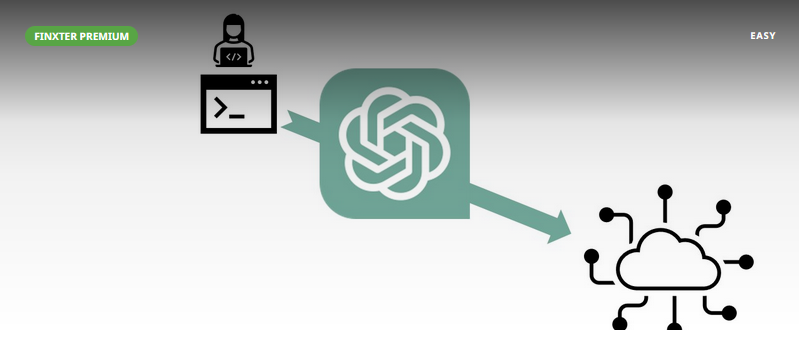
You can check out the whole course on OpenAI Prompt Engineering using Python on the Finxter academy. We cover topics such as:

  • Embeddings
  • Semantic search
  • Web scraping
  • Query embeddings
  • Movie recommendation
  • Sentiment analysis

👨‍💻 Academy: Prompt Engineering with Python and OpenAI

What’s the Secret of LLMs?

The secret to the magical capabilities of Large Language Models (LLMs) seems to lie in a simple and perhaps surprising element: scale. 👇

The colossal nature of these models is both their defining characteristic and the key to their unprecedented performance.

Tech giants like Meta, Google, and Microsoft have dedicated immense resources to developing LLMs. How immense? We’re talking about millions of dollars spent on cutting-edge computing power and terabytes of textual data to train these models. It’s a gargantuan effort that converges in a matrix of numbers — the model’s parameters — that represent the learned patterns of human language.

The scale here isn’t just large; it’s virtually unprecedented in computational history. These models consist of billions or even trillions of parameters, fine-tuned across diverse and extensive textual datasets. By throwing such vast computational resources at the problem, these corporations have been able to capture intricate nuances and create models that understand and generate human-like text.

However, this scale comes with challenges, including the enormous energy consumption of training such models, the potential biases embedded in large-scale data, and the barrier to entry for smaller players who can’t match the mega corporations’ resources.

The story of LLMs is a testament to the “bigger is better” philosophy in the world of artificial intelligence. It’s a strategy that seems almost brute-force in nature but has led to a qualitative leap in machine understanding of human language. It illustrates the power of scale, paired with ingenuity and extensive resources, to transform a concept into a reality that pushes the boundaries of what machines can achieve.

Attention Is All You Need

The 2017 paper by Google “Attention is All You Need” marked a significant turning point in the world of artificial intelligence. It introduced the concept of transformers, a novel architecture that is uniquely scalable, allowing training to be run across many computers in parallel both efficiently and easily.

This was not just a theoretical breakthrough but a practical realization that the model could continually improve with more and more compute and data.

💡 Key Insight: By using unprecedented amount of compute on unprecedented amount of data on a simple neural network architecture (transformers), intelligence seems to emerge as a natural phenomenon.

Unlike other algorithms that may plateau in performance, transformers seemed to exhibit emerging properties that nobody fully understood at the time. They could understand intricate language patterns, even developing coding-like abilities. The more data and computational power thrown at them, the better they seemed to perform. They didn’t converge or flatten out in effectiveness with increased scale, a behavior that was both fascinating and mysterious.

OpenAI, under the guidance of Sam Altman, recognized the immense potential in this architecture and decided to push it farther than anyone else. The result was a series of models, culminating in state-of-the-art transformers, trained on an unprecedented scale. By investing in massive computational resources and extensive data training, OpenAI helped usher in a new era where large language models could perform tasks once thought to be exclusively human domains.

This story highlights the surprising and yet profound nature of innovation in AI.

A simple concept, scaled to extraordinary levels, led to unexpected and groundbreaking capabilities. It’s a reminder that sometimes, the path to technological advancement isn’t about complexity but about embracing a fundamental idea and scaling it beyond conventional boundaries. In the case of transformers, scale was not just a means to an end but a continually unfolding frontier, opening doors to capabilities that continue to astonish and inspire.

Ten Tips to Use LLMs Effectively

As powerful and versatile as Large Language Models (LLMs) are, harnessing their full potential can be a complex endeavor.

Here’s a series of tricks and insights to help tech enthusiasts like you use them effectively:

  1. Accept that No Manual Exists: There’s no step-by-step guide to mastering LLMs. The field is still relatively new, and best practices are continually evolving. Flexibility and a willingness to experiment are essential.
  2. Iterate and Refine: Don’t reject the model’s output too early. Your first output might not be perfect, but keep iterating. Anyone can get an answer from an LLM, but extracting good answers requires persistence and refinement. You can join our prompt engineering beginner and expert courses to push your own understanding to the next level.
  3. Leverage Your Domain Knowledge: If you know coding, use LLMs to assist with coding tasks. If you’re a marketer, apply them for content generation. Your expertise in a particular area will allow you to maximize the model’s capabilities.
  4. Understand How the Model Works: A rough understanding of the underlying mechanics can be immensely beneficial. Following tech news, like our daily Finxter emails, can keep you informed and enhance your ability to work with LLMs.
  5. Gain Intuition by Experimenting: Play around with different prompts and settings. Daily hands-on practice can lead to an intuitive feel for what works and what doesn’t.
  6. Know the Training Cut-off Date: Different models have different cut-off dates. For example, OpenAI’s GPT-3.5 models were trained until September 2021, while Claude 2 Anthropic and Google PaLM 2 are more recent. This can affect the accuracy and relevance of the information they provide.
  7. Understand Context Length: Models have limitations on the number of tokens (words, characters, spaces) they can handle. It’s 4000 tokens for GPT-3, 8000 for GPT-4, and 100k for Claude 2. Tailoring your input to these constraints will yield better results.
  8. Develop a “Sixth Sense” for Hallucinations: Sometimes, LLMs may generate information that seems plausible but is incorrect or hallucinated. Developing an intuition for recognizing and avoiding these instances is key to reliable usage.
  9. Stay Engaged with the Community: Collaborate with others, join forums, and stay abreast of the latest developments. The collective wisdom of the community is a powerful asset in mastering these technologies.
  10. Be Creative: Prompt the model for creative ideas (e.g., "Give me 20 ideas on X"). The first answers might be obvious, but further down the list, you might find a spark of brilliance.

Retrieval Augmented Generation

💡 Retrieval Augmented Generation (RAG) represents an intriguing intersection between the vast capabilities of Large Language Models (LLMs) and the power of information retrieval. It’s a technique that marries the best of both worlds, offering a compelling approach to generating information and insights.

Here’s how it works and why it’s making waves in the tech community:

What is Retrieval Augmented Generation?

RAG is a method that, instead of directly training a model on specific data or documents, leverages the vast information already available on the internet. By searching for relevant content, it pulls this information together and uses it as a foundation for asking an LLM to generate an answer.

Figure: Example of a simple RAG procedure pasting Wikipedia data into the context of a ChatGPT LLM prompt to extract useful information.

How Does RAG Work?

  1. Search for Information: First, a search is conducted for content relevant to the query or task at hand. This could involve scouring databases, the web, or specialized repositories.
  2. Prepend the Retrieved Data: The content found is then prepended to the original query or prompt. Essentially, it’s added to the beginning of the question or task you’re posing to the LLM.
  3. Ask the Model to Answer: With this combined prompt, the LLM is then asked to generate an answer or complete the task. The prepended information guides the model’s response, grounding it in the specific content retrieved.

Why is RAG Valuable?

  • Customization: It allows for tailored responses based on real-world data, not just the general patterns an LLM has learned from its training corpus.
  • Efficiency: Rather than training a specialized model, which can be costly and time-consuming, RAG leverages existing models and augments them with relevant information.
  • Flexibility: It can be applied to various domains, from coding to medical inquiries, by merely adapting the retrieval component to the area of interest.
  • Quality: By guiding the model with actual content related to the query, it often results in more precise and contextually accurate responses.

Retrieval Augmented Generation represents an elegant solution to some of the challenges in working with LLMs. It acknowledges that no model, no matter how large, can encapsulate the entirety of human knowledge. By dynamically integrating real-time information retrieval, RAG opens new horizons for LLMs, making them even more versatile and responsive to specific and nuanced inquiries.

In a world awash with information, the fusion of search and generation through RAG offers a sophisticated tool for navigating and extracting value. Here’s my simple formula for RAG:

USEFULNESS ~ LLM_CAPABILITY * CONTEXT_DATA or more simply: 👇
USEFULNESS ~ Intelligence * Information

Let’s examine an advanced and extremely powerful technique to provide helpful context to LLMs and, thereby, get the most out of it: 👇

Embeddings and Vector Search: A Special Case of Retrieval Augmented Generation (RAG)

In the broader context of RAG, a specialized technique called “Embeddings and Vector Search” takes text-based exploration to a new level, allowing for the construction of semantic search engines that leverage the capabilities of LLMs.

Here’s how it works:

Transforming Text into Embeddings

  1. Text to Vector Conversion: Any string of text, be it a sentence, paragraph, or document, can be transformed into an array of floating-point numbers, or an “embedding”. This embedding encapsulates the semantic meaning of the text based on the LLM’s mathematical model of human language.
  2. Dimensionality: These embeddings are positioned in a high-dimensional space, e.g., 1,536 dimensions. Each dimension represents a specific aspect of the text’s semantic content, allowing for a nuanced representation.

Example: Building a Semantic Search Engine

  1. Cosine Similarity Distance: To find the closest matches to a given query, the cosine similarity distance between vectors is calculated. This metric measures how closely the semantic meanings align between the query and the existing embeddings.
  2. Combining the Brain (LLM) with Application Data (Embedding): By pairing the vast understanding of language embedded in LLMs with specific application data through embeddings, you create a bridge between generalized knowledge and specific contexts.
  3. Retrieval and Augmentation: The closest matching embeddings are retrieved, and the corresponding text data is prepended to the original query. This process guides the LLM’s response, just as in standard RAG.

Why is this Technique Important?

You can use embeddings as input to LLM prompts to provide context in a highly condensed and efficient form. This solves one half of the problem of using LLMs effectively!

  • Precision: It offers a finely-tuned mechanism for retrieving content that semantically resonates with a given query.
  • Scalability: The method can be applied to vast collections of text, enabling large-scale semantic search engines.
  • Customization: By building embeddings from specific data sources, the search process can be tailored to the unique needs and contexts of different applications.

💡 Embeddings are a powerful extension of the RAG paradigm, enabling a deep, semantic understanding of text. By translating text into numerical vectors and leveraging cosine similarity, this technique builds bridges between the abstract mathematical understanding of language within LLMs and the real-world applications that demand precise, context-aware responses.

Using embeddings in OpenAI is as simple as running the following code:

response = openai.Embedding.create( input="Your text string goes here", model="text-embedding-ada-002"
)
embeddings = response['data'][0]['embedding']

Possible output:

{ "data": [ { "embedding": [ -0.006929283495992422, -0.005336422007530928, ... -4.547132266452536e-05, -0.024047505110502243 ], "index": 0, "object": "embedding" } ], "model": "text-embedding-ada-002", "object": "list", "usage": { "prompt_tokens": 5, "total_tokens": 5 }
}

If you want to dive deeper into embeddings, I recommend checking out our blog post and the detailed OpenAI guide!

💡 Recommended: What Are Embeddings in OpenAI?

ChatGPT Plugins

OpenAI has recently announced the initial support for plugins in ChatGPT. As part of the gradual rollout of these tools, the intention is to augment language models with capabilities that extend far beyond their existing functionalities.

💡 ChatGPT plugins are tools specifically designed for language models to access up-to-date information, run computations, or use third-party services such as Expedia, Instacart, Shopify, Slack, Wolfram, and more.

The implementation of plugins opens up a vast range of possible use cases. From giving parents superpowers with Milo Family AI to enabling restaurant bookings through OpenTable, the potential applications are expansive. Examples like searching for flights with KAYAK or ordering groceries from local stores via Instacart highlight the practical and innovative utilization of these plugins.

OpenAI is also hosting two plugins, a web browser and a code interpreter (see below) to broaden the model’s reach and increase its functionality. An experimental browsing model will allow ChatGPT to access recent information from the internet, further expanding the content it can discuss with users.

💡 Recommended: Top 5 LLM Python Libraries Like OpenAI, LangChain, Pinecone

ChatGPT Code Interpreter: What Is It and How Does It Work?

The ChatGPT Code Interpreter is a revolutionary feature added to OpenAI’s GPT-4 model, enabling users to execute Python code within the ChatGPT environment.

It functions as a sandboxed Python environment where tasks ranging from PDF conversion using OCR to video trimming and mathematical problem-solving can be carried out.

Users can upload local files in various formats, including TXT, PDF, JPEG, and more, as the Code Interpreter offers temporary disk space and supports over 300 preinstalled Python packages.

Whether it’s data analysis, visualization, or simple file manipulations, the Code Interpreter facilitates these actions within a secure, firewalled environment, transforming the chatbot into a versatile computing interface.

Accessible to ChatGPT Plus subscribers, this feature amplifies the range of possibilities for both coders and general users, blending natural language interaction with direct code execution.

Here’s a list of tasks that can be solved by Code Interpreter that were previously solved by specialized data scientists:

  1. Explore Your Data: You can upload various data files and look into them. It’s a handy way to see what’s going on with your numbers.
  2. Clean Up Your Data: If your data’s a little messy, you can tidy it up by removing duplicates or filling in missing parts.
  3. Create Charts and Graphs: Visualize your data by making different types of charts or graphs. It’s a straightforward way to make sense of complex information.
  4. Try Out Machine Learning: Build your own machine learning models to predict outcomes or categorize information. It’s a step into the more advanced side of data handling.
  5. Work with Text: Analyze texts to find out what’s being said or how it’s being expressed. It’s an interesting dive into natural language processing.
  6. Convert and Edit Files: Whether it’s PDFs, images, or videos, you can convert or modify them as needed. It’s quite a practical feature.
  7. Gather Data from Websites: You can pull data directly from web pages, saving time on collecting information manually.
  8. Solve Mathematical Problems: If you have mathematical equations or problems, you can solve them here. It’s like having a calculator that can handle more complex tasks.
  9. Experiment with Algorithms: Write and test your algorithms for various purposes. It’s a useful way to develop custom solutions.
  10. Automate Tasks: If you have repetitive or routine tasks, you can write scripts to handle them automatically.
  11. Edit Images and Videos: Basic editing of images and videos is possible, allowing for some creative applications.
  12. Analyze IoT Device Data: If you’re working with Internet of Things (IoT) devices, you can analyze their data in this environment.

Here’s an example run in my ChatGPT environment:

Yay you can now run Python code and plot scripts in your ChatGPT environment!

If you click on the “Show work” button above, it toggles the code that was executed:

A simple feature but powerful — using ChatGPT has now become even more convincing for coders like you and me.

To keep learning about OpenAI and Python, you can download our cheat sheet here:

🔗 Recommended: Python OpenAI API Cheat Sheet (Free)

Resources:

The post Alien Technology: Catching Up on LLMs, Prompting, ChatGPT Plugins & Embeddings appeared first on Be on the Right Side of Change.

Posted on Leave a comment

Write a Long String on Multiple Lines in Python

5/5 – (1 vote)

To create and manage multiline strings in Python, you can use triple quotes and backslashes, while more advanced options involve string literals, parentheses, the + operator, f-strings, the textwrap module, and join() method to handle long strings within collections like dictionaries and lists.

Let’s get started with the simple techniques first: 👇

Basic Multiline Strings

In Python, there are multiple ways to create multiline strings. This section will cover two primary methods of writing multiline strings: using triple quotes and backslashes.

Triple Quotes

Triple quotes are one of the most common ways to create multiline strings in Python. This method allows you to include line breaks and special characters like newline characters directly in the string without using escape sequences. You can use triple single quotes (''') or triple double quotes (""") to define a multiline string.

Here is an example:

multiline_string = '''This is an example
of a multiline string
in Python using triple quotes.''' print(multiline_string)

This will print:

This is an example
of a multiline string
in Python using triple quotes.

Backslash

Another way to create a multiline string is by using backslashes (\). The backslash at the end of a line helps in splitting a long string without inserting a newline character. When the backslash is used, the line break is ignored, allowing the string to continue across multiple lines.

Here is an example:

multiline_string = "This is an example " \ "of a multiline string " \ "in Python using backslashes." print(multiline_string)

This will print:

This is an example of a multiline string in Python using backslashes.

In this example, even though the string is split into three separate lines in the code, it will be treated as a single line when printed, as the backslashes effectively join the lines together.

Advanced Multiline Strings

In this section, we will explore advanced techniques for creating multiline strings in Python. These techniques not only improve code readability but also make it easier to manipulate long strings with different variables and formatting options.

String Literals

String literals are one way to create multiline strings in Python. You can use triple quotes (''' or """) to define a multiline string:

multiline_string = """This is a multiline string
that spans multiple lines."""

This method is convenient for preserving text formatting, as it retains the original line breaks and indentation.

💡 Recommended: Proper Indentation for Python Multiline Strings

Parentheses

Another approach to create multiline strings is using parentheses. By enclosing multiple strings within parentheses, Python will automatically concatenate them into a single string, even across different lines:

multiline_string = ("This is a long string that spans " "multiple lines and is combined using " "the parentheses technique.")

This technique improves readability while adhering to Python’s PEP 8 guidelines for line length.

+ Operator

You can also create multiline strings using the + operator to concatenate strings across different lines:

multiline_string = "This is a long string that is " + \ "concatenated using the + operator."

While this method is straightforward, it can become cluttered when dealing with very long strings or multiple variables.

F-Strings

F-Strings, introduced in Python 3.6, provide a concise and flexible way to embed expressions and variables within strings. They can be combined with the aforementioned techniques to create multiline strings. To create an F-String, simply add an f or F prefix to the string and enclose expressions or variables within curly braces ({}):

name = "Alice"
age = 30
multiline_string = (f"This is an example of a multiline string " f"with variables, like {name} who is {age} years old.")

F-Strings offer a powerful and readable solution for handling multiline strings with complex formatting and variable interpolation.

💡 Recommended: Python f-Strings — The Ultimate Guide

Handling Multiline Strings

In Python, there are several ways to create multiline strings, but sometimes it is necessary to split a long string over multiple lines without including newline characters. Two useful methods to achieve this are the join() method and the textwrap module.

Join() Method

The join() method is a built-in method in Python used to concatenate list elements into a single string. To create a multiline string using the join() method, you can split the long string into a list of shorter strings and use the method to concatenate the list elements without newline characters.

Here is an example:

multiline_string = ''.join([ "This is an example of a long string ", "that is split into multiple lines ", "using the join() method."
])
print(multiline_string)

This code would print the following concatenated string:

This is an example of a long string that is split into multiple lines using the join() method.

Notice that the list elements were concatenated without any newline characters added.

Textwrap Module

The textwrap module in Python provides tools to format text strings for displaying in a limited-width environment. It’s particularly useful when you want to wrap a long string into multiple lines at specific column widths.

To use the textwrap module, you’ll need to import it first:

import textwrap

To wrap a long string into multiple lines without adding newline characters, you can use the textwrap.fill() function. This function takes a string and an optional width parameter, and returns a single string formatted to have line breaks at the specified width.

Here is an example:

long_string = ( "This is an example of a long string that is " "split into multiple lines using the textwrap module."
)
formatted_string = textwrap.fill(long_string, width=30)
print(formatted_string)

This code would print the following wrapped string:

This is an example of a long
string that is split into
multiple lines using the
textwrap module.

The textwrap module provides additional functions and options to handle text formatting and wrapping, allowing you to create more complex multiline strings when needed.

Code Style and PEP8

Line Continuation

In Python, readability is important, and PEP8 is the widely-accepted code style guide. When working with long strings, it is essential to maintain readability by using multiline strings. One common approach to achieve line continuation is using parentheses:

long_string = ("This is a very long string that " "needs to be split across multiple lines " "to follow PEP8 guidelines.")

Another option is using the line continuation character, the backslash \:

long_string = "This is a very long string that " \ "needs to be split across multiple lines " \ "to follow PEP8 guidelines."

Flake8

Flake8 is a popular code checker that ensures your code adheres to PEP8 guidelines. It checks for syntax errors, coding style issues, and other potential problems. By using Flake8, you can maintain a consistent code format across your project, improving readability and reducing errors.

To install and run Flake8, use the following commands:

pip install flake8
flake8 your_script.py

E501

When using PEP8 code checkers like Flake8, an E501 error is raised when a line exceeds 80 characters. This is to ensure that your code remains readable and easy to maintain. By splitting long strings across multiple lines using line continuation techniques, as shown above, you can avoid E501 errors and maintain a clean and readable codebase.

Working with Collections

In Python, working with collections like dictionaries and lists is an important aspect of dealing with long strings spanning multiple lines. Breaking down these collections into shorter, more manageable strings is often necessary for readability and organization.

Dictionaries

A dictionary is a key-value pair collection, and in Python, you can define and manage long strings within dictionaries by using multiple lines. The syntax for creating a dictionary is with {} brackets:

my_dict = { "key1": "This is a very long string in Python that " "spans multiple lines in a dictionary value.", "key2": "Another lengthy string can be written " "here using the same technique."
}

In the example above, the strings are spread across multiple lines without including newline characters. This helps keep the code clean and readable.

Brackets

For lists, you can use [] brackets to create a collection of long strings or other variables:

my_list = [ "This is a long string split over", "multiple lines in a Python list."
] another_list = [ "Sometimes, it is important to use", "newline characters to separate lines.",
]

In this example, the first list stores the chunks of a long string as separate elements. The second list showcases the usage of a newline character (\n) embedded within the string to further organize the text.

Frequently Asked Questions

How can I create a multiline string in Python?

There are multiple ways to create a multiline string in Python. One common approach is using triple quotes, either with single quotes (''') or double quotes ("""). For example:

multiline_string = ''' This is a multiline string '''

How to break a long string into multiple lines without adding newlines?

One way to break a long string into multiple lines without including newlines is by enclosing the string portions within parentheses. For example:

long_string = ('This is a very long string ' 'that spans multiple lines in the code ' 'but remains a single line when printed.')

What is the best way to include variables in a multiline string?

The best way to include variables in a multiline string is by using f-strings (formatted string literals) introduced in Python 3.6. For example:

name = 'John'
age = 30 multiline_string = f''' My name is {name} and I am {age} years old. ''' print(multiline_string)

How to manage long string length in Python?

To manage long string length in Python and adhere to the PEP8 recommendation of keeping lines under 80 characters, you can split the string over multiple lines. This can be done using parentheses as shown in a previous example or through string concatenation:

long_string = 'This is a very long string ' + \ 'that will be split over multiple lines ' + \ 'in the code but remain a single line when printed.'

What are the ways to write a multi-line statement in Python?

To create multiline statements in Python, you can use line continuation characters \, parentheses (), or triple quotes ''' or """ for strings. For example:

result = (1 + 2 + 3 + 4 + 5) multiline_string = """ This is a multiline string """

How to use f-string for multiline formatting?

To use f-strings for multiline formatting, you can create a multiline string using triple quotes and include expressions inside curly braces {}. For example:

item = 'apple'
price = 1.99 multiline_string = f""" Item: {item} Price: ${price} """ print(multiline_string)

Python One-Liners Book: Master the Single Line First!

Python programmers will improve their computer science skills with these useful one-liners.

Python One-Liners

Python One-Liners will teach you how to read and write “one-liners”: concise statements of useful functionality packed into a single line of code. You’ll learn how to systematically unpack and understand any line of Python code, and write eloquent, powerfully compressed Python like an expert.

The book’s five chapters cover (1) tips and tricks, (2) regular expressions, (3) machine learning, (4) core data science topics, and (5) useful algorithms.

Detailed explanations of one-liners introduce key computer science concepts and boost your coding and analytical skills. You’ll learn about advanced Python features such as list comprehension, slicing, lambda functions, regular expressions, map and reduce functions, and slice assignments.

You’ll also learn how to:

  • Leverage data structures to solve real-world problems, like using Boolean indexing to find cities with above-average pollution
  • Use NumPy basics such as array, shape, axis, type, broadcasting, advanced indexing, slicing, sorting, searching, aggregating, and statistics
  • Calculate basic statistics of multidimensional data arrays and the K-Means algorithms for unsupervised learning
  • Create more advanced regular expressions using grouping and named groups, negative lookaheads, escaped characters, whitespaces, character sets (and negative characters sets), and greedy/nongreedy operators
  • Understand a wide range of computer science topics, including anagrams, palindromes, supersets, permutations, factorials, prime numbers, Fibonacci numbers, obfuscation, searching, and algorithmic sorting

By the end of the book, you’ll know how to write Python at its most refined, and create concise, beautiful pieces of “Python art” in merely a single line.

Get your Python One-Liners on Amazon!!

Posted on Leave a comment

5 Effective Methods to Sort a List of String Numbers Numerically in Python

5/5 – (1 vote)

Problem Formulation

Sorting a list of string numbers numerically in Python can lead to unexpected issues.

For example, using the naive approach to sort the list lst = ["1", "10", "3", "22", "23", "4", "2", "200"] using lst.sort() will result in the incorrect order as it sorts the list of strings lexicographically, not numerically.

In this short article, my goal is to present the five best methods to correctly sort this list numerically. My recommended approach is the fifth one, see below. 👇

Method 1: Convert Strings to Integers and Sort

This method involves converting each string in the list to an integer and then sorting them. It’s a direct and simple approach to ensure numerical ordering.

lst = [int(x) for x in lst]
lst.sort()

Output: ['1', '2', '3', '4', '10', '22', '23', '200']

💡 Recommended: Python List Comprehension

Method 2: Using the key Parameter with sort()

This method uses the key parameter with the int function to sort the strings as integers. It allows for numerical comparison without altering the original strings.

lst.sort(key=int)

Output: ['1', '2', '3', '4', '10', '22', '23', '200']

💡 Recommended: Python list.sort() with key parameter

Method 3: Using the natsort Module

The natsort module provides a natural sorting algorithm, useful for sorting strings that represent numbers. This method can handle more complex string sorting scenarios.

from natsort import natsorted
lst = natsorted(lst)

Output: ['1', '2', '3', '4', '10', '22', '23', '200']

Method 4: Using Regular Expressions

Using regular expressions, this method can sort strings containing both letters and numbers. It converts the numeric parts into floats for comparison, handling mixed content.

import re def sort_human(l): convert = lambda text: float(text) if text.isdigit() else text alphanum = lambda key: [convert(c) for c in re.split('([-+]?[0-9]*\.?[0-9]*)', key)] l.sort(key=alphanum) return l lst = sort_human(lst)

Output: ['1', '2', '3', '4', '10', '22', '23', '200']

💡 Recommended: Python Regular Expression Superpower

Method 5: Using sorted() with key Parameter (Recommended)

This method combines the simplicity of using the key parameter with the benefit of creating a new sorted list, leaving the original untouched. It’s concise and effective.

lst = sorted(lst, key=int)

Output: ['1', '2', '3', '4', '10', '22', '23', '200']

💡 Recommended: Python sorted() function

Summary – When to Use Which

  • Method 1: Converts strings to integers, then sorts. Simple but alters the original list.
  • Method 2: Uses the key parameter with int for sorting. Preserves the original strings.
  • Method 3: Utilizes the natsort module. Handles complex scenarios.
  • Method 4: Employs regular expressions for sorting alphanumeric strings.
  • Method 5 (Recommended): Combines the simplicity of using key with sorted(). Preserves the original list and offers concise code.

Python One-Liners Book: Master the Single Line First!

Python programmers will improve their computer science skills with these useful one-liners.

Python One-Liners

Python One-Liners will teach you how to read and write “one-liners”: concise statements of useful functionality packed into a single line of code. You’ll learn how to systematically unpack and understand any line of Python code, and write eloquent, powerfully compressed Python like an expert.

The book’s five chapters cover (1) tips and tricks, (2) regular expressions, (3) machine learning, (4) core data science topics, and (5) useful algorithms.

Detailed explanations of one-liners introduce key computer science concepts and boost your coding and analytical skills. You’ll learn about advanced Python features such as list comprehension, slicing, lambda functions, regular expressions, map and reduce functions, and slice assignments.

You’ll also learn how to:

  • Leverage data structures to solve real-world problems, like using Boolean indexing to find cities with above-average pollution
  • Use NumPy basics such as array, shape, axis, type, broadcasting, advanced indexing, slicing, sorting, searching, aggregating, and statistics
  • Calculate basic statistics of multidimensional data arrays and the K-Means algorithms for unsupervised learning
  • Create more advanced regular expressions using grouping and named groups, negative lookaheads, escaped characters, whitespaces, character sets (and negative characters sets), and greedy/nongreedy operators
  • Understand a wide range of computer science topics, including anagrams, palindromes, supersets, permutations, factorials, prime numbers, Fibonacci numbers, obfuscation, searching, and algorithmic sorting

By the end of the book, you’ll know how to write Python at its most refined, and create concise, beautiful pieces of “Python art” in merely a single line.

Get your Python One-Liners on Amazon!!

Posted on Leave a comment

Sort a List, String, Tuple in Python (sort, sorted)

5/5 – (1 vote)

Basics of Sorting in Python

In Python, sorting data structures like lists, strings, and tuples can be achieved using built-in functions like sort() and sorted(). These functions enable you to arrange the data in ascending or descending order. This section will provide an overview of how to use these functions.

The sorted() function is primarily used when you want to create a new sorted list from an iterable, without modifying the original data. This function can be used with a variety of data types, such as lists, strings, and tuples.

Here’s an example of sorting a list of integers:

numbers = [5, 8, 2, 3, 1]
sorted_numbers = sorted(numbers)
print(sorted_numbers) # Output: [1, 2, 3, 5, 8]

To sort a string or tuple, you can simply pass it to the sorted() function as well:

text = "python"
sorted_text = sorted(text)
print(sorted_text) # Output: ['h', 'n', 'o', 'p', 't', 'y']

For descending order sorting, use the reverse=True argument with the sorted() function:

numbers = [5, 8, 2, 3, 1]
sorted_numbers_desc = sorted(numbers, reverse=True)
print(sorted_numbers_desc) # Output: [8, 5, 3, 2, 1]

On the other hand, the sort() method is used when you want to modify the original list in-place. One key point to note is that the sort() method can only be called on lists and not on strings or tuples.

To sort a list using the sort() method, simply call this method on the list object:

numbers = [5, 8, 2, 3, 1]
numbers.sort()
print(numbers) # Output: [1, 2, 3, 5, 8]

For descending order sorting using the sort() method, pass the reverse=True argument:

numbers = [5, 8, 2, 3, 1]
numbers.sort(reverse=True)
print(numbers) # Output: [8, 5, 3, 2, 1]

Using the sorted() function and the sort() method, you can easily sort various data structures in Python, such as lists, strings, and tuples, in ascending or descending order.

💡 Recommended: Python List sort() – The Ultimate Guide

Sorting Lists

In Python, sorting a list is a common operation that can be performed using either the sort() method or the sorted() function. Both these approaches can sort a list in ascending or descending order.

Using .sort() Method

The sort() method is a built-in method of the list object in Python. It sorts the elements of the list in-place, meaning it modifies the original list without creating a new one. By default, the sort() method sorts the list in ascending order.

YouTube Video

Here’s an example of how to use the sort() method to sort a list of numbers:

numbers = [5, 2, 8, 1, 4]
numbers.sort()
print(numbers) # Output: [1, 2, 4, 5, 8]

To sort the list in descending order, you can pass the reverse=True argument to the sort() method:

numbers = [5, 2, 8, 1, 4]
numbers.sort(reverse=True)
print(numbers) # Output: [8, 5, 4, 2, 1]

Sorting Lists with sorted() Function

The sorted() function is another way of sorting a list in Python. Unlike the sort() method, the sorted() function returns a new sorted list without modifying the original one.

Here’s an example showing how to use the sorted() function:

numbers = [5, 2, 8, 1, 4]
sorted_numbers = sorted(numbers)
print(sorted_numbers) # Output: [1, 2, 4, 5, 8]

Similar to the sort() method, you can sort a list in descending order using the reverse=True argument:

numbers = [5, 2, 8, 1, 4]
sorted_numbers = sorted(numbers, reverse=True)
print(sorted_numbers) # Output: [8, 5, 4, 2, 1]

Both the sort() method and sorted() function allow for sorting lists as per specified sorting criteria. Use them as appropriate depending on whether you want to modify the original list or get a new sorted list.

Check out my video on the sorted() function: 👇

YouTube Video

💡 Recommended: Python sorted() Function

Sorting Tuples

Tuples are immutable data structures in Python, similar to lists, but they are enclosed within parentheses and cannot be modified once created. Sorting tuples can be achieved using the built-in sorted() function.

Ascending and Descending Order

To sort a tuple or a list of tuples in ascending order, simply pass the tuple to the sorted() function.

Here’s an example:

my_tuple = (3, 1, 4, 5, 2)
sorted_tuple = sorted(my_tuple)
print(sorted_tuple) # Output: [1, 2, 3, 4, 5]

For descending order, use the optional reverse argument in the sorted() function. Setting it to True will sort the elements in descending order:

my_tuple = (3, 1, 4, 5, 2)
sorted_tuple = sorted(my_tuple, reverse=True)
print(sorted_tuple) # Output: [5, 4, 3, 2, 1]

Sorting Nested Tuples

When sorting a list of tuples, Python sorts them by the first elements in the tuples, then the second elements, and so on. To effectively sort nested tuples, you can provide a custom sorting key using the key argument in the sorted() function.

Here’s an example of sorting a list of tuples in ascending order by the second element in each tuple:

my_list = [(1, 4), (3, 1), (2, 5)]
sorted_list = sorted(my_list, key=lambda x: x[1])
print(sorted_list) # Output: [(3, 1), (1, 4), (2, 5)]

Alternatively, to sort in descending order, simply set the reverse argument to True:

my_list = [(1, 4), (3, 1), (2, 5)]
sorted_list = sorted(my_list, key=lambda x: x[1], reverse=True)
print(sorted_list) # Output: [(2, 5), (1, 4), (3, 1)]

As shown, you can manipulate the sorted() function through its arguments to sort tuples and lists of tuples with ease. Remember, tuples are immutable, and the sorted() function returns a new sorted list rather than modifying the original tuple.

Sorting Strings

In Python, sorting strings can be done using the sorted() function. This function is versatile and can be used to sort strings (str) in ascending (alphabetical) or descending (reverse alphabetical) order.

In this section, we’ll explore sorting individual characters in a string and sorting a list of words alphabetically.

Sorting Characters

To sort the characters of a string, you can pass the string to the sorted() function, which will return a list of characters in alphabetical order. Here’s an example:

text = "python"
sorted_chars = sorted(text)
print(sorted_chars)

Output:

['h', 'n', 'o', 'p', 't', 'y']

If you want to obtain the sorted string instead of the list of characters, you can use the join() function to concatenate them:

sorted_string = ''.join(sorted_chars)
print(sorted_string)

Output:

hnopty

For sorting the characters in descending order, set the optional reverse parameter to True:

sorted_chars_desc = sorted(text, reverse=True)
print(sorted_chars_desc)

Output:

['y', 't', 'p', 'o', 'n', 'h']

Sorting Words Alphabetically

When you have a list of words and want to sort them alphabetically, the sorted() function can be applied directly to the list:

words = ['apple', 'banana', 'kiwi', 'orange']
sorted_words = sorted(words)
print(sorted_words)

Output:

['apple', 'banana', 'kiwi', 'orange']

To sort the words in reverse alphabetical order, use the reverse parameter again:

sorted_words_desc = sorted(words, reverse=True)
print(sorted_words_desc)

Output:

['orange', 'kiwi', 'banana', 'apple']

Using Key Parameter

👉 Image Source: Finxter Blog

The key parameter in Python’s sort() and sorted() functions allows you to customize the sorting process by specifying a callable to be applied to each element of the list or iterable.

Sorting with Lambda

Using lambda functions as the key argument is a concise way to sort complex data structures. For example, if you have a list of tuples representing names and ages, you can sort by age using a lambda function:

names_ages = [('Alice', 30), ('Bob', 25), ('Charlie', 35)]
sorted_names_ages = sorted(names_ages, key=lambda x: x[1])
print(sorted_names_ages)

Output:

[('Bob', 25), ('Alice', 30), ('Charlie', 35)]

Using itemgetter from operator Module

An alternative to using lambda functions is the itemgetter() function from the operator module. The itemgetter() function can be used as the key parameter to sort by a specific index in complex data structures:

from operator import itemgetter names_ages = [('Alice', 30), ('Bob', 25), ('Charlie', 35)]
sorted_names_ages = sorted(names_ages, key=itemgetter(1))
print(sorted_names_ages)

Output:

[('Bob', 25), ('Alice', 30), ('Charlie', 35)]

Sorting with Custom Functions

You can also create custom functions to be used as the key parameter. For example, to sort strings based on the number of vowels:

def count_vowels(s): return sum(s.count(vowel) for vowel in 'aeiouAEIOU') words = ['apple', 'banana', 'cherry']
sorted_words = sorted(words, key=count_vowels)
print(sorted_words)

Output:

['apple', 'cherry', 'banana']

Sorting Based on Absolute Value

To sort a list of integers based on their absolute values, you can use the built-in abs() function as the key parameter:

numbers = [5, -3, 1, -8, -7]
sorted_numbers = sorted(numbers, key=abs)
print(sorted_numbers)

Output:

[1, -3, 5, -7, -8]

Sorting with cmp_to_key from functools

In some cases, you might need to sort based on a custom comparison function. The cmp_to_key() function from the functools module can be used to achieve this. For instance, you could create a custom comparison function to sort strings based on their lengths:

from functools import cmp_to_key def custom_cmp(a, b): return len(a) - len(b) words = ['cat', 'bird', 'fish', 'ant']
sorted_words = sorted(words, key=cmp_to_key(custom_cmp))
print(sorted_words)

Output:

['cat', 'ant', 'bird', 'fish']

Sorting with Reverse Parameter

In Python, you can easily sort lists, strings, and tuples using the built-in functions sort() and sorted(). One notable feature of these functions is the reverse parameter, which allows you to control the sorting order – either in ascending or descending order.

By default, the sort() and sorted() functions will sort the elements in ascending order. To sort them in descending order, you simply need to set the reverse parameter to True. Let’s explore this with some examples.

Suppose you have a list of numbers and you want to sort it in descending order. You can use the sort() method for lists:

numbers = [4, 1, 7, 3, 9]
numbers.sort(reverse=True) # sorts the list in place in descending order
print(numbers) # Output: [9, 7, 4, 3, 1]

If you have a string or a tuple and want to sort in descending order, use the sorted() function:

text = "abracadabra"
sorted_text = sorted(text, reverse=True)
print(sorted_text) # Output: ['r', 'r', 'd', 'c', 'b', 'b', 'a', 'a', 'a', 'a', 'a'] values = (4, 1, 7, 3, 9)
sorted_values = sorted(values, reverse=True)
print(sorted_values) # Output: [9, 7, 4, 3, 1]

Keep in mind that the sort() method works only on lists, while the sorted() function works on any iterable, returning a new sorted list without modifying the original iterable.

When it comes to sorting with custom rules, such as sorting a list of tuples based on a specific element, you can use the key parameter in combination with the reverse parameter. For example, to sort a list of tuples by the second element in descending order:

data = [("apple", 5), ("banana", 3), ("orange", 7), ("grape", 2)]
sorted_data = sorted(data, key=lambda tup: tup[1], reverse=True)
print(sorted_data) # Output: [('orange', 7), ('apple', 5), ('banana', 3), ('grape', 2)]

So the reverse parameter in Python’s sorting functions provides you with the flexibility to sort data in either ascending or descending order. By combining it with other parameters such as key, you can achieve powerful and customized sorting for a variety of data structures.

Sorting in Locale-Specific Order

Sorting lists, strings, and tuples in Python is a common task, and it often requires locale-awareness to account for language-specific rules. You can sort a list, string or tuple using the built-in sorted() function or the sort() method of a list. But to sort it in a locale-specific order, you must take into account the locale’s sorting rules and character encoding.

We can achieve locale-specific sorting using the locale module in Python. First, you need to import the locale library and set the locale using the setlocale() function, which takes two arguments, the category and the locale name.

import locale
locale.setlocale(locale.LC_ALL, 'en_US.UTF-8') # Set the locale to English (US)

Next, use the locale.strxfrm() function as the key for the sorted() function or the sort() method. The strxfrm() function transforms a string into a form suitable for locale-aware comparisons, allowing the sorting function to order the strings according to the locale’s rules.

strings_list = ['apple', 'banana', 'Zebra', 'éclair']
sorted_strings = sorted(strings_list, key=locale.strxfrm)

The sorted_strings list will now be sorted according to the English (US) locale, with case-insensitive and accent-aware ordering.

Keep in mind that it’s essential to set the correct locale before sorting, as different locales may have different sorting rules. For example, the German locale would handle umlauts differently from English, so setting the locale to de_DE.UTF-8 would produce a different sorting order.

Sorting Sets

In Python, sets are unordered collections of unique elements. To sort a set, we must first convert it to a list or tuple, since the sorted() function does not work directly on sets. The sorted() function returns a new sorted list from the specified iterable, which can be a list, tuple, or set.

import locale
strings_list = ['apple', 'banana', 'Zebra', 'éclair']
sorted_strings = sorted(strings_list, key=locale.strxfrm)
print(sorted_strings)
# ['Zebra', 'apple', 'banana', 'éclair']

In this example, we begin with a set named sample_set containing four integers. We then use the sorted() function to obtain a sorted list named sorted_list_from_set. The output will be:

[1, 2, 4, 9]

The sorted() function can also accept a reverse parameter, which determines whether to sort the output in ascending or descending order. By default, reverse is set to False, meaning that the output will be sorted in ascending order. To sort the set in descending order, we can set reverse=True.

sorted_list_descending = sorted(sample_set, reverse=True)
print(sorted_list_descending)

This code snippet will output the following:

[9, 4, 2, 1]

It’s essential to note that sorting a set using the sorted() function does not modify the original set. Instead, it returns a new sorted list, leaving the original set unaltered.

Sorting by Group and Nested Data Structures

Sorting nested data structures in Python can be achieved using the built-in sorted() function or the .sort() method. You can sort a list of lists or tuples based on the value of a particular element in the inner item, making it useful for organizing data in groups.

To sort nested data, you can use a key argument along with a lambda function or the itemgetter() method from the operator module. This allows you to specify the criteria based on which the list will be sorted.

For instance, suppose you have a list of tuples representing student records, where each tuple contains the student’s name and score:

students = [("Alice", 85), ("Bob", 78), ("Charlie", 91), ("Diana", 92)]

To sort the list by the students’ scores, you can use the sorted() function with a lambda function as the key:

sorted_students = sorted(students, key=lambda student: student[1])

This will produce the following sorted list:

[("Bob", 78), ("Alice", 85), ("Charlie", 91), ("Diana", 92)]

Alternatively, you can use the itemgetter() method:

from operator import itemgetter sorted_students = sorted(students, key=itemgetter(1))

This will produce the same result as using the lambda function.

When sorting lists containing nested data structures, consider the following tips:

  • Use the lambda function or itemgetter() for specifying the sorting criteria.
  • Remember that sorted() creates a new sorted list, while the .sort() method modifies the original list in-place.
  • You can add the reverse=True argument if you want to sort the list in descending order.

Handling Sorting Errors

When working with sorting functions in Python, you might encounter some common errors such as TypeError. In this section, we’ll discuss how to handle such errors and provide solutions to avoid them while sorting lists, strings, and tuples using the sort() and sorted() functions.

TypeError can occur when you’re trying to sort a list that contains elements of different data types. For example, when sorting an unordered list that contains both integers and strings, Python would raise a TypeError: '<' not supported between instances of 'str' and 'int' as it cannot compare the two different data types.

Consider this example:

mixed_list = [3, 'apple', 1, 'banana']
mixed_list.sort()
# Raises: TypeError: '<' not supported between instances of 'str' and 'int'

To handle the TypeError in this case, you can use error handling techniques such as a try-except block. Alternatively, you could also preprocess the list to ensure all elements have a compatible data type before sorting. Here’s an example using a try-except block:

mixed_list = [3, 'apple', 1, 'banana']
try: mixed_list.sort()
except TypeError: print("Sorting error occurred due to incompatible data types")

Another approach is to sort the list using a custom sorting key in the sorted() function that can handle mixed data types. For instance, you can convert all the elements to strings before comparison:

mixed_list = [3, 'apple', 1, 'banana']
sorted_list = sorted(mixed_list, key=str)
print(sorted_list) # Output: [1, 3, 'apple', 'banana']

With these techniques, you can efficiently handle sorting errors that arise due to different data types within a list, string, or tuple when using the sort() and sorted() functions in Python.

Sorting Algorithm Stability

Stability in sorting algorithms refers to the preservation of the relative order of items with equal keys. In other words, when two elements have the same key, their original order in the list should be maintained after sorting. Python offers several sorting techniques, with the most common being sort() for lists and sorted() for strings, lists, and tuples.

Python’s sorting algorithms are stable, which means that equal keys will have their initial order preserved in the sorted output. For example, consider a list of tuples containing student scores and their names:

students = [(90, "Alice"), (80, "Bob"), (90, "Carla"), (85, "Diana")]

Sorted by scores, the list should maintain the order of students with equal scores as in the original list:

sorted_students = sorted(students)
# Output: [(80, 'Bob'), (85, 'Diana'), (90, 'Alice'), (90, 'Carla')]

Notice that Alice and Carla both have a score of 90 but since Alice appeared earlier in the original list, she comes before Carla in the sorted list as well.

To take full advantage of stability in sorting, the key parameter can be used with both sort() and sorted(). The key parameter allows you to specify a custom function or callable to be applied to each element for comparison. For instance, when sorting a list of strings, you can provide a custom function to perform a case-insensitive sort:

words = ["This", "is", "a", "test", "string", "from", "Andrew"]
sorted_words = sorted(words, key=str.lower)
# Output: ['a', 'Andrew', 'from', 'is', 'string', 'test', 'This']

Frequently Asked Questions

How to sort a list of tuples in descending order in Python?

To sort a list of tuples in descending order, you can use the sorted() function with the reverse=True parameter. For example, for a list of tuples tuples_list, you can sort them in descending order like this:

sorted_tuples = sorted(tuples_list, reverse=True)

What is the best way to sort a string alphabetically in Python?

The best way to sort a string alphabetically in Python is to use the sorted() function, which returns a sorted list of characters. You can then join them using the join() method like this:

string = "hello"
sorted_string = "".join(sorted(string))

What are the differences between sort() and sorted() in Python?

sort() is a method available for lists, and it sorts the list in-place, meaning it modifies the original list. sorted() is a built-in function that works with any iterable, returns a new sorted list of elements, and doesn’t modify the original iterable.

# Using sort()
numbers = [3, 1, 4, 2]
numbers.sort()
print(numbers) # [1, 2, 3, 4] # Using sorted()
numbers = (3, 1, 4, 2)
sorted_numbers = sorted(numbers)
print(sorted_numbers) # [1, 2, 3, 4]

How can you sort a tuple in descending order in Python?

To sort a tuple in descending order, you can use the sorted() function with the reverse=True parameter, like this:

tuple_numbers = (3, 1, 4, 2)
sorted_tuple = sorted(tuple_numbers, reverse=True)

Keep in mind that this will create a new list. If you want to create a new tuple instead, you can convert the sorted list back to a tuple like this:

sorted_tuple = tuple(sorted_tuple)

How do you sort a string in Python without using the sort function?

You can sort a string without using the sort() function by converting the string to a list of characters, using a list comprehension to sort the characters, and then using the join() method to create the sorted string:

string = "hello"
sorted_list = [char for char in sorted(string)]
sorted_string = "".join(sorted_list)

What is the method to sort a list of strings with numbers in Python?

If you have a list of strings containing numbers and want to sort them based on the numeric value, you can use the sorted() function with a custom key parameter. For example, to sort a list of strings like ["5", "2", "10", "1"], you can do:

strings_with_numbers = ["5", "2", "10", "1"]
sorted_strings = sorted(strings_with_numbers, key=int)

This will sort the list based on the integer values of the strings: ["1", "2", "5", "10"].

Python One-Liners Book: Master the Single Line First!

Python programmers will improve their computer science skills with these useful one-liners.

Python One-Liners

Python One-Liners will teach you how to read and write “one-liners”: concise statements of useful functionality packed into a single line of code. You’ll learn how to systematically unpack and understand any line of Python code, and write eloquent, powerfully compressed Python like an expert.

The book’s five chapters cover (1) tips and tricks, (2) regular expressions, (3) machine learning, (4) core data science topics, and (5) useful algorithms.

Detailed explanations of one-liners introduce key computer science concepts and boost your coding and analytical skills. You’ll learn about advanced Python features such as list comprehension, slicing, lambda functions, regular expressions, map and reduce functions, and slice assignments.

You’ll also learn how to:

  • Leverage data structures to solve real-world problems, like using Boolean indexing to find cities with above-average pollution
  • Use NumPy basics such as array, shape, axis, type, broadcasting, advanced indexing, slicing, sorting, searching, aggregating, and statistics
  • Calculate basic statistics of multidimensional data arrays and the K-Means algorithms for unsupervised learning
  • Create more advanced regular expressions using grouping and named groups, negative lookaheads, escaped characters, whitespaces, character sets (and negative characters sets), and greedy/nongreedy operators
  • Understand a wide range of computer science topics, including anagrams, palindromes, supersets, permutations, factorials, prime numbers, Fibonacci numbers, obfuscation, searching, and algorithmic sorting

By the end of the book, you’ll know how to write Python at its most refined, and create concise, beautiful pieces of “Python art” in merely a single line.

Get your Python One-Liners on Amazon!!

The post Sort a List, String, Tuple in Python (sort, sorted) appeared first on Be on the Right Side of Change.

Posted on Leave a comment

Upload and Display Image in PHP

by Vincy. Last modified on July 5th, 2023.

PHP upload is a single-line, built-in function invocation. Any user inputs, especially files, can not be processed without proper filtering. Why? Because people may upload harmful files to the server.

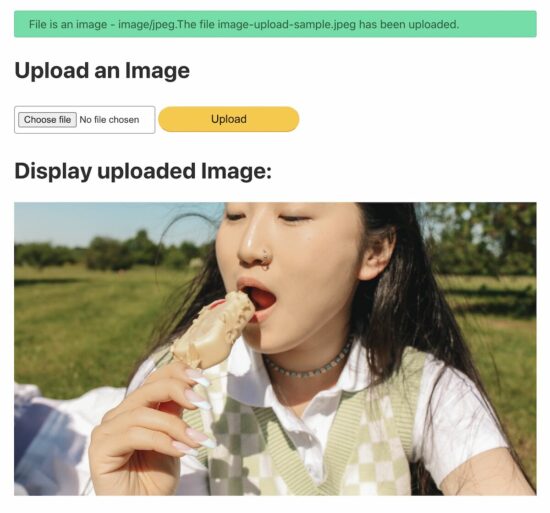
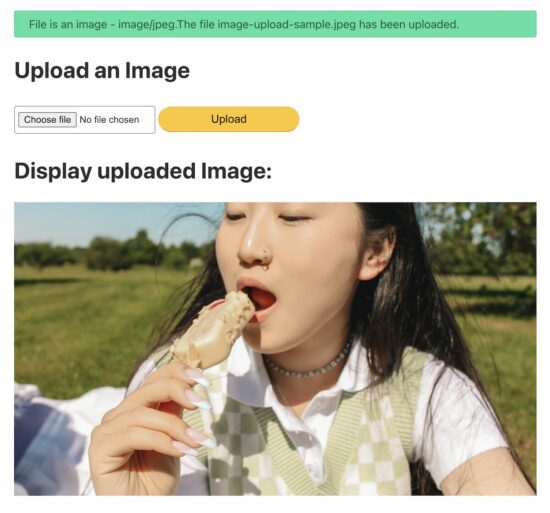
After file upload, the status has to be shown in the UI as an acknowledgment. Otherwise, showing the uploaded image’s preview is the best way of acknowledging the end user.

View Demo
Earlier, we saw how to show the preview of images extracted from a remote URL.

This article will provide a short and easy example in PHP to upload and display images.

upload and display image php

Steps to upload and display the image preview on the browser

  1. Show an image upload option in an HTML form.
  2. Read file data from the form and set the upload target.
  3. Validate the file type size before uploading to the server.
  4. Call the PHP upload function to save the file to the target.
  5. Display the uploaded image on the browser

1. Show an image upload option in an HTML form

This code is to show an HTML form with a file input to the user. This form is with enctype="multipart/form-data" attribute. This attribute is for uploading the file binary to be accessible on the PHP side.

<form action="" method="post" enctype="multipart/form-data"> <div class="row"> <input type="file" name="image" required> <input type="submit" name="submit" value="Upload"> </div>
</form>

Read file data from the form and set the upload target

This section shows a primary PHP condition to check if the form is posted and the file binary is not empty.

Once these conditions return true, further steps will be taken for execution.

Once the image is posted, it sets the target directory path to upload. The variable $uploadOK is a custom flag to allow the PHP file upload.

If the validation returns false, this $uploadOK variable will be turned to 0 and stop uploading.

<?php
if (isset($_POST["submit"])) { // Check image using getimagesize function and get size // if a valid number is got then uploaded file is an image if (isset($_FILES["image"])) { // directory name to store the uploaded image files // this should have sufficient read/write/execute permissions // if not already exists, please create it in the root of the // project folder $targetDir = "uploads/"; $targetFile = $targetDir . basename($_FILES["image"]["name"]); $uploadOk = 1; $imageFileType = strtolower(pathinfo($targetFile, PATHINFO_EXTENSION)); // Validation here }
}
?>

Validate the file type size before uploading to the server

This example applies three types of validation criteria on the server side.

  1. Check if the uploaded file is an image.
  2. Check if the image has the accepted size limit (0.5 MB).
  3. Check if the image has the allowed extension (jpeg and png).
<?php
// Check image using getimagesize function and get size // if a valid number is got then uploaded file is an image if (isset($_FILES["image"])) { // directory name to store the uploaded image files // this should have sufficient read/write/execute permissions // if not already exists, please create it in the root of the // project folder $targetDir = "uploads/"; $targetFile = $targetDir . basename($_FILES["image"]["name"]); $uploadOk = 1; $imageFileType = strtolower(pathinfo($targetFile, PATHINFO_EXTENSION)); $check = getimagesize($_FILES["image"]["tmp_name"]); if ($check !== false) { echo "File is an image - " . $check["mime"] . "."; $uploadOk = 1; } else { echo "File is not an image."; $uploadOk = 0; } } // Check if the file already exists in the same path if (file_exists($targetFile)) { echo "Sorry, file already exists."; $uploadOk = 0; } // Check file size and throw error if it is greater than // the predefined value, here it is 500000 if ($_FILES["image"]["size"] > 500000) { echo "Sorry, your file is too large."; $uploadOk = 0; } // Check for uploaded file formats and allow only // jpg, png, jpeg and gif // If you want to allow more formats, declare it here if ( $imageFileType != "jpg" && $imageFileType != "png" && $imageFileType != "jpeg" && $imageFileType != "gif" ) { echo "Sorry, only JPG, JPEG, PNG & GIF files are allowed."; $uploadOk = 0; }
?>

4. Call the PHP upload function to save the file to the target

Once the validation is completed, then the PHP move_uploaded_file() the function is called.

It copies the file from the temporary path to the target direct set in step 1.

<?php
// Check if $uploadOk is set to 0 by an error
if ($uploadOk == 0) { echo "Sorry, your file was not uploaded.";
} else { if (move_uploaded_file($_FILES["image"]["tmp_name"], $targetFile)) { echo "The file " . htmlspecialchars(basename($_FILES["image"]["name"])) . " has been uploaded."; } else { echo "Sorry, there was an error uploading your file."; }
}
?>

5. Display the uploaded image on the browser.

This section shows the image preview by setting the source path.

Before setting the preview source, this code ensures the upload status is ‘true.’

<h1>Display uploaded Image:</h1>
<?php if (isset($_FILES["image"]) && $uploadOk == 1) : ?> <img src="<?php echo $targetFile; ?>" alt="Uploaded Image">
<?php endif; ?>

Create a directory called “uploads” in the root directory of the downloaded example project. Uploaded images will be stored in this folder.

Note: The “uploads” directory should have sufficient file permissions.
View Demo Download

↑ Back to Top

Posted on Leave a comment

PHP Upload Image to Database with MySql

by Vincy. Last modified on July 2nd, 2023.

Do you want to upload an image to the database? Most application services move the uploaded files to a directory and save their path to the database.

Earlier, we saw code for storing uploaded images to the database using MySQL BLOB fields. BLOB(Binary Large Data Object) is one of the MySql data types. It can have the file binary data. MySQL supports four types of BLOB datatype as follows.
View demo

  1. TINYBLOB
  2. BLOB
  3. MEDIUMBLOB
  4. LONGBLOB

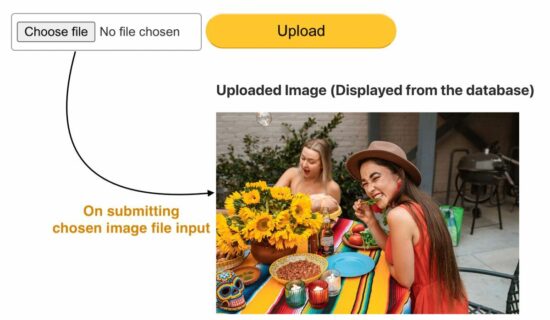
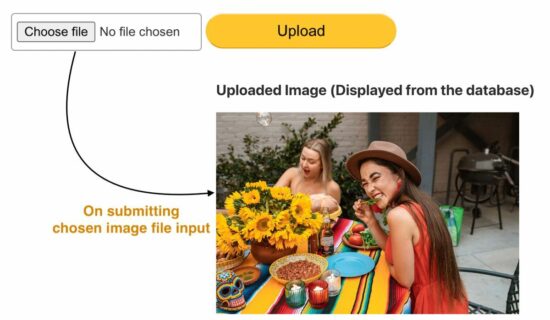
For this example, we created one of the above BLOB fields in a MySQL database to see how to upload an image. Added to that, this code will fetch and BLOB data from the database and display the image to the browser.

Database script

Before running this example, create the required database structure on your server.

CREATE TABLE images ( id INT(11) AUTO_INCREMENT PRIMARY KEY, image LONGBLOB NOT NULL );

php upload image to database output

HTML form with an image upload option

This is a usual file upload form with a file input. This field restricts the file type to choose only the images using the accept attribute.

On submitting this form, the upload.php receives the posted file binary data on the server side.

<!DOCTYPE html>
<html> <head> <title>PHP - Upload image to database - Example</title> <link href="style.css" rel="stylesheet" type="text/css" /> <link href="form.css" rel="stylesheet" type="text/css" />
</head> <body> <div class="phppot-container"> <h1>Upload image to database:</h1> <form action="upload.php" method="post" enctype="multipart/form-data"> <div class="row"> <input type="file" name="image" accept="image/*"> <input type="submit" value="Upload"> </div> </form> <h2>Uploaded Image (Displayed from the database)</h2> </div>
</body> </html>

Insert an image into the database using PHP and MySql

This PHP script gets the chosen file data with the $_FILES array. This array contains the base name, temporary source path, type, and more details.

With these details, it performs the file upload to the database. The steps are as follows,

  1. Validate file array is not empty.
  2. Retrieve the image file content using file_get_contents($_FILES[“image”][“tmp_name”]).
  3. Prepare the insert and bind the image binary data to the query parameters.
  4. Execute insert and get the database record id.
<?php
// MySQL database connection settings
$servername = "localhost";
$username = "root";
$password = "admin123";
$dbname = "phppot_image_upload"; // Make connection
$conn = new mysqli($servername, $username, $password, $dbname); // Check connection and throw error if not available
if ($conn->connect_error) { die("Connection failed: " . $conn->connect_error);
} // Check if an image file was uploaded
if (isset($_FILES["image"]) && $_FILES["image"]["error"] == 0) { $image = $_FILES['image']['tmp_name']; $imgContent = file_get_contents($image); // Insert image data into database as BLOB $sql = "INSERT INTO images(image) VALUES(?)"; $statement = $conn->prepare($sql); $statement->bind_param('s', $imgContent); $current_id = $statement->execute() or die("<b>Error:</b> Problem on Image Insert<br/>" . mysqli_connect_error()); if ($current_id) { echo "Image uploaded successfully."; } else { echo "Image upload failed, please try again."; }
} else { echo "Please select an image file to upload.";
} // Close the database connection
$conn->close();

Fetch image BLOB from the database and display to UI

This PHP code prepares a SELECT query to fetch the image BLOB. Using the image binary from the BLOB, it creates the data URL. It applies PHP base64 encoding on the image binary content.

This data URL is set as a source of an HTML image element below. This script shows the recently inserted image on the screen. We can also show an image gallery of all the BLOB images from the database.

<?php // Retrieve the uploaded image from the database $servername = "localhost"; $username = "root"; $password = ""; $dbname = "phppot_image_upload"; $conn = new mysqli($servername, $username, $password, $dbname); if ($conn->connect_error) { die("Connection failed: " . $conn->connect_error); } $result = $conn->query("SELECT image FROM images ORDER BY id DESC LIMIT 1"); if ($result && $result->num_rows > 0) { $row = $result->fetch_assoc(); $imageData = $row['image']; echo '<img src="data:image/jpeg;base64,' . base64_encode($imageData) . '" alt="Uploaded Image" style="max-width: 500px;">'; } else { echo 'No image uploaded yet.'; } $conn->close(); ?>

View demo Download

↑ Back to Top

Posted on Leave a comment

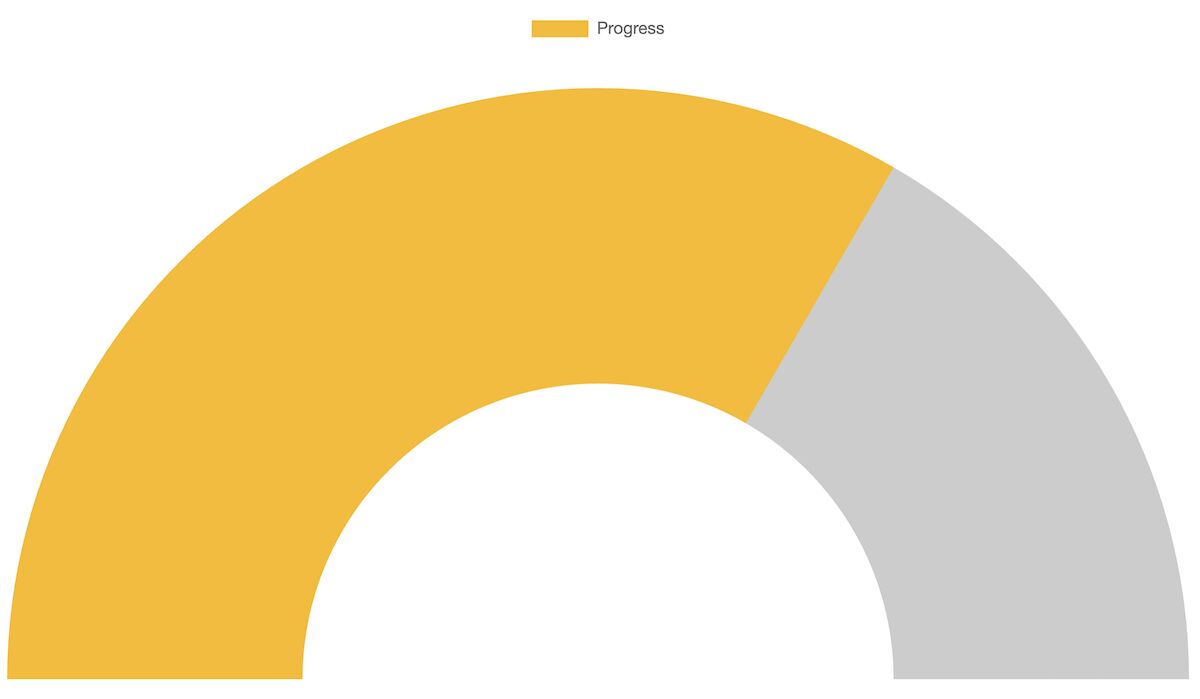
Gauge Chart JS – Speedometer Example

A gauge chart is a scale to measure performance amid the target. Yeah! My attempt at defining ‘Gauge.’ This article uses the ChartJS JavaScript library to create a gauge chat.

The below example creates a speedometer in the form of a gauge change. It achieves this with type=doughnut. The other options, cutout, rotation, and circumference, make the expected gauge chart view.
View Demo

<!DOCTYPE html>
<html> <head> <title>Gauge Chart Example using Chart.js</title> <script src="https://cdn.jsdelivr.net/npm/chart.js"></script>
</head> <body> <canvas id="gaugeChart"></canvas> <script> // data for the gauge chart // you can supply your own values here // max is the Gauge's maximum value var data = { value: 200, max: 300, label: "Progress" }; // Chart.js chart's configuration // We are using a Doughnut type chart to // get a Gauge format chart // This is approach is fine and actually flexible // to get beautiful Gauge charts out of it var config = { type: 'doughnut', data: { labels: [data.label], datasets: [{ data: [data.value, data.max - data.value], backgroundColor: ['rgba(54, 162, 235, 0.8)', 'rgba(0, 0, 0, 0.1)'], borderWidth: 0 }] }, options: { responsive: true, maintainAspectRatio: false, cutoutPercentage: 85, rotation: -90, circumference: 180, tooltips: { enabled: false }, legend: { display: false }, animation: { animateRotate: true, animateScale: false }, title: { display: true, text: data.label, fontSize: 16 } } }; // Create the chart var chartCtx = document.getElementById('gaugeChart').getContext('2d'); var gaugeChart = new Chart(chartCtx, config); </script>
</body> </html>

The above quick example script follows the below steps to render a gauge chart with the data and the options.

Many of the steps are similar to that of creating any other chart using this library. We have seen many examples in the ChartJS library. You can start with the ChartJS bar chart example if you are new to this JavaScript library.

The data and options are the main factors that change the chart view. This section has short notes for more information about the data and the options array created in JavaScript.

This JavaScript example uses an array of static data to form a gauge chart. You can supply dynamic data from the database or any external source instead.

The data array has the chart label, target, and current value. The target value is the maximum limit of the gauge chart scale. The current value is an achieved point to be marked.

Using these values, this script prepares the gauge chart dataset.

The options array is a configuration that affects the chart’s appearance.

The ChartJS allows featured configurations to experience the best chart views. Some of those options exclusive to the gauge chart are listed below.

Posted on Leave a comment

JavaScript – How to Open URL in New Tab

by Vincy. Last modified on June 25th, 2023.

Web pages contain external links that open URLs in a new tab. For example, Wikipedia articles show links to open the reference sites in a new tab. This is absolutely for beginners.

There are three ways to open a URL in a new tab.

  1. HTML anchor tags with target=_blank  attribute.
  2. JavaScript window.open() to set hyperlink and target.
  3. JavaScript code to create HTML link element.

HTML anchor tags with target=_blank  attribute

This is an HTML basic that you are familiar with. I added the HTML with the required attributes since the upcoming JavaScript example works with this base.

<a href="https://www.phppot.com" target="_blank">Go to Phppot</a>

Scenarios of opening URL via JavaScript.

When we need to open a URL on an event basis, it has to be done via JavaScript at run time. For example,

  1. Show the PDF in a new tab after clicking generate PDF link. We have already seen how to generate PDFs using JavaScript.
  2. Show product page from the gallery via Javascript to keep track of the shopping history.

The below two sections have code to learn how to achieve opening URLs in a new tab using JavaScript.

javascript open in new tab

JavaScript window.open() to set hyperlink and target

This JavaScript one-line code sets the link to open the window.open method. The second parameter is to set the target to open the linked URL in a new tab.

window.open('https://www.phppot.com', '_blank').focus();

The above line makes opening a URL and focuses the newly opened tab.

JavaScript code to create HTML link element.

This method follows the below steps to open a URL in a new tab via JavaScript.

  • Create an anchor tag (<a>) by using the createElement() function.
  • Sets the href and the target properties with the reference of the link object instantiated in step 1.
  • Trigger the click event of the link element dynamically created via JS.
var url = "https://www.phppot.com";
var link = document.createElement("a");
link.href = url;
link.target = "_blank";
link.click();

Browsers support: Most modern browsers support the window.open() JavaScript method.

↑ Back to Top

Share this page

Posted on Leave a comment

File Upload using Dropzone with Progress Bar

by Vincy. Last modified on June 30th, 2023.

Most of the applications have the requirement to upload files to the server. In previous articles, we have seen a variety of file upload methods with valuable features.

For example, we learned how to upload files with or without AJAX, validate the uploaded files, and more features.

This tutorial will show how to code for file uploading with a progress bar by Dropzone.

View demo

If the file size is significant, it will take a few nanoseconds to complete. Showing a progress bar during the file upload is a user-friendly approach.

To the extreme, websites start showing the progressing percentage of the upload. It is the best representation of showing that the upload request is in progress.

dropzone progress bar

About Dropzone

The Dropzone is a JavaScript library popularly known for file uploading and related features. It has a vast market share compared to other such libraries.

It provides a massive list of features. Some of the attractive features are listed below.

  • It supports multi-file upload.
  • It represents progressing state and percentage.
  • It allows browser image resizing. It’s a valuable feature that supports inline editing of images.
  • Image previews in the form of thumbnails.
  • It supports configuring the uploaded file’s type and size limit.

How to integrate dropzone.js to upload with the progress bar

Integrating Dropzone into an application is simple. It is all about keeping these two points during the integration.

  1. Mapping the UI element with the Dropzone initiation.
  2. Handling the upload event callbacks effectively.

Mapping the UI element with the Dropzone initiation

The below code has the HTML view to show the Dropzone file upload to the UI. It includes the Dropzone JS and the CSS via a CDN URL.

<!DOCTYPE html>
<html> <head> <title>File Upload using Dropzone with Progress Bar</title> <link rel="stylesheet" type="text/css" href="https://cdnjs.cloudflare.com/ajax/libs/dropzone/5.9.2/dropzone.min.css"> <style> .progress { width: 300px; border: 1px solid #ddd; padding: 5px; } .progress-bar { width: 0%; height: 20px; background-color: #4CAF50; } </style> <link rel="stylesheet" type="text/css" href="style.css" /> <link rel="stylesheet" type="text/css" href="form.css" />
</head> <body> <div class="phppot-container tile-container text-center"> <h2>File Upload using Dropzone with Progress Bar</h2> <form action="upload.php" class="dropzone" id="myDropzone"></form> </div> <script src="https://cdnjs.cloudflare.com/ajax/libs/dropzone/5.9.2/min/dropzone.min.js"></script>
</body> </html>

The file upload form element is mapped to the DropzoneJS while initiating the library.

The form action targets the PHP endpoint to handle the file upload.

Dropzone.options.myDropzone = { //Set upload properties init: function () { // Handle upload event callback functions }; };

Handling the upload event callbacks

This section has the Dropzone library script to include in the view. This script sets the file properties and limits to the upload process. Some of the properties are,

  • maxFilesize – Maximum size allowed for the file to upload.
  • paramName – File input name to access like $_FILE[‘paramName here’].
  • maxFiles – File count allowed.
  • acceptedFiles – File types or extensions allowed.

The init property of this script allows handling the upload event. The event names are listed below.

  • uploadprogress – To track the percentage of uploads to update the progress bar.
  • success – When the file upload request is completed. This is as similar to a jQuery AJAX script‘s success/error callbacks.

Dropzone options have the upload form reference to listen to the file drop event. The callback function receives the upload status to update the UI.

The dropzone calls the endpoint action when dropping the file into the drop area.

The drop area will show thumbnails or a file preview with the progress bar.

Dropzone.options.myDropzone = { paramName: "file", // filename handle to upload maxFilesize: 2, // MB maxFiles: 1, // number of files allowed to upload acceptedFiles: ".png, .jpg, .jpeg, .gif", // file types allowed to upload init: function () { this.on("uploadprogress", function (file, progress) { var progressBar = file.previewElement.querySelector(".progress-bar"); progressBar.style.width = progress + "%"; progressBar.innerHTML = progress + "%"; }); this.on("success", function (file, response) { var progressBar = file.previewElement.querySelector(".progress-bar"); progressBar.classList.add("bg-success"); progressBar.innerHTML = "Uploaded"; }); this.on("error", function (file, errorMessage) { var progressBar = file.previewElement.querySelector(".progress-bar"); progressBar.classList.add("bg-danger"); progressBar.innerHTML = errorMessage; }); } };

PHP file upload script

This a typical PHP file upload script suite for any single file upload request. But, the dependent changes are,

  1. File handle name ($_FILES[‘File handle name’]).
  2. Target directory path for $uploadDir variable.
<?php if ($_SERVER['REQUEST_METHOD'] === 'POST' && isset($_FILES['file'])) { $file = $_FILES['file']; // file to be uploaded to this directory // should have sufficient file permissions $uploadDir = 'uploads/'; // unique file name generated for the uploaded file $fileName = uniqid() . '_' . $file['name']; // moving the uploaded file from temp directory to uploads directory if (move_uploaded_file($file['tmp_name'], $uploadDir . $fileName)) { echo 'File uploaded successfully.'; } else { echo 'Failed to upload file.'; }
}

How to hide the progress bar of uploaded files

By default, the Dropzone JS callback adds a dz-complete CSS class selector to the dropzone element. It will hide the progress bar from the preview after a successful upload.

This default behavior is by changing the progress bar opacity to 0. But the markup will be there in the source. Element hide and show can be done in various ways.

If you want to remove the progress bar element from the HTML preview, use the JavaScript remove() function. This script calls it for the progress bar element on the success callback.

Dropzone.options.myDropzone = { ... ... init: function () { ... ... this.on("success", function (file, response) { var progressBar = file.previewElement.querySelector(".progress-bar"); progressBar.remove(); }); ... ... }
};

View demo Download

↑ Back to Top

Posted on Leave a comment

AJAX File Upload with Progress Bar using JavaScript

by Vincy. Last modified on June 30th, 2023.

If you want to upload a file using AJAX and also need to show a progress bar during the upload, you have landed on the right page.

This article has an example code for JavaScript AJAX file upload with a progress bar.

An AJAX-based file upload is a repeatedly needed requirement for a web application.

It is for providing an inline editing feature with the uploaded file content. For example, the following tasks can be achieved using the AJAX file upload method.

  1. Photo or banner update on the profile page.
  2. Import CSV or Excel files to load content to the data tables.

View demo
ajax file upload with progress bar javascript

HTML upload form

This HTML shows the input to choose a file. This form has a button that maps its click event with an AJAX handler.

In a previous tutorial, we have seen a jQuery example for uploading form data with a chosen file binary.

But in this example, the HTML doesn’t have any form container. Instead, the form data is created by JavaScript before processing the AJAX.

This HTML has a container to show the progress bar. Once the progress is 100% complete, a success message is added to the UI without page refresh.

<div class="phppot-container tile-container text-center"> <h2>AJAX File Upload with Progress Bar using JavaScript</h2> <input type="file" id="fileUpload" /> <br> <br> <button onclick="uploadFile()">Upload</button> <div class="progress"> <div class="progress-bar" id="progressBar"></div> </div> <br> <div id="uploadStatus"></div>
</div>

AJAX file upload request with progress bar

This section is the core of this example code. This example’s HTML and PHP files are prevalent, as seen in other file upload examples.

The script below follows the steps to achieve the AJAX file upload.

  1. It reads the file binary chosen in the file input field.
  2. It instantiates JavaScript FormData and appends the file binary into it.
  3. It creates an XMLHttpRequest handle.
  4. This handle uses the ‘upload’ property to get XMLHttpRequestUpload object.
  5. This XMLHttpRequestUpload object tracks the upload progress in percentage.
  6. It creates event listeners to update the progressing percentage and the upload status.
  7. Then finally, it posts the file to the PHP endpoint like usual AJAX programming.
function uploadFile() { var fileInput = document.getElementById('fileUpload'); var file = fileInput.files[0]; if (file) { var formData = new FormData(); formData.append('file', file); var xhr = new XMLHttpRequest(); xhr.upload.addEventListener('progress', function (event) { if (event.lengthComputable) { var percent = Math.round((event.loaded / event.total) * 100); var progressBar = document.getElementById('progressBar'); progressBar.style.width = percent + '%'; progressBar.innerHTML = percent + '%'; } }); xhr.addEventListener('load', function (event) { var uploadStatus = document.getElementById('uploadStatus'); uploadStatus.innerHTML = event.target.responseText; }); xhr.open('POST', 'upload.php', true); xhr.send(formData); }
}

PHP endpoint to move the uploaded file into a directory

This PHP  has a standard code to store the uploaded file in a folder using the PHP move_uploaded_file(). The link has the code if you want to store the uploaded file and save the path to the database.

This endpoint creates a unique name for the filename before upload. It is a good programming practice, but the code will work without it, also.

It is for stopping file overwriting in case of uploading different files in the same name.

Note: Create a folder named “uploads” in the project root. Give sufficient write permissions.

<?php if ($_SERVER['REQUEST_METHOD'] === 'POST' && isset($_FILES['file'])) { $file = $_FILES['file']; // file will be uploaded to the following folder // you should give sufficient file permissions $uploadDir = 'uploads/'; // unique file name generated $fileName = uniqid() . '_' . $file['name']; // moving the uploaded file from temp location to our target location if (move_uploaded_file($file['tmp_name'], $uploadDir . $fileName)) { echo 'File uploaded successfully.'; } else { echo 'Failed to upload file.'; }
}

View demo Download

↑ Back to Top