Posted on Leave a comment

React Charts and Graphs with Recharts: Visualize Data Beautifully

by Vincy. Last modified on December 3rd, 2025.

Representing data in a chart view is a huge subject in Mathematics and Computer Science. If you have the skill to transform raw numbers into a chart view, it’s a brilliant representation that makes users understand any complex data quickly.

Learning to build a chart in React will elevate your UI and make your application feel truly professional.

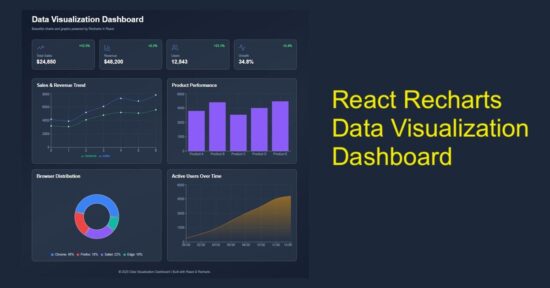
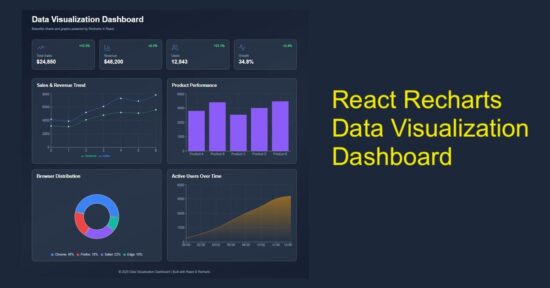
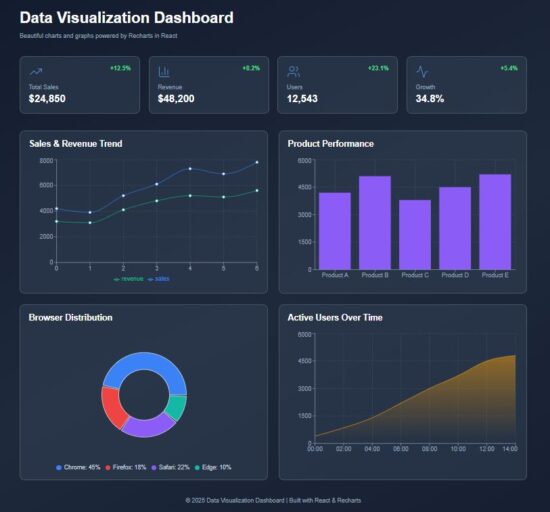
This React example includes dashboard visualization to display the following chart view.

  1. Sales & revenue trend in the form of line chart.
  2. Product-wise performance using column chart.
  3. Browser distribution in pie chart.
  4. Area chart to visualize users’ active time.

It uses Recharts library to show the raw data in a graph or chart form, as shown below.
React Charts Graphs Recharts Data Visualization

Main React component containing chart components

The DataVisualization component manages React states and useEffect. It manages the separate state variables for each type of charts.

The React useEffect fetches the JSON data and set them to bind for the charts.

The chart UI are created as separate components and used in the dashboard wrapper.

src/components/DataVisualization.jsx

import { useState, useEffect } from "react";
import Header from "../components/Header";
import StatsCards from "../components/StatsCards";
import LineChartBox from "../components/LineChartBox";
import BarChartBox from "../components/BarChartBox";
import PieChartBox from "../components/PieChartBox";
import AreaChartBox from "../components/AreaChartBox";
import Footer from "../components/Footer"; const DataVisualization = () => { const [lineData, setLineData] = useState([]); const [barData, setBarData] = useState([]); const [pieData, setPieData] = useState([]); const [areaData, setAreaData] = useState([]); useEffect(() => { fetch("/data/dashboard.json") .then((res) => res.json()) .then((data) => { setLineData(data.lineData); setBarData(data.barData); setPieData(data.pieData); setAreaData(data.areaData); }) .catch((err) => console.error("Error loading data:", err)); }, []); return ( <div className="dashboard-wrapper"> <div className="dashboard-container"> <Header /> <StatsCards /> <div className="charts-grid"> <LineChartBox data={lineData} /> <BarChartBox data={barData} /> <PieChartBox data={pieData} /> <AreaChartBox data={areaData} /> </div> <Footer /> </div> </div> );
};
export default DataVisualization;

Chart visualization header with trending data cards

In this code, the chart components are created for rendering in a dashboard. Added to the chart representation, the dashboard shows cards to display trending data.

You can replace it with your applications progressive data in this cards. For demonstration purpose, they are all static data from the client-side. It’s a matter of minute to plug your dynamic data from the database.

react chart graph visualization header

src/components/Header.jsx

const Header = () => ( <header className="dashboard-header"> <h1>Data Visualization Dashboard</h1> <p>Beautiful charts and graphs powered by Recharts in React</p> </header>
);
export default Header;

react chart graph statscards

src/components/StatsCards.jsx

import { TrendingUp, BarChart3, Users, Activity } from "lucide-react";
const StatsCards = () => { const stats = [ { icon: <TrendingUp strokeWidth={1} />, label: "Total Sales", value: "$24,850", change: "+12.5%" }, { icon: <BarChart3 strokeWidth={1} />, label: "Revenue", value: "$48,200", change: "+8.2%" }, { icon: <Users strokeWidth={1} />, label: "Users", value: "12,543", change: "+23.1%" }, { icon: <Activity strokeWidth={1} />, label: "Growth", value: "34.8%", change: "+5.4%" }, ]; return ( <div className="stats-grid"> {stats.map((stat, index) => ( <div key={index} className="stat-card"> <div className="stat-top"> <span className="stat-icon">{stat.icon}</span> <span className="stat-change">{stat.change}</span> </div> <p className="stat-label">{stat.label}</p> <p className="stat-value">{stat.value}</p> </div> ))} </div> );
};
export default StatsCards;

Line chart to show the sales revenue graph

This script imports the Recharts component required for rendering a line chart. The following components are mostly required for all the charts.

  • XAxis, YAxis
  • Tooltip and Legend
  • CartisanGrid
  • ResponsiveContainer

The chart is rendered in a ResponsiveContainer block which support chart scaling based on the viewport size. The Tooltip and CartisanGrid will be shown on hovering the chart. The X,Y axis and chart legend are very usual part of the chart view.

The LineChart and Line components are exclusive to this type of chart. It accepts Recharts attributes to set the stroke width and color of the line graph.
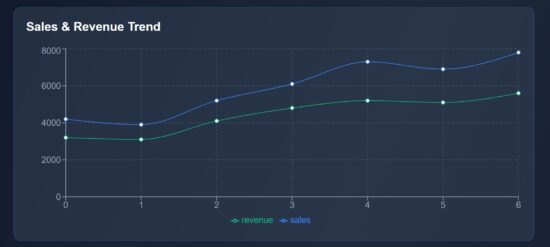
react data visualization line chart

src/components/LineChartBox.jsx

import { LineChart, Line, XAxis, YAxis, Tooltip, CartesianGrid, Legend, ResponsiveContainer } from "recharts";
const LineChartBox = ({ data }) => ( <div className="chart-card"> <h2>Sales & Revenue Trend</h2> <ResponsiveContainer width="100%" height={300}> <LineChart data={data}> <CartesianGrid strokeDasharray="3 3" stroke="#475569" /> <XAxis stroke="#94a3b8" /> <YAxis stroke="#94a3b8" /> <Tooltip /> <Legend /> <Line type="monotone" dataKey="sales" stroke="#3b82f6" strokeWidth={1} /> <Line type="monotone" dataKey="revenue" stroke="#10b981" strokeWidth={1} /> </LineChart> </ResponsiveContainer> </div>
);
export default LineChartBox;

Bar chart fir showing performance graph

The BarChart and Bar component of the Recharts library are used in this script. The BarChart accepts chart data and Bar element requires the color specification to fill the column bar.

src/components/BarChartBox.jsx

import { BarChart, Bar, XAxis, YAxis, Tooltip, CartesianGrid, ResponsiveContainer } from "recharts";
const BarChartBox = ({ data }) => ( <div className="chart-card"> <h2>Product Performance</h2> <ResponsiveContainer width="100%" height={300}> <BarChart data={data}> <CartesianGrid strokeDasharray="3 3" stroke="#475569" /> <XAxis dataKey="category" stroke="#94a3b8" /> <YAxis stroke="#94a3b8" /> <Tooltip /> <Bar dataKey="value" fill="#8b5cf6" /> </BarChart> </ResponsiveContainer> </div>
);
export default BarChartBox;

Pie chart – Recharts – showing browser distribution

This Recharts component accepts the inner-radius, outer-radius, cy, cx properties to draw the pie chart.

This chart type will have a Pie component which is to draw the pie wedges in the wrapper. The Cell is to draw each pie slices.

It receives the data and datakey in the <Pie /> component of this Recharts library.
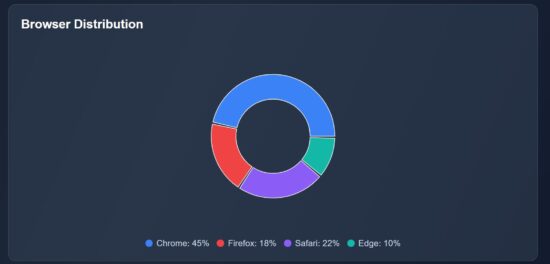
react data visualization pie chart

src/components/PieChartBox.jsx

import { PieChart, Pie, Tooltip, ResponsiveContainer, Cell } from "recharts";
const PieChartBox = ({ data }) => ( <div className="chart-card"> <h2>Browser Distribution</h2> <ResponsiveContainer width="100%" height={300}> <PieChart> <Pie data={data} dataKey="value" innerRadius={60} outerRadius={100} paddingAngle={2} cx="50%" cy="50%" > {data.map((entry, i) => ( <Cell key={i} fill={entry.color} /> ))} </Pie> <Tooltip /> </PieChart> </ResponsiveContainer> <div className="pie-legend"> {data.map((item, i) => ( <div key={i} className="legend-item"> <span className="legend-color" style={{ background: item.color }} /> <span>{item.name}: {item.value}%</span> </div> ))} </div> </div>
);
export default PieChartBox;

Area chart using the Recharts library

In this graph, it shows the active users count by time. It represents how many users are actively using your app at a particular point of time. It will help to monitor the spikes and drop in the traffic, product or services usages and more.

The AreaChart is the wrapper that contains the Area element which is to show the shaded part of the chart as shown below.

The JSON data contains the time and user count for each level of the graph. The area is highlighted within a LinearGadient definition.
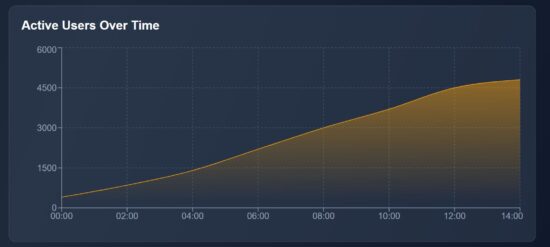
react data visualization area chart

src/components/AreaChartBox.jsx

import { AreaChart, Area, XAxis, YAxis, Tooltip, CartesianGrid, ResponsiveContainer } from "recharts";
const AreaChartBox = ({ data }) => ( <div className="chart-card"> <h2>Active Users Over Time</h2> <ResponsiveContainer width="100%" height={300}> <AreaChart data={data}> <defs> <linearGradient id="colorUsers" x1="0" y1="0" x2="0" y2="1"> <stop offset="5%" stopColor="#f59e0b" stopOpacity={0.8} /> <stop offset="95%" stopColor="#f59e0b" stopOpacity={0} /> </linearGradient> </defs> <CartesianGrid strokeDasharray="3 3" stroke="#475569" /> <XAxis dataKey="time" stroke="#94a3b8" /> <YAxis stroke="#94a3b8" /> <Tooltip /> <Area type="monotone" dataKey="users" stroke="#f59e0b" fill="url(#colorUsers)" /> </AreaChart> </ResponsiveContainer> </div>
);
export default AreaChartBox;
react chart graph data visualization

Conclusion

The React charts provide graphical view to understand your trending data. The line chart plots the performance range over time, the pie chart slices down browser distribution at a quick view, and the area chart visualizes the user activity patterns. By using Recharts responsive wrapper, each graph fit for different screen size. Overall, these charts transform raw numbers into visual stories to help efficient decision making.

References:

  1. Recharts library documentation
  2. Best chart libraries for React

Download

Vincy
Written by Vincy, a web developer with 15+ years of experience and a Masters degree in Computer Science. She specializes in building modern, lightweight websites using PHP, JavaScript, React, and related technologies. Phppot helps you in mastering web development through over a decade of publishing quality tutorials.

↑ Back to Top

Posted on Leave a comment

Integrate Google Maps in React for Real-Time Location Tracking

by Vincy. Last modified on November 28th, 2025.

Integrating Google Maps into a React app is a powerful location-based feature. It helps for live user tracking to delivery routes, geo-fencing, and real-time movement progression. It is one of the simplest jobs with the help of the Google Maps JavaScript API and React libraries.

Real-time location tracking improves the usability of your apps. It can be implemented for dashboards, for tracking location on Duty, or anything that involves dynamic location-based requirements.

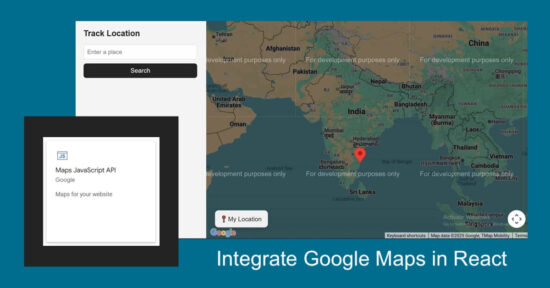
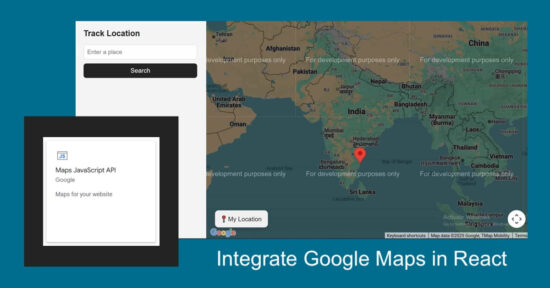
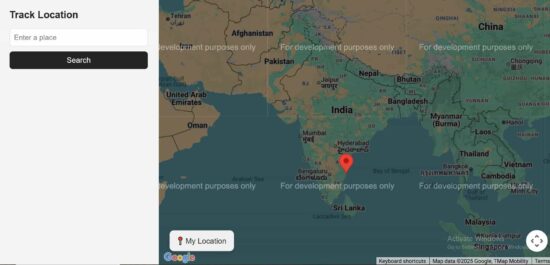
This React example helps to integrate Google Maps into React. It renders dynamic maps to the UI and displays markers to pinpoint the live location. It continuously updates the user’s position using the browser’s Geolocation API.

React Google Maps Realtime Location Tracking

Google Maps Integration steps

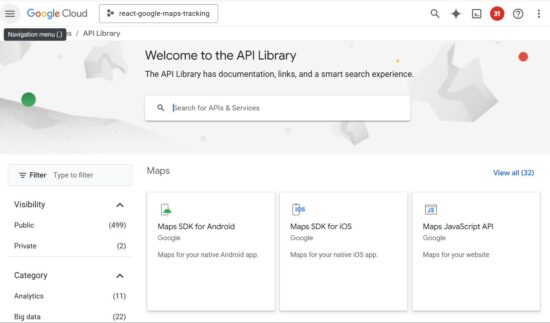
These are the few steps to enable required Google API services and configure the key credentials with the React App. This process builds a channel between the enduser and the Google cloud services for which they are registered with.

google cloud api library services

  1. Login with Google Cloud Console and create a new project.
  2. Choose APIs and Services and enable Maps JavaScript API.
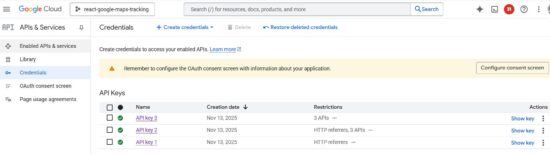
  3. Go to Credentials menu and CREATE CREDENTIALS -> API Key to generate API key.
  4. Install React Google Maps library in your app using npm install @react-google-maps/api.
  5. Configure this key to your React app when loading React Google Maps JS library.

The credentials page shows the list of API keys generated. You can restrict the keys for specific domains or for using particular Google API services.

google cloud api credential

Rendering Google Maps with current location

The TrackLocation JSX shows HTML components for displaying the Google Map and a location search option.

If the location search is not applied, it is showing the marker on the users current location.

react google map landing page

src/components/TrackLocation.jsx

import { useState } from "react";
import SearchBox from "./SearchBox";
import MapContainerComponent from "./MapContainerComponent"; export default function TrackLocation() { const [searchQuery, setSearchQuery] = useState("");
return ( <div style={{ display: "flex" }}> <SearchBox onSearch={setSearchQuery} /> <MapContainerComponent searchQuery={searchQuery} /> </div> );
}

React Google Maps Component

This is the main component which initiates the React Google Maps library by configuring the Google Cloud API service key.

It manages React states for having the Map instance, map marker location and the searched location. The marker location is depends on two factors. It will be changed dynamically to show the real-time location of the user. Also, it is changed when the search is applied.

With the help of the client side Geo location capabilities, navigator.geolocation gets the latitude and longitude of the user’s position. Then it is used to build the location object to plot the marker to the map.

src/components/MapContainerComponent.jsx

import { useEffect, useState } from "react";
import { GoogleMap, useJsApiLoader } from "@react-google-maps/api";
import LocationMarker from "./LocationMarker"; export default function MapContainerComponent({ searchQuery }) { const [map, setMap] = useState(null); const [userLocation, setUserLocation] = useState(null); const [searchLocation, setSearchLocation] = useState(null); const { isLoaded } = useJsApiLoader({ googleMapsApiKey: "YOUR API KEY", libraries: ["places"], }); useEffect(() => { if (navigator.geolocation) { const watchId = navigator.geolocation.watchPosition( (pos) => { const newLoc = { lat: pos.coords.latitude, lng: pos.coords.longitude, }; setUserLocation(newLoc); if (map && !searchLocation) { map.setCenter(newLoc); map.setZoom(13); } }, (err) => console.error("Location error:", err), { enableHighAccuracy: true, maximumAge: 1000 } ); return () => navigator.geolocation.clearWatch(watchId); } else { console.error("Geolocation not supported"); } }, [map, searchLocation]); useEffect(() => { if (!searchQuery || !window.google || !map) return; const geocoder = new window.google.maps.Geocoder(); geocoder.geocode({ address: searchQuery }, (results, status) => { if (status === "OK" && results[0]) { const loc = results[0].geometry.location; const newSearchLoc = { lat: loc.lat(), lng: loc.lng() }; setSearchLocation(newSearchLoc); if (userLocation) { const bounds = new window.google.maps.LatLngBounds(); bounds.extend(userLocation); bounds.extend(newSearchLoc); map.fitBounds(bounds); } else { map.setCenter(newSearchLoc); map.setZoom(12); } } else { console.warn("Location not found for:", searchQuery); } }); }, [searchQuery, map, userLocation]); const zoomToLocation = (loc) => { if (!map || !loc) return; map.panTo(loc); map.setZoom(15); }; return ( <div className="map-container"> {isLoaded && ( <GoogleMap mapContainerStyle={{ width: "100%", height: "100vh" }} center={userLocation || { lat: 20.5937, lng: 78.9629 }} zoom={userLocation ? 13 : 5} onLoad={setMap} options={{ streetViewControl: false, mapTypeControl: false, fullscreenControl: false, }}> <LocationMarker position={userLocation} title="Your Location" onClick={() => zoomToLocation(userLocation)} /> <LocationMarker position={searchLocation} title="Tracked Location" onClick={() => zoomToLocation(searchLocation)} /> </GoogleMap> )} {userLocation && ( <button className="floating-btn" onClick={() => zoomToLocation(userLocation)}> My Location </button> )} </div> );
}

This LocationMarker component is part of the main React component that accepts the users location or searched location. It pins the marker to the Map based on the location details.

src/components/LocationMarker.js

import React from "react";
import { Marker } from "@react-google-maps/api"; export default function LocationMarker({ position, title, onClick }) { return position ? <Marker position={position} title={title} onClick={onClick} /> : null;
}

Google Maps Search feature

The search form contains interface to enter the place to mark on the Map. When the search is applied, the LocationMarker rendered with the position:searchLocation shows the marker on the right place.

src/components/SearchBox.jsx

import { useState } from "react"; export default function SearchBox({ onSearch }) { const [query, setQuery] = useState(""); const handleSubmit = (e) => { e.preventDefault(); if (query.trim()) onSearch(query); }; return ( <div className="search-sidebar"> <h3 className="sidebar-title">Track Location</h3> <form onSubmit={handleSubmit}> <input type="text" placeholder="Enter a place" value={query} onChange={(e) => setQuery(e.target.value)} className="search-input" /> <button type="submit" className="search-btn"> Search </button> </form> </div> );
}

Conclusion

Real-time location tracking in React becomes easy with the joint capabilities of the Geolocation API and Google Maps. It changes the user’s position on movement. This example enriches user experience with a live movement tracking feature. And, it will be easy to use in a location-based React application that needs to render users’ live locations.

References:
  1. React Google Maps API wrapper.
  2. Google Maps rendering best practices.

Download

Vincy
Written by Vincy, a web developer with 15+ years of experience and a Masters degree in Computer Science. She specializes in building modern, lightweight websites using PHP, JavaScript, React, and related technologies. Phppot helps you in mastering web development through over a decade of publishing quality tutorials.

↑ Back to Top

Posted on Leave a comment

How to Build a Responsive React Navbar with Dropdown and Mobile Menu

by Vincy. Last modified on November 25th, 2025.

A responsive navigation bar is a one of a must-needed requirement of any modern web application. It is an easy job if the navigation bar contains single level menu and action controls. But, it will be complex it is a multi-level menu to fit the layout into a small viewport.

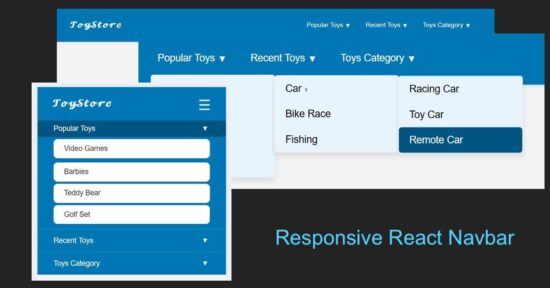
With this React example code you’ll learn how to build a responsive React navbar. It includes a multi-level dropdown menu for different view port. It will a plugable and reusable React component for your different application frontend.

Responsive React Navbar Dropdown Mobile Menu

Responsive navbar in React header

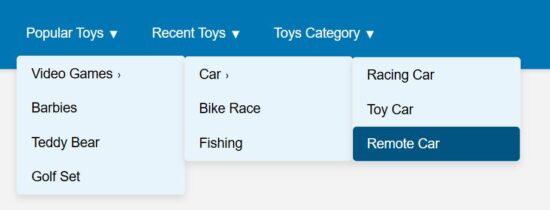
This React JSX code has the a responsive navigation bar component. It provides 1) menu bar with Desktop and mobile variants, 2)sub menu bar with click-to-expand effect.

The menuData contains the array of multi-level menu items. The image shown below renders the horizontal menu on the site header.

react drop down navbar

src/components/Navbar/Navbar.jsx

import { useState } from "react";
import menuData from "./MenuData";
import Dropdown from "./DropDown";
import "../../../public/assets/css/style.css"; const Navbar = () => { const [menuOpen, setMenuOpen] = useState(false); const [openIndex, setOpenIndex] = useState(null); const toggleSubmenu = (index, e) => { if (window.innerWidth <= 768) { e.preventDefault(); setOpenIndex(openIndex === index ? null : index); } };
return ( <nav className="navbar"> <div className="navbar-container"> <h2 className="logo"></h2> <button className="menu-toggle" onClick={() => setMenuOpen(!menuOpen)} aria-label="Toggle menu" > ☰ </button> <ul className={`menu ${menuOpen ? "open" : ""}`}> {menuData.map((menu, i) => ( <li key={i} className="menu-item has-submenu"> <a href="#" onClick={(e) => toggleSubmenu(i, e)}> {menu.title} <span className="expand">▼</span> </a> {menu.subMenu && ( <Dropdown items={menu.subMenu} className={openIndex === i ? "open" : ""} /> )} </li> ))} </ul> </div> </nav>
);
};
export default Navbar;

These are the main and submenu items defined for this React example.

src/components/Navbar/MenuData.js

const menuData = [ { title: "Popular Toys", subMenu: [ { title: "Video Games", subMenu: [ { title: "Car", subMenu: ["Racing Car", "Toy Car", "Remote Car"] }, "Bike Race", "Fishing" ] }, "Barbies", "Teddy Bear", "Golf Set" ] }, { title: "Recent Toys", subMenu: [ "Yoyo", "Doctor Kit", { title: "Fun Puzzle", subMenu: ["Cards", "Numbers"] }, "Uno Cards" ] }, { title: "Toys Category", subMenu: [ "Battery Toys", { title: "Remote Toys", subMenu: ["Cars", "Aeroplane", "Helicopter"] }, "Soft Toys", "Magnet Toys" ] }
]; export default menuData;

React menu dropdown hooks to toggle submenu

A component Dropdown returns the submenu look-and-feel. The React state openIndex has the menu open/close state by its index.

The Dropdown component’s expand/collapse state is depends on the menuOpen set with a toggle action. The menu toggle effect is for the mobile view to slide down the menu options on clicking a burger icon.

react drop down navbar menu

src/components/Navbar/DropDown.jsx

import { useState } from "react"; const Dropdown = ({ items, className }) => { const [openIndex, setOpenIndex] = useState(null); const toggleSubmenu = (index, e) => { if (window.innerWidth <= 768) { e.preventDefault(); setOpenIndex(openIndex === index ? null : index); } }; return ( <ul className={`dropdown ${className || ""}`}> {items.map((item, i) => typeof item === "string" ? ( <li key={i}> <a href="#">{item}</a> </li> ) : ( <li key={i} className="has-submenu"> <a href="#" onClick={(e) => toggleSubmenu(i, e)}> {item.title} <span className="expand">›</span> </a> {item.subMenu && ( <Dropdown items={item.subMenu} className={openIndex === i ? "open" : ""} /> )} </li> ) )} </ul> );
};
export default Dropdown;

Mobile menu navbar view

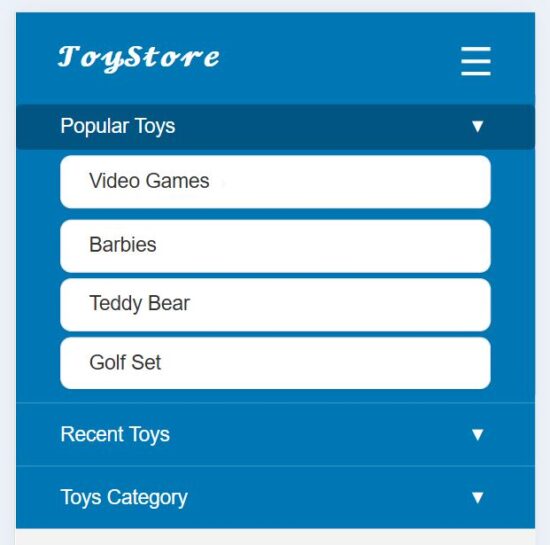
This heading shows the mobile view of this responsive navbar. In the mobile view, a burger icon will be appeared on the top right corner of the web layout.

This icon’s click event is bound to toggle a sliding menu. In this sliding menu, each menu items are vertically expandable to show its submenu.
react drop down navbar mobile responsive

References:
  1. Navigation bar modals with Material Design.
  2. Free navigation bar templates by Figma.

Download

Vincy
Written by Vincy, a web developer with 15+ years of experience and a Masters degree in Computer Science. She specializes in building modern, lightweight websites using PHP, JavaScript, React, and related technologies. Phppot helps you in mastering web development through over a decade of publishing quality tutorials.

↑ Back to Top

Posted on Leave a comment

React File Upload with Preview and Drag-and-Drop Support

by Vincy. Last modified on November 20th, 2025.

This example contains a React drag-and-drop file upload with file type and size validation. It connects backend to upload files to the server via Axios.

The workflow allows users to drop files to upload and shows file preview below the drop area. This file upload example includes the following featured functionalities.

  1. Drag and drop
  2. File validation
  3. Uploading to backend
  4. Saving file path to database
  5. Preview after upload
  6. Error handling

It is easy to integrate into any React application, since it is structured with separate components for the upload and preview UI.

React File Upload Preview Drag Drop

React UI with file upload interface

Two React components created for this file upload UI. Those are UploadBox and FilePreview.

The UploadBox is the drop area for dragged files to be uploaded. Once upload completed, file thumbnails are shown in a preview box by using the FilePreview component.

The FileUpload JSX handles the following processes before uploading a file.

  1. File validation about its extension and size.
  2. Handling errors or success acknowledgement for UI.
  3. Preparing form data with the file binaries.

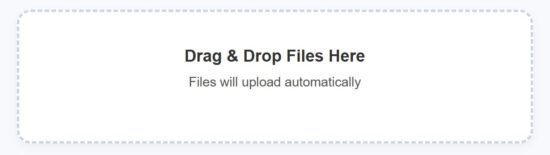
react file upload empty state

src/components/FileUpload.jsx

import { useState } from "react";
import axios from "axios";
import SERVER_SIDE_API_ROOT from "../../config";
import FilePreview from "./FilePreview";
import UploadBox from "./UploadBox";
import "../../public/assets/css/style.css";
const FileUpload = () => { const [files, setFiles] = useState([]); const [dragActive, setDragActive] = useState(false); const [uploading, setUploading] = useState(false); const [errorMsg, setErrorMsg] = useState(""); const allowedExtensions = ["jpg", "jpeg", "png", "gif", "pdf", "doc", "docx", "txt"]; const MAX_FILE_SIZE = 2 * 1024 * 1024; const uploadFiles = async (fileList) => { setErrorMsg(""); const safeFiles = []; const rejectedFiles = []; fileList.forEach((file) => { const ext = file.name.split(".").pop().toLowerCase(); if (!allowedExtensions.includes(ext)) return rejectedFiles.push("Invalid file type"); if (file.size > MAX_FILE_SIZE) return rejectedFiles.push("Maximum file size is 2MB."); if (file.size <= 0) return rejectedFiles.push("Empty file"); safeFiles.push(file); }); if (rejectedFiles.length > 0) { setErrorMsg(rejectedFiles[0]); setUploading(false); return; } if (!safeFiles.length) return; const formData = new FormData(); safeFiles.forEach((file) => formData.append("files[]", file)); setUploading(true); const delay = new Promise((resolve) => setTimeout(resolve, 800)); try { const res = await Promise.all([ axios.post(`${SERVER_SIDE_API_ROOT}/file-upload.php`, formData, { headers: { "Content-Type": "multipart/form-data" }, }), delay, ]); const uploadedFiles = res[0].data.files.filter((f) => f.status === "uploaded"); setFiles((prev) => [...prev, ...uploadedFiles.map(f => safeFiles.find(sf => sf.name === f.name))]); } catch { setErrorMsg("Server error — please try again later."); } setUploading(false); }; const handleDrop = async (e) => { e.preventDefault(); setDragActive(false); await uploadFiles(Array.from(e.dataTransfer.files)); }; return ( <div className="upload-wrapper"> <UploadBox dragActive={dragActive} uploading={uploading} errorMsg={errorMsg} handleDrop={handleDrop} setDragActive={setDragActive} > </UploadBox> <FilePreview files={files} uploading={uploading} /> </div> );
};
export default FileUpload;

PHP file upload endpoint

The PHP script validates the received file binary before uploading to the server directory. If the validation passes, this script give name to the file with a unique random id.

Once the PHP move_uploaded_file() saves the files to the directory, this code inserts the target path to the database.

drag-drop-file-upload-api/file-upload.php

<?php
header("Access-Control-Allow-Origin: *");
header("Access-Control-Allow-Methods: POST, GET, OPTIONS");
header("Access-Control-Allow-Headers: Content-Type");
include "db.php";
$uploadDir = "uploads/";
$response = [];
if (!file_exists($uploadDir)) { mkdir($uploadDir, 0777, true);
}
$allowedExtensions = ['jpg', 'jpeg', 'png', 'gif', 'pdf', 'txt', 'doc', 'docx'];
$maxFileSize = 2 * 1024 * 1024; foreach ($_FILES['files']['name'] as $key => $name) { $tmpName = $_FILES['files']['tmp_name'][$key]; $extension = strtolower(pathinfo($name, PATHINFO_EXTENSION)); $size = $_FILES['files']['size'][$key]; if (!in_array($extension, $allowedExtensions)) { $response[] = [ "name" => $name, "status" => "blocked", "message" => "File type not allowed (.{$extension})" ]; continue; } if ($size > $maxFileSize) { $response[] = [ "name" => $name, "status" => "blocked", "message" => "Maximum file size is 2M." ]; continue; } if ($size <= 0) { $response[] = [ "name" => $name, "status" => "blocked", "message" => "Empty file" ]; continue; } $uniqueName = uniqid() . "_" . basename($name); $targetPath = $uploadDir . $uniqueName; if (move_uploaded_file($tmpName, $targetPath)) { $stmt = $conn->prepare("INSERT INTO uploaded_files (file_name, file_path) VALUES (?, ?)"); $stmt->bind_param("ss", $uniqueName, $targetPath); $stmt->execute(); $response[] = [ "name" => $name, "path" => $targetPath, "status" => "uploaded" ]; } else { $response[] = [ "name" => $name, "status" => "failed", "message" => "Error moving uploaded file." ]; }
}
echo json_encode(["success" => true, "files" => $response]);
?>

Drop area to place the dragged files

It contains UI elements to define the file drop area. The drop box uses onDragOver callback to highlight the drop area on hover.

And, the onDrop callback prepares the form data to post the dropped file binary to the server.

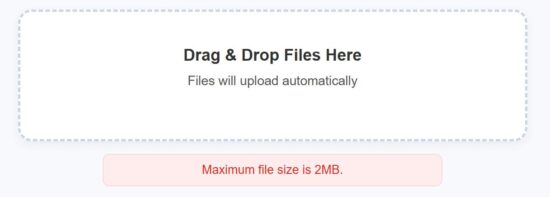
react file upload error state

src/components/UploadBox.jsx

const UploadBox = ({ dragActive, uploading, errorMsg, handleDrop, setDragActive }) => ( <> <div className={`upload-box ${dragActive ? "active" : ""}`} onDragOver={(e) => { e.preventDefault(); setDragActive(true); }} onDragLeave={() => setDragActive(false)} onDrop={handleDrop} > <h3 className="upload-title">Drag & Drop Files Here</h3> <p className="upload-text">Files will upload automatically</p> </div> {uploading && <p className="uploading-text">Uploading...</p>} {errorMsg && <p className="error-text">{errorMsg}</p>} </>
); export default UploadBox;

Showing file preview with thumbnails

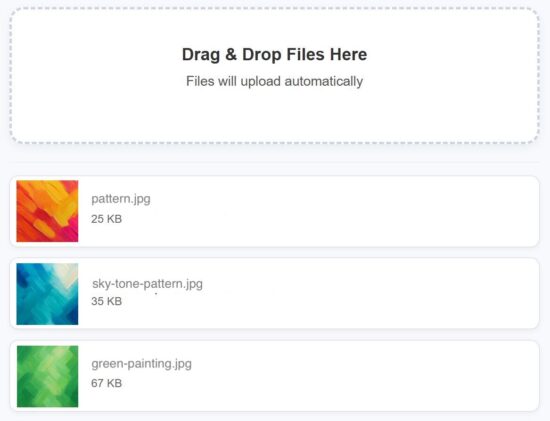
The FilePreview component displays the uploaded files in a list format. It will show its thumbnail, name and size.

If an image upload, the preview will show the image thumbnail. It a document type file is uploaded, the default icon is shown to the preview screen.
React File Upload Success Case Output

src/components/FilePreview.jsx

const FilePreview = ({ files, uploading }) => { if (!files.length) return null; return ( <div className="preview-list"> {files.map((file, i) => ( <div key={i} className="preview-row"> {file.type?.startsWith("image/") ? ( <div className="preview-thumb-wrapper"> <img src={URL.createObjectURL(file)} alt={file.name} className={`preview-thumb ${uploading ? "blurred" : ""}`} /> {uploading && ( <div className="preview-loader"> <img src="/assets/image/loader.svg" alt="Loading..." /> </div> )} </div> ) : ( <div className="file-icon"></div> )} <div className="file-info"> <p className="file-name">{file.name}</p> <p className="file-size">{Math.round(file.size / 1024)} KB</p> </div> </div> ))} </div> );
};
export default FilePreview;

How to set up this application

The below steps help to set up this example to run in your environment. After these steps, start the npm dev server and run the React drag and drop app.

  1. Download the source and unzip into your computer.
  2. Copy the drag-drop-file-upload-api into the PHP web root.
  3. Create a database file_upload_db and import the SQL script in the drag-drop-file-upload-api/sql
  4. Configure database details with db.php
  5. Configure the PHP endpoint URL in React in src/config.js

Conclusion

I hope the React code provides a modern file upload interface. The drag-and-drop, file validation, preview rendering and database insert is a stack of features enriches the example code. This code well-structured and ready to integrate with an application easily. If you want any add-on feature to this example, please let me know.

References:
  1. HTML drag and drop UI
  2. Axios API request config option

Download

Vincy
Written by Vincy, a web developer with 15+ years of experience and a Masters degree in Computer Science. She specializes in building modern, lightweight websites using PHP, JavaScript, React, and related technologies. Phppot helps you in mastering web development through over a decade of publishing quality tutorials.

↑ Back to Top

Posted on Leave a comment

Build a Multi-Step Form in React with Validation and Progress Bar

by Vincy. Last modified on November 18th, 2025.

A multi-step form is one of the best ways to replace a long form to make the customer feel easy. Example: a student enrolment form will usually be very long. If it is partitioned into multi-steps with section-wise sub forms, it encourages enduser to proceed forward. And importantly the merit is that it will increase your signup rate.

In this React tutorial, a registration form is partitioned into 4 steps. Those are to collect general, contact, personal, and authentication details from the users. Each step loads a sub-form with corresponding sections. Each subform is a separate component with proper structure and easy maintainability.

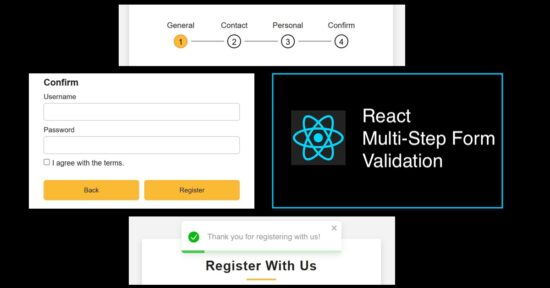
React Multi Step Form Validation Progress Bar

Rendering multi-step registration form

This RegisterForm is created as a parent React Form component. It loads all the sub-components created for rendering a multi-step form with validation and a progress bar.

It requires the following custom React component created for this example.

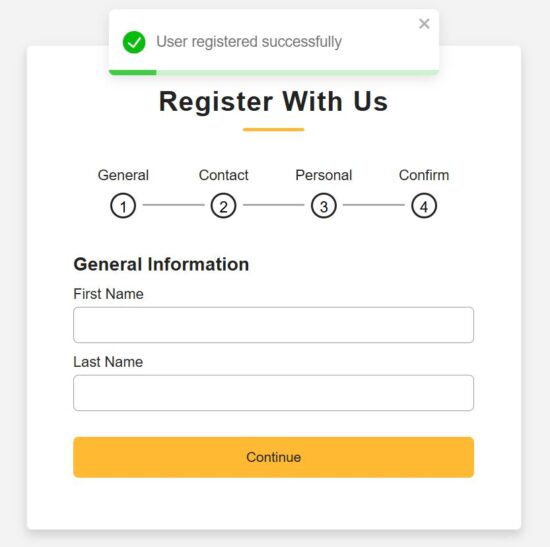
  1. GeneralInfo – to collect basic information, first and last names.
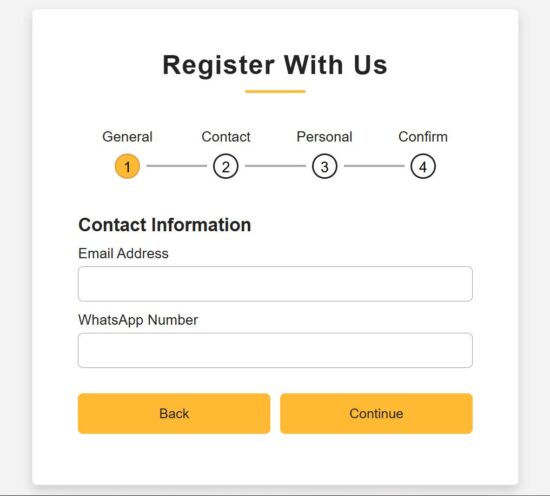
  2. ContactInfo – to collect phone or WhatsApp numbers.
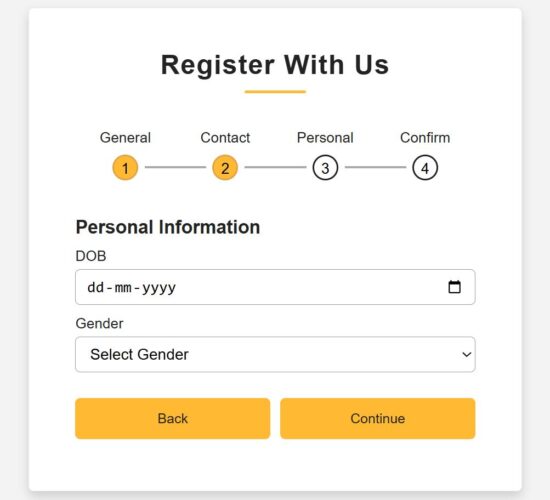
  3. PersonalInfo – to collect a person’s date of birth and gender.
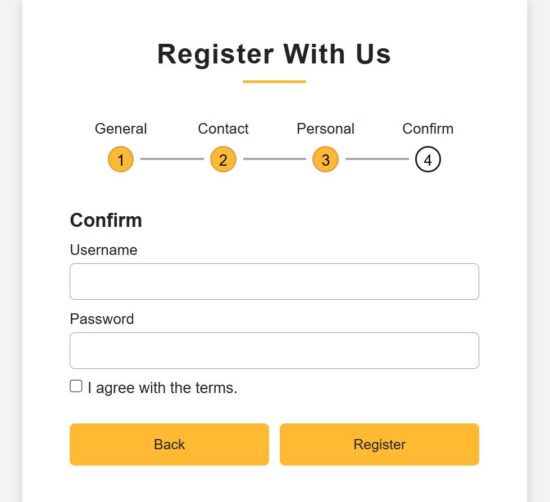
  4. ConfirmInfo – is a last step to register confidential information and confirm registration.

All information is stored in the formData by using the corresponding handleChange hook.

Additionally, this JSX has a Toast container to display success or error responses on the user-entered data.

There is a step navigation interface that helps to move along the registration steps. The step navigation helps to verify the data before clicking confirmation.

src/components/RegisterForm.jsx

import { useState } from "react";
import { ToastContainer } from "react-toastify";
import "react-toastify/dist/ReactToastify.css";
import ProgressBar from "./ProgressBar";
import GeneralInfo from "./FormSteps/GeneralInfo";
import ContactInfo from "./FormSteps/ContactInfo";
import PersonalInfo from "./FormSteps/PersonalInfo";
import Confirmation from "./FormSteps/Confirmation";
import "../../public/assests/css/RegisterForm.css";
const RegisterForm = () => { const [step, setStep] = useState(1); const [formData, setFormData] = useState({ first_name: "", last_name: "", email: "", phone: "", dob: "", gender: "", username: "", password: "", terms: false, }); const nextStep = () => setStep(prev => prev + 1); const prevStep = () => setStep(prev => prev - 1); const handleChange = (e) => { const { name, value, type, checked } = e.target; setFormData({ ...formData, [name]: type === "checkbox" ? checked : value, }); };
return (
<div className="container"> <header>Register With Us</header> <ProgressBar step={step} /> <div className="form-outer"> {step === 1 && <GeneralInfo formData={formData} handleChange={handleChange} nextStep={nextStep} />} {step === 2 && <ContactInfo formData={formData} handleChange={handleChange} nextStep={nextStep} prevStep={prevStep} />} {step === 3 && <PersonalInfo formData={formData} handleChange={handleChange} nextStep={nextStep} prevStep={prevStep} />} {step === 4 && <Confirmation formData={formData} handleChange={handleChange} prevStep={prevStep} setFormData={setFormData} setStep={setStep} />} </div> <ToastContainer position="top-center" autoClose={3000} hideProgressBar={false} newestOnTop closeOnClick pauseOnHover/>
</div>
);
};
export default RegisterForm;

Form progress bar with numbered in-progress state of registration

When a multi-step form interface is used, the progress bar and prev-next navigation controls are very important usability.

This example provides both of these controls which will be useful to learn how to make this for other similar cases.

The progress bar contains circled, numbered nodes represent each step. This node is a container that denotes the title and the step number. It checks the useState for the current step and highlights the node accordingly.

The conditional statements load the CSS className ‘active’ dynamically when loading the progress bar to the UI.

All the completed steps are highlighted by a filled background and shows clarity on the current state.

src/components/ProgressBar.jsx

const ProgressBar = ({ step }) => {
return (
<div className="progress-bar"> <div className={`step ${step >= 1 ? "active" : ""}`}> <p>General</p> <div className={`bullet ${step > 1 ? "active" : ""}`}> <span className="black-text">1</span> </div> </div> <div className={`step ${step >= 2 ? "active" : ""}`}> <p>Contact</p> <div className={`bullet ${step > 2 ? "active" : ""}`}> <span className="black-text">2</span> </div> </div> <div className={`step ${step >= 3 ? "active" : ""}`}> <p>Personal</p> <div className={`bullet ${step > 3 ? "active" : ""}`}> <span className="black-text">3</span> </div> </div> <div className={`step ${step >= 4 ? "active" : ""}`}> <p>Confirm</p> <div className="bullet"> <span className="black-text">4</span> </div> </div>
</div>
);
};
export default ProgressBar;

React Form components collecting types of user information

We have seen all 4 sub-form components created for this React example. Those component purposes are described in the explanation of the parent React container.

Each form component accepts the formData, handleChange, nextStep references. The parent component has the scope of reading all the sub-form field data. It supplies the data with the corresponding handleChange hook to each step.

The main RegisterForm JSX contains conditional statements to check the current step. Then, it load the corresponding sub form components based on the in-progressing step managed in a React useState.

Step 1 – Collecting general information

react registered multi step form

src/components/FormSteps/GeneralInfo.jsx

import { useState } from "react";
const GeneralInfo = ({ formData, handleChange, nextStep }) => { const [errors, setErrors] = useState({}); const validate = () => { const newErrors = {}; if (!formData.first_name.trim()) newErrors.first_name = "First name is required"; if (!formData.last_name.trim()) newErrors.last_name = "Last name is required"; setErrors(newErrors); return Object.keys(newErrors).length === 0; }; return ( <div className="page slidepage"> <div className="title">General Information</div> <div className="field"> <div className="label">First Name</div> <input type="text" name="first_name" value={formData.first_name} onChange={handleChange} className={errors.first_name ? "is-invalid" : ""} /> {errors.first_name && <div className="ribbon-alert">{errors.first_name}</div>} </div> <div className="field"> <div className="label">Last Name</div> <input type="text" name="last_name" value={formData.last_name} onChange={handleChange} className={errors.last_name ? "is-invalid" : ""} /> {errors.last_name && <div className="ribbon-alert">{errors.last_name}</div>} </div> <div className="field nextBtn"> <button type="button" onClick={() => validate() && nextStep()}> Continue </button> </div> </div> );
};
export default GeneralInfo;

Step 2: Collecting contact information

React Contact Info Form

src/components/FormSteps/ContactInfo.jsx

import { useState } from "react";
const ContactInfo = ({ formData, handleChange, nextStep, prevStep }) => { const [errors, setErrors] = useState({}); const validate = () => { const newErrors = {}; const emailRegex = /^[^\s@]+@[^\s@]+\.[^\s@]+$/; if (!formData.email.trim()) newErrors.email = "Email is required"; else if (!emailRegex.test(formData.email)) newErrors.email = "Enter a valid email address"; if (formData.phone.length < 10) newErrors.phone = "Phone number must be at least 10 digits"; setErrors(newErrors); return Object.keys(newErrors).length === 0; }; return ( <div className="page"> <div className="title">Contact Information</div> <div className="field"> <div className="label">Email Address</div> <input type="text" name="email" value={formData.email} onChange={handleChange} className={errors.email ? "is-invalid" : ""} /> {errors.email && <div className="ribbon-alert">{errors.email}</div>} </div> <div className="field"> <div className="label">WhatsApp Number</div> <input type="number" name="phone" value={formData.phone} onChange={handleChange} className={errors.phone ? "is-invalid" : ""} /> {errors.phone && <div className="ribbon-alert">{errors.phone}</div>} </div> <div className="field btns"> <button type="button" onClick={prevStep}>Back</button> <button type="button" onClick={() => validate() && nextStep()}>Continue</button> </div> </div> );
};
export default ContactInfo;

Step3 – Collecting personal information

react personal info form

src/components/FormSteps/PersonalInfo.jsx

import { useState } from "react";
const PersonalInfo = ({ formData, handleChange, nextStep, prevStep }) => { const [errors, setErrors] = useState({}); const validate = () => { const newErrors = {}; if (!formData.dob) newErrors.dob = "Please select your date of birth"; if (!formData.gender) newErrors.gender = "Please select your gender"; setErrors(newErrors); return Object.keys(newErrors).length === 0; };
return ( <div className="page"> <div className="title">Personal Information</div> <div className="field"> <div className="label">DOB</div> <input type="date" name="dob" value={formData.dob} onChange={handleChange} className={errors.dob ? "is-invalid" : ""} /> {errors.dob && <div className="ribbon-alert">{errors.dob}</div>} </div> <div className="field"> <div className="label">Gender</div> <select name="gender" value={formData.gender} onChange={handleChange} className={errors.gender ? "is-invalid" : ""} > <option value="">Select Gender</option> <option>Male</option> <option>Female</option> <option>Other</option> </select> {errors.gender && <div className="ribbon-alert">{errors.gender}</div>} </div> <div className="field btns"> <button type="button" onClick={prevStep}>Back</button> <button type="button" onClick={() => validate() && nextStep()}>Continue</button> </div> </div>
);
};
export default PersonalInfo;

Step 4 – Collecting user consent and confidential information

react confirm info form

src/components/FormSteps/Confirmation.jsx

import { useState } from "react";
import { toast } from "react-toastify";
import "react-toastify/dist/ReactToastify.css";
import axios from "axios";
import SERVER_SIDE_API_ROOT from "../../config";
const Confirmation = ({ formData, handleChange, prevStep, setFormData, setStep }) => { const [errors, setErrors] = useState({}); const handleSubmit = async (e) => { e.preventDefault(); const newErrors = {}; if (!formData.username) newErrors.username = "Username is required"; if (!formData.password) newErrors.password = "Password is required"; else if (formData.password.length < 6) newErrors.password = "Password must be at least 6 characters"; if (!formData.terms) newErrors.terms = "You must agree to the terms"; setErrors(newErrors); if (Object.keys(newErrors).length > 0) return; try { const res = await axios.post(`${SERVER_SIDE_API_ROOT}/multi-step-form.php`, formData); if (res.data.success) { toast.success(res.data.message || "User registered successfully!"); setFormData({ first_name: "", last_name: "", email: "", phone: "", dob: "", gender: "", username: "", password: "", terms: false, }); setStep(1); setErrors({}); } else { toast.error(res.data.message || "Registration failed!"); } } catch (err) { console.error(err); toast.error("Error while saving user data."); } }; const renderError = (field) => errors[field] ? <div className="ribbon-alert">{errors[field]}</div> : null;
return ( <div className="page"> <div className="title">Confirm</div> <div className="field"> <div className="label">Username</div> <input type="text" name="username" value={formData.username} onChange={handleChange} className={errors.username ? "is-invalid" : ""} /> {renderError("username")} </div> <div className="field"> <div className="label">Password</div> <input type="password" name="password" value={formData.password} onChange={handleChange} className={errors.password ? "is-invalid" : ""} /> {renderError("password")} </div> <div className="field-terms"> <label> <input type="checkbox" name="terms" checked={formData.terms} onChange={handleChange} />{" "} I agree with the terms. </label> {renderError("terms")} </div> <div className="field btns"> <button type="button" onClick={prevStep}>Back</button> <button type="submit" onClick={handleSubmit}>Register</button> </div> </div>
);
};
export default Confirmation;

PHP endpoint processing multi-step form data

It is a usual PHP file which not need to describe if you are already familiar with how the PHP user registration works. It reads the form data posted by the front-end multi-step React form.

With this form data, it builds the database insert query to save the user-entered information to the backend.

This example has the server-side validation for a few fields. If the validation process catches any problem with the submitted data, then it composes an error response to the React frontend.

Mainly, it validates email format and password-strength (minimally by its length). Password strength checking has no limitations. Based on the application sensitivity we are free to add as much validation as possible which is good for a security point of view.

Note: The SQL script for the user database is in the downloadable source code attached with this tutorial in multi-step-form-validation-api/users.sql.

multi-step-form-validation-api/multi-step-form.php

<?php
header("Access-Control-Allow-Origin: *");
header("Access-Control-Allow-Headers: Content-Type");
header("Access-Control-Allow-Methods: POST");
header("Content-Type: application/json");
include 'db.php';
$data = json_decode(file_get_contents("php://input"), true);
$firstName = $data["first_name"] ?? "";
$lastName = $data["last_name"] ?? "";
$email = $data["email"] ?? "";
$phone = $data["phone"] ?? "";
$dob = $data["dob"] ?? "";
$gender = $data["gender"] ?? "";
$username = $data["username"] ?? "";
$password = $data["password"] ?? "";
if (!$firstName || !$email || !$password) { echo json_encode(["success" => false, "message" => "Required fields missing"]); exit;
}
if (!filter_var($email, FILTER_VALIDATE_EMAIL)) { echo json_encode(["success" => false, "message" => "Invalid email"]); exit;
}
if (strlen($password) < 6) { echo json_encode(["success" => false, "message" => "Password too short"]); exit;
}
$hashedPassword = password_hash($password, PASSWORD_BCRYPT);
$stmt = $conn->prepare("INSERT INTO users (first_name, last_name, email, phone, dob, gender, username, password) VALUES (?, ?, ?, ?, ?, ?, ?, ?)");
$stmt->bind_param("ssssssss", $firstName, $lastName, $email, $phone, $dob, $gender, $username, $hashedPassword);
if ($stmt->execute()) { echo json_encode(["success" => true, "message" => "User registered successfully"]);
} else { echo json_encode(["success" => false, "message" => "DB insert failed"]);
}
?>

How to set up this application

The below steps help to set up this example to run in your environment.

  1. Download the source code into your React project directory.
  2. Copy the multi-step-form-validation-api into your PHP root.
  3. Create a database multistep_form_validation_db and import the user.sql
  4. Configure database details with db.php
  5. Configure the PHP endpoint URL in React in src/config.js
  6. Run npm install and then, npm run dev.
  7. Copy the dev server URL and run it to render the React Multi-step form.

Conclusion:

So, we have seen a simple React example to understand how to create and manage the state of a multi-step form. By splitting the mail and sub form components we had a structural code base that is more feasible for enhancements.

The navigation between steps gives a scope for verification before confirm the signup. And the progress bar indicates the state in progress at a quick glance.

Definitely, the PHP validation and database processing can have add-on features to make the backend more solid. If you have a requirement to create a multi-step form in React, share your specifications in the comments.

Download

Vincy
Written by Vincy, a web developer with 15+ years of experience and a Masters degree in Computer Science. She specializes in building modern, lightweight websites using PHP, JavaScript, React, and related technologies. Phppot helps you in mastering web development through over a decade of publishing quality tutorials.

↑ Back to Top

Posted on Leave a comment

Send Email from React Using EmailJS (No Backend Required)

by Vincy. Last modified on November 13th, 2025.

EmailJS is a cloud service that supports to enable the frontend to send email without any backend. All we need is to create an EmailJS account and configure it to the frontend application.

This tutorial shows the step-by-step procedure to learn how to enable email sending in a React application using EmialJS.

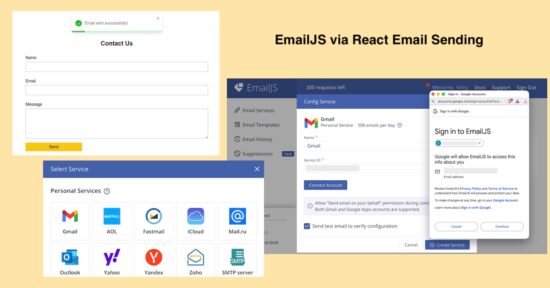
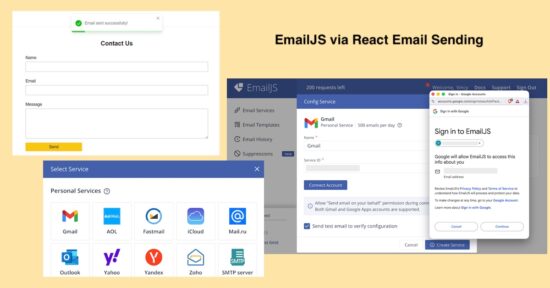
Send Email From React Using EmailJS

Steps to allow EmailJS to send mail

1. Signup with EmailJS service

First signup and login with EmailJS dashboard. It’s a free and enables mail sending via various services supported.

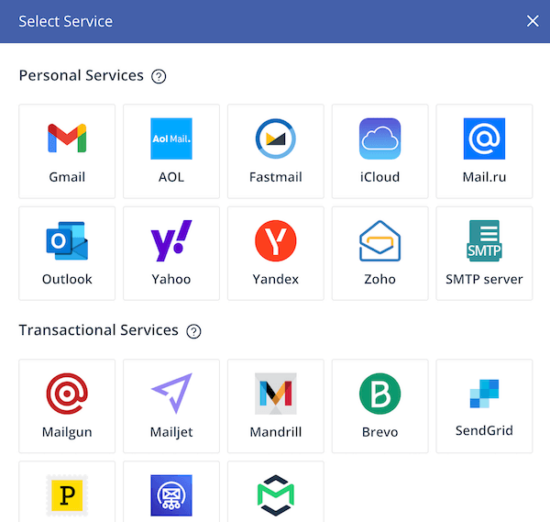
Select Email Sending Service

2. Choose service provider via Add New Service -> Select Service

It supports various services like Gmail, Yahoo and etc. It also have settings to configure custom SMTP server  with this online solution.
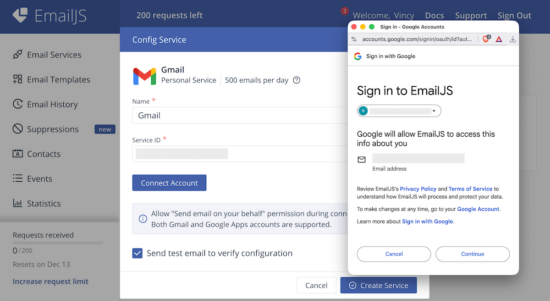
Permit EmailJS To Access Mail Account

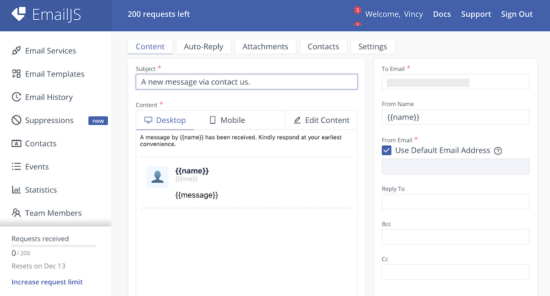
3. Design mail template by Email Templates -> Create New Template -> Select Template

There are various built-in templates in the EmailJS dashboard. I selected the “Contact Us” template for this example.

Template edit interface has the option to change the design and the content. It allows to add dynamic variables as part of the mail content.

When calling the EmailJS service, the request will have values to replace this variables. This feature will help to send a personalized email content.

Copy the Template ID once created an email template.

Design EmailJS Template

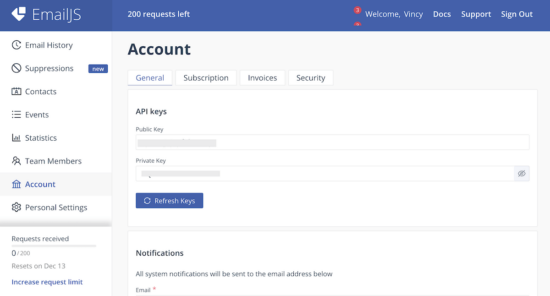
4. Get EmailJS API Public Key

Added Service ID, Template ID the EmailJS Public Key  is also need to initiate the library class from the frontend React App.

Navigate via Account using the left menu to open the API keys section. Copy Public Key from the EmailJS dashboard.

Get EmailJS Account Public Key

Initiate EmailJS library to React App

Create a React app and install the EmailJS library to it using this command.

npm install emailjs-com

This example code contains this library installed. So, just run npm install to bring the dependancies into your node_modules.

Then, import the emailjs-com to the React JSX and initiate the EmailJS service as shown below. This script shows how the emailjs instance is used in the form handle submit.

import emailjs from "emailjs-com"; const handleSubmit = (e) => { e.preventDefault(); const SERVICE_ID = "Your Serivce ID"; const TEMPLATE_ID = "Your Template ID"; const PUBLIC_KEY = "EmailJS API Public key here"; emailjs .send(SERVICE_ID, TEMPLATE_ID, formData, PUBLIC_KEY) .then(() => { toast.success("Email sent successfully!", { position: "top-center" }); setFormData({ name: "", email: "", message: "" }); }) .catch(() => { toast.error("Failed to send email. Please try again.", { position: "top-center", }); }); };

Example React form to send email

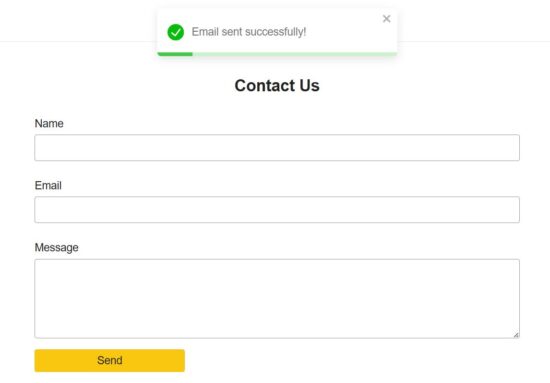
This example provides component for the email sending form fields. The fields UI code is moved to a separate file and made as a component. It is imported into the parent container in the EmailForm component.

It renders Name, Email and Message fields. Each fields is validated with a handleChange hook.

react send mail form

src/components/EmailFormFields.jsx

const EmailFormFields = ({ formData, handleChange }) => {
return ( <> <div className="form-group"> <label className="form-label">Name</label> <input type="text" name="name" value={formData.name} onChange={handleChange} className="form-input" required /> </div> <div className="form-group"> <label className="form-label">Email</label> <input type="email" name="email" value={formData.email} onChange={handleChange} className="form-input" required /> </div> <div className="form-group"> <label className="form-label">Message</label> <textarea name="message" value={formData.message} onChange={handleChange} className="form-input" rows="6" required ></textarea> </div> </>
);
};
export default EmailFormFields;

React JSX to load EmailJS and EmailFormFields Component

This JSX defines the handleChange and handleSubmit hooks for validation and mail sending respectively.

The form container includes the <EmailFormFields />, Submit button and a <ToastContainer />.

After sending email via emailjs, the handleSubmit action resets the form and make it ready for the next submit.

When submitting the form, the handleSubmit function sends the formData with the API keys and IDs. Configure your EmailJS keys and IDs to this React script to make this example to send email.

src/components/EmailForm.jsx

import { useState } from "react";
import emailjs from "emailjs-com";
import { ToastContainer, toast } from "react-toastify";
import "react-toastify/dist/ReactToastify.css";
import "../../public/assets/css/phppot-style.css";
import EmailFormFields from "./EmailFormFields"; const EmailForm = () => { const [formData, setFormData] = useState({ name: "", email: "", message: "", }); const handleChange = (e) => { const { name, value } = e.target; setFormData((prev) => ({ ...prev, [name]: value })); }; const handleSubmit = (e) => { e.preventDefault(); const SERVICE_ID = "Your Serivce ID"; const TEMPLATE_ID = "Your Template ID"; const PUBLIC_KEY = "EmailJS API Public key here"; emailjs .send(SERVICE_ID, TEMPLATE_ID, formData, PUBLIC_KEY) .then(() => { toast.success("Email sent successfully!", { position: "top-center" }); setFormData({ name: "", email: "", message: "" }); }) .catch(() => { toast.error("Failed to send email. Please try again.", { position: "top-center", }); }); }; return ( <div className="form-wrapper"> <h2 className="form-title">Contact Us</h2> <form onSubmit={handleSubmit} className="payment-form"> <EmailFormFields formData={formData} handleChange={handleChange} /> <button type="submit" className="submit-btn"> Send </button> </form> <ToastContainer /> </div> );
};
export default EmailForm;

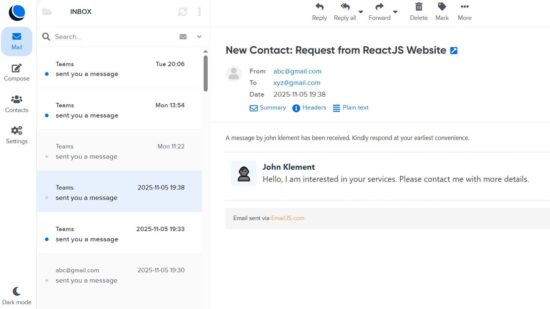
Note: Form data is in an associate array format, where the array keys matches the email template variables. For example, if the email template body in the EmailJS dashboard contains Hi {{name}}, then the form data will have the key-value as name: submitted-name to replace the variable.

The receive email signature and the mail body design will be as configured in the EmailJS dashboard. The following diagram shows the received email output.

React Received Web Mail

Conclusion

Thus, we have created a frontend in React for sending email without any backend set up. I hope, you find EmailJS very simple to integrate into an application. And its registration process is very simple. And, the features to customize the email body is very useful to have a thematic email template for different applications.

Download

Vincy
Written by Vincy, a web developer with 15+ years of experience and a Masters degree in Computer Science. She specializes in building modern, lightweight websites using PHP, JavaScript, React, and related technologies. Phppot helps you in mastering web development through over a decade of publishing quality tutorials.

↑ Back to Top

Posted on Leave a comment

Save React Form Data to Google Sheets Without a Backend (Step-by-Step Guide)

by Vincy. Last modified on November 12th, 2025.

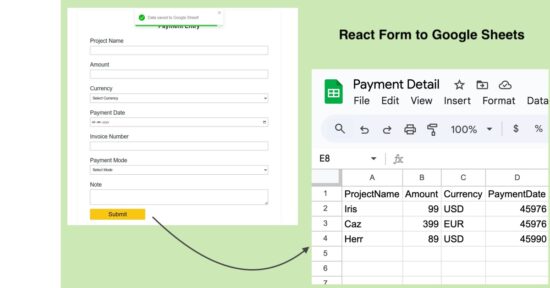
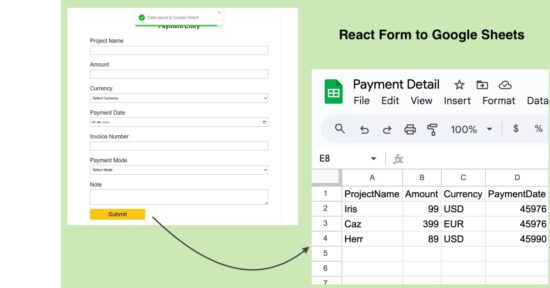
React form can be tied to a Google Sheets to store the submitted data. It maintains the form responses in an Excel format without database. This can be done by deploying a Google App Script for the target sheet.

In this tutorial, you will learn the steps to create a new Google App Script and deploy it for a Google Sheets.

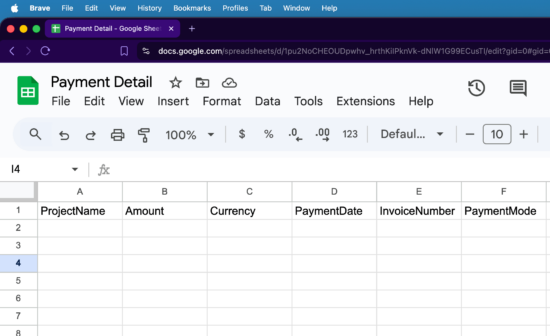
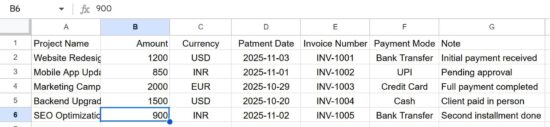
The Google Sheets will have columns relevant to the React form fields. The Google web app script URL parameters are in the same order as the column. In a previous tutorial, we saw how to connect Google Sheets via API from a PHP application.

React Google Sheets No Backend Form

Steps to get Google Sheets URL to post form data

There are 5 simple steps to get the Google Sheets web app URL by registering an app script for a target sheet. At the end of these 5 steps, it will generate a URL that has to be configured in the React frontend code.

In the frontend, this URL will have a form data bundle to process the data row insertion as coded in the app script.

1. Create a Google sheet with the column relevant to the React form

Target Google Sheet

2. Navigate Extension -> App Script to add JS script to build row to insert

Append Row via JavaScript

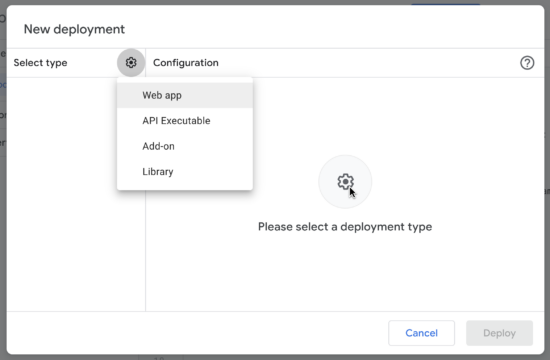
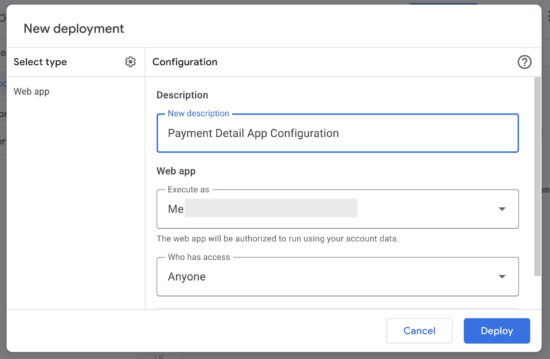
3. Choose Deploy -> New Deployment to configure web app

Configure Web App Type

4. Set ownership configurations and authorize the app

Configure Web App Restriction Settings

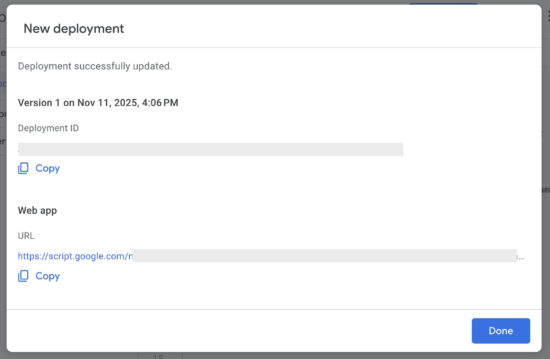
5. Click Deploy and copy the Google Sheets web app URL

Web App URL Generation

React frontend form JSX with required handlers

The ReactForm JSX component includes the form UI and hooks to process the form submit. This simple form collects payment details to store in the Google Sheets.

In the above steps we get the Google App script URL to target the sheet from the frontend. This URL is used in this JSX with the form’s handleSubmit function. This URL is added to the GOOGLE_SHEET_URL variable and used in the form action hook.

The URLSearchParams builds the argument list with the submitted React form data. Google Sheets URL will receive these arguments in key1=value1&key2=value2.. format.

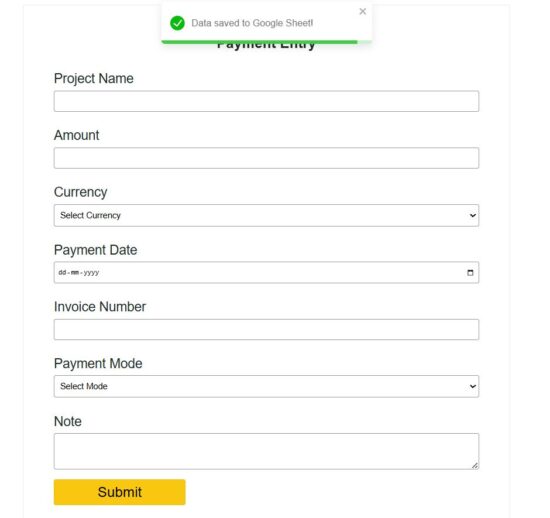
Once the submitted data is added to the Google Sheets, the frontend will clear the form and show a success toast message to the user.

react google sheet form

src/components/ReactForm.jsx

import { useState } from "react";
import axios from "axios";
import { ToastContainer, toast } from "react-toastify";
import "react-toastify/dist/ReactToastify.css";
import "../../public/assets/css/react-style.css";
import PaymentFormFields from "./PaymentFormFields";
const GOOGLE_SHEET_URL = "Paste your Google Apps Script Web App URL here";
const ReactForm = () => { const [formData, setFormData] = useState({ projectName: "", amount: "", currency: "", paymentDate: "", invoiceNumber: "", paymentMode: "", note: "", }); const handleChange = (e) => { const { name, value } = e.target; setFormData((prev) => ({ ...prev, [name]: value })); }; const handleSubmit = async (e) => { e.preventDefault(); try { const params = new URLSearchParams(formData).toString(); const response = await axios.post(`${GOOGLE_SHEET_URL}?${params}`); if (response.data.status === "success") { toast.success("Data saved to Google Sheet!", { position: "top-center" }); setFormData({ projectName: "", amount: "", currency: "", paymentDate: "", invoiceNumber: "", paymentMode: "", note: "", }); } else { toast.error("Failed to save data. Try again.", { position: "top-center" }); } } catch (error) { console.error("Error:", error); toast.error("Something went wrong while submitting.", { position: "top-center", }); } }; return ( <div className="form-wrapper"> <h2 className="form-title">Payment Entry</h2> <form onSubmit={handleSubmit} className="payment-form"> <PaymentFormFields formData={formData} handleChange={handleChange} /> <button type="submit" className="submit-btn disabled={loading}"> {loading ? "Processing..." : "Submit"} </button> </form> <ToastContainer /> </div> );
};
export default ReactForm; 

src/components/PaymentFormFields.jsx

const PaymentFormFields = ({ formData, handleChange }) => { return ( <> <div className="form-group"> <label className="form-label">Project Name</label> <input type="text" name="projectName" value={formData.projectName} onChange={handleChange} className="form-input" required /> </div> <div className="form-group"> <label className="form-label">Amount</label> <input type="number" name="amount" value={formData.amount} onChange={handleChange} className="form-input" required /> </div> <div className="form-group"> <label className="form-label">Currency</label> <select name="currency" value={formData.currency} onChange={handleChange} className="form-input" required > <option value="">Select Currency</option> <option value="USD">USD</option> <option value="INR">INR</option> <option value="EUR">EUR</option> </select> </div> <div className="form-group"> <label className="form-label">Payment Date</label> <input type="date" name="paymentDate" value={formData.paymentDate} onChange={handleChange} className="form-input" required /> </div> <div className="form-group"> <label className="form-label">Invoice Number</label> <input type="text" name="invoiceNumber" value={formData.invoiceNumber} onChange={handleChange} className="form-input" required /> </div> <div className="form-group"> <label className="form-label">Payment Mode</label> <select name="paymentMode" value={formData.paymentMode} onChange={handleChange} className="form-input" required > <option value="">Select Mode</option> <option value="Cash">Cash</option> <option value="Bank Transfer">Bank Transfer</option> <option value="Credit Card">Credit Card</option> <option value="UPI">UPI</option> </select> </div> <div className="form-group"> <label className="form-label">Note</label> <textarea name="note" value={formData.note} onChange={handleChange} className="form-input" rows="3" ></textarea> </div> </> );
}; export default PaymentFormFields;

Appending new row to the Google Sheets using the Web App Script

I gave the web app script in the downloadable source code added to this tutorial. This JS script is added to the Google Sheets App script extension.

This script will be executed when the form post action calls the web app URL.  The doPost() function builds the Google Sheets row instance with the parameters posted from the form.

With the line sheet.appendRow(row); we can return the ContentService with a success response.

The formatOnly step is optional to maintain all the rows with the same styles as the sheet header has. For example, if you highlight any column with a bright background, that will be carried over to the next rows added by the app script.

react google sheet form data

google-sheet-app/app-script-target.js

function doPost(e) { if (!e || !e.parameter) { return ContentService .createTextOutput(JSON.stringify({ status: "error", message: "No parameters received" })) .setMimeType(ContentService.MimeType.JSON); } const sheet = SpreadsheetApp.getActiveSpreadsheet().getSheetByName("Sheet1"); const row = [ e.parameter.projectName || "", e.parameter.amount || "", e.parameter.currency || "", e.parameter.paymentDate || "", e.parameter.invoiceNumber || "", e.parameter.paymentMode || "", e.parameter.note || "", ]; sheet.appendRow(row); const lastRow = sheet.getLastRow(); const lastColumn = sheet.getLastColumn(); const headerRange = sheet.getRange(1, 1, 1, lastColumn); const newRowRange = sheet.getRange(lastRow, 1, 1, lastColumn); headerRange.copyTo(newRowRange, { formatOnly: true }); return ContentService .createTextOutput(JSON.stringify({ status: "success" })) .setMimeType(ContentService.MimeType.JSON);
}

Conclusion

By linking a React form to a Google Sheets via the Google Apps Script, form data is stored in excel format. This will be very useful to maintain form responses without a backend database. The App Script created for this tutorial provided a feature to keep the row column formatting with the newly added rows.

As an enhancement, we can extend this code to read Google sheets and show the latest records to the UI.

References

  1. Google Apps Script Web App documentation.
  2. Bundling form data with URL parameters.

Download

Vincy
Written by Vincy, a web developer with 15+ years of experience and a Masters degree in Computer Science. She specializes in building modern, lightweight websites using PHP, JavaScript, React, and related technologies. Phppot helps you in mastering web development through over a decade of publishing quality tutorials.

↑ Back to Top

Posted on Leave a comment

React + Node + MySQL CRUD App Tutorial (Full-Stack API Integration)

by Vincy. Last modified on November 6th, 2025.

This tutorial has a React NodeJS example for building a full-stack CRUD application. It gives easy guidelines to design the frontend and backend. The frontend React connects the NodeJS API controllers to interact for creating, reading, updating, and deleting. This will provide persistent storage with a MySQL database connected via API DAOs.

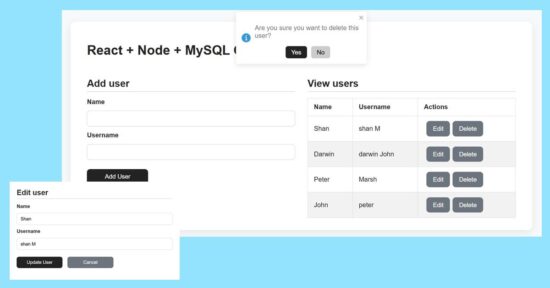
React Node Mysql Crud Full Stack Tutorial

Add form design and user creation with NodeJS and MySQL

The user-create form contains only two fields to simplify the example. So, the React frontend assets manages states and props to carry these inputs’ data to post.

The addUser() props triggers the add action request to post the form data to the server.

It executes the insert query on clicking the ‘Add User’ button. The response will have the auto-generated key created on successful insert action of the CRUD functionality.

src/components/form/AddUserForm.jsx

import { useState } from 'react'
const AddUserForm = props => { const initialFormState = { id: null, name: '', username: '' } const [ user, setUser ] = useState(initialFormState) const handleInputChange = event => { const { name, value } = event.target setUser({ ...user, [name]: value }) }
return ( <form onSubmit={event => { event.preventDefault() if (!user.name || !user.username) return props.addUser(user) setUser(initialFormState) }}> <label>Name</label> <input type="text" name="name" value={user.name} onChange={handleInputChange} /> <label>Username</label> <input type="text" name="username" value={user.username} onChange={handleInputChange} /> <div className="action-buttons"> <button type="submit">Add User</button> </div> </form>
)
}
export default AddUserForm

part of userControllers.js

export const addUser = (req, res) => { const { name, username } = req.body; db.query("INSERT INTO users (name, username) VALUES (?, ?)", [name, username], (err, result) => { if (err) return res.status(500).json({ error: err.message }); res.json({ id: result.insertId, name, username }); });
};

react crud add user

Displaying user data rows with edit and delete action controls

The UserTable component displays the data table dynamically from the MySQL database. The prop.users tree map is used to form these rows to the UI.

Each row contains edit and delete controls that are bound to editRow and deleteUser functions respectively.

src/components/table/UserTable.jsx

import React from 'react'
const UserTable = props => ( <table> <thead> <tr> <th>Name</th> <th>Username</th> <th>Actions</th> </tr> </thead> <tbody> {props.users.length > 0 ? ( props.users.map(user => ( <tr key={user.id}> <td>{user.name}</td> <td>{user.username}</td> <td> <button onClick={() => { props.editRow(user) }} className="button muted-button" > Edit </button> <button onClick={() => props.deleteUser(user.id)} className="button muted-button" > Delete </button> </td> </tr> )) ) : ( <tr> <td colSpan={3}>No users</td> </tr> )} </tbody> </table>
)
export default UserTable

In NodeJS the getUsers() module reads all users into an JSON response array as built below.

part of userControllers.js

export const getUsers = (req, res) => { db.query("SELECT * FROM users", (err, results) => { if (err) return res.status(500).json({ error: err.message }); res.json(results); });
};

Updating current user by ID using update API in NodeJS

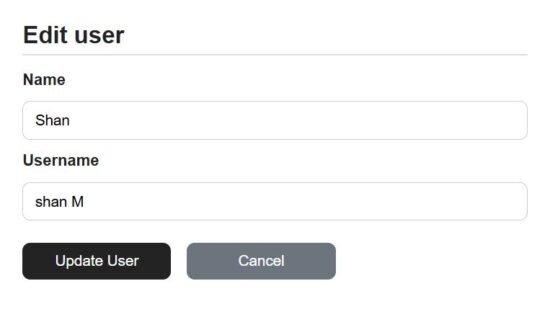
The add and edit forms are exactly same except that this edit form populated the existing user data. The currentUser props contains the exiting user details read by id.

On clicking the ‘Edit’ button the user id is passed to send the read request with the id.

Once the enduser edits the detail and submit, it request the NodeJS API to perform the update operation of the CRUD module.

Both add and edit button clicks prevents the default submit and requests the API via network call.

The edit form is used to view or edit the user details. When clicking cancel the editing directive is set to false to switch to the view mode.

src/components/form/EditUserForm

import { useState, useEffect } from 'react'
const EditUserForm = props => { const [user, setUser] = useState(props.currentUser) useEffect( () => { setUser(props.currentUser) }, [props] ) const handleInputChange = event => { const { name, value } = event.target setUser({ ...user, [name]: value }) }
return ( <form onSubmit={event => { event.preventDefault() props.updateUser(user.id, user) }} > <label>Name</label> <input type="text" name="name" value={user.name} onChange={handleInputChange} /> <label>Username</label> <input type="text" name="username" value={user.username} onChange={handleInputChange} /> <div className="action-buttons"> <button type="submit">Update User</button> <button onClick={() => props.setEditing(false)} className="button muted-button"> Cancel </button> </div> </form>
)
}
export default EditUserForm

In the NodeJS, the backend user controller has an exclusive handle to prepare the user update query.

It binds the request parameter to the update query to go with the update operation.

part of userControllers.js

export const updateUser = (req, res) => { const { id } = req.params; const { name, username } = req.body; db.query("UPDATE users SET name=?, username=? WHERE id=?", [name, username, id], (err) => { if (err) return res.status(500).json({ error: err.message }); res.json({ id, name, username }); });
};

react crud edit user

Deleting a user row via NodeJS controller

As like as an edit request, the delete action is also receives the user’s unique id in the request parameter.

The backend Node API receives the id and process the delete operation.

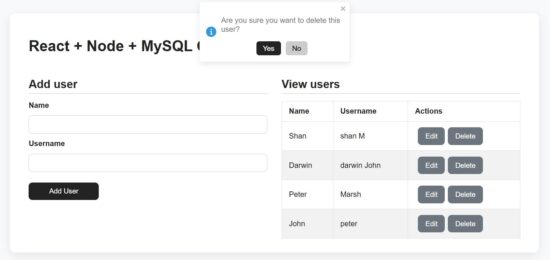
In the React frontend, it shows confirmation message in a toast box to avoid the mistakes.

part of userControllers.js

export const deleteUser = (req, res) => { const { id } = req.params; db.query("DELETE FROM users WHERE id=?", [id], (err) => { if (err) return res.status(500).json({ error: err.message }); res.json({ message: "User deleted" }); });
};

react crud delete user

How to run the React + NodeJS example?

Set up the MySQL database:

First find the /api/sql/users.sql file from the downloadable source code given in this React + NodeJS CRUD example.

Create a database and import that SQL script into that. Then Configure the database details to the db.js file in the NodeJS API root.
Start the backend NodeJS server:

Go to the NodeJS api path and start the server via npm. It will return the server running path http://localhost:5000/

In this example this backend api URL is configured with a specific constant for convenience. It avoid the overhead of changing in multiple places based on the environment.

cd /path/api npm install npm start node server.js

Start the frontend React dev:

Go to the app location path and start the dev server. This will start the dev server http://localhost:5173/

cd react-node-mysql-crud-full-stack-tutorial npm install npm run dev

Conclusion

This tutorial built a simple code for React + Node.js + MySQL CRUD. The code for designing frontend and connecting the NodeJS API together gives a full stack execution sample. I hope, you learned how to read and display dynamic data from backend to React components and also how to manipulate them. The server controller is with appropriate cases to handle the CRUD with MySQL to store, retrieve, update, and delete data. With this base, it is easy to add more features to this CRUD utility.

References:
  1. Installing MySQL client in NodeJS
  2. Secured database accessing with prepared statements.

Download

Vincy
Written by Vincy, a web developer with 15+ years of experience and a Masters degree in Computer Science. She specializes in building modern, lightweight websites using PHP, JavaScript, React, and related technologies. Phppot helps you in mastering web development through over a decade of publishing quality tutorials.

↑ Back to Top

Posted on Leave a comment

Upload and Display Image in PHP

by Vincy. Last modified on July 5th, 2023.

PHP upload is a single-line, built-in function invocation. Any user inputs, especially files, can not be processed without proper filtering. Why? Because people may upload harmful files to the server.

After file upload, the status has to be shown in the UI as an acknowledgment. Otherwise, showing the uploaded image’s preview is the best way of acknowledging the end user.

View Demo
Earlier, we saw how to show the preview of images extracted from a remote URL.

This article will provide a short and easy example in PHP to upload and display images.

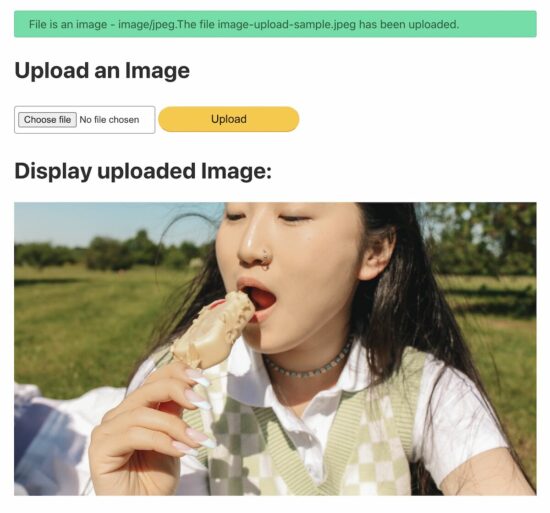
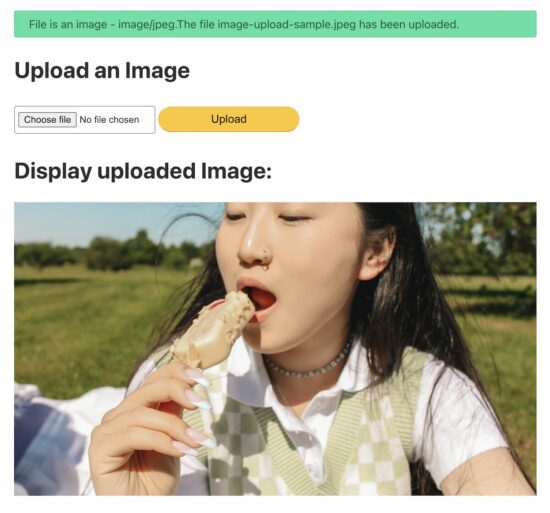
upload and display image php

Steps to upload and display the image preview on the browser

  1. Show an image upload option in an HTML form.
  2. Read file data from the form and set the upload target.
  3. Validate the file type size before uploading to the server.
  4. Call the PHP upload function to save the file to the target.
  5. Display the uploaded image on the browser

1. Show an image upload option in an HTML form

This code is to show an HTML form with a file input to the user. This form is with enctype="multipart/form-data" attribute. This attribute is for uploading the file binary to be accessible on the PHP side.

<form action="" method="post" enctype="multipart/form-data"> <div class="row"> <input type="file" name="image" required> <input type="submit" name="submit" value="Upload"> </div>
</form>

Read file data from the form and set the upload target

This section shows a primary PHP condition to check if the form is posted and the file binary is not empty.

Once these conditions return true, further steps will be taken for execution.

Once the image is posted, it sets the target directory path to upload. The variable $uploadOK is a custom flag to allow the PHP file upload.

If the validation returns false, this $uploadOK variable will be turned to 0 and stop uploading.

<?php
if (isset($_POST["submit"])) { // Check image using getimagesize function and get size // if a valid number is got then uploaded file is an image if (isset($_FILES["image"])) { // directory name to store the uploaded image files // this should have sufficient read/write/execute permissions // if not already exists, please create it in the root of the // project folder $targetDir = "uploads/"; $targetFile = $targetDir . basename($_FILES["image"]["name"]); $uploadOk = 1; $imageFileType = strtolower(pathinfo($targetFile, PATHINFO_EXTENSION)); // Validation here }
}
?>

Validate the file type size before uploading to the server

This example applies three types of validation criteria on the server side.

  1. Check if the uploaded file is an image.
  2. Check if the image has the accepted size limit (0.5 MB).
  3. Check if the image has the allowed extension (jpeg and png).
<?php
// Check image using getimagesize function and get size // if a valid number is got then uploaded file is an image if (isset($_FILES["image"])) { // directory name to store the uploaded image files // this should have sufficient read/write/execute permissions // if not already exists, please create it in the root of the // project folder $targetDir = "uploads/"; $targetFile = $targetDir . basename($_FILES["image"]["name"]); $uploadOk = 1; $imageFileType = strtolower(pathinfo($targetFile, PATHINFO_EXTENSION)); $check = getimagesize($_FILES["image"]["tmp_name"]); if ($check !== false) { echo "File is an image - " . $check["mime"] . "."; $uploadOk = 1; } else { echo "File is not an image."; $uploadOk = 0; } } // Check if the file already exists in the same path if (file_exists($targetFile)) { echo "Sorry, file already exists."; $uploadOk = 0; } // Check file size and throw error if it is greater than // the predefined value, here it is 500000 if ($_FILES["image"]["size"] > 500000) { echo "Sorry, your file is too large."; $uploadOk = 0; } // Check for uploaded file formats and allow only // jpg, png, jpeg and gif // If you want to allow more formats, declare it here if ( $imageFileType != "jpg" && $imageFileType != "png" && $imageFileType != "jpeg" && $imageFileType != "gif" ) { echo "Sorry, only JPG, JPEG, PNG & GIF files are allowed."; $uploadOk = 0; }
?>

4. Call the PHP upload function to save the file to the target

Once the validation is completed, then the PHP move_uploaded_file() the function is called.

It copies the file from the temporary path to the target direct set in step 1.

<?php
// Check if $uploadOk is set to 0 by an error
if ($uploadOk == 0) { echo "Sorry, your file was not uploaded.";
} else { if (move_uploaded_file($_FILES["image"]["tmp_name"], $targetFile)) { echo "The file " . htmlspecialchars(basename($_FILES["image"]["name"])) . " has been uploaded."; } else { echo "Sorry, there was an error uploading your file."; }
}
?>

5. Display the uploaded image on the browser.

This section shows the image preview by setting the source path.

Before setting the preview source, this code ensures the upload status is ‘true.’

<h1>Display uploaded Image:</h1>
<?php if (isset($_FILES["image"]) && $uploadOk == 1) : ?> <img src="<?php echo $targetFile; ?>" alt="Uploaded Image">
<?php endif; ?>

Create a directory called “uploads” in the root directory of the downloaded example project. Uploaded images will be stored in this folder.

Note: The “uploads” directory should have sufficient file permissions.
View Demo Download

↑ Back to Top

Posted on Leave a comment

PHP Upload Image to Database with MySql

by Vincy. Last modified on July 2nd, 2023.

Do you want to upload an image to the database? Most application services move the uploaded files to a directory and save their path to the database.

Earlier, we saw code for storing uploaded images to the database using MySQL BLOB fields. BLOB(Binary Large Data Object) is one of the MySql data types. It can have the file binary data. MySQL supports four types of BLOB datatype as follows.
View demo

  1. TINYBLOB
  2. BLOB
  3. MEDIUMBLOB
  4. LONGBLOB

For this example, we created one of the above BLOB fields in a MySQL database to see how to upload an image. Added to that, this code will fetch and BLOB data from the database and display the image to the browser.

Database script

Before running this example, create the required database structure on your server.

CREATE TABLE images ( id INT(11) AUTO_INCREMENT PRIMARY KEY, image LONGBLOB NOT NULL );

php upload image to database output

HTML form with an image upload option

This is a usual file upload form with a file input. This field restricts the file type to choose only the images using the accept attribute.

On submitting this form, the upload.php receives the posted file binary data on the server side.

<!DOCTYPE html>
<html> <head> <title>PHP - Upload image to database - Example</title> <link href="style.css" rel="stylesheet" type="text/css" /> <link href="form.css" rel="stylesheet" type="text/css" />
</head> <body> <div class="phppot-container"> <h1>Upload image to database:</h1> <form action="upload.php" method="post" enctype="multipart/form-data"> <div class="row"> <input type="file" name="image" accept="image/*"> <input type="submit" value="Upload"> </div> </form> <h2>Uploaded Image (Displayed from the database)</h2> </div>
</body> </html>

Insert an image into the database using PHP and MySql

This PHP script gets the chosen file data with the $_FILES array. This array contains the base name, temporary source path, type, and more details.

With these details, it performs the file upload to the database. The steps are as follows,

  1. Validate file array is not empty.
  2. Retrieve the image file content using file_get_contents($_FILES[“image”][“tmp_name”]).
  3. Prepare the insert and bind the image binary data to the query parameters.
  4. Execute insert and get the database record id.
<?php
// MySQL database connection settings
$servername = "localhost";
$username = "root";
$password = "admin123";
$dbname = "phppot_image_upload"; // Make connection
$conn = new mysqli($servername, $username, $password, $dbname); // Check connection and throw error if not available
if ($conn->connect_error) { die("Connection failed: " . $conn->connect_error);
} // Check if an image file was uploaded
if (isset($_FILES["image"]) && $_FILES["image"]["error"] == 0) { $image = $_FILES['image']['tmp_name']; $imgContent = file_get_contents($image); // Insert image data into database as BLOB $sql = "INSERT INTO images(image) VALUES(?)"; $statement = $conn->prepare($sql); $statement->bind_param('s', $imgContent); $current_id = $statement->execute() or die("<b>Error:</b> Problem on Image Insert<br/>" . mysqli_connect_error()); if ($current_id) { echo "Image uploaded successfully."; } else { echo "Image upload failed, please try again."; }
} else { echo "Please select an image file to upload.";
} // Close the database connection
$conn->close();

Fetch image BLOB from the database and display to UI

This PHP code prepares a SELECT query to fetch the image BLOB. Using the image binary from the BLOB, it creates the data URL. It applies PHP base64 encoding on the image binary content.

This data URL is set as a source of an HTML image element below. This script shows the recently inserted image on the screen. We can also show an image gallery of all the BLOB images from the database.

<?php // Retrieve the uploaded image from the database $servername = "localhost"; $username = "root"; $password = ""; $dbname = "phppot_image_upload"; $conn = new mysqli($servername, $username, $password, $dbname); if ($conn->connect_error) { die("Connection failed: " . $conn->connect_error); } $result = $conn->query("SELECT image FROM images ORDER BY id DESC LIMIT 1"); if ($result && $result->num_rows > 0) { $row = $result->fetch_assoc(); $imageData = $row['image']; echo '<img src="data:image/jpeg;base64,' . base64_encode($imageData) . '" alt="Uploaded Image" style="max-width: 500px;">'; } else { echo 'No image uploaded yet.'; } $conn->close(); ?>

View demo Download

↑ Back to Top