Cloud computing is changing the model of cyber infrastructure for Academic Research. Microsoft is supporting the efforts of the Pervasive Technology Institute (PTI) at Indiana University to go beyond technology to invest in the people on campus who work with the Academic Research community to adopt technologies and tools that enhance collaboration, accelerate discovery, and share findings.
This Humanware project will provide an honorarium payment, cloud credits, and technical support to individuals on college campuses that apply directly to PTI to become members of the Cloud Research Software Engineers (CRSE) community. This is community that prides itself on combining technical expertise with human skills to help others across campus.
PTI Program Management and First Wave CRSEs attending Campus Computing Summit 2019
Brian Voss | Research Engagement Manager
Brian Voss, who originated the Humanware term, is leading this initiative for Indiana University as the Research Engagement Manager responsible for building the CRSE community at campuses throughout the US and North America. Brian is a respected technology executive with over 25 years experience with Higher Education institutions as CIO, and director of research computing infrastructure.
Craig Stewart, Executive Director of the Pervasive Technology Institute and recipient of the grant, will be participating in CCS and discussing NSF collaboration with WW and US Sales team.
Eight applicants have been accepted as First Wave members of the CRSE Community from Rice, UNC, Perdue, UC -Berkeley, U. Nebraska – Lincoln, Georgia Tech, Stanford, and U. Kentucky.
The following CRSEs will kick off the program, visiting Microsoft Headquarters in Redmond, WA and participating as guests in Campus Connections Summit 2019.
John will work with Humanities and Social Science focused teams to design and deliver interactive visualizations that allow researchers to see their data in a new light, and build custom web interfaces to automate the cross-indexing of several databases, allowing his researchers to accelerate and share their work.
Ria proposes to use Microsoft Azure Machine Learning Studio to integrate geospatial data from GPS, travel surveys and trip datasets with socio-demographics and economic characteristics, to assess the impacts of ride-sourcing on transportation’s systems safety. It will use 1.5 million ride-sourcing trips data from Austin TX, overlaid with accident and traffic datasets. The proposal will seek to leverage Applicant uses econometric models (time-series with spatial autocorrelation) and heuristic algorithms to perform the analysis.
Kris is proposing to enhance and exercise a model with respect to metrics of interest within a stochastic, parametrically defined design space, to showcase the tremendous benefit of high-performance cloud computing environments as efficient, cost effective, and well-suited to Systems of Systems (SoS) research, now and in the future.
Dan will study the status of cloud research in a discipline to categorize the types of research employing cloud-based tools, and document how cloud computing has changed the methodological approaches, research roles, and necessary skills required for scientific discovery. The proposal aims to develop actionable recommendations for promoting cloud research, governing cloud services use, and augmenting the humanware systems scientists rely upon to coordinate discovery.
Derek will work with UNL community to advance the integration of cloud CI resources by adopting an NSF project, SciTokens, to securely store and transfer identity tokens, which allow access to secure storage and computing resources. This aims to overcome a barrier in using commercial cloud CI services: the management of security credentials.
Nellie, in her role with GaTech PACE will provide training and one-on-one support of the GA Tech research community, integrating Microsoft Azure HPC into their existing workflows for machine learning and data intensive research.
The CRSEs below are starting at the same time but are unable to visit Redmond this week due to scheduling conflicts.
Josiah will work with his lab to use Micrpsoft Azure’s Cognitive Services platform to analyze neuroimaging data from the Adolescent Brain Cognitive Development study.
Yongwook will work with his team to develop a machine learning-based data analysis platform using Microsoft’s Azure TensorFlow estimator API and TFRecordDataset to maximize throughput and the utilization of cloud-scaled GPUs against single molecule studies of in vivo protein oligomerization.
Microsoft Teamsis proving to be a powerful way to help students find their voice and develop critical social emotional skills, while also giving teachers new capabilities for peer-to-peer professional development.
The Microsoft Education team is coming back from an incredible week in London for Bett 2019 where we were able to share some big announcements directly with our favorite people on earth, teachers! I was so honored to share these updates on behalf of the entire team live in 2 back-to-back episodes of What’s New in Edu. Check out part 1and part 2 of these Bett edition episodes. Since last week was a whirlwind, we thought we would round-up all the news in one place.
Say hello to Grade Sync, which automatically sends grades from Teams Assignments directly to your Student Information System, saving teachers lots of time. Grade Sync will be coming to systems like PowerSchool, Infinite Campus, Capita SIMS and many others soon. If you would like to join the Grade Sync preview release, sign up here
2. Mobile grading
You asked and we answered. Now, teachers can grade Teams Assignments from anywhere on an iOS or Android device using the Teams app!
3. Turnitin integration
Turnitin allows teachers to check student submissions for multiple forms of plagiarism and helps teach the value of academic integrity, proper attribution, and authentic writing. With our new integration, coming soon, Turnitin subscribers will have access directly within Teams Assignments!
If you’d like to learn more, I’ll be sharing a live demo and answering YOUR questions with my friends at Turnitin next week! Register for the webinar and save your spot.
4. Free Computer Science Curriculum in Teams with MakeCode!
We’ll soon kick off a beta which will allow teachers to access MakeCode, Microsoft’s free platform for creating engaging computer science activities directly within Teams Assignments. Teachers can help students get started building their own programs using drag-and-drop block coding or JavaScript. You can even provide feedback to students and grade.
5. Assignments is faster and easier to use.
Coming soon, you’ll see a new and simplified assignments experience. With the latest updates, you’ll be able to grade faster than before and save time creating new assignments.
6. Moodle LMS integration in Teams!
Moodle helps educators create effective online courses – and it’s open-source. For schools using Moodle, the integration in Teams helps educators bring their students, conversations and content — along with their Moodle courses and assignments — together in one single hub. This integration offers two core experiences the Moodle tab and the Moodle Assistant Bot. If you’d like to learn how to get started, go to aka.ms/TeamsMoodle. If you have any questions, you can join the discussion on aka.ms/TeamsMoodleDiscussion.
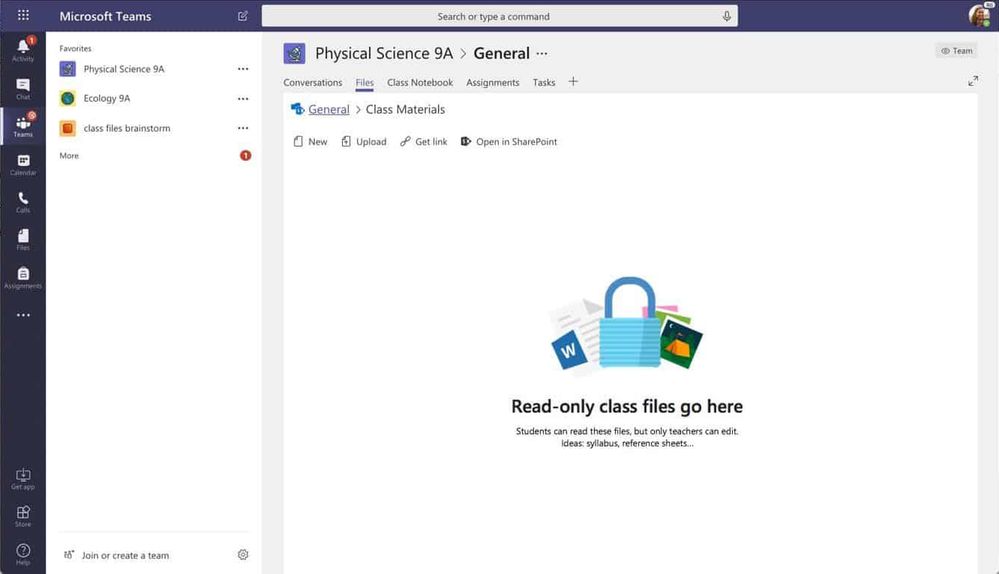
7. Read-only files folder, Class Materials coming to your team soon
Microsoft Teams is great for collaborating with your class, including sharing reference materials to help guide students. You can easily drop these files into the folder called ‘Class Materials,’ which is read-only by default.
8. Join a team by code on your mobile device
Joining a team with a code has become a popular way for students to join their classes on Teams. We’ve now added this ability to the Teams app on iOS and Android.
9. Customize chat settings for students and faculty
In talking to educators using Teams, we’ve learned a common request is to allow student-to-teacher chat, while also having the option to prevent students from chatting with each other. IT Admins can learn how to set this up here.
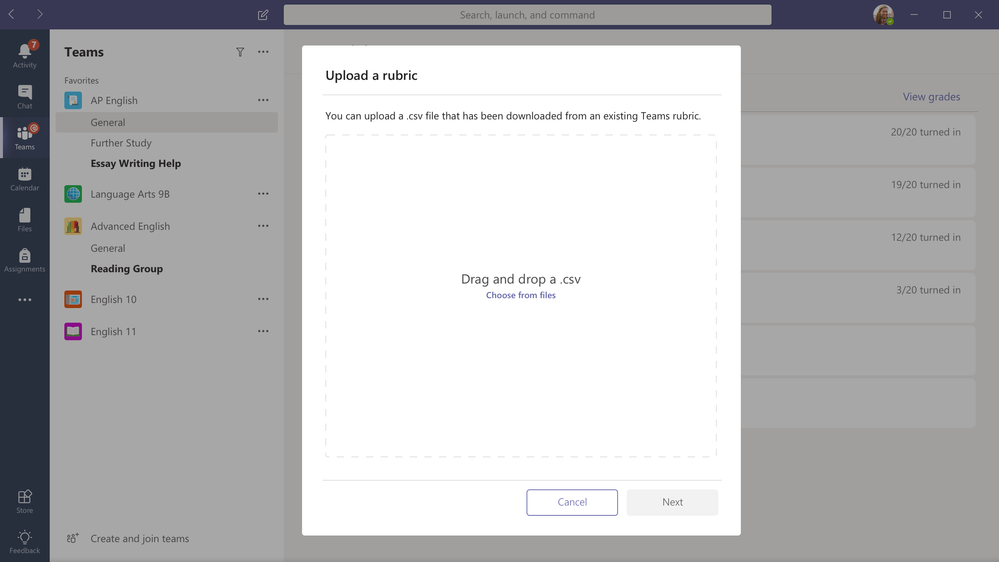
10. Rubric sharing
We recently launched rubric grading inside Microsoft Teams and we’ve heard so much of your great feedback on the feature already. We’ve now added a new capability that allows teachers to import and export their favorite rubrics from Teams Assignments. Now you can share great rubrics with other teachers and build on each other’s ideas from year to year, for stronger and more robust curricula. Learn more about rubric sharing here.
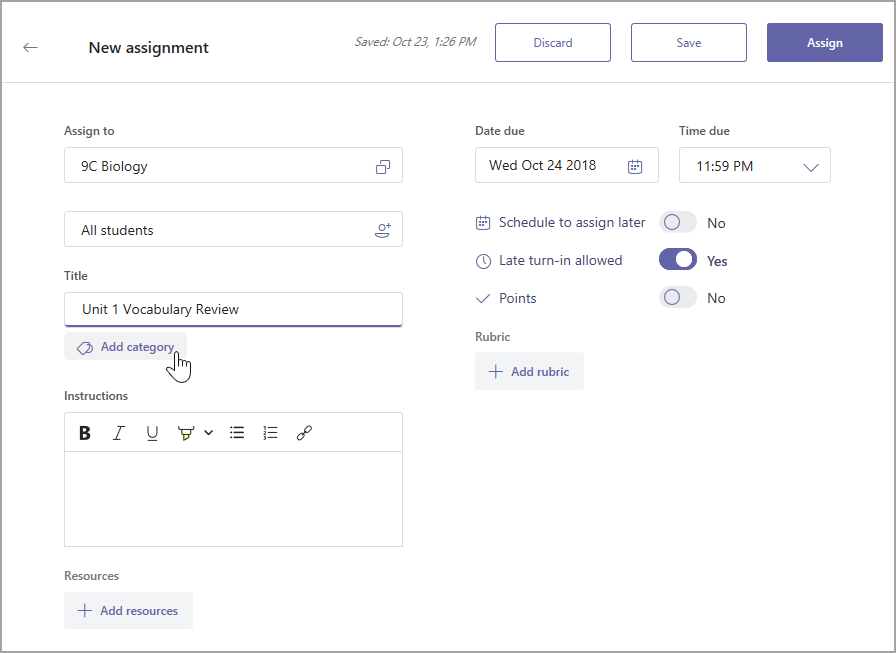
11. Categorize your Assignments
Teachers can now categorize Assignments. Assignment categories are an easy way to organize your assignment by type – segment by Homework, Quizzes, or a unit of study.
12. Safari browser support
By popular demand – you will soon be able to use Microsoft Teams on macOS and iPad with Safari!
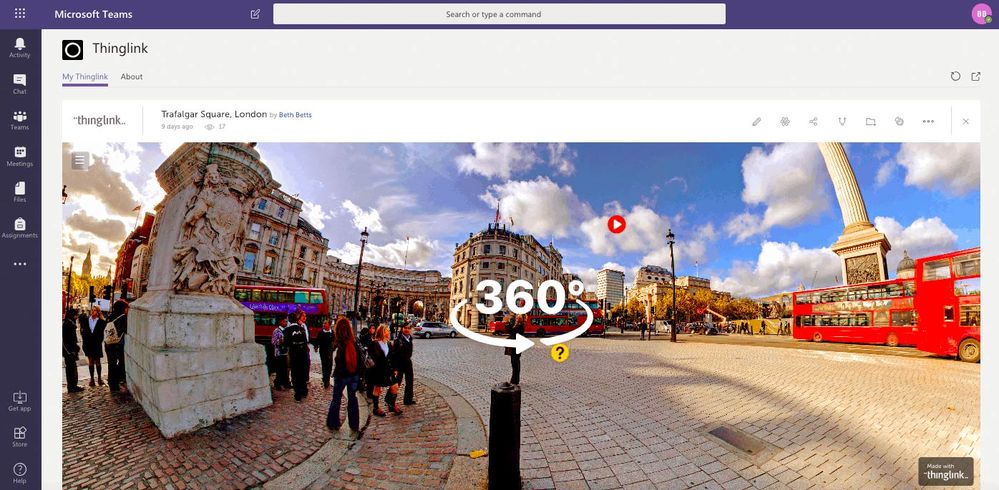
13. Access ThingLink right from Microsoft Teams
With ThingLink now built into Microsoft Teams, students will be able to create and view interactive images, videos and 360-degree virtual tours in the Microsoft Teams environment. ThingLink’s technology is especially useful in the education space because it lets teachers build interactive, visual learning experiences and multimedia presentations, which can help develop vocabulary and contextual understanding in technical education, science and social studies.
Students can use ThingLink to document their learning with interactive maps, infographics, presentations, and virtual 360-degree tours that combine multiple forms of media: text, images, sound, and video. ThingLink offers teachers free basic accounts, as well as paid school and eLearning accounts with a virtual tour creator. Microsoft Office 365 users can get a free 14-day access to ThingLink’s Premium teacher and business subscriptions via the Microsoft AppSource marketplace.
Once again we could never thank the rockstar educators in our community enough for sharing such amazing ideas and feedback with us. It’s all thanks to you that we get to build these tools.
Introducing seven new affordable Windows 10 devices for education and new tools for simplifying device management to make the most of classroom time.
In our last Bett 2019 episode of What’s New in EDU, we recap the week’s exciting news with Anthony Salcito, VP of education, and share some exciting news around more affordable devices and how they work in partnership with tools that simplify device management for IT.
Jump to section:
Introducing seven new affordable Windows 10 devices for education
Earlier this week, together with our partners at Acer, Dell and Lenovo, we announced seven affordable new Windows 10 devices for the upcoming school year, adding to our expansive portfolio. These new devices include two new 2-in-1 devices from Acer and Lenovo that start under $300 USD and give students the versatility to convert from tablet to laptop mode.
One of the most unique devices being added to our portfolio is the Lenovo 300e. Not only is it a convertible 2-in-1, but it also includes a garaged stylus. And if the stylus gets lost, students can write on the screen with a regular No. 2 graphite pencil!
In today’s episode, you’ll get a closer look at our newest devices, including the latest refresh of the HP Stream 11 EE and HP ProBook x360 11 EE, which now boast faster processors and improved battery life.
Microsoft Classroom Pen, available exclusively to education institutions
Earlier this week we also introduced Microsoft Classroom Pen, an all-new pen designed specifically with K-8 students and schools in mind and optimized for use with Surface Go. A portable size and perfect fit for students at just over 4 inches long and weighing less than one pound, Microsoft Classroom Pen makes it easy to sketch, color and take notes in the classroom and at home. And, when you pair it with Surface Go’s tablet-to-laptop flexibility and fold the signature built-in Kickstand down to a full 165 degrees in Studio Mode, students can really immerse themselves in the writing and drawing experience.
We listened closely to feedback from our education customers and designed Microsoft Classroom Pen for students who put their learning tools through heavy wear and tear. It comes with a durable, hardened pen tip and a replacement tip for each pen included in the box. And, to prevent students from losing the pen, there is a built-in slot at the end that makes for easy tethering to students’ device cases.
We also incorporated education customer feedback by making Microsoft Classroom Pen affordable and easy to deploy with reduced unpacking time and waste. It will be available exclusively to education institutions and sold in bulk packs of 20 for $799.80 (approximately $39.99 per pen). It will ship in all 36 Surface Go markets around the world, with the first wave of availability beginning next month so schools may begin placing orders for the upcoming school year.
In addition to Microsoft Classroom Pen, eligible Microsoft 365 Education customers can now get up to $50 off Surface devices. Visit here for more information on how to qualify.
A new, more affordable wireless whiteboard that gives teachers more control
Bett attendees will get to test out a new Windows wireless whiteboard which allows the teacher to project what is being shown on his or her PC with compete control of usage rights. Teachers can also see a view of student PC screens on their device and select a student’s screen to project during a lesson, all without additional cables or log-in needed.
Streamlined device provisioning and management with Intune for Education updates
Windows Autopilot provides a zero touch for IT experience with auto device provisioning from Intune direct to the end user. With Windows Autopilot, device vendors can upload device information to the Autopilot service when an order is placed. When devices arrive at school, they automatically join the domain and start getting apps and settings as soon as users sign in. This makes device deployment at-scale easier than ever.
Now available, Windows Autopilot Reset will allow admins to easily reset and wipe existing devices, while maintaining MDM enrollment status. With just a few clicks in Intune for Education, admins can remotely reset devices and get them ready for the next school year. This capability alleviates the need for the user or admin to re-image and re-enroll devices every time they need to be prepared for the next year. The reset and wipe functionality can also be applied to groups of devices e.g. a whole classroom.
In preview today: Autopilot self-deploying mode means schools gain an easier setup process without the need to log into devices to complete enrollment. With Autopilot self-deploying mode, students and teachers simply connect their devices to the network when they open them for the first time. This kicks off provisioning and enrolling the device, saving time and effort.
Detailed device status
Admins can view detailed status of app and settings installation for your devices and users in Intune for Education. Added based on customer feedback, this capability gives admins a granular view into the apps and settings they have targeted to a given device or user. This gives admins insight into what is going on with individual devices and users while helping with troubleshooting issues.
Improvements to support for iOS device management
Building on the recently announced support for managing iOS devices within Intune for Education, we are extending these capabilities to include the configuration of Shared iPad. Configuring Shared iPad allows students and teachers to log in to iPads using their Managed Apple IDs. User data follows users as they log in to different iOS devices. This improvement ensures schools that want to utilize Shared iPad features have a quick and easy way to configure iOS devices up to take advantage of them.
Additionally, school IT admins will now be able to use Intune for Education to customize wallpaper images for iOS devices, creating a unique and look and feel specific to the school.
Based on customer feedback, we have made improvements to the manageability of Apple’s Device Enrolment Program (DEP) and Volume Purchase Program (VPP) from the Intune for Education console, including better access to VPP tokens. Location information is now displayed in Intune for Education for VPP tokens configured in Apple School Manager. You can also set your own nickname for tokens as an additional way of organizing them.
Enhanced administration settings
With the release of Windows 10, version 1809, new Intune for Education settings are available including new Edge browser settings and the ability to configure devices with domain hints for signing in. With this configured, students and teachers get a simpler login experience for young students where they only need to type their user name instead of their full domain email address.
When devices are re-provisioned, such as at the beginning of a school year, administrators will now be able to delete old device records from Intune for Education as required, cleaning up the management experience. Additionally, the admin will be able to rename the device or machine in the case it is reissued to a different student or classroom.
Free (and fun!) materials to help you plan a face-to-face training with other educators
Office 365 Teacher Academy – Take a deep dive into using Office 365 to effectively manage your classroom, provide flipped lessons, and to build a blended learning environment that supports student success.
OneNote Teacher Academy –Learn to navigate within the OneNote Windows 10 app structure, use OneNote tools effectively, create lesson plans, assessments, and learning activities using various tools in OneNote, create notebooks for student and teacher collaboration using OneNote Class Notebook, create notebooks for collaboration between the staff members using OneNote Staff Notebook.
Looking for ways to train your staff or fellow educators on Office 365 Education tools?
Look no further! We know that teachers crave collaborative training experiences, but don’t always have time to plan them. That’s why we worked with teachers and experienced teacher trainers to create modules covering multiple Office 365 apps and project-based learning scenarios. Courses range from 1-6 hours and each one comes wrapped up with everything you need, including a slide deck, checklists, and materials for teachers to use in their classrooms directly after the training. Plus, they’re free. 🙂 Browse the trainings to learn more: aka.ms/teachertrainingpacks
Catch up on every episode of What’s New in EDU for Bett 2019:
Announcing new tech to support inclusive classrooms, plus highlights from “Emotion and Cognition in the Age of AI” keynote.
Day 1 of Bett is a wrap, but that was just the beginning of our What’s New in EDU Live series! Today we’re focused on ways to support the unique needs and abilities of both students and teachers, especially in light of research showing that positive emotional states are linked to academic achievement and well-being.
Research: The importance of student well-being and positive mindsets on achievement and success
New research by the Economist Intelligence Unit and commissioned by Microsoft highlights the importance of student well-being and positive mindsets on achievement and success. These highlights were shared during an afternoon Bett keynote on “Emotion and Cognition in the Age of AI,” which featured Anthony Salcito and Barbara Holzapfel of Microsoft Education, along with Marc Brackett, founding director of the Yale Center for Emotional Intelligence.
Today, our team announced and shared insights from our latest body of research with the Economist Intelligence Unit and our latest vision for education. The research process involved gathered insights from education professionals (teachers, principals, school assistants, librarians) in 15 countries to better understand how positive mindsets and well-being – especially emotional well-being – impact outcomes for students, communities and economies.
The study reinforced that the development of social-emotional skills continues to be a huge priority for schools, with more than 70 percent of schools working on intentional practices that recognize social-emotional SE skills as fundamental, not ornamental. The study also reinforced that emotion is the gatekeeper of cognition and that positive emotional states are linked to both academic achievement and well-being. Join us for our upcoming webinar series on Teaching Happiness to learn more (signing up is free!).
We also shared updates from the Minecraft: Education Edition team, including a new standards-aligned computer science curriculum to accompany Code Builder, the in-game coding feature, and a refreshed digital badging program for educators in our global community.
Minecraft: Education Edition offers all you need to get started with learning and teaching computer science. Explore starter lessons, professional development, downloadable worlds and free 30-hour curriculum for students ages 8-15. The latest update makes Code Builder easier than ever to use: simply press ‘C’ to launch the coding tool and start writing code with MakeCode and other coding apps.
We have launched a new Digital Badging program for educators teaching with Minecraft: Education Edition. Badges are awarded for engaging on social media and completing Minecraft: Education Edition online trainings. Badge recipients will be provided early access to new lessons and teaching resources.
Learn about the latest updates for Minecraft: Education Edition, or learn how to get started using Minecraft in your school. Visit the Minecraft Classroom (F280) next to the Microsoft booth for all-day workshops, customer support, and to meet members of the Minecraft Education team.
New tools to personalize learning
Speaking of coding, don’t miss the announcement we made earlier this week: We’re transferring the research and technology behind Code Jumper to nonprofit American Printing House for the Blind, which creates and distributes products and services for people who are blind or have low vision. Get more details here.
Free VictoryVR curriculum with Windows Mixed Reality
Studies show student engagement and retention increase as much as 35 percent when using immersive and 3D technologies. At the start of Bett, we made it easier for educators to get started with immersive learning by partnering with VictoryVR to give schools 25 hours of standards-aligned virtual reality curricula across subjects for FREE when they purchase a Windows virtual reality headset.
Immersive Reader in VR
In addition, we’re happy to share that VR is now more inclusive for all students with Immersive Reader in VR (Public Beta). We’re taking our Immersive Reader and putting it into a virtual reality experience. This allows students to have maximum focus and clarity, whether for ADHD, autism, dyslexia, or students with low vision. Immersive Reader in VR will be initially supported in the Edge browser for OneNote for Windows 10, Word and Word Online, Teams and Flipgrid. This experience is now available on Windows Mixed Reality headsets and available to try out in the Bett booth!
New from our Mixed Reality Partners at Merge
MERGE Cubes apps are now available on Windows through the Microsoft Store! The integration of the MERGE Cube with Windows 10 devices will give Microsoft Education customers a new way to engage their students in 3D, immersive learning.
New in Mixed Reality within Microsoft Teams: ThingLink
With ThingLink now built into Microsoft Teams, students will be able to create and view interactive images, videos and 360-degree virtual tours in the Microsoft Teams environment. ThingLink technology is especially useful in the education space because it lets teachers build interactive, visual learning experiences and multimedia presentations, which can help develop vocabulary and contextual understanding in technical education, science and social studies.
Students can use ThingLink to document their learning with interactive maps, infographics, presentations, and virtual 360-degree tours that combine multiple forms of media: text, images, sound, and video. ThingLink offers teachers free basic accounts, as well as paid school and eLearning accounts with a virtual tour creator. Microsoft Office 365 users can get a free 14-day access to ThingLink’s Premium teacher and business subscriptions via the Microsoft AppSource marketplace.
Made by Dyslexia teacher training launching on the MEC (Microsoft Educator Community)
Celebrities including Sir Richard Branson, Keira Knightley and Orlando Bloom and Maggie Aderin-Pocock join expert teachers from two world-leading dyslexia schools to share their wisdom and expertise in these inspirational Dyslexia Awareness Training films produced by Made By Dyslexia.
Millfield School UK and Schenck School USA are both pioneers in the field of dyslexia and the first schools in their respective countries to successfully support students with dyslexia and focus on their strengths. These films have been incorporated into five five Dyslexia Awareness Training modules designed to help teachers, educators and parents understand dyslexia, both its strengths and challenges, and gain essential knowledge in how to recognize and support it, and create a dyslexia-inclusive classroom. Modules 5 – 10 will be released later this year, when we will also announce dates for a series of ‘road-show’ events in the UK and US to showcase the training. You can access these training materials at: aka.ms/MECMadeByDyslexia
Microsoft MakeCode, Cartoon Network and Adafruit team up to inspire a new generation of creators
Tools like Microsoft MakeCode for Adafruit Circuit Playground Express open up incredible creative possibilities for students to program physical devices. When paired with Cartoon Network’s portfolio of unique characters, beloved by kids today, students who might not normally see themselves as “coders” can be inspired and engaged. Using some common crafting materials, students can make and code their own BMO Music Box, Princess Bubblegum Crown, or Finn cup lamp.
New STEM resources from the the Microsoft Education Workshop
Building on the tradition of launching new STEM lesson plans at Bett – just like the Robotic Hand – the Education Workshop is bringing a triple set of hands-on experiences to London. Attendees will have the opportunity to engage in three pop-up classrooms hosted on the show floor.
The first, Microsoft’s STEM Experience, presented in partnership with BBC Learning, celebrates a collection of teacher-written, inquiry-based lesson plans developed to compliment the BBC Earth and OCEANX film, Oceans: Our Blue Planet.
As students model 21st Century STEM jobs like oceanographer, marine geologists, and robotics engineer, they learn required curriculum like the 3D coordinate system, the role of salinity in global warming, and how sonar works. These standards-aligned lesson plans challenge students to write code, build sensors, analyze data, and create in 3D and mixed reality, and include student reflection and assessment opportunities.
The emerging worlds of data science and internet of things are beginning to show up in the classroom. The Microsoft Tools for Teachers booth is showcasing Excel’s Data Streamer Add-In that enables students to model, measure and visualize real-time data. Data Streamer, now available for free to all O365 subscribers, provides students a way to use sensors to send real-time information back and forth into Excel.
Come see the how real-time data helps reveal concepts that are hard to see. In this case, we’ve brought our Brain Impact Simulator, which helps to illustrate what happens when the brain collides with the skull to cause concussions. In addition to learning about the anatomy behind this critical issue, using a 3D model in Excel, students are empowered to both design solutions to mitigate brain injury and take the Think Taylor #TTPledge to be educated and honest toward those suffering from concussions.
Have your own sensor/IoT device that you want to bring into the classroom? See how Play Impossible has taken their sensorized Gameball™ and connected it to Excel’s Data Streamer to create a modern digital twist on the egg toss. The physics lab favorite is now a real-time graphed experiment in Excel, requiring students to also make strategic decisions and calculate risk while learning the physics behind Newton’s 2nd Law.
Play Impossible will ship a Windows 10 app in April 2019 that will deliver a collection of Math in Sports Science lesson plans.
For those of you unable to attend the Bett Show, don’t worry. All Hacking STEM lesson plans, along with information about Data Streamer and the Play Impossible experience, are available online.
Be sure to tune-in on Friday, 1/25 at 5:00 p.m. UTC for another episode of What’s New in EDU Live, in which we’ll take a deeper look at affordable new Windows 10 devices.
Announcing new tools to help you transform classroom time and personalize learning for all students.
We’re rolling into the first day of Bett with the first of three live episodes of What’s New in EDU! The Microsoft Education team is in London all week, where we’ll be streaming the show each day at 5:00 p.m. UTC and going deeper into all the exciting updates announced in our Microsoft Education news post on Tuesday.
For Day 1 of Bett, Mark Sparvell and the team take us through some of the newest tools to help you transform classroom time and personalize the learning experience for your students.
We know teachers are in a constant race to get their learning out every day. And that’s just meeting the standard, before more hard-fought time has to go into personalizing learning for each student. We think some of the following features can help get some of your time back:
This new feature, powered by Microsoft AI, enables presenters to reach and engage all audiences with live presentation captions & subtitles that appear automatically in real-time. With live captions & subtitles in PowerPoint, you can ensure your presentations are understood by everyone, across languages and hearing access needs. This feature will support presenters across 12 spoken languages and display on-screen captions or subtitles in one of 60+ languages.
Benefits include:
Speech recognition that automatically adapts based on the presented content for more accurate recognition of names and specialized terminology.
The ability for presenters to easily customize the size, position, and appearance of subtitles. Customizations may vary by platform.
Disfluency removal and automatic punctuation making the subtitles clear for the audience.
The ability to display live captions & subtitles joins other accessible features in Office 365, like automatic suggestions for alt-text in Word and PowerPoint, expanded availability of automatic closed captions and searchable transcripts for videos in Microsoft Stream, enhancements to the Office 365 Accessibility Checker, and more.
Live captions & subtitles in PowerPoint will begin rolling out to Insiders in late January 2019 and will be available for Office 365 subscribers worldwide for PowerPoint on Windows 10, PowerPoint for Mac, and PowerPoint Online, over the next few months.
The Presentation Translator add-in for PowerPoint will continue to be supported, as we know this is a well-loved teacher tool. It is the inspiration for building live captions and subtitles natively into PowerPoint across platforms, so that all teachers and students can access the features easily.
Learning Tools adds live translation in over 60 languages
Today’s classrooms are extremely diverse and teachers have the incredible responsibility of reaching every student. Since communication is key, we’re including Translator features in more of our Office tools!
Immersive Reader has helped many students with reading speed and comprehension. As we announced earlier in January, Translator is now built into the Immersive Reader and will be available in over 60 languages.
We’ve added the ability for anyone to translate a page or word into another language, in real-time and all within Immersive Reader. This new capability will support Read Aloud, Syllables, Parts of Speech and Picture Dictionary. This is now rolled out worldwide.
Translator in Immersive Reader will be available in Word Online, OneNote Online, OneNote for Windows 10, OneNote iPad, OneNote Mac, Outlook Online, Teams, and Flipgrid. Check out the list of over 60 supported languages.
Reach all your students with even more Learning Tools updates
Check out the recent blog on the latest Learning Tools updates to help you reach all your students:
OneNote Desktop Learning Tools update – The modern Immersive Reader interface comes to OneNote Desktop Learning Tools.
Line Focus in Word Desktop – This feature enables students to focus on one, three, or five lines of text at a time. It will be available in Word Desktop and will be coming soon to Word for Mac and iPad.
Page Colors in Word Desktop – Students can choose from a variety of colors. This feature is rolling out in Desktop Word and coming soon to Word for Mac and iPad.
Parts of Speech language updates – Syllables and Parts of Speech for Korean, Arabic, and Hebrew coming soon.
Microsoft Teams updates to help you transform classroom time
Yesterday, we shared five new Teams features designed to save teachers time and supercharge learning, including Grade Sync, the new Assignments experience, mobile grading, and new integrations with Turnitin and MakeCode. Today, we’re excited to share even more features coming to Teams thanks to great feedback from you, our educator community.
Introducing our first open-source LMS integration in Teams!
The folks behind Microsoft Teams strive to build experiences to help educators and students collaborate effectively in their classrooms and save them valuable time. One of the key suggestions we have received from our educators is to integrate their Learning Management Systems (LMS) into Teams. With that in mind, we are very pleased to announce the release of Moodle’s integration in Microsoft Teams!
Moodle helps educators create effective online courses – and it’s open-source. For organizations using Microsoft Teams, the Moodle integration in Teams helps educators bring their students, conversations and content — along with their Moodle courses and assignments — together in one single hub. This integration offers two core experiences:
1. Moodle Tab
Educators can easily pin their Moodle course pages in their teams, and students can seamlessly access these course pages using Office 365 Single Sign-On, without having to type in their Moodle username and password.
2. Moodle Assistant Bot
This bot helps educators and students answer questions about their courses, assignments, and grades in Moodle and keeps them updated with regular notifications. This bot can also be accessed on mobile devices, so you can be updated on the go.
To help IT admins easily set this integration up, we have updated our open-source Office 365 Moodle Plugin with the following capabilities:
Auto-registration of your Moodle server with Azure AD.
One-click deployment of your Moodle Assistant bot to Azure.
Auto-provisioning of teams and auto-synchronization of team enrollments for all or select Moodle courses.
Auto-installation of the Moodle tab and the Moodle Assistant bot into each synchronized team. (Coming soon)
One-click publishing of the Moodle app into your private Teams App Store. (Coming soon)
Read-only files folder, Class Materials coming to your team soon
Microsoft Teams is great for collaborating with your class, including sharing reference materials to help guide students. You can easily drop these files into the folder called ‘Class Materials,’ which is read-only by default.
Join a team by code on your mobile device
Joining a team with a code has become a popular way for students to join their classes on Teams. We’ve now added this ability to the Teams app on iOS and Android.
Customize chat settings for students and faculty
In talking to educators using Teams, we’ve learned a common request is to allow student-to-teacher chat, while also having the option to prevent students from chatting with each other. IT Admins can learn how to set this up here.
Rubric sharing
We recently launched rubric grading inside Microsoft Teams and we’ve heard so much of your great feedback on the feature already. We’ve added a new capability that allows teachers to import or export their favorite rubrics from Teams Assignments. Now you can share great rubrics with other teachers and build on each other’s ideas from year to year, for stronger and more robust curricula.
Categorize your Assignments
Teachers can now categorize Assignments. Assignment categories are an easy way to organize your assignment by type – segment by Homework, Quizzes, or a unit of study.
Safari browser support
By popular demand – you will soon be able to use Microsoft Teams on macOS and iPad with Safari!
Access ThingLink right from Microsoft Teams
ThingLink is a tool that allows teachers to enhance images, videos or virtual tours with notes, sounds, video, or links.
Microsoft Stream, PowerPoint and Microsoft Photos enhancements enrich classroom learning experiences
It’s easier than ever to use video in the classroom to create more visual and immersive experiences for both teachers and students.
Expanded features in Microsoft Stream will give teachers a new way to seamlessly add quizzes, forms or polling into classroom videos. The Forms integration into Microsoft Stream helps make videos more engaging and interactive for students, while giving teachers a way to understand how well students are learning the lessons. Learn more at aka.ms/streamquiz.
Both teachers and students will soon be able to bring their Microsoft Stream videos into classroom presentations with the new embed feature, available in PowerPoint. Seamlessly use video to enrich all your classroom content and make learning more entertaining.
Give students a way to create videos that encourages collaborative storytelling with free tools they already have. Microsoft Photos does so much more than deliver an easy way to record and edit videos – students can add music and narration, text and filters, and even add 3D effects to videos. Head to aka.ms/videoeditoredu to learn more.
OneNote Class Notebook updates
As we announced in early January, there’s a new set of time-saving updates for teachers for OneNote Class Notebooks. These updates are rolling out in the Class Notebook Toolbar for the Windows 10 app, Online, iPad, and Mac and include:
The ability to distribute a page across multiple notebooks – one of our top educator requests!
Copy Content Library to allow quick copying of curriculum and content across multiple content libraries with a single click.
Improved page distribution interface and improved performance and speed of page distributions.
Math Class Notebook switch for teachers to control feature availability to students in OneNote UWP and OneNote Online.
Custom tags for OneNote Windows 10 and Mac now available.
The Send to OneNote Printer is now built-in to the Windows 10 app.
Updates across our Microsoft Education Tools to improve teaching and learning math
Math keyboard for answering free-form Math questions.
OneNote for Windows 10 and Online:
Immersive Reader for steps-by-step solutions in Math pane.
The ability for teachers to control Math Assistant’s availability to students via Class Notebook.
OneNote Online:
Text to Math – the ability to type math as text, get it nicely formatted, solved and graphed using the Math Assistant.
Word Online:
Immersive Reader reading math equations from the page.
Student Voice & Expression: New stickers at Bett!
We are excited to announce two new sticker packs this week! Periodic Pals and Adventure Creatures are your new sidekicks on every educational journey. Periodic Pals are designed to encourage conversations in the classroom about the science behind how elements are present in both natural phenomena and manufacturing, with a cartoon twist.
Adventure Creatures live in a world where they take on assignments with gusto. They will charge ahead on your art projects, help you sew your footnotes together, and encourage you take a break while you roast some treats. Use these transparent stickers to combine and create your own narrative!
You can access the stickers below in OneNote Class Notebook and Microsoft Teams now. Coming soon to Microsoft Whiteboard for EDU!
Whiteboard for EDU now available worldwide!
Taking the magical simplicity of an analog whiteboard and adding interactive, collaborative technology, Microsoft Whiteboard for EDU gives the whole class a new space to engage, ideate, and create in real time. Teachers and students can brainstorm and grow ideas on this infinite canvas, coming together on lessons, projects, and more on Windows 10devices and now iPad. Teachers can also pick up wherethey left off and never waste time getting back into a lesson, by securely saving boards to the cloud. There they can share them as live links or export them as images.
Supercharge your learning experience
From the ground up, Whiteboard for EDU has been designed with teachers and students in mind: to work the way you already do.
Export your board directly to OneNote Class Notebooks for safekeeping. Change Whiteboard’s background to a variety of new colors (including blackboard mode!) and reduce eye strain on large devices. Play with different line styles to support writing and graphing. Use education-themed stickers with your students to collect poll responses and give feedback in real time.
Increase the readability of quickly-jotted notes with Ink Beautification, which analyzes handwriting and automatically replaces it with more legible strokes. And for teachers and students who occasionally use analog whiteboards, you can convert pictures of your notes into real digital ink with Ink Grab, making the move from analog to digital seamless.
This is just the beginning of our exciting Microsoft Education news this week! Be sure to tune in tomorrow and again on Friday at 5:00 p.m. UTC for another episode of What’s New in EDU Live.
Thursday, 1/24: New tech to support inclusive classrooms
We’re introducing seven new affordable Windows 10 devices to our portfolio for schools, faster assignments and grading tools in Microsoft Teams, and new programs to empower inclusive, personalized learning.
Our Microsoft Education team is in London for the annual Bett conference, the world’s biggest education technology event and an unmissable gathering of educators, ideas and edtech solutions.
We kick things off with an overview of the biggest news we’ve brought for Bett. Don’t miss the surprises that follow!
Jump to section:
Introducing seven new Windows 10 devices for education and the Microsoft Classroom Pen
We’re growing our portfolio of affordable, easy to manage Windows 10 devices for the classroom that start at $189*. Together with our partners at Acer, Dell and Lenovo, we are offering seven great new Windows 10 devices for the upcoming school year.This includes two brand new 2-in-1 devices from Acer and Lenovo that start under $300 USD and give students the versatility to convert from tablet to laptop mode! Our newest Windows devices include:
Lenovo 100e
Lenovo 300e (2-in-1)
Lenovo 14w
Acer TravelMate B1(B118-M)
Acer TravelMate Spin B1 (B118-R/RN)
Acer TravelMate B1-141
Dell Latitude 3300 for Education
With Windows 10 devices, schools can get the best prices without having to compromise on features like inking. Inking in particular has proven to increase student scores by as much as 38 percent, compared to only using a keyboard. These devices are also a great way to use our free accessibility technology like Learning Tools in Office 365, which has been shown to improve reading comprehension by 10 percentile points for students of all abilities. Plus, with S Mode for Windows 10, schools can reduce the risk of bloatware and speed up boot times, improve battery life, and enjoy better device performance.
One of the most unique devices coming to our portfolio is the Lenovo 300e. Not only is it a convertible 2-in-1, but it also includes a garaged stylus. And if the stylus gets lost, students can write on the screen with a regular No. 2 graphite pencil!
We’re also unveiling three new 13-15” PCs from Acer, Dell and Lenovo, all in the $300 price range, giving you bigger screens and added functionality for the same low price as many smaller devices.
In today’s What’s New in EDU, you’ll get a sneak peek at a few of these new devices – tune in later this week to see them all!
In addition to these great new devices from our partners, we’re introducing the Microsoft Classroom Pen, an all-new pen designed specifically with K-8 students and schools in mind, and optimized for use with Surface Go. The Microsoft Classroom Pen is designed for students who put their learning tools through heavy wear and tear and features a durable, hardened pen tip and a replacement tip for each pen included in the box. Plus, a built-in slot at the end makes for easy tethering to students’ device cases, so the pen doesn’t get lost.
Affordable and easy to deploy, Microsoft Classroom Pen will be available exclusively to education institutions and sold in packs of 20 for a cost of $799.80 USD (approximately $39.99 per pen). It will ship in all 36 Surface Go markets around the world, with the first wave of availability beginning next month, so schools may begin placing orders for the upcoming school year. Tune in Friday to learn more about the Microsoft Classroom Pen!
Transform Classroom Time with Microsoft Teams and Flipgrid
Microsoft Teams and Flipgridare proving to be a powerful way to help students find their voice and develop critical social emotional skills, while also giving teachers new platforms for peer-to-peer professional development. We’re encouraged by your feedback and the growth both platforms are seeing.
In the last year, we’ve seen 251 percent growth of Teams usage in schools and universities, and more than 80,000 new teachers a month joining Flipgrid! And speaking of Flipgrid, keep an eye out for some fun new features to empower student voice this month. We’ve made it easy for CoPilots on Flipgrid to duplicate grids for faster sharing across classrooms, and we‘ve introduced my.Flipgrid.com so students can log in to Flipgrid to view, share, and download all their videos.
In today’s What’s New in EDU, product manager Justin Chando shows us a few of the new features coming to Teams this week, thanks to great feedback from our educator community. These features include:
1. Grade Syncto connect Teams to your SIS! Say hello to Grade Sync, which automatically sends grades from Teams Assignments directly to your Student Information System, saving teachers lots of time. Grade Sync will be coming to systems like PowerSchool, Infinite Campus, Capita SIMS and many others soon. If you would like to join the Grade Sync preview release, sign up here.
2. Mobile grading.You asked and we answered. Now, teachers can grade Teams Assignments from anywhere on an iOS or Android device using the Teams app!
3. Turnitin integration. Turnitin allows teachers to check student submissions for multiple forms of plagiarism and helps teach the value of academic integrity, proper attribution, and authentic writing. With our new integration, coming soon, Turnitin subscribers will have accessdirectly within Teams Assignments!
4. Free Computer Science Curriculum in Teams with MakeCode! This month, we’ll kick off a beta which will allowteachers to access MakeCode, Microsoft’s free platform for creating engaging computer science activities directly within Teams Assignments.Teachers can help students get started building their own programs using drag-and-drop block coding or JavaScript. You can even provide feedback to students and grade.
5. Assignments is faster and easier to use.Coming soon, you’ll see a new and simplified assignments experience. With the latest updates, you’ll be able to grade faster than before and save time creating new assignments.
Justin will also talk about new Teams features like the Moodle LMS integration, rubric sharing, assignment categories, Safari support, stickers and more later this week. Be sure to tune in to What’s New in EDU Livetomorrow for even more.
New technology to personalize learning and drive better learning outcomes
Every classroom has a unique and diverse mix of students, which is why technology can’t be a one-size-fits-all solution. At Microsoft, we strive to build technology that supports inclusive and personalized learning experiences, so every student is empowered to succeed. We continue to invest in projects to support students with learning differences, or with physical impairments that may inhibit their ability to learn. Simultaneously, we support technology like mixed reality, which is proving to drive better retention and engagement of curriculum for all students.
In today’s What’s New in EDU, Mark and Dan show us some of the exciting new tech we’re offering to help you reach every type of learner.
From left, Daniel and Rico, were part of a group of students at New College Worcester in Worcester, UK, who participated in a beta test of the technology behind Code Jumper. Photo by Jonathan Banks.
Code Jumper is based on a Microsoft research effort called Project Torino, designed to give kids aged 7 to 11 an introduction to coding. Microsoft researchers developed Project Torino in close partnership with a group of students who are visually impaired. The project came about after the team learned the most popular path to introducing young children to coding, usually called block coding, was not accessible enough because it couldn’t be read easily, not even with assistive technology such as a screen reader or magnifier. Together with APH, we believe Code Jumper can not only provide more students with the basic understanding of coding, but also provide important skills like computational thinking and resilience, which will have a positive impact in any career path a child might choose.
APH plans to make Code Jumper available in Australia, Canada, the UK and the US this year, and will distribute it worldwide over the next five years.
We’re also announcing free mixed reality curricula to support every type of learner. Studies show that student engagement and retention increase as much as 35 percent when students learn with immersive and 3D technologies like VR headsets. The challenge lies in finding the right curriculum to get started with mixed reality – a barrier for many educators.
Today, we’re making it easier than ever to get started with immersive learning by partnering with VictoryVR to give schools 25 hours of standards-aligned virtual reality curricula across subjects for FREE when they purchase a Windows virtual reality headset. By making it easier for schools to get started, we hope more students can experience the benefits of immersive learning in the upcoming school year.
Finally, we’re introducing Immersive Reader for VR and free Dyslexia training materials for teachers!
As part of our continued commitment to ensure every child has a strong foundation in literacy, we continue to invest in new ways to increase reading speed and comprehension. This week at Bett, we’ll be showing how Immersive Reader can work in a VR headset, benefiting anyone who requires additional focus while reading, whether they’re five or 85. We’ll also be rolling out free training materials in the Microsoft Educator Community to support teachers who have students with dyslexia as part of our ongoing partnership with Made by Dyslexia.
We look forward to seeing many of you at the BETT 2019 Microsoft Education booth and online during our live sessions this week:
Wednesday, 1/23:New tools to help you transform classroom time and personalize learning for all students
Thursday, 1/24:New tech to support inclusive classrooms
Friday, 1/25:Affordable new Windows 10 devices
*$189 offers for a limited time and while supplies last
The Minecraft: Education Edition team will be travelling to the UK next week for Bett 2019! Bett is the first industry expo of the year in the education technology landscape, bringing together 800 leading companies, 100 startups and more than 30,000 attendees from the global education community.
We will be running hands-on workshops and demos at the new Minecraft Classroom (stand F280), an immersive space next to the Microsoft stand where attendees can learn how to teach and code with Minecraft: Education Edition, speak with members of our team for customer support and take fun photos with Minecraft mobs. Sign up for workshops here. Read this Education blog to learn what’s offered at the Microsoft stand (E300).
We hope you will follow along on social media @playcraftlearn #MinecraftEdu #Bett2019.
Here is a breakdown below of the Minecraft team’s Bett schedule, and what we will be covering during our workshops and demos:
Workshop – Code with Minecraft Location: Minecraft Classroom, Stand F280
Wednesday, January 23, at 11AM and 3PM GMT Thursday, January 24, at 1PM GMT Friday, January 25, at 11AM and 3PM GMT
Minecraft: Education Edition offers educators all you need to get started teaching computer science. In this interactive workshop, learn the basics of using Code Builder, the new in-game coding feature, and explore new lessons and standards-aligned curriculum that you can put to use in your school. Devices will be provided. Register here.
Workshop – How to Teach with Minecraft Location: Minecraft Classroom, Stand F280
Wednesday, January 23, at 1PM GMT Thursday, January 24, at 11AM and 3PM GMT Friday, January 25, at 1PM GMT Saturday, January 26, and 11AM GMT
Attendees will be immersed in a hands-on experience to learn how to use Minecraft: Education Edition, from login to game-play. In addition to learning how to play the game, we’ll show you how to navigate our lesson library to find classroom activities that fit into your curriculum. Devices will be provided. Register here.
Stage Demo – Building STEM skills with Minecraft: Education Edition Location: Learn Live Theater, Stand E300 Times: 1PM daily
In this 30-minute demo on the Learn Live Theater stage in the Microsoft stand, see how you can engage your students in STEM subjects using special features in Minecraft: Education Edition, from Code Builder to the Chemistry Resource Pack.
Customer Support
Stop by the Minecraft Classroom (stand F280) to have your questions answered. Learn how to deploy licenses, empower educators to get started with Minecraft in their classrooms and discover professional development resources available online. We’re here to help!
Not at #Bett2019? You can always visit the Help Center for technical support.
Introducing New Computer Science Curriculum!
We just launched a CSTA-aligned computer science curriculum to accompany Code Builder. This flexible, 30-hour curriculum includes downloadable lessons, worlds and teaching resources to help students ages 11-16 learn fundamental coding concepts.
Code Builder is the in-game feature that allows you to code in familiar learn-to-code environments including Microsoft MakeCode and Tynker. Once you are in the Minecraft: Education Edition world, simply press letter ‘C’ on the keyboard to launch Code Builder or press the Agent if using touch controls on a tablet. (The Agent is a character who can be programmed to run different coding commands, from mining to building and farming in Minecraft.)
Check out the Computer Science lessons for easy activities and standards-aligned lessons across STEM subjects. Minecraft: Education Edition also offers two MEC training courses to help educators learn how to teach CS with Minecraft.
New Digital Badging Program
We have also re-launched our digital badging to engage more educators in the global Minecraft community. Earn badges to access exclusive learning content, provide early feedback on new features and support other educators using Minecraft: Education Edition. Visit our Community page learn more.
We can’t wait to meet educators from around the world and share the transformational power of Minecraft in education. Come learn with us and explore the future of education technology. See you in London!
At Microsoft, we believe in the potential of every student. We believe educators deserve more time to teach. And, we believe that with the right tools, everything is possible. The schools nominated into our Showcase School program exemplify these beliefs in action by implementing innovative practices into their leadership, teaching, and learning practices into the development of their environments, and their technology choices. The result demonstrated at each one of these schools is increased student outcomes.
The diverse practices among schools stem from the unique cultures, local educational requirements, down to the needs of individual students. The common element in each of our Showcase Schools is passionate educators working for the common good. Their contributions go beyond the school into their communities and beyond. We see educators who use Minecraft in the classroom to empower students to solve real-world problems. Some use Skype to offer their students an understanding of world events and cultures. These schools lead by example and we are proud that their leaders select Microsoft solutions to better enable increased student outcomes and greater educational transformation success school-wide.
Take a tour of Showcase School Strumienie Szkola Podstawowa in Poland:
Twice a year, we pause to recognize some of the world’s most innovative School Leaders whose work drives increased student outcomes and educator/leader development on the ground, in each of these diverse schools, and globally. It is with awe and inspiration that this year we welcome to the 2018-2019 Showcase School program, 366 Showcase Schools and their School Leaders, who call 65 countries across the world home.
Showcase Schools’ thoughtful leaders empower educators and students to re-imagine and re-design leading, teaching, and learning in their schools and in their regions. These leaders also come together as a group to tackle challenges, celebrate successes, and share their learnings in a vibrant online community available exclusively to Showcase School Leaders in Microsoft Teams. They are committed to developing their own strengths as leader-learners and work together to learn about global trends in education and test new solutions locally, adjusting to meet the specific needs of their own communities.
Each year, Microsoft Showcase School Leaders and the Microsoft Innovative Educator Experts in their schools share best practices both online, through Microsoft Educator Community and Skype in the Classroom, as well as in-person at local events hosted by each Showcase School and global events, such as BETT, UK.
In addition to reaching out to their local communities and reaching within to empower educator and student outcomes in their own schools, Showcase Schools also:
• Provide Microsoft engineers with valuable insights and ideas, to evolve technology and improve teaching and learning practices based on classroom experience; • Gain access to professional and career development opportunities and certifications; • Host regional events showcasing their use of Microsoft solutions
The impact of Showcase School excellence is felt globally, as these schools support their local communities by providing the opportunity to experience tomorrow’s transformation, today.
Thank you, Showcase School Leaders, for all the work your educator teams and you do to transform education one school at a time.
Welcome to the Microsoft Showcase School community.
Educators around the world are fully aware that empowering students to prepare for their future also means embracing change in their classrooms and in their approaches to teaching. The big question is: How do you best go about transforming your classroom? What does it mean, how do you start, and where do you go for inspiration?
You don’t have to wonder aloud into the void, thankfully – that’s what the #MSFTEduChat TweetMeet is for! In January’s event, we’ll bring together educators and experts to discuss Transforming Classroom Time. The act can mean different things to different people, even more if you consider that classroom circumstances can vary significantly from one place to another. Key recurring elements in the conversation are to look for small, affordable steps of change that save teachers precious time and that help their students take ownership of their own learning.
We offer 11 simultaneous language tracks this month and we’re super happy to have a host from Turkey this time again. Here’s an overview of all language tracks and their hashtags for the January TweetMeet:
For each language track, we have one or more hosts to post the translated questions and respond to educators. As always, we’re super grateful to all current and former hosts who are collaborating closely to provide this service.
The #TweetMeetXX hashtags for non-English languages are to be used together with #MSFTEduChat so that everyone can find the conversations back in their own language. For example: Portuguese-speaking people use the combination #TweetMeetPT #MSFTEduChat. English-speaking educators may all use #MSFTEduChat on its own.
TweetMeet fan? Show it off on your Twitter profile
Every month more and more people discover the unique flow and characteristics of the TweetMeet events and become passionate about them. Show your passion for the TweetMeets right from your own Twitter page by uploading this month’s #MSFTEduChat Twitter Header Photo to the top of your own Twitter profile. Besides English, this same Twitter Header Photo is also available in each of this month’s 10 additional language tracks.
Looking back on the December ‘Best of 2018’ TweetMeet
The December edition of the #MSFTEduChat TweetMeet was special in many ways. In a very lively conversation discussing ‘Best of 2018’, as many as 140 former TweetMeet hosts engaged with educators around the world in 17 different languages. Look at some of the highlights from that Twitter conversation collected in this Twitter Moment.
Why join the #MSFTEduChat TweetMeets?
TweetMeets are monthly recurring Twitter conversations about themes relevant to educators, facilitated by Microsoft Education. The purpose of these events is to help professionals in education to learn from each other and inspire their students while they are preparing for their future. The TweetMeets also nurture personal learning networks among educators from across the globe.
We’re grateful to have a support group made up exclusively of former TweetMeet hosts, who volunteer to translate communication and check the quality of our questions and promotional materials. They also help identify the best candidates for future events, provide relevant resources, promote the events among their networks, and, in general, cheer everybody on.
Our hosts are thrilled about this upcoming TweetMeet:
When and how can I join?
Join us Tuesday, January 15 from 10 a.m. to 11 a.m. PDT on Twitter using the hashtags #MSFTEduChat, #ChangeMakersand#MicrosoftEDU (which you can always use to stay in touch with us). To find the event time for your specific location, use this time zone announcer.
From our monthly surveys we know that you may be in class at event time, busy doing other things or maybe even asleep – well, no problem! All educators are most welcome to join after the event. Simply take a look at the questions below and respond to these at a day and time that suit you best. You can also schedule your tweets in advance. In that case, be sure to quote the entire question and mention the hashtag #MSFTEduChat, so that everyone knows the right question and conversation to which you are responding. Mark the exact timings – they are different this month.
How can I best prepare?
To prepare for the #MSFTEduChatTweetMeet, have a look at the questions we crafted this time. You might also find something useful in one of these resources:
TweetMeet questions
Hosts
Please meet the 19 hosts for this month’s TweetMeet. They are all passionate about classroom transformation and very eager to engage with you. Several of this month’s hosts have already blogged about the positive impact of being a #MSFTEduChat TweetMeet host and why you should join. You can check these posts out in this brand-new Sway:
We also made a Twitter Listso that you can easily follow all the hosts and see what they are tweeting about.
Abeer Almihdar@AbeerMehdar (Microsoft Learning Consultant – Jeddah, Saudi Arabia)
Arnaud Markert@ArnaudMarkert (Religious culture teacher and digital referent teacher – Strasbourg, France)
Cornelia Melcu@CorneliaMelcu (Primary school teacher, teacher trainer, mentor and eTwinning and Scientix ambassador- Școala Gimnazială Nr. 9, Nicolae Orghidan, Brașov, Romania)
Eileen Heller@EileenHeller (Instructional Technology Trainer for Omaha Public Schools – Omaha, Nebraska, USA)
Felix Malombe@Felmalo (ICT Curriculum Leader and Maker Lab (STEAM) teacher for Crawford International School – Nairobi, Kenya)
Flavia Giannoli@flagia3 (Math & Physics teacher at High School/ teachers Mentor and Trainer / Innovative Design Thinking and e-learning expert/ MCE & MIE Expert – Milan, Italy)
Gülşen Korucu@gulsen_korucu (English teacher at Saimbey Secondary School – Osmaniye, Turkey)
Ian Phillips@ianhabs (I am Assistant Head and Director Computing & ICT at HabsBoys and independent school near London in the UK. I am an Intel Visionary and Chair of the ISC Digital strategy group)
Joël McLean@jprofnb (Elementary school principal and leadership coach – Callander, Ontario Canada)
Josh Arnold@GuyCivics (Middle School Teacher/Educational blogger – Wesley Chapel, Florida, USA)
Lynne Oakvik@LynneOakvik (Instructional Technology/School Library Consultant, Lilead Fellow – Boone, North Carolina, USA)
Małgorzata Kulesza@Malgosia38 (Secondary school teacher of chemistry and science, coordinator of international projects, nominated as an European Hero by Scientix, MIE Expert, passionate global educator- Krakow, Poland)
Marina St Mircic@s13_marina (Italian and Civics Teacher in secondary school, MIE Fellow, Skype Master Teacher, MIE Expert, passionate blogger and translator – Zajecar, Serbia)
Nicole Caldwell@n_caldwellEDU (1:1 Technology Resource 3rd – 5th Grades/NCCE Professional Learning Specialist – Tampa, Florida, USA)
Paula Barnard-Ashton@PaulaBarAsh (21st century learning design lecturer & trainer @ Wits University, School of Therapeutic Sciences – Johannesburg, South Africa)
Sascha Sohn@SohnSascha (Mathematics and Physics Teacher at Gymnasium Johanneum Loburg – Ostbevern, Germany)
Shannon Davenport@sdavenport931 (Director of Professional Learning for NCCE, The Northwest Council of Computer Education – Clarksville, Tennessee, USA)
Stu Ayres@StuAyres (Senior Deputy Head and computer science teacher, Raspberry Pi certified educator, teacher trainer, 21st-Century learning design practitioner – Denbigh, Wales, United Kingdom)
Víctor Rodríguez@VRS_ae (HP/lntel Teacher Ambassador, teacher trainer at Grupo Advanced Education, MIE Expert – Spain)
What are #MSFTEduChat TweetMeets?
Every month Microsoft Education organizes social events on Twitter targeted at educators globally. The hashtag we use is #MSFTEduChat. A team of topic specialists and international MIE Expert teachers prepare and host these TweetMeets together. Our team of educator hosts first crafts several questions around a certain topic. Then, before the event, they share these questions on social media. Combined with a range of resources, a blog post and background information about the events, this allows all participants to prepare themselves to the full. Afterwards we make an archive available of the most notable tweets and resources shared during the event.
Please connect with TweetMeet organizer Marjolein Hoekstra @OneNoteC on Twitter if you have any questions about TweetMeets or helping out as a host.
A new year brings new opportunity to learn about all the latest and greatest from Microsoft Education. Join Microsoft at Bett 2019 in London on January 23-26, either online or right there with us at the event, being held at London’s ExCeL venue.
Bett is an annual event that explores how technology can empower educators and students to reach their full potential. Microsoft, as a worldwide partner of Bett, will be hosting a wide array of sessions and hands-on demonstrations on the show floor, along with inspirational talks to support educators looking for new ways to engage and empower their students.
To kick off a whole week of Bett, we’re releasing a special episode of What’s New in EDU, our show that gets you caught up on the exciting new tools and updates coming from Microsoft Education. Our special Bett episode will be available on January 22 – watch it to learn more about new classroom technology coming to Microsoft Education this year. And don’t forget to stay tuned to the Education Blog for more as it comes in!
We’ll also have special edition What’s New in EDU live events streaming daily from Bett in London. You can register to catch the livestreams events each day with the following links:
Whether you’re looking for the latest in mixed reality for education, some grounded advice on how to transform your classroom digitally, or want a peek at what’s next for Minecraft: Education Edition, the schedule below is a good place to start, learn and participate. Make sure to stop by Booth E300 to see all the new experiences we have relating to STEM, Virtual Reality and new tools for the classroom.
For more information and to book your sessions, visit this page. If you can’t visit us in person in London, consider joining us on the road as Microsoft Education goes on tour around the UK. You can find out more as we continue to add more dates all the time.
If you’re joining us at Bett in person, we hope to see you at one of the following highlights:
Speakers: Barbara Holpfazel, GM of Education Marketing, Anthony Salcito, VP Worldwide Education, Microsoft, and Dr. Marc Brackett, founding director of the Yale Center for Emotional Intelligence, Yale University.
This group will describe how education and work will change thanks to AI. We will unveil new research describing the critical role of emotional well-being to position students for success in the age of AI and will examine an evidence-based approach to social and emotional learning, already in use by more than 1,500 schools globally. We will be joined by a student whose amazing educational journey has already been transformed by AI.
This is the perfect place to go if you are looking to see and hear about the latest product releases, see demonstrations, and discover ways you can unlock learning in your students. Each session is held on Microsoft stand E300 and lasts 30 minutes.
Time
Title
Wed – Sat / 10:00-10:30
What’s new in EDU?
Wed – Sat / 10:30-11:00
How to set a cloud first digital transformation strategy
Wed – Sat / 11:00-11:30
Demystifying Microsoft 365 Education for teachers
Wed – Sat / 11:30-12:00
Increasing accessibility and fostering inclusive classrooms
Wed – Sat / 12:00-12:30
Driving collaboration and teamwork to save teachers time and reduce costs
Wed – Sat / 12:30-13:00
Developing global citizens and driving future-ready skills
Wed – Sat / 13:00-13:30
Building STEM skills with Minecraft: Education Edition
Wednesday / 13:30-14:00
Ask me anything on Microsoft Education Tools
Thursday / 13:30-14:00
Evolving technologies for the scientists of the future through the Natural History Museum
Friday / 13:30-14:00
Amplify Every learner with Flipgrid
Saturday / 13:30-14:00
Amplify Every Learner with Flipgrid
Wed – Fri / 13:00-14:30
How to set a cloud first digital transformation strategy
Wed – Fri / 14:30-15:00
Demystifying M365 and O365 to drive learning outcomes and impact
Wed – Fri / 15:00-15:30
Increasing accessibility and fostering inclusive classrooms
Wed – Fri / 15:30-16:00
Driving collaboration and teamwork to save teachers’ time and reduce costs
Wed – Fri / 16:00-16:30
Developing global citizens and driving future-ready skills
Wed – Fri / 16:30-17:00
Growing computer skills with MakeCode
Wednesday / 17:00-17:30
Implementing a device buy-back programme or school device scheme
Wednesday / 17:30-18:00
Tweet meet – using social media to drive community and new ideas
Thursday / 17:00-17:30
Growing computer skills with MakeCode
Thursday / 18:30-18:00
Unlocking learning through a connected classroom
Friday / 18:00-18:00
Using Minecraft: Education Edition to expand learning experiences
If you are looking for a hands-on opportunity to try, test and experiment with Microsoft products and devices, this is the perfect stage for you. Get tips and tricks and learn about the best way to use a Microsoft solution in the classroom, from and with our own teachers, trainers, and Microsoft Learning Consultants. Each session is held on Microsoft stand E300 and lasts 30 minutes.
Time
Title
Wed – Sat / 10:00-10:30
Setting up a Cloud IT solution for your school in 30 min
Wed – Sat / 10:30-11:00
Building a collaborative classroom with Teams
Wed – Sat / 11:00-11:30
Utilising Windows 10 tools to support an untethered classroom
Wed – Sat / 11:30-12:00
Working together with Office Online
Wed – Sat / 12:00- 12:30
Fostering an inclusive classroom with free tools from Microsoft Education
Wed – Sat / 12:30-13:00
Saving time and making assessment easy with Microsoft Education
Wed – Sat / 13:00-13:30
Growing STEM skills in the classroom using MakeCode and Minecraft: Education Edition
Wed – Sat / 13:30-14:00
Bringing future technology to your classroom (AI, MR, Bots and Personal Workflow)
Wed – Fri / 14:00-14:30
Set up a Cloud IT solution for your school in 30 min
Wed – Fri / 14:30-15:00
Build a collaborative classroom and school with OneNote and Teams to save you time and achieve better learning outcomes
Wed – Fri / 15:00-15:30
Utilising Windows 10s tools to support an untethered classroom (Speech to Text, Text Suggestions and Edge Learning Tools)
Wed – Fri / 15:30-16:00
Getting the most out of O365 online
Wed – Fri / 16:00-16:30
Organising your classroom and empowering your students with OneNote
Wed – Fri / 16:30-17:00
Saving time and making assessment easy with Microsoft Education
Wed – Fri / 17:00-17:30
Growing STEM skills in the classroom using Make:Code and Minecraft for CS Fundamentals
Wed – Fri / 17:30-18:00
Bringing future technology to your classroom (AI, Bots and personal workflow)
Wednesday, 11:00-11:30 | Preparing Students for jobs that don’t exist yet: Teesside University
Speakers:
Dr. Jonathan Eaton, Academic Registrar, Teesside University
Professor Mark Simpson, Pro Vice-Chancellor (Learning & Teaching), Teesside University
Wednesday, 12:30-13:00 | Chichester College’s digital transformation: borderless learning for students and teachers
Speaker:
Terry Molyneaux, Professional Learning Coach – Digital Innovation, Chichester College
Wednesday, 14:45-15:15 | {Devel<>p}: a makerspace that fosters digital and soft skills
Speaker:
Hannah Mathias, E-learning Manager – Cardiff and Vale College
Thursday, 11:45-12:15 | Using Minecraft as a virtual field trip – an academic’s journey
Speaker:
Prof. Tim Thompson, Associate Dean (Learning & Teaching) – Teesside University
Thursday, 13:15-13:45 | Enable and empower student voice through fostering active learner communities
Speakers:
Andrew Sprake, Lecturer in Physical Education – University of Central Lancashire
Chris Melia, Learning Technologist – University of Central Lancashire
Nick Bohannon, Senior Lecturer in Mental Health Nursing – University of Central Lancashire
Friday, 11:45-12:15 | Overcoming barriers of space and time, PLN for better education
Speaker:
Esam Baboukhan, eLearning Manager – City of Westminster College
Friday, 12:30-13:00 | Enabling academic and business support staff to improve the learner’s experience
Speakers:
Deborah Millar, Group Director of Digital Learning Technology – Grimsby Institute of Further & Higher Education
Elaine Topham, Senior Learning Technologist – Grimsby Institute of Further & Higher Education
Solutions Showcase | Platinum Suite 1 |Wednesday, 23 January & Thursday, 24 January, 10:30 – 17:15
We will be sharing some of the most impactful stories of Digital Transformation in Education, including real-life K-12 stories from educators who have achieved great things using partner solutions built on, or with, Microsoft’s technology. Learn more.
MakeCode Saturday | Platinum Suite 1 | Saturday, 26 January 10:00 – 14:00
This one is open to teachers, parents and students. Microsoft MakeCode is an open-source platform for creating engaging computer science learning experiences that support a progression path into real-world programming.
As an educator, you will also see how some schools and educators are creating inclusive, engaging learning experiences with Microsoft MakeCode. Learn more about MakeCode Saturday.