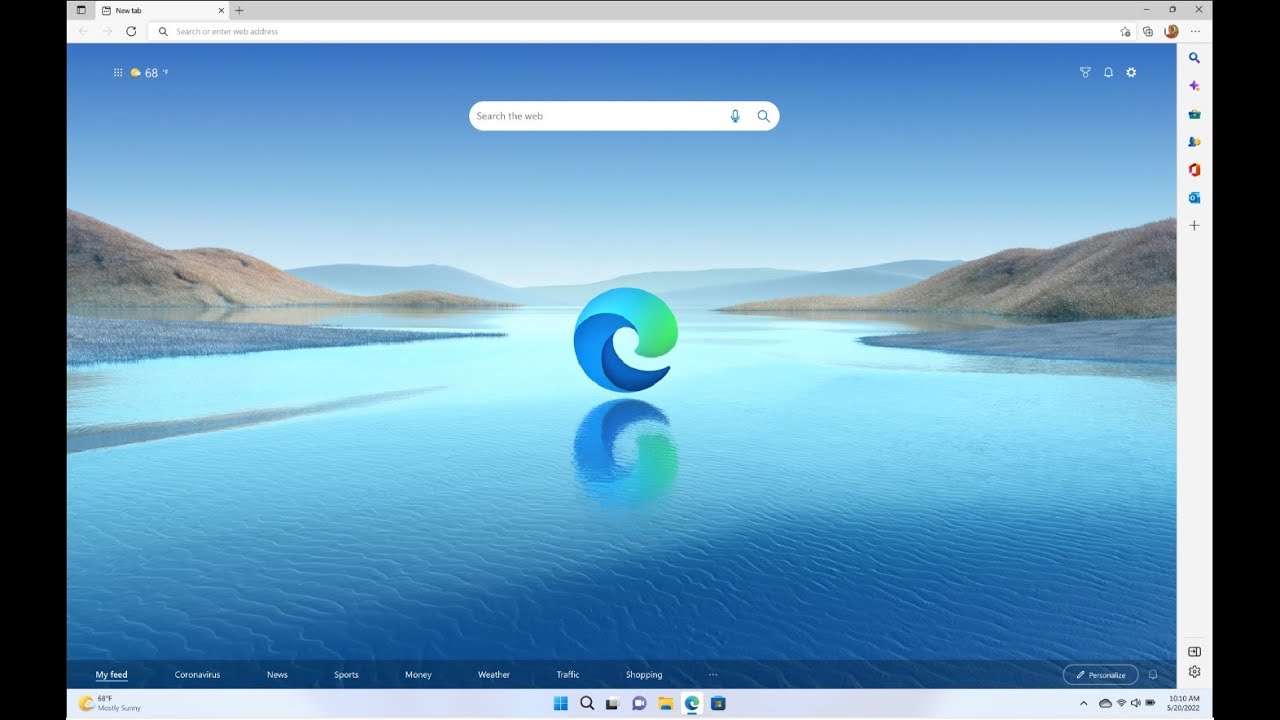
At Microsoft Edge, we’re always thinking of ways to help you make the most of your time online – and often times, this involves multitasking. But, multitasking is hard to do well – you start with writing an email, and then you toggle to another tab to grab a link … and next thing you know, you’ve lost your focus and are buried in a new task. That got us thinking: how can Microsoft Edge help you strike the right balance of focus and function? And today, we’re excited to announce that we’ve introduced the sidebar in Microsoft Edge to help you achieve more without losing your flow.
The new sidebar in Microsoft Edge lets you access tools and features side-by-side within your browser, even as you navigate between tabs. From being able to search specifically within the page you’re viewing, to using tools to do quick math without opening another tab, we’ve found a way to help you be more productive without losing your place as you browse.
Today, these features include search, Discover, tools, Games, Office, and Outlook. We plan to add new features to the sidebar in the future, but for now, let us introduce you to the current lineup.
Quickly access your files with Office
Office gives you convenient access to all your productivity apps directly in your web browser for free. Also, it makes it easier to search for your files right from the sidebar; you can see your most recent files and even filter depending on the app you want to use. You’ll be automatically logged into your Microsoft account if you’re already signed into Microsoft Edge, so there is no extra step required. If you don’t yet have a Microsoft account, you can get started for free right in the sidebar. Learn more about accessing your apps in sidebar here.
Microsoft Edge and Outlook work even better together
Outlook lets you monitor your inbox or check your calendar without having to navigate away from your browsing activities – and it’s even better when you need to reference content in your browser. Say, you’re planning a vacation with friends. You can easily check flight options next to your calendar. And when you want input on a few vacation rentals, you can compose an email while easily toggling between tabs to copy and paste links for their consideration. Voila, and bon voyage!
Explore more with Discover
Discover in the sidebar boosts your browsing experience and provides more relevant information as you search the web. Jump to a web page and with a simple click on the Discover button, you’ll get page-related facts, articles, and videos, designed to help you find more of the knowledge and inspiration you’re looking for, all at a quick glance. For example, have you ever found a recipe in a blog you’re really excited about, but when you go to check if you have the ingredients to make it, you have to scroll through lots of extra information to find them way at the bottom of the page? With Discover, you can save time scrolling and quickly find the information you need, plus explore other content like similar recipes, related blogs, and cooking videos.
One-click access to fun, free games from your sidebar
Recently, we announced new gaming features that make Microsoft Edge the best browser for gamers. Now, you can take a break and access the Games menu right from your sidebar. Simply click on the games icon on your sidebar to access a variety of free-to-play casual and arcade games.
Use tools for quick help without navigating away
If you find yourself flipping between browser tabs to convert units and do quick math, then tools helps you maintain focus by bringing these functions to the side, where they’re ready to use without cluttering your browser window. We even included an internet speed test, so you can quickly diagnose your connection if a site seems to be loading slowly.
Just like the toolbar in Microsoft Edge, the sidebar is meant to be all your own and customizable, so you can choose the features that help you multitask best. To customize the sidebar, just click the + button to add and remove features. Or, if you want it out of the way, you can hide it with the click of a single button at the bottom of the sidebar. The sidebar is available for users in English markets in the latest version of Microsoft Edge. The sidebar will show up automatically for some users; if you don’t see it, you can enable it by clicking Settings and more (…) and then “Show sidebar.”
The end of the year is almost here and for me it’s a time to reflect on everything our team has accomplished, celebrate successes and prepare for the year ahead. We launched the new Microsoft Edge last January and since that time we’ve come a long way – but we’re just getting started. With the new Microsoft Edge we’re challenging the status quo when it comes to the web and the browser, focusing on better privacy, stronger performance, saving time and providing value back.
With December only two weeks away, there’s no more putting off the decorating, the cooking and the holiday shopping. This holiday, many of us are trying to keep our family traditions alive, even at a distance, while saving money where we can (myself included). If you’ve already started your holiday shopping, you’re way ahead of me 😊. If not, there’s still time to tick everything off your list while saving time and money with Microsoft Edge and Microsoft Bing – we’ve got your back!
Microsoft Edge is the best browser for shopping this holiday. In fact, Microsoft Edge is the only browser with built-in tools to help you save time and money while shopping online with new features like auto-fill coupons and more proactive price comparisons. And this month, our new shopping hub, Shop the Look, and deals hub in Microsoft Bing make shopping even easier and quicker than before. And with many of us online more than ever, we want to be sure we’re safe when shopping online. Microsoft Edge is more secure than Chrome and Firefox by offering better protection against phishing and malware attacks on Windows 10. Just another reason to switch to Microsoft Edge. If you haven’t yet tried the new Microsoft Edge, launch it on your Windows PC and give it a spin. If you’re on a Mac or mobile device download it and let us know what you think!
Now for what’s new this month in Web Experiences:
Save time and money with coupons in Microsoft Edge on desktop and mobile
Coupons and promo codes are a great potential way to save money but they often require a lot of work to find, and too often they don’t work when you need them. That’s why I’m super excited to announce our new coupons feature in Microsoft Edge for desktop and mobile[1], which makes finding coupons faster and easier since the feature is built into the browser. When I visit a retailer site, Microsoft Edge will alert me if there are any coupons available for that site. I can view the list of coupons at any time by clicking on the blue shopping tag in the address bar. The real magic is that it proactively surfaces these coupon codes when I’m ready to checkout; all I have to do is copy and paste a code or have Edge auto-populate and try them all to determine which one will save me the most.
Help find the lowest price when shopping in Microsoft Edge
Last month, we unveiled price comparison in Collections to help you find the best price online. I’ve been using Collections to organize my gift ideas for the holidays, so having this built-in has been really helpful in saving me time. Today, we’re launching an even more proactive price comparison experience[2] that meets you where you shop. Now when you’re shopping for an item like a book, a cool sweater, or even the new Xbox your kid has been asking for, Microsoft Edge will check the prices at competing retailers to let you know if a lower price is available elsewhere. Click the blue price tag to see a list of prices along with direct links to the product page on those sites. If we determine you already have the lowest price, Microsoft Edge will let you know that too, saving your precious time and energy.
Shopping features like price comparison and coupons adhere to our privacy policies and are on by default. You can turn them off at any time by using the “…” button in the top right of the shopping flyouts or by going directly to Settings > Privacy, search, and services.
New tab page enhancements help you uncover holiday shopping deals
Growing up, I was always told that “if it’s not on sale, you can’t buy it!” This lesson has been seared into my memory and to this day, I’m always on the hunt for deals! This month on the Microsoft Edge new tab page, we’re launching new tools[3] to help bring the shopping deals to you. Once you’ve enabled this feature, you’ll get a customized set of up-to-the-minute retailer discounts to check out. To get started, on the new tab page in the Top Sites section, click on the plus sign and select Deals. You can also add the new Daily Brief suggestion under Top Sites to keep up with breaking news. This month, we’ve also added voice search capabilities to the new tab page. Just click on the microphone in the search box and start speaking.
Save money with our Deals Hub on Microsoft Bing
Microsoft Bing’s Deals Hub[4] also helps you when you’re hunting for savings. The Hub lets you browse the latest online deals across various retailers, sorted by popular products, brands, product categories and more. The deals featured on the Hub encompass retailer offers, price drops, Bing Rebates offers and more, to ensure you can see a variety of cost-saving opportunities all in one place.
Find the perfect holiday gift with our new curated shopping hub on Microsoft Bing
If you need some inspiration to find just the right holiday gift this year but don’t know where to start, we’ve thought about that too! Sometimes I don’t exactly know what my mom wants and I want to get inspired with new ideas. With our new shopping hub[5] on Microsoft Bing, I can browse and discover curated categories like home décor, gift ideas, clothing, jewelry and more. Visit Bing.com/shop to get your shopping on.
Quickly find outfits you’re looking for with Shop the Look
If you’re like me, you like to buy outfits of items that go together, and not just clothing items one at a time. Now you can use Shop the Look[6], which builds off previous Microsoft Bing visual search technologies to help you find your next favorite look. For example, if you need a new warm coat for the winter, you can search for “coats”; Microsoft Bing will show you a variety of different outfits to find the one you want. These results link right to the retailer’s page, so you can easily make your dream outfit a reality. We are currently working to expand this feature for all of our users and for more products.
Save time by seeing comprehensive product information in one place on the Bing Shopping tab
There are lots of items you might like to get detailed information on before you buy, such as when you’re looking into upgrading your devices. In these cases, you can quickly get comprehensive product details[7] on Microsoft Bing, which aggregates into a single view information like ratings from multiple top reviewers, item price trends over time, product specifications and user reviews on important product elements. Simply search for items you’re curious about on the Bing Shopping tab, click “Track price” or add it to your wish list, and from there click to see the details you need to buy the right device for you at the right price.
Easily take screenshots and mark them up directly in Microsoft Edge
Last month we announced web capture, an easy way to take screenshots of web pages within Microsoft Edge. Our next version of web capture is now generally available, adding the ability to digitally ink and annotate directly onto screenshots so you can edit and draw to your heart’s content. This has been our top requested feature and we are excited for you to use it. It’s very useful for students to capture online articles and annotate while studying, and also for sending not-so-subtle gift hints to your loved ones for the holidays. It’s also nice to have this capability native within the browser so there’s no longer a need to download or use a separate app! Later this month, you can also expect to see the ability to capture a full webpage with a click. That means no more scrolling or stitching together multiple screen grabs. To get started, select Web capture from the “…” menu in the top of the browser or use the keyboard shortcut CTRL + Shift + S.
Annotate and add text to PDF documents in Microsoft Edge
People love reading PDFs in the browser, and now in addition to being able to highlight, this month we’ve added the ability to add text notes to your PDF within Microsoft Edge. This has been one of our most requested features and we’ve listened to your feedback. Now it’s really easy to read, annotate and add text to PDF files, perfect for students and for busy professionals. I just wish I had this back in grad school, it would have saved me so much time.
Enterprise users also get a revamped new tab page to stay dialed in at work
The new tab page doesn’t just help you find the best shopping deals after work – it also helps you optimize your workday. Previously, you had to choose between Office 365 content and news for your new tab experience; now, you’ll get the best of work and news in a single view when signed into Microsoft Edge with your Azure Active Directory work account. You can easily toggle between Office content and the new “My Feed” section, which brings you relevant work and industry news content that can be further personalized based on your interests. So whether you want to hop back into a shared PowerPoint from the Office 365 section or want to read the latest industry news in “My Feed,” just open a new tab in Microsoft Edge and stay in your flow. You can read more about this great feature.
Say goodbye to those long, ugly URL links
Imagine you are on a website with a great holiday gift idea and you want to email it to your friends. When you cut and paste the URL into Outlook or a Word doc, it’s super long with a ton of letters and numbers. It doesn’t look too good and you have to take the extra step of typing descriptive text in the doc, clicking on that text, and then adding a hyperlink to make it look good. Or you have to go download an extension or use another shortening tool from somewhere else out on the web. Waste of time! This month we are releasing a feature called friendly URLs, to help make things way easier. Now, when you paste a link that you copied from the address bar, it will automatically convert from a long, nonsensical URL address to a short hyperlink with the website title. If you prefer the full URL, you can convert to plain text using the context menu. Your doc or email looks clean without all the effort. In life, it’s sometimes the small things that make a huge difference.
Two screens are better than one. Experience the Microsoft News App and Microsoft Edge on Surface Duo
With the launch of Surface Duo last month, people are getting to experience Microsoft’s vision for the new way to get things done. With the flexibility of two screens, you can open an article without losing your place on a list of headlines, drag and drop to save videos to a playlist, or just make an article or gallery full-screen to take advantage of Surface Duo’s beautiful displays. Maybe my favorite feature though is book mode – where one article is sized just-right for reading across both screens, just like the pages of a book. It just feels natural with this device to flip pages, makes it easy to focus on one thing at a time, and the weight of the device will have you getting lost in headlines or videos without needing to change devices. I can’t wait to work my way through my book list this holiday season.
In addition to the news experience on Surface Duo, Microsoft News is built into Microsoft Edge, integrated into the Microsoft Launcher for Android and is available as a free standalone app. To read more about how Microsoft Edge works on Surface Duo, check out this post.
We hope you and your family have a wonderful holiday, and that Microsoft Edge and Bing help you save time and money this year!
[1] Coupons are currently available in U.S. markets and now available on desktop and iOS. Coming soon to Android.
[2] Price comparison is currently available on desktop versions of Microsoft Edge in U.S. markets.
[3] Deals on the new tab page are currently available in U.S. markets.
[4] Microsoft Bing’s Deals Hub is only available in U.S. and U.K. markets.
[5] Microsoft Bing Shopping Hub is only available in the following markets: U.S., U.K., A.U., C.A., D.E., F.R.
[6] Microsoft Bing Shop the Look is only available in U.S. markets.
[7] Microsoft Bing product details are only available in the following markets: U.S., U.K., A.U., C.A., D.E., F.R.
Over the last year, one of the most common questions I’ve gotten from other executives is about the browser.
Specifically, the question is about which browser should be the default for accessing internal apps and data from users’ devices.
Previously, if your organization wanted to standardize on a single modern browser for use across all platforms, your only option was Chrome. This fact changed (in dramatic fashion) back in January when we released the new Microsoft Edge, which we believe is the best browser for business. Now IT leaders have another choice for modern browsers across all your platforms and, frankly, when you do a comparison, the choice is pretty clear.
Let me explain.
The new Microsoft Edge is built on the open-source Chromium project, the same foundation used by Chrome. This means that sites will perform the same on Microsoft Edge as they do on Chrome, and that you likely won’t experience the traditional compatibility problems you saw with IE.
With those major obstacles resolved, there are 5 remaining areas you have to rigorously examine when evaluating the browser you want your organization to use for accessing corporate apps and data:
Stronger Privacy.
Improved Internal Search.
Better Compatibility.
Manageability and Security.
Better Memory Usage.
Stronger Privacy
It’s time to expect more from browsers, especially when it comes to having more control over your data. Microsoft Edge provides you powerful default privacy protection, while still allowing you to benefit from web personalization. We have built our track record by contributing to the advancement of business by creating productivity tools that empower users. These tools, and our entire approach, are built on privacy, trust, and data protection as fundamental and foundational attributes of building for an enterprise-quality bar.
A browser from Microsoft is a commonsense selection for the needs of your users to access confidential and sensitive data. Check out our browser privacy promise to learn more about how your privacy is handled in Microsoft Edge.
Improved Internal Search
It pains me to say this as a regular user of Bing, but Google is the first name most people think of when it comes to search. But, when it comes to searching your organization’s internal information and data, Microsoft is clearly superior. Microsoft Search in Bing (MSB) is natively built into Microsoft Edge and this enables search across both your internal and external datasets from any Bing-powered search bar.
Figure 1: Files view – Get right back to the file you were working on or see files that co-workers have shared with you.
Figure 2: Conversations – Pick up where you left off in Microsoft Teams or Yammer and participate in business-wide chats.
Here’s a personal experience I’ve had with this functionality: over the years, I have, despite my best efforts, struggled to find data on the internal Microsoft web sites. Now, I go to one place (the new Microsoft Edge) and start typing whatever it is I’m searching for—just like I would when searching the web. I no longer have to pause and consider whether what I’m searching for is internal or external—I simply start typing and MSB searches all internal company resources (including contacts) for what I need. This enables me to quickly get to all of the internal Microsoft resources.
To see what this means to your workforce at a macro level, a recent Forrester Consulting TEI study found that companies reduced their time spent searching by 50 to 75%. IT Pros also see 30 – 60% reduction in certain support tickets, because employees are able to self-serve on common questions to IT. Having a single source of combined search for internal and external data and information is a game-changer.
Better Compatibility
Because it is built into the expansive worldwide Microsoft ecosystem, Microsoft Edge naturally has a higher level of compatibility than Chrome for most commercial organizations’ needs.
The natural first question you have while reading that is probably, “Well, if they are both based on the same open-source Chromium project, why is there any difference?” The reason is that 60% of enterprises have apps that were built to run in IE and may not be compatible in the Chromium engine. To address this widespread challenge, we built Internet Explorer mode into Microsoft Edge. This setup allows you to remain compatible with all your legacy internal apps while ensuring that the same browser has all the latest compatibility requirements for the world’s most sophisticated new websites. This marriage of IE and Chromium is unmatchable; this is designed from “file: new” to give your users the best experience possible in a secure environment.
Manageability and Security
Most of you reading this are already using Office 365 and the Office apps across all of your devices, and we’ve worked for years to build out our manageability, identity, and security capabilities in ways that natively integrate these capabilities into every tool you use. The Microsoft Edge browser has these same capabilities to secure your manageability/identity/security so that your browsing is secure and productive across devices just like your Office apps on your devices. We approach the browser and the Office apps in the exact same way.
Considering that the average commercial user spends 60% of their time in the browser, then leveraging Microsoft 365’s built-in capabilities across Microsoft Edge and Office gives you common management and security solutions across the apps where your users are spending most of their time and accessing/using the majority of your internal data.
With Microsoft Edge, you can define policies that keep data contained within commercial apps and block copy/paste into non-commercial apps, and you can create policies that help ensure users can only save your data into locations you have approved, like OneDrive and SharePoint. You can also define conditional access policies that ensure only trusted users—who are using trusted devices—can access your data from Microsoft Edge. These are all unique capabilities of Edge.
These are the exact same policies many of you have already set in Microsoft Endpoint Manager, Intune, and Azure Active Directory for your mobile devices—and now we’ve made it so that Microsoft Edge is a natural and seamless extension you can begin using right now to meet your most critical business needs.
Better Memory Usage
We all know that happens when we have too many tabs open—our computer chugs, and we can’t do what we need online. Tabs eat up memory, so we wanted to address that. The new Microsoft Edge is more efficient on PC resources with the latest Windows 10 May 2020 update, which means your users’ batteries can last longer with faster performance. Longer battery life is one of the most common requests from users in the research we continually do. The Wall Street Journal just published its own findings on this. Performance, battery, and memory usage will continue to be the main focus areas as Microsoft Edge matures.
The five elements above are critically important to the security and productivity of any organization, and I believe that Microsoft Edge offers unique value (in some cases unmatched) in each category. These features are available or coming in Microsoft Edge on Windows, Mac, iOS, and Android. You can simply extend what you already have configured for the Office mobile apps to Microsoft Edge and Windows.
So, what can you do next?
First, from Microsoft Endpoint Manager, set Microsoft Edge as the default browser across all of our platforms—here’s how to do it, and this guide can be used to do this via Intune.
Next, train your users on Microsoft Edge and Microsoft Search in Bing to make them more efficient in searching for internal content. You can use these pre-written kits that are designed to help you with end-user adoption and training.
And also educate your users on the importance of Microsoft Edge’s privacy and security features when accessing organizational data.
Try out Microsoft Edge if you haven’t already by downloading today. If you have and are ready to deploy, resources are available to assist you. Contact us at https://fasttrack.microsoft.com right away.
New features provide peace of mind, help you stay in the flow and connect to the information you want
The last few weeks have been unlike anything I’ve ever experienced. As a working mom I’m certainly used to having a full schedule, getting pulled in different directions, balancing the needs of my family with those of my job, and generally feeling stretched. But these last several weeks have taken my everyday reality to a whole new level. And I suspect I’m not alone. I’ve found myself at home jumping from Teams call to Teams call while trying to keep things moving forward at work (recognizing I’m lucky in this regard) while also now homeschooling my kids. It feels like the volume of everything has been turned up significantly. There’s more email, more information and news, more screaming (as I write this, my kids are fighting right outside my room), more video chats, more anxiety and frankly, I’ve found it hard to make sense of it all.
One of the things I’ve noticed is that the browser – a thing I might not think too much about if it weren’t for the work I do every day – is an even more indispensable tool than ever before. Whether it’s reading the latest COVID-19 news, using Teams online for meetings, collaborating on Word documents with my team online, researching lesson plans for my kids, or shopping for toilet paper – I’m turning to the browser all day long. It’s a tool we all rely on and have for years.
My browser habits have not changed, but the world has, and at an incredible rate. These days we worry about what information online can be trusted. We worry about the safety of our personal data, our identity and the safety of our children online. At Microsoft, we are starting to question the browser status quo. Perhaps it’s time to expect more from the web.
Last year, we started our re-imagining of the web by rebuilding our Microsoft Edge browser from the ground up based on the Chromium engine. This ensured we could deliver world class speed, performance and website compatibility with the sites and extensions you use every day. But we believe that’s not enough. It’s time to expect more from our browsers – more control over our data and our family’s online information, new ways to organize our online research and more value back as we browse.
Here are a few of my favorite new features in the new Microsoft Edge.
1. Organize your research with Collections
If you’re having to suddenly design your child’s academic curriculum, or maybe spending more time at home has you rediscovering your inner chef, Collections can be a big help. Collections allows you to easily collect information from different websites, organize it, export it into various files or just come back to your research at a later time and pick up right where you left off. Today it can be difficult to do this – especially across a large number of different websites and multiple devices.
Just click on the Collections button and a pane on the right of your browser opens, where you can easily drag and drop webpages, text, or images into a group – without having to open another page or application. You can then send your collection to Word or Excel. I use Collections to help me create lesson plans for my kids. I search the web for all kinds of cool ideas, then drag them over to the Collections pane on the right, and when I’m done, with one press it exports the collection to a beautiful Word doc that I can print out for the kids. You can also share your collection by copying and pasting into Outlook or another email service.
Today we announced that Collections will also be coming to mobile later this spring making it easy to create, access and sync your Collections across all your devices. Collections for desktop is in the Insider channels now and will be coming to the Stable channel soon.
2. Work efficiently with vertical tabs
If you are like me when you research online, you find yourself with dozens of tabs open at any given time. When that happens, there’s less space for me to see which tab is which. I find myself losing track or I’ll accidentally close a tab as a result. Utterly frustrating as that is usually exactly the one page I needed.
Today we announced vertical tabs, a feature that helps you easily find and manage many open tabs at once. Microsoft Edge is the only browser that allows you to manage your tabs on the side with a single click. Vertical tabs is expected in the Insider channels in the next few months.
3. Save time with smart copy
My favorite technology features are always the ones that seem the simplest and where I find myself asking, “how did I live without this before?” How often do you cut and paste content from the web into documents only to see the beautiful web content reformatted into an ugly mess of text that you then need to clean up? Smart copy makes it easier to select, copy and paste the exact content you want from the web and preserve the rich web format. You can use your cursor to select any area or type of content. When you paste it will retain the formatting, including any images or links. It’s something that sounds so simple, but believe me, it’s a life-changer. Smart copy is expected in the Insider channels next month.
4. Take back control with tracking prevention
I’ll be honest, I love to shop. So yes, I sometimes do find personalized ads helpful. I’ve found various new products online this way that I may not have otherwise. But for many others and particularly for my kids, personalized ads that follow you around the web can sometimes feel intrusive, if not even creepy. The tracking prevention feature in Microsoft Edge is designed to protect you from being tracked by websites that you aren’t accessing directly, giving you more control over what you see and what you don’t. Whether on mobile or desktop, you can select one of three settings that’s right for you – Basic, Balanced or Strict. Depending on which setting you choose, Microsoft Edge will adjust the types of third-party trackers blocked. When I browse, I like to use Balanced mode which is the default setting. But I set my kids’ browsers to Strict mode. Tracking prevention makes understanding who’s tracking you online easier to see and easy to manage, and it’s available now.
5. Know if your passwords have been compromised on the dark web with Password Monitor
Each year, millions of online personal credentials are exposed in data breaches and end up for sale on the dark web.
Today, we’re announcing Password Monitor in Microsoft Edge to help keep your online accounts safe from hackers. When enabled, Password Monitor is a feature that notifies you if the credentials you’ve saved to autofill have been detected on the dark web. If Microsoft Edge uncovers a match with any of your saved username + passwords, you will receive a notification from within the browser prompting you to take action. Through a dashboard in Settings, you can view a list of all leaked credentials and get routed to their respective websites to change your password. Once the password has been changed, save the new credential to autofill and continue browsing with peace of mind knowing that Microsoft Edge and Password Monitor have your back. Again, such a simple, easy solution that makes me feel SO much better about browsing the web. One less thing to worry about. Password Monitor is expected in the Insider channels in the next few months.
6. Maintain truly private browsing and search with enhancements to InPrivate mode
Sometimes you want extra online privacy. If I’m sharing a device with other members of my family, for example, I may not want them to see the gift I’m researching for their birthday because I want to keep it a surprise! It’s for times like those that I like to use InPrivate because it automatically deletes my history, cookies and site data when I finish a web browsing session. In addition, Microsoft Edge is the only desktop browser that offers built-in InPrivate search with Bing. So, when I’m browsing in InPrivate mode, my searches aren’t tied to me or my account. InPrivate browsing is available now. The addition of InPrivate search in Bing is available in the Insider channels now and is coming to the Stable channel soon.
7. Immersive Reader enables everyone to learn and benefit from the web
Immersive Reader, built into Microsoft Edge, makes reading online easier and more accessible for everyone. Reading is one of the most common activities on the web but it can be difficult to do if you have dyslexia or other reading disabilities. Clicking on the Immersive Reader icon removes distractions on the screen and creates a simplified environment that helps you focus. You can also access a variety of tools that help personalize the experience that works best for you, like the ability to hear the article read aloud or to adjust the text. Immersive Reader is available now with more features like line focus coming soon.
8. Microsoft Edge delivers the best immersive viewing experience in 4K and Dolby Audio
These days, many of us are watching a lot more Netflix than before. Our goal is to provide the best high definition entertainment experience when viewing content on the web. Microsoft Edge is the only browser on Windows 10 that lets you watch 4K on Netflix. It’s also the only browser that supports Dolby Audio and Dolby Vision on Windows 10. Through our partnership with Netflix, you and your friends can stream your favorite movies and shows like “Spenser Confidential,” “Locke and Key” and “Night on Earth” in 4K from anywhere on your Windows 10 PC. There are hundreds of 4K Netflix titles to choose from. This feature is available now.
9. Make a difference: Give with Bing
With everything that’s happening these days, one thing that I am trying to keep in mind and model for my kids is how small things can make a big difference. Whether that’s self-care or looking out for others. Today, we are introducing Give with Bing and the Give Mode feature in Bing, a new way to help you to support the causes you care about. It’s a simple thing but it has the potential for real impact. If you choose to search in Bing you can earn reward points for those searches as part of the Microsoft Rewards program. By turning on the new Give Mode feature within your rewards settings, you can donate your reward points to the cause of your choice. There is no cost to you, just search with Bing. With more than 1 million nonprofits to choose from, you can support a cause that you really care about – including the CDC Foundation and others that are supporting the COVID response. In fact, through the end of June, Microsoft Rewards will match all donations to help make an even bigger impact. Try it. Join Microsoft Rewards, and switch on Give Mode and give with Bing. Give Mode is available now.
10. Microsoft Edge is ready for you (and it’s easy to switch)
data-video-id=”yg5cUyPBHjI”>
The new Microsoft Edge is ready for anyone to download today by visiting Microsoft.com/Edge. It’s available for Windows, Mac, iOS and Android. If you’re a Windows 10 customer and don’t have the new Microsoft Edge yet, you can download it today or look for it to come to your PC starting next month as we continue the roll-out. And whether you download it yourself or wait for it to come to your PC, it’s super easy to switch with your favorites, passwords, form fill information and basic settings carrying over to the new Microsoft Edge with just a single click. If you’ve never used Microsoft Edge before, we’re excited to have you give it a try.
We will continue to be quality driven as we release new features. That means that all features will be tested in the Insider channels, starting in Canary and progressing to Stable only when we are satisfied with the level of stability and quality. If you downloaded the new Edge, all you have to do is wait. We’ll update your browser when the features are ready. If you want to use them today, you can join the Microsoft Edge Insiders.
We’ve worked hard to address the evolving needs of today’s savvy web surfers. With the new Microsoft Edge, we hope you’ll see great performance, more control over your data and better ways to connect to and make sense of information. Because it’s time to expect more from the web.
A little over a year ago, we announced our intention to rebuild Microsoft Edge on the Chromium open source project with the goals of delivering better compatibility for everyone, less fragmentation for web developers, and a partnership with the Chromium community to improve the Chromium engine itself. At Ignite, we unveiled our new vision for the web and search, our colorful new icon, and how Microsoft Edge + Bing are the browser and search engine for business — and we are thrilled by the growing excitement we’ve heard from all of you who’ve tried it out and sent feedback!
From this incredible momentum, today I’m pleased to announce the new Microsoft Edge is now available to download on all supported versions of Windows and macOS in more than 90 languages. Microsoft Edge is also available on iOS and Android, providing a true cross-platform experience. The new Microsoft Edge provides world class performance with more privacy, more productivity and more value while you browse. Our new browser also comes with our Privacy Promise and we can’t wait for you to try new features like tracking prevention, which is on by default, and provides three levels of control while you browse.
Another innovative new feature in Microsoft Edge allows you to customize your online experience. Choose a new tab page layout or design, and select the types of news you want.
The last several months have been nothing short of inspiring for all of us working to deliver great new capabilities for Microsoft Edge including AAD support, Internet Explorer mode, 4K streaming, Dolby audio, inking in PDF, Microsoft Search in Bing integration, support for Chrome-based extensions, and more.
If you’re a business or education IT administrator looking to deploy widely in your organization or school, we have you covered as well – you can download offline packages and policies and learn more on the new commercial site.
People have downloaded the preview channels of the new Microsoft Edge millions of times to their devices, and we’ve seen many organizations begin to pilot these channels for their users. Enterprises and schools who have mission critical legacy applications and websites – but also want modern web and security – have turned to our new Internet Explorer mode as a “best of both worlds” solution. And for Microsoft 365 customers, using Microsoft Search to find files, people, office floor plans and more on your organization’s intranet is as easy as typing in the Microsoft Edge address bar. Our early customers are calling it “a win.”
Moving to the new Microsoft Edge – what to expect
Now that we’ve reached this milestone, you might be wondering what to expect on your PC. To get the new Microsoft Edge you have two choices: you can either manually download it today, or if you are a general consumer user, you can wait for it to be automatically released to your device via Windows Update. When you do make the switch, your favorites, passwords, form fill information and basic settings will carry over to the new Microsoft Edge without you having to do anything. You can read more about our rollout plans here.
If you’re an IT administrator, you will need to download an offline deployment package to pilot within your corporate environment—the new Microsoft Edge will not automatically deploy for commercial customers. Additionally, none of the Microsoft Edge preview channels will update to the new Microsoft Edge, as they can be used side-by-side for testing and validation.
We also know that deploying a new browser isn’t just “flipping a switch,” so we want to make the process as easy as possible. In addition to simplifying deployment with tools like Intune and Configuration Manager, we are committed to helping your organization transition to the new Microsoft Edge. At Ignite we announced FastTrack and App Assure support for Microsoft Edge. FastTrack will help you deploy Microsoft Edge to your organization at no extra charge if you are a customer with an eligible subscription to Microsoft 365, Azure, or Dynamics 365. And if your sites are compatible on Internet Explorer 8 and above, Google Chrome, or legacy Microsoft Edge, then they’ll work on the new Microsoft Edge. If not, contact App Assure and we’ll help you fix it.
What’s next
Of course, the innovation, testing, and new features don’t stop coming today, and this initial release is only just the beginning. If you want a sneak peek of what’s coming, we encourage you to keep using our preview channels – Beta, Dev and Canary – which will remain available for download on the Microsoft Edge Insider site. Not only will you get an insider’s look at our features pipeline for Microsoft Edge, but you’ll continue to have the opportunity to help improve Microsoft Edge with your valuable feedback. Your input helps make both the new Microsoft Edge, and the web, better for everyone.
Thank you!
A huge thank you to our community of Microsoft Edge Insiders as well as the engineers within the Chromium community who have worked with us to develop the new Microsoft Edge. We remain committed to actively participating in and contributing to the Chromium open source project. To date we’ve made more than 1900 contributions across areas like accessibility, modern input including touch, speech, digital inking, and many more.
Keep telling us what’s working well, what needs to change and what you’d like to see in the new Microsoft Edge.
Our heartfelt thanks – we couldn’t have made it here without you!
Today, we’re releasing an experimental preview of Collections for Microsoft Edge. We initially demoed this feature during the Microsoft Build 2019 conference keynote. Microsoft Edge Insiders can now try out an early version of Collections by enabling the experimental flag on Microsoft Edge preview builds starting in today’s Canary channel build.
We designed Collections based on what you do on the web. It’s a general-purpose tool that adapts to the many roles that you all fill. If you’re a shopper, it will help you collect and compare items. If you’re an event or trip organizer, Collections will help pull together all your trip or event information as well as ideas to make your event or trip a success. If you’re a teacher or student, it will help you organize your web research and create your lesson plans or reports. Whatever your role, Collections can help.
The current version of Collections is an early preview and will change as we continue to hear from you. For that reason, it’s currently behind an experimental flag and is turned off by default. There may be some bugs, but we want to get this early preview into your hands to hear what you think.
To try out Collections, you’ll need to be on the Canary Channel which you can download from the Microsoft Edge Insider website.
Once you’re on the right build, you’ll need to manually enable the experiment. In the address bar, enter edge://flags#edge-collections to open the experimental settings page. Click the dropdown and choose Enabled, then select the Restart button from the bottom banner to close all Microsoft Edge windows and relaunch Microsoft Edge.
Once the Collections experiment is enabled, you can get started by opening the Collections pane from the button next to the address bar.
When you open the Collections pane, select Start new collection and give it a name. As you browse, you can start to add content related to your collection in three different ways:
Add current page: If you have the Collections pane open, you can easily add a webpage to your collection by selecting Add current page at the top of the pane.
Drag/drop: When you have the Collections pane open, you can add specific content from a webpage with drag and drop. Just select the image, text, or hyperlink and drag it into the collection.
Context menu: You can also add content from a webpage from the context menu. Just select the image, text, or hyperlink, right-click it, and select Add to Collections. You can choose an existing collection to add to or start a new one.
When you add content to Collections, Microsoft Edge creates a visual card to make it easier to recognize and remember the content. For example, a web page added to a collection will include a representative image from that page, the page title, and the website name. You can easily revisit your content by clicking on the visual card in the Collections pane.
You’ll see different cards for the different types of content you add to Collections. Images added to a collection will be larger and more visual, while full websites added to a collection will show the most relevant content from the page itself. We’re still developing this, starting with a few shopping websites. Content saved to a collection from those sites will provide more detailed information like the product’s price and customer rating.
Add notes: You can add your own notes directly to a collection. Select the add note icon from the top of the Collections pane. Within the note, you can create a list and add basic formatting options like bold, italics, or underline.
Rearrange: Move your content around in the Collections pane. Just click an item and drag and drop it in the position you prefer.
Remove content: To remove content from your collection, hover over the item, select the box that appears in the upper-right corner, and then select the delete icon from the top of the Collections pane.
Once you’ve created a collection, you can easily use that content by exporting it. You can choose to export the whole collection or select a subset of content.
Send to Excel: Hit the share icon from the top of the Collections pane and then select Send to Excel. Your content will appear on a new tab with pre-populated table(s) that allow you to easily search, sort, and filter the data extracted from the sites you added to your Collection. This is particularly useful for activities like shopping, when you want to compare items.
Copy/paste: Select items by clicking the box in the upper right. A gray bar will appear at the top of the Collections pane. Select the copy icon to add those items to your clipboard. Then, paste it into an HTML handler like Outlook by using the context menu or Ctrl+V on your keyboard.
Sending content to Excel is available for Mac and Windows devices running Windows 10 and above. We’ll add support for Windows devices running Windows 7 and 8 soon. Additional functionality, like the ability to send to Word, will also come soon.
This is the just the first step in our Collections journey and we want to hear from you. If you think something’s not working right, or if there’s some capability you’d like to see added, please send us feedback using the smiley face icon in the top right corner of the browser.
Thanks for being a part of this early preview! We look forward to hearing your feedback.
Today, we are happy to introduce support for the Web Authentication specification in Microsoft Edge, enabling better, more secure user experiences and a passwordless experience on the web.
With Web Authentication, Microsoft Edge users can sign in with their face, fingerprint, PIN, or portable FIDO2 devices, leveraging strong public-key credentials instead of passwords.
Staying secure on the web is more important than ever. We trust web sites to process credit card numbers, save addresses and personal information, and even to handle sensitive records like medical information. All this data is protected by an ancient security model—the password. But passwords are difficult to remember, and are fundamentally insecure—often re-used, and vulnerable to phishing and cracking.
For these reasons, Microsoft has been leading the charge towards a world without passwords, with innovations like Windows Hello biometrics and pioneering work with the FIDO Alliance to create an open standard for passwordless authentication – Web Authentication.
Beginning with build 17723, Microsoft Edge supports the CR version of Web Authentication. Our implementation provides the most complete support for Web Authentication to date, with support for a wider variety of authenticators than other browsers.
Windows Hello allows users to authenticate without a password on any Windows 10 device, using biometrics—face and fingerprint recognition—or a PIN number to sign in to web sites. With Windows Hello face recognition, users can log in to sites that support Web Authentication in seconds, with just a glance.
Users can also use external FIDO2 security keys to authenticate with a removable device and your biometrics or PIN. For websites that are not ready to move to a completely passwordless model, backwards compatibility with FIDO U2F devices can provide a strong second factor in addition to a password.
We’re working with industry partners on lighting up the first passwordless experiences around the web. At RSA 2018, we shared a sneak peak of how these APIs could be used to approve a payment on the web with your face. Passwordless authentication experiences like this are the foundation of a world without passwords.
We’re excited to get implementation into the hands of more developers to see what you build. To get started with Web Authentication in Microsoft Edge, check out more information on our implementation in the Web Authentication dev guide, or install Windows Insider Preview build 17723 or higher to try it out for yourself!
– Angelo Liao, Program Manager, Microsoft Edge – Ibrahim Damlaj, Program Manager, Windows Security




 from the top of the Collections pane. Within the note, you can create a list and add basic formatting options like bold, italics, or underline.
 from the top of the Collections pane.
 to add those items to your clipboard. Then, paste it into an HTML handler like Outlook by using the context menu or Ctrl+V on your keyboard.
