Posted on Leave a comment

Review: Amazon’s Fire TV Cube isn’t that much better than older models

Amazon has started shipping the Fire TV Cube, a media player aiming at the Apple TV 4K. But, can it bring as much to the table as Apple’s device does, for just a little bit less money?

[embedded content]

Quite literally, the device is Amazon’s 2017 Fire TV with more storage and a built-in Echo Dot. At regular price, those two items come out to $120, exactly what the Cube costs. Amazon is currently offering the combo for only $95.

Last year’s Fire TV and the Cube share the same exact hardware specs, other than a bump to 16GB of storage. The regular 2017 Fire TV has the same exact processor, the same 2GB of RAM, the same MIMO WiFi, and can support the same 4K Ultra HD resolution, HDR10, and Dolby Atmos surround sound.

Amazon Fire TV Cube

Where wired Ethernet is an add-on for the Fire TV, the Cube does include an Amazon Ethernet Adapter in the box.

Most of the Fire TV Cube Reviews out there focus on the basics surrounding the device, how it works, and what it can do, but unfortunately, a lot of them fail to mention some of its biggest problems.

For those of us who already have an Echo device in our homes, buying the Cube makes little sense.

The previous Fire TV models can also do pretty much everything the Cube can do if you’ve got an Echo in the same room as your TV, with one addition —the Cube is able to control many third-party devices with just your voice, including your TV.

Google Home and Chromecast allow users to turn supported TV’s on and off, but the Cube shines because you can control other devices like an Xbox, Playstation, cable boxes, and more through Alexa integration, HDMI CEC, or an IR Blaster repeater.

This leads us to our first problem, if you’ve already got an Echo in your living room, is being able to control some of your other devices worth the extra money? Plus, if you do have an Echo, it might cause problems with Cube. Amazon recommends you relocate your Echo to another room or change its wake word.

One of our testers had no problem with the same wake word between devices. Another kept having a problem with the Fire TV Cube picking up commands intended for the Echo.

If you have the more expensive $100 Echo, or the Echo Plus, and prefer to play music on it instead of the tv, this could be a problem.

The Fire TV Cube’s iron

Cube’s second major issue is cheap and outdated hardware. It uses the same 1.5GHz quad-core processor from the 2017 Fire TV, as well as the Mali 450 MP3 graphics that’s based on architecture from 2012! The reviews of the Fire TV are littered with people complaining about an overall slow and buggy experience. Some even decided to go back to an older generation Fire TV because of it.

In our experience, Cube’s UI animations on the main screen seemed fairly smooth, although it took a bit for them to start at times. Loading certain apps took longer than we expected them too, like Netflix for example. More on this in practice, in a bit.

The Apple TV 4K is $40 more expensive than the Cube, but at least it’s using one the most powerful mobile chips available, the A10X. That’s the same chip powering last year’s iPad Pro.

With performance like that, you know the Apple TV 4K will remain current for years, but you can’t say the same for Amazon’s Fire TV Cube.

Video Playback, and app shopping

The Amazon Fire TV Cube does what it says it will do. After it buffers, it will play back your Amazon Prime Video either through a wired Ethernet connection with the dongle, or on Wi-Fi.

On Ethernet, speeds hit around 11 megabytes per second from the router. While we’d prefer Gigabit on the Fire TV Cube, both speeds are more than enough for 4K streaming with no buffering breaks in the middle of the event. The 802.11ac Wi-Fi speeds started better, at about 80 megabytes per second, but prone to big dips down to less than 5 megabytes per second for reasons we couldn’t pin down.

Because of the strange speed excursions on Wi-Fi, we had a better streaming experience with the wired Ethernet connection than we did on the Wi-Fi. Looking at Amazon’s customer reviews for the Fire TV, we don’t seem to be alone in that regard.

Amazon Fire TV Ethernet adapter

But, again, our biggest issue is the janky interface. A dropped frame now and again isn’t a giant problem with interfaces. But, with half-second lock-ups of the interface while scrolling through a list, you wonder if Amazon should have charged $10 more and used a beefier processor.

The Fire TV Cube has a robust app selection, rivaling the Apple TV in many ways. This isn’t really a credit to Amazon, but a ding on Apple. We’ve said it before, and we’ll say it again —Apple had an opportunity to lock-down the TV-based apps market when it launched the fourth generation Apple TV, and it blew it because of an assortment of choices about limitations on developers.

Alexa Voice Remote isn’t any better on the new hardware

Moving on to our third problem, you get basically the same old Alexa Voice Remote that comes with the old Fire TV.

The Cube has Alexa built-in, so Amazon says you don’t really need the remote, but in our experience, it takes so much longer to navigate. It also can be kind of awkward when you have guests over, so for those reasons, we would much rather use a standard remote control.

Looking at the remote’s reviews on Amazon, however, reveals yet another snag. The device has almost as many 1 star ratings as it does 5 star. Users complain of corroded batteries or extreme battery drain. There’s also more than a fair share of users who had their remotes completely stop working, forcing them to get a replacement.

The fourth issue is related to remote issues. Let’s say your Alexa Voice Remote stops working or you lose it, you can just use the Cube’s built-in voice controls. At least in theory.

When AppleInsider tried in two different locations, we had Alexa misunderstand our commands in both environments multiple times, and when searching for certain categories of movies, it gave us different results than it did when we used the remote. We would try to search for Prime movies, for example, but the UI would mix in shows that are only available for purchase or rent.

The worst is when you’re using your voice to manually navigate the UI. You have to constantly repeat, “Alexa, scroll right,” over and over again. It just takes forever!

The situation only got worse when we had the volume cranked up on the TV. I had to yell “Alexa” multiple times at the Cube after she didn’t hear my first couple of attempts, and that happened quite a few times.

Amazon says they added an extra microphone into the Cube to help hear your commands, but in my experience, it doesn’t seem any better than the other Echo devices.
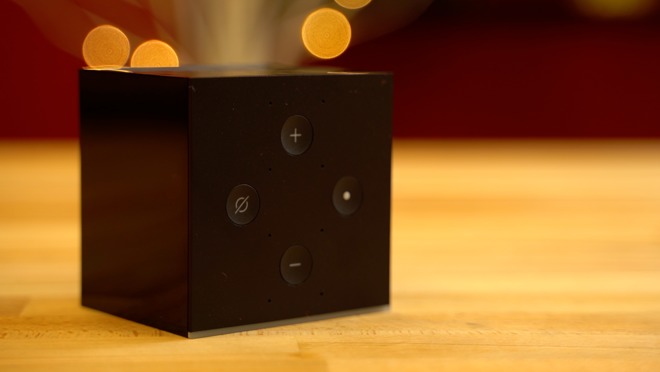
With those problems aside, Cube works fairly well for its core purpose, playing video. We’ll do a long-term review and talk about any problems we run into as we use it in a few months.

Alexa home automation status

Having Alexa built-in definitely has its perks, but if you have any smart home accessories, you probably already own an Echo device.

Visually seeing the weather and other information that Alexa gives you on the big screen is definitely a plus, and probably one of the best things about it, right next to the ability to turn on your TV and control all of your devices with just your voice.

Amazon is currently offering the Fire TV Cube in a bundle with their Cloud Cam, and upon installation, it syncs up instantly with the Cube. So, you can just ask Alexa to show the cloud cam, and it’s up after that same delay that seems to infect every other action on the device.
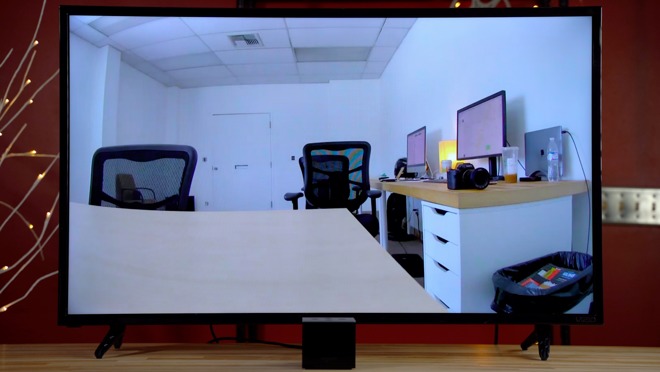
However, when your TV is off, it takes even longer to appear as the device wakes. We were seeing almost half a minute for the cam to show up.

But, once it gets going, the lag between what’s going on in front of the camera and what you see on the TV isn’t too bad —and you have audio as well.

Amazon Fire TV Cube and the Apple TV

We’ll be doing a more direct comparison to the Apple TV 4K on AppleInsider soon to help you decide which streaming box is right for you, but in short, if you’re just looking at Amazon Prime Video or Netflix, either device will do. But, if you need iTunes streaming, the Apple TV 4K is the only way to go.

Otherwise, the Amazon Fire TV Cube is a decent device, but not a great one. If you’ve got a home server set up at home, you can point something like Plex or Infuse at your iTunes library to get them to stream to your Cube —but it isn’t a native solution and will require a little fiddling on your end.

What would have made it great? Charging $10 more and opting for a faster processor.

Overall, if you’re embedded in the Apple ecosystem, we give the Amazon Fire TV a:

Score: 3 out of 5

Amazon has continued its trend of “good enough” devices at a relatively low cost, with little panache or flair again in the Amazon Fire TV Cube. If that’s okay, and you have no need for iTunes streaming at all, and don’t care about the UI jank, it’s a bit better at 4 out of 5.

Posted on Leave a comment

2018 Back to School Buyers Guide: Should you pick Apple’s iPad or Mac for college?

You’re going back to school this fall, and you need a new computer. If you’ve chosen Apple, you’ve got a few options for what to buy: You can get a Mac, or an iPad. AppleInsider discusses which is the right device for you.

All of those choices have advantages and disadvantages, but with either one, you’ll have the advantage of portability, as well as not needing to depend on a large, bulky desktop computer, as previous generations were.

Apple has attempted to dominate the education market for computers for most of its existence, and deals it made with elementary and secondary schools were a big part of the company’s growth in the early 1980s. When the Macintosh arrived, Apple reached agreements with numerous universities to get that product into college classrooms.

Apple, however, began losing its education advantage as time passed, and by 2017, had fallen to third place in the education marketplace behind Google and Microsoft, who offer cheaper devices.

The company, as of earlier this year, has begun a push to get back its mojo in that regard, starting with a March “Field Trip” event in Chicago, where it both emphasized its education efforts and introduced a new, $329 iPad aimed at the educational market.

[embedded content]

“For 40 years, Apple has helped teachers unleash the creative potential in every student,” Apple’s education website states. “And today, we do that in more ways than ever. Not only with powerful products, but also with tools, inspiration, and curricula to help you create magical learning experiences.”

This is the first full school year since Apple’s renewed education push, so let’s take a look at the pros and cons of each option.

The case for iPad

The advantages of an iPad for educational use begin with portability, and cost.

You can, of course, carry an iPad with you everywhere you want, with relative ease, whether home or to class. The iPad, no matter what size, is light and doesn’t take up a lot of space.

The iPad starts at $329, for the new 2018 version, with Wi-Fi only and 32GB of storage. The iPad mini starts at $399 for the 128GB Wi-Fi version, while the least expensive, 10.5-inch iPad Pro starts at $649 for the 64GB Wi-Fi edition. The 12.9-inch iPad Pro starts at $799, also for 64GB.

However, with Apple’s student discounts, the iPad starts at $309, the iPad mini 4 at $379 and the iPad Pro at $629. The greatest savings, though, can be found at Apple authorized resellers thanks to cash discounts and tax incentives, regardless of whether you’re a student, teacher or staff member.

Apple’s latest 2018 iPad is periodically on sale for as low as $299, while the iPad Pro is routinely discounted by up to $250 off. Many resellers do not collect sales tax on most orders with free shipping as well. For a large number of students and parents, this can equate to an additional $25 to $100 in savings compared to buying from Apple.

If you’re using the iPad as your primary device, a keyboard is a must. All of the latest models work with Bluetooth keyboards, most of which run around $100, while both iPad Pro models are compatible with smart keyboards ($159 and $169, for the two sizes). Additionally, the new 2018 iPad is compatible with the Apple Pencil ($99), as well as with all apps that support that accessory.

Brydge Bluetooth Keyboard for Apple's 10.5


Brydge Bluetooth Keyboard for Apple’s 10.5″ iPad Pro

But beyond that, as time goes on, there are more and more things that students can do with iPads. At the March event, Apple unveiled an updated iWork suite, a new version of Garage Band and debuted the new Digital Books app.

It’s very clear that Apple is highly committed to pushing the iPad for education. On Apple’s education homepage, nearly every photo contains an iPad, and there are no photos included of any other Apple device. So if you’re going by Apple’s priorities, that’s a clue.

As demonstrated by this AppleInsider video from last August, the latest iPad Pro can be had for $1,167, if you choose the $799 256GB edition and toss in a $99 Apple Pencil and $169 Smart Keyboard — less than a 12-inch MacBook. It also marked the first iPad to ever beat out a MacBook in Geekbench benchmark performance:

[embedded content]

The Case for Mac

When it comes to the Mac, the advantage starts with power, and features. Macs, in most cases, offer a better processor, a bigger and higher-resolution screen, considerably more RAM and storage, and more ports.

For all that, though, you’ll be paying a lot more. The least expensive MacBook is the 13-inch MacBook Air, which starts at $999 MSRP, but can be found on sale for as low as $799. The standard MacBook starts at $1,299, as does the 13-inch MacBook Pro, the latter which offers a beefier dual-core 7th-generation processor and multiple USB-C ports. Both the MacBook and the MacBook Pro are on sale now, with the 13-inch Pro priced as low as $1,099 for a limited time. This makes it a better buy than the 12-inch MacBook at this point in the back-to-school shopping season.

As for desktop iMacs, the 21.5-inch model starts at $1,099, with the 27-inch model beginning at $1,799. The 27-inch version offers, in addition to the larger screen, a Retina 5K display, better processors and a Fusion Drive of up to 3TB. With back-to-school discounts in effect at Apple authorized resellers, students can get into a 2017 iMac for as low as $999.

The more expensive iMac Pro retails for much higher than the iMac HD and 5K, with a starting price of $4,999. Overall, iMacs sacrifice portability, but add a great deal of computing power in exchange. If you’re not going into a computationally demanding curriculum, it’s hard to recommend the iMac Pro for back to school. It is a lot of power, but it is also total overkill for 99 percent of Mac users. However, if you do need more than four cores, AppleInsider partner Adorama is offering AI readers up to $500 off every single iMac Pro with no interest financing when paid in full within 12 months.

Apple’s Mac Pro and Mac mini are also still available, but unless something changes dramatically, we can’t really recommend them to anybody for educational purposes. Neither the Mac mini nor the Mac Pro are current, and both haven’t seen an update in years.

How to save money as a student

With Apple’s student discounts, the cheapest MacBook Air begins at $849, with the MacBook and MacBook Pro at $1,249, the iMac at $1,049 and iMac Pro at $4,599.

According to Apple, student discounts are “available to current and newly accepted college students and their parents, as well as faculty, staff, and homeschool teachers of all grade levels.”

However, as mentioned above, additional savings can be found at Apple authorized resellers —and the discounts are valid for everyone, not just college students and faculty. These retailers, which sell the same factory sealed systems as Apple, offer a variety of incentives from instant rebates to sales tax that’s collected in only a handful of states. It pays to shop around and compare prices in the AppleInsider Price Guide for deals on every current Mac and a variety of closeout configs. Supplies are growing increasingly limited on 2015 iMacs and 2016 MacBook Pros, but many configs still remain with discounts of up to $1,600 off. For students on a budget, this can free up cash for textbooks, tuition and more.

Conclusion

When it comes to deciding which is better for you, iPad or Mac, a lot of depends on what you most value. If you prefer power and features, the Mac is your best choice. If portability, and affordability is more important, than you’re better off choosing the iPad.

You can almost certainly do more with a Mac, but Apple’s latest iPad and iPad Pro are great for annotating and note-taking, especially when paired with the Apple Pencil.

Where to buy

If you’re shopping for a new Mac or iPad for high school or college, be sure to check out our Price Guides linked below to find the best deals and lowest prices on Apple hardware. Updated throughout the day, shoppers can redeem exclusive coupon discounts, as well as instant rebates on current and closeout models at Apple authorized resellers. Many retailers also only collect sales tax in a handful of states and tack on free expedited shipping to a number of products, further adding to the benefits of shopping online.

Need help redeeming an offer? Send us a note at [email protected] and we will do our best to assist.

iPad Price Guides

MacBook Price Guides

iMac Price Guides

Posted on Leave a comment

Best Buy ‘Mission: Impossible’, music festival iPhone thefts, World Cup warning and more on the Apple crime blotter

Stealing $100,000 of product via rappelling, mass iPhone theft at the Firefly festival, and a warning about Russian hackers. The latest in an occasional AppleInsider feature: A look at Apple-related crime.

Apple crime

Best Buy theft involves sophisticated rappelling

In a crime seemingly inspired by Tom Cruise in the first “Mission: Impossible” movie, burglars executed a theft at a Georgia Best Buy that involved stealing more than $100,000 in Apple products by rappelling from the ceiling.

According to WSB-TV, the thieves entered through a hole in the ceiling, burrowed into a storage room, and stole iPhones, iPads and MacBooks. Police suspect the theft may be related to similar crimes in Texas and Florida.

Man arrested for stealing 27 iPhones at Firefly Music Festival

The Find My iPhone feature led to the recovery of an iPhone stolen from an attendee of the Firefly Music Festival in Delaware- leading to the arrest of a man in possession of 27 stolen iPhones as fruit of a festival pickpocketing ring. According to the Associated Press, the 34-year-old man has been charged with multiple theft counts.

And in other Find my iPhone news:

World Cup attendees warned about device hacking

Americans traveling to Russia for the World Cup have been warned by a cybersecurity expert not to bring electronic devices because of the likelihood that the devices would be hacked by “criminals or the Russian government.”

William Evanina, an FBI agent and director of the U.S. National Counterintelligence and Security Center, told Reuters that while corporate and government officials are more likely to be targeted, anyone else could be as well.

ID theft case leads to delivery of iPhone X

This feature regularly tells you about stolen iPhones, but one recent story involved the unauthorized delivery of one. According to the Bismark Tribune, five recent identity theft cases in the Bismark, N.D., area have resulted in the unauthorized creation of Verizon Wireless accounts without users’ knowledge, with one of them receiving an iPhone X in the mail that she had not ordered.

The iPhone came with a bill including $1,320 in unauthorized Verizon service charges. The woman hadn’t previously been a customer of Verizon.

iPhone thieves dressed up for thefts, were “really bold”

Three thieves have been caught on camera stealing iPhones from a T-Mobile store in Mississippi, and then a AT&T store next door 30 minutes later. According to Local Memphis, one thief was dressed as a construction worker, another wore a security shirt, they left in a Jaguar, and “they were really bold about it,” the T-Mobile district manager said.

iPhone texts detail South Florida rental car theft scam

A Florida theft ring that entailed stealing rental cars by enlisting “homeless people or drug addicts to rent vehicles using stolen ID’s and credit cards,” and later flipping the cars at auctions was busted. An iPhone found in one of the cars included text messages that spelled out “shopping lists” of cars to steal, and instructions for how to flip VIN numbers.

According to the News Press, four were arrested for their parts in the scheme, and face charges including conspiracy, grand theft of a vehicle, possessing stolen credit cards, and multiple drug charges.

Man made $4,000 Apple Store purchase with stolen card

A man who police say sued a stolen credit card for a $4,000 purchase at the Apple Store in Santa Barbara, Calif., was caught on security footage. According to a photo published in The Independent, the accused thief is a stocky man in a Hawaiian shirt, khakis a cap and a large smartphone indentation in his left pants pocket.

Apple Store thieves cleared table

A group of burglars stole “a whole table’s worth of merchandise” in the middle of the day from a crowded Apple Store in San Luis Obispo, Calif. According to KSBY, the thieves stole the merchandise and ran out of the store, escaping in a Chevy Malibu with tape over the rear license plat.

Kid left in car catches thieves

A couple who stole an iPad and other items from a parked van at a Kroger location in Ohio were caught- after the 11-year-old boy waiting in that same car identified them. According to the Herald Star the boy, who had elected to stay in the car while his parents shopped, was able to both identify the thieves and note that they had gotten on a city bus. Both were later arrested.

Have an Apple-related crime story for AppleInsider? Send us an email.

Posted on Leave a comment

A year with MacBook Pro: reviewing Apple’s 2017 pro laptop models

Apple was rumored to refresh its MacBook line at WWDC 2018, but with the event come and gone with nary an announcement to be heard, we know we have to wait a bit longer for new hardware. With that in mind, let’s take a closer look at how our 2017 MacBook Pros have fared over the past 12 months.

[embedded content]

Let’s start with one of the biggest concerns aired when Apple redesigned its top-tier laptop in 2016: dongles. A good swath of negative MacBook Pro reviews cite a distinct lack of ports as a primary issue with the line, noting most models require a seemingly endless number of USB-C dongles. Depending on the model, MacBook Pro comes with two or four Thunderbolt 3 ports, each of which relies on the USB-C connector format.

At first, USB-C solutions were scarce, but if you take a look at Amazon today, the online marketplace is flooded with cables, adapters, high-speed SD Card readers and more. The affordable AmazonBasics brand offers practically every kind of USB-C cable users need. The accessories are so inexpensive that we have replaced every single cable we typically use with a USB-C version.

Thanks to fairly quick adoption of USB-C technology, dongle hell is pretty much over.

The keyboard

All 2017 MacBook and MacBook Pro models feature Apple’s second-generation butterfly keyboard mechanism, which definitely improved over the first-generation’s butterfly keys in terms of feel and reliability. However, it took less than a year for some major flaws to be revealed.

Apple’s design keeps key travel very short and leaves internal switches unsealed. Over time, dust and other small debris like bread crumbs can begin to collect inside the keyboard mechanism, eventually blocking internal contacts to render affected keys useless.

Apple is already facing multiple class action lawsuits due to this problem, but luckily we have yet to experience similar issues with our 2017 MacBook models.

While Apple has already launched an extended repair program for those afflicted, Apple has two options to fix this issue in future refreshes. The company can individually seal each key or create a new mechanism that is more resilient to debris.

As for the key switches themselves, we like them, but the extremely shallow travel takes some getting used to. Our fingers still get tired after a long day of typing,

To Touch Bar or not to Touch Bar

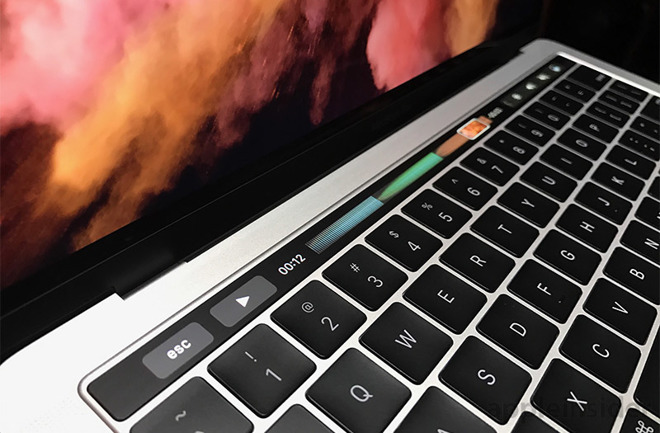
2017 marked the second year that Apple’s dynamic Touch Bar was made available on the 13-inch MacBook Pro. To be honest, we’re glad we have the base non-Touch Bar model. Let us explain.

One of the best Touch Bar features is quick, secure, and easy unlocking with integrated Touch ID, but after using the feature for a year we have reverted back to entering our password via the keyboard. Of course it depends on your passcode, but for us typing is just faster.

The same goes for the Touch Bar itself. A year later, our Touch Bar use is literally limited to display brightness and volume adjustments. Sometimes it’s a little bit annoying, because Touch Bar forces users navigate an extra menu to find certain settings, like adjusting the keyboard backlight and skipping audio tracks, tasks that take one simple keypress on standard function keys.

If we had the choice of saving some money by opting out of the Touch Bar, we would do so in a heartbeat, in fact, that’s what we did for our 13-inch MacBook Pro.

My one wish is that Apple would replace Touch ID with Face ID. Windows Hello works like a dream on the Dell XPS 13, it’s basically the perfect way to unlock your laptop, so I’m just waiting for Apple to bring Face ID to their Macs.

Trackpad

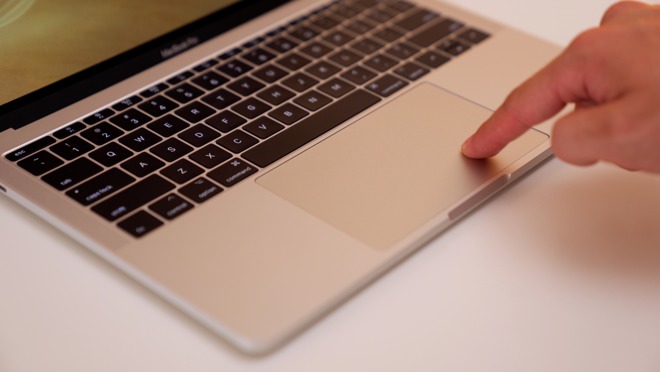
Let’s quickly mention the massive trackpad, which receives a little bit of hate from some Windows users. We can tell you that once you use this trackpad, it will be incredibly hard to go back.

Windows machines are far behind the MacBook Pro’s trackpad, which has user-adjustable force-touch input and feedback. The best part is that the clicking feel is even across the whole surface of the trackpad, unlike most, if not all Windows laptops. You can right click from anywhere by simply using two fingers, so you don’t need extra buttons.

MacBook also boasts incredibly quick gestures for almost any command within the macOS user interface. Swiping up with four fingers, for example, launches Mission Control, while a pinch gesture with four fingers invokes Launchpad.

Hardware

Moving on to hardware, MacBook Pro’s speakers are very good for their size, much better than most Windows laptops that we tested, including Dell’s XPS 13.

As for performance, the base 13-inch MacBook Pro is just as fast as the day we got it. It obviously floors the similarly priced 12-inch MacBook, and in regular use it performs basically the same as the base 15-inch MacBook Pro. This is borne out in nearly identical single-core processor benchmarking scores between the two machines.

The 15-inch does, however, excel at multi-core tasks like video editing.

We recently compared the base 13-inch MacBook Pro with the new Dell XPS 13 laptop, which for us is one the best Windows laptops available. It packs Intel’s 8th-gen i7-8550U Coffee Lake processor, so CPU performance is far better than the MacBook Pro’s, especially in multi-core.

However, Apple chooses to pay more for CPU’s with powerful integrated graphics like the Iris Plus Graphics 640 chip in the base 13-inch Pro. This results in a 20 percent boost to graphics benchmarking scores compared to the XPS, despite the MacBook Pro being an older laptop.

When we use apps that are optimized by Apple, like Final Cut Pro X, the MacBook Pro edits way above its class when compared to a Windows machine using Adobe’s Premiere Pro.

Design-wise, the 13-inch MacBook Pro is almost perfect. The aluminum chassis is in a whole different realm compared to Windows laptops. It’s basically flawless, all-around. The size is perfect for traveling, it’s not too heavy and not too light. The 15-inch MacBook Pro is definitely nice for the extra screen space, but it’s a bit more difficult to travel with.

The 13-inch Pro’s display is gorgeous and we love the black bezels around it. Our favorite feature is the taller 16:10 aspect ratio, which affords more real estate when compared to the standard 16:9 ratio on most Windows laptops. That extra vertical screen space is what you want when browsing the web.

If you’ve got the extra cash, definitely pick up the base 13-inch MacBook Pro instead of the MacBook Air, which is long-overdue for a redesign.

Wish list

First and foremost, we obviously want the latest processors, but most of all we want quad-core chips instead of the current dual-core CPU’s.

We would also like an updated keyboard with more travel and, more importantly, a reliable architecture that doesn’t break when a little dust gets in. It would also be nice if Apple could slim its screen bezels and fit a 14-inch display into the same, perfect form factor.

Of course we can wish for some unrealistic things like a nice dedicated graphics chip and support for 32GB of RAM, but at this price point and form factor, MacBook Pro is nearly perfect as it is.

If you’re in the market for a 2017 MacBook Pro, be sure to check out our Price Guides for the latest deals and special offers. Current discounts of up to $400 off are available with our exclusive coupon.

Posted on Leave a comment

How to pick which wireless speaker is best for you

As with any other gadget, the term “wireless speaker” is loaded with sometimes confusing categories. AppleInsider breaks them down and talks about how to pick what features you need, and which speaker you may want.

There are many different genres of wireless speakers, each with their own abilities. Speakers can also easily fall into multiple genres at the same time, complicating matters further. Hopefully, after reading through this guide, you will have a better idea about which type of speaker, or which features, would fit you best.

We will cover everything from AirPlay 2, Wi-Fi vs Bluetooth, multi-room solutions, smart speakers, and more. So, let’s get going.

Bluetooth

When it comes to speakers, Bluetooth ones are generally the least exciting. Bluetooth simply limits you in what you can do compared to the Wi-Fi-equipped brethren.

They are good for one thing though, and that is their portability. Bluetooth speakers are going to predominantly make up the battery-powered market share, making them great options to take on the go.

Bluetooth also tend to have a significantly lower cost associated with them —an important factor for many. A lower price point also brings a more saturated market. A search on Amazon for “Bluetooth speaker” yields well over 20,000 results. This isolates design and sound quality as the two most important aspects of a Bluetooth speaker. Most others will share the same other features often including a microphone for taking speakerphone calls, button controls to manipulate playback, and often a way to trigger Siri.

One feature we see a bit less frequently, but that is exceptionally handy, is a built in USB port. Since these speakers are often used out and about, it is exceptionally useful to have a USB charging port to power up your phone at the same time.

Seeing as Bluetooth speakers frequently rely on batteries, this can have an impact on two things – the battery life duration and volume. With a weaker battery, lower volumes can be expected. Conversely, louder volume can yield shorter battery life. A wired speaker doesn’t necessarily have these limitations.

When playing back audio, a Bluetooth is usually the source. They don’t have the means to stream anything without a host device, be it a phone, tablet, computer, etc. It will also be reliant on another device, so the user will always have to be in closer proximity.

Pros

  • Often portable
  • Frequently have built-in batteries
  • Most have integrated hardware buttons to control playback
  • Usually work with speakerphone
  • By-and-large more affordable

Cons

  • Tendency to be weaker sounding speakers
  • Will always be reliant on another device to stream music
  • Can only stream to one Bluetooth speaker at a time – no multi-room support
  • Pairing process can be annoying each time or for new users

Who is a Bluetooth speaker best for?

Bluetooth speakers are best for those looking for a lower cost option, or those need portability and don’t want to be tied down.

Wi-Fi

Wi-Fi speakers are a much more capable option to a Bluetooth speaker, connectivity-wise. But, Wi-Fi speakers can be all kids of complicated when it comes to their unique features. They can support different streaming platforms such as AirPlay or Chromecast, they can support multi-room streaming, and possibly may have smart assistants baked in.

Wi-Fi speakers tend to require power being connected to the wall at all times, but many speakers can also get quite loud. They also tend to have more premium-sounding audio. For audiophiles who want to go wireless, Wi-Fi is pretty much a necessity.

Alongside all that new-found functionality generally comes frequently higher prices, though not always. Speakers like the HomePod, Sonos, and the Echo will fall into this category of Wi-Fi speakers.

Smart speakers

One of the first differentiators is smart speakers vs non-smart speakers. Some people heavily rely on these digital assistants, while others don’t. This can be a good starting point when looking at which Wi-Fi speaker to adopt. The two biggest assistants are Siri and Alexa, with Microsoft’s Cortana found in one speaker —the Harmon|Kardon Invoke.

Siri can obviously be found solely in the HomePod, while Alexa can be a frequently seen feature in a bevy of others.

Both Siri and Alexa are useful to get answers to questions, create lists, control music playback, or manage your smart home. Alexa has the advantage early on with support for third-party skills that expand he functionality, though Siri is gaining her own new features with Siri Shortcuts coming fall of 2018.

Who are Wi-Fi speakers best for?

Smart speakers are best for anyone who wants the latest features in their speakers and love to use Google Assistant, Microsoft Cortana, Siri, or Alexa. They have to be ok with the built-in microphones always listening for the key phrase such as “Hey, Siri!” or “Ok Google”. They are also perfect for smarthome owners who want to control their devices.

AirPlay speakers

For Apple users, AirPlay can be a must-have feature. AirPlay makes it extremely easy for any iOS, macOS, or tvOS device to connect and play music back. It even works for guests. There is no convoluted pairing process seen with Bluetooth.

Apple recently upgraded AirPlay to AirPlay 2. This second generation update brings many changes, but most predominantly, multi-room support. An iPhone can stream any audio to all AirPlay 2 speakers in the same home simultaneously. But here comes the rub.

Some speakers currently support the original AirPlay and of those, some will be upgraded in the future to support AirPlay 2. New speakers introduced will also support it out of the box. The issue lies in the fact there is not much transparency on which speakers will be getting upgraded, and which won’t. Many manufacturers have pledged support, but remained mum on when it will turn up. Libratone has said their excellent Zipp and Zipp Mini speakers will be upgraded to support it in September, and Sonos said some of theirs will support it in July. We’ve put together a bit of a list so far of AirPlay 2 compatible-speakers, but it is undoubtedly murky for consumers.

There is simply no comparison where a Bluetooth speaker comes out on top of an AirPlay 2 set. But, that comes at a price.

Why AirPlay?

Obviously AirPlay and AirPlay 2 are particularly beneficial for Apple users, especially when everyone in the house uses Apple products. Since they can be streamed to effortlessly from any Apple device, it opens a lot more possibilities than some others. Those who want multi-room and AirPay should wait for more AirPlay 2 speakers to be released or updated.

Other considerations

Beyond just how the speakers connect, and what smart assistant technology they rely on, there are other factors to consider when looking at speakers.

Multi-room support

AirPlay 2 includes multi-room support, but it isn’t the only option. Many others provide their own multi-room streaming solutions such as Sonos or Marshall. Where AirPlay 2 requires an Apple device, the other vendors are more cross-platform.

Streaming services

One of the biggest benefits to a speaker connected to the Wi-Fi, is its ability to stream audio indecently of any other device. HomePod can stream Apple Music by itself without needing a connected device. Many Alexa-equipped speakers can stream Amazon Music and Spotify. Sonos also has a whole host of sources as well that it can connect to without a device streaming to it.

Since these can play by themselves, there is no issue of proximity in keeping the music playing. If you are hosting a party playing music on your speakers and have to run outside or to pick up more ice, the party can continue in your absence without “dead air” dulling the party.

They don’t all stream every service though. So, if there is a particular service you subscribe to, it is important to see if it is able to stream it by itself, or if it will need your phone, your tablet, or computer to “push” the content to it, instead of the speaker “pulling” to it from the service directly.

Pros

  • Can have premium-sounding audio
  • Music can be streamed independently
  • Comes in wide range of sizes
  • Multi-room support
  • Some have Chromecast support
  • AirPlay and AirPlay 2 only work with Wi-Fi speakers

Cons

  • Quickly get more expensive
  • More confusing between smart/non-smart, AirPlay/AirPlay 2, Chromecast, streaming services, and more muddying the decision making process
  • Requires constant power cable plugged in more often than not

Who is Wi-Fi best for?

Wi-Fi speakers as a category are best for those who generally value sound over portability. Most Wi-Fi users tend to want more out of their speakers and like the additional functionality that they present. They are also great for their independence, not needing a phone to control. Lastly, anyone who wants a smart speaker needs to look at a Wi-Fi model.

Combo Wi-Fi and Bluetooth

Some devices out there split the difference, opting for both Wi-Fi and Bluetooth. This offers the utmost connectivity convenience, able to work on Wi-Fi at home, but a built-in battery and Bluetooth work on the go.

Libratones Zipp and Zipp Mini are the most notable examples of this type of speaker. They support AirPlay and soon AirPlay 2 and Spotify while at home, but can easily work through Bluetooth. A built-in handle and a battery completes the experience.

Of course, any of these types of speakers can carry a significant price tag. Even the more portable Zipp Mini is more expensive than most Bluetooth speakers.

Listen up

Regardless which route you go down, Wi-Fi or Bluetooth, you will never be short on options. Even with us covering generalities, there are still speakers that break the rules. The Amazon Echo Tap has Alexa built-in while being portable. The Fluance F170 is a massive wall-powered Bluetooth speaker that sounds amazing.

It would be nice to see nearly all Wi-Fi speakers support nearly the same primary features so that we can get back to focusing on the primary importance: audio quality. Until then, there is a lot of research and comparisons that can go into choosing the perfect speaker for each use case.

Where to buy

For the lowest prices on speakers, be sure to check out our Smart Speaker Price Guide. By shopping at third-party resellers, consumers can save on popular home theater audio solutions, such as Apple’s HomePod and Sonos soundbars and speakers. Adorama and B&H, for instance, both carry a variety of Bluetooth and WiFi speakers with free shipping and no tax collected in most states*.

Posted on Leave a comment

Hands On: LIFX’s Beam wall lighting with Apple HomeKit


Hands-On

The Beam is one of the more unusual smarthome accessories on the market, as much a centerpiece decoration as it is practical lighting.

LIFX Beam

Despite the singular in its name, the Beam kit actually includes six beams, as well as a corner piece, power adapter, and controller unit. The beams and corner join together magnetically, and can be arranged in different patterns — typically in L-shapes or a straight line, since LIFX only includes one corner.

Installation may be the trickiest part of the whole endeavor. Beam ends can only join opposite magnetic poles, naturally, and each segment sticks to the wall with special 3M adhesive, meaning you’ll have to press against them to make sure they stick firm and flat.

LIFX Beam

You can pull them off and reapply if need be. You probably will at one point, whether to pick another pattern, level the lights, or make sure that the power adapter (which is also magnetic) can connect to the beam closest to your wall socket.

The LIFX app does a good job of onboarding, guiding users through adding the Beam to the LIFX cloud as well as Apple HomeKit. If you want to go a step further you can add it to Amazon Alexa, Google Assistant, and even Microsoft Cortana, as well as platforms like IFTTT and Nest.

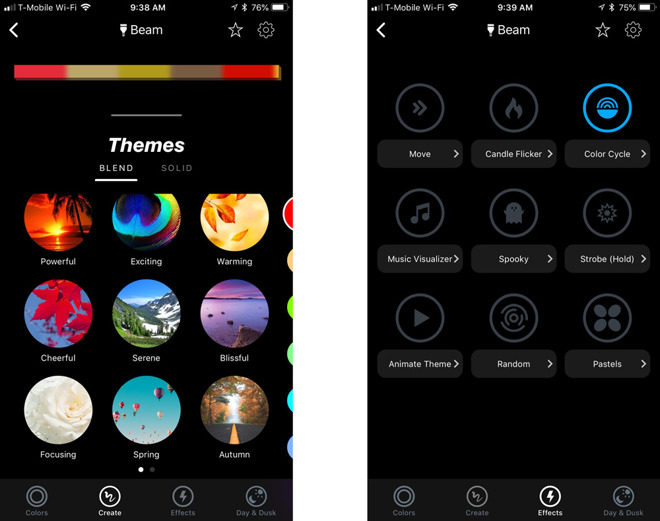
We were able to test the product with HomeKit and Alexa, but in truth, neither assistant can take full advantage. Those platforms only let users assign a single color across all beams, whereas the LIFX app enables complex color patterns, maximizing the 10 lighting zones on each beam.

LIFX iPhone app

We’ll talk more about options in our full review, but for now suffice it to say that you can “paint” your own themes, or pick from a variety of preset ones with solid or blended transitions. You can also enable some special effects, such as flickering, color cycling, time-of-day transitions, or a music visualizer that taps into your iPhone or iPad’s microphone.

Keep following AppleInsider for our upcoming review.

Posted on Leave a comment

Here’s how Apple protects your privacy in Safari with Intelligent Tracking Protection 2.0


Apple released a new Safari Tech Preview on Wednesday, and it includes the Intelligent Tracking Protection 2.0 that was promised at WWDC. AppleInsider looks at what Apple is doing to insure your protection and privacy as you go about your business on the web.

Safari Tech Preview

The new version of Intelligent Tracking Protection kills the old 24-hour window that Safari used to keep tracking cookies from sites you visit. Instead, a website can request tracking privileges, but the user has to specifically opt in.

If the user allows the cookie, it is deleted after the user stops visiting the site after 30 days of Safari use. If you go on vacation and don’t use Safari at all, those days aren’t counted.

Users can also opt in to permanent tracking, without a 30-day cookie purge. For example, if you subscribe to YouTube Music, the cookies won’t be purged —assuming you stay logged into the service and keep using it by actively clicking on a link, using the service, or making an entry in a form on the site.

The timeline of the new Intelligent Tracking Protection

The new Safari also isn’t fooled by a “first party bounce tracker” across multiple browser redirects. The quick redirects won’t be allowed to deposit cookies at all, and Safari won’t log them as having user interaction, nor will it reset any day counter.

Widgets or embeds in a website have independent tracking of the site visited. For example, if you watched one of our videos embedded in the corresponding article on AppleInsider, you’d have to grant YouTube permission to deposit a tracking cookie independently if you haven’t already.

As a result of all this, “federated logins” from social media sites will be less able, or prevented entirely, from tracking a user across the web. With the new Safari, the user can only be identified and request tracking authorization when the user actually interacts with the social media content, like writing a comment or playing a video.

So, if you’ve shopped on Amazon for something, you’ll only see related ads if you’ve granted FaceBook the permission to do so in Safari explicitly.

And, if you have regrets after granting one website or another tracking access, the new Safari will retract all granted permissions when the user clears Safari history.

Intelligent Tracking Protection 2.0 debuted on stage at WWDC earlier in June, and didn’t roll out to Safari Tech Preview testers until Wednesday. It will come to all users on macOS Mojave and iOS 12 in the fall on all devices that support the new operating systems.

Posted on Leave a comment

Sprint, T-Mobile merger will generate 5G powerhouse, cut costs for users


T-Mobile and Sprint claim that the “New T-Mobile” will bring 5G faster to the American people, and a host of other benefits to consumers.

T-Mobile's John Legere

Sprint and T-Mobile have formally filed their merger request with the US Federal Communications Commission, to form a combined company which will be called “New T-Mobile.” Sprint and T-Mobile vow to spend $40 billion after the merger to “deliver a robust, nationwide world-class 5G network and services sooner than otherwise possible.”

The merger, the parties say in their filing, is “necessary to accomplish a goal critical to enhancing consumer welfare in this country: the rapid and widespread deployment of 5G networks in a market structure that spurs rivals to invest in a huge increase in capacity, and, correspondingly, to drop tremendously the price of data per gigabyte.”

The two companies also vow to “disrupt the wireless industry, and ensure U.S. leadership in the race to 5G,” while also claiming that the speed of 5G will serve as an alternative to at-home broadband providers.

The filing goes on a bit about the history of wireless networks’ development, especially in relation to the introduction of different iPhones as networks were upgraded 2G to 3G to 4G/LTE.

“The switch to 4G LTE produced a rapid acceleration of the virtuous cycle described by the FCC and transformed the mobile ecosystem,” the companies write. “Consumers flocked to 4G LTE.81 Carriers offered attractive packages that enabled consumers to get the new 4G LTE handsets and a 4G LTE subscription. For example, in 2011 Verizon offered a promotion providing customers with “twice the data [for the] same low price” when they purchased a new 4G LTE smartphone and data plan.”

The progress of 5G

5G, the next generation of wireless connection, is set to roll out later this year and early next. T-Mobile, on its own, has announced that it will roll out 5G in 30 cities by the end of 2018, while Sprint has said that its first six 5G cities are coming next year. Rival AT&T said that it will launch mobile 5G in three cities this year, with the transitional “5G Evolution” technology coming to more than 100 markets.

It’s not expected that the iPhone models introduced this fall will be 5G-compatible.

T-Mobile’s history of mergers

T-Mobile's business chat support

Sprint and T-Mobile announced their plans to merge in April, in an all-stock deal worth $26 billion. “New T-Mobile” will be run by current T-Mobile CEO John Legere. The two companies had had discussions in 2017 that ended without a deal.

T-Mobile had reached a deal to be acquired by AT&T in 2011, but the Department of Justice blocked the deal later that year. The current merger would also need to be approved by the government, as well as foreign entities such as the EU.

The merger letter also vows that “T-Mobile and Sprint Are Merging to Beat Verizon and AT&T, Not to Be Like Them.”

Posted on Leave a comment

25 years ago, Apple’s board of directors pushed out CEO John Sculley

The CEO who famously won a power struggle with Steve Jobs in 1985 surrendered the chief executive position a quarter-century ago, placing the executive in a unique, strange purgatory.

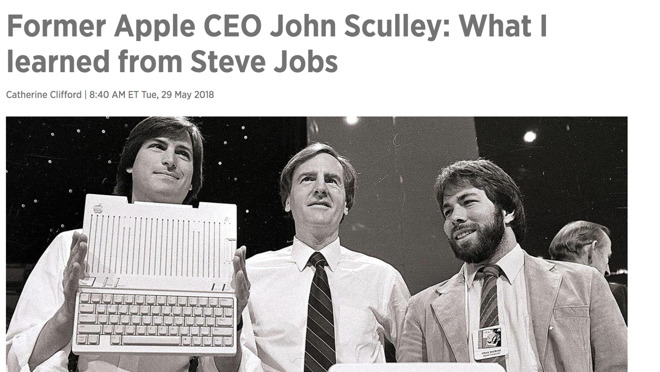
John Sculley, Steve Jobs, and Steve Wozniak

The CEO of PepsiCo during the “Cola wars” of the early 1980s, Sculley was famously lured to Apple in 1983 with Steve Jobs’ pitch “do you want to sell sugared water for the rest of your life? Or do you want to come with me and change the world?” Unlike many Jobs quotes that frequently circulate, that one was real and not apocryphal.

Scully’s initial hiring was an early example of what’s known in Silicon Valley as “adult supervision”- an upstart company bringing in a veteran CEO to oversee its young, inexperienced founders.

Despite a positive start, Jobs and Sculley soon clashed over everything from the fate of the Macintosh division, to how much to focus on education, through Jobs’ supposed insubordination. In 1985, Jobs attempted a coup against Sculley, which failed, leading to Jobs’ banishment and resignation later that year.

Sculley and Jobs never reconciled prior to Jobs’ death in 2011.

“He never forgave me for that,” Sculley told Business Insider in a 2015 interview. “No. [The friendship was] never repaired. And it’s really a shame because if I look back, I say what a big mistake on my part.”

Sculley remained CEO of Apple for another eight years after the battle and for ten years altogether, a pretty long tenure by most standards. But, Sculley has long been defined in the public imagination by his clash with Jobs, with his departure mostly seen as an event that started a chain of events that led to the co-founder’s eventual return.

That, at least, comprises an outsized percentage of what Sculley has been asked about over the years in interviews.

The CEO years

John Sculley came to Apple in order to apply his “Pepsi Challenge”-era marketing wizardry to the computer business, while also giving the company some experience and veteran expertise. At the time that Sculley became CEO of Apple, Steve Jobs was 28 years old, and Sculley was 44.

Apple's Newton, from the John Sculley era

Sculley’s tenure spans the introduction of the Macintosh in early 1984, including its legendary marketing push that included the 1984-inspired Super Bowl commercial. Other successes included the launch of the PowerBook and the addition of color to the MacOS operating system interface, both in 1991, which is remembered as a period of significant innovation in Mac history. Sculley emphasized desktop publishing and other new functions of the Macintosh.

As for Sculley’s failures, he was present for the introduction of numerous failed products, most notably the Newton personal digital assistant, and a switch to the PowerPC microprocessor which Sculley later acknowledged as a mistake. By early 1993, things had clearly gotten ugly for Sculley at Apple.

Endgame

As a result of PC price wars that hurt Apple significantly, the company made only $86 million in profit in fiscal 1993, as opposed to $530 million the year before. The drop in profits led to significant layoffs inside Apple.

Sculley resigned at CEO of Apple on June 18, 1993 with Michael Spindler stepping in as his replacement. Sculley, however, remained the company’s chairman for an additional four months.

During that time he took a sabbatical and began spending more time with his wife in Connecticut, with Fortune reporting that Sculley had lobbied the incoming Clinton Administration for a nomination as Secretary of Commerce.

Sculley would resign from the board in October of that year, following another terrible quarter. Mike Markkula would replace him as chairman.

A lawsuit at the time from ousted board member Albert A. Eisenstat, The Los Angeles Times reported, alleged that the Apple board had misrepresented the circumstances of Sculley’s deparature as CEO. The suit was dismissed in late 1993.

Things for Apple would get much worse in the ensuring years, under Spindler and his successor Gil Amelio, leading up to Jobs’ return to the company in 1997.

Sculley after Apple

Obi Worldphone, one of Sculley's post-Apple products

Sculley’s first position after Apple was as CEO of Spectrum Technologies, an early wireless telecommunications firm. That was a job that ended in acrimony within a year.

In the last two decades Sculley has mostly been known as a serial entrepreneur. He founded or invested in a wide variety of companies in the years since, including MetroPCS, NFO Research, Hotwire.com, PopTech, and even a wine accessory called The Wine Clip, which he had enjoyed as a customer and later decided to invest in the company.

His most recent ventures are the data company Zeta Global, the emerging market smartphone company Obi Worldphone and the healthcare firm RxAdvance.

A strange purgatory

John Sculley CNBC interview, representative of recent media coverage

Despite all of his other ventures, the now 79-year-old John Sculley is in a position different from just about any other executive in the history of American business. Despite a long and relatively distinguished career, nearly all of the frequent interviews Sculley gives are about a job he had three decades ago that didn’t ultimately work out, and his clash with the man who is seen as a legendary figure.

A 2013 piece in Forbes stated that “after years of silence, former Apple CEO John Sculley has recently been moving more into retrospective mode,” citing a talk Sculley had given at a conference in Indonesia, although Sculley had been giving interviews about Jobs as early as CES in January 2012. In 2010, in fact, Sculley called it a “big mistake” that he was even hired at Apple.

The timing of Sculley’s media tour wasn’t exactly coincidental; Jobs had passed away in late 2011, and a wide variety of books and movies, most notably Walter Isaacson’s bestselling authorized biography of Jobs, had brought the late CEO’s legacy and the details of his biography to the forefront of public attention. In the Ashton Kutcher Steve Jobs movie, Sculley was portrayed by Matthew Modine; in the Michael Fassbender version, he was played by Jeff Daniels, as he and Jobs had an intense confrontation that very much did not actually take place:

[embedded content]

More recently, however, there’s been a new interview with Sculley on a seemingly monthly basis, and the main topic of nearly all of them is Sculley’s relationship with, and history with, Steve Jobs.

Sculley talked about Jobs with C-Suite TV Insights in late 2017, with Forbes last October and then again the following month, and with CNBC in May of this year.

Sculley is also sometimes asked in interviews about present-day goings-on at Apple, general business topics, or even his current ventures. Sculley also made news earlier this year for purchasing a home in Palm Beach for nearly $15 million, indicating that whatever else you can see about the man, his career has made him fantastically wealthy.

It must be odd for Sculley to constantly have to answer questions about a not-very-comfortable period in his professional life more than 30 years ago.

Posted on Leave a comment

Can Apple’s HomePod take on a surround sound theater system?

Apple’s HomePod is one of the best sounding smart speakers on the market, and the recent addition of stereo pairing with AirPlay 2 makes the setup even more engaging. But how does a pair of HomePods stack up against a dedicated home theater system?

[embedded content]

When Apple revealed their HomePod at WWDC 2017, they promised users the ability to pair two speakers together with Airplay 2, a new wireless protocol that also enables multi room audio streaming and other audio enhancements. A long time coming, AirPlay 2 was finally released alongside iOS 11.4 last month.

We tested out stereo pairing on our HomePods and not only did it work perfectly, but it sounded really good. Two speakers are obviously louder than one, but the update also increased bass when a pair of HomePods are cranked up all the way.

HomePod Surround Test

With engaging, immersive sound, it’s only natural to wonder if a pair of stereo HomePods would make a viable home theater setup for the Apple TV.

Obviously, the HomePod is unable to achieve true 5.1 channel surround sound, which uses 5 separate speakers and a subwoofer, but Apple’s devices do feature technology that bounces sound off walls and nearby objects to simulate a deep soundstage. With stereo pairing, HomePods detect each other and their respective placement in a a room, so they know exactly where to send different channels of sound for optimal audio reproduction.

To be clear, this is not Apple’s attempt at 5.1 channel virtualization, but the solution does broaden HomePod’s soundstage considerably.

Testing

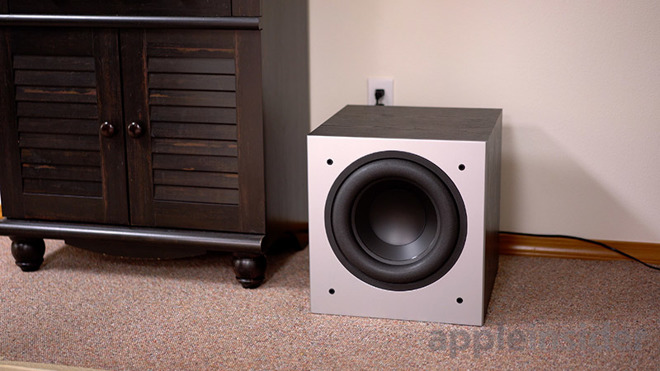
We pitted a pair of HomePods against a 5.1.2 channel Dolby Atmos-compatible surround sound system. For our test, the two overhead speakers were disabled, as Apple TV will not support Atmos until the September release of tvOS 12.

Surround Sound

Starting off with the intro scene to “The Greatest Showman,” the surround sound system output very clear vocals with deep bass. The YouTube clip was streamed over AirPlay from an iPhone to an Apple TV. Hugh Jackman’s voice played through the center channel, music played from the front and rear channels, and sound effects played across all channels.

The bass thumped very loud and we could discern crowds behind us like we were sitting in the circus watching a live performance. When Anne was being pulled up into the air, her voice shifted from the left and right speakers up to center, really selling the experience.

Switching over to the HomePods, we were immediately greeted with an issue. The Apple TV 4K would not allow us to stream from an iPhone X. Instead, it automatically switched back to the HDMI output for audio. We ended up using the native YouTube tvOS app as a workaround.

Playing back the same “Greatest Showman” clip on HomePods was disappointing. Even at max volume, it was much quieter than my surround sound system was at 80 percent volume. A little digging revealed that the YouTube clip lacked adequate audio output levels, and while the dedicated surround sound system had enough power to compensate for the low input volume, the HomePods simply could not keep up.

Greatest Showman

The sound quality wasn’t bad though, and we even heard the virtual surround sound algorithms at work. Instead of the crowds being behind us, however, we heard them from the side. The crisp highs and low bass of the dedicated system were still miles ahead of the HomePods, even at low volumes.

Next we watched some “Pirates of the Caribbean” through the Netflix app, and once again the volume was extremely low on our HomePod setup. The home theater system sounded great, and just required a bit more volume than typical to compensate.

Interestingly, sound effects come through much louder on HomePod when navigating the Apple TV 4K’s menu, but levels drop once a movie starts.

We wanted to make sure that there wasn’t a problem with the setup, so we played some music from the Apple Music app. We were greeted with much higher volumes, and while it didn’t match up to the massive front left and right Polk Audio speakers, it sounded much better than output from our movie streaming apps.

Polk Audio

We moved on to “Thor: Ragnarok,” where HomePod volume was a bit louder than the two previous films, but still much too quiet for a good movie experience and nothing that compared to the surround sound system. Apple’s speakers were unable to keep up with a $350 LG soundbar with wireless subwoofer. It could be the fact that audio in films do not constantly come close to 0 decibels like most songs do, or that Apple TV outputs a lower signal when playing back films, but we suspect it’s a bit of both.

Impressions

The surround sound system sounded amazing in all respects, as loud as a good movie theater but with a better surround sound experience since it is tuned to an exact point in space. Moving to the HomePod, we were in some cases surprised to hear crowd both in front and behind us. The vocals were clear, but not as crisp as we would like. We had a similar experience with the bass, which was present but not as visceral as the output from a dedicated woofer.

The thing that was missing most was the volume. The built in speakers of any modern TV are at least twice, if not three times as loud as Apple’s max settings.

Apple has a function built in to limit HomePod volume, but not to boost it. That’s a feature it needs to be a viable home theater solution.

As expected, HomePod is not a replacement for a surround sound system, nor is it marketed as such. Users can purchase an entry-level dedicated surround system, or a very good soundbar with Atmos support, for the price of two HomePods.

At this time it’s best to keep HomePod limited to Apple Music, where it does great job, and look elsewhere for movie watching needs.