Posted on Leave a comment

Dead by Daylight Mobile is out now

Behaviour Interactive’s mobile port of the multiplayer survival horror game, Dead by Daylight, is out right now. The mobile version plays almost exactly the same as the original, with four players taking on the roles of survivors and a single player acting as murderous psychopath. Survivors attempt to escape without getting killed, the killer does the killing.

It’s not as simple as running to the exit or chopping heads off though, as both survivor and killer have a bunch of mechanics to keep in mind that help them complete objectives. Survivors, for example, can’t harm the killer at all. Instead, they have to use the power of stealth to avoid the enemy, hiding behind or inside objects, and moving as quietly as possible.

However, you won’t always be able to visually see the killer, which is where your terror radius comes in. When you get close to the killer, you’ll hear a heartbeat sound. This becomes louder as you get closer to the killer, at which point you’ll be able to see where the killer is looking thanks to a red cone of light in front of them.

While survivors can’t actively attack the killer, you can help your fellows to escape capture by temporarily blinding or stunning the killer. You can also heal your teammates when they get injured. In terms of actually escaping though, you have to attempt to repair five generators dotted around the map. Doing so makes a lot of noise, which can attract the killer to your position. Once you’ve repaired all of the generators, you can head straight towards the exit gates.

Meanwhile, killers have their own set of mechanics to help them hunt and butcher survivors. Due to your heightened senses, you can see tracks and bloodstains left behind by survivors, as well as track their location when you hear a loud noise. You can also run faster than a survivor, which helps you catch them when spotted. If you do catch them, you’ll have to attack them to knock them down, and you’ve got both a short-range and lunge attack to help you. Two hits, and the survivor is down.

To actually kill a survivor, you have to carry them to one of the various sacrificial hooks dotted around the map. You’ll have to be quick and careful though, as survivors can wriggle free, stunning you in the process, or be saved by their fellows. If you manage to successfully transport a survivor to the hook, you’ll still have to be on your guard, as survivors can still attempt to escape and their teammates can rescue them.

[embedded content]

Dead by Daylight Mobile is basically the same game, just redesigned for mobile. You’ll find the progression system, which provides a bunch of different characters, perks, and cosmetics to unlock, intact, as well as a redesigned UI and controls for mobile. If you’d like to check it out, go ahead and grab Dead by Daylight right now on iOS or Android via the App Store or Google Play respectively.

Posted on Leave a comment

Pokémon Go gets an online leaderboard later today

Right in time for the bank holiday weekend (depending where you are), Niantic is gearing up to drop an exciting new feature in Pokémon Go: online leaderboards. These tie into the Go Battle League feature, and provide you with a list of the top 500 players statistically. The leaderboard hasn’t gone live yet, but you’ll be able to see it at the official Pokémon Go live website as soon as the Go Battle League changes to Master League from Ultra.

The leaderboard will detail the top 500 players’ nicknames, teams, ranks, ratings, and the total number of battles played. This information is taken from the previous day’s statistics, and will update between 20:00 and 22:00 UTC each day. If you want to make it on the leaderboard, you’ll not only have to be a good enough battler, but you’ll also have to ensure that you don’t have an offensive nickname.

To celebrate the launch of the Go Battle League leaderboards, Niantic is hosting a Go Battle Day event on Sunday, which features the Pokémon Marill. The more battles you perform between 11:00 and 14:00 in your local time zone, the higher the chance you’ll have of encountering the fan-favourite Pokémon.

Marill will also appear as a guaranteed reward after your first and third wins, though those who own a premium battle pass will get Marill after every single win. All players will also receive twice the normal amount of stardust for catching Marill.

Niantic is also extending the number of battles you can perform for the entirety of Sunday (in your local time). Rather than the five sets of battles you can typically perform, Niantic is increasing this to 20. That’s a whopping 100 battles for those who want to participate.

If you’re interested, you can go ahead and grab Pokémon Go from the App Store or Google Play right now and get ready for the online leaderboards going live later today. The Go Battle Day event happens on Sunday.

Posted on Leave a comment

Door Kickers: Action Squad is now available on Android

April 8, 2020 KillHouse Games has just confirmed that Door Kickers: Action Squad is finally available on Android, and that many of the bugs users over on iOS have been experiencing, including crashes, have been fixed.

April 3, 2020 Door Kickers: Action Squad isn’t available on Android in all regions yet, and we apologise for the confusion. KillHouse Games has confirmed that the release is still pending on Google’s side. We’ll update you all further when it’s actually available.

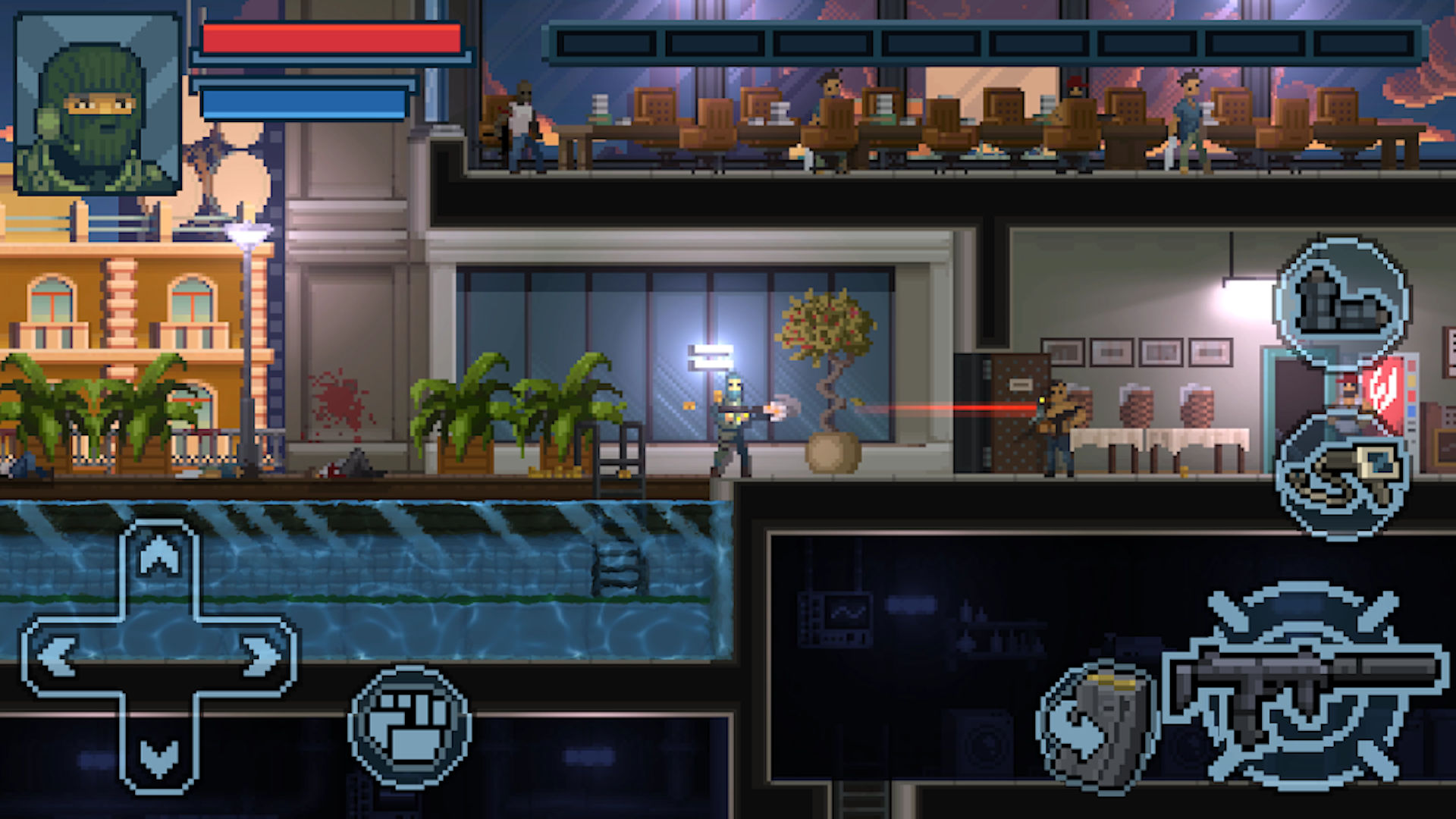
If you’ve ever wished that the real world resembled that found in ’80s police movies, Door Kickers: Action Squad is the game for you. It’s a pleasingly-retro side-scrolling shooter in which you direct a SWAT trooper on a murderous rampage across Nowhere City USA. Bullets will fly, heads will roll, and many doors will be kicked.

Like any self-respecting SWAT member, you’ll begin by selecting your gear. There’s a wide variety of weaponry and useful items, like health packs or refills, and each gun has its own unique set of recoil and reload speeds. Given that this is a sequel to the deeply-strategic Door Kickers, you can expect to develop some level of mastery over time.

Because while, on paper, it looks like a Contra-style shoot-’em-up, it’s actually an experience that requires a fair amount of thought. The action might fly in thick and fast, but those that go in prepared will have a much easier time. You can use cover to stay safe, utilise a variety of strategic abilities to turn the tide, and unleash your ultimate skill to clear out a room.

There are six different characters to select from too, which each have their own playstyle. You can level each of them up individually, with different improvements available per character.

In terms of gameplay, there’s a single-player campaign to beat that features a whopping 84 explorable levels, an endless tower mode, and a zombie invasion mode, which remixes the base campaign to include the shambling undead.

It’s an intriguing sequel in that it maintains much of what we loved about the original, the strategic play, while changing pretty much everything else. If you’d like to check it out for yourself, you can grab it right now on iOS via the App Store and Android via Google Play. It’s a premium app at $2.99 (£2.99).

Posted on Leave a comment

Legends of Runeterra launches April 30 on mobile

Riot Games has announced that Legends of Runeterra, the upcoming League of Legends card game, will officially launch on mobile on April 30. That’s a simultaneous launch with the PC version, which is just rather lovely. If you’re not sure what this is, it’s a brand new card game by League of Legends creator Riot, who is clearly on a mission to beat Blizzard at its own game. Literally. It draws a lot of inspiration from Hearthstone, you see.

It’s free-to-play and you can earn cards by simply playing or purchasing them from the store. You’ll be able to directly purchase the cards you want, as well rather than rely on whatever you can get out of card packs. The ability to have that much more control over your decks will likely appeal to fans who are tired of bad luck.

Aside from that, though, it’s all very business as usual. You’ll craft a deck out of a wide variety of cards, each of which comes from one of six different regions. Regions behave similarly to classes in Hearthstone, providing a variety of different play styles. You can combine cards from different regions to create your own strategy.

You can also pick a champion, which is a powerful card that you’ll likely build your deck around. There are six champions in total, with each one hailing from one of the different regions available in the game.

Legends of Runeterra is currently available in open beta on PC, and you can still earn a limited-time Moonstruck Poro at launch if you check it out ahead of the full launch. That’s on April 30, when it will launch across PC, iOS, and Android simultaneously. You can pre-register right now on Android via Google Play, but will have to wait until the official launch to grab it on iOS.

Posted on Leave a comment

The award-winning platformer Gris is out now on Android

April 2, 2020 Gris is now available on Android, and you can find a link to download it at the bottom of this story.

Winner of the Game Awards, ‘Games For Impact’ category, Gris is launching on Android later this week. Following the journey of a girl of the same name, Gris explores ideas of sorrow and grief in a fading world, her dress granting powers which she uses to traverse its many obstacles. Released in December 2018, and launching on iOS at the same time, Gris can be counted as one of the most critically acclaimed indie games of the past couple of years.

In particular, the game was praised for how it dealt with the subject of grief, but also its gorgeous visual aesthetic, and its enchanting soundtrack. Having already cemented its place on mobile with a wonderful iOS port, this Android release has been a long time coming.

Your journey through Gris is somewhat similar to Hellblade (though with far less stabbing of Norse spirits) as you gradually help her recover strength, represented in the powers linked to her dress, and to find acceptance in regards to whatever sorrowful event brought her to this strange plane of existence.

There have been a number of games dealing with mental health in recent years, whether Hellblade, or Sea of Solitude, but with a memorable art style and soundtrack, Gris has carved out some recognition for itself. It was also highly successful considering it was the first game of Barcelona-based developer, Nomada Studio; a collaboration between two ex triple-A developers.

It’s plain to see how inventive Gris is in terms of its gameplay, combining aspects of endless runners, platforming, puzzle, and Metroidvania in terms of abilities. But most of all, the game was recognised for creating a relaxing, therapeutic play experience, mirroring the restorative journey of its protagonist.

If this sounds like your cup of tea, you can grab the Android version right now on Google Play, or purchase the iOS from the App Store for $4.99 (£4.99).

Posted on Leave a comment

Connect Fedora to your Android phone with GSConnect

Both Apple and Microsoft offer varying levels of integration of their desktop offerings with your mobile devices. Fedora offers a similar if not greater degree of integration with GSConnect. It lets you pair your Android phone with your Fedora desktop and opens up a lot of possibilities. Keep reading to discover more about what it is and how it works.

What is GSConnect?

GSConnect is an implementation of the KDE Connect project tailored for the GNOME desktop. KDE Connect makes it possible for your devices to communicate with each other. However, installing it on Fedora’s default GNOME desktop requires pulling in a large number of KDE dependencies.

GSConnect is a complete implementation of KDE Connect, but in the form of a GNOME shell extension. Once installed, GSConnect lets you do the following and a lot more:

  • Receive phone notifications on your desktop and reply to messages
  • Use your phone as a remote control for your desktop
  • Share files and links between devices
  • Check your phone’s battery level from the desktop
  • Ring your phone to help find it

Setting up the GSConnect extension

Setting up GSConnect requires installing two components: the GSConnect extension on your desktop and the KDE Connect app on your Android device.

First, install the GSConnect extension from the GNOME Shell extensions website: GSConnect. (Fedora Magazine has a handy article on How to install a GNOME Shell extension to help you with this step.)

The KDE Connect app is available on Google’s Play Store. It’s also available on the FOSS Android apps repository, F-Droid.

Once you have installed both these components, you can pair your two devices. Installing the extension makes it show up in your system menu as Mobile Devices. Clicking on it displays a drop down menu, from which you can access Mobile Settings.

GSConnect menu within system menu

Here’s where you can view your paired devices and manage the features offered by GSConnect. Once you are on this screen, launch the app on your Android device.

You can initiate pairing from either device, but here you’ll be connecting to your desktop from the Android device. Simply hit refresh on the app, and as long as both devices are on the same wireless network, your desktop shows up in your Android device. You can now send a pair request to the desktop. Accept the pair request on your desktop to complete the pairing.

Pair request from Android app to desktop

Using GSConnect

Once paired, you’ll need to grant permissions on your Android device to make use of the many features available on GSConnect. Click on the paired device in the list of devices to see all available functions and enable or disable them according to your preferences.

GSConnect device preferences

Remember that you’ll also need to grant corresponding permissions in the Android app to be able to use these functions. Depending upon the features you’ve enabled and the permissions you’ve granted, you can now access your mobile contacts on your desktop, get notified of messages and reply to them, and even sync the desktop and Android device clipboards.

Integration with Files and your web browsers

GSConnect allows you to directly send files to your Android device from your desktop file explorer’s context menu.

On Fedora’s default GNOME desktop, you will need to install the nautilus-python package in order to make your paired devices show up in the context menu. Installing this is as straightforward as running the following command from your preferred terminal:

$ sudo dnf install nautilus-python

Once done, the Send to Mobile Device entry appears in the context menu of the Files app.

Context menu entry to send file to mobile device

Similarly, install the corresponding WebExtension for your browser, be it Firefox or Chrome, to send links to your Android device. You have the option to send the link to launch directly in your browser or to deliver it as SMS.

Running Commands

GSConnect lets you define commands which you can then run on your desktop, from your remote device. This allows you to do things such as take a screenshot of your desktop, or lock and unlock your desktop from your Android device, remotely.

Define commands to be run from the mobile device, on the desktop

To make use of this feature, you can use standard shell commands and the CLI exposed by GSConnect. Documentation on this is provided in the project’s GitHub repository: CLI Scripting.

The KDE UserBase Wiki has a list of example commands. These examples cover controlling the brightness and volume on your desktop, locking the mouse and keyboard, and even changing the desktop theme. Some of the commands are specific for KDE Plasma, and modifications are necessary to make it run on the GNOME desktop.

Explore and have fun

GSConnect makes it possible to enjoy a great degree of convenience and comfort. Dive into the preferences to see all that you can do and get creative with the commands function. Feel free to share all the possibilities this utility unlocked in your workflow in the comments below.


Photo by Pathum Danthanarayana on Unsplash.

Posted on Leave a comment

Develop GUI apps using Flutter on Fedora

When it comes to app development frameworks, Flutter is the latest and greatest. Google seems to be planning to take over the entire GUI app development world with Flutter, starting with mobile devices, which are already perfectly supported. Flutter allows you to develop cross-platform GUI apps for multiple targets — mobile, web, and desktop — from a single codebase.

This post will go through how to install the Flutter SDK and tools on Fedora, as well as how to use them both for mobile development and web/desktop development.

Installing Flutter and Android SDKs on Fedora

To get started building apps with Flutter, you need to install

  • the Android SDK;
  • the Flutter SDK itself; and,
  • optionally, an IDE and its Flutter plugins.

Installing the Android SDK

Flutter requires the installation of the Android SDK with the entire Android Studio suite of tools. Google provides a tar.gz archive. The Android Studio executable can be found in the android-studio/bin directory and is called studio.sh. To run it, open a terminal, cd into the aforementioned directory, and then run:

$ ./studio.sh

Installing the Flutter SDK

Before you install Flutter you may want to consider what release channel you want to be on.

The stable channel is least likely to give you a headache if you just want to build a mobile app using mainstream Flutter features.

On the other hand, you may want to use the latest features, especially for desktop and web app development. In that case, you might be better off installing either the latest version of the beta or even the dev channel.

Either way, you can switch between channels after you install using the flutter channel command explained later in the article.

Head over to the official SDK archive page and download the latest installation bundle for the release channel most appropriate for your use case.

The installation bundle is simply a xz-compressed tarball (.tar.xz extension). You can extract it wherever you want, given that you add the flutter/bin subdirectory to the PATH environment variable.

Installing the IDE plugins

To install the plugin for Visual Studio Code, you need to search for Flutter in the Extensions tab. Installing it will also install the Dart plugin.

The same will happen when you install the plugin for Android Studio by opening the Settings, then the Plugins tab and installing the Flutter plugin.

Using the Flutter and Android CLI Tools on Fedora

Now that you’ve installed Flutter, here’s how to use the CLI tool.

Upgrading and Maintaining Your Flutter Installations

The flutter doctor command is used to check whether your installation and related tools are complete and don’t require any further action.

For example, the output you may get from flutter doctor right after installing on Fedora is:

Doctor summary (to see all details, run flutter doctor -v): [✓] Flutter (Channel stable, v1.12.13+hotfix.5, on Linux, locale it_IT.UTF-8) [!] Android toolchain - develop for Android devices (Android SDK version 29.0.2) ✗ Android licenses not accepted. To resolve this, run: flutter doctor --android-licenses [!] Android Studio (version 3.5) ✗ Flutter plugin not installed; this adds Flutter specific functionality. ✗ Dart plugin not installed; this adds Dart specific functionality. [!] Connected device ! No devices available ! Doctor found issues in 3 categories.

Of course the issue with the Android toolchain has to be resolved in order to build for Android. Run this command to accept the licenses:

$ flutter doctor --android-licenses

Use the flutter channel command to switch channels after installation. It’s just like switching branches on Git (and that’s actually what it does). You use it in the following way:

$ flutter channel <channel_name>

…where you’d replace <channel_name> with the release channel you want to switch to.

After doing that, or whenever you feel the need to do it, you need to update your installation. You might consider running this every once in a while or when a major update comes out if you follow Flutter news. Run this command:

$ flutter upgrade

Building for Mobile

You can build for Android very easily: the flutter build command supports it by default, and it allows you to build both APKs and newfangled app bundles.

All you need to do is to create a project with flutter create, which will generate some code for an example app and the necessary android and ios folders.

When you’re done coding you can either run:

  • flutter build apk or flutter build appbundle to generate the necessary app files to distribute, or
  • flutter run to run the app on a connected device or emulator directly.

When you run the app on a phone or emulator with flutter run, you can use the R button on the keyboard to use stateful hot reload. This feature updates what’s displayed on the phone or emulator to reflect the changes you’ve made to the code without requiring a full rebuild.

If you input a capital R character to the debug console, you trigger a hot restart. This restart doesn’t preserve state and is necessary for bigger changes to the app.

If you’re using a GUI IDE, you can trigger a hot reload using the bolt icon button and a hot restart with the typical refresh button.

Building for the Desktop

To build apps for the desktop on Fedora, use the flutter-desktop-embedding repository. The flutter create command doesn’t have templates for desktop Linux apps yet. That repository contains examples of desktop apps and files required to build on desktop, as well as examples of plugins for desktop apps.

To build or run apps for Linux, you also need to be on the master release channel and enable Linux desktop app development. To do this, run:

$ flutter config --enable-linux-desktop

After that, you can use flutter run to run the app on your development workstation directly, or run flutter build linux to build a binary file in the build/ directory.

If those commands don’t work, run this command in the project directory to generate the required files to build in the linux/ directory:

$ flutter create .

Building for the Web

Starting with Flutter 1.12, you can build Web apps using Flutter with the mainline codebase, without having to use the flutter_web forked libraries, but you have to be running on the beta channel.

If you are (you can switch to it using flutter channel beta and flutter upgrade as we’ve seen earlier), you need to enable web development by running flutter config –enable-web.

After doing that, you can run flutter run -d web and a local web server will be started from which you can access your app. The command returns the URL at which the server is listening, including the port number.

You can also run flutter build web to build the static website files in the build/ directory.

If those commands don’t work, run this command in the project directory to generate the required files to build in the web/ directory:

$ flutter create .

Packages for Installing Flutter

Other distributions have packages or community repositories to install and update in a more straightforward and intuitive way. However, at the time of writing, no such thing exists for Flutter. If you have experience packaging RPMs for Fedora, consider contributing to this GitHub repository for this COPR package.

The next step is learning Flutter. You can do that in a number of ways:

  • Read the good API reference documentation on the official site
  • Watching some of the introductory video courses available online
  • Read one of the many books out there today. [Check out the author’s bio for a suggestion! — Ed.]

Photo by Randall Ruiz on Unsplash.