Posted on Leave a comment

Docker and Fedora 37: Migrating to Podman

In previous installments (Fedora 32, Fedora 35), there was a strong focus on making things work with Docker on Fedora Linux. This article will focus on the final stage of this long journey. It will focus on migrating a cross-platform production set-up from Docker to Podman.

Background

Docker and Podman use the same open standard for containers. On top of this container standard, there are multiple ways of organizing containers together. Docker-Compose and Kubernetes are the two main technologies for this, although tools like Ansible are also popular.

On the business side though, there are strong differences. Docker is distributed with a non-free application called Docker Desktop, while Podman historically never had a UI. Docker started live in 2013 and had its rise to prominence in 2016. Podman started in 2018 and it has only become more popular in the last two years.

Podman was certainly not the first on the scene, and it has been fighting an uphill battle. Still, in many ways, this has been an opportunity. Podman can avoid some of the architectural errors that Docker made, and it can integrate with other tools that didn’t exist yet when Docker started.

Personal background

The previous articles about Docker and Fedora are based on the author’s professional life. At the company were I work, we heavily relied on Docker when I came on board. This meant that I needed Docker, and I started to document my struggles which ultimately lead to the first article. The second article was a follow-up to inform readers that most hurdles from the past were no longer a problem.

Podman Destkop

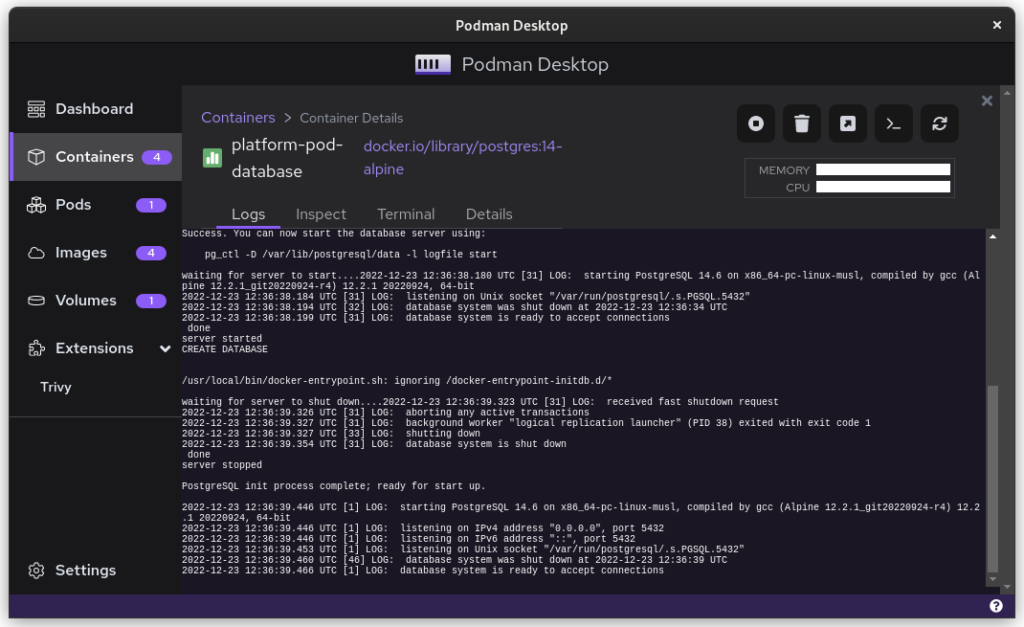
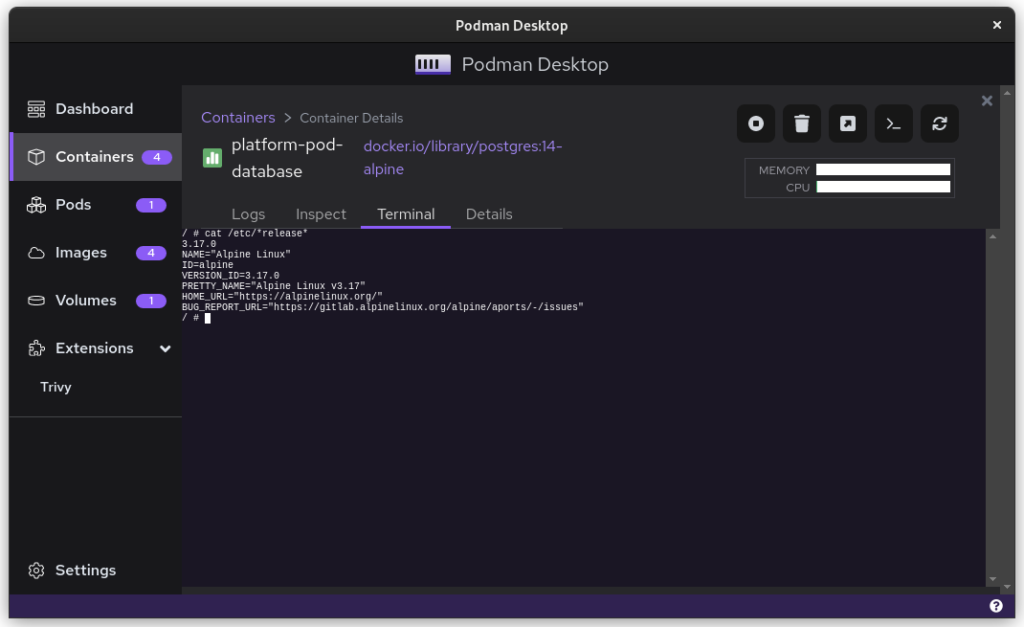
The game-changer in this whole story is Podman Desktop. It is a cross-platform UI that allows teams on Linux, macOS and Windows to collaborate. It works the same way as Docker Desktop, including a bundled VM and WSL support. This also means that Podman now offers a complete package for software companies. While software developers on Linux could use Podman in the past, it’s now possible to migrate an entire team across environments!

Migrating Docker

So, let’s start migrating from Docker to Podman. First, you’ll need to make sure that you have podman and podman-compose installed. You can easily download Podman Desktop from Flathub.

Image files

Image files are good as they are! They are identical because of the open standards behind containers.

One thing that you will see now is that there are a plethora of companies and groups that offer their own image-repositories.

  • hub.docker.com (alias, docker.io) is the offering from Docker, which their tooling conveniently defaults to.
  • registry.gitlab.com is the registry of GitLab’s commercial offering. Community editions follow this same syntax resulting in, for example: registry.gitlab.gnome.org
  • registry.fedoraproject.org is Fedora’s Registry. This registry is also used for flatpaks from the Fedora repository.
  • Quay.io is the offering from Red Hat, which contains all of Podman’s tooling, but also CentOS images.

The biggest change that you’ll have to adapt to, when switching from Docker to Podman, is that you’ll be encouraged to write full image addresses instead of just stubs: `postgres:14-alpine` becomes `docker.io/library/postgres:14-alpine`.

Docker-Compose files

Compose files are Docker specific and they can’t be used with Podman. What you can use, though, is podman-compose. Better yet, you can start your docker-based platform and then use Podman Desktop to export your current configuration to a Kubernetes file.

$ podman-compose -f ./docker-compose-platform.yaml up --detach

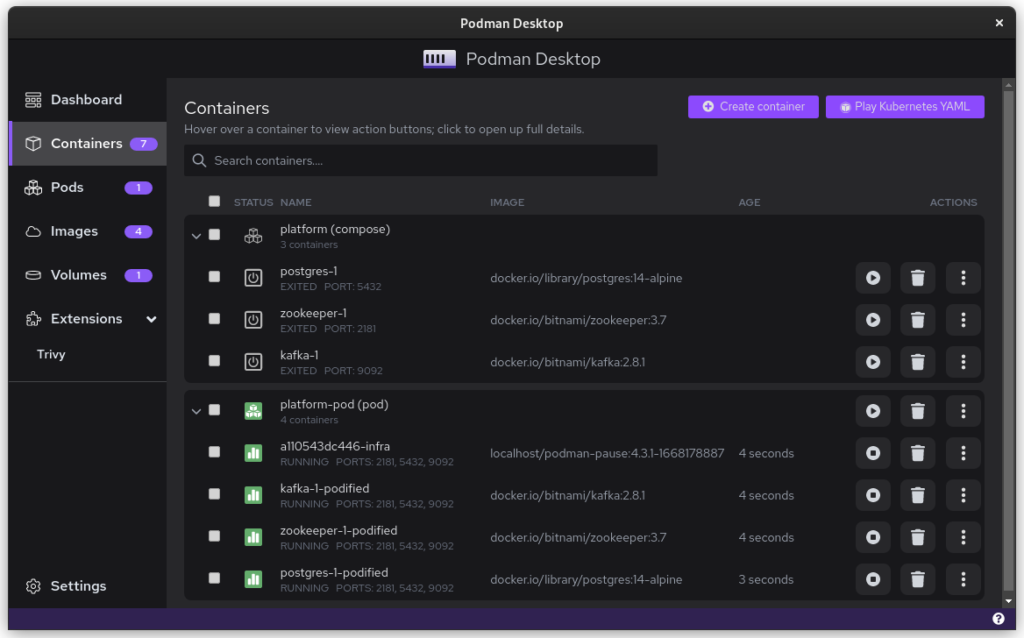
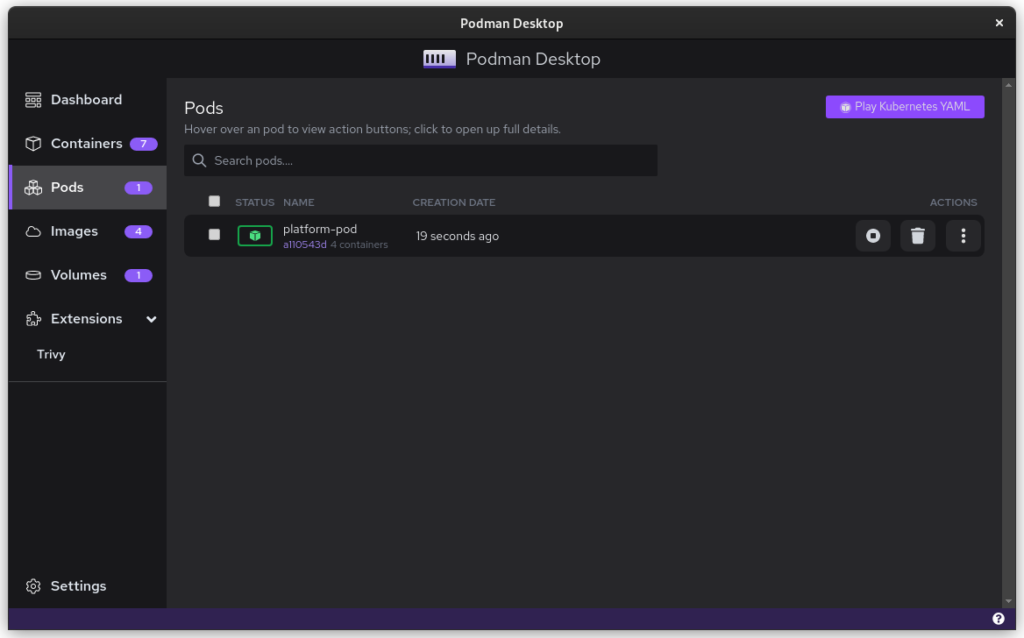
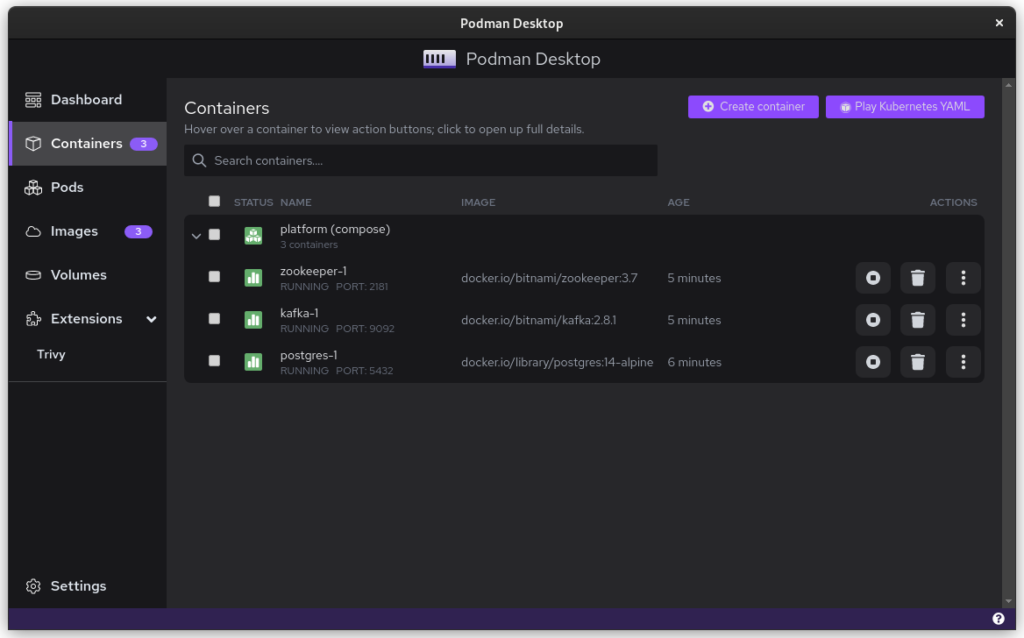
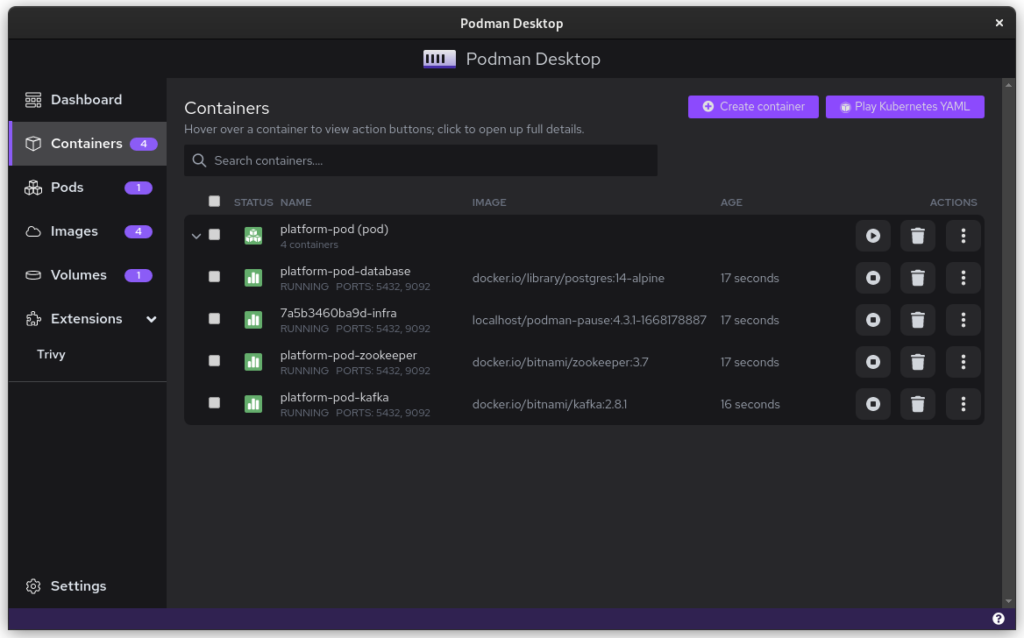
Once you start podman-compose with your old docker-compose .yaml file, you’ll see that you have a number of containers running in one ‘compose’ group. This is how things translate into the world of Podman. From here, you can select the containers and create a Pod. A Pod is a collection of containers that run in their own network.
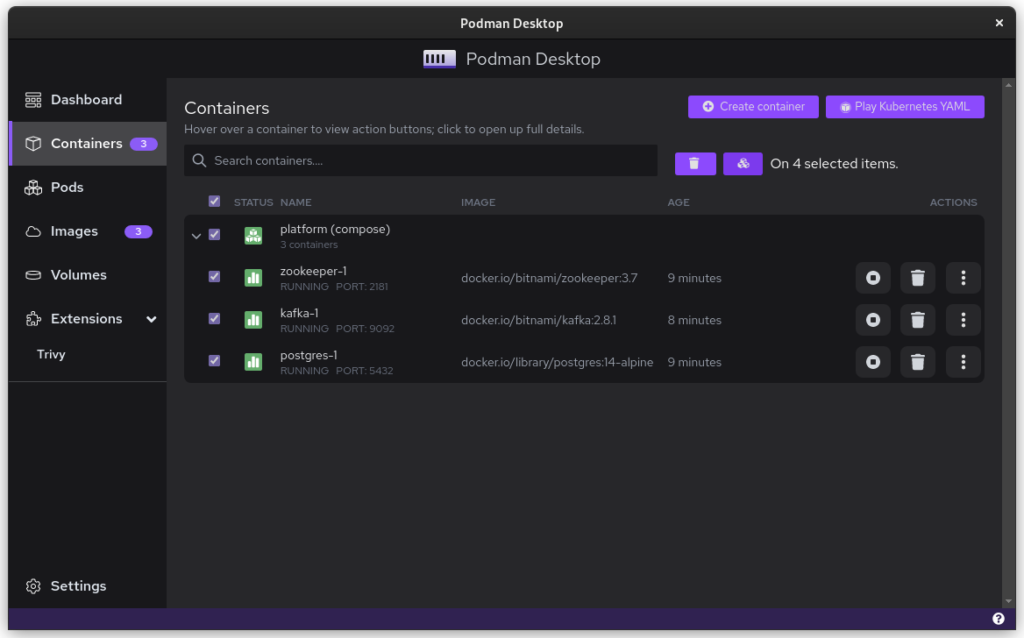
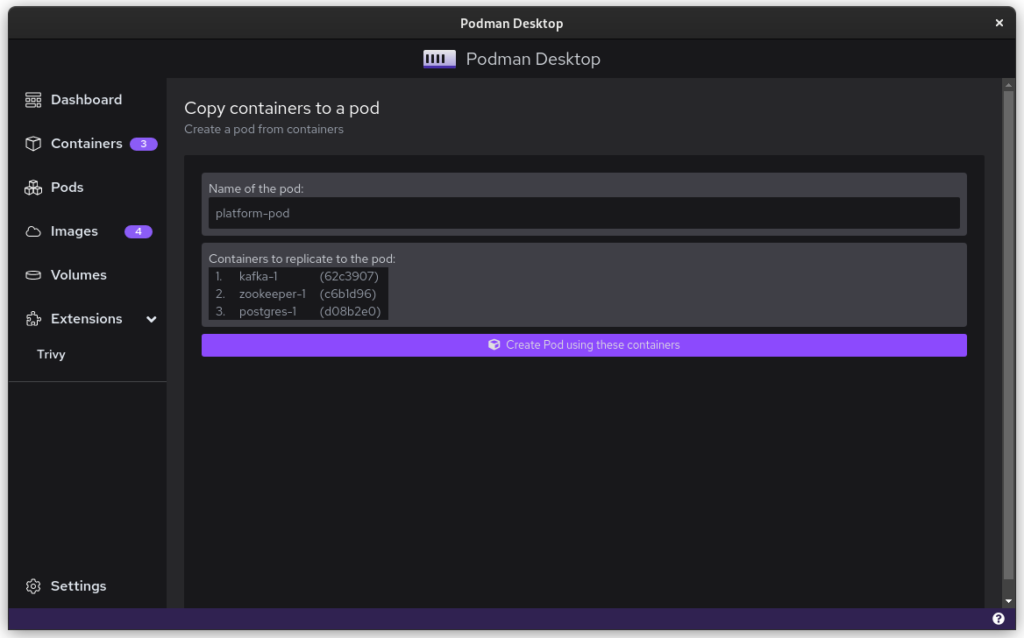
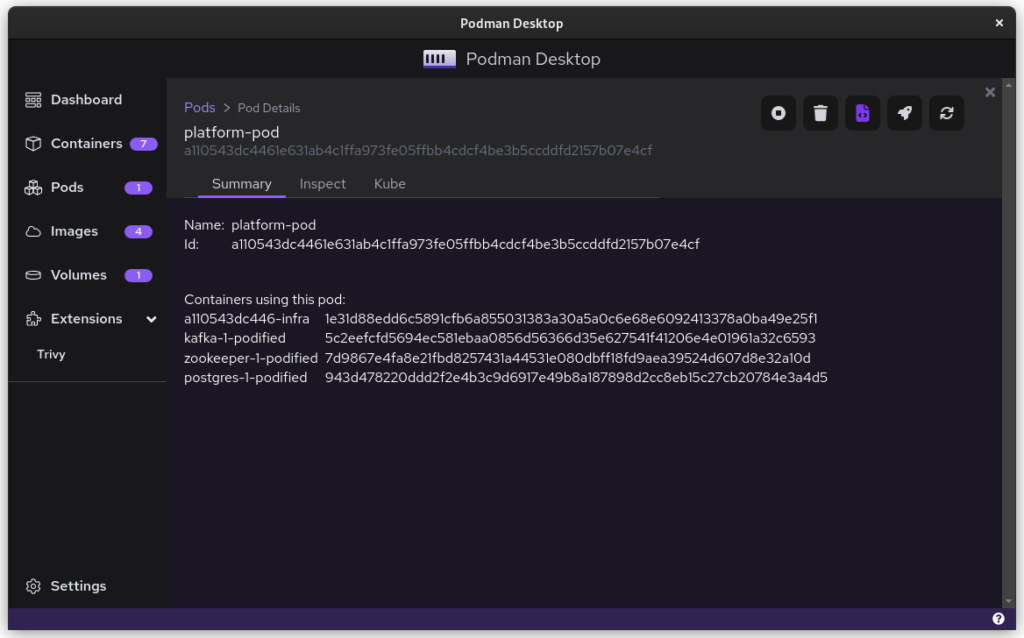
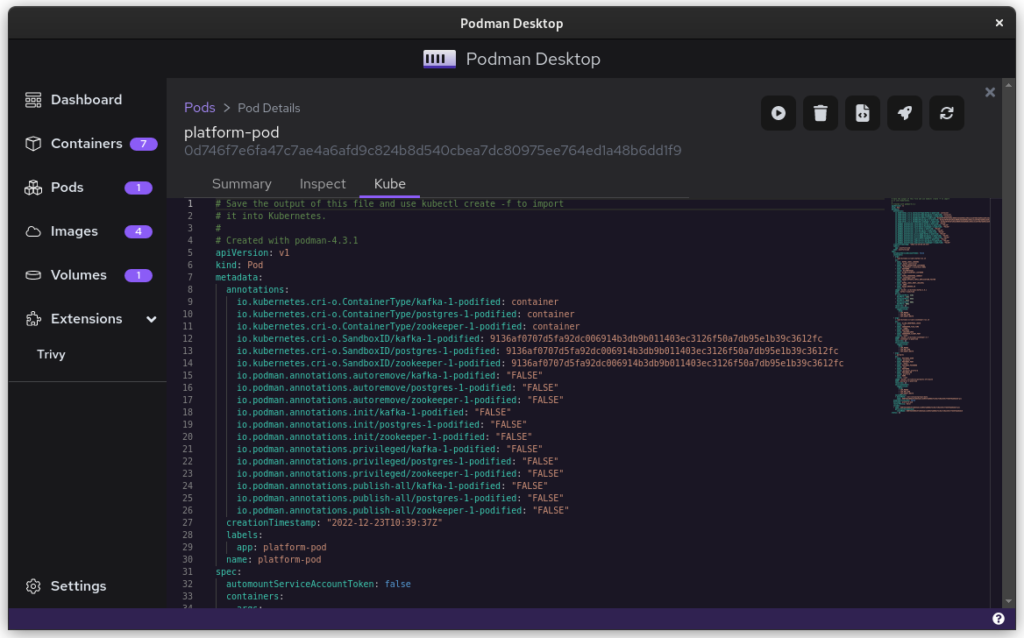
Once you inspect the Pod, you have a Kube file that represents this container collection. Save it somewhere and give it another critical look. You can likely remove some stuff without impacting the functioning of the system. After all, auto-generated documents will have some artifacts.

All three files from the demonstration can be seen here:

That’s it. You have now migrated from Docker to Podman. To start up Podman with the Kubernetes file simply do:

$ podman play kube podman-kube-platform-cleanup.yaml --replace
GitLab CI/CD

GitLab has a great set of open source and commercial offerings that allow you to automatically deploy and test your system. In the past, people working with Docker inside GitLab had to resort to a Docker-in-Docker solution. That gives many engineers headaches. A migration from Docker to Podman will resolve that problem.

For example, you can use Podman’s official image to easily build your own product image:

runner-setup: image: quay.io/podman/stable:latest stage: setup script: - podman login registry.gitlab.com -u ${COMPANY_CI_USERNAME} -p ${COMPANY_CI_PASSWORD} - podman build --pull --no-cache -t registry.gitlab.com/company/platform:latest -f ./distribute/image . - podman push registry.gitlab.com/company/platform:latest

In this example we use the official Podman stable image based on Fedora Linux 37. We use that to build the latest version of our platform based on the ./distribute/image file. We can do this all without ever having to set up Docker.

Tooling and integrations

Finally, we have to talk about certain tooling. Not all tooling will work equally well from the start. For example, the login that Amazon’s AWS CLI provides is hardcoded for Docker. Still, you can easily login to AWS by doing this:

$ aws ecr get-login-password --region $REGION | podman login --username AWS --password-stdin $AWS_REPO_NAME

Similarly, you can cache your registry credentials for both Podman and Docker. Do this with a single command like:

$ podman login registry.gitlab.com –authfile=${HOME}/.docker/config.json

Alternatives/Workarounds

Perhaps all of this sounds good, but you need more time to convince your team and company that embracing open source tools is great. In that case, you can add the following snippet to .bashrc and use Podman without changing the tooling of your team.

#Ensure that these aliases also affect other scripts
shopt -s expand_aliases alias docker=podman
alias docker-compose=podman-compose

This also offers you a chance to test the set-up that you have, in case of technical incompatibilities. You can also use the package podman-docker (available via dnf) to automatically convert Docker commands into Podman commands.

Company experience

The migration from Docker to Podman has been well received within my development team. The desktop experience for macOS and Windows users has improved since they no longer have to struggle with a tool that is closed source. The improvements to the CI system also help in maintaining the pipeline and it makes the integration tests run faster.

In day to day work, the team is really enthusiastic about the ease with which they can inspect running containers, manage images, and clean temporary volumes.

In the big picture, the migration from Docker to Podman further aids the company in limiting financial liabilities. Developers on macOS and Windows are no longer dependent on a closed-source product. Finally, it also means that the team gets some experience in Kubernetes, which will certainly pay off in the future.

Summary

The gains from switching to Podman really outweigh the bit of time it takes to set up and to migrate. The future is bright for Podman and Podman Desktop, and it offers a great solution to the problems that come with Docker.

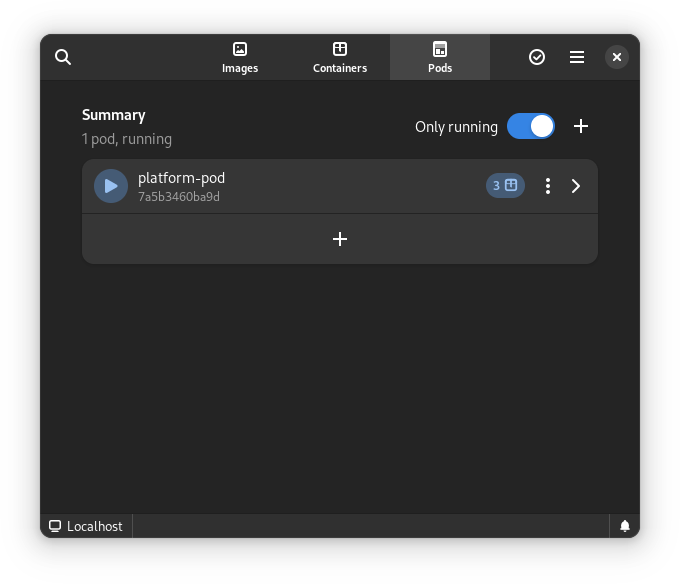
Finally, for us Fedora Linux users, there is another great benefit. There is some beautiful tooling in development that can make our lives so much easier. The following screenshots are of the application Pods. This is currently in active development but will certainly prove to be a useful tool in the future.
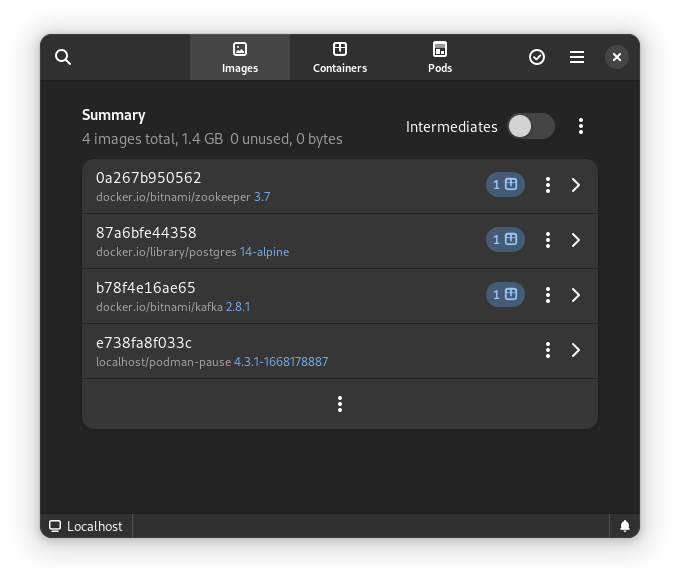
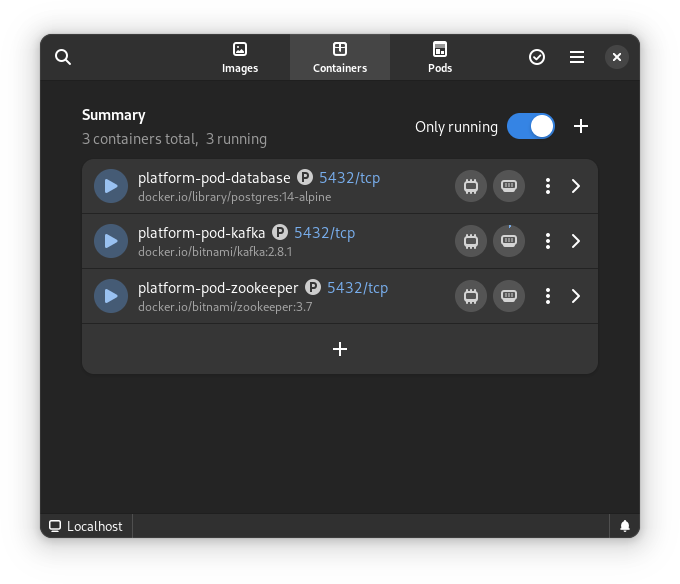
This article has been made possible by my employer, Bold Security Technologies. Got your own migration stories to share? Let us know in the comments.

Posted on Leave a comment

Docker and Fedora 32

With the release of Fedora 32, regular users of Docker have been confronted by a small challenge. At the time of writing, Docker is not supported on Fedora 32. There are alternatives, like Podman and Buildah, but for many existing users, switching now might not be the best time. As such, this article can help you set up your Docker environment on Fedora 32.

Step 0: Removing conflicts

This step is for any user upgrading from Fedora 30 or 31. If this is a fresh installation of Fedora 32, you can move on to step 1.

To remove docker and all its related components:

sudo dnf remove docker-*
sudo dnf config-manager --disable docker-*

Step 1: System preparation

With the last two versions of Fedora, the operating system has moved to two new technologies: CGroups and NFTables for the Firewall. While the details of these new technologies is behind the scope of this tutorial, it’s a sad fact that docker doesn’t support them yet. As such, you’ll have to make some changes to facilitate Docker on Fedora.

Enable old CGroups

The previous implementation of CGroups is still supported and it can be enabled using the following command.

sudo grubby --update-kernel=ALL --args="systemd.unified_cgroup_hierarchy=0"

Whitelist docker in firewall

To allow Docker to have network access, two commands are needed.

sudo firewall-cmd --permanent --zone=trusted --add-interface=docker0
sudo firewall-cmd --permanent --zone=FedoraWorkstation --add-masquerade

The first command will add the Docker-interface to the trusted environment which allows Docker to make remote connections. The second command will allow docker to make local connections. This is particularly useful when multiple Docker containers are in as a development environment.

Step 2: installing Moby

Moby is the open-source, white label version of Docker. It’s based on the same code but it does not carry the trademark. It’s included in the main Fedora repository, which makes it easy to install.

sudo dnf install moby-engine docker-compose

This installs moby-engine, docker-compose, containerd and some other related libraries. Once installed, you’ll have to enable the system-wide daemon to run docker.

sudo systemctl enable docker

Step 3: Restart and test

To ensure that all systems and settings are properly processed, you’ll now have to reboot your machine.

sudo systemctl reboot

After that, you can validate your installation using the Docker hello-world package.

sudo docker run hello-world

You are then greeted by the Hello from Docker! unless something went wrong.

Running as admin

Optionally, you can now also add your user to the group account of Docker, so that you can start docker images without typing sudo.

sudo groupadd docker
sudo usermod -aG docker $USER

Logout and login for the change to take effect. If the thought of running containers with administrator privileges concerns you, then you should look into Podman.

In summary

From this point on, Docker will work how you’re used to, including docker-compose and all docker-related tools. Don’t forget to check out the official documentation which can help you in many cases where something isn’t quite right.

The current state of Docker on Fedora 32 is not ideal. The lack of an official package might bother some, and there is an issue upstream where this is discussed. The missing support for both CGroups and NFTables is more technical, but you can check their progress in their public issues.

These instruction should allow you to continue working like nothing has happened. If this has not satisfied your needs, don’t forget to address your technical issues at the Moby or Docker Github pages, or take a look at Podman which might prove more robust in the long-term future.

Posted on Leave a comment

Use FastAPI to build web services in Python

FastAPI is a modern Python web framework that leverage the latest Python improvement in asyncio. In this article you will see how to set up a container based development environment and implement a small web service with FastAPI.

Getting Started

The development environment can be set up using the Fedora container image. The following Dockerfile prepares the container image with FastAPI, Uvicorn and aiofiles.

FROM fedora:32
RUN dnf install -y python-pip \ && dnf clean all \ && pip install fastapi uvicorn aiofiles
WORKDIR /srv
CMD ["uvicorn", "main:app", "--reload"]

After saving this Dockerfile in your working directory, build the container image using podman.

$ podman build -t fastapi .
$ podman images
REPOSITORY TAG IMAGE ID CREATED SIZE
localhost/fastapi latest 01e974cabe8b 18 seconds ago 326 MB

Now let’s create a basic FastAPI program and run it using that container image.

from fastapi import FastAPI app = FastAPI() @app.get("/")
async def root(): return {"message": "Hello Fedora Magazine!"}

Save that source code in a main.py file and then run the following command to execute it:

$ podman run --rm -v $PWD:/srv:z -p 8000:8000 --name fastapi -d fastapi
$ curl http://127.0.0.1:8000
{"message":"Hello Fedora Magazine!"

You now have a running web service using FastAPI. Any changes to main.py will be automatically reloaded. For example, try changing the “Hello Fedora Magazine!” message.

To stop the application, run the following command.

$ podman stop fastapi

Building a small web service

To really see the benefits of FastAPI and the performance improvement it brings (see comparison with other Python web frameworks), let’s build an application that manipulates some I/O. You can use the output of the dnf history command as data for that application.

First, save the output of that command in a file.

$ dnf history | tail --lines=+3 > history.txt

The command is using tail to remove the headers of dnf history which are not needed by the application. Each dnf transaction can be represented with the following information:

  • id : number of the transaction (increments every time a new transaction is run)
  • command : the dnf command run during the transaction
  • date: the date and time the transaction happened

Next, modify the main.py file to add that data structure to the application.

from fastapi import FastAPI
from pydantic import BaseModel app = FastAPI() class DnfTransaction(BaseModel): id: int command: str date: str

FastAPI comes with the pydantic library which allow you to easily build data classes and benefit from type annotation to validate your data.

Now, continue building the application by adding a function that will read the data from the history.txt file.

import aiofiles from fastapi import FastAPI
from pydantic import BaseModel app = FastAPI() class DnfTransaction(BaseModel): id: int command: str date: str async def read_history(): transactions = [] async with aiofiles.open("history.txt") as f: async for line in f: transactions.append(DnfTransaction( id=line.split("|")[0].strip(" "), command=line.split("|")[1].strip(" "), date=line.split("|")[2].strip(" "))) return transactions

This function makes use of the aiofiles library which provides an asyncio API to manipulate files in Python. This means that opening and reading the file will not block other requests made to the server.

Finally, change the root function to return the data stored in the transactions list.

@app.get("/")
async def read_root(): return await read_history()

To see the output of the application, run the following command

$ curl http://127.0.0.1:8000 | python -m json.tool
[
{ "id": 103, "command": "update", "date": "2020-05-25 08:35"
},
{ "id": 102, "command": "update", "date": "2020-05-23 15:46"
},
{ "id": 101, "command": "update", "date": "2020-05-22 11:32"
},
....
]

Conclusion

FastAPI is gaining a lot a popularity in the Python web framework ecosystem because it offers a simple way to build web services using asyncio. You can find more information about FastAPI in the documentation.

The code of this article is available in this GitHub repository.


Photo by Jan Kubita on Unsplash.

Posted on Leave a comment

Best of 2019: Fedora for developers

With the end of the year approaching fast, it is a good time to look back at 2019 and go through the most popular articles on Fedora Magazine written by our contributors.

In this article of the “Best of 2019” series, we are looking at developers and how to use Fedora to be a great developer workstation

Make your Python code look good with Black on Fedora

Black made quite a big impact in the Python ecosystem this year. The project is now part of the Python Software Foundation and it is used by many different projects. So if you write or maintain some Python code and want to stop having to care about code style and code formatting you should check out this article.

How to run virtual machines with virt-manager

Setting up a development environment, running integration tests, testing a new feature, or running an older version of software for all these use cases being able to create and run a virtual machine is a must have knowledge for a developer. This article will walk you through how you can achieve that using virt-manager on your Fedora workstation.

Jupyter and data science in Fedora

With the rise of Data science and machine learning, the Jupyter IDE has become of very popular choice to share or present a program and its results. This article goes into the details of installing and using Jupyter and the different libraries and tools useful for data science.

Building Smaller Container Images

Fedora provides different container images, one of which is a minimal base image. The following article demonstrate how one can use this image to build smaller container images.

Getting Started with Go on Fedora

In 2019 the Go programming language turned 10 year old. In ten years the language has managed to become the default choice for cloud native applications and the cloud ecosystems. Fedora is providing an easy way to start developing in Go, this article takes you through the first step needed to get started.

Stay tuned to the Magazine for other upcoming “Best of 2019” categories. All of us at the Magazine hope you have a great end of year and holiday season.

Posted on Leave a comment

Best of 2019: Fedora for system administrators

The end of the year is a perfect time to look back on some of the Magazine’s most popular articles of 2019. One of the Fedora operating systems’s many strong points is its wide array of tools for system administrators. As your skills progress, you’ll find that the Fedora OS has even more to offer. And because Linux is the sysadmin’s best friend, you’ll always be in good company. In 2019, there were quite a few articles about sysadmin tools our readers enjoyed. Here’s a sampling.

Introducing Fedora CoreOS

If you follow modern IT topics, you know that containers are a hot topic — and containers mean Linux. This summer brought the first preview release of Fedora CoreOS. This new edition of Fedora can run containerized workloads. You can use it to deploy apps and services in a modern way.

InitRAMFS, dracut and the dracut emergency shell

To be a good sysadmin, you need to understand system startup and the boot process. From time to time, you’ll encounter software errors, configuration problems, or other issues that keep your system from starting normally. With the information in the article below, you can do some life-saving surgery on your system, and restore it to working order.

How to reset your root password

Although this article was published a few years ago, it continues to be one of the most popular. Apparently, we’re not the only people who sometimes get locked out of our own system! If this happens to you, and you need to reset the root password, the article below should do the trick.

Systemd: unit dependencies and order

This article is part of an entire series on systemd, the modern system and process manager in Fedora and other distributions. As you may know, systemd has sophisticated but easy to use methods to start up or shut own services in the right order. This article shows you how they work. That way you can apply the right options to unit files you create for systemd.

Setting kernel command line arguments

Fedora 30 introduced new ways to change the boot options for your kernel. This article from Laura Abbott on the Fedora kernel team explains the new Bootloader Spec (BLS). It also tells you how to use it to set options on your kernel for boot time.

Stay tuned to the Magazine for other upcoming “Best of 2019” categories. All of us at the Magazine hope you have a great end of year and holiday season.

Posted on Leave a comment

CodeReady Workspaces devfile, demystified

With the exciting advent of CodeReady Workspaces (CRW) 2.0 comes some important changes. Based on the upstream project Eclipse Che 7, CRW brings even more of the “Infrastructure as Code” idea to fruition. Workspaces mimic the environment of a PC, an operating system, programming language support, the tools needed, and an editor. The real power comes by defining a workspace using a YAML file—a text file that can be stored and versioned in a source control system such as Git. This file, called devfile.yaml, is powerful and complex. This article will attempt to demystify the devfile.

A Java Maven example

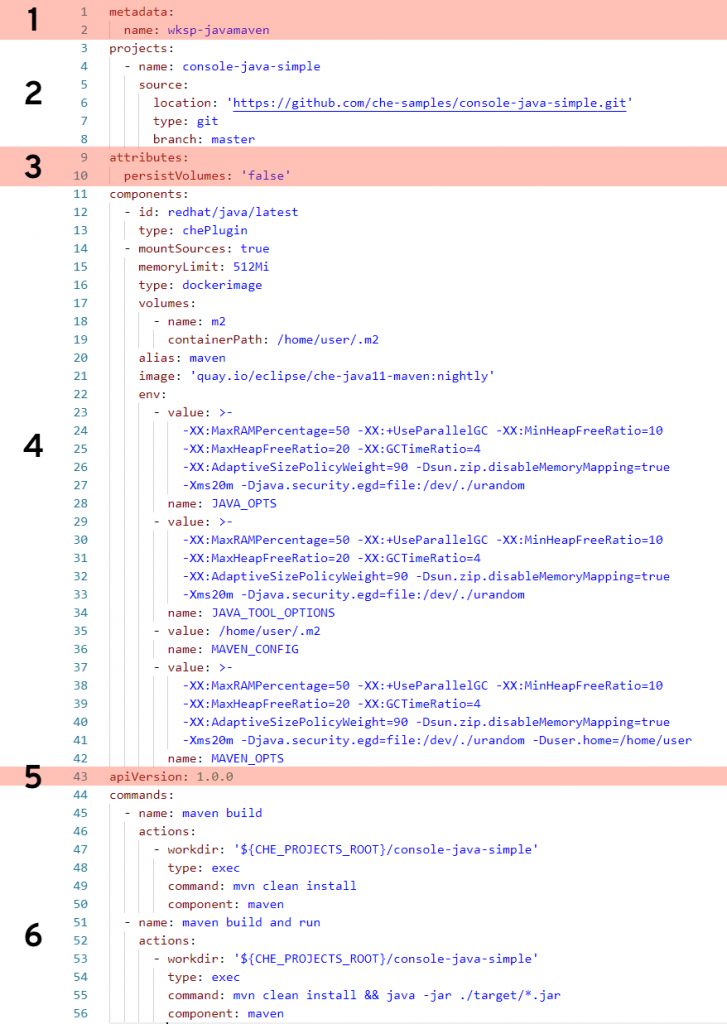
The following devfile defines a workspace that has Java language support, includes the Maven build tool, and has two custom commands.

Let’s break this down.

Section 1: metadata

This section is required, and in this case name is specified as the name of this workspace (wksp-javamaven). You also have the option of a name prefix, in which case the system will generate the rest of the name (e.g., generateName: javamaven-). Using generateName means a user can have multiple instances of this workspace at the same time. This is an important distinction and one which must be addressed by management.

Section 2: projects

This section is optional (but probably a very good idea) and tells the workspace where to find the project that will be included. In this case, we’re pointing to the master branch of a Git repository located on GitHub. You can specify multiple projects for a workspace, and the type can be a zip file as well. While the name of the project does not need to match the name of the repo it’s, again, probably a very good idea. If you make them different, well … then that’s a create opportunity to add confusion and really mess things up.

Section 3: attributes

This part is optional and can pretty much define anything you wish. In this example, it’s specifying that any values stored in any specified volumes are not stored. This will likely be the value you’ll always want. The idea is that, unless you commit your changes to the Git repo, any work done will be lost. Think of it this way: Whereas on your local PC you perform a File –> Save command to keep your work, you’ll instead do git commit. In “devfile-speak,” persistVolumes: false makes the data ephemeral. This setting, false, also makes the workspace perform better.

Section 4: components

This is the heaviest part of this example, where we specify what bits and pieces make up our workspace.

The first component is a Che Plugin, identified at redhat/java/latest. You can see the description of this plug on this GitHub page.

The next component is a type dockerimage that is the maven support for this workspace. Of special note is the setting mountSources: true, which makes the source code available to the container that is running this image. In this particular case, we want our Maven build to have access to the source code—which makes sense.

The volumes: setting defines a directory within the container that is available to this workspace. This is used, for example, to give the workspace access to a needed directory that would otherwise be outside the container and blocked by lack of permissions. In other words, if you run a command in a workspace and get an error message because you are denied access to a directory, you can get around that by defining that directory here, in your devfile, that will be created inside your container.

The remaining settings associated with this component are related to memory limits, security, etc.

Section 5: apiVersion

This section is required and is how you specify which API version you are using. This is pretty much boilerplate text.

Section 6: commands

This is the fun part. In this section, you can define custom commands that are available to the user. Typically, this is where you’ll specify command-line commands that can be run from within the IDE rather than dropping to the command line and typing what may be a lengthy command. The properties here will look pretty much self-explanatory. Note that a macro can be used instead of hard-coded value for the project root directory (e.g., ${CHE_PROJECTS_ROOT}).

Start exploring

There are many settings and variations of devfiles. If you have the ability, I suggest going into your CRW 2.0 instance and exploring any existing workspaces’ devfiles. Take an existing devfile, clone it, then change it and implement it to see what happens. Like any good developer, make changes until you break things, then gain understanding.

Share

The post CodeReady Workspaces devfile, demystified appeared first on Red Hat Developer.

Posted on Leave a comment

A quick introduction to Toolbox on Fedora

Toolbox allows you to sort and manage your development environments in containers without requiring root privileges or manually attaching volumes. It creates a container where you can install your own CLI tools, without installing them on the base system itself. You can also utilize it when you do not have root access or cannot install programs directly. This article gives you an introduction to toolbox and what it does.

Installing Toolbox

Silverblue includes Toolbox by default. For the Workstation and Server editions, you can grab it from the default repositories using dnf install toolbox.

Creating Toolboxes

Open your terminal and run toolbox enter. The utility will automatically request permission to download the latest image, create your first container, and place your shell inside this container.

$ toolbox enter
No toolbox containers found. Create now? [y/N] y
Image required to create toolbox container.
Download registry.fedoraproject.org/f30/fedora-toolbox:30 (500MB)? [y/N]: y

Currently there is no difference between the toolbox and your base system. Your filesystems and packages appear unchanged. Here is an example using a repository that contains documentation source for a resume under a ~/src/resume folder. The resume is built using the pandoc tool.

$ pwd /home/rwaltr $ cd src/resume/ $ head -n 5 Makefile all: pdf html rtf text docx pdf: init pandoc -s -o BUILDS/resume.pdf markdown/* $ make pdf
bash: make: command not found
$ pandoc -v
bash: pandoc: command not found

This toolbox does not have the programs required to build the resume. You can remedy this by installing the tools with dnf. You will not be prompted for the root password, because you are running in a container.

$ sudo dnf groupinstall "Authoring and Publishing" -y && sudo dnf install pandoc make -y
... $ make all #Successful builds
mkdir -p BUILDS
pandoc -s -o BUILDS/resume.pdf markdown/*
pandoc -s -o BUILDS/resume.html markdown/*
pandoc -s -o BUILDS/resume.rtf markdown/*
pandoc -s -o BUILDS/resume.txt markdown/*
pandoc -s -o BUILDS/resume.docx markdown/*
$ ls BUILDS/
resume.docx resume.html resume.pdf resume.rtf resume.txt

Run exit at any time to exit the toolbox.

$ cd BUILDS/
$ pandoc --version || ls
pandoc 2.2.1
Compiled with pandoc-types 1.17.5.4, texmath 0.11.1.2, skylighting 0.7.5
...
for a particular purpose.
resume.docx resume.html resume.pdf resume.rtf resume.txt
$ exit logout
$ pandoc --version || ls
bash: pandoc: command not found...
resume.docx resume.html resume.pdf resume.rtf resume.txt

You retain the files created by your toolbox in your home directory. None of the programs installed in your toolbox will be available outside of it.

Tips and tricks

This introduction to toolbox only scratches the surface. Here are some additional tips, but you can also check out the official documentation.

  • Toolbox –help will show you the man page for Toolbox
  • You can have multiple toolboxes at once. Use toolbox create -c Toolboxname and toolbox enter -c Toolboxname
  • Toolbox uses Podman to do the heavy lifting. Use toolbox list to find the IDs of the containers Toolbox creates. Podman can use these IDs to perform actions such as rm and stop. (You can also read more about Podman in this Magazine article.)

Photo courtesy of Florian Richter from Flickr.

Posted on Leave a comment

Open Liberty Java runtime now available to Red Hat Runtimes subscribers

Open Liberty is a lightweight, production-ready Java runtime for containerizing and deploying microservices to the cloud, and is now available as part of a Red Hat Runtimes subscription. If you are a Red Hat Runtimes subscriber, you can write your Eclipse MicroProfile and Jakarta EE apps on Open Liberty and then run them in containers on Red Hat OpenShift, with commercial support from Red Hat and IBM.

Develop cloud-native Java microservices

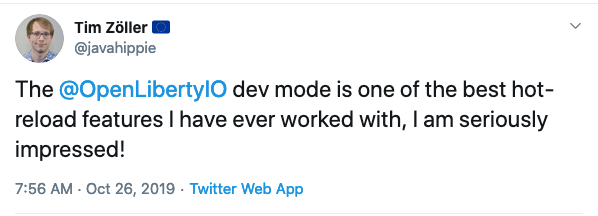
Open Liberty is designed to provide a smooth developer experience with a one-second startup time, a low memory footprint, and our new dev mode:

Tweet about Open Liberty Dev Mode.

Open Liberty provides a full implementation of MicroProfile 3 and Jakarta EE 8. MicroProfile is a collaborative project between multiple vendors (including Red Hat and IBM) and the Java community that aims to optimize enterprise Java for writing microservices. With a four-week release schedule, Liberty usually has the latest MicroProfile release available soon after the spec is published.

Also, Open Liberty is supported in common developer tools, including VS Code, Eclipse, Maven, and Gradle. Server configuration (e.g., adding or removing a capability, or “feature,” to your app) is through an XML file. Open Liberty’s zero migration policy means that you can focus on what’s important (writing your app!) and not have to worry about APIs changing under you.

Deploy in containers to any cloud

When you’re ready to deploy your app, you can just containerize it and deploy it to OpenShift. The zero migration principle means that new versions of Open Liberty features will not break your app, and you can control which version of the feature your app uses.

Monitoring live microservices is enabled by MicroProfile Metrics, Health, and OpenTracing, which add observability to your apps. The emitted metrics from your apps and from the Open Liberty runtime can be consolidated using Prometheus and presented in Grafana.

Learn with the Open Liberty developer guides

Our Open Liberty developer guides are available with runnable code and explanations to help you learn how to write microservices with MicroProfile and Jakarta EE, and then to deploy them to Red Hat OpenShift.

Get started

To get started with Open Liberty, try the Packaging and deploying applications guide and the Deploying microservices to OpenShift guide.

Share

The post Open Liberty Java runtime now available to Red Hat Runtimes subscribers appeared first on Red Hat Developer.

Posted on Leave a comment

New features in Red Hat CodeReady Studio 12.13.0.GA and JBoss Tools 4.13.0.Final for Eclipse 2019-09

JBoss Tools 4.13.0 and Red Hat CodeReady Studio 12.13 for Eclipse 2019-09 are here and waiting for you. In this article, I’ll cover the highlights of the new releases and show how to get started.

Installation

Red Hat CodeReady Studio (previously known as Red Hat Developer Studio) comes with everything pre-bundled in its installer. Simply download it from our Red Hat CodeReady Studio product page and run it like this:

java -jar codereadystudio-<installername>.jar

JBoss Tools or Bring-Your-Own-Eclipse (BYOE) CodeReady Studio requires a bit more.

This release requires at least Eclipse 4.13 (2019-09), but we recommend using the latest Eclipse 4.13 2019-09 JEE Bundle because then you get most of the dependencies pre-installed.

Once you have installed Eclipse, you can either find us on the Eclipse Marketplace under “JBoss Tools” or “Red Hat CodeReady Studio.”

For JBoss Tools, you can also use our update site directly:

http://download.jboss.org/jbosstools/photon/stable/updates/

What’s new?

Our main focus for this release was improvements for container-based development and bug fixing. Eclipse 2019-06 itself has a lot of new cool stuff, but I’ll highlight just a few updates in both Eclipse 2019-06 and JBoss Tools plugins that I think are worth mentioning.

Red Hat OpenShift

OpenShift Container Platform 4.2 support

With the new OpenShift Container Platform (OCP) 4.2 now available (see the announcement), even if this is a major shift compared to OCP 3, Red Hat CodeReady Studio and JBoss Tools are compatible with this major release in a transparent way. Just define your connection to your OCP 4.2 based cluster as you did before for an OCP 3 cluster, and use the tooling!

CodeReady Containers 1.0 Server Adapter

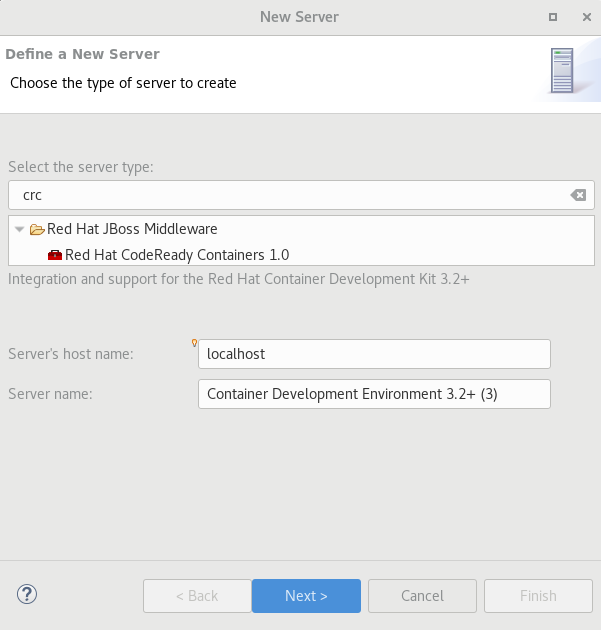
A new server adapter has been added to support the next generation of CodeReady Containers 1.0. Although the server adapter itself has limited functionality, it is able to start and stop the CodeReady Containers virtual machine via its crc binary. Simply hit Ctrl+3 (Cmd+3 on OSX) and type new server, which will bring up a command to set up a new server.

crc server adapter

Enter crc in the filter textbox.

You should see the Red Hat CodeReady Containers 1.0 server adapter.

Select Red Hat CodeReady Containers 1.0 and click Next.

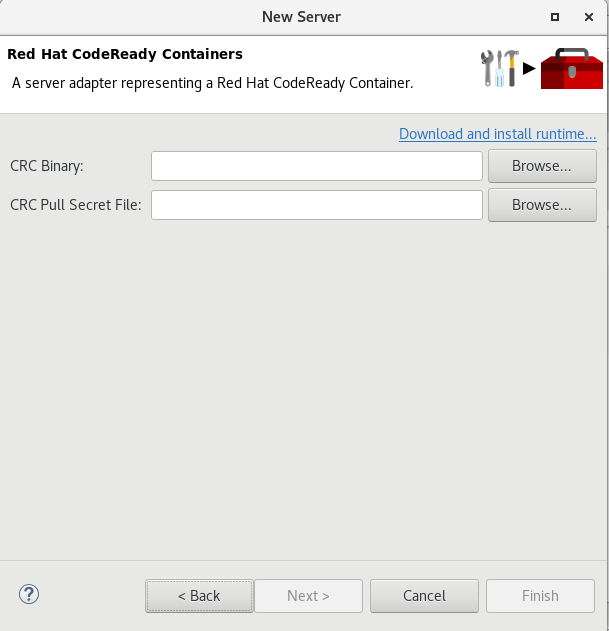
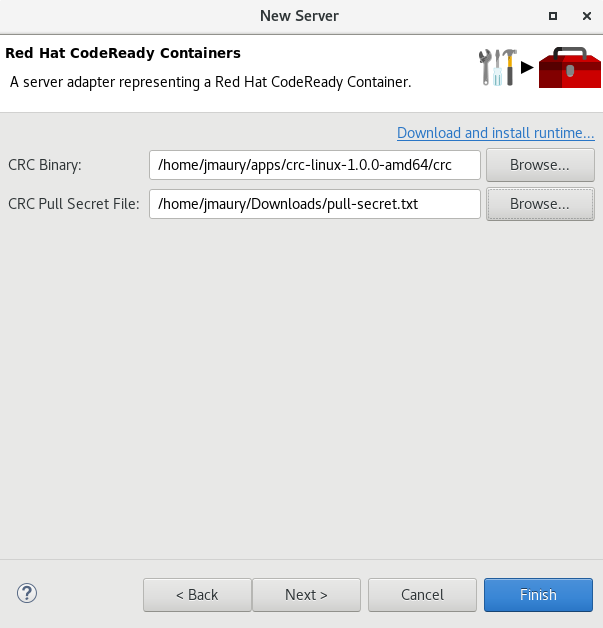
All you have to do is set the location of the CodeReady Containers crc binary file and the pull secret file location, which can be downloaded from https://cloud.redhat.com/openshift/install/crc/installer-provisioned.

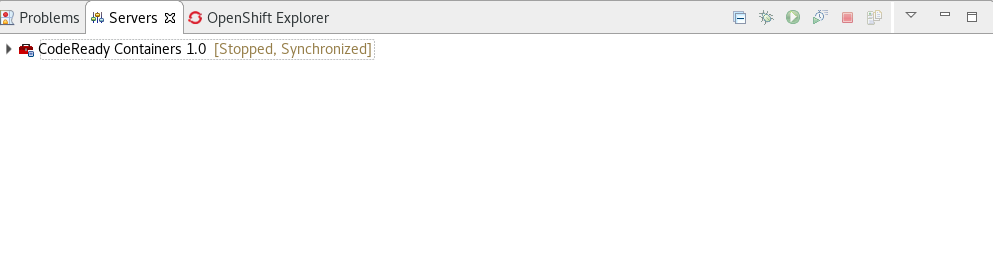
Once you’re finished, a new CodeReady Containers server adapter will then be created and visible in the Servers view.

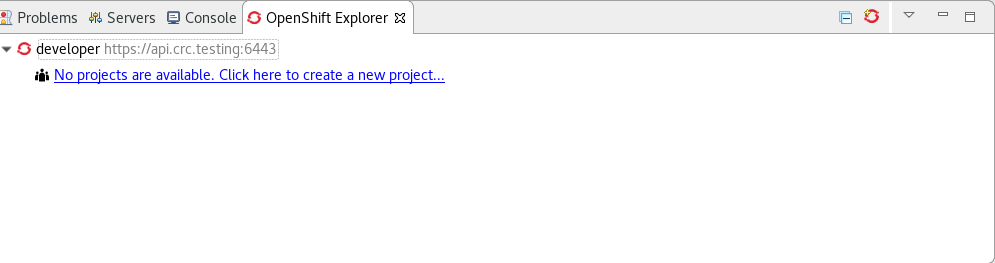
Once the server is started, a new OpenShift connection should appear in the OpenShift Explorer view, allowing the user to quickly create a new Openshift application and begin developing their AwesomeApp in a highly replicatable environment.

Server tools

Wildfly 18 Server Adapter

A server adapter has been added to work with Wildfly 18. It adds support for Java EE 8 and Jakarta EE 8.

EAP 7.3 Beta Server Adapter

A server adapter has been added to work with EAP 7.3 Beta.

Hibernate Tools

Hibernate Runtime Provider Updates

A number of additions and updates have been performed on the available Hibernate runtime providers.

The Hibernate 5.4 runtime provider now incorporates Hibernate Core version 5.4.7.Final and Hibernate Tools version 5.4.7.Final.

The Hibernate 5.3 runtime provider now incorporates Hibernate Core version 5.3.13.Final and Hibernate Tools version 5.3.13.Final.

Platform

Views, Dialogs and Toolbar

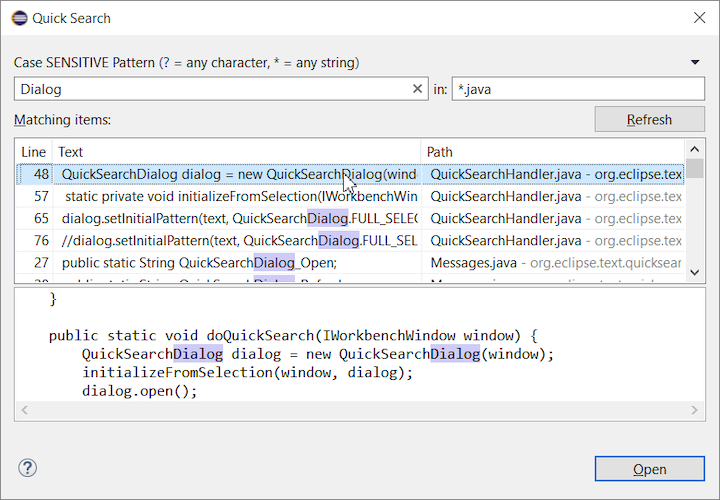
The new Quick Search dialog provides a convenient, simple and fast way to run a textual search across your workspace and jump to matches in your code. The dialog provides a quick overview showing matching lines of text at a glance. It updates as quickly as you can type and allows for quick navigation using only the keyboard. A typical workflow starts by pressing the keyboard shortcut Ctrl+Alt+Shift+L (or Cmd+Alt+Shift+L on Mac). Typing a few letters updates the search result as you type. Use Up-Down arrow keys to select a match, then hit Enter to open it in an editor.

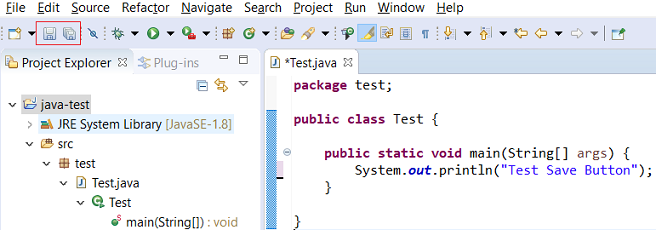
Save editor when Project Explorer has focus

You can now save the active editor even when the Project Explorer has focus. In cases where an extension contributes Saveables to the Project Explorer, the extension is honored and the save action on the Project Explorer will save the provided saveable item instead of the active editor.

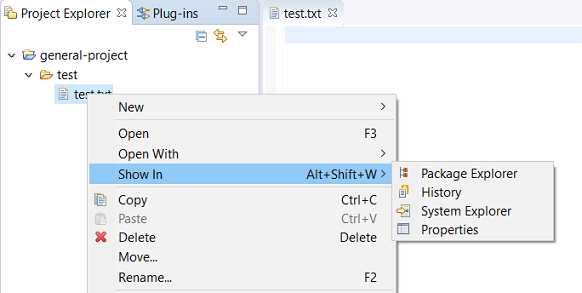
“Show In” context menu available for normal resources

The Show In context menu is now available for an element inside a resource project on the Project Explorer.

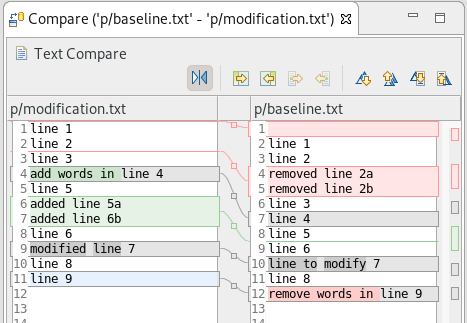
Show colors for additions and deletions in Compare viewer

In simple cases such as a two-way comparison or a three-way comparison with no merges and conflicts, the Compare viewer now shows different colors, depending on whether text has been added, removed, or modified. The default colors are green, red, and black, respectively.

The colors can be customized through usual theme customization approaches, including using related entries in the Colors and Fonts preference page.

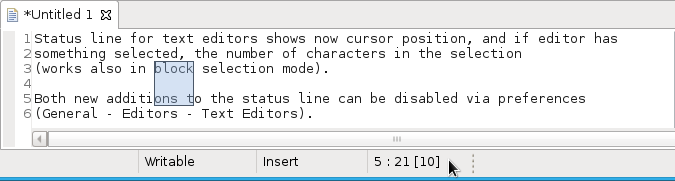
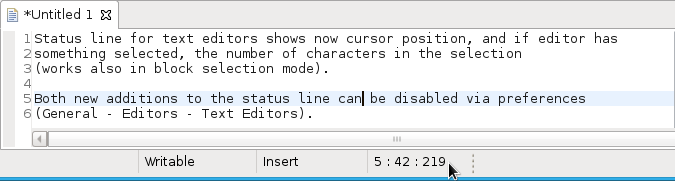
Editor status line shows more selection details

The status line for Text Editors now shows the cursor position, and when the editor has something selected, it shows the number of characters in the selection as well. This also works in the block selection mode.

These two new additions to the status line can be disabled via the General > Editors > Text Editors preference page.

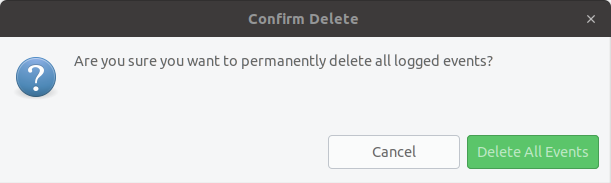
Shorter dialog text

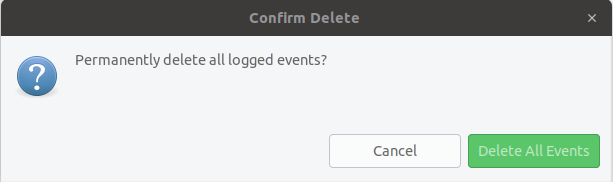
Several dialog texts have been shortened. This allows you to capture important information faster.

Previously:

Now:

Close project via middle-click

In the Project Explorer, you can now close a project using middle-click.

Debug

Improved usability of Environment tab in Launch Configurations

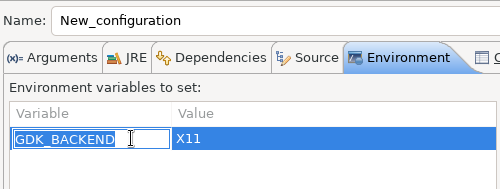
In the Environment tab of the Launch Configuration dialog, you can now double-click on an environment variable name or value and start editing it directly from the table.

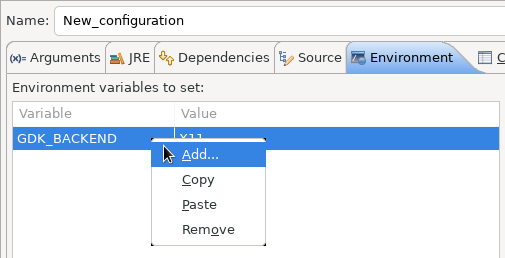
Right-clicking on the environment variable table now opens a context menu, allowing for quick addition, removal, copying, and pasting of environment variables.

Show Command Line for external program launch

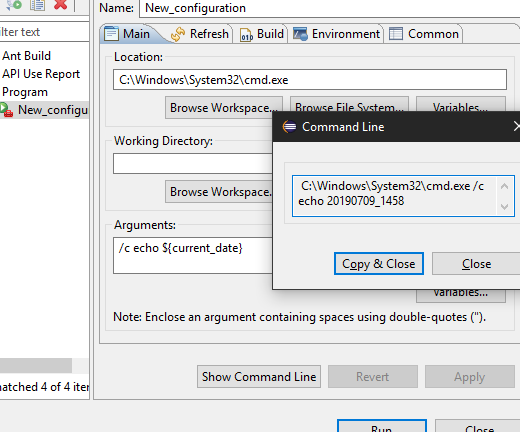
The External Tools Configuration dialog for launching an external program now supports the Show Command Line button.

Preferences

Close editors automatically when reaching 99 open editors

The preference to close editors automatically is now enabled by default. It will be triggered when you have opened 99 files. If you continue to open editors, old editors will be closed to protect you from performance problems. You can modify this setting in the Preferences dialog via the General > Editors > Close editors automatically preference.

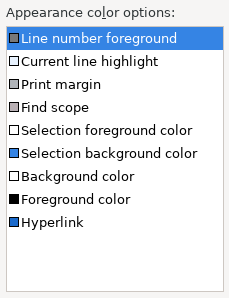
In-table color previews for Text Editor appearance color options

You can now see all the colors currently being used in Text Editors from the Appearance color options table, located in the Preferences > General > Editors > Text Editor page.

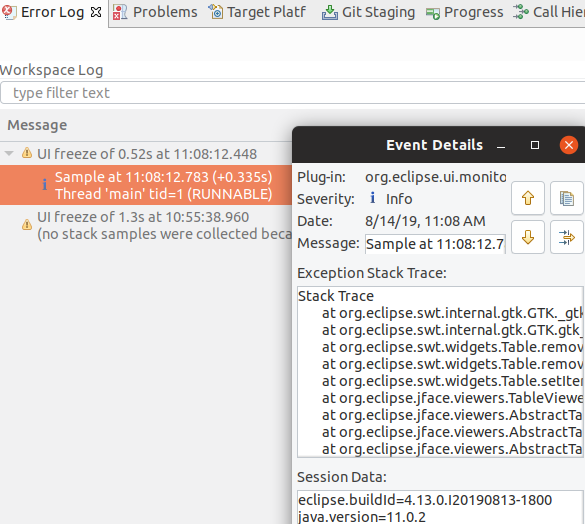
Automatic detection of UI freezes in the Eclipse SDK

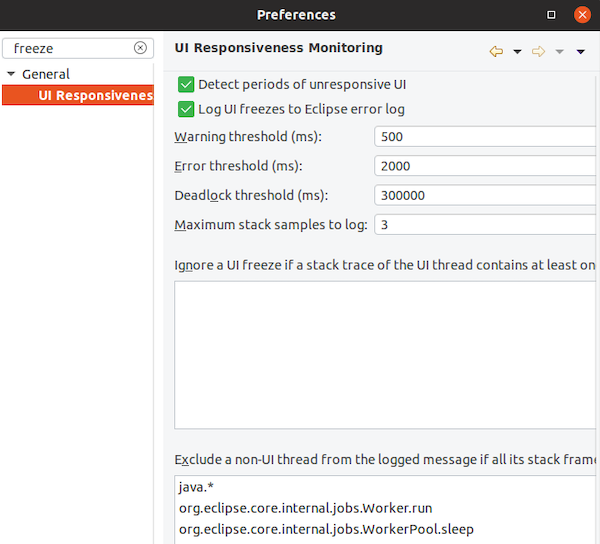
The Eclipse SDK has been configured to show stack traces for UI freezes in the Error Log view by default for new workspaces. You can use this information to identify and report slow parts of the Eclipse IDE.

You can disable the monitoring or tweak its settings via the options in the General > UI Responsiveness Monitoring preference page as shown below.

Themes and Styling

Start automatically in dark theme based on OS theme

On Linux and Mac, Eclipse can now start automatically in dark theme when the OS theme is dark. This works by default, that is on a new workspace or when the user has not explicitly set or changed the theme in Eclipse.

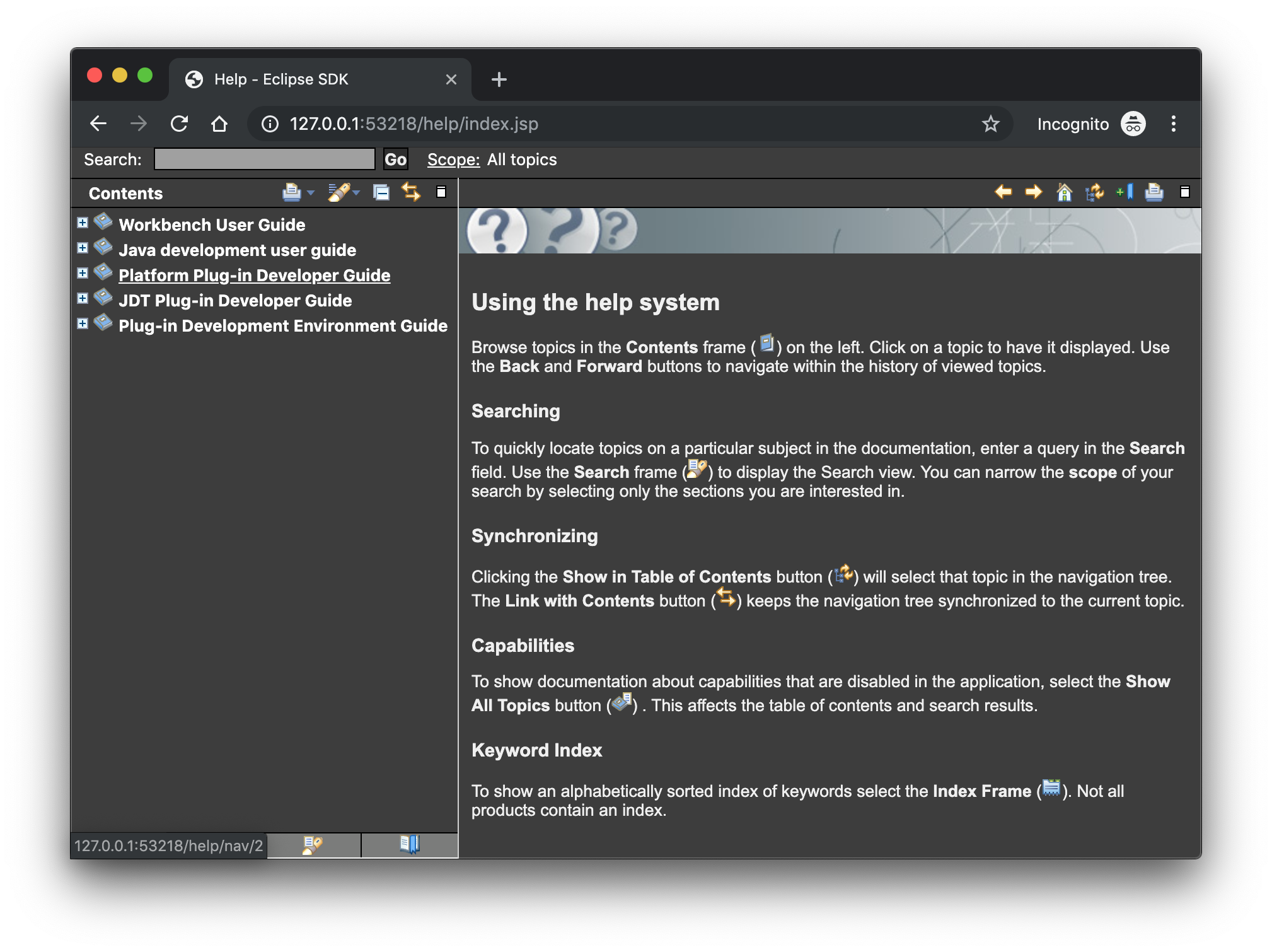
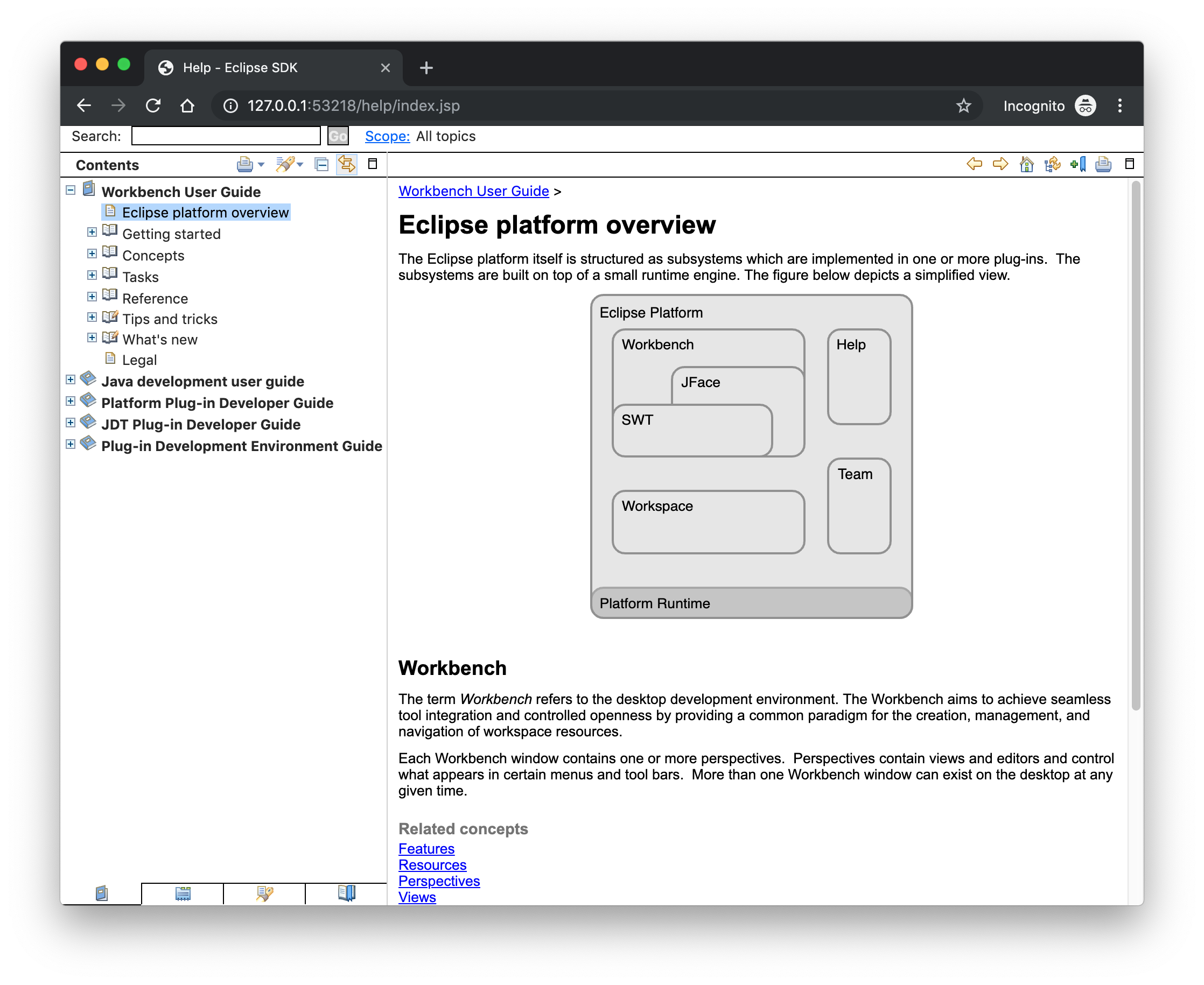
Display of Help content respects OS theme

More and more operating systems provide a system-wide dark theme. Eclipse now respects this system-wide theme setting when the Eclipse help content is displayed in an external browser. A prerequisite for this is a browser that supports the prefers-color-scheme CSS media query.

As of the time of writing, the following browser versions support it:

  • Firefox version 67
  • Chrome version 76
  • Safari version 12.1

Help content uses high-resolution icons.

The Help System, as well as the help content of the Eclipse Platform, the Java Development Tooling, and the Plug-in Development Environment, now uses high-resolution icons. They are now crisp on high-resolution displays and also look much better in the dark theme.

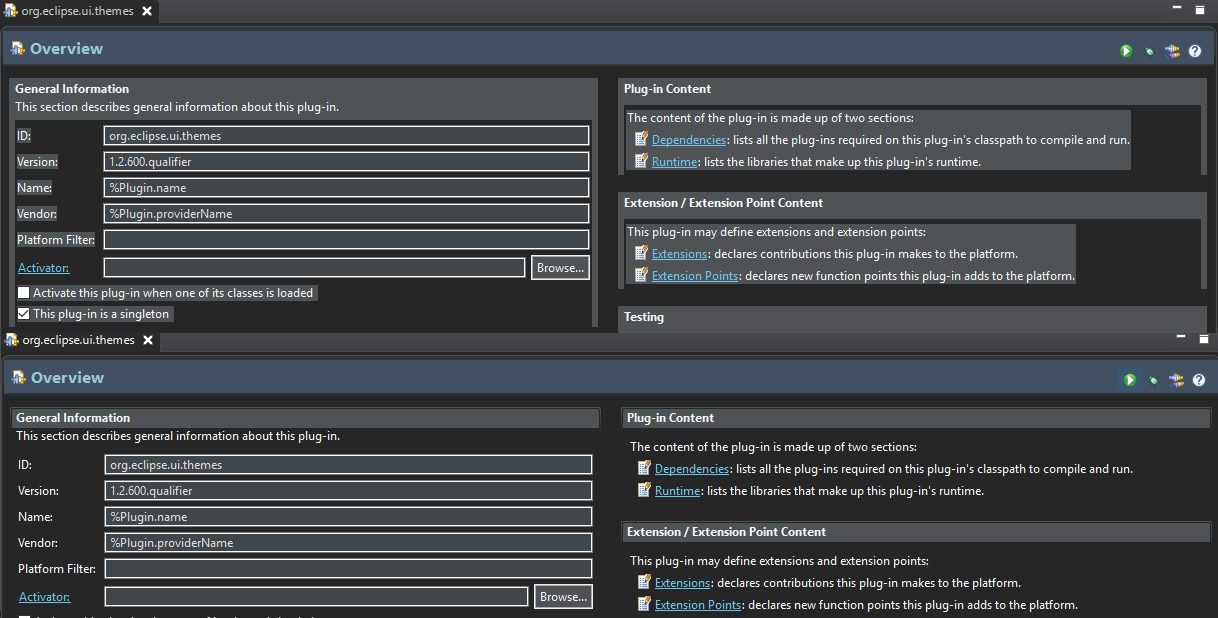
Improved dark theme on Windows

Labels, Sections, Checkboxes, Radio Buttons, FormTexts, and Sashes on forms now use the correct background color in the dark mode on windows.

General Updates

Interactive performance

Interactive performance has been further improved in this release and several UI freezes have been fixed.

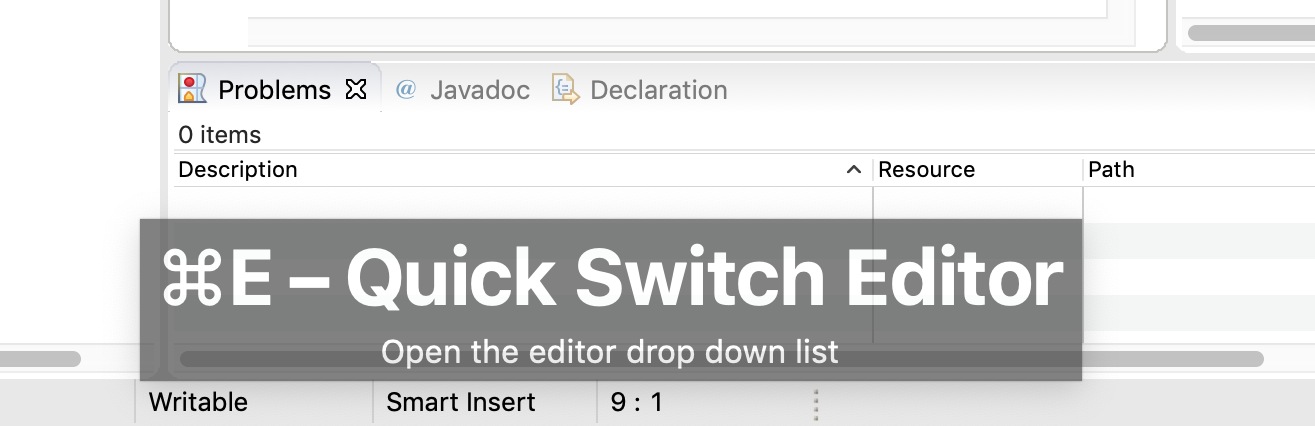
Show key bindings when command is invoked

For presentations, screencasts, and learning purposes, it is very helpful to show the corresponding key binding when a command is invoked. When the command is invoked (via a key binding or menu interaction) the key binding, the command’s name and description are shown on the screen.

You can activate this in the Preferences dialog via the Show key binding when command is invoked checkbox on the General > Keys preference page. To toggle this setting quickly, you can use the Toggle Whether to Show Key Binding command (e.g., via the quick access).

Java Developement Tools (JDT)

Java 13 Support

Java 13 is out, and Eclipse JDT supports Java 13 for 4.13 via Marketplace.

The release notably includes the following Java 13 features:

  • JEP 354: Switch Expressions (Preview).
  • JEP 355: Text Blocks (Preview).

Please note that these are preview language features; hence, the enable preview option should be on. For an informal introduction of the support, please refer to Java 13 Examples wiki.

Java Views and Dialogs

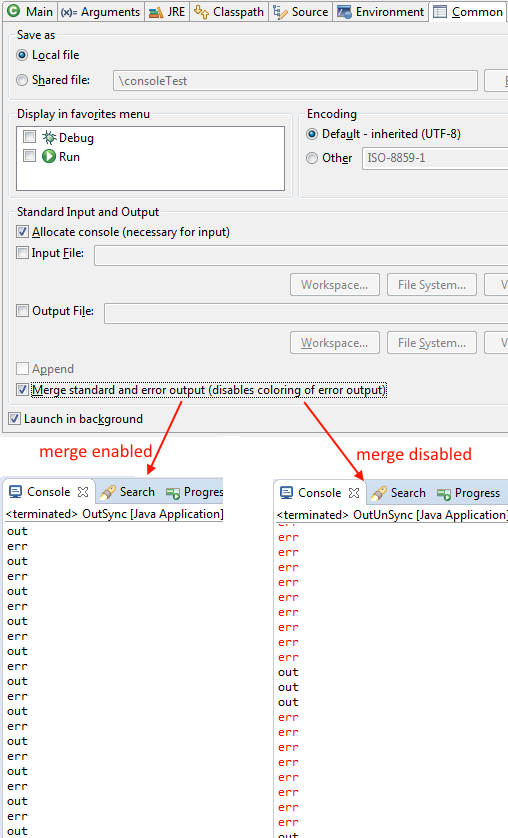
Synchronize standard and error output in console

The Eclipse Console view currently can not ensure that mixed standard and error output is shown in the same order as it is produced by the running process. For Java applications, the launch configuration Common tab now provides an option to merge standard and error output. This ensures that standard and error output is shown in the same order it was produced but also disables the individual coloring of error output.

Java Editor

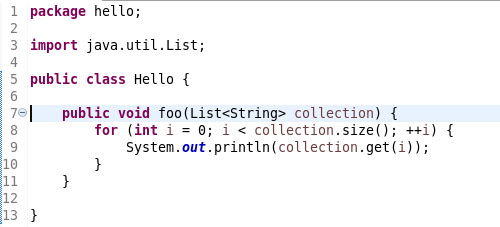
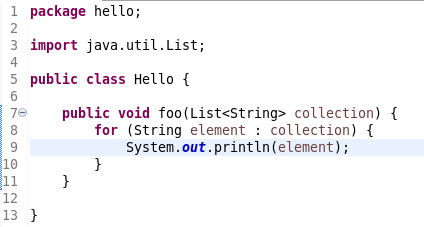
Convert to enhanced ‘for’ loop using Collections

The Java quickfix/cleanup Convert to enhanced ‘for’ loop is now offered on for loops that are iterating through Collections. The loop must reference the size method as part of the condition and if accessing elements in the body, must use the get method. All other Collection methods other than isEmpty invalidate the quickfix being offered.

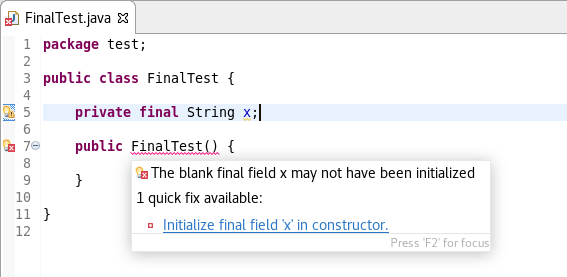
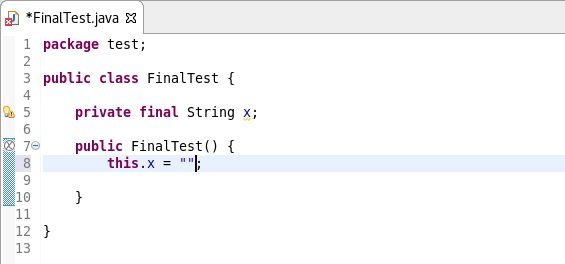
Initialize ‘final’ fields

A Java quickfix is now offered to initialize an uninitialized final field in the class constructor. The fix will initialize a String to the empty string, a numeric base type to 0, and, for class fields, it initializes them using their default constructor if available or null if no default constructor exists.

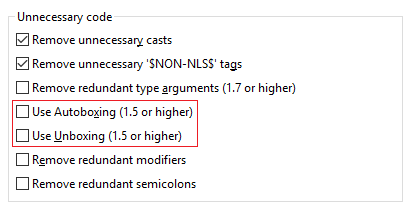
Autoboxing and Unboxing

Use Autoboxing and Unboxing when possible. These features are enabled only for Java 5 and higher.

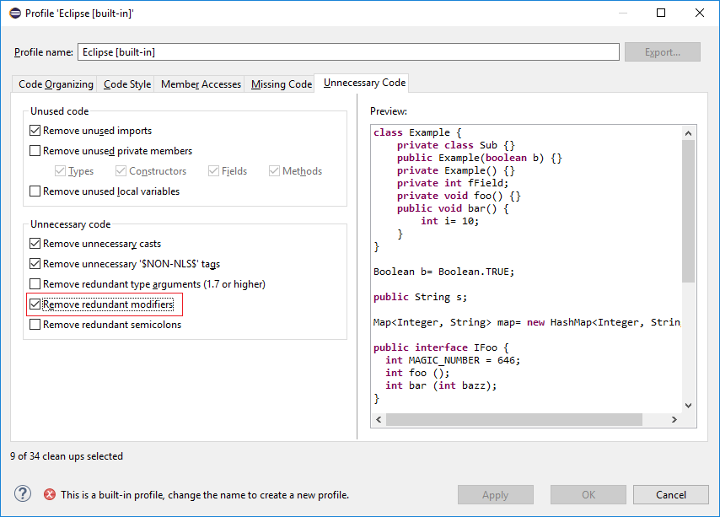
Improved redundant modifier removal

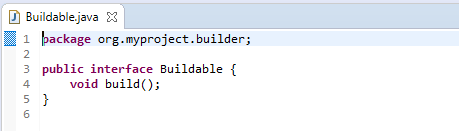
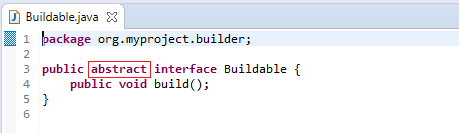
The Remove redundant modifier now also removes useless abstract modifier on the interfaces.

For the given code:

You get this:

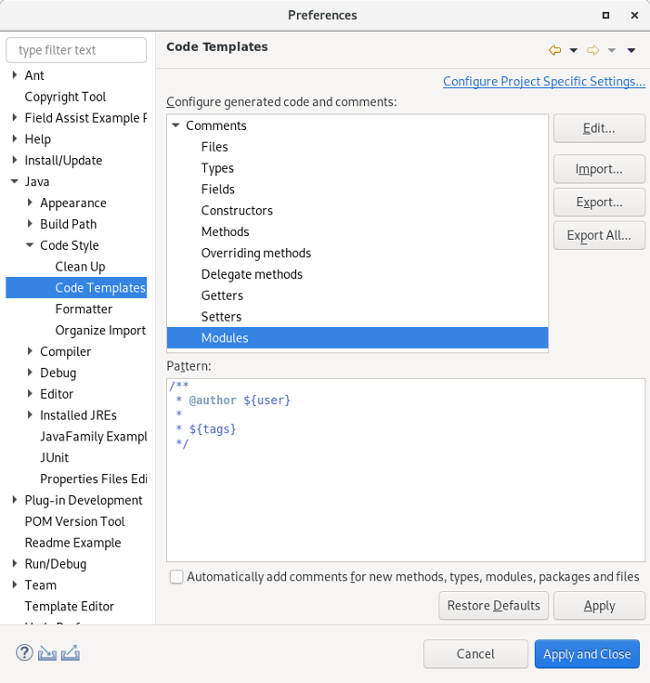
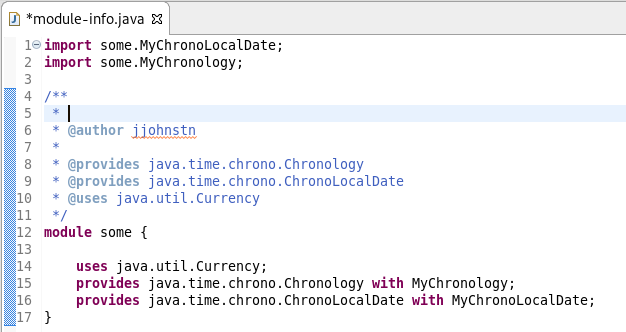
Javadoc comment generation for module

Adding a Javadoc comment to a Java module (module-info.java) will result in automatic annotations being added per the new module comment preferences.

The $(tags) directive will add @uses and @provides tags for all uses and provides module statements.
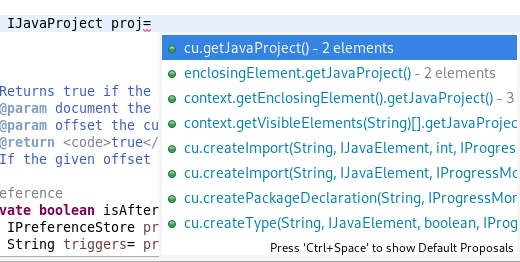
Chain Completion Code Assist

Code assist for “Chain Template Proposals” will be available. These will traverse reachable local variables, fields, and methods, to produce a chain whose return type is compatible with the expected type in a particular context.

The preference to enable the feature can be found in the Advanced sub-menu of the Content Assist menu group (Preferences > Java > Editor > Content Assist > Advanced).

Java Formatter

Remove excess blank lines

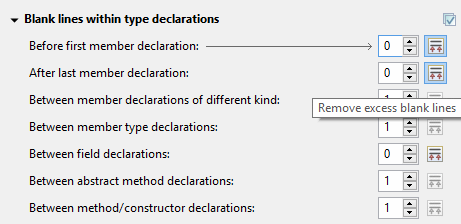
All the settings in the Blank lines section can now be configured to remove excess blank lines, effectively taking precedence over the Number of empty lines to preserve setting. Each setting has its own button to turn the feature on, right next to its number control. The button is enabled only if the selected number of lines is smaller than the Number of empty lines to preserve; otherwise, any excess lines are removed anyway.

Changes in blank lines settings

There’s quite a lot of changes in the Blank lines section of the formatter profile.

Some of the existing subsections and settings are now phrased differently to better express their function:

  • The Blank lines within class declarations subsection is now Blank lines within type declaration.
  • Before first declaration is now Before first member declaration.
  • Before declarations of the same kind is now Between member declarations of different kind.
  • Before member class declarations is now Between member type declarations.
  • Before field declarations is now Between field declarations.
  • Before method declarations is now Between method/constructor declarations.

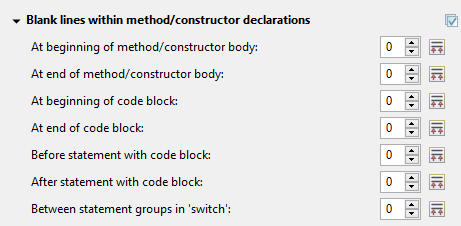
More importantly, a few new settings have been added to support more places where the number of empty lines can be controlled:

  • After last member declaration in a type (to complement previously existing Before first member declaration setting).
  • Between abstract method declarations in a type (these cases were previously handled by Between method/constructor declarations).
  • At end of method/constructor body (to complement previously existing At beginning of method/constructor body setting).
  • At beginning of code block and At end of code block.
  • Before statement with code block and After statement with code block.
  • Between statement groups in ‘switch.’

Most of the new settings have been put in a new subsection Blank lines within method/constructor declarations.

JUnit

JUnit 5.5.1

JUnit 5.5.1 is here and Eclipse JDT has been updated to use this version.

Debug

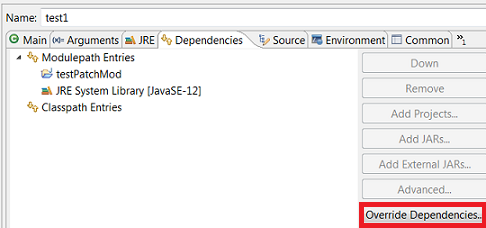
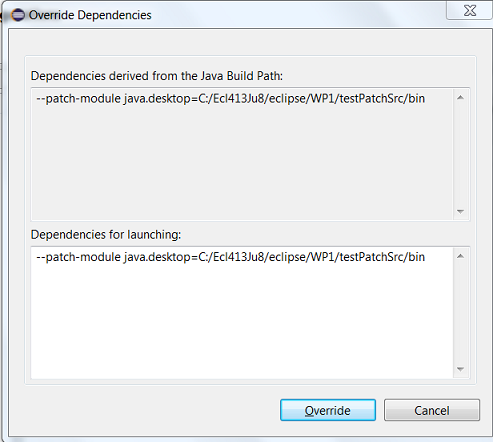
Enhanced support for –patch-module during launch

The Java Launch Configuration now supports patching of different modules by different sources during the launch. This can be verified in the Override Dependencies…​ dialog in the Dependencies tab in a Java Launch Configuration.

Java Build

Full build on JDT core preferences change

Manually changing the settings file .settings/org.eclipse.jdt.core.prefs of a project will result in a full project build, if the workspace auto-build is on. For example, pulling different settings from a git repository or generating the settings with a tool will now trigger a build. Note that this includes timestamp changes, even if actual settings file contents were not changed.

For the 4.13 release, it is possible to disable this new behavior with the VM property: -Dorg.eclipse.disableAutoBuildOnSettingsChange=true. It is planned to remove this VM property in a future release.

And more…​

You can find more noteworthy updates in on this page.

What is next?

Having JBoss Tools 4.13.0 and Red Hat CodeReady Studio 12.13 out we are already working on the next release for Eclipse 2019-12.

Share

The post New features in Red Hat CodeReady Studio 12.13.0.GA and JBoss Tools 4.13.0.Final for Eclipse 2019-09 appeared first on Red Hat Developer.

Posted on Leave a comment

Manage your passwords with Bitwarden and Podman

You might have encountered a few advertisements the past year trying to sell you a password manager. Some examples are LastPass, 1Password, or Dashlane. A password manager removes the burden of remembering the passwords for all your websites. No longer do you need to re-use passwords or use easy-to-remember passwords. Instead, you only need to remember one single password that can unlock all your other passwords for you.

This can make you more secure by having one strong password instead of many weak passwords. You can also sync your passwords across devices if you have a cloud-based password manager like LastPass, 1Password, or Dashlane. Unfortunately, none of these products are open source. Luckily there are open source alternatives available.

Open source password managers

These alternatives include Bitwarden, LessPass, or KeePass. Bitwarden is an open source password manager that stores all your passwords encrypted on the server, which works the same way as LastPass, 1Password, or Dashlane. LessPass is a bit different as it focuses on being a stateless password manager. This means it derives passwords based on a master password, the website, and your username rather than storing the passwords encrypted. On the other side of the spectrum there’s KeePass, a file-based password manager with a lot of flexibility with its plugins and applications.

Each of these three apps has its own downsides. Bitwarden stores everything in one place and is exposed to the web through its API and website interface. LessPass can’t store custom passwords since it’s stateless, so you need to use their derived passwords. KeePass, a file-based password manager, can’t easily sync between devices. You can utilize a cloud-storage provider together with WebDAV to get around this, but a lot of clients do not support it and you might get file conflicts if devices do not sync correctly.

This article focuses on Bitwarden.

Running an unofficial Bitwarden implementation

There is a community implementation of the server and its API called bitwarden_rs. This implementation is fully open source as it can use SQLite or MariaDB/MySQL, instead of the proprietary Microsoft SQL Server that the official server uses.

It’s important to recognize some differences exist between the official and the unofficial version. For instance, the official server has been audited by a third-party, whereas the unofficial one hasn’t. When it comes to implementations, the unofficial version lacks email confirmation and support for two-factor authentication using Duo or email codes.

Let’s get started running the server with SELinux in mind. Following the documentation for bitwarden_rs you can construct a Podman command as follows:

$ podman run -d \ 
--userns=keep-id \
--name bitwarden \
-e SIGNUPS_ALLOWED=false \
-e ROCKET_PORT=8080 \
-v /home/egustavs/Bitwarden/bw-data/:/data/:Z \
-p 8080:8080 \
bitwardenrs/server:latest

This downloads the bitwarden_rs image and runs it in a user container under the user’s namespace. It uses a port above 1024 so that non-root users can bind to it. It also changes the volume’s SELinux context with :Z to prevent permission issues with read-write on /data.

If you host this under a domain, it’s recommended to put this server under a reverse proxy with Apache or Nginx. That way you can use port 80 and 443 which points to the container’s 8080 port without running the container as root.

Running under systemd

With Bitwarden now running, you probably want to keep it that way. Next, create a unit file that keeps the container running, automatically restarts if it doesn’t respond, and starts running after a system restart. Create this file as /etc/systemd/system/bitwarden.service:

[Unit]
Description=Bitwarden Podman container
Wants=syslog.service

[Service]
User=egustavs
Group=egustavs
TimeoutStartSec=0
ExecStart=/usr/bin/podman run 'bitwarden'
ExecStop=-/usr/bin/podman stop -t 10 'bitwarden'
Restart=always
RestartSec=30s
KillMode=none

[Install]
WantedBy=multi-user.target

Now, enable and start it using sudo:

$ sudo systemctl enable bitwarden.service && sudo systemctl start bitwarden.service
$ systemctl status bitwarden.service
bitwarden.service - Bitwarden Podman container
Loaded: loaded (/etc/systemd/system/bitwarden.service; enabled; vendor preset: disabled)
Active: active (running) since Tue 2019-07-09 20:23:16 UTC; 1 day 14h ago
Main PID: 14861 (podman)
Tasks: 44 (limit: 4696)
Memory: 463.4M

Success! Bitwarden is now running under system and will keep running.

Adding LetsEncrypt

It’s strongly recommended to run your Bitwarden instance through an encrypted channel with something like LetsEncrypt if you have a domain. Certbot is a bot that creates LetsEncrypt certificates for us, and they have a guide for doing this through Fedora.

After you generate a certificate, you can follow the bitwarden_rs guide about HTTPS. Just remember to append :Z to the LetsEncrypt volume to handle permissions while not changing the port.


Photo by CMDR Shane on Unsplash.