Posted on Leave a comment

Docker and Fedora 37: Migrating to Podman

In previous installments (Fedora 32, Fedora 35), there was a strong focus on making things work with Docker on Fedora Linux. This article will focus on the final stage of this long journey. It will focus on migrating a cross-platform production set-up from Docker to Podman.

Background

Docker and Podman use the same open standard for containers. On top of this container standard, there are multiple ways of organizing containers together. Docker-Compose and Kubernetes are the two main technologies for this, although tools like Ansible are also popular.

On the business side though, there are strong differences. Docker is distributed with a non-free application called Docker Desktop, while Podman historically never had a UI. Docker started live in 2013 and had its rise to prominence in 2016. Podman started in 2018 and it has only become more popular in the last two years.

Podman was certainly not the first on the scene, and it has been fighting an uphill battle. Still, in many ways, this has been an opportunity. Podman can avoid some of the architectural errors that Docker made, and it can integrate with other tools that didn’t exist yet when Docker started.

Personal background

The previous articles about Docker and Fedora are based on the author’s professional life. At the company were I work, we heavily relied on Docker when I came on board. This meant that I needed Docker, and I started to document my struggles which ultimately lead to the first article. The second article was a follow-up to inform readers that most hurdles from the past were no longer a problem.

Podman Destkop

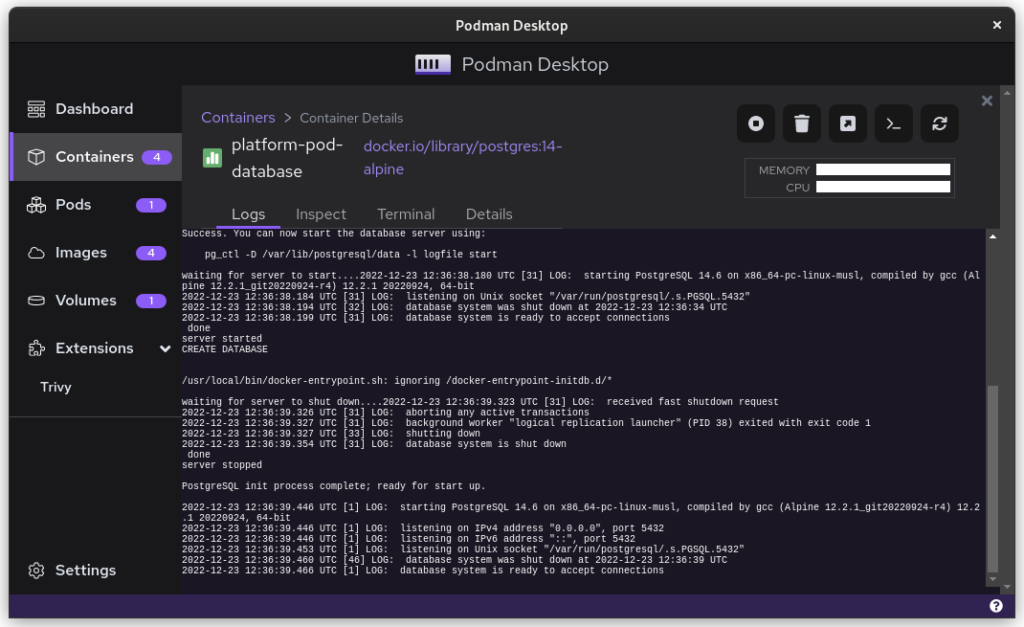
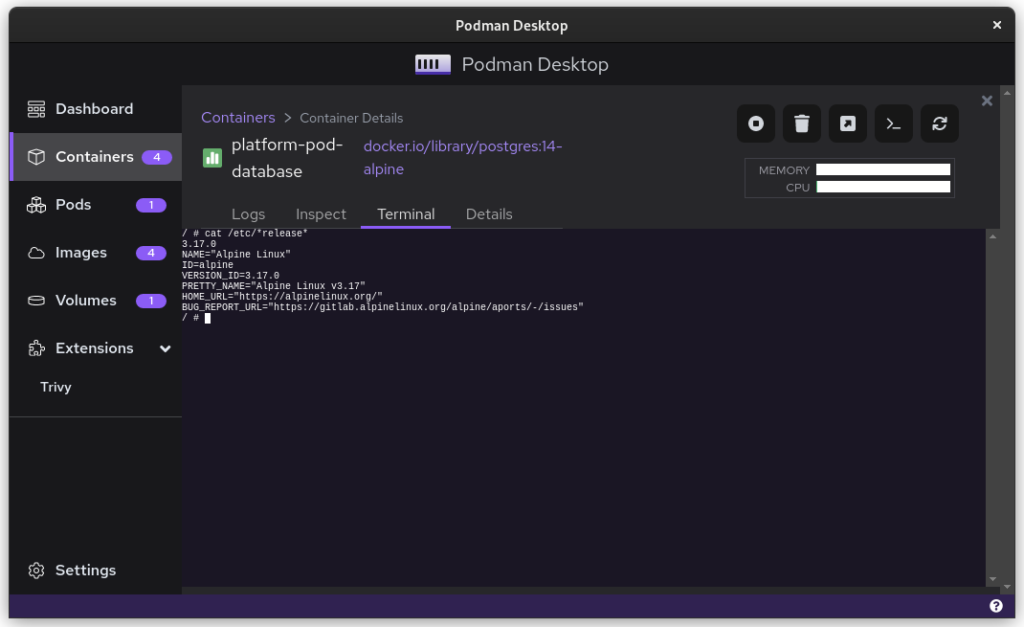
The game-changer in this whole story is Podman Desktop. It is a cross-platform UI that allows teams on Linux, macOS and Windows to collaborate. It works the same way as Docker Desktop, including a bundled VM and WSL support. This also means that Podman now offers a complete package for software companies. While software developers on Linux could use Podman in the past, it’s now possible to migrate an entire team across environments!

Migrating Docker

So, let’s start migrating from Docker to Podman. First, you’ll need to make sure that you have podman and podman-compose installed. You can easily download Podman Desktop from Flathub.

Image files

Image files are good as they are! They are identical because of the open standards behind containers.

One thing that you will see now is that there are a plethora of companies and groups that offer their own image-repositories.

  • hub.docker.com (alias, docker.io) is the offering from Docker, which their tooling conveniently defaults to.
  • registry.gitlab.com is the registry of GitLab’s commercial offering. Community editions follow this same syntax resulting in, for example: registry.gitlab.gnome.org
  • registry.fedoraproject.org is Fedora’s Registry. This registry is also used for flatpaks from the Fedora repository.
  • Quay.io is the offering from Red Hat, which contains all of Podman’s tooling, but also CentOS images.

The biggest change that you’ll have to adapt to, when switching from Docker to Podman, is that you’ll be encouraged to write full image addresses instead of just stubs: `postgres:14-alpine` becomes `docker.io/library/postgres:14-alpine`.

Docker-Compose files

Compose files are Docker specific and they can’t be used with Podman. What you can use, though, is podman-compose. Better yet, you can start your docker-based platform and then use Podman Desktop to export your current configuration to a Kubernetes file.

$ podman-compose -f ./docker-compose-platform.yaml up --detach

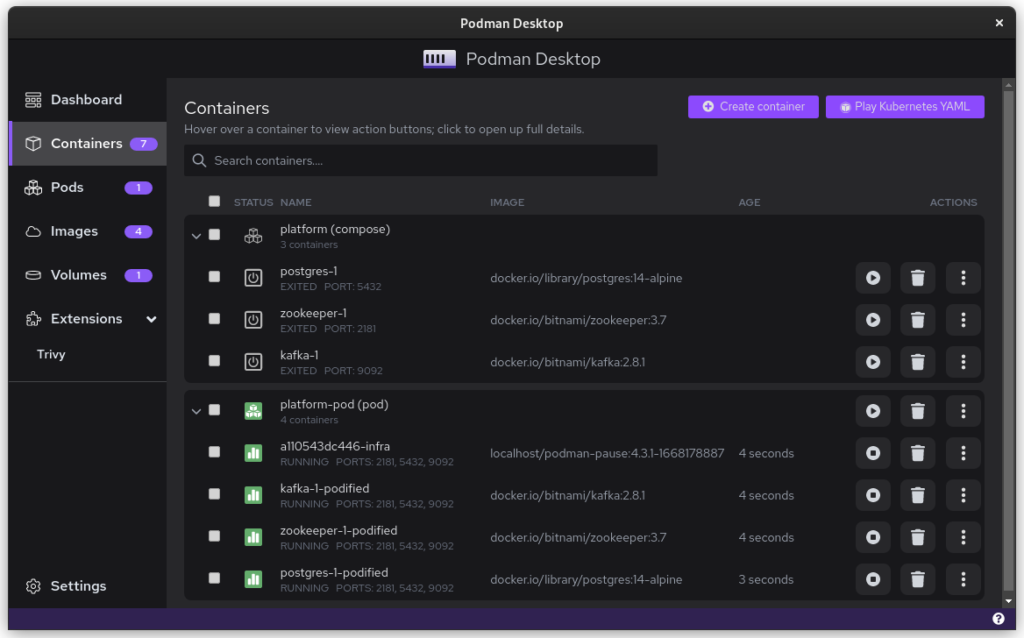
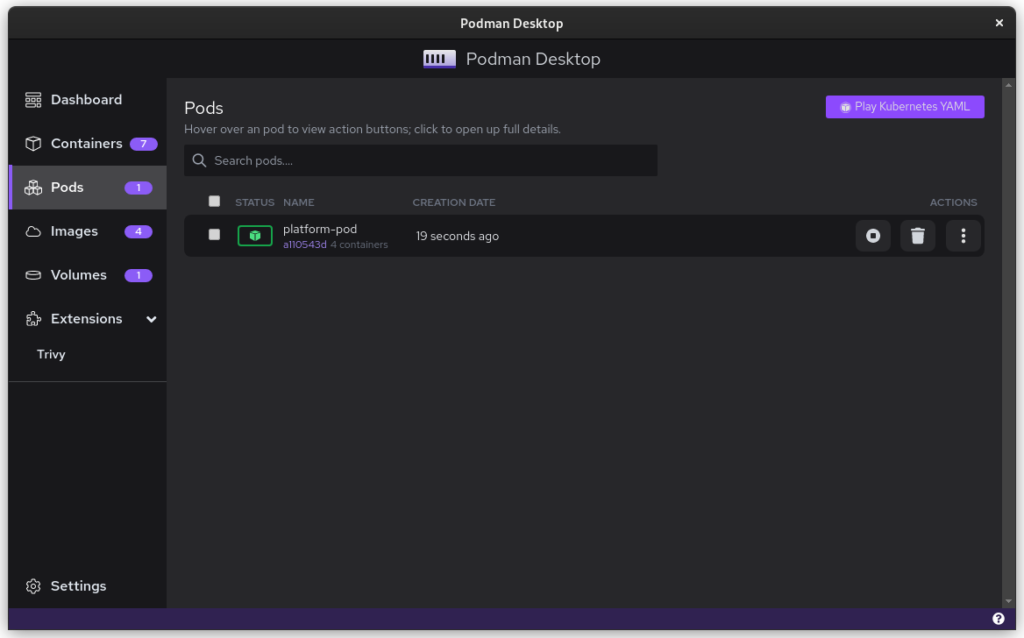
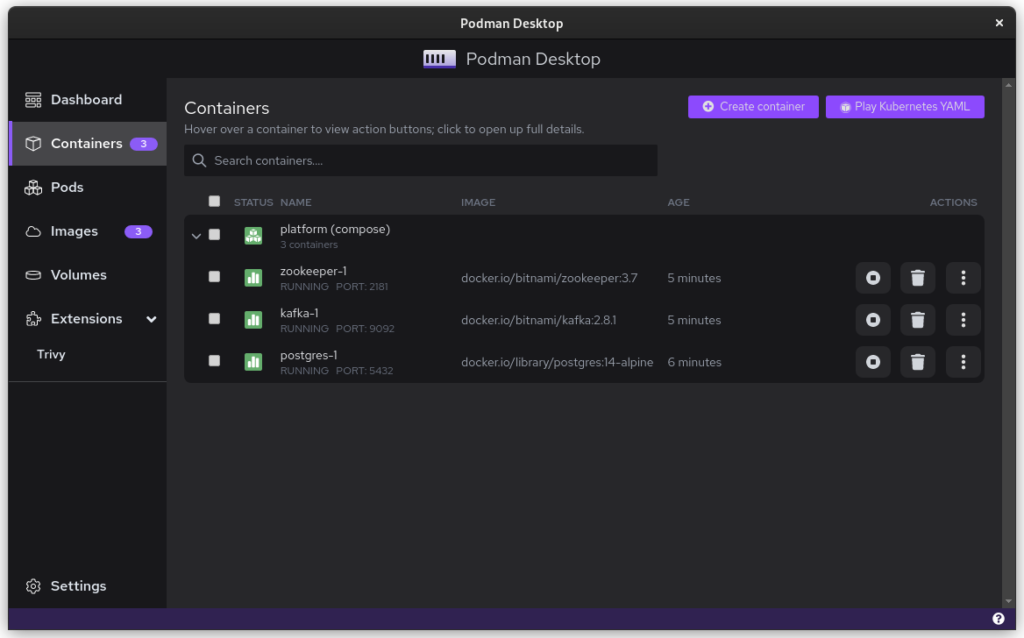
Once you start podman-compose with your old docker-compose .yaml file, you’ll see that you have a number of containers running in one ‘compose’ group. This is how things translate into the world of Podman. From here, you can select the containers and create a Pod. A Pod is a collection of containers that run in their own network.
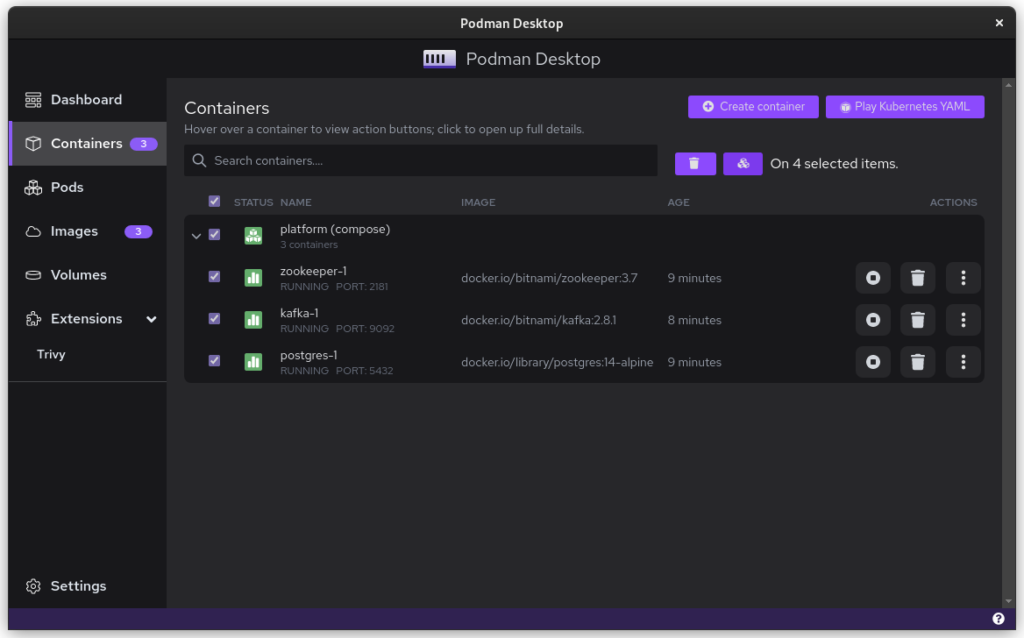
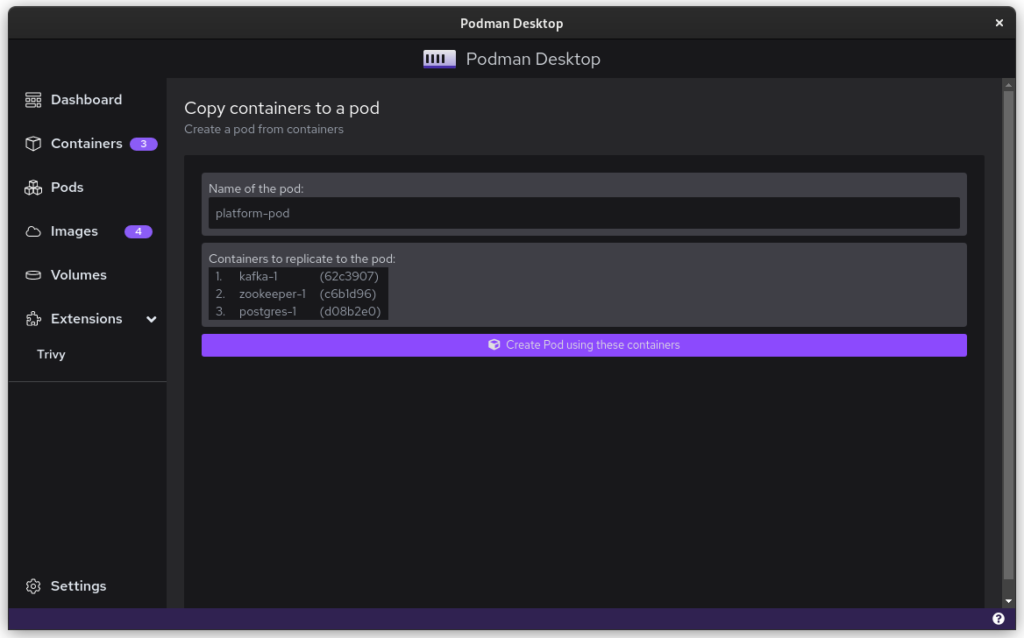
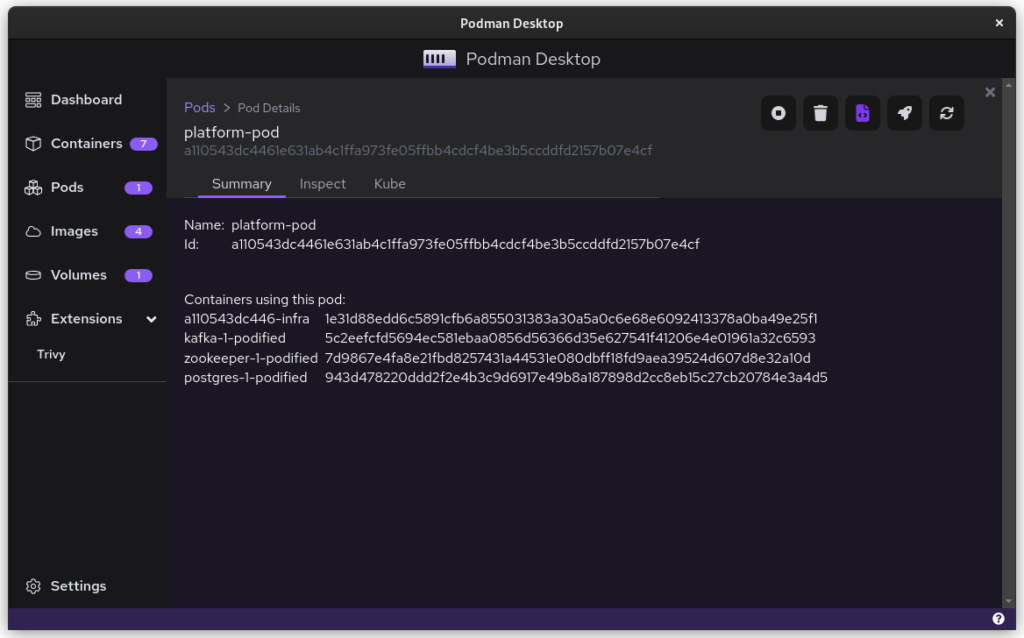
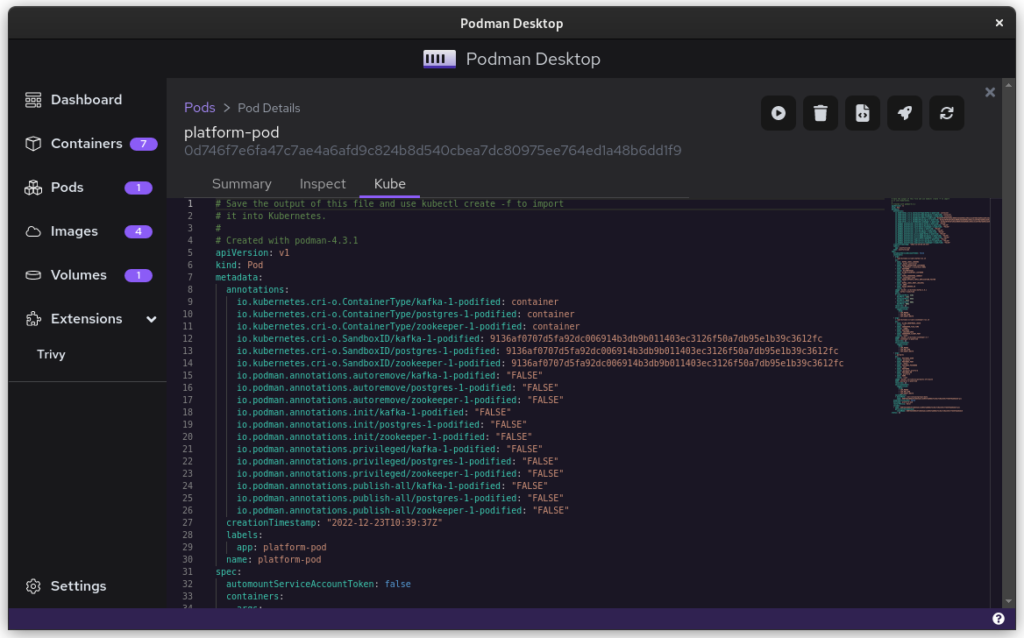
Once you inspect the Pod, you have a Kube file that represents this container collection. Save it somewhere and give it another critical look. You can likely remove some stuff without impacting the functioning of the system. After all, auto-generated documents will have some artifacts.

All three files from the demonstration can be seen here:

That’s it. You have now migrated from Docker to Podman. To start up Podman with the Kubernetes file simply do:

$ podman play kube podman-kube-platform-cleanup.yaml --replace
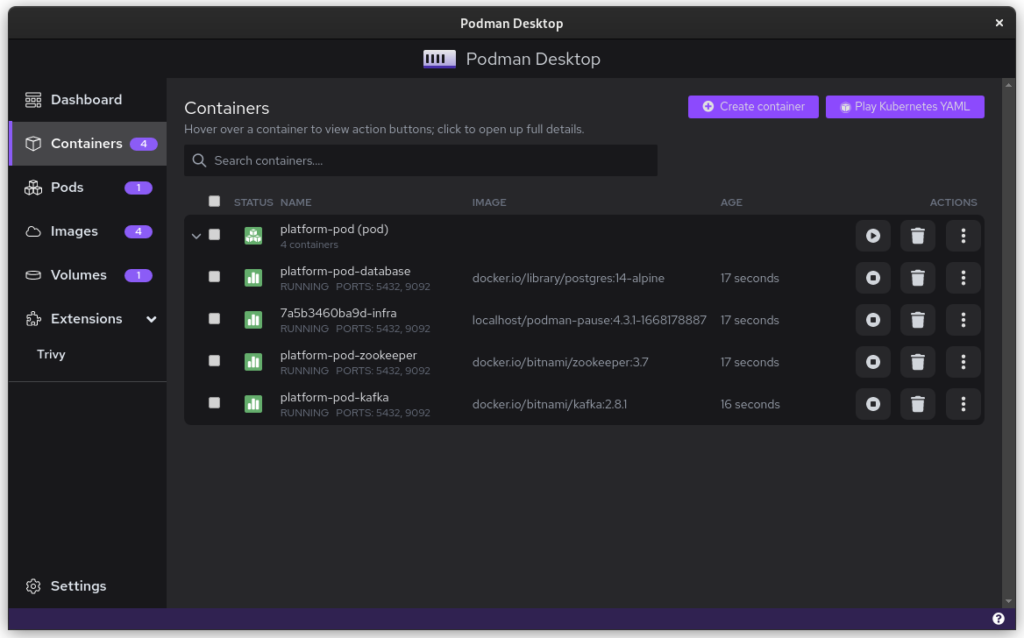
GitLab CI/CD

GitLab has a great set of open source and commercial offerings that allow you to automatically deploy and test your system. In the past, people working with Docker inside GitLab had to resort to a Docker-in-Docker solution. That gives many engineers headaches. A migration from Docker to Podman will resolve that problem.

For example, you can use Podman’s official image to easily build your own product image:

runner-setup: image: quay.io/podman/stable:latest stage: setup script: - podman login registry.gitlab.com -u ${COMPANY_CI_USERNAME} -p ${COMPANY_CI_PASSWORD} - podman build --pull --no-cache -t registry.gitlab.com/company/platform:latest -f ./distribute/image . - podman push registry.gitlab.com/company/platform:latest

In this example we use the official Podman stable image based on Fedora Linux 37. We use that to build the latest version of our platform based on the ./distribute/image file. We can do this all without ever having to set up Docker.

Tooling and integrations

Finally, we have to talk about certain tooling. Not all tooling will work equally well from the start. For example, the login that Amazon’s AWS CLI provides is hardcoded for Docker. Still, you can easily login to AWS by doing this:

$ aws ecr get-login-password --region $REGION | podman login --username AWS --password-stdin $AWS_REPO_NAME

Similarly, you can cache your registry credentials for both Podman and Docker. Do this with a single command like:

$ podman login registry.gitlab.com –authfile=${HOME}/.docker/config.json

Alternatives/Workarounds

Perhaps all of this sounds good, but you need more time to convince your team and company that embracing open source tools is great. In that case, you can add the following snippet to .bashrc and use Podman without changing the tooling of your team.

#Ensure that these aliases also affect other scripts
shopt -s expand_aliases alias docker=podman
alias docker-compose=podman-compose

This also offers you a chance to test the set-up that you have, in case of technical incompatibilities. You can also use the package podman-docker (available via dnf) to automatically convert Docker commands into Podman commands.

Company experience

The migration from Docker to Podman has been well received within my development team. The desktop experience for macOS and Windows users has improved since they no longer have to struggle with a tool that is closed source. The improvements to the CI system also help in maintaining the pipeline and it makes the integration tests run faster.

In day to day work, the team is really enthusiastic about the ease with which they can inspect running containers, manage images, and clean temporary volumes.

In the big picture, the migration from Docker to Podman further aids the company in limiting financial liabilities. Developers on macOS and Windows are no longer dependent on a closed-source product. Finally, it also means that the team gets some experience in Kubernetes, which will certainly pay off in the future.

Summary

The gains from switching to Podman really outweigh the bit of time it takes to set up and to migrate. The future is bright for Podman and Podman Desktop, and it offers a great solution to the problems that come with Docker.

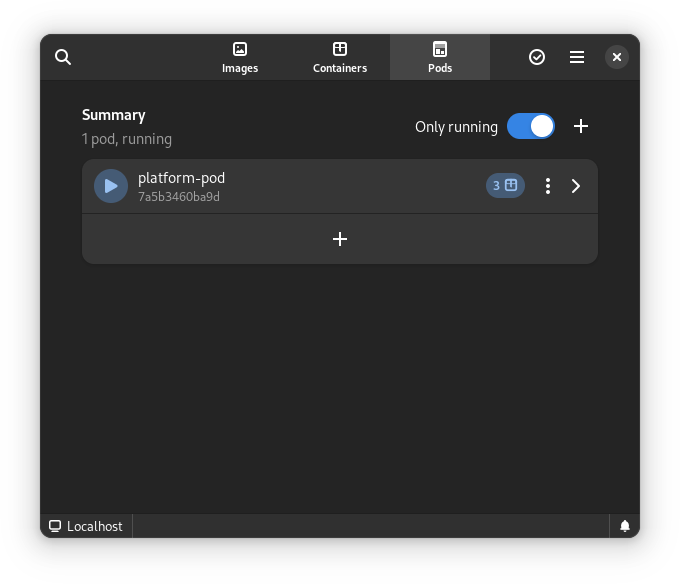
Finally, for us Fedora Linux users, there is another great benefit. There is some beautiful tooling in development that can make our lives so much easier. The following screenshots are of the application Pods. This is currently in active development but will certainly prove to be a useful tool in the future.
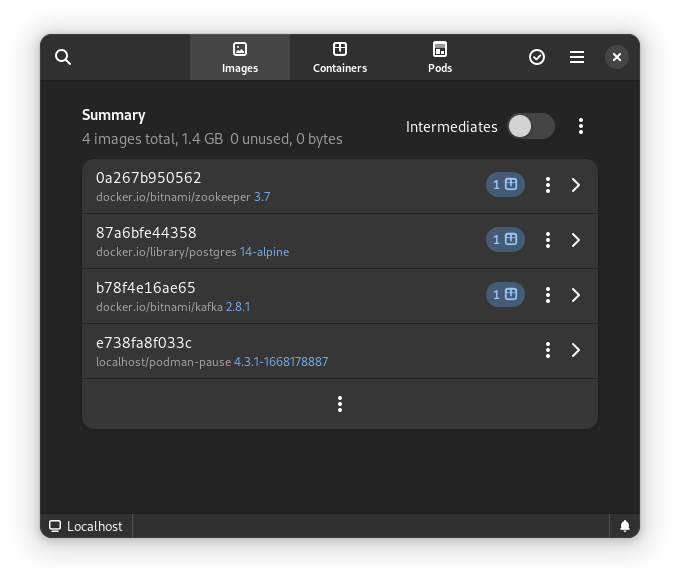
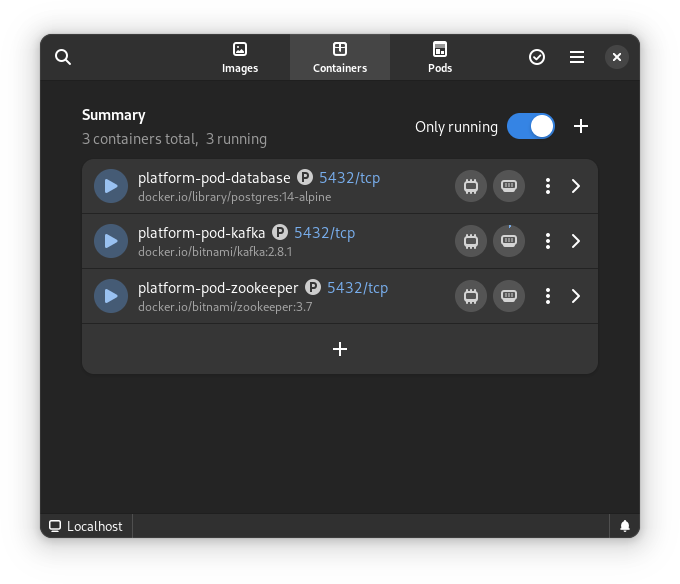
This article has been made possible by my employer, Bold Security Technologies. Got your own migration stories to share? Let us know in the comments.

Posted on Leave a comment

Docker and Fedora 32

With the release of Fedora 32, regular users of Docker have been confronted by a small challenge. At the time of writing, Docker is not supported on Fedora 32. There are alternatives, like Podman and Buildah, but for many existing users, switching now might not be the best time. As such, this article can help you set up your Docker environment on Fedora 32.

Step 0: Removing conflicts

This step is for any user upgrading from Fedora 30 or 31. If this is a fresh installation of Fedora 32, you can move on to step 1.

To remove docker and all its related components:

sudo dnf remove docker-*
sudo dnf config-manager --disable docker-*

Step 1: System preparation

With the last two versions of Fedora, the operating system has moved to two new technologies: CGroups and NFTables for the Firewall. While the details of these new technologies is behind the scope of this tutorial, it’s a sad fact that docker doesn’t support them yet. As such, you’ll have to make some changes to facilitate Docker on Fedora.

Enable old CGroups

The previous implementation of CGroups is still supported and it can be enabled using the following command.

sudo grubby --update-kernel=ALL --args="systemd.unified_cgroup_hierarchy=0"

Whitelist docker in firewall

To allow Docker to have network access, two commands are needed.

sudo firewall-cmd --permanent --zone=trusted --add-interface=docker0
sudo firewall-cmd --permanent --zone=FedoraWorkstation --add-masquerade

The first command will add the Docker-interface to the trusted environment which allows Docker to make remote connections. The second command will allow docker to make local connections. This is particularly useful when multiple Docker containers are in as a development environment.

Step 2: installing Moby

Moby is the open-source, white label version of Docker. It’s based on the same code but it does not carry the trademark. It’s included in the main Fedora repository, which makes it easy to install.

sudo dnf install moby-engine docker-compose

This installs moby-engine, docker-compose, containerd and some other related libraries. Once installed, you’ll have to enable the system-wide daemon to run docker.

sudo systemctl enable docker

Step 3: Restart and test

To ensure that all systems and settings are properly processed, you’ll now have to reboot your machine.

sudo systemctl reboot

After that, you can validate your installation using the Docker hello-world package.

sudo docker run hello-world

You are then greeted by the Hello from Docker! unless something went wrong.

Running as admin

Optionally, you can now also add your user to the group account of Docker, so that you can start docker images without typing sudo.

sudo groupadd docker
sudo usermod -aG docker $USER

Logout and login for the change to take effect. If the thought of running containers with administrator privileges concerns you, then you should look into Podman.

In summary

From this point on, Docker will work how you’re used to, including docker-compose and all docker-related tools. Don’t forget to check out the official documentation which can help you in many cases where something isn’t quite right.

The current state of Docker on Fedora 32 is not ideal. The lack of an official package might bother some, and there is an issue upstream where this is discussed. The missing support for both CGroups and NFTables is more technical, but you can check their progress in their public issues.

These instruction should allow you to continue working like nothing has happened. If this has not satisfied your needs, don’t forget to address your technical issues at the Moby or Docker Github pages, or take a look at Podman which might prove more robust in the long-term future.

Posted on Leave a comment

Using Kubernetes ConfigMaps to define your Quarkus application’s properties

So, you wrote your Quarkus application, and now you want to deploy it to a Kubernetes cluster. Good news: Deploying a Quarkus application to a Kubernetes cluster is easy. Before you do this, though, you need to straighten out your application’s properties. After all, your app probably has to connect with a database, call other services, and so on. These settings are already defined in your application.properties file, but the values match the ones for your local environment and won’t work once deployed onto your cluster.

So, how do you easily solve this problem? Let’s walk through an example.

Create the example Quarkus application

Instead of using a complex example, let’s take a simple use case that explains the concept well. Start by creating a new Quarkus app:

$ mvn io.quarkus:quarkus-maven-plugin:1.1.1.Final:create

You can keep all of the default values while creating the new application. In this example, the application is named hello-app. Now, open the HelloResource.java file and refactor it to look like this:

@Path("/hello") public class HelloResource { @ConfigProperty(name = "greeting.message") String message; @GET @Produces(MediaType.TEXT_PLAIN) public String hello() { return "hello " + message; } } 

In your application.properties file, now add greeting.message=localhost. The @ConfigProperty annotation is not in the scope of this article, but here we can see how easy it is to inject properties inside our code using this annotation.

Now, let’s start our application to see if it works as expected:

$ mvn compile quarkus:dev

Browse to http://localhost:8080/hello, which should output hello localhost. That’s it for the Quarkus app. It’s ready to go.

Deploy the application to the Kubernetes cluster

The idea here is to deploy this application to our Kubernetes cluster and replace the value of our greeting property with one that will work on the cluster. It is important to know here that all of the properties from application.properties are exposed, and thus can be overridden with environment variables. The convention is to convert the name of the property to uppercase and replace every dot (.) with an underscore (_). So, for instance, our greeting.message will become GREETING_MESSAGE.

At this point, we are almost ready to deploy our app to Kubernetes, but we need to do three more things:

  1. Create a Docker image of your application and push it to a repository that your cluster can access.
  2. Define a ConfgMap resource.
  3. Generate the Kubernetes resources for our application.

To create the Docker image, simply execute this command:

$ docker build -f src/main/docker/Dockerfile.jvm -t quarkus/hello-app .

Be sure to set the right Docker username and to also push to an image registry, like docker-hub or quay. If you are not able to push an image, you can use sebi2706/hello-app:latest.

Next, create the file config-hello.yml:

apiVersion: v1 data: greeting: "Kubernetes" kind: ConfigMap metadata: name: hello-config 

Make sure that you are connected to a cluster and apply this file:

$ kubectl apply -f config-hello.yml

Quarkus comes with a useful extension, quarkus-kubernetes, that generates the Kubernetes resources for you. You can even tweak the generated resources by providing extra properties—for more details, check out this guide.

After installing the extension, add these properties to our application.properties file so it generates extra configuration arguments for our containers specification:

kubernetes.group=yourDockerUsername kubernetes.env-vars[0].name=GREETING_MESSAGE kubernetes.env-vars[0].value=greeting kubernetes.env-vars[0].configmap=hello-config

Run mvn package and view the generated resources in target/kubernetes. The interesting part is in spec.containers.env:

- name: "GREETING_MESSAGE"   valueFrom:   configMapKeyRef:     key: "greeting"    name: "hello-config"

Here, we see how to pass an environment variable to our container with a value coming from a ConfigMap. Now, simply apply the resources:

$ kubectl apply -f target/kubernetes/kubernetes.yml

Expose your service:

kubectl expose deployment hello --type=NodePort

Then, browse to the public URL or do a curl. For instance, with Minikube:

$ curl $(minikube service hello-app --url)/hello

This command should output: hello Kubernetes.

Conclusion

Now you know how to use a ConfigMap in combination with environment variables and your Quarkus’s application.properties. As we said in the introduction, this technique is particularly useful when defining a DB connection’s URL (like QUARKUS_DATASOURCE_URL) or when using the quarkus-rest-client (ORG_SEBI_OTHERSERVICE_MP_REST_URL).

Share

The post Using Kubernetes ConfigMaps to define your Quarkus application’s properties appeared first on Red Hat Developer.

Posted on Leave a comment

Manage your passwords with Bitwarden and Podman

You might have encountered a few advertisements the past year trying to sell you a password manager. Some examples are LastPass, 1Password, or Dashlane. A password manager removes the burden of remembering the passwords for all your websites. No longer do you need to re-use passwords or use easy-to-remember passwords. Instead, you only need to remember one single password that can unlock all your other passwords for you.

This can make you more secure by having one strong password instead of many weak passwords. You can also sync your passwords across devices if you have a cloud-based password manager like LastPass, 1Password, or Dashlane. Unfortunately, none of these products are open source. Luckily there are open source alternatives available.

Open source password managers

These alternatives include Bitwarden, LessPass, or KeePass. Bitwarden is an open source password manager that stores all your passwords encrypted on the server, which works the same way as LastPass, 1Password, or Dashlane. LessPass is a bit different as it focuses on being a stateless password manager. This means it derives passwords based on a master password, the website, and your username rather than storing the passwords encrypted. On the other side of the spectrum there’s KeePass, a file-based password manager with a lot of flexibility with its plugins and applications.

Each of these three apps has its own downsides. Bitwarden stores everything in one place and is exposed to the web through its API and website interface. LessPass can’t store custom passwords since it’s stateless, so you need to use their derived passwords. KeePass, a file-based password manager, can’t easily sync between devices. You can utilize a cloud-storage provider together with WebDAV to get around this, but a lot of clients do not support it and you might get file conflicts if devices do not sync correctly.

This article focuses on Bitwarden.

Running an unofficial Bitwarden implementation

There is a community implementation of the server and its API called bitwarden_rs. This implementation is fully open source as it can use SQLite or MariaDB/MySQL, instead of the proprietary Microsoft SQL Server that the official server uses.

It’s important to recognize some differences exist between the official and the unofficial version. For instance, the official server has been audited by a third-party, whereas the unofficial one hasn’t. When it comes to implementations, the unofficial version lacks email confirmation and support for two-factor authentication using Duo or email codes.

Let’s get started running the server with SELinux in mind. Following the documentation for bitwarden_rs you can construct a Podman command as follows:

$ podman run -d \ 
--userns=keep-id \
--name bitwarden \
-e SIGNUPS_ALLOWED=false \
-e ROCKET_PORT=8080 \
-v /home/egustavs/Bitwarden/bw-data/:/data/:Z \
-p 8080:8080 \
bitwardenrs/server:latest

This downloads the bitwarden_rs image and runs it in a user container under the user’s namespace. It uses a port above 1024 so that non-root users can bind to it. It also changes the volume’s SELinux context with :Z to prevent permission issues with read-write on /data.

If you host this under a domain, it’s recommended to put this server under a reverse proxy with Apache or Nginx. That way you can use port 80 and 443 which points to the container’s 8080 port without running the container as root.

Running under systemd

With Bitwarden now running, you probably want to keep it that way. Next, create a unit file that keeps the container running, automatically restarts if it doesn’t respond, and starts running after a system restart. Create this file as /etc/systemd/system/bitwarden.service:

[Unit]
Description=Bitwarden Podman container
Wants=syslog.service

[Service]
User=egustavs
Group=egustavs
TimeoutStartSec=0
ExecStart=/usr/bin/podman run 'bitwarden'
ExecStop=-/usr/bin/podman stop -t 10 'bitwarden'
Restart=always
RestartSec=30s
KillMode=none

[Install]
WantedBy=multi-user.target

Now, enable and start it using sudo:

$ sudo systemctl enable bitwarden.service && sudo systemctl start bitwarden.service
$ systemctl status bitwarden.service
bitwarden.service - Bitwarden Podman container
Loaded: loaded (/etc/systemd/system/bitwarden.service; enabled; vendor preset: disabled)
Active: active (running) since Tue 2019-07-09 20:23:16 UTC; 1 day 14h ago
Main PID: 14861 (podman)
Tasks: 44 (limit: 4696)
Memory: 463.4M

Success! Bitwarden is now running under system and will keep running.

Adding LetsEncrypt

It’s strongly recommended to run your Bitwarden instance through an encrypted channel with something like LetsEncrypt if you have a domain. Certbot is a bot that creates LetsEncrypt certificates for us, and they have a guide for doing this through Fedora.

After you generate a certificate, you can follow the bitwarden_rs guide about HTTPS. Just remember to append :Z to the LetsEncrypt volume to handle permissions while not changing the port.


Photo by CMDR Shane on Unsplash.

Posted on Leave a comment

Use udica to build SELinux policy for containers

While modern IT environments move towards Linux containers, the need to secure these environments is as relevant as ever. Containers are a process isolation technology. While containers can be a defense mechanism, they only excel when combined with SELinux.

Fedora SELinux engineering built a new standalone tool, udica, to generate SELinux policy profiles for containers by automatically inspecting them. This article focuses on why udica is needed in the container world, and how it makes SELinux and containers work better together. You’ll find examples of SELinux separation for containers that let you avoid turning protection off because the generic SELinux type container_t is too tight. With udica you can easily customize the policy with limited SELinux policy writing skills.

SELinux technology

SELinux is a security technology that brings proactive security to Linux systems. It’s a labeling system that assigns a label to all subjects (processes and users) and objects (files, directories, sockets, etc.). These labels are then used in a security policy that controls access throughout the system. It’s important to mention that what’s not allowed in an SELinux security policy is denied by default. The policy rules are enforced by the kernel. This security technology has been in use on Fedora for several years. A real example of such a rule is:

allow httpd_t httpd_log_t: file { append create getattr ioctl lock open read setattr };

The rule allows any process labeled as httpd_t to create, append, read and lock files labeled as httpd_log_t. Using the ps command, you can list all processes with their labels:

$ ps -efZ | grep httpd
system_u:system_r:httpd_t:s0 root 13911 1 0 Apr14 ? 00:05:14 /usr/sbin/httpd -DFOREGROUND
...

To see which objects are labeled as httpd_log_t, use semanage:

# semanage fcontext -l | grep httpd_log_t
/var/log/httpd(/.)? all files system_u:object_r:httpd_log_t:s0
/var/log/nginx(/.)? all files system_u:object_r:httpd_log_t:s0
...

The SELinux security policy for Fedora is shipped in the selinux-policyRPM package.

SELinux vs. containers

In Fedora, the container-selinux RPM package provides a generic SELinux policy for all containers started by engines like podman or docker. Its main purposes are to protect the host system against a container process, and to separate containers from each other. For instance, containers confined by SELinux with the process type container_t can only read/execute files in /usr and write to container_file_t files type on host file system. To prevent attacks by containers on each other, Multi-Category Security (MCS) is used.

Using only one generic policy for containers is problematic, because of the huge variety of container usage. On one hand, the default container type (container_t) is often too strict. For example:

  • Fedora SilverBlue needs containers to read/write a user’s home directory
  • Fluentd project needs containers to be able to read logs in the /var/log directory

On the other hand, the default container type could be too loose for certain use cases:

  • It has no SELinux network controls — all container processes can bind to any network port
  • It has no SELinux control on Linux capabilities — all container processes can use all capabilities

There is one solution to handle both use cases: write a custom SELinux security policy for the container. This can be tricky, because SELinux expertise is required. For this purpose, the udica tool was created.

Introducing udica

Udica generates SELinux security profiles for containers. Its concept is based on the “block inheritance” feature inside the common intermediate language (CIL) supported by SELinux userspace. The tool creates a policy that combines:

  • Rules inherited from specified CIL blocks (templates), and
  • Rules discovered by inspection of container JSON file, which contains mountpoints and ports definitions

You can load the final policy immediately, or move it to another system to load into the kernel. Here’s an example, using a container that:

  • Mounts /home as read only
  • Mounts /var/spool as read/write
  • Exposes port tcp/21

The container starts with this command:

# podman run -v /home:/home:ro -v /var/spool:/var/spool:rw -p 21:21 -it fedora bash

The default container type (container_t) doesn’t allow any of these three actions. To prove it, you could use the sesearch tool to query that the allow rules are present on system:

# sesearch -A -s container_t -t home_root_t -c dir -p read 

There’s no allow rule present that lets a process labeled as container_t access a directory labeled home_root_t (like the /home directory). The same situation occurs with /var/spool, which is labeled var_spool_t:

# sesearch -A -s container_t -t var_spool_t -c dir -p read

On the other hand, the default policy completely allows network access.

# sesearch -A -s container_t -t port_type -c tcp_socket
allow container_net_domain port_type:tcp_socket { name_bind name_connect recv_msg send_msg };
allow sandbox_net_domain port_type:tcp_socket { name_bind name_connect recv_msg send_msg };

Securing the container

It would be great to restrict this access and allow the container to bind just on TCP port 21 or with the same label. Imagine you find an example container using podman ps whose ID is 37a3635afb8f:

# podman ps -q
37a3635afb8f

You can now inspect the container and pass the inspection file to the udica tool. The name for the new policy is my_container.

# podman inspect 37a3635afb8f > container.json
# udica -j container.json my_container
Policy my_container with container id 37a3635afb8f created!

Please load these modules using:
# semodule -i my_container.cil /usr/share/udica/templates/{base_container.cil,net_container.cil,home_container.cil}

Restart the container with: "--security-opt label=type:my_container.process" parameter

That’s it! You just created a custom SELinux security policy for the example container. Now you can load this policy into the kernel and make it active. The udica output above even tells you the command to use:

# semodule -i my_container.cil /usr/share/udica/templates/{base_container.cil,net_container.cil,home_container.cil}

Now you must restart the container to allow the container engine to use the new custom policy:

# podman run --security-opt label=type:my_container.process -v /home:/home:ro -v /var/spool:/var/spool:rw -p 21:21 -it fedora bash

The example container is now running in the newly created my_container.process SELinux process type:

# ps -efZ | grep my_container.process
unconfined_u:system_r:container_runtime_t:s0-s0:c0.c1023 root 2275 434 1 13:49 pts/1 00:00:00 podman run --security-opt label=type:my_container.process -v /home:/home:ro -v /var/spool:/var/spool:rw -p 21:21 -it fedora bash
system_u:system_r:my_container.process:s0:c270,c963 root 2317 2305 0 13:49 pts/0 00:00:00 bash

Seeing the results

The command sesearch now shows allow rules for accessing /home and /var/spool:

# sesearch -A -s my_container.process -t home_root_t -c dir -p read
allow my_container.process home_root_t:dir { getattr ioctl lock open read search };
# sesearch -A -s my_container.process -t var_spool_t -c dir -p read
allow my_container.process var_spool_t:dir { add_name getattr ioctl lock open read remove_name search write }

The new custom SELinux policy also allows my_container.process to bind only to TCP/UDP ports labeled the same as TCP port 21:

# semanage port -l | grep 21 | grep ftp
ftp_port_t tcp 21, 989, 990
# sesearch -A -s my_container.process -c tcp_socket -p name_bind
allow my_container.process ftp_port_t:tcp_socket name_bind;

Conclusion

The udica tool helps you create SELinux policies for containers based on an inspection file without any SELinux expertise required. Now you can increase the security of containerized environments. Sources are available on GitHub, and an RPM package is available in Fedora repositories for Fedora 28 and later.


Photo by Samuel Zeller on Unsplash.