
Fedora Silverblue is an operating system for your desktop built on Fedora Linux. It’s excellent for daily use, development, and container-based workflows. It offers numerous advantages such as being able to roll back in case of any problems. If you want to rebase to Fedora Linux 43 on your Fedora Silverblue system, this article tells you how. It not only shows you what to do, but also how to revert things if something unforeseen happens.
Update your existing system
Prior to actually doing the rebase to Fedora Linux 43, you should apply any pending updates. Enter the following in the terminal:
$ rpm-ostree update
or install updates through GNOME Software and reboot.
Note
rpm-ostree is the underlying atomic technology that all the Fedora Atomic Desktops use. The techniques described here for Silverblue will apply to all of them with proper modifications for the appropriate desktop.
Rebasing using GNOME Software
GNOME Software shows you that there is new version of Fedora Linux available on the Updates screen.
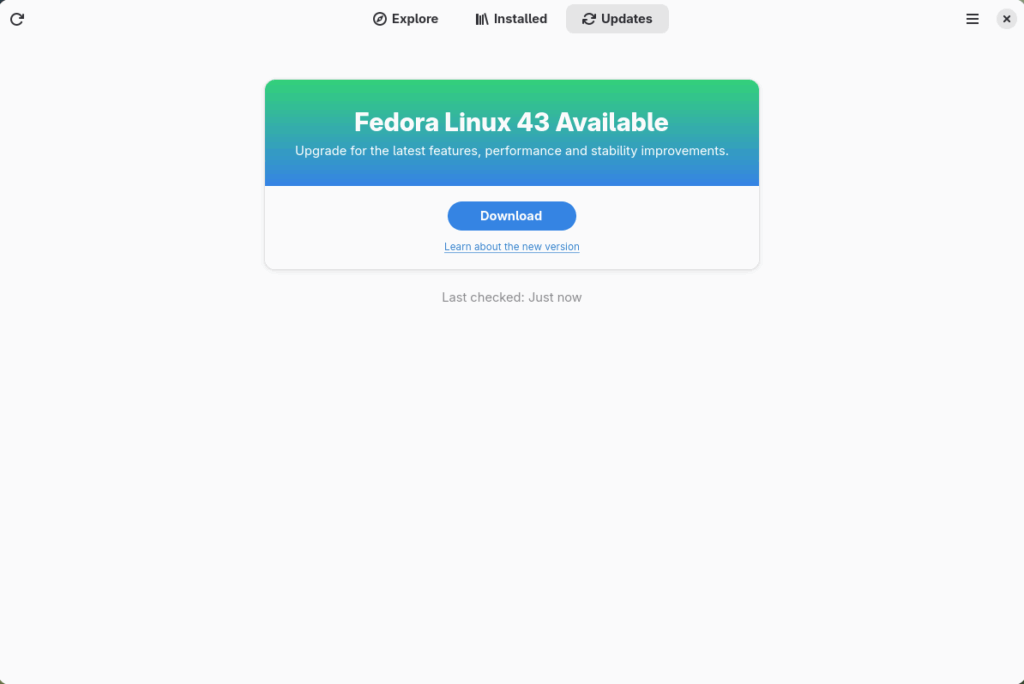
First thing to do is download the new image, so select the Download button. This will take some time. When it is done you will see that the update is ready to install.
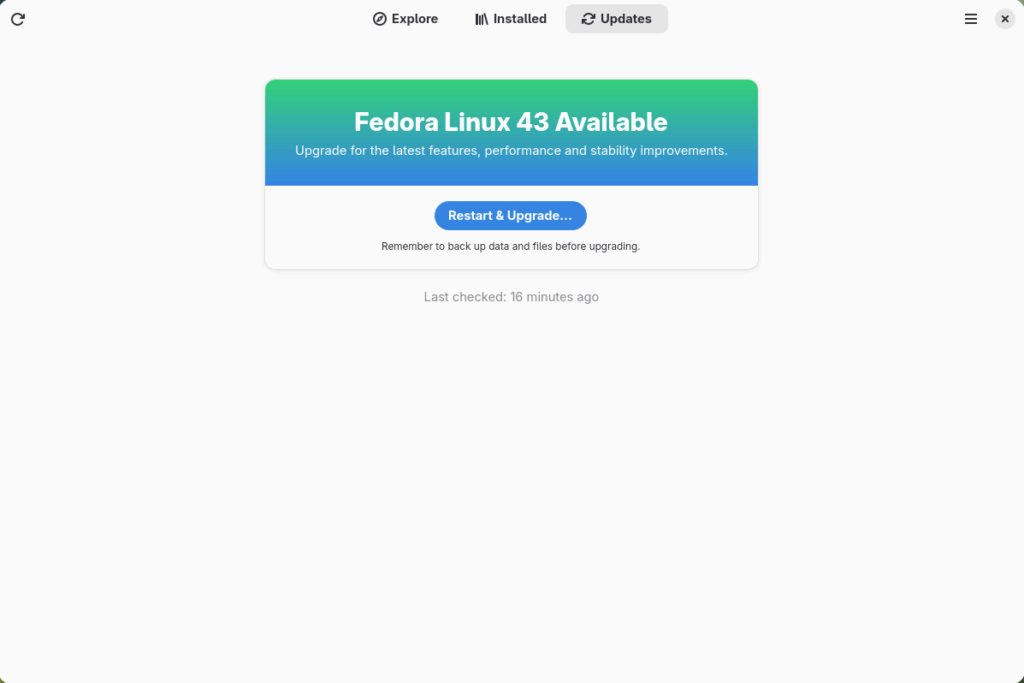
Select the Restart & Upgrade button. This step will take only a few moments and the computer will restart when the update has completed. After the restart you will end up in a new and shiny release of Fedora Linux 43. Easy, isn’t it?
Rebasing using terminal
If you prefer to do everything in a terminal, then this part of the guide is for you.
Rebasing to Fedora Linux 43 using the terminal is easy. First, check if the 43 branch is available:
$ ostree remote refs fedora
You should see the following in the output:
fedora:fedora/43/x86_64/silverblue
If you want to pin the current deployment (meaning that this deployment will stay as an option in GRUB until you remove it), you can do this by running this command:
# 0 is entry position in rpm-ostree status
$ sudo ostree admin pin 0
To remove the pinned deployment use the following command:
# 2 is entry position in rpm-ostree status
$ sudo ostree admin pin --unpin 2
Next, rebase your system to the Fedora Linux 43 branch.
$ rpm-ostree rebase fedora:fedora/43/x86_64/silverblue
Finally, the last thing to do is restart your computer and boot to Fedora Linux 43.
How to roll back
If anything bad happens (for instance, if you can’t boot to Fedora Linux 43 at all) it’s easy to go back. At boot time, pick the entry in the GRUB menu for the version prior to Fedora Linux 43 and your system will start in that previous version rather than Fedora Linux 43. If you don’t see the GRUB menu, try to press ESC during boot. To make the change to the previous version permanent, use the following command:
$ rpm-ostree rollback
That’s it. Now you know how to rebase Fedora Silverblue to Fedora Linux 43 and roll back. So why not do it today?
Known Issues
FAQ
Because there are similar questions in comments for each blog about rebasing to newer version of Silverblue I will try to answer them in this section.
Question: Can I skip versions during rebase of Fedora? For example from Fedora 40 Silverblue to Fedora 43 Silverblue?
Answer: Although it could sometimes be possible to skip versions during rebase, it is not recommended. You should always update to one version above (40->41->42->43 for example) to avoid unnecessary errors.
Question: I have rpm-fusion layered and I get errors during rebase. How should I do the rebase?
Answer: If you have rpm-fusion layered on your Silverblue installation, you should do the following before rebase:
$ rpm-ostree update --uninstall rpmfusion-free-release --uninstall rpmfusion-nonfree-release --install rpmfusion-free-release --install rpmfusion-nonfree-release
After doing this you can follow the guide in this blog post.
Question: Could this guide be used for other ostree editions (Fedora Atomic Desktops) as well like Kinoite, Sericea (Sway Atomic), Onyx (Budgie Atomic),…?
Yes, you can follow the Rebasing using the terminal part of this guide for every Fedora Atomic Desktop. Just use the corresponding branch. For example, for Kinoite use fedora:fedora/43/x86_64/kinoite