Posted on Leave a comment

Community container images available for applications development

This article aims to introduce community containers, where users can pull them from, and use them. The three groups of containers available for use by community users are discussed. These are: Fedora, CentOS, and CentOS Stream.

What are the differences between the containers?

Fedora containers are based on the latest stable Fedora content, and CentOS-7 containers are based on components from the CentOS-7 and related SCLo SIG components. And finally, CentOS Stream containers are based on either CentOS Stream 8 or CentOS Stream 9.

Each container, e.g. s2i-php-container or s2i-perl-container, contain the same packages which are available for a given operating system. It means, that from a functionality point of view these example containers provides the PHP interpreter or Perl interpreter,respectively. 

Differences can be only in versions, which are available for each distribution. For example:

Fedora PHP containers are available in these versions:

CentOS-7 PHP containers are available in these versions:

CentOS Stream 9 PHP containers are available in these versions:

CentOS Stream 8 is not mentioned here for the PHP use case since users can pull it directly from the Red Hat Container Catalog registry as a UBI image. Containers that are not UBI based have CentOS Stream 8 repositories in the quay.io/sclorg namespace with repository suffix “-c8s”.

Fedora container images moved recently

The Fedora container images have recently moved to the quay.io/fedora registry organization. All of them use Fedora:35, and later Fedora:36 ,as a base image. The CentOS-7 containers are stored in the quay.io/centos7 registry organization. All of them use CentOS-7 as a base image.

CentOS Stream container images

The CentOS Stream containers are stored in the quay.io/sclorg registry organization.

The base image used for our CentOS Stream 8 containers is CentOS Stream 8 with the tag “stream8”.

The base image used for our CentOS Stream 9 containers is CentOS Stream 9 with the tag “stream9”.

In this registry organization, each container contains a “suffix”, either “c8s”  for CentOS Stream 8 or “c9s” for CentOS Stream 9, respectively.

See container PHP-74 for CentOS Stream 9.

Frequency of container image updates and testing

The community-based containers are updated in two ways.

First, when a pull request in the container sources that live under github.com/sclorg organization is merged, the corresponding versions in the GitHub repository are built and pushed into the proper repository.

Second, an update process is also implemented by GitHub Actions set up in each of our GitHub repositories. The base images, like “s2i-core” and “s2i-base”, are built each Tuesday at 1:00 pm. The rest of the containers are built each Wednesday at 1:00 pm.

This means every package update or change is updated in the container image within a few days, not later than after a week.

Each container that is not beyond its end of life is tested by our nightly builds. If we discover or detect an error on some of our containers, we attempt to fix it, but there are no guarantees provided.

What container shall I use?

In the end, what containers are we providing? That’s a great question. All containers live in the GitHub organization https://github.com/sclorg

The list of containers with their upstreams is summarized here:

How to use the container image I picked?

All container images are tuned up to be fully functional in the OpenShift (or OKD and even Kubernetes itself) without any trouble. Some containers support the source-to-image build strategy while some are expected to be used as daemons (like databases, for instance). For specific steps, please, navigate to the GitHub page for the respective container image by following one of the links above.

Finally, Some Real examples

Let’s show how to use PHP container images across all platforms that we support.

First of all, clone the container GitHub repository using this command:

$ git clone https://github.com/sclorg/s2i-php-container

Switch to the following directory created by the cloning step:

$ cd s2i-php-container/examples/from-dockerfile

Fedora example

Start by pulling the Fedora PHP-80 image with this command:

$ podman pull quay.io/fedora/php-80

Modify “Dockerfile” so it refers to Fedora php-80 image. “Dockerfile” then looks like:

FROM quay.io/fedora/php-80 USER 0
# Add application sources
ADD app-src .
RUN chown -R 1001:0 .
USER 1001 # Install the dependencies
RUN TEMPFILE=$(mktemp) && \ curl -o "$TEMPFILE" "https://getcomposer.org/installer" && \ php <"$TEMPFILE" && \ ./composer.phar install --no-interaction --no-ansi --optimize-autoloader # Run script uses standard ways to configure the PHP application
# and execs httpd -D FOREGROUND at the end
# See more in <version>/s2i/bin/run in this repository.
# Shortly what the run script does: The httpd daemon and php need to be
# configured, so this script prepares the configuration based on the container
# parameters (e.g. available memory) and puts the configuration files into
# the appropriate places.
# This can obviously be done differently, and in that case, the final CMD
# should be set to "CMD httpd -D FOREGROUND" instead.
CMD /usr/libexec/s2i/run

Check if the application works properly

Build it by using this command:

$ podman build -f Dockerfile -t cakephp-app-80

Now run the application using this command:

$ podman run -ti --rm -p 8080:8080 cakephp-app-80

To check the PHP version use these commands:

$ podman run -it –rm cakephp-app-80 bash
$ php –version

To check if everything works properly use this command:

$ curl -s -w ‘%{http_code}’ localhost:8080

This should return HTTP code 200. If you would like to see a web page enter “localhost:8080” in your browser.

CentOS 7 example

Start by pulling the CentOS-7 PHP-73 image using this command:

$ podman pull quay.io/centos7/php-73-centos7

Modify “Dockerfile” so it refers to CentOS php-73 image.

“Dockerfile” then looks like this:

FROM quay.io/centos7/php-73-centos7 USER 0
# Add application sources
ADD app-src .
RUN chown -R 1001:0 .
USER 1001 # Install the dependencies
RUN TEMPFILE=$(mktemp) && \ curl -o "$TEMPFILE" "https://getcomposer.org/installer" && \ php <"$TEMPFILE" && \ ./composer.phar install --no-interaction --no-ansi --optimize-autoloader # Run script uses standard ways to configure the PHP application
# and execs httpd -D FOREGROUND at the end
# See more in <version>/s2i/bin/run in this repository.
# Shortly what the run script does: The httpd daemon and php needs to be
# configured, so this script prepares the configuration based on the container
# parameters (e.g. available memory) and puts the configuration files into
# the appropriate places.
# This can obviously be done differently, and in that case, the final CMD
# should be set to "CMD httpd -D FOREGROUND" instead.
CMD /usr/libexec/s2i/run

Check if the application works properly

Build it using this command:

$ podman build -f Dockerfile -t cakephp-app-73

Now run the application using this command:

$ podman run -ti --rm -p 8080:8080 cakephp-app-73

To check the PHP version us these commands:

$ podman run -it –rm cakephp-app-73 bash
$ php –version

To check if everything works properly use this command:

curl -s -w ‘%{http_code}’ localhost:8080

which should return HTTP code 200. If you would like to see a web page enter localhost:8080 in your browser.

RHEL 9 UBI 9 real example

Start by pulling the RHEL9 UBI-based PHP-80 image using the command:

$ podman pull registry.access.redhat.com/ubi9/php-80

Modify “Dockerfile” so it refers to the RHEL9 ubi9 php-80 image.

“Dockerfile” then looks like:

FROM registry.access.redhat.com/ubi9/php-80 USER 0
# Add application sources
ADD app-src .
RUN chown -R 1001:0 .
USER 1001 # Install the dependencies
RUN TEMPFILE=$(mktemp) && \ curl -o "$TEMPFILE" "https://getcomposer.org/installer" && \ php <"$TEMPFILE" && \ ./composer.phar install --no-interaction --no-ansi --optimize-autoloader # Run script uses standard ways to configure the PHP application
# and execs httpd -D FOREGROUND at the end
# See more in <version>/s2i/bin/run in this repository.
# Shortly what the run script does: The httpd daemon and php needs to be
# configured, so this script prepares the configuration based on the container
# parameters (e.g. available memory) and puts the configuration files into
# the appropriate places.
# This can obviously be done differently, and in that case, the final CMD
# should be set to "CMD httpd -D FOREGROUND" instead.
CMD /usr/libexec/s2i/run

Check if the application works properly

Build it using this command:

$ podman build -f Dockerfile -t cakephp-app-80-ubi9

Now run the application using this command:

$ podman run -ti --rm -p 8080:8080 cakephp-app-80-ubi9

To check the PHP version use these commands:

$ podman run -it –rm cakephp-app-80-ubi9 bash
$ php –version

To check if everything works properly use this command:

curl -s -w ‘%{http_code}’ localhost:8080

which should return HTTP code 200. If you would like to see a web page enter localhost:8080 in your browser.

What to do in the case of a bug or enhancement

Just file a bug (known as an “issue” in GitHub) or even a pull request with a fix, to one of the GitHub repositories mentioned in the previous section.

Posted on Leave a comment

DIY Embroidery with Inkscape and Ink/Stitch

Introduction

Embroidered shirts are great custom gifts and can also be a great way to show your love for open source. This tutorial will demonstrate how to design your own custom embroidered polo shirt using Inkscape and Ink/Stitch. Polo shirts are often used for embroidery because they do not tear as easily as t-shirts when pierced by embroidery needles, though with care t-shirts can also be embroidered. This tutorial is a follow on article to Make More with Inkscape and Ink/Stitch and provides complete steps to create your design.

Logo on Front of Shirt

Pictures with only a few colors work well for embroidery. Let us use a public domain black and white SVG image of Tux created by Ryan Lerch and Garret LeSage.

Black and white image of Tux, the Linux penguin mascot.
Black and white image of Tux

Download this public domain image, tux-bw.svg, to your computer, and import it into your document as an editable SVG image using File>Import...

Image of Tux imported into an Inkscape document
Image of Tux with text to be embroidered

Use a Transparent Background

It is helpful to have a checkerboard background to distinguish background and foreground colors. Click File>Document Properties… and then check the box to enable a checkerboard background.

Document properties dialog box
Dialog box to enable checkerboard document background

Then close the document properties dialog box. You can now distinguish between colors used on Tux and the background color.

Tux the Linux mascot in an Inkscape document with a checkered background
Tux can be distinguished from the document background

Use a Single Color For Tux

Type s to use the Select and Transform objects tool, and click on the image of Tux to select it. Then click on Object>Fill and Stroke, in the menu. Type n to use the Edit paths by Nodes tool and click on a white portion of Tux. Within the Fill and Stroke pane change the fill to No paint to make this portion of Tux transparent.

The central portion of Tux that was formerly white is now transparent
Tux in one color

Thi leaves the black area to be embroidered.

Enable Embroidering of Tux

Now convert the image for embroidery. Type s to use the Select and Transform objects tool and click on the image of Tux to select it again. Choose Extensions>Ink/Stitch>Fill Tools>Break Apart Fill Objects … In the resulting pop up, choose Complex, click Apply, and wait for the operation to complete.

Dialog box showing simple and complex options for break objects apart function in Ink/Stitch
Dialog to Break Apart Fill Objects

For further explanation of this operation, see the Ink/Stitch documentation.

Resize Document

Now resize the area to be embroidered. A good size is about 2.75 inches by 2.75 inches. Press s to use the Select and Transform objects tool, and select Tux, hold down the shift key, and also select any text area. Then choose Object>Transform …, click on Scale in the dialogue box, change the measurements to inches, check the Scale proportionally box and choose a width of 2.75 inches, and click Apply.

Tux has been resized to have a width of 2.75 inches, which is also shown in a dialog box
Resized drawing

Before saving the design, reduce the document area to just fit the image. Press s to use the Select and Transform objects tool, then select Tux.

Inkscape window with black and white Tux on a checkered background with the transform dialog box
Objects selected to determine resize area

Choose File>Document Properties… then choose Resize to content: or press Ctrl+Shift+R

Document properties dialog box with options to have a checkerboard background, resize to content, change the page orientation and others
Dialog to resize page

The document is resized.

Tux in a resized document that fits closely
Resized document

Save Your Design

You now need to convert your file to an embroidery file. A very portable format is the DST (Tajima Embroidery Format) format, which unfortunately does not have color information, so you will need to indicate color information for the embroidery separately. First save your design as an Inkscape SVG file so that you retain a format that you can easily edit again. Choose File>Save As, then select the Inkscape SVG format and enter a name for your file, for example AnotherAwesomeFedoraLinuxUserFront.svg and save your design. Then choose File>Save As and select the DST file format and save your design. Generating this file requires calculation of stitch locations, this may take a few seconds. You can preview the DST file in Inkscape, but another very useful tool is vpype-embroidery

Install vpype-embroidery on the command line using a Python virtual environment via the following commands:

virtualenv test-vpype
source test-vpype/bin/activate
pip install matplotlib
pip install vpype-embroidery
pip install vpype[all]

Preview your DST file (in this case named AnotherAwesomeFedoraLinuxUserFront.dst which should be replaced by the filename you choose if it is different), using this command:

vpype eread AnotherAwesomeFedoraLinuxUserFront.dst show
Image of Tux created from the DST file and shown using Vpype-embroider
Preview of design created by vpype-embroidery

Check the dimensions of your design, if you need to resize it, you should resize the SVG design file before exporting it as a DST file. Resizing the DST file is not recommended since it contains stitch placement information, regenerate this placement information from the resized SVG file to obtain a high quality embroidered result.

Text on the Back of the Shirt

Now create a message to put on the back of your polo shirt. Create a new Inkscape document using File>New. Then choose Extensions>Ink/Stitch>Lettering.

Choose a font, for example Geneva Simple Sans created by Daniel K. Schneider in Geneva. If you want to resize your text, do so at this point using the scale section of the dialog box since resizing it once it is in Inkscape will distort the resulting embroidered pattern. Add your text,

Another Awesome Fedora Linux User
Image showing the text, Another Awesome Fedora Linux User, in a dialog box along with the choosen embroidery font, Geneva Simple Sans
Lettering creation dialog box

A preview will appear, click on Quit

Preview of stitches for the text, Another Awesome Fedora Linux User, created by Ink/Stitch
Preview image of text to be embroidered

Then click on Apply and Quit in the lettering creation dialog box. Your text should appear in your Inkscape document.

Text to be embroidered in the top left corner of an otherwise empty Inkscape document
Resulting text in Inkscape document

Create a checkered background and resize the document to content by opening up the document properties dialog box File>Document Properties…

Document properties dialog box to resize a document
Document properties dialog box

Your document should now be a little larger than your text.

Document is a little larger than the text
Text in resized document

Clean Up Stitches

Many commercial embroidery machines support jump instructions which can save human time in finishing the embroidered garment. Examine the text preview image. A single continuous thread sews all the letters. Stitches joining the letters are typically removed. These stitches can either be cut by hand after the embroidery is done, or they can be cut by the embroidery machine if it supports jump instructions. Ink/Stitch can add these jump instructions.

Add jump instructions by selecting View>Zoom>Zoom Page to enlarge the view of the drawing. Press s to choose the Select and transform objects tool. Choose Extensions>Ink/Stitch>Commands>Attach Commands to Selected Objects. A dialog box should appear, check just the Trim thread after sewing this object option.

Ink/Stitch `Attach commands to selected object` dialog box showing option to `Trim thread after sewing this object`
Attach commands dialog

Then click in the drawing area and select the first letter of the text

The first letter A in the text is selected
Select first letter of the text

Then click Apply, and some cut symbols should appear above the letter.

The first letter A has scissor symbols above it
Scissor symbols above first letter

Repeat this process for all letters.

All the letters in the text have symbols above them
Separately embroidered letters

Now save your design, as before, in both SVG and DST formats. Check the likely quality of the embroidered text by previewing your DST file (in this case named AnotherAwesomeFedoraLinuxUserBack.dst – replaced this by the filename you chose), using

vpype eread AnotherAwesomeFedoraLinuxUserBack.dst show
Illustration showing a green stitch pattern that forms the txt, Another Awesome Fedora Linux User
Preview of text to be embroidered created by vpype-embroidery

Check the dimensions of your design, if you need to resize it, you should resize the SVG design file before exporting it as a DST file.

Create a Mockup

To show the approximate placement of your design on the polo shirt create a mockup. You can then send this to an embroidery company with your DST file. The Fedora Design Team has a wiki page with examples of mockups. An example mockup made using Kolourpaint is below.

Image showing drawings of front and back of a polo shirt with Tux placed on the front left and text on the back top and middle
Mockup image of polo shirt with design

You can also use an appropriately licensed drawing of a polo shirt, for example from Wikimedia Commons.

Example Shirt

Pictures of a finished embroidered polo shirt are below

Embroidered black polo shirt front with white thread used to embroider Tux
Front of embroidered shirt
Back of black polo shirt, with white embroidered text
Back of embroidered shirt
Closeup of the front left of a person wearing a black polo shirt with Tux embroidered on it with white thread.
Closeup of embroidered Tux
Back of person wearing a polo shirt with the text, Another Awesome Fedora Linux User, embroidered on the shirt
Closeup of embroidered text

Further Information

A three color image of Tux is also available, but single colors are easiest to achieve good embroidered results with. Adaptation of this shaded multiple color image is required to use it for embroidery. Additional tutorial information is available on the Ink/Stitch website.

Some companies that can do embroidery given a DST file include:

Search the internet for machine embroidery services close to you or a hackerspace with an embroidery machine you can use.

This article has benefited from many helpful suggestions from Michael Njuguna of Marvel Ark and Brian Lee of Embroidery Your Way.

Posted on Leave a comment

Accessibility in Fedora Workstation

The first concerted effort to support accessibility under Linux was undertaken by Sun Microsystems when they decided to use GNOME for Solaris. Sun put together a team focused on building the pieces to make GNOME 2 fully accessible and worked with hardware makers to make sure things like Braille devices worked well. I even heard claims that GNOME and Linux had the best accessibility of any operating system for a while due to this effort. As Sun started struggling and got acquired by Oracle this accessibility effort eventually trailed off with the community trying to pick up the slack afterwards. Especially engineers from Igalia were quite active for a while trying to keep the accessibility support working well.

But over the years we definitely lost a bit of focus on this and we know that various parts of GNOME 3 for instance aren’t great in terms of accessibility. So at Red Hat we have had a lot of focus over the last few years trying to ensure we are mindful about diversity and inclusion when hiring, trying to ensure that we don’t accidentally pre-select against underrepresented groups based on for instance gender or ethnicity. But one area we realized we hadn’t given so much focus recently was around technologies that allowed people with various disabilities to make use of our software. Thus I am very happy to announce that Red Hat has just hired Lukas Tyrychtr, who is a blind software engineer, to lead our effort in making sure Red Hat Enterprise Linux and Fedora Workstation has excellent accessibility support!

Anyone who has ever worked for a large company knows that getting funding for new initiatives is often hard and can take a lot of time, but I want to highlight how I was extremely positively surprised at how quick and easy it was to get support for hiring Lukas to work on accessibility. When Jiri Eischmann and I sent the request to my manager, Stef Walter, he agreed to champion the same day, and when we then sent it up to Mike McGrath who is the Vice President of Linux Engineering he immediately responded that he would bring this to Tim Cramer who is our Senior Vice President of Software Engineering. Within a few days we had the go ahead to hire Lukas. The fact that everyone just instantly agreed that accessibility is important and something we as a company should do made me incredibly proud to be a Red Hatter.

What we hope to get from this is not only a better experience for our users, but also to allow even more talented engineers like Lukas to work on Linux and open source software at Red Hat. I thought it would be a good idea here to do a quick interview with Lukas Tyrychtr about the state of accessibility under Linux and what his focus will be.

Christian: Hi Lukas, first of all welcome as a full time engineer to the team! Can you tell us a little about yourself?

Lukas: Hi, Christian. For sure. I am a completely blind person who can see some light, but that’s basically it. I started to be interested in computers around 2009 or so, around my 15th or 16th birthday. First, because of circumstances, I started tinkering with Windows, but Linux came shortly after, mainly because of some pretty good friends. Then, after four years the university came and the Linux knowledge paid off, because going through all the theoretical and practical Linux courses there was pretty straightforward (yes, there was no GUI involved, so it was pretty okay, including some custom kernel configuration tinkering). During that time, I was contacted by Red Hat associates whether I’d be willing to help with some accessibility related presentation at our faculty, and that’s how the collaboration began. And, yes, the hire is its current end, but that’s actually, I hope, only the beginning of a long and productive journey.

Christian: So as a blind person you have first hand experience with the state of accessibility support under Linux. What can you tell us about what works and what doesn’t work?

Lukas: Generally, things are in pretty good shape. Braille support on text-only consoles basically just always works (except for some SELinux related issues which cropped up). Having speech there is somewhat more challenging, the needed kernel module (Speakup for the curious among the readers) is not included by all distributions, unfortunately it is not included by Fedora, for example, but Arch Linux has it. When we look at the desktop state of affairs, there is basically only a single screen reader (an application which reads the screen content), called Orca, which might not be the best position in terms of competition, but on the other hand, stealing Orca developers would not be good either. Generally, the desktop is usable, at least with GTK, Qt and major web browsers and all recent Electron based applications. Yes, accessibility support receives much less testing than I would like, so for example, a segmentation fault with a running screen reader can still unfortunately slip through a GTK release. But, generally, the foundation works well enough. Having more and naturally sounding voices for speech synthesis might help attract more blind users, but convincing all the players is no easy work. And then there’s the issue of developer awareness. Yes, everything is in some guidelines like the GNOME ones, however I saw much more often than I’d like to for example a button without any accessibility labels, so I’d like to help all the developers to fix their apps so accessibility regressions don’t get to the users, but this will have to improve slowly, I guess.

Christian: So you mention Orca, are there other applications being widely used providing accessibility?

Lukas: Honestly, only a few. There’s Speakup – a kernel module which can read text consoles using speech synthesis, e.g. a screen reader for these, however without something like Espeakup (an Espeak to Speakup bridge) the thing is basically useless, as it by default supports hardware synthesizers, however this piece of hardware is basically a think of the past, e.g. I have never seen one myself. Then, there’s BRLTTY. This piece of software provides braille output for screen consoles and an API for applications which want to output braille, so the drivers can be implemented only once. And that’s basically it, except for some efforts to create an Orca alternative in Rust, but that’s a really long way off. Of course, utilities for other accessibility needs exist as well, but I don’t know much about these.

Christian: What is your current focus for things you want to work on both yourself and with the larger team to address?

Lukas: For now, my focus is to go through the applications which were ported to GTK 4 as a part of the GNOME development cycle and ensure that they work well. It includes adding a lot of missing labels, but in some cases, it will involve bigger changes, for example, GNOME Calendar seems to need much more work. During all that, educating developers should not be forgotten either. With these things out of the way, making sure that no regressions slip to the applications should be addressed by extending the quality assurance and automated continuous integration checks, but that’s a more distant goal.

Christian: Thank you so much for talking with us Lukas, if there are other people interested in helping out with accessibility in Fedora Workstation what is the best place to reach you?

Actually for now the easiest way to reach me is by email at [email protected]. Be happy to talk to anyone wanting to help with making Workstation great for accessibility.

Posted on Leave a comment

Fedora Job Opening: Community Action and Impact Coordinator (FCAIC)

It is bittersweet to announce that I have decided to move on from my role as the Fedora Community Action and Impact Coordinator (FCAIC). For me, this role has been full of growth, unexpected challenges, and so much joy. It has been a privilege to help guide our wonderful community through challenges of the last three years. I’m excited to see what the next FCAIC can do for Fedora. If you’re interested in applying, see the FCAIC job posting on Red Hat Jobs and read more about the role below. 

Adapting to Uncertain Times

When I applied back in 2019, a big part of the job description was to travel the globe, connecting with and supporting Fedora communities worldwide. As we all know, that wasn’t possible with the onset of COVID-19 and everything that comes with a pandemic. 

Instead, I learned how to create virtual experiences for Fedora, connect with people solely in a virtual environment, and support contributors from afar. Virtual events have been a HUGE success for Fedora. The community has shown up for those events in such a wonderful way. We have almost tripled our participation in our virtual events since the first Release Party in 2020. We have more than doubled the number of respondents to the Annual Contributor Survey over last year’s turnout. I am proud of the work I have accomplished and even more so how much the community has grown and adapted to a very challenging couple of years.

What’s next for me

As some of you may know, I picked up the Code of Conduct (CoC) work that my predecessor Brian Exelbierd (Bex) started for Fedora. After the Fedora Council approved the new CoC, I then got started on additional pieces of related work: Supplemental Documentation and Moderation Guidelines. I am also working on expanding the small Code of Conduct Committee(CoCC) to include more community members. As a part of the current CoCC, I have helped to deal with the majority of the incidents throughout my time as FCAIC. 

Because of my experience with all this CoC work, I will be moving into a new role inside of Red Hat’s OSPO: Code of Conduct Specialist. I will be assisting other Community Architects (like the FCAIC role) to help roll out CoC’s and governance around them, as well as collaborating with other communities to develop a Community of Practice around this work. I am excited and determined to take on this new challenge and very proud to be a part of an organization that values work that prioritizes safety and inclusion. 

What’s next for Fedora

This is an amazing opportunity for the Fedora community to grow in new and exciting ways. Every FCAIC brings their own approach to this role as well as their own ideas, strengths, and energy. I will be working with Matthew Miller, Ben Cotton, and Red Hat to help hire and onboard the new Fedora Community Action and Impact Coordinator. I will continue as FCAIC until we hire someone new, and will help transition them into the role. Additionally, I will offer support, advice, and guidance as others who have moved on have done for me. I am eager to see who comes next and how I can help them become a success. And, as I have for years prior to my tenure as FCAIC, I will continue to participate in the community, albeit in different ways. 

This means we are looking for a new FCAIC! Do you love Fedora? Do you want to help support and grow the community full time? This is the core of what the FCAIC does. The job description has a list of the primary job responsibilities and required skills- but that is just a taste of what is required and what it is to support the Fedora community full time. Day-to-day work includes working with the Mindshare Committee, managing the Fedora budget, and being a part of many other teams and in many places. You should be ready and excited to write about Fedora’s achievements, policies, as well as generate strategies to help the community succeed. And, of course, there is event planning and support (Flock, Nest, Hatch, Release Parties, etc). It can be tough work, but it is a lot of fun and wonderfully rewarding to help Fedora thrive. 

How to apply

Do you enjoy working with people all over the world, with a variety of skills and interests? Are you good at setting long term goals and seeing them through to completion? Can you set priorities, follow through, and know when to say “no” in order to focus on the most important tasks for success? Are you excited about building not only a successful Linux distribution, but also a healthy project? Is Fedora’s mission deeply important to you? If you said “yes” to these questions, you might be a great candidate for the FCAIC role. If you think you’re a great fit, please apply online, or contact Marie Nordin, or Jason Brooks.

Posted on Leave a comment

Using Linux System Roles to implement Clevis and Tang for automated LUKS volume unlocking

One of the key aspects of system security is encrypting storage at rest. Without encrypted storage, any time a storage device leaves your presence it can be at risk. The most obvious scenario where this can happen is if a storage device (either just the storage device or the entire system, server, or laptop) is lost or stolen.

However, there are other scenarios that are a concern as well: perhaps you have a storage device fail, and it is replaced under warranty — many times the vendor will ask you to return the original device. If the device was encrypted, it is much less of a concern to return it back to the hardware vendor.

Another concern is anytime your storage device is out of sight there is a risk that the data is copied or cloned off of the device without you even being aware. Again, if the device is encrypted, this is much less of a concern.

Fedora (and other Linux distributions) include the Linux Unified Key Setup (LUKS) functionality to support disk encryption. LUKS is easy to use, and is even integrated as an option in the Fedora Anaconda installer.

However there is one challenge that frequently prevents people from implementing LUKS on a large scale, especially for the root filesystem: every single time you reboot the host you generally have to manually access the console and type in the LUKS passphrase so the system can boot up.

If you are running Fedora on a single laptop, this might not be a problem, after all, you probably are sitting in front of your laptop any time you reboot it. However, if you have a large number of Fedora instances, this quickly becomes impractical to deal with.

If you have hundreds of systems, it is impractical to manually type the LUKS passphrase on each system on every reboot

You might be managing Fedora systems that are at remote locations, and you might not even have good or reliable ways to access a console on them. In this case, rebooting the hosts could result in them not coming up until you or someone else travels to their location to type in the LUKS passphrase.

This article will cover how to implement a solution to enable automated LUKS volume unlocking (and the process to implement these features will be done using automation as well!)

Overview of Clevis and Tang

Clevis and Tang are an innovative solution that can help with the challenge of having systems with encrypted storage boot up without manual user intervention on every boot. At a high level, Clevis, which is installed on the client systems, can enable LUKS volumes to be unlocked without user intervention as long as the client system has network access to a configurable number of Tang servers.

The basic premise is that the Tang server(s) are on an internal/private or otherwise secured network, and if the storage devices are lost, stolen, or otherwise removed from the environment, that they would no longer have network access to the Tang server(s), and thus no longer automatically unlock automatically at boot.

Tang is stateless and doesn’t require authentication or even TLS, which means it is very lightweight and easy to configure, and can run from a container. In this article, I’m only setting up a single Tang server, however it is also possible to have multiple Tang servers in an environment, and to configure the number Tang servers the Clevis clients must connect to in order to unlock the encrypted volume. For example, you could have three Tang servers, and require the Clevis clients to be able to connect to at least two of the three Tang servers.

For more information on how Tang and Clevis work, refer to the GitHub pages: Clevis and Tang, or for an overview of the inner workings of Tang and Clevis, refer to the Securing Automated Decryption New Cryptography and Techniques FOSDEM talk.

Overview of Linux System Roles

Linux System Roles is a set of Ansible Roles/Collections that can help automate the configuration and management of many aspects of Fedora, CentOS Stream, RHEL, and RHEL derivatives. Linux System Roles is packaged in Fedora as an RPM (linux-system-roles) and is also available on Ansible Galaxy (as both roles and as a collection). For more information on Linux System Roles, and to see a list of included roles, refer to the Linux System Roles project page.

Included in the list of Linux System Roles are the nbde_client, nbde_server, and firewall roles that will be used in this article. The nbde_client and nbde_server roles are focused on automating the implementation of Clevis and Tang, respectively. The “nbde” in the role names stands for network bound disk encryption, which is another term to refer to using Clevis and Tang for automated unlocking of LUKS encrypted volumes. The firewall role can automate the implementation of firewall settings, and will be used to open a port in the firewall on the Tang server.

Demo environment overview

In my environment, I have a Raspberry Pi, running Fedora 36 that I will install Linux System Roles on and use as my Ansible control node. In addition, I’ll use this same Raspberry Pi as my Tang server. This device is configured with the pi.example.com hostname.

In addition, I have four other systems in my environment: two Fedora 36 systems, and two CentOS Stream 9 systems, named fedora-server1.example.com, fedora-server2.example.com, c9s-server1.example.com, and c9s-server2.example.com. Each of these four systems has a LUKS encrypted root filesystem and currently the LUKS passphrase must be manually typed in each time the systems boot up.

I’ll use the nbde_server and firewall roles to install and configure Tang on my pi.example.com system, and use the nbde_client role to install and configure Clevis on my four other systems, enabling them to automatically unlock their encrypted root filesystem if they can connect to the pi.example.com Tang system.

Installing Linux System Roles and Ansible on the Raspberry Pi

I’ll start by installing the linux-system-roles package on the pi.example.com host, which will act as my Ansible control node. This will also install ansible-core and several other packages as dependencies. These packages do not need to be installed on the other four systems in my environment (which are referred to as managed nodes).

$ sudo dnf install linux-system-roles

SSH keys and sudo configuration need to be configured so that the control node host can connect to each of the managed nodes in the environment and escalate to root privileges.

Defining the Ansible inventory file

Still on the pi.example.com host, I’ll create an Ansible inventory file to group the five systems in my environment into two Ansible inventory groups. The nbde_servers group will contain a list of hosts that I would like to configure as Tang servers (which in this example is only the pi.example.com host), and the nbde_clients group will contain a list of hosts that I would like to configure as Clevis clients. I’ll name this inventory file inventory.yml and it contains the following content:

all: children: nbde_servers: hosts: pi.example.com: nbde_clients: hosts: fedora35-server1.example.com: fedora35-server2.example.com: c9s-server1.example.com: c9s-server2.example.com:

Creating Ansible Group variable files

Ansible variables are set to specify what configuration should be implemented by the Linux System Roles. Each role has a README.md file that contains important information on how to use each role, including a list of available role variables. The README.md files for the nbde_server, nbde_client, and firewall roles are available in the following locations, respectively:

  • /usr/share/doc/linux-system-roles/nbde_server/README.md
  • /usr/share/doc/linux-system-roles/nbde_client/README.md
  • /usr/share/doc/linux-system-roles/firewall/README.md

I’ll create a group_vars directory with the mkdir group_vars command. Within this directory, I’ll create a nbde_servers.yml file and nbde_clients.yml file, which will define, respectively, the variables that should be set for systems listed in the nbde_servers inventory group and the nbde_clients inventory group.

The nbde_servers.yml file contains the following content, which will instruct the firewall role to open TCP port 80, which is the default port used by Tang:

firewall: - port: ['80/tcp'] state: enabled

The nbde_clients.yml file contains the following content:

nbde_client_bindings: - device: /dev/vda2 encryption_password: !vault | $ANSIBLE_VAULT;1.1;AES256 62666465373138636165326639633... servers: - http://pi.example.com

Under nbde_client_bindings, device specifies the backing device of the encrypted root filesystem on the four managed nodes. The encryption_password specifies a current LUKS passphrase that is required to configure Clevis. In this example, I’ve used ansible-vault to encrypt the string rather than place the LUKS passphrase in clear text. And finally, under servers, a list of Tang servers that Clevis should bind to are specified. In this example, the Clevis clients will be configured to bind to the pi.example.com Tang server.

Creating the playbook

I’ll create a simple Ansible playbook, named nbde.yml that will call the firewall and nbde_server roles for systems in the nbde_servers inventory group, and call the nbde_client role for systems in the nbde_clients group:

- name: Open firewall for Tang hosts: nbde_servers roles: - linux-system-roles.firewall - name: Deploy NBDE Tang server hosts: nbde_servers roles: - linux-system-roles.nbde_server - name: Deploy NBDE Clevis clients hosts: nbde_clients roles: - linux-system-roles.nbde_client

At this point, I have the following files and directories created:

  • inventory.yml
  • nbde.yml
  • group_vars/nbde_clients.yml
  • group_vars/nbde_servers.yml

Running the playbook

The nbde.yml playbook can be run with the following command:

$ ansible-playbook nbde.yml -i inventory.yml --ask-vault-pass -b

The -i flag specifies which inventory file should be used, the –ask-vault-pass flag will prompt for the Ansible Vault password to decrypt the encryption_password variable, and the -b flag specifies that Ansible should escalate to root privileges.

play recap output from ansible-playbook command showing playbook successfully completed

Validating the configuration

To validate the configuration, I rebooted each of my four managed nodes that were configured as Clevis clients of the Raspberry Pi Tang server. Each of the four managed nodes boots up and briefly pauses on the LUKS passphrase prompt:

Systems boot up to LUKS passphrase prompt, and automatically continue booting after a brief pause

However, after the brief delay, each of the four systems continued booting up without requiring me to enter the LUKS passphrase.

Conclusion

If you would like to secure your data at rest with LUKS encryption, but need a solution that enables systems to boot up without intervention, consider implementing Clevis and Tang. Linux System Roles can help you implement Clevis and Tang, as well as a number of other aspects of your system, in an automated manner.

Posted on Leave a comment

Fedora Workstation’s State of Gaming – A Case Study of Far Cry 5 (2018)

First-person shooter video games are a great proving ground for strategies that make you finish on the top, reflexes that help you to shoot before getting shot and agility that adjusts you to whatever a situation throws at you. Add the open-ended nature brought in by large intricately-designed worlds into the mix, and it dials the player experience to eleven and, with that, it also becomes great evidence of what a platform is capable of. Needless to say, I have been a great fan of open-world first-person shooter games. And Ubisoft’s Far Cry series happens to be the one which remains closest to my heart. So I tried the (second) most recent release in the long-running series, Far Cry 5 which came out in 2018, on Fedora Workstation 35 to see how it performs.

Just like in my previous case study, the testing hardware has an AMD RDNA2-based GPU, where the video game was configured to the highest possible graphical preset to stress the hardware into performing as much as its limiting factor. To ensure that we have a fair comparison, I set up two environments – one with Windows 10 Pro 21H2 and one with Fedora Workstation 35, both having up-to-date drivers and support software such as MSI Afterburner or MangoHUD for monitoring, Steam or Lutris for video game management and OBS Studio for footage recording. Adding to that, the benchmarks were ensured to be both representatives of a common gameplay scenario and variable enough to address resolution scaling and HD textures.

Cover art for “Far Cry 5”, Ubisoft, fair use, via Wikimedia Commons

Before we get into some actual performance testing and comparison results, I would like to go into detail about the video game that is at the centre of this case study. Far Cry 5 is a first-person action-adventure video game developed by Ubisoft Montreal and Ubisoft Toronto. The player takes the role of an unnamed junior deputy sheriff who is trapped in Hope County, a fictional region based in Montana and has to fight against a doomsday cult to take back the county from the grasp of its charismatic and powerful leader. The video game has been well received for the inclusion of branching storylines, role-playing elements and side quests, and is optimized enough to be a defining showcase of what the underlying hardware and platform are capable of.

Preliminary

Framerate

The first test that was performed had a direct implication on how smooth the playing experience would be across different platforms but on the same hardware configuration.

Without HD textures

On a default Far Cry 5 installation, I followed the configuration stated above but opted out of the HD textures pack to warm up the platforms with a comparatively easier test. Following are the results.

  1. On average, the video game had around a whopping 59.25% more framerate on Fedora Workstation 35 than on Windows 10 Pro 21H2.
  2. To ensure an overall consistent performance, both the minimum and maximum framerates were also noted to monitor dips and rises.
  3. The minimum framerates on Fedora Workstation 35 were ahead by a big 49.10% margin as compared to those on Windows 10 Pro 21H2.
  4. The maximum framerates on Fedora Workstation 35 were ahead by a big 62.52% margin as compared to those on Windows 10 Pro 21H2.
  5. The X11 display server had roughly 0.52% more minimum framerate as compared to Wayland, which can be taken as a margin of error.
  6. The Wayland display server had roughly 3.87% more maximum framerate as compared to X11, which can be taken as a margin of error.

With HD textures

On a default Far Cry 5 installation, I followed the configuration stated above, but this time I enabled the HD textures pack to stress the platforms with a comparatively harder test. Following are the results.

  1. On average, the video game had around a whopping 65.63% more framerate on Fedora Workstation 35 than on Windows 10 Pro 21H2.
  2. To ensure an overall consistent performance, both the minimum and maximum framerates were also noted to monitor dips and rises.
  3. The minimum framerates on Fedora Workstation 35 were ahead by a big 59.11% margin as compared to those on Windows 10 Pro 21H2.
  4. The maximum framerates on Fedora Workstation 35 were ahead by a big 64.21% margin as compared to those on Windows 10 Pro 21H2.
  5. The X11 display server had roughly 9.77% more minimum framerate as compared to Wayland, which is big enough to be considered.
  6. The Wayland display server had roughly 1.12% more maximum framerate as compared to X11, which can be taken as a margin of error.

Video memory usage

The second test that was performed had less to do with the playing experience and more with the efficiency of graphical resource usage. Following are the results.

Without HD textures

On a default Far Cry 5 installation, I followed the configuration stated above but opted out of the HD textures pack to use comparatively lesser video memory across the platforms. Following are the results.

  1. On average, Fedora Workstation 35 uses around 31.94% lesser video memory as compared to Windows 10 Pro 21H2.
  2. The Wayland display server uses roughly 1.78% more video memory as compared to X11, which can be taken as a margin of error.
  3. The video game usage estimated is closer to the actual readings on Fedora Workstation 35 than they are those on Windows 10 Pro 21H2.
  4. Adding this to the previous results speaks about how Fedora Workstation 35 performs better while using fewer resources.

With HD textures

On a default Far Cry 5 installation, I followed the configuration stated above but this time I enabled the HD textures pack to stress the platforms by occupying more video memory. Following are the results.

  1. On average, Fedora Workstation 35 uses around 22.79% lesser video memory as compared to Windows 10 Pro 21H2.
  2. The Wayland display server uses roughly 2.73% more video memory as compared to X11, which can be taken as a margin of error.
  3. The video game usage estimated is closer to the actual readings on Fedora Workstation 35 than they are those on Windows 10 Pro 21H2.
  4. Adding this to the previous results speaks about how Fedora Workstation 35 performs better while using fewer resources.

System memory usage

The third test that was performed had less to do with the playing experience and more with how other applications can fit in the available memory while the video game is running. Following are the results.

Without HD textures

On a default Far Cry 5 installation, I followed the configuration stated above but opted out of the HD textures pack to warm up the platforms with a comparatively easier test. Following are the results.

  1. On average, Fedora Workstation 35 uses around 38.10% lesser system memory as compared to Windows 10 Pro 21H2.
  2. The Wayland display server uses roughly 4.17% more system memory as compared to X11, which can be taken as a margin of error.
  3. Adding this to the previous results speaks about how Fedora Workstation 35 performs better while using fewer resources.
  4. Lesser memory usage by the video game leaves out extra headroom for other applications to run simultaneously with no compromises.

With HD textures

On a default Far Cry 5 installation, I followed the configuration stated above, but this time I enabled the HD textures pack to stress the platforms with a comparatively harder test. Following are the results.

  1. On average, Fedora Workstation 35 uses around 33.58% lesser system memory as compared to Windows 10 Pro 21H2.
  2. The Wayland display server uses roughly 7.28% more system memory as compared to X11, which is big enough to be considered.
  3. Adding this to the previous results speaks about how Fedora Workstation 35 performs better while using fewer resources.
  4. Lesser memory usage by the video game leaves out extra headroom for other applications to run simultaneously with no compromises.

Advanced

Without HD textures

On a default Far Cry 5 installation, I followed the previously stated configuration without the HD textures pack and ran the tests with varied resolution multipliers. Following are the results.

Minimum framerates recorded

  1. A great deal of inconsistent performance is visible on Fedora Workstation 35 with both display servers in lower resolution scales.
  2. The inconsistencies seem to normalize for the resolution multipliers on and beyond the 1.1x resolution scale for Fedora Workstation 35.
  3. Resolution multipliers do not seem to have a great effect on the framerate on Windows 10 Pro 21H2 as much as on Fedora Workstation 35.
  4. Although Windows 10 Pro 21H2 misses out on potential performance advantages in lower resolution multipliers, it has been consistent.
  5. Records on Windows 10 Pro 21H2 in the 2.0x resolution multiplier appear to be marginally better than those on Fedora Workstation 35.

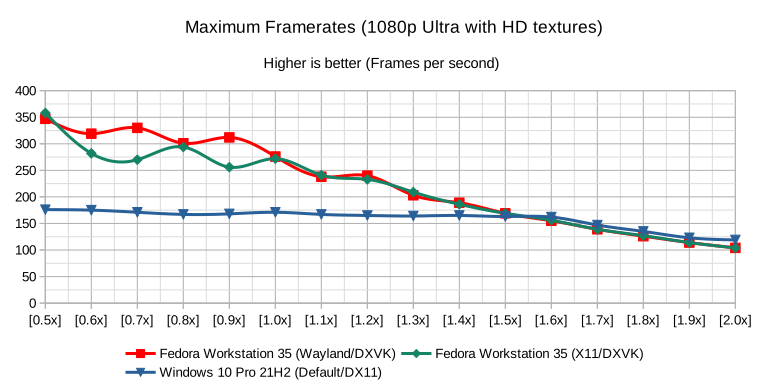
Maximum framerates recorded

  1. A small amount of inconsistent performance is visible on Fedora Workstation 35 with both display servers in lower resolution scales.
  2. The inconsistencies seem to normalize for the resolution multipliers on and beyond the 1.1x resolution scale for Fedora Workstation 35.
  3. Resolution multipliers change starts noticeably affecting performance on Windows 10 Pro 21H2 on a 1.6x scale, beyond which it falls greatly.
  4. Although Windows 10 Pro 21H2 misses out on potential performance advantages in lower resolution multipliers, it has been consistent.
  5. Records on Windows 10 Pro 21H2 in the 1.6x resolution multiplier and beyond appear to be better than those on Fedora Workstation 35.

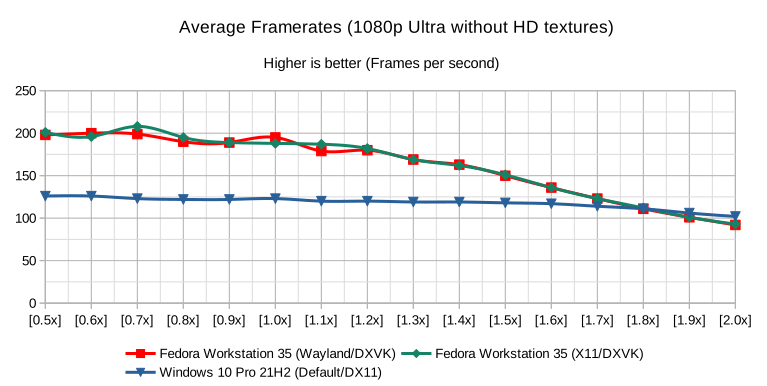
Average framerates recorded

  1. A minor amount of inconsistent performance is visible on Fedora Workstation 35 with both display servers in lower resolution scales.
  2. The inconsistencies seem to normalize for the resolution multipliers on and beyond the 1.1x resolution scale for Fedora Workstation 35.
  3. Resolution multipliers change starts noticeably affecting performance on Windows 10 Pro 21H2 on a 1.6x scale, beyond which it falls greatly.
  4. Although Windows 10 Pro 21H2 misses out on potential performance advantages in lower resolution multipliers, it has been consistent.
  5. Records on Windows 10 Pro 21H2 in the 1.9x resolution multiplier and beyond appear to be better than those on Fedora Workstation 35.

With HD textures

On a default Far Cry 5 installation, I followed the previously stated configuration with the HD textures pack and ran the tests with varied resolution multipliers. Following are the results.

Minimum framerates recorded

  1. A great deal of inconsistent performance is visible on Fedora Workstation 35 with both display servers in lower resolution scales.
  2. The inconsistencies seem to normalize for the resolution multipliers on and beyond the 1.5x resolution scale for Fedora Workstation 35.
  3. Resolution multipliers do not seem to have a great effect on the framerate on Windows 10 Pro 21H2 as much as on Fedora Workstation 35.
  4. Although Windows 10 Pro 21H2 misses out on potential performance advantages in lower resolution multipliers, it has been consistent.
  5. Records on Windows 10 Pro 21H2 in the 2.0x resolution multiplier appear to be marginally better than those on Fedora Workstation 35.

Maximum framerates recorded

  1. A great deal of inconsistent performance is visible on Fedora Workstation 35 with both display servers in lower resolution scales.
  2. The inconsistencies seem to normalize for the resolution multipliers on and beyond the 1.0x resolution scale for Fedora Workstation 35.
  3. Resolution multipliers change starts noticeably affecting performance on Windows 10 Pro 21H2 on a 1.6x scale, beyond which it falls greatly.
  4. Although Windows 10 Pro 21H2 misses out on potential performance advantages in lower resolution multipliers, it has been consistent.
  5. Records on Windows 10 Pro 21H2 in the 1.6x resolution multiplier and beyond appear to be better than those on Fedora Workstation 35.

Average framerates recorded

  1. A minor amount of inconsistent performance is visible on Fedora Workstation 35 with both display servers in lower resolution scales.
  2. The inconsistencies seem to normalize for the resolution multipliers on and beyond the 1.1x resolution scale for Fedora Workstation 35.
  3. Resolution multipliers change starts noticeably affecting performance on Windows 10 Pro 21H2 on a 1.6x scale, beyond which it falls greatly.
  4. Although Windows 10 Pro 21H2 misses out on potential performance advantages in lower resolution multipliers, it has been consistent.
  5. Records on Windows 10 Pro 21H2 in the 1.9x resolution multiplier and beyond appear to be better than those on Fedora Workstation 35.

Inferences

If the test results and observations baffle you, please allow me to tell you that you are not the only one who feels like that. For a video game that was created to run on Windows, it is hard to imagine how it ends up performing way better on Fedora Workstation 35, all while using a much lesser amount of system resources at all times. Special attention has been given to noting down the highest highs and lowest lows of framerates to ensure that consistent performance is made available.

But wait a minute – how is it that Fedora Workstation 35 manages to make this possible? Well, while I do not have a clear idea of what exactly goes on behind the scenes, I do have a certain number of assumptions that I suspect might be the reasons attributing to such brilliant visuals, great framerates and efficient resource usage. These can potentially act as starting points for us to understand the features of Fedora Workstation 35 for compatibility layers to make use of.

  1. Effective caching of graphical elements and texture assets in the video memory allows for keeping only those data in the memory which are either actively made use of or regularly referenced. The open-source AMD drivers help Fedora Workstation 35 make efficient use of the available frame buffer.
  2. Quick and frequent cycling of data elements from the video memory helps to bring down total occupancy per application at any point in time. The memory clocks and shader clocks are left at the application’s disposal by the open-source AMD drivers, and firmware bandwidth limits are all but absent.
  3. With AMD Smart Access Memory (SAM) enabled, the CPU is no longer restricted to using only 256MiB of the video memory at a time. A combination of leading-edge kernel and up-to-date drivers makes it available on Fedora Workstation 35 and capable of harnessing the technology to its limits.
  4. Extremely low system resource usage by supporting software and background services leaves out a huge majority of them to be used by the applications which need it the most. Fedora Workstation 35 is a lightweight distribution, which does not get in your way and puts the resources on what’s important.
  5. Faster loading of data elements to and from the physical storage devices to the system memory is greatly enhanced with the use of high-capacity modern copy-on-write file systems like BTRFS and journaling file systems like EXT4, which happens to be the suggested file system for Fedora Workstation 35.

Performance improvements like these only make me want to indulge more in testing and finding out what else Fedora Workstation is capable of. Do let me know what you think in the comments section below.

Posted on Leave a comment

Contribute at the Fedora Linux 37 Test Week for Kernel 5.18 

The kernel team is working on final integration for Linux kernel 5.18. This version was just recently released, and will arrive soon in Fedora. As a result, the Fedora kernel and QA teams have organized a test week now through Sunday, June 12, 2022. Refer to the wiki page for links to the test images you’ll need to participate. Read below for details.

How does a test week work?

A test week is an event where anyone can help make sure changes in Fedora work well in an upcoming release. Fedora community members often participate, and the public is welcome at these events. If you’ve never contributed before, this is a perfect way to get started.

To contribute, you only need to be able to do the following things:

  • Download test materials, which include some large files
  • Read and follow directions step by step

The wiki page for the kernel test day has a lot of good information on what and how to test. After you’ve done some testing, you can log your results in the test day web application. If you’re available on or around the day of the event, please do some testing and report your results. We have a document which provides all the steps written.

Happy testing, and we hope to see you on test day.

Posted on Leave a comment

4 cool new projects to try in Copr for May 2022

Copr is a build system for anyone in the Fedora community. It hosts thousands of projects for various purposes and audiences. Some of them should never be installed by anyone, some are already being transitioned to the official Fedora Linux repositories, and the rest are somewhere in between. Copr gives you the opportunity to install third-party software that is not available in Fedora Linux repositories, try nightly versions of your dependencies, use patched builds of your favorite tools to support some non-standard use cases, and just experiment freely.

If you don’t know how to enable a repository or if you are concerned about whether it is safe to use Copr, please consult the project documentation.

This article takes a closer look at interesting projects that recently landed in Copr.

Python-QT6

Do you miss QT6 Python bindings for Fedora Linux? Here they are. https://copr.fedorainfracloud.org/coprs/g/kdesig/python-qt6/

KDE SIG owns this project. Therefore, it should be a quality one. And one day, it may land in Fedora Linux. 

Example of usage:

$ python Python 3.10.4 (main, Mar 25 2022, 00:00:00) [GCC 12.0.1 20220308 (Red Hat 12.0.1-0)] on linux Type "help", "copyright", "credits" or "license" for more information. >>> import PyQt6 >>> from PyQt6.QtWidgets import QApplication, QWidget >>> import sys >>> app = QApplication(sys.argv) >>> window = QWidget() >>> window.show() >>> app.exec() 0 

More documentation can be found at 

https://www.pythonguis.com/tutorials/pyqt6-creating-your-first-window/.

Installation instructions

This package is available for Fedora Linux 36 and Rawhide. To install it, enter these commands:

sudo dnf copr enable @kdesig/python-qt6
sudo dnf install python3-qt6

Cloud-Native Utilities

A collection of cloud-native development tools.

These packages do not follow Fedora packaging guidelines, are statically built, and opt to bundle all dependencies.

Currently available packages:

  • Terraform – terraform
  • Packer – packer
  • Helm – helm
  • Tekton CLI – tektoncd-cli tektoncd-cli-doc
  • Knative CLI – knative-client knative-client-doc
  • Buildpack CLI – pack

All build recipes can be viewed in dist-git or from Pagure: https://pagure.io/mroche/cloud-utilities

Installation instructions

These packages are available for Fedora 36 Linux and Rawhide. To install them, enter this command:

sudo dnf copr enable mroche/cloud-native-utilities

DNF 5

You may be aware the DNF team is working on DNF5. There is a change proposal for Fedora Linux 38. The benefit is that every package management software — including PackageKit, and DNFDragora — should use a common libdnf library. If you have an application that handles RPM packages, you should definitely check out this project.

https://copr.fedorainfracloud.org/coprs/rpmsoftwaremanagement/dnf5-unstable/

Another similar project from the DNF team is 

https://copr.fedorainfracloud.org/coprs/jmracek/dnf5-alternatives/.

Installation instructions

These packages are available for Fedora Linux 35, 36 and Rawhide. To install them, enter these commands:

sudo dnf copr enable  rpmsoftwaremanagement/dnf5-unstable
sudo dnf install dnf5
sudo dnf copr enable jmracek/dnf5-alternatives
sudo dnf install microdnf-deprecated 

Hare

Hare is a systems programming language designed to be simple, stable and robust. Hare uses a static type system, manual memory management, and a minimal runtime. It is well suited to writing operating systems, system tools, compilers, networking software, and other low-level, high-performance tasks. A detailed overview can be found in these slides.

My summary is: Hare is simpler than C. It can be easy. But if you insist on shooting in your legs, Hare will allow you to do it.

Copr project.

Installation Instructions

These packages are available for Fedora Linux 35, 36 and Rawhide. They are also available for OpenSUSE Leap and Tumbleweed. To install them, enter these commands:

sudo dnf copr enable sentry/qbe
sudo dnf copr enable sentry/hare
sudo dnf install hare harec qbe 
Posted on Leave a comment

What’s new in Fedora Workstation 36

The latest release of Fedora Workstation 36 continues the Fedora Project’s ongoing commitment to delivering the latest innovations in the open source world. This article describes some of the notable user-facing changes that appear in this version.

GNOME 42

Fedora Workstation 36 includes the latest version of the GNOME desktop environment. GNOME 42 includes many improvements and new features. Just some of the improvements include:

  • Significantly improved input handling, resulting in lower input latency and improved responsiveness when the system is under load. This is particularly beneficial for games and graphics applications.
  • The Wayland session is now the default for those who use Nvidia’s proprietary graphics driver.
  • A universal dark mode is now available.
  • A new interface has been added for taking screenshots and screen video recordings.

In addition, many of the core apps have been ported to GTK 4, and the shell features a number of subtle refinements.

Refreshed look and feel

GNOME 42 as featured in Fedora Workstation 36

GNOME Shell features a refreshed look and feel, with rounder and more clearly separated elements throughout. All the symbolic icons have been updated and the top bar is no longer rounded.

Universal dark mode option

In Settings > Appearance, you can now choose a dark mode option which applies a dark theme to all supported applications. In addition, the pre-installed wallpapers now include dark mode variants. Dark themes can help reduce eye-strain when there is low ambient light, can help conserve battery life on devices with OLED displays, and can reduce the risk of burn-in on OLED displays. Plus, it looks cool!

New screenshot interface

Taking screenshots and screen video recordings is now easier than ever

Previously, pressing the Print Screen key simply took a screenshot of the entire screen and saved it to the Pictures folder. If you wanted to customize your screenshots, you had to remember a keyboard shortcut, or manually open the Screenshots app and use that to take the screenshot you wanted. This was inconvenient.

Now, pressing Print Screen presents you with an all-new user interface that allows you to take a screenshot of either your entire screen, just one window, or a rectangular selection. You can also choose whether to hide or show the mouse pointer, and you can also now take a screen video recording from within the new interface.

Core applications

Apps made in GTK 4 + libadwaita feature a distinct visual style

GNOME’s core applications have seen a number of improvements. A number of them have been ported to GTK 4 and use libadwaita, a new widget library that implements GNOME’s Human Interface Guidelines.

  • Files now includes the ability to sort files by creation date, and includes some visual refinements, such as a tweaked headerbar design and file renaming interface.
  • The Software app now includes a more informative update interface, and more prominently features GNOME Circle apps.
  • The Settings app now has a more visually appealing interface matching the visual tweaks present throughout GNOME Shell.
  • Text Editor replaces Gedit by default. Text Editor is an all-new app built in GTK 4 and libadwaita. You can always reinstall Gedit by searching for it in the Software app.

Wayland support on Nvidia’s proprietary graphics driver

In previous versions, Fedora Workstation defaulted to the X display server when using Nvidia’s proprietary graphics driver – now, Fedora Workstation 36 uses the Wayland session by default when using Nvidia’s proprietary graphics driver.

If you experience issues with the Wayland session, you can always switch back to the Xorg session by clicking the gear icon at the bottom-right corner of the login screen and choosing “GNOME on Xorg”.

Under-the-hood changes throughout Fedora Linux 36

  • When installing or upgrading packages with DNF or PackageKit, weak dependencies that have been manually removed will no longer be reinstalled. That is to say: if foo is installed and it has bar as a weak dependency, and bar is then removed, bar will not be reinstalled when foo is updated.
  • The Noto fonts are now used by default for many languages. This provides greater coverage for different character sets. For users who write in the Malayalam script, the new Meera and RIT Rachana fonts are now the default.
  • systemd messages now include unit names by default rather than just the description, making troubleshooting easier.
systemd messages shows unit names by default

Upgrade now!

You can upgrade your system through GNOME Software, via dnf system-upgrade in the terminal, or download the live ISO image from the official website.

Also check out…

There are always cool things happening in the Fedora Project!

Posted on Leave a comment

From ifcfg to keyfiles: modernizing NetworkManager configuration in Fedora Linux 36

One of the changes in Fedora Linux 36 is that new installations will no longer support the ifcfg files to configure networking. What are those and what replaces them?

A bit of history

In the good old days, connecting a Linux box to a network was easy. For each of the interface cards connected to a network, the system administrator would drop a configuration file into the /etc directory. That configuration file would describe the addressing configuration for a particular network. On Fedora Linux, the configuration file would actually be a shell script snippet like this:

$ cat /etc/sysconfig/network-scripts/ifcfg-eth0
TYPE=Ethernet
DEVICE=eth0
BOOTPROTO=dhcp

A shell script executed on startup would read the file and apply the configuration. Simple.

Towards the end of 2004, however, a change was in the air. Quite literally — the Wi-Fi has become ubiquitous. The portable computers of the day could rapidly connect to new networks and the USB bus allowed even the wired network adapters to come and go while the system was up and running. The network configuration became more dynamic than ever before, rendering the existing network configuration tooling impractical. To the rescue came NetworkManager. On a Fedora Linux system, NetworkManager uses configuration like this:

$ cat /etc/sysconfig/network-scripts/ifcfg-eth0
TYPE=Ethernet
DEVICE=eth0
BOOTPROTO=dhcp

Looks familiar? It should. From the beginning, NetworkManager was intended to work with the existing configuration formats. In fact, it ended up with plugins which would seamlessly convert between NetworkManager’s internal configuration model and the distribution’s native format. On Fedora, it would be the aforementioned ifcfg files.

Let’s take a closer look at them.

Ifcfg files

The legacy network service, now part of the network-scripts package, originally defined the ifcfg file format. Along with the package comes a file called sysconfig.txt that, quite helpfully, documents the format.

As NetworkManager gained traction it often found itself in need of expressing a configuration that was not supported by the old fashioned network service. Given the nature of configuring things with shell scripts, adding new settings is no big deal. The unknown ones are generally just silently ignored. The NetworkManager’s idea of what ifcfg files should look like is described in the nm-settings-ifcfg-rh(5) manual.

In general, NetworkManager tries hard to write ifcfg files that work well with the legacy network service. Nevertheless, sometimes it is just not possible. These days, the number of network connection types that NetworkManager supports vastly outnumber what the legacy network service can configure. . A new format is now used to express what the legacy format can not. This includes VPN connections, broadband modems and more.

Keyfiles

The new format closely resembled the NetworkManager’s native configuration model:

$ cat /etc/NetworkManager/system-connections/VPN.ovpn
[connection]
id=My VPN
uuid=c85a7cdb-973b-491f-998d-b09a590af10e
type=vpn [vpn]
ca=/etc/pki/tls/certs/vpn-ca.pem
connection-type=password
remote=vpn.example.com
username=lkundrak
service-type=org.freedesktop.NetworkManager.openvpn [ipv6]
method=auto
never-default=true

The actual format should be instantly familiar to everyone familiar with Linux systems. It’s the “ini file” or “keyfile” — a bunch of plain text key-value pairs, much like the ifcfg files use, grouped into sections. The nm-settings-ifcfg-keyfile(5) manual documents the format thoroughly.

The main advantage of using this format is that it closely resembles NetworkManager’s idea of how to express network configuration, used both internally and on the D-Bus API. It’s easier to extend without taking into consideration the quirks of the mechanism that was designed in without the benefit of foresight back when the world was young. This means less code, less surprises and less bugs.

In fact there’s nothing the keyfile format can’t express that ifcfg files can. It can express the simple wired connections just as well as the VPNs or modems.
Migrating to keyfiles

The legacy network service served us well for many years, but its days are now long over. Fedora Linux dropped it many releases ago and without it there is seemingly little reason to use the ifcfg files. That is, for new configurations. While Fedora Linux still supports the ifcfg files, it has defaulted to writing keyfiles for quite some time.

Starting with Fedora Linux 36, the ifcfg support will no longer be present in new installations. If you’re still using ifcfg files, do not worry — the existing systems will keep it on upgrades. Nevertheless, you can still decide to uninstall it and carry your configuration over to keyfiles. Keep on reading to learn how.

If you’re like me, you installed your system years ago and you have a mixture of keyfiles and ifcfg files. Here’s how can you check:

$ nmcli -f TYPE,FILENAME,NAME conn
TYPE FILENAME NAME
ethernet /etc/sysconfig/network-scripts/ifcfg-eth0 eth0
wifi /etc/sysconfig/network-scripts/ifcfg-Guest Guest
wifi /etc/NetworkManager/system-connections/Base48 Base48
vpn /etc/NetworkManager/system-connections/VPN.ovpn My VPN

This example shows a VPN connection that must have always used a keyfile and a Wi-Fi connection presumably created after Fedora Linux switched to writing keyfiles by default. There’s also an Ethernet connection and Wi-Fi one from back in the day that use the ifcfg plugin. Let’s see how we can convert those to keyfiles.

The NetworkManager’s command line utility, nmcli(1), acquired a new connection migrate command, that can change the configuration backend used by a connection profile.

It’s a good idea to make a backup of /etc/sysconfig/network-scripts/ifcfg-* files, in case anything goes wrong. Once you have the backup you can try migrating a single connection to a different configuration backend (keyfile by default):

$ nmcli connection migrate eth0
Connection 'eth0' (336aba93-1cd7-4cf4-8e90-e2009db3d4d0) successfully migrated.

Did it work?

$ nmcli -f TYPE,FILENAME,NAME conn
TYPE FILENAME NAME
ethernet /etc/NetworkManager/system-connections/eth0.nmc eth0
wifi /etc/sysconfig/network-scripts/ifcfg-Guest Guest
wifi /etc/NetworkManager/system-connections/Base48 Base48
vpn /etc/NetworkManager/system-connections/VPN.ovpn My VPN

Cool. Can I migrate it back, for no good reason?

$ nmcli conn migrate --plugin ifcfg-rh eth0
Connection 'eth0' (336aba93-1cd7-4cf4-8e90-e2009db3d4d0) successfully migrated.

Excellent. Without specifying more options, the “connection migrate” command ensures all connections use the keyfile backend:

$ nmcli conn migrate
Connection '336aba93-1cd7-4cf4-8e90-e2009db3d4d0' (eth0) successfully migrated.
Connection '3802a9bc-6ca5-4a17-9d0b-346f7212f2d3' (Red Hat Guest) successfully migrated.
Connection 'a082d5a0-5e29-4c67-8b6b-09af1b8d55a0' (Base48) successfully migrated.
Connection 'c85a7cdb-973b-491f-998d-b09a590af10e' (Oh My VPN) successfully migrated.

And that’s all. Now that your system has no ifcfg files, the configuration backend that supports them is of no use and you can remove it:

# dnf remove NetworkManager-initscripts-ifcfg-rh

Your system now works the same as it did before, but you can rejoice, for it is now modern.