Posted on Leave a comment

Design faster web pages, part 1: Image compression

Lots of web developers want to achieve fast loading web pages. As more page views come from mobile devices, making websites look better on smaller screens using responsive design is just one side of the coin. Browser Calories can make the difference in loading times, which satisfies not just the user but search engines that rank on loading speed. This article series covers how to slim down your web pages with tools Fedora offers.

Preparation

Before you sart to slim down your web pages, you need to identify the core issues. For this, you can use Browserdiet. It’s a browser add-on available for Firefox, Opera and Chrome and other browsers. It analyzes the performance values of the actual open web page, so you know where to start slimming down.

Next you’ll need some pages to work on. The example screenshot shows a test of getfedora.org. At first it looks very simple and responsive.

Browser Diet - values of getfedora.org

Browser Diet – values of getfedora.org

However, BrowserDiet’s page analysis shows there are 1.8MB in files downloaded. Therefore, there’s some work to do!

Web optimization

There are over 281 KB of JavaScript files, 203 KB more in CSS files, and 1.2 MB in images. Start with the biggest issue — the images. The tool set you need for this is GIMP, ImageMagick, and optipng. You can easily install them using the following command:

sudo dnf install gimp imagemagick optipng

For example, take the following file which is 6.4 KB:

First, use the file command to get some basic information about this image:

$ file cinnamon.png cinnamon.png: PNG image data, 60 x 60, 8-bit/color RGBA, non-interlaced 

The image — which is only in grey and white — is saved in 8-bit/color RGBA mode. That’s not as efficient as it could be.

Start GIMP so you can set a more appropriate color mode. Open cinnamon.png in GIMP. Then go to Image>Mode and set it to greyscale. Export the image as PNG with compression factor 9. All other settings in the export dialog should be the default.

$ file cinnamon.png cinnamon.png: PNG image data, 60 x 60, 8-bit gray+alpha, non-interlaced 

The output shows the file’s now in 8bit gray+alpha mode. The file size has shrunk from 6.4 KB to 2.8 KB. That’s already only 43.75% of the original size. But there’s more you can do!

You can also use the ImageMagick tool identify to provide more information about the image.

$ identify cinnamon2.png cinnamon.png PNG 60x60 60x60+0+0 8-bit Grayscale Gray 2831B 0.000u 0:00.000

This tells you the file is 2831 bytes. Jump back into GIMP, and export the file. In the export dialog disable the storing of the time stamp and the alpha channel color values to reduce this a little more. Now the file output shows:

$ identify cinnamon.png cinnamon.png PNG 60x60 60x60+0+0 8-bit Grayscale Gray 2798B 0.000u 0:00.000

Next, use optipng to losslessly optimize your PNG images. There are other tools that do similar things, including advdef (which is part of advancecomp), pngquant and pngcrush.

Run optipng on your file. Note that this will replace your original:

$ optipng -o7 cinnamon.png ** Processing: cinnamon.png 60x60 pixels, 2x8 bits/pixel, grayscale+alpha Reducing image to 8 bits/pixel, grayscale Input IDAT size = 2720 bytes Input file size = 2812 bytes Trying: zc = 9 zm = 8 zs = 0 f = 0 IDAT size = 1922 zc = 9 zm = 8 zs = 1 f = 0 IDAT size = 1920 Selecting parameters: zc = 9 zm = 8 zs = 1 f = 0 IDAT size = 1920 Output IDAT size = 1920 bytes (800 bytes decrease) Output file size = 2012 bytes (800 bytes = 28.45% decrease)

The option -o7 is the slowest to process, but provides the best end results. You’ve knocked 800 more bytes off the file size, which is now 2012 bytes.

To resize all of the PNGs in a directory, use this command:

$ optipng -o7 -dir=<directory> *.png

The option -dir lets you give a target directory for the output. If this option is not used, optipng would overwrite the original images.

Choosing the right file format

When it comes to pictures for the usage in the internet, you have the choice between:

JPG-LS and JPG 2000 are not widely used. Only a few digital cameras support these formats, so they can be ignored. aPNG is an animated PNG, and not widely used either.

You could save a few bytes more through changing the compression rate or choosing another file format. The first option you can’t do in GIMP, as it’s already using the highest compression rate. As there are no alpha channels in the picture, you can choose JPG as file format instead. For now use the default value of 90% quality — you could change it down to 85%, but then alias effects become visible. This saves a few bytes more:

$ identify cinnamon.jpg cinnamon.jpg JPEG 60x60 60x60+0+0 8-bit sRGB 2676B 0.000u 0:00.000 

Alone this conversion to the right color space and choosing JPG as file format brought down the file size from 23 KB to 12.3 KB, a reduction of nearly 50%.

PNG vs. JPG: quality and compression rate

So what about the rest of the images? This method would work for all the other pictures, except the Fedora “flavor” logos and the logos for the four foundations. Those are presented on a white background.

One of the main differences between PNG and JPG is that JPG has no alpha channel. Therefore it can’t handle transparency. If you rework these images by using a JPG on a white background, you can reduce the file size from 40.7 KB to 28.3 KB.

Now there are four more images you can rework: the backgrounds. For the grey background, set the mode to greyscale again. With this bigger picture, the savings also is bigger. It shrinks from 216.2 KB to 51.0 KB — it’s now barely 25% of its original size. All in all, you’ve shrunk 481.1 KB down to 191.5 KB — only 39.8% of the starting size.

Quality vs. Quantity

Another difference between PNG and JPG is the quality. PNG is a lossless compressed raster graphics format. But JPG loses size through compression, and thus affects quality. That doesn’t mean you shouldn’t use JPG, though. But you have to find a balance between file size and quality.

Achievement

This is the end of Part 1. After following the techniques described above, here are the results:

You brought image size down to 488.9 KB versus 1.2MB at the start. That’s only about a third of the size, just through optimizing with optipng. This page can probably be made to load faster still. On the scale from snail to hypersonic, it’s not reached racing car speed yet!

Finally you can check the results in Google Insights, for example:

In the Mobile area the page gathered 10 points on scoring, but is still in the Medium sector. It looks totally different for the Desktop, which has gone from 62/100 to 91/100 and went up to Good. As mentioned before, this test isn’t the be all and end all. Consider scores such as these to help you go in the right direction. Keep in mind you’re optimizing for the user experience, and not for a search engine.

Posted on Leave a comment

Play Windows games on Fedora with Steam Play and Proton

Some weeks ago, Steam announced a new addition to Steam Play with Linux support for Windows games using Proton, a fork from WINE. This capability is still in beta, and not all games work. Here are some more details about Steam and Proton.

According to the Steam website, there are new features in the beta release:

  • Windows games with no Linux version currently available can now be installed and run directly from the Linux Steam client, complete with native Steamworks and OpenVR support.
  • DirectX 11 and 12 implementations are now based on Vulkan, which improves game compatibility and reduces performance impact.
  • Fullscreen support has been improved. Fullscreen games seamlessly stretch to the desired display without interfering with the native monitor resolution or requiring the use of a virtual desktop.
  • Improved game controller support. Games automatically recognize all controllers supported by Steam. Expect more out-of-the-box controller compatibility than even the original version of the game.
  • Performance for multi-threaded games has been greatly improved compared to vanilla WINE.

Installation

If you’re interested in trying Steam with Proton out, just follow these easy steps. (Note that you can ignore the first steps to enable the Steam Beta if you have the latest updated version of Steam installed. In that case you no longer need Steam Beta to use Proton.)

Open up Steam and log in to your account. This example screenshot shows support for only 22 games before enabling Proton.

Now click on Steam option on top of the client. This displays a drop down menu. Then select Settings.

Now the settings window pops up. Select the Account option and next to Beta participation, click on change.

Now change None to Steam Beta Update.

Click on OK and a prompt asks you to restart.

Let Steam download the update. This can take a while depending on your internet speed and computer resources.

After restarting, go back to the Settings window. This time you’ll see a new option. Make sure the check boxes for Enable Steam Play for supported titles, Enable Steam Play for all titles and Use this tool instead of game-specific selections from Steam are enabled. The compatibility tool should be Proton.

The Steam client asks you to restart. Do so, and once you log back into your Steam account, your game library for Linux should be extended.

Installing a Windows game using Steam Play

Now that you have Proton enabled, install a game. Select the title you want and you’ll find the process is similar to installing a normal game on Steam, as shown in these screenshots.

After the game is done downloading and installing, you can play it.

Some games may be affected by the beta nature of Proton. The game in this example, Chantelise, had no audio and a low frame rate. Keep in mind this capability is still in beta and Fedora is not responsible for results. If you’d like to read further, the community has created a Google doc with a list of games that have been tested.

Posted on Leave a comment

Test drive GNOME 3.30 with the Fedora 29 prerelease

Last month, the GNOME project announced the release of GNOME 3.30. The good news is that this new version of GNOME is default in the forthcoming release of Fedora 29 Workstation. GNOME 3.30 includes a range of new features and enhancements, including improvements to Files (nautilus), and the new Podcasts application.

The new Podcasts application in GNOME 3.30

The great news is that you can already give GNOME 3.30 on Fedora a test-drive with a Fedora 29 prerelease version. In fact, there is a Test Day happening this Friday October 5th , 2018.

How do test days work?

A test day is an event where anyone can help make sure that changes in Fedora work well in the upcoming release. Fedora community members often participate and and the public is welcome at these events. The wiki page provides lot of good information on what and how to test.


Posted on Leave a comment

Even better image upscaling with Waifu2x

You may have already seen the article here in the Magazine about upscaling bitmap images with better quality. That article covered a few utilities to achieve good results, but there’s always room for enhancement. Meet Waifu2x, a sophisticated tool that uses deep convolutional neural networks, or machine learning for short. Therefore it benefits from trained model data sets. Read on to see how well it performs to upscale your images, and how to get the same benefits even without an Nvidia card.

Here are some examples. First, a character that will be familiar to Fedora fans:

Making the Beefy Miracle hot dog four times larger keeps it nearly perfect!

Here’s another example:

Upscaling a drawing from an old book delivers really outstanding results.

Because Waifu2x performs the calculations using Nvidia CUDA computing platform, it requires an Nvidia graphics card. This article, however, covers a more portable version called Waifu2x-converter-cpp that runs everywhere.

Waifu2x-converter-cpp doesn’t require a dedicated Nvidia GPU. Instead, it leverages the OpenCV and OpenCL libraries. Although the overall performance is slower compared to the original code, it’s portable and more people are able to use it. And of course it runs on Fedora!

Follow the directions below to give it a spin.

Installing Waifu2x-converter-cpp in Fedora

To build the application from source, first install build dependencies:

sudo dnf install -y gcc-c++ cmake opencv-devel opencl-utils-devel

Then grab the source code, build it and install the files:

git clone https://github.com/DeadSix27/waifu2x-converter-cpp.git cd waifu2x-converter-cpp/build cmake -DLIB_SUFFIX=64 ../ make sudo make install

Tell the dynamic library linker to index the directory with locally installed libraries:

sudo ldconfig /usr/local/lib64

Now everything is ready for upscaling. The example command for processing an image is as follows:

waifu2x-converter-cpp --scale_ratio 2 -i /path/to/input_file -o /path/to/output_file

Don’t miss this very helpful command for extras, such as switching OpenCL on/off, playing with noise level, and so on:

waifu2x-converter-cpp --help

Using a graphical front-end for Waifu2x

Another step forward is to install Qtwaifu2x, a graphical tool that lets you escape Fedora terminal and process images with comfort and convenience.

Practically all you have to do is hit Browse and Start to launch the upscaling task.

Installing Qtwaifu2x in Fedora

First, install the main build dependency:

sudo dnf install -y qt5-qtbase-devel

Then get the code and build it:

git clone https://github.com/cmdrkotori/qtwaifu2x.git cd qtwaifu2x qmake-qt5 && make

To run the application from the current directory:

./qtwaifu2x

The main window has quite a few options, but it’s usually enough to provide the input file and hit the Start button.

Brew yourself a cup of tea and come back in a while to enjoy the perfectly upscaled image!

Posted on Leave a comment

Understand Fedora memory usage with top

Have you used the top utility in a terminal to see memory usage on your Fedora system? If so, you might be surprised to see some of the numbers there. It might look like a lot more memory is consumed than your system has available. This article will explain a little more about memory usage, and how to read these numbers.

Memory usage in real terms

The way the operating system (OS) uses memory may not be self-evident. In fact, some ingenious, behind-the-scenes techniques are at play. They help your OS use memory more efficiently, without involving you.

Most applications are not self contained. Instead, each relies on sets of functions collected in libraries. These libraries are also installed on the system. In Fedora, the RPM packaging system ensures that when you install an app, any libraries on which it relies are installed, too.

When an app runs, the OS doesn’t necessarily load all the information it uses into real memory. Instead, it builds a map to the storage where that code is stored, called virtual memory. The OS then loads only the parts it needs. When it no longer needs portions of memory, it might release or swap them out as appropriate.

This means an app can map a very large amount of virtual memory, while using less real memory on the system at one time. It might even map more RAM than the system has available! In fact, across a whole OS that’s often the case.

In addition, related applications may rely on the same libraries. The Linux kernel in your Fedora system often shares memory between applications. It doesn’t need to load multiple copies of the same library for related apps. This works similarly for separate instances of the same app, too.

Without understanding these details, the output of the top application can be confusing. The following example will clarify this view into memory usage.

Viewing memory usage in top

If you haven’t tried yet, open a terminal and run the top command to see some output. Hit Shift+M to see the list sorted by memory usage. Your display may look slightly different than this example from a running Fedora Workstation:

There are three columns showing memory usage to examine: VIRT, RES, and SHR. The measurements are currently shown in kilobytes (KB).

The VIRT column is the virtual memory mapped for this process. Recall from the earlier description that virtual memory is not actual RAM consumed. For example, the GNOME Shell process gnome-shell is not actually consuming over 3.1 gigabytes of actual RAM. However, it’s built on a number of lower and higher level libraries. The system must map each of those to ensure they can be loaded when necessary.

The RES column shows you how much actual (resident) memory is consumed by the app. In the case of GNOME Shell, that’s about 180788 KB. The example system has roughly 7704 MB of physical memory, which is why the memory usage shows up as 2.3%.

However, of that number, at least 88212 KB is shared memory, shown in the SHR column. This memory might be, for example, library functions that other apps also use. This means the GNOME Shell is using about 92 MB on its own not shared with other processes. Notice that other apps in the example share an even higher percentage of their resident memory. In some apps, the shared portion is the vast majority of the memory usage.

There is a wrinkle here, which is that sometimes processes communicate with each other via memory. That memory is also shared, but can’t necessarily be detected by a utility like top. So yes — even the above clarifications still have some uncertainty!

A note about swap

Your system has another facility it uses to store information, which is swap. Typically this is an area of slower storage (like a hard disk). If the physical memory on the system fills up as needs increase, the OS looks for portions of memory that haven’t been needed in a while. It writes them out to the swap area, where they sit until needed later.

Therefore, prolonged, high swap usage usually means a system is suffering from too little memory for its demands. Sometimes an errant application may be at fault. Or, if you see this often on your system, consider upgrading your machine’s memory, or restricting what you run.


Photo courtesy of Stig Nygaard, via Flickr (CC BY 2.0).

Posted on Leave a comment

How to install more wallpaper packs on Fedora Workstation

Every release, the Fedora Design team creates a new default wallpaper for Fedora. In addition to the default wallpaper, the Fedora repositories also contain a set of extra Supplemental Wallpapers for each release. These older wallpapers are not installed by default, but are easily installed from the Fedora Repositories. If you have just set up a fresh install of Fedora, and want to expand your choices for your desktop wallpaper, the older Fedora wallpapers are a great choice.

This post lists out the older wallpapers available in the Fedora repositories, and how to install them on your current Fedora install. On Fedora Workstation, after you have installed your desired pack, they will show up in the Wallpapers tab in the Background chooser in the Settings.

Note: If you are using a desktop environment other than the default for Fedora Workstation (GNOME), there are also packages tailored to some of the more popular alternative desktops. In most of the examples below, simply change

gnome

in the dnf install line to

kde

or

mate

or

xfce

when installing the package.

Fedora 28 Wallpapers

Fedora 28 Default Wallpaper

To install the Fedora 28 default wallpaper, use the following command in the Terminal:

sudo dnf install f28-backgrounds-gnome

Fedora 28 Supplemental Wallpapers

To install the Fedora 28 supplementary wallpapers, use the following command in the Terminal:

sudo dnf install f28-backgrounds-extras-gnome

Fedora 27 Wallpaper

To install the Fedora 27 default wallpaper, use the following command in the Terminal:

sudo dnf install f27-backgrounds-gnome

Fedora 26 Wallpapers

Fedora 26 Default Wallpaper


To install the Fedora 26 default wallpaper, use the following command in the Terminal:

sudo dnf install f26-backgrounds-gnome

Fedora 26 Supplemental Wallpapers

To install the Fedora 26 supplementary wallpapers, use the following command in the Terminal:

sudo dnf install f26-backgrounds-extras-gnome

Fedora 25 Wallpapers

Fedora 25 Default Wallpaper

To install the Fedora 25 default wallpaper, use the following command in the Terminal:

sudo dnf install f25-backgrounds-gnome

Fedora 25 Supplemental Wallpapers

To install the Fedora 25 supplementary wallpapers, use the following command in the Terminal:

sudo dnf install f25-backgrounds-extras-gnome

Fedora 24 Wallpapers

Fedora 24 Default Wallpaper

To install the Fedora 24 default wallpaper, use the following command in the Terminal:

sudo dnf install f24-backgrounds-gnome


Fedora 24 Supplemental Wallpapers

To install the Fedora 24 supplementary wallpapers, use the following command in the Terminal:

sudo dnf install f24-backgrounds-extras-gnome


Fedora 23 Wallpapers

Fedora 23 Default Wallpaper

To install the Fedora 23 default wallpaper, use the following command in the Terminal:

sudo dnf install f23-backgrounds-gnome

Fedora 23 Supplemental Wallpapers

To install the Fedora 23 supplementary wallpapers, use the following command in the Terminal:

sudo dnf install f23-backgrounds-extras-gnome 

Fedora 22 Wallpapers

Fedora 22 Default Wallpaper

To install the Fedora 22 default wallpaper, use the following command in the Terminal:

sudo dnf install f22-backgrounds-gnome

Fedora 22 Supplemental Wallpapers

To install the Fedora 22 supplementary wallpapers, use the following command in the Terminal:

sudo dnf install f22-backgrounds-extras-gnome


Fedora 21 Wallpapers

Fedora 21 Default Wallpaper

To install the Fedora 21 default wallpaper, use the following command in the Terminal:

sudo dnf install f21-backgrounds-gnome

Fedora 21 Supplemental Wallpapers

To install the Fedora 21 supplementary wallpapers, use the following command in the Terminal:

sudo dnf install f21-backgrounds-extras-gnome


Fedora 20 Wallpapers

Fedora 20 Default Wallpaper

To install the Fedora 20 default wallpaper, use the following command in the Terminal:

sudo dnf install heisenbug-backgrounds-gnome

Fedora 20 Supplemental Wallpapers

To install the Fedora 20 supplementary wallpapers, use the following command in the Terminal:

sudo dnf install heisenbug-backgrounds-extras-gnome


Fedora 19 Wallpapers

Fedora 19 Default Wallpaper

To install the Fedora 19 default wallpaper, use the following command in the Terminal:

sudo dnf install schroedinger-cat-backgrounds-gnome

Fedora 19 Supplemental Wallpapers

To install the Fedora 19 supplementary wallpapers, use the following command in the Terminal:

sudo dnf install schroedinger-cat-backgrounds-extras-gnome


Fedora 18 Wallpapers

Fedora 18 Default Wallpaper

To install the Fedora 18 default wallpaper, use the following command in the Terminal:

sudo dnf install spherical-cow-backgrounds-gnome

Fedora 18 Supplemental Wallpapers

To install the Fedora 18 supplementary wallpapers, use the following command in the Terminal:

sudo dnf install spherical-cow-backgrounds-extras-gnome


Fedora 17 Default Wallpaper

To install the Fedora 17 default wallpaper, use the following command in the Terminal:

sudo dnf install beefy-miracle-backgrounds-gnome


Fedora 16 Wallpapers

Fedora 16 Default Wallpaper

To install the Fedora 16 default wallpaper, use the following command in the Terminal:

sudo dnf install verne-backgrounds-gnome

Fedora 16 Supplemental Wallpapers

To install the Fedora 16 supplementary wallpapers, use the following command in the Terminal:

sudo dnf install verne-backgrounds-extras-gnome


Fedora 15 Wallpapers

Fedora 15 Default Wallpaper

The default wallpaper for Fedora 15 was a remix of the default GNOME wallpaper at the time. To install the Fedora 15 default wallpaper, use the following command in the Terminal:

sudo dnf install lovelock-backgrounds-stripes-gnome

Fedora 15 Alternate Wallpaper

Fedora 15 also shipped with an alternate wallpaper, that was used by default on non-GNOME spins. To get this wallpaper, use the following command in the Terminal:

sudo dnf install lovelock-backgrounds-gnome


Fedora 14 Wallpapers

Fedora 14 Default Wallpaper

To install the Fedora 14 default wallpaper, use the following command in the Terminal:

sudo dnf install laughlin-backgrounds-gnome

Fedora 14 Supplemental Wallpapers

To install the Fedora 14 supplementary wallpapers, use the following command in the Terminal:

sudo dnf install laughlin-backgrounds-extras-gnome 


Fedora 13 Default Wallpaper

To install the Fedora 13 default wallpaper, use the following command in the Terminal:

sudo dnf install goddard-backgrounds-gnome


Fedora 12 Default Wallpaper

To install the Fedora 12 default wallpaper, use the following command in the Terminal:

sudo dnf install constantine-backgrounds


Fedora 11 Default Wallpaper

To install the Fedora 11 default wallpaper, use the following command in the Terminal:

sudo dnf install leonidas-backgrounds-lion


Fedora 10 Default Wallpaper

To install the Fedora 10 default wallpaper, use the following command in the Terminal:

sudo dnf install solar-backgrounds


Fedora 9 Default Wallpaper

To install the Fedora 9 default wallpaper, use the following command in the Terminal:

sudo dnf install desktop-backgrounds-waves


Fedora 8 Default Wallpaper

To install the Fedora 8 default wallpaper, use the following command in the Terminal:

sudo dnf install fedorainfinity-backgrounds
Posted on Leave a comment

How to turn on an LED with Fedora IoT

Do you enjoy running Fedora, containers, and have a Raspberry Pi? What about using all three together to play with LEDs? This article introduces Fedora IoT and shows you how to install a preview image on a Raspberry Pi. You’ll also learn how to interact with GPIO in order to light up an LED.

What is Fedora IoT?

Fedora IoT is one of the current Fedora Project objectives, with a plan to become a full Fedora Edition. The result will be a system that runs on ARM (aarch64 only at the moment) devices such as the Raspberry Pi, as well as on the x86_64 architecture.

Fedora IoT is based on OSTree, like Fedora Silverblue and the former Atomic Host.

Download and install Fedora IoT

The official Fedora IoT images are coming with the Fedora 29 release. However, in the meantime you can download a Fedora 28-based image for this experiment.

You have two options to install the system: either flash the SD card using a dd command, or use a fedora-arm-installer tool. The Fedora Wiki offers more information about setting up a physical device for IoT. Also, remember that you might need to resize the third partition.

Once you insert the SD card into the device, you’ll need to complete the installation by creating a user. This step requires either a serial connection, or a HDMI display with a keyboard to interact with the device.

When the system is installed and ready, the next step is to configure a network connection. Log in to the system with the user you have just created choose one of the following options:

  • If you need to configure your network manually, run a command similar to the following. Remember to use the right addresses for your network:
    $ nmcli connection add con-name cable ipv4.addresses \ 192.168.0.10/24 ipv4.gateway 192.168.0.1 \ connection.autoconnect true ipv4.dns "8.8.8.8,1.1.1.1" \ type ethernet ifname eth0 ipv4.method manual
  • If there’s a DHCP service on your network, run a command like this:
    $ nmcli con add type ethernet con-name cable ifname eth0

The GPIO interface in Fedora

Many tutorials about GPIO on Linux focus on a legacy GPIO sysfis interface. This interface is deprecated, and the upstream Linux kernel community plan to remove it completely, due to security and other issues.

The Fedora kernel is already compiled without this legacy interface, so there’s no /sys/class/gpio on the system. This tutorial uses a new character device /dev/gpiochipN provided by the upstream kernel. This is the current way of interacting with GPIO.

To interact with this new device, you need to use a library and a set of command line interface tools. The common command line tools such as echo or cat won’t work with this device.

You can install the CLI tools by installing the libgpiod-utils package. A corresponding Python library is provided by the python3-libgpiod package.

Creating a container with Podman

Podman is a container runtime with a command line interface similar to Docker. The big advantage of Podman is it doesn’t run any daemon in the background. That’s especially useful for devices with limited resources. Podman also allows you to start containerized services with systemd unit files. Plus, it has many additional features.

We’ll create a container in these two steps:

  1. Create a layered image containing the required packages.
  2. Create a new container starting from our image.

First, create a file Dockerfile with the content below. This tells podman to build an image based on the latest Fedora image available in the registry. Then it updates the system inside and installs some packages:

FROM fedora:latest RUN  dnf -y update RUN  dnf -y install libgpiod-utils python3-libgpiod

You have created a build recipe of a container image based on the latest Fedora with updates, plus packages to interact with GPIO.

Now, run the following command to build your base image:

$ sudo podman build --tag fedora:gpiobase -f ./Dockerfile

You have just created your custom image with all the bits in place. You can play with this base container images as many times as you want without installing the packages every time you run it.

Working with Podman

To verify the image is present, run the following command:

$ sudo podman images REPOSITORY                 TAG        IMAGE ID       CREATED          SIZE localhost/fedora           gpiobase   67a2b2b93b4b   10 minutes ago  488MB docker.io/library/fedora   latest     c18042d7fac6   2 days ago     300MB

Now, start the container and do some actual experiments. Containers are normally isolated and don’t have an access to the host system, including the GPIO interface. Therefore, you need to mount it inside while starting the container. To do this, use the –device option in the following command:

$ sudo podman run -it --name gpioexperiment --device=/dev/gpiochip0 localhost/fedora:gpiobase /bin/bash

You are now inside the running container. Before you move on, here are some more container commands. For now, exit the container by typing exit or pressing Ctrl+D.

To list the the existing containers, including those not currently running, such as the one you just created, run:

$ sudo podman container ls -a CONTAINER ID   IMAGE             COMMAND     CREATED          STATUS                              PORTS   NAMES 64e661d5d4e8   localhost/fedora:gpiobase   /bin/bash 37 seconds ago Exited (0) Less than a second ago           gpioexperiment

To create a new container, run this command:

$ sudo podman run -it --name newexperiment --device=/dev/gpiochip0 localhost/fedora:gpiobase /bin/bash

Delete it with the following command:

$ sudo podman rm newexperiment

Turn on an LED

Now you can use the container you already created. If you exited from the container, start it again with this command:

$ sudo podman start -ia gpioexperiment

As already discussed, you can use the CLI tools provided by the libgpiod-utils package in Fedora. To list the available GPIO chips, run:

$ gpiodetect gpiochip0 [pinctrl-bcm2835] (54 lines)

To get the list of the lines exposed by a specific chip, run:

$ gpioinfo gpiochip0

Notice there’s no correlation between the number of physical pins and the number of lines printed by the previous command. What’s important is the BCM number, as shown on pinout.xyz. It is not advised to play with the lines that don’t have a corresponding BCM number.

Now, connect an LED to the physical pin 40, that is BCM 21. Remember: the shorter leg of the LED (the negative leg, called the cathode) must be connected to a GND pin of the Raspberry Pi with a 330 ohm resistor, and the long leg (the anode) to the physical pin 40.

To turn the LED on, run the following command. It will stay on until you press Ctrl+C:

$ gpioset --mode=wait gpiochip0 21=1

To light it up for a certain period of time, add the -b (run in the background) and -s NUM (how many seconds) parameters, as shown below. For example, to light the LED for 5 seconds, run:

$ gpioset -b -s 5 --mode=time gpiochip0 21=1

Another useful command is gpioget. It gets the status of a pin (high or low), and can be useful to detect buttons and switches.

Closeup of LED connection with GPIO

Conclusion

You can also play with LEDs using Python — there are some examples here. And you can also use the i2c devices inside the container as well. In addition, Podman is not strictly related to this Fedora edition. You can install it on any existing Fedora Edition, or try it on the two new OSTree-based systems in Fedora: Fedora Silverblue and Fedora CoreOS.

Posted on Leave a comment

GNOME 3.30 released & coming to Fedora 29

Today, the GNOME project announced the release of GNOME 3.30.

The release of the GNOME desktop is the default desktop environment in the upcoming release of Fedora 29 Workstation. GNOME 3.30 includes a wide range of enhancements, including:

  • Better performance in the overall desktop and system libraries
  • Numerous improvements to the Files, Web, and Boxes applications
  • A new Podcasts application to help manage and listen to podcasts

The new Podcasts application in GNOME 3.30

Application updates in GNOME 3.30

GNOME 3.30 includes some updates to many standard applications. Files has a combined search and file path bar interface, making searching more prominent and integrated into the navigation experience. Boxes can now connect to Windows Servers over RDP, resulting in a much better remote desktop experience.

Comparison of normal web view and reader mode

Web now includes a content reader mode. When viewing a compatible web page, Web can toggle between the normal view and the clean, minimal reader view. The minimal view strips out all extraneous menus, images, and content not related to the article or document, making for a more pleasant reading experience.

Read more about this release

There are many more changes and enhancements in this major version of GNOME. Check out the release announcement and the release notes from the GNOME Project for more information.


Screenshots in this post are from the GNOME 3.30 release notes and screenshot pack.

Posted on Leave a comment

Upscale bitmap images with better results

Most images on the Web are small or medium sized, since otherwise users need to wait longer before their favorite web pages load. However, sometimes you need to find a larger version of an image, but the search doesn’t bear fruit. Any bitmap image can be scaled up or down in an image editor (such as Gimp). But obviously upscaling would not add any detail to the image. Instead, the result will usually be blurred, pixelated and noticeably stretched-up. In this brief roundup we’ll try to upscale bitmap images with a little better result.

There’s no magic in it, just a few advanced scaling algorithms that help produce better-looking pictures. Everything is open source and works great in Fedora. The results will be tested against the Cubic interpolation method, which Gimp applies by default.

Filters in ImageMagick

This is the most famous and widely used open source software for manipulating images from the command line. Fedora, like the majority of other Linux distributions, already includes ImageMagick. Fedora even installs it by default in Fedora Workstation. ImageMagick provides  the convert command, which can also change dimensions of input images.

The trick is that convert supports filters, and ImageMagick provides a rich selection of such filters, some of which work really good for upscaling. You can check out the full list here. For instance, the point filter works well for upscaling pixel art and screen shots, as it preserves clarity and sharpness at the cost of emphasized pixels. Still, this can look better than the blurred results of the convenient Cubic algorithm.

Use it with the following syntax:

convert input.png -filter point -resize 600% output.png

The PNG file format as well as the 600% scaling factor are just examples.

Hiding pixels in Cubic is not really good for upscaling. Use something without anti-aliasing, such as the Point filter in ImageMagick.

Although it’s possible to get the same result in Gimp by choosing the None interpolation method, working with ImageMagick is sometimes easier. Not only it is installed in Fedora Workstation by default (Gimp is available, but not installed), it provides command-line tools which are ideal for scripting.

Xbrzscale

Xbrzscale is a command-line utility that implements the xBR scaling method. In brief, xBR is based on pattern recognition and interpolation, and it’s perfect for magnifying pixel art. xBRZ is an enhanced version of xBR, with a focus on preserving very small details. Therefore, xBRZ delivers pleasing results on both pixel art and photographic images, such as portraits.

In the following side-by-side comparison, the left part definitely looks preferable thanks to the superb clarity.

The Xbrzscale version features sharper edges and looks as if it had more details than the version to the right.

Install Xbrzscale in Fedora

To build this tool from source, you must install some prerequisites first:

sudo dnf -y install gcc-c++ SDL2-devel SDL2_image-devel

Let’s go ahead with Xbrzscale now:

git clone https://github.com/atheros/xbrzscale.git cd xbrzscale make

The command line syntax to upscale with this software is:

./xbrzscale X input.png output.png

…where X is the scale factor, a number within the range of 2 to 6.

Note that Xbrzscale always outputs PNG images, no matter what you feed it with. If the input file format is different, Xbrzscale will convert it to PNG.

Smilla Enlarger

Smilla Enlarger has a user-friendly graphical interface. It makes use of yet another different technology, this time based on fractal-based interpolation algorithms. The main goal is to produce sharper results when you upscale photographic images. The enlarged image usually preserves more details than the Cubic interpolation can.

Install Smilla Enlarger in Fedora

Again, start by installing the build dependencies:

sudo dnf -y install qt5-qtbase-devel

Now, build and run Smilla Enlarger:

git clone https://github.com/lupoDharkael/smilla-enlarger.git cd smilla-enlarger qmake-qt5 && make ./smilla-enlarger

The application window has numerous advanced controls and extra parameters that put a user in control of upscaling details.

Smilla Enlarger lets you choose a zoom factor, configure cropping and, more importantly, preview the result before hitting the Enlarge & Save button.

The upscale version of the sample image looks noticeably different from both the decent Xbrzscale version and the cubic-enlarged version.

Smill Enlarger adds a subtle amount of grain, which seems to effectively hide artifacts and make a picture look cleaner. Try this application on a photo to get the best results.

It’s hard to recommend the plethora of ImageMagick filters over Xbrzscale and Smilla Enlarger. The actual results will vary across different sorts of images, and of course different user preferences.

Posted on Leave a comment

4 tips for better tmux sessions

The tmux utility, a terminal multiplexer, lets you treat your terminal as a multi-paned window into your system. You can arrange the configuration, run different processes in each, and generally make better use of your screen. We introduced some readers to this powerful tool in this earlier article. Here are some tips that will help you get more out of tmux if you’re getting started.

This article assumes your current prefix key is Ctrl+b. If you’ve remapped that prefix, simply substitute your prefix in its place.

Set your terminal to automatically use tmux

One of the biggest benefits of tmux is being able to disconnect and reconnect to sesions at wilI. This makes remote login sessions more powerful. Have you ever lost a connection and wished you could get back the work you were doing on the remote system? With tmux this problem is solved.

However, you may sometimes find yourself doing work on a remote system, and realize you didn’t start a session. One way to avoid this is to have tmux start or attach every time you login to a system with in interactive shell.

Add this to your remote system’s ~/.bash_profile file:

if [ -z "$TMUX" ]; then tmux attach -t default || tmux new -s default fi

Then logout of the remote system, and log back in with SSH. You’ll find you’re in a tmux session named default. This session will be regenerated at next login if you exit it. But more importantly, if you detach from it as normal, your work is waiting for you next time you login — especially useful if your connection is interrupted.

Of course you can add this to your local system as well. Note that terminals inside most GUIs won’t use the default session automatically, because they aren’t login shells. While you can change that behavior, it may result in nesting that makes the session less usable, so proceed with caution.

Use zoom to focus on a single process

While the point of tmux is to offer multiple windows, panes, and processes in a single session, sometimes you need to focus. If you’re in a process and need more space, or to focus on a single task, the zoom command works well. It expands the current pane to take up the entire current window space.

Zoom can be useful in other situations too. For instance, imagine you’re using a terminal window in a graphical desktop. Panes can make it harder to copy and paste multiple lines from inside your tmux session. If you zoom the pane, you can do a clean copy/paste of multiple lines of data with ease.

To zoom into the current pane, hit Ctrl+b, z. When you’re finished with the zoom function, hit the same key combo to unzoom the pane.

Bind some useful commands

By default tmux has numerous commands available. But it’s helpful to have some of the more common operations bound to keys you can easily remember. Here are some examples you can add to your ~/.tmux.conf file to make sessions more enjoyable:

bind r source-file ~/.tmux.conf \; display "Reloaded config"

This command rereads the commands and bindings in your config file. Once you add this binding, exit any tmux sessions and then restart one. Now after you make any other future changes, simply run Ctrl+b, r and the changes will be part of your existing session.

bind V split-window -h bind H split-window

These commands make it easier to split the current window across a vertical axis (note that’s  Shift+V) or across a horizontal axis (Shift+H).

If you want to see how all keys are bound, use Ctrl+B, ? to see a list. You may see keys bound in copy-mode first, for when you’re working with copy and paste inside tmux. The prefix mode bindings are where you’ll see ones you’ve added above. Feel free to experiment with your own!

Use powerline for great justice

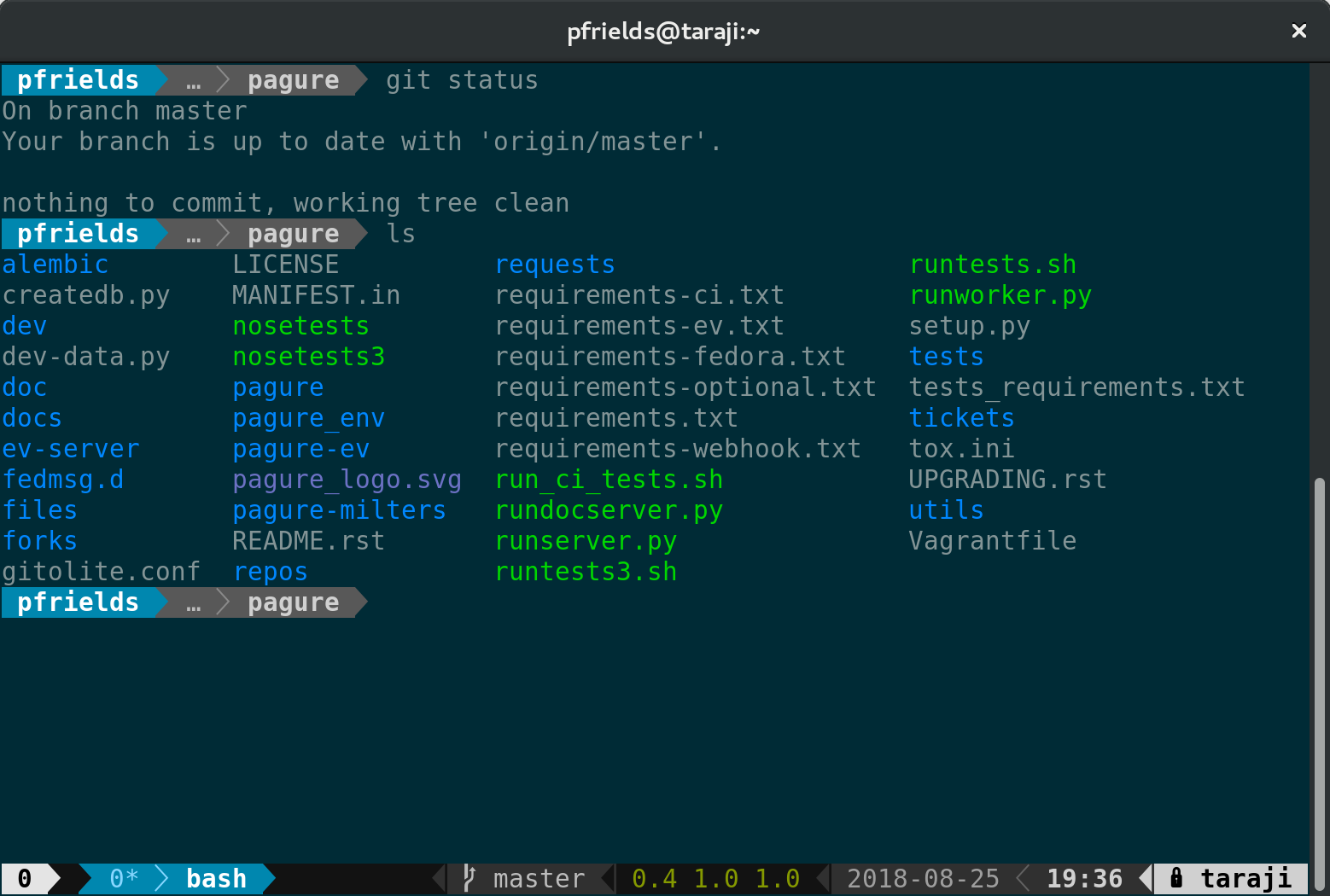
As reported in a previous Fedora Magazine article, the powerline utility is a fantastic addition to your shell. But it also has capabilities when used with tmux. Because tmux takes over the entire terminal space, the powerline window can provide more than just a better shell prompt.

Screenshot of tmux powerline in git folder

If you haven’t already, follow the instructions in the Magazine’s powerline article to install that utility. Then, install the addon using sudo:

sudo dnf install tmux-powerline

Now restart your session, and you’ll see a spiffy new status line at the bottom. Depending on the terminal width, the default status line now shows your current session ID, open windows, system information, date and time, and hostname. If you change directory into a git-controlled project, you’ll see the branch and color-coded status as well.

Of course, this status bar is highly configurable as well. Enjoy your new supercharged tmux session, and have fun experimenting with it.


Photo by Pamela Saunders on Unsplash.