Posted on Leave a comment

What’s coming in Fedora 29 Anaconda?

Last week, the Fedora Magazine covered the new features and improvements in the Fedora 28 Installer. The Fedora installer team is already hard at work adding new features for Fedora 29. This article covers some of these improvements.

Progress hub

The progress hub is mostly empty (on Fedora Workstation) after moving the user creation step to GNOME Initial Setup.

"<yoastmark

Discussions are on going with the Fedora Workstation working group  about re-working the progress hub. Hit the comments with suggestions on how you think this could be improved.

More Anaconda on DBus

Fedora 28 was the start of the ultimate goal of modularizing Anaconda. The main idea is to split the code into several modules that will communicate over DBus. Ultimately, this will enable a UI-less installation process.

The goal in Fedora 29 is to move all the storage-related code to the storage module.   Additionally, plans are in place to extend some of the other modules and introduce installation tasks, so you can monitor the installation steps.

Supporting Fedora Modularity

Fedora Modularity was introduced in Fedora 28 for the Server variant. This effort is still expanding, adding more modules, features and bug fixes. The Anaconda team is  working on module installation support for Anaconda.

First of all, the new kickstart command, called “module”, is used to enable modules. Additionally, support for installing modules via the %packages section in kickstart.

There are already patches for Anaconda, DNF, Pykickstart and libdnf that make module installation from kickstart possible.

Reducing Initial Setup dependencies even more

Fedora 28 reduced Initial Setup dependencies from Anaconda and the compose tools greatly. Next on the list is to do the same with Blivet.

Currently, the python-blivet package has hard dependencies on many storage handling tools. The current plan is to introduce a blivet-minimal package to just provide the bare minimum of Blivet functionality, such as architecture detection and device-tree based storage modeling. The current python-blivet package will maintain its current dependencies. Consequently, Initial Setup won’t drag in unnecessary dependencies, making packaging more flexible.

LUKS2 as default

LUKS2 is the new generation of the Linux storage encryption workhorse, bringing various improvements and new features. Work has started adding support for creating LUKS2-based encrypted storage volumes during installation.

Posted on Leave a comment

Anaconda improvements in Fedora 28

Fedora 28 was released last month, and the major update brought with it a raft of new features for the Fedora Installer (Anaconda).  Like Fedora, Anaconda is a dynamic software project with new features and updates every release. Some changes are user visible, while others happen under the hood — making Anaconda more robust and prepared for future improvements.

User & Root configuration on Fedora Workstation

When installing Fedora Workstation from the Live media, the user and root configuration screens are no longer in the installer. Setting up users is now only done in the Initial Setup screens after installation.

The progress hub on a Fedora 28 Workstation live installation.

The progress hub on a Fedora 28 Workstation live installation.

The back story is that the Fedora Workstation working group aimed to reduce the number of screens users see during installation.  Primarily, this included screens that let a user set option twice: both Anaconda and the Gnome Initial Setup tool upon first boot. The working group considered various options, such as Anaconda reporting which screens have been visited by the user and then hiding them in Gnome Initial Setup. In the end they opted for just always skipping the user and root configuration screens in Anaconda and just configuring a user with sudo rights in Gnome Initial Setup.

Because of this the respective screen (user creation) shows up just once (in Gnome Initial Setup), making the installation experience more consistent.

It’s also worth noting that this change only affects the Fedora Workstation live image. All other images, including the Fedora Workstation netinst image and other live images, are unaffected.

Anaconda on DBus

Last year we announced the commencement of our next major initiative — modularizing Anaconda. The main idea is to split the code into several modules that will communicate over DBus. This will provide better stability, extensibility and testability of Anaconda.

Fedora 28 is the first release where Anaconda operates via DBus. At startup, Anaconda starts its private message bus and ten simple modules. For now, the modules just hold data that are provided by a kickstart file and modified by the UI. The UI uses the data to drive installation. This means that you can use DBus to monitor current settings, but you should use the UI to change them.

You can easily explore the current Anaconda DBus API with the live version of Fedora Workstation 28. Just keep in mind that the API is still unstable, so it might change in the future.

To do so, boot the live image and install the D-Feet application:

sudo dnf install d-feet

Start the installer and get an address of the Anaconda message bus:

cat /var/run/anaconda/bus.address

Start D-Feet, choose the option ‘Connect to other Bus’ and copy the first part of the Anaconda bus address to the text field (see the picture below). Click on the ‘Connect’ button. The application will open a new tab and show you a list of available DBus services. Now you can view the interfaces, methods, signals and properties of Anaconda DBus modules and interact with them.

Connecting to the Anaconda DBUS session.

Connecting to the Anaconda DBUS session.

The Anaconda DBUS API as visible in D-Feet.

The Anaconda DBUS API as visible in D-Feet.

Blivet 3.0 and Pykickstart 3.0

Fedora 28 provides version 3 of blivet and Pykickstart, and Anaconda uses the updated versions too.  While this is not really visible from end user perspective, changes like this are important to assure a robust and maintainable future for the Anaconda installer.

The main change in Pykickstart 3 is the switch from the deprecated optparse module to argparse for kickstart parsing. This not only brings all the features argparse has, it was also one of the prerequisites for having automatically generated kickstart documentation on Read the Docs.

Blivet 3 is less radical  update, but includes significant API improvements and cleanups. Some installer-related code still sitting in Blivet was finally moved to Anaconda.

Migrating from authconfig to authselect

The authconfig tool is deprecated and replaced with authselect in Fedora 28, so Anaconda deprecated the kickstart command authconfig and introduced a new command: authselect. You can still use the authconfig command, but Anaconda will install and run the authselect-compat tool instead.

Enabled hibernation

Previously, Hibernation didn’t work after installation because of a missing kernel option, so it had to be set up manually. Starting with Fedora 28, Anaconda adds the kernel option ‘resume’ with a path to the largest available swap device by default on x86 architectures.

Reducing Initial Setup dependencies

The Initial Setup tool is basically a lightweight launcher for arbitrary configuration screens from Anaconda. And while Anaconda often runs from a dedicated installation image, Initial Setup always runs directly on the installed system. This also means all the dependencies of Initial Setup will end up on users system, and unless they are uninstalled, they will take up space more or less forever.

The situation is even more dire on ARM, where users generally just dd a Fedora image to memory card or internal storage on the ARM board and Initial Setup basically acts as the installer, customizing the otherwise identical image for the given user. In this case Initial Setup dependencies directly dictate how small the Fedora image can be.

In Fedora 28, the new anaconda-install-env-deps metapackage  depends on all installation-time-only dependencies. The anaconda-install-env-deps package is always installed on installation images (netinst, live), but is not an Initial Setup dependency and should thus prevent all the unnecessary packages from being pulled in to the installed system. There is also a nice side effect of finally consolidating all the install-time-only dependencies in the Anaconda spec file.


Posted on Leave a comment

Khaled Monsoor: How Do You Fedora?

We recently interviewed Khaled Monsoor on how he uses Fedora. This is part of a series that profiles Fedora users and how they use Fedora to get things done. Contact us on the feedback form to tell of us about someone you think we should interview, or to express interest in being interviewed.

Who is Khaled Monsoor?

Khaled Monsoor was born and raised in Dhaka, the capital of Bangladesh. After graduating with a degree in computer science and engineering, he worked in several different business sectors. Monsoor started a masters in Bioinformatics, but decided to not pursue it.

Monsoor currently works at Augmedix Inc., a Silicon Valley medicare startup, as a research engineer.  started using Linux in 2002 and got involved with the Fedora Project in 2005. He believes balancing the demands of a full-time job and family is the biggest challenge to contributing to open source projects.

His heroes are the Thundercats, Captain Planet and MacGyver. Khaled’s favorite movies are The Matrix and Interstellar. “During my youth, The Matrix [shook] my whole concept of reality. Is what we see and feel really real, or just sort of simulation or just a test? That sort of thing. In Interstellar, it’s the twisted human lives with advanced technology mesmerized me. I think the father in me cried, like a baby, with Matthew McConaughey in the hospital meeting scene.”

Monsoor also enjoys photography. He like to use his Nikon D7100, but admits the best camera is the one you have on hand. “I like magnificent nature pictures that takes me to that place, travel & street pictures of same spirit, and honest portraits that makes a close feelings of that person’s real life.”

More of Monsoor’s photos can be found on his Flickr page.

The Fedora Community

Monsoor’s first interaction with the Fedora Community left him impressed with its energy and passion about aesthetics. While there are many Linux distributions to choose from, he chose Fedora due to its “system stability, community support and Konsole terminal.” He would like to see more attention paid to Fedora’s overall visual aesthetics.

What Hardware?

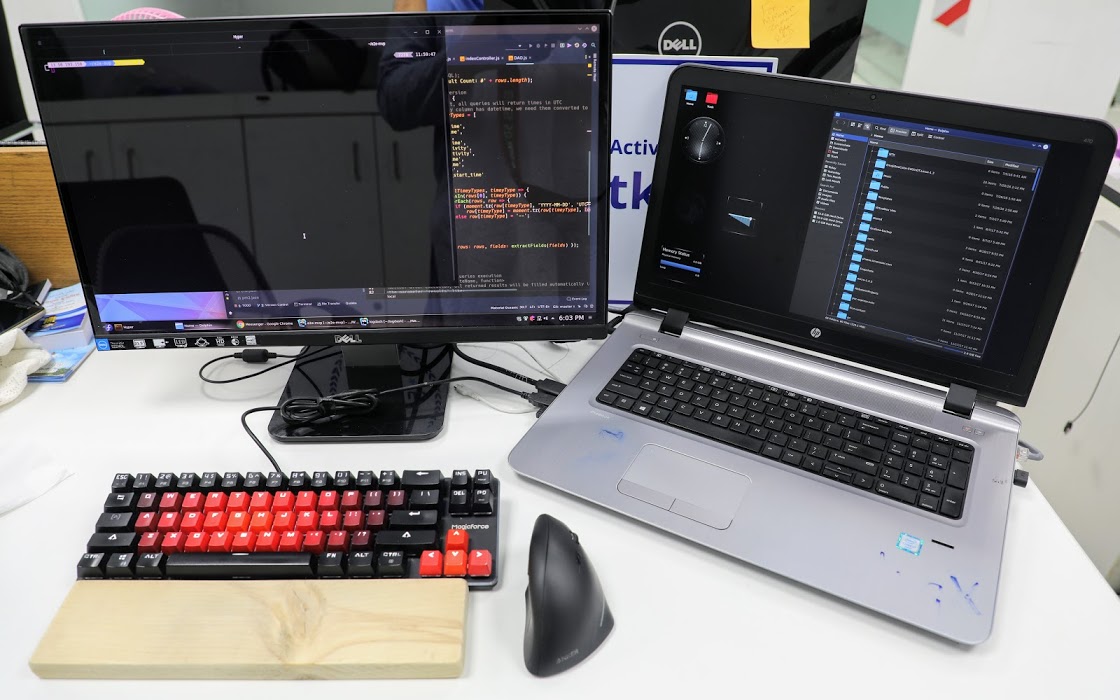
For work, Monsoor uses Fedora 27 on an HP Probook 470 G3 laptop. The laptop is equipped with an Intel Core i7-6500U Processor and 16 GB RAM. It has a hybrid graphics solution utilizing Intel and AMD GPUs. The hybrid graphics is not very useful due to driver issues in Linux. Monsoor replaced the 500GB hard drive with a 128GB SSD drive to boost performance. “The big 17″ display is a huge plus for software development.”

Monsoor has repetitive pain injury (RSI) pain in his wrists so he uses a special mouse. “I use an Anker vertical wireless mouse to ease the stress on my wrist.”

Kahled Monsoor's Computer Setup

What Software?

Monsoor prefers KDE Plasma for his desktop. He also makes use of Kate, Konsole, Kalc, Dolphin file manager and Kdenlive. For non-KDE software he uses Gimp, Pinta, Shotwell, Hyper Terminal, VS Code, PostgreSQL, Firefox and Libre Office.

When asked about why he prefers KDE he said, “I’m not sure, exactly. Possibly, it gives me a feeling of control. In charge of something very capable, waiting for directions and just works. Not forced over-simplistic, or trying to hide the complexities it handles, rather gives a grip on them. Or, just that its name begins with the same character (K) as my name.”

He prefers Konsole because “it shares the philosophy of KDE. Stable, capable and highly-configurable, just what power users needs. Not too dumb-looking, not too nerdy.”

Posted on Leave a comment

4 cool new projects to try in COPR for June 2018

COPR is a collection of personal repositories for software that isn’t carried in Fedora. Some software doesn’t conform to standards that allow easy packaging. Or it may not meet other Fedora standards, despite being free and open source. COPR can offer these projects outside the Fedora set of packages. Software in COPR isn’t supported by Fedora infrastructure or signed by the project. However, it can be a neat way to try new or experimental software.

Here’s a set of new and interesting projects in COPR.

Ghostwriter

Ghostwriter is a text editor for Markdown format with a minimal interface. It provides a preview of the document in HTML and syntax highlighting for Markdown. It offers the option to highlight only the paragraph or sentence currently being written. In addition, Ghostwriter can export documents to several formats, including PDF and HTML. Finally, it has the so-called “Hemingway” mode, in which erasing is disabled, forcing the user to write now and edit later.

Installation instructions

The repo currently provides Ghostwriter for Fedora 26, 27, 28, and Rawhide, and EPEL 7. To install Ghostwriter, use these commands:

sudo dnf copr enable scx/ghostwriter sudo dnf install ghostwriter

Lector

Lector is a simple ebook reader application. Lector supports most common ebook formats, such as EPUB, MOBI, and AZW, as well as comic book archives CBZ and CBR. It’s easy to setup — just specify the directory containing your ebooks. You can browse books in Lector’s library using either a table or book covers. Among Lector’s features are bookmarks, user-defined tags, and a built-in dictionary.

Installation instructions

The repo currently provides Lector for Fedora 26, 27, 28, and Rawhide. To install Lector, use these commands:

sudo dnf copr enable bugzy/lector sudo dnf install lector

Ranger

Ranger is a text-based file manager with Vim key bindings. It displays the directory structure in three columns. The left one shows the parent directory, the middle the contents of the current directory, and the right a preview of the selected file or directory. In the case of text files, Ranger shows actual contents of the file as a preview.

Installation instructions

The repo currently provides Ranger for Fedora 27, 28, and Rawhide. To install Ranger, use these commands:

sudo dnf copr enable fszymanski/ranger sudo dnf install ranger

PrestoPalette

PrestoPalette is a tool that helps create balanced color palettes. A nice feature of PrestoPalette is the ability to use lighting to affect both lightness and saturation of the palette. You can export created palettes either as PNG or JSON.

Installation instructions

The repo currently provides PrestoPalette for Fedora 26, 27, 28, and Rawhide, and EPEL 7. To install PrestoPalette, use these commands:

sudo dnf copr enable dagostinelli/prestopalette sudo dnf install prestopalette
Posted on Leave a comment

Download an OS with GNOME Boxes

Boxes is the GNOME application for running virtual machines. Recently Boxes added a new feature that makes it easier to run different Linux distributions. You can now automatically install these distros in Boxes, as well as operating systems like FreeBSD and FreeDOS. The list even includes Red Hat Enterprise Linux. The Red Hat Developer Program includes a no-cost subscription to Red Hat Enterprise Linux. With a Red Hat Developer account, Boxes can automatically set up a RHEL virtual machine entitled to the Developer Suite subscription. Here’s how it works.


Red Hat Enterprise Linux

To create a Red Hat Enterprise Linux virtual machine, launch Boxes and click New. Select Download an OS from the source selection list. At the top, pick Red Hat Enterprise Linux. This opens a web form at developers.redhat.com. Sign in with an existing Red Hat Developer Account, or create a new one.

If this is a new account, Boxes requires some additional information before continuing. This step is required to enable the Developer Subscription on the account. Be sure to accept the Terms & Conditions now too. This saves a step later during registration.


Click Submit and the installation disk image starts to download. The download can take a while, depending on your Internet connection. This is a great time to go fix a cup of tea or coffee!

Once the media has downloaded (conveniently to ~/Downloads), Boxes offers to perform an Express Install. Fill in the account and password information and click Continue. Click Create after you verify the virtual machine details. The Express Install  automatically performs the entire installation! (Now is a great time to enjoy a second cup of tea or coffee, if so inclined.)

Once the installation is done, the virtual machine reboots and logs directly into the desktop. Inside the virtual machine, launch the Red Hat Subscription Manager via the Applications menu, under System Tools. Enter the root password to launch the utility.

Click the Register button and follow the steps through the registration assistant. Log in with your Red Hat Developers account when prompted.

Now you can download and install updates through any normal update method, such as yum or GNOME Software.

FreeDOS anyone?

Boxes can install a lot more than just Red Hat Enterprise Linux, too. As a front end to KVM and qemu, Boxes supports a wide variety of operating systems. Using libosinfo, Boxes can automatically download (and in some cases, install) quite a few different ones.

To install an OS from the list, select it and finish creating the new virtual machine. Some OSes, like FreeDOS, do not support an Express Install. In those cases the virtual machine boots from the installation media. You can then manually install.

Popular operating systems on Boxes

These are just a few of the popular choices available in Boxes today.

Ubuntu 17.10

Pop!_OS 17.10

EndlessOS 3

Fedora 28

openSUSE Tumbleweed

Debian 9

Fedora updates its osinfo-db package regularly. Be sure to check back frequently for new OS options.

Posted on Leave a comment

Fractal: a GNOME Matrix chat client

Matrix is a protocol for decentralized instant messaging that has recently grown in popularity. Matrix can be used for a wide range of communication tasks, such as group chats, video chats, sharing files, and bridging to existing IRC rooms. One of the easiest ways to use Matrix is the RiotIM web client or desktop application. However, Fractal is a Matrix desktop application designed for GNOME, so it arguably feels a lot more at home on Fedora Workstation, as seen here:

Fractal is a new project, and currently doesn’t support some Matrix functionality, including video chats. However, the core functionality of a basic text chat / messaging client works well. Additionally, it is clear that a lot of thought has been put into the user interface.  The UI is clean, neat, and easy to navigate.

Support in Matrix for end-to-end encryption is in beta. However, Fractal currently does not support encryption.

Installing Fractal

The easiest way to install Fractal on Fedora is from  Flathub. First, follow the directions in this article to set up Flathub as a third party software source.

Once Flathub is enabled as a third-party source, simply search and install Fractal from the Software app in Fedora Workstation.


Posted on Leave a comment

Fedora 26 end of life approaching

UPDATE: Date corrected to May 29.

As readers may be aware, Fedora 28 recently released to great acclaim. That means Fedora 26 hits its End of Life (EOL) status on May 29, 2018. Read more here about what this means, and what steps you can take with your older Fedora systems.

After May 29, packages in the Fedora 26 repositories no longer receive any security, bugfix, or enhancement updates. Furthermore, at that point the community adds no new packages to the F26 collection.

The Fedora Project highly recommends you upgrade all systems to Fedora 28 or Fedora 27 before the EOL date. Upgrades are an easy way to keep your system setup while you move to the latest technology.

Looking back at Fedora 26

Fedora 26 was released in July 2017. During its lifetime, the Fedora community published nearly 10,000 updates to the F26 repositories. Fedora 26 Workstation featured version 3.24 of GNOME. The release also carried numerous improvements and highlights:

  • A new partitioning tool in Anaconda for expert setup
  • DNF 2.5 with new software management capabilities
  •  The Python Classroom Lab which helps educators introduce students to the latest technology

About the Fedora Release Cycle

The Fedora Project provides updates for a particular release until a month after the second subsequent version of Fedora is released. For example, updates for Fedora 26 continue until one month after the release of Fedora 28. Fedora 27 continues to be supported up until one month after the release of Fedora 29.

Since Fedora 28 released on time on May 1, 2018, Fedora 26 reaches EOL even though it’s been around less than 11 months. So if that lifecycle seems shorter than usual to you, you’re right!

The Fedora Project wiki contains more detailed information about the entire Fedora Release lifecycle. The lifecycle includes milestones from development to release, and the post-release support period.

Posted on Leave a comment

Set up zsh on your Fedora system

For some people, the terminal can be scary. But a terminal is more than just a black screen to type in. It usually runs a shell, so called because it wraps around the kernel. The shell is a text-based interface that lets you run commands on the system. It’s also sometimes called a command line interpreter or CLI. Fedora, like most Linux distributions, comes with bash as the default shell.  However, it isn’t the only shell available; several other shells can be installed. This article focuses on the Z Shell, or zsh.

Bash is a rewrite of the old Bourne shell (sh) that shipped in UNIX. Zsh is intended to be friendlier than bash, through better interaction. Some of its useful features are:

  • Programmable command line completion
  • Shared command history between running shell sessions
  • Spelling correction
  • Loadable modules
  • Interactive selection of files and folders

Zsh is available in the Fedora repositories. To install, run this command:

$ sudo dnf install zsh

Using zsh

To start using it, just type zsh and the new shell prompts you with a first run wizard. This wizard helps you configure initial features, like history behavior and auto-completion. Or you can opt to keep the rc file empty:

zsh First Run Wizzard

First-run wizard

If you type 1 the configuration wizard starts. The other options launch the shell immediately.

Note that the user prompt is % and not $ as with bash. A significant feature here is the auto-completion that allows you to move among files and directories with the Tab key, much like a menu:

zsh cd Feature

Using the auto-completion feature with the cd command

Another interesting feature is spelling correction, which helps when writing filenames with mixed cases:

zsh Auto Completion

Auto completion performing spelling correction

Making zsh your default shell

Zsh offers a lot of plugins, like zsh-syntax-highlighting, and the famous “Oh my zsh” (check out its page here). You might want to make it the default, so it runs whenever you start a session or open a terminal. To do this, use the chsh (“change shell”) command:

$ chsh -s $(which zsh)

This command tells your system that you want to set (-s) your default shell to the correct location of the shell (which zsh).


Photo by Kate Ter Haar from Flickr (CC BY-SA).

Posted on Leave a comment

Audacity quick tip: quickly remove background noise

When recording sounds on a laptop — say for a simple first screencast — many users typically use the built-in microphone. However, these small microphones also capture a lot of background noise. In this quick tip, learn how to use Audacity in Fedora to quickly remove the background noise from audio files.

Installing Audacity

Audacity is an application in Fedora for mixing, cutting, and editing audio files. It supports a wide range of formats out of the box on Fedora — including MP3 and OGG. Install Audacity from the Software application.

If the terminal is more your speed, use the command:

sudo dnf install audacity

Import your Audio, sample background noise

After installing Audacity, open the application, and import your sound using the File > Import menu item. This example uses a sound bite from freesound.org to which noise was added:


Next, take a sample of the background noise to be filtered out. With the tracks imported, select an area of the track that contains only the background noise. Then choose Effect >  Noise Reduction from the menu, and press the Get Noise Profile button.

Filter the Noise

Next, select the area of the track you want to filter the noise from. Do this either by selecting with the mouse, or Ctrl + a to select the entire track. Finally, open the Effect > Noise Reduction dialog again, and click OK to apply the filter.

Additionally, play around with the settings until your tracks sound better. Here is the original file again, followed by the noise reduced track for comparison (using the default settings):