Posted on Leave a comment

Connect Fedora to your Android phone with GSConnect

Both Apple and Microsoft offer varying levels of integration of their desktop offerings with your mobile devices. Fedora offers a similar if not greater degree of integration with GSConnect. It lets you pair your Android phone with your Fedora desktop and opens up a lot of possibilities. Keep reading to discover more about what it is and how it works.

What is GSConnect?

GSConnect is an implementation of the KDE Connect project tailored for the GNOME desktop. KDE Connect makes it possible for your devices to communicate with each other. However, installing it on Fedora’s default GNOME desktop requires pulling in a large number of KDE dependencies.

GSConnect is a complete implementation of KDE Connect, but in the form of a GNOME shell extension. Once installed, GSConnect lets you do the following and a lot more:

  • Receive phone notifications on your desktop and reply to messages
  • Use your phone as a remote control for your desktop
  • Share files and links between devices
  • Check your phone’s battery level from the desktop
  • Ring your phone to help find it

Setting up the GSConnect extension

Setting up GSConnect requires installing two components: the GSConnect extension on your desktop and the KDE Connect app on your Android device.

First, install the GSConnect extension from the GNOME Shell extensions website: GSConnect. (Fedora Magazine has a handy article on How to install a GNOME Shell extension to help you with this step.)

The KDE Connect app is available on Google’s Play Store. It’s also available on the FOSS Android apps repository, F-Droid.

Once you have installed both these components, you can pair your two devices. Installing the extension makes it show up in your system menu as Mobile Devices. Clicking on it displays a drop down menu, from which you can access Mobile Settings.

GSConnect menu within system menu

Here’s where you can view your paired devices and manage the features offered by GSConnect. Once you are on this screen, launch the app on your Android device.

You can initiate pairing from either device, but here you’ll be connecting to your desktop from the Android device. Simply hit refresh on the app, and as long as both devices are on the same wireless network, your desktop shows up in your Android device. You can now send a pair request to the desktop. Accept the pair request on your desktop to complete the pairing.

Pair request from Android app to desktop

Using GSConnect

Once paired, you’ll need to grant permissions on your Android device to make use of the many features available on GSConnect. Click on the paired device in the list of devices to see all available functions and enable or disable them according to your preferences.

GSConnect device preferences

Remember that you’ll also need to grant corresponding permissions in the Android app to be able to use these functions. Depending upon the features you’ve enabled and the permissions you’ve granted, you can now access your mobile contacts on your desktop, get notified of messages and reply to them, and even sync the desktop and Android device clipboards.

Integration with Files and your web browsers

GSConnect allows you to directly send files to your Android device from your desktop file explorer’s context menu.

On Fedora’s default GNOME desktop, you will need to install the nautilus-python package in order to make your paired devices show up in the context menu. Installing this is as straightforward as running the following command from your preferred terminal:

$ sudo dnf install nautilus-python

Once done, the Send to Mobile Device entry appears in the context menu of the Files app.

Context menu entry to send file to mobile device

Similarly, install the corresponding WebExtension for your browser, be it Firefox or Chrome, to send links to your Android device. You have the option to send the link to launch directly in your browser or to deliver it as SMS.

Running Commands

GSConnect lets you define commands which you can then run on your desktop, from your remote device. This allows you to do things such as take a screenshot of your desktop, or lock and unlock your desktop from your Android device, remotely.

Define commands to be run from the mobile device, on the desktop

To make use of this feature, you can use standard shell commands and the CLI exposed by GSConnect. Documentation on this is provided in the project’s GitHub repository: CLI Scripting.

The KDE UserBase Wiki has a list of example commands. These examples cover controlling the brightness and volume on your desktop, locking the mouse and keyboard, and even changing the desktop theme. Some of the commands are specific for KDE Plasma, and modifications are necessary to make it run on the GNOME desktop.

Explore and have fun

GSConnect makes it possible to enjoy a great degree of convenience and comfort. Dive into the preferences to see all that you can do and get creative with the commands function. Feel free to share all the possibilities this utility unlocked in your workflow in the comments below.


Photo by Pathum Danthanarayana on Unsplash.

Posted on Leave a comment

Use a drop-down terminal for fast commands in Fedora

A drop-down terminal lets you tap a key and quickly enter any command on your desktop. Often it creates a terminal in a smooth way, sometimes with effects. This article demonstrates how it helps to improve and speed up daily tasks, using drop-down terminals like Yakuake, Tilda, Guake and a GNOME extension.

Yakuake

Yakuake is a drop-down terminal emulator based on KDE Konsole techonology. It is distributed under the terms of the GNU GPL Version 2. It includes features such as:

  • Smoothly rolls down from the top of your screen
  • Tabbed interface
  • Configurable dimensions and animation speed
  • Skinnable
  • Sophisticated D-Bus interface

To install Yakuake, use the following command:

$ sudo dnf install -y yakuake

Startup and configuration

If you’re runnign KDE, open the System Settings and go to Startup and Shutdown. Add yakuake to the list of programs under Autostart, like this:

It’s easy to configure Yakuake while running the app. To begin, launch the program at the command line:

$ yakuake &

The following welcome dialog appears. You can set a new keyboard shortcut if the standard one conflicts with another keystroke you already use:

Now click the menu button, and the following help menu appears. Next, select Configure Yakuake… to access the configuration options.

You can customize the options for appearance, such as opacity; behavior, such as focusing terminals when the mouse pointer is moved over them; and window, such as size and animation. In the window options you’ll find one of the most useful options is you use two or more monitors: Open on screen: At mouse location.

Using Yakuake

The main shortcuts are:

  • F12 = Open/Retract Yakuake
  • Ctrl+F11 = Full Screen Mode
  • Ctrl+) = Split Top/Bottom
  • Ctrl+( = Split Left/Right
  • Ctrl+Shift+T = New Session
  • Shift+Right = Next Session
  • Shift+Left = Previous Session
  • Ctrl+Alt+S = Rename Session

Below is an example of Yakuake being used to split the session like a terminal multiplexer. Using this feature, you can run several shells in one session.

Tilda

Tilda is a drop-down terminal that compares with other popular terminal emulators such as GNOME Terminal, KDE’s Konsole, xterm, and many others.

It features a highly configurable interface. You can even change options such as the terminal size and animation speed. Tilda also lets you enable hotkeys you can bind to commands and operations.

To install Tilda, run this command:

$ sudo dnf install -y tilda

Startup and configuration

Most users prefer to have a drop-down terminal available behind the scenes when they login. To set this option, first go to the app launcher in your desktop, search for Tilda, and open it.

Next, open up the Tilda Config window. Select Start Tilda hidden, which means it will not display a terminal immediately when started.

Next, you’ll set your desktop to start Tilda automatically. If you’re using KDE, go to System Settings > Startup and Shutdown > Autostart and use Add a Program.

If you’re using GNOME, you can run this command in a terminal:

$ ln -s /usr/share/applications/tilda.desktop ~/.config/autostart/

When you run for the first time, a wizard shows up to set your preferences. If you need to change something, right click and go to Preferences in the menu.

You can also create multiple configuration files, and bind other keys to open new terminals at different places on the screen. To do that, run this command:

$ tilda -C

Every time you use the above command, Tilda creates a new config file located in the ~/.config/tilda/ folder called config_0, config_1, and so on. You can then map a key combination to open a new Tilda terminal with a specific set of options.

Using Tilda

The main shortcuts are:

  • F1 = Pull Down Terminal Tilda (Note: If you have more than one config file, the shortcuts are the same, with a diferent open/retract shortcut like F1, F2, F3, and so on)
  • F11 = Full Screen Mode
  • F12 = Toggle Transparency
  • Ctrl+Shift+T = Add Tab
  • Ctrl+Page Up = Go to Next Tab
  • Ctrl+Page Down = Go to Previous Tab

GNOME Extension

The Drop-down Terminal GNOME Extension lets you use this useful tool in your GNOME Shell. It is easy to install and configure, and gives you fast access to a terminal session.

Installation

Open a browser and go to the site for this GNOME extension. Enable the extension setting to On, as shown here:

Then select Install to install the extension on your system.

Once you do this, there’s no reason to set any autostart options. The extension will automatically run whenever you login to GNOME!

Configuration

After install, the Drop Down Terminal configuration window opens to set your preferences. For example, you can set the size of the terminal, animation, transparency, and scrollbar use.

If you need change some preferences in the future, run the gnome-shell-extension-prefs command and choose Drop Down Terminal.

Using the extension

The shortcuts are simple:

  • ` (usually the key above Tab) = Open/Retract Terminal
  • F12 (customize as you prefer) = Open/Retract Terminal

Posted on Leave a comment

3 cool productivity apps for Fedora 28

Productivity apps are especially popular on mobile devices. But when you sit down to do work, you’re often at a laptop or desktop computer. Let’s say you use a Fedora system for your platform. Can you find apps that help you get your work done? Of course! Read on for tips on apps to help you focus on your goals.

All these apps are available for free on your Fedora system. And they also respect your freedom. (Many also let you use existing services where you may have an account.)

FocusWriter

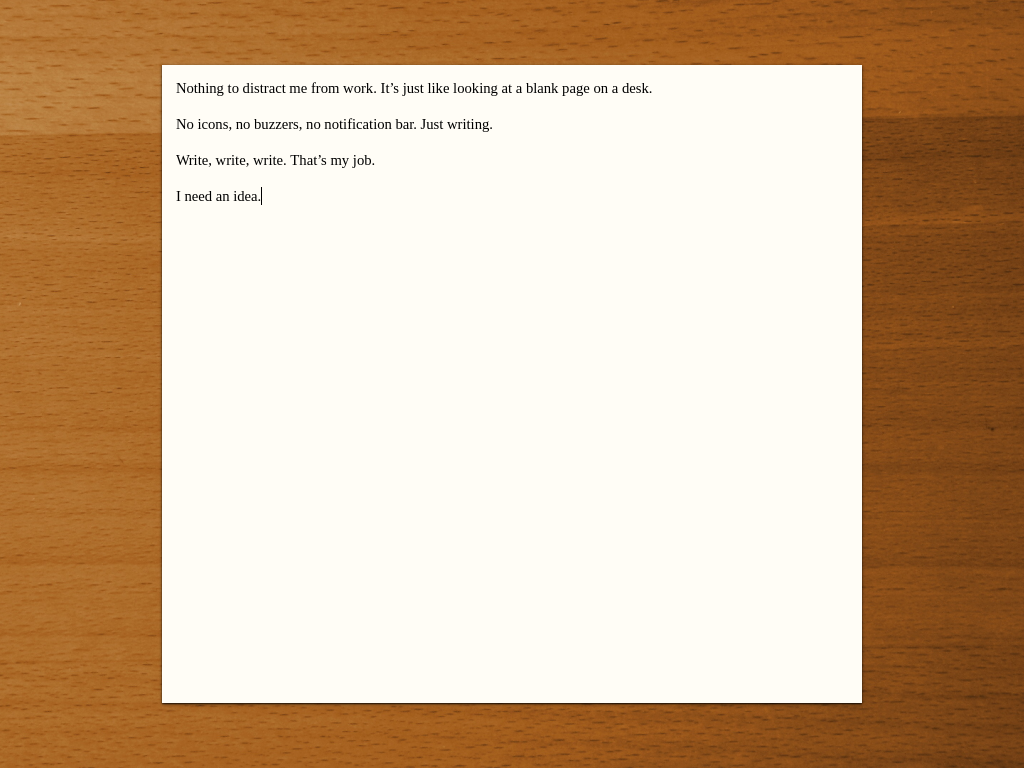
FocusWriter is simply a full screen word processor. The app makes you more productive because it covers everything else on your screen. When you use FocusWriter, you have nothing between you and your text. With this app at work, you can focus on your thoughts with fewer distractions.

Screenshot of FocusWriter

FocusWriter lets you adjust fonts, colors, and theme to best suit your preferences. It also remembers your last document and location. This feature lets you jump right back into focusing on writing without delay.

To install FocusWriter, use the Software app in your Fedora Workstation. Or run this command in a terminal using sudo:

sudo dnf install focuswriter

GNOME ToDo

This unique app is designed, as you can guess, for the GNOME desktop environment. It’s a great fit for your Fedora Workstation for that reason. ToDo has a simple purpose: it lets you make lists of things you need to get done.

Screenshot from GNOME ToDo on Fedora 28

Using ToDo, you can prioritize and schedule deadlines for all your tasks. You can also build as many tasks lists as you want. ToDo has numerous extensions for useful functions to boost your productivity. These include GNOME Shell notifications, and list management with a todo.txt file. ToDo can even interface with a Todoist or Google account if you use one. It synchronizes tasks so you can share across your devices.

To install, search for ToDo in Software, or at the command line run:

sudo dnf install gnome-todo

Zanshin

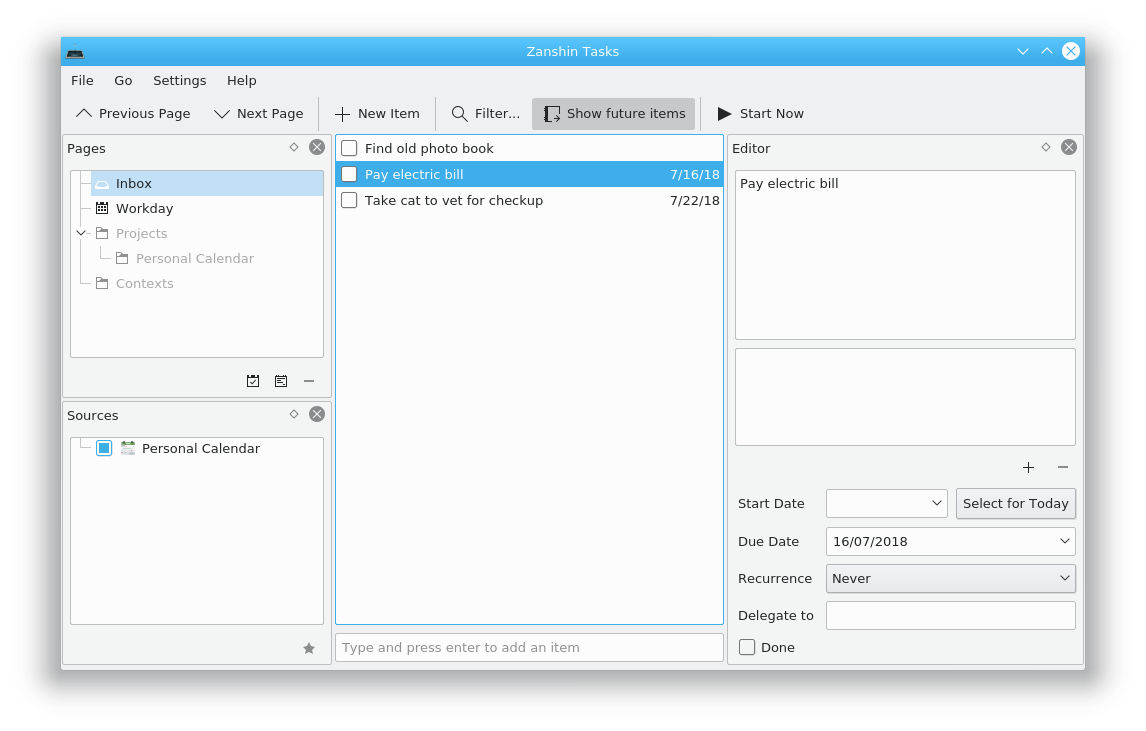
If you are a KDE using productivity fan, you may enjoy Zanshin. This organizer helps you plan your actions across multiple projects. It has a full featured interface, and lets you browse across your various tasks to see what’s most important to do next.

Screenshot of Zanshin on Fedora 28

Zanshin is extremely keyboard friendly, so you can be efficient during hacking sessions. It also integrates across numerous KDE applications as well as the Plasma Desktop. You can use it inline with KMail, KOrganizer, and KRunner.

To install, run this command:

sudo dnf install zanshin

Photo by Cathryn Lavery on Unsplash.