
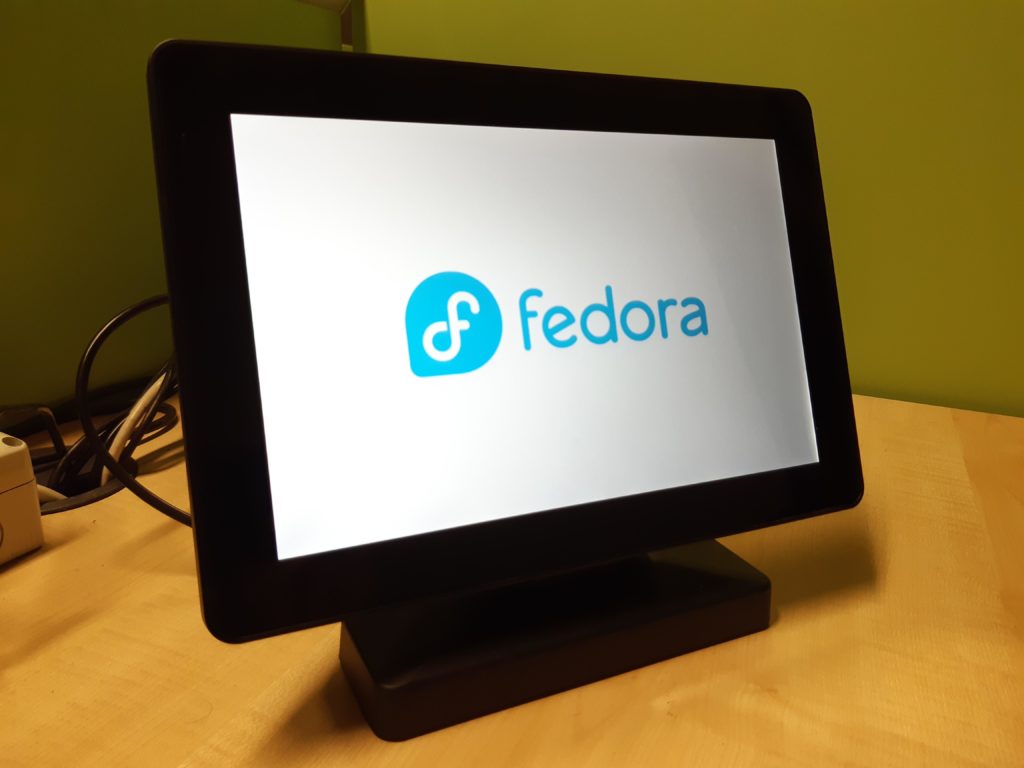
This article will describe the process of creating a kiosk or information “station” using Fedora Silverblue.
What is a kiosk
If you’ve had the occasion to visit a museum, you might have used a touchscreen monitor with useful information and insights of the items on display. Or if you’ve attended a public library, you might have used a workstation with a browser or a software aimed to the consultation of the book’s catalog. Or even in public places like train stations or public squares, you might have spotted big screens or televisions where you can see advertisement videos, or interacted with them in order to obtain information and services. These devices are kiosks. They are locked down environments, generally running a full screen application.
Under the hood there is usually a small PC (maybe a fan-less device or a so called industrial PC, capable of staying powered on without issues for long periods of time) or perhaps a Raspberry Pi. Many times they are powered by Linux!
Why Fedora Silverblue
Fedora Silverblue is a new generation of the desktop operating system. The main benefits of the system are atomic updates and immutability.
Atomic updates means that the update process will complete successfully and if not the operation will be abandoned and the system reverted to the previous state. This prevents situations where some packages are upgraded while others are not. This might occur, for example, due to a power loss in the middle of the update process, leading to an unstable or unbootable system.
In this context, immutability means part of the filesystem is read-only and the system files cannot be modified (at least not in the usual ways, read below). The term has been criticized by several parties: in fact, if you can update the system and install things, the system is actually mutable, so another term should be coined for these kinds of operating systems where there is a clearly defined distinction between the system, the applications and the changes made by the user. However this is not the topic of this article.
You can find more information about Fedora Silverblue in this article: What is Silverblue?
These features make the system more robust and secure. This is an important consideration since a kiosk is usually located in a remote place, accessible to the public (even if hidden inside some box or behind a TV), and difficult to reach in case of malfunctions.
If you have heard about Fedora IoT, you might think that it would be the perfect solution for this kind of operations. However, Fedora IoT, although sharing the same technologies as Fedora Silverblue (immutability, rpm-ostree, etc.), is not designed for and it doesn’t provide a graphical environment. Running headless is the expected use case for Fedora IoT.
GNOME Kiosk
GNOME Kiosk is a special GNOME session that “provides a desktop environment suitable for a fixed purpose, or single application deployments like wall displays and point-of-sale systems”. It provides a locked down GNOME session, without activities, dock, top bar, etc.
The required bits are available in the Fedora repository.
How to proceed
As a basic example, we will create a simple slideshow.
First of all let’s install Fedora Silverblue.
The first user created during initial setup becomes the administrator.
Go to Settings. Enable Sharing and enable Remote Login (that is SSH) in order to access the kiosk for remote management.
In Settings, go to Users and add a new user. Let’s call it “kiosk” and assign it a password.
Install GNOME Kiosk
Even though Fedora Silverblue is an immutable system, rpm-ostree still allows you to install packages from the DNF repositories. This is called layering. Read more on How I Customize Fedora Silverblue and Fedora Kinoite.
Open the terminal and issue the following command.
sudo rpm-ostree install gnome-kiosk gnome-kiosk-script-session
To activate the layered packages, you will have to reboot the system.
Automatic login
We have to set the system to automatically log in as the “kiosk” user.
After the reboot, log in as the administrator user. Then go to Settings, Users, select the “kiosk” user, and enable Automatic Login.

Then log out (don’t reboot yet).
For reference you can enable automatic login from the command line. To do so, edit the file /etc/gdm/custom.conf, and add the following two lines to the [daemon] section.
[daemon]
AutomaticLoginEnable=True
AutomaticLogin=kiosk
Configure the kiosk
At the login screen, select the “kiosk” user.
As a basic example, let’s create a slideshow of images. To do that we will use the GNOME image viewer (Eye of GNOME or eog). This is already installed on Fedora Silverblue as a Flatpak package. (Yes, you can run Flatpak applications from the command line.)
Put some images in the Pictures folder.
In the activities overview, you can find an application called Kiosk Script. Actually Gedit will open it and let you edit the script that will start when you select the Kiosk session at login. For reference, this script is named gnome-kiosk-script and it is located in the home directory under .local/bin.
Read the comments. Pay attention to the last line. If the program that you want to use in the kiosk session exits as soon as it is launched (or it runs in the background), you risk creating an infinite loop that will start a new window each second!
The slideshow script will look like this:
#!/bin/sh if [ ! "$(pidof eog)" ]
then flatpak run org.gnome.eog -s /home/kiosk/Pictures
fi sleep 1.0
exec "$0" "$@"
The above example script, will run eog in slideshow mode (indicated by the “-s” option) only if a process called eog isn’t already running. Make certain to take into account that the script can invoke itself in an infinite loop (it is instructed to do so by the last line). Note that if for some reason Eye of GNOME crashes, it will be launched again because of the “if” statement.
Save the script. And the full screen slideshow will start immediately! Don’t worry, you are not yet in the kiosk session. Press the super key and you can still use the dash and the applications overview.
Logout.
At the login screen click on the gear icon at the bottom right of the login page. Select “Kiosk Script Session (Wayland Display Server)”.
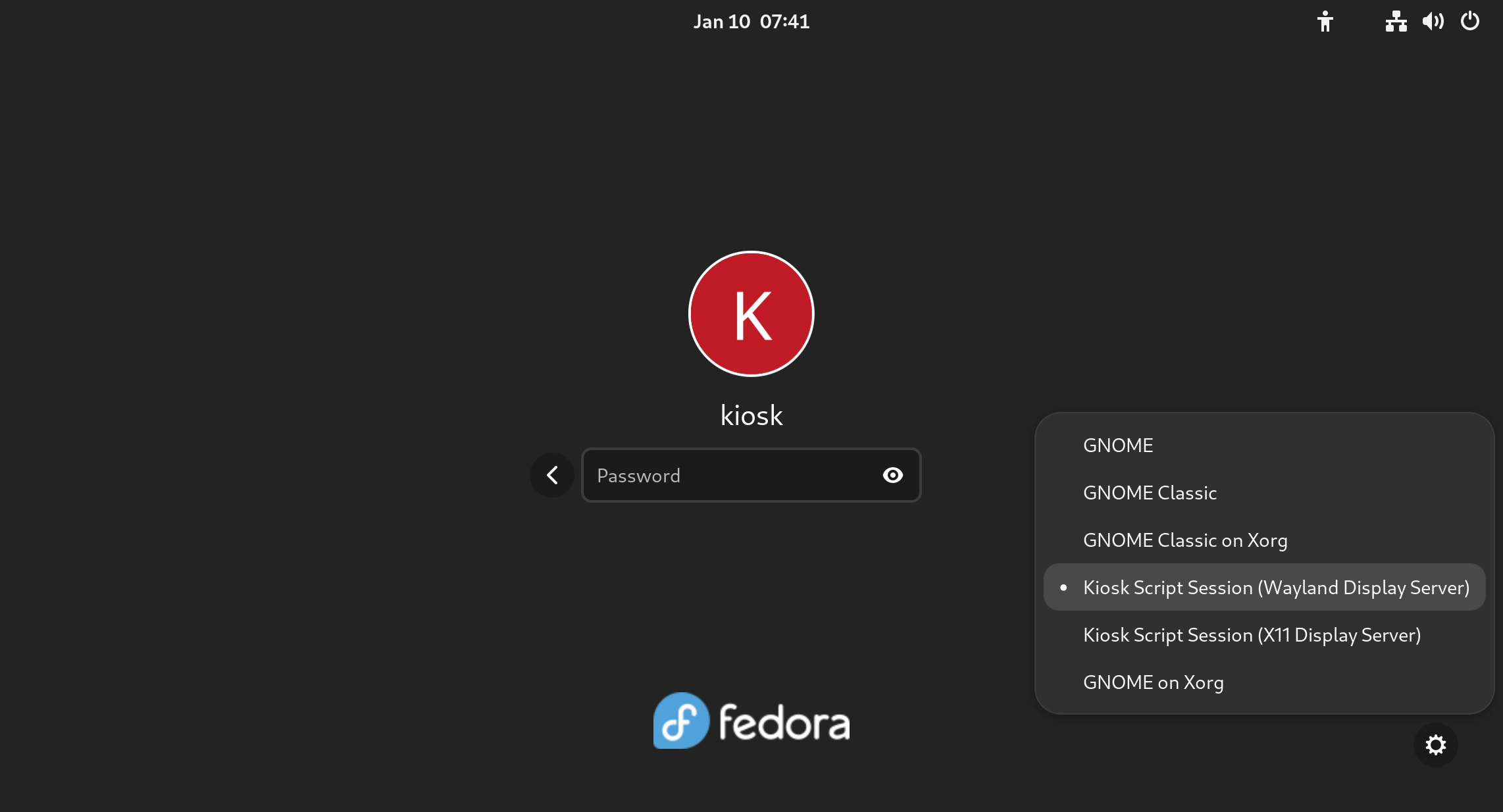
Insert the password and the full screen slideshow will start.
You will be in the locked down GNOME session, so you can’t use any application or desktop functions. If needed, you can still switch to a TTY to gain the command line using a combination like CTRL+ALT+F3
For reference, the file containing the user’s default session is /var/lib/AccountsService/users/kiosk
Session=gnome-kiosk-script-wayland
The last step is to reboot the machine.
Other types of kiosk
Other ideas could be:
- a full screen Firefox session (take a look at the gnome-kiosk-search-appliance RPM package)
- a video loop
- your own software specifically crafted for this purpose
- any application
Further improvements
You might modify the script to show the slideshow only at certain times of the day.
To make the system more robust and secure, you might add a password to GRUB and to the BIOS. You might also disable the TTYs.
Other useful ideas might be to enable automatic updates, and especially to implement greenboot, a health check framework developed for Fedora IoT.
