Posted on Leave a comment

5 applications to manage your to-do list on Fedora

Effective management of your to-do list can do wonders for your productivity. Some prefer just keeping a to-do list in a text file, or even just using a notepad and pen. For users that want more out of their to-do list, they often turn to an application. In this article we highlight 4 graphical applications and a terminal-based tool for managing your to-do list.

GNOME To Do

GNOME To Do is a personal task manager designed specifically for the GNOME desktop (Fedora Workstation’s default desktop). When comparing GNOME To Do with some others in this list, it is has a range of neat features.

GNOME To Do provides organization of tasks by lists, and the ability to assign a colour to that list. Additionally, individual tasks can be assigned due dates & priorities, and notes for each task. Futhermore, GNOME To Do has extensions, allowing even more features, including support for todo.txt and syncing with online services such as todoist.

Install GNOME To Do either by using the Software application, or using the following command in the Terminal:

sudo dnf install gnome-todo

Getting things GNOME!

Before GNOME To Do existed, the go-to application for tracking tasks on GNOME was Getting things GNOME! This older-style GNOME application has a multiple window layout, allowing you to show the details of multiple tasks at the same time. Rather than having lists of tasks, GTG has the ability to add sub-tasks to tasks and even to sub-tasks. GTG also has the ability to add due dates and start dates. Syncing to other apps and services is also possible in GTG via plugins.

Install Getting Things GNOME either by using the Software application, or using the following command in the Terminal:

sudo dnf install gtg

Go For It!

Go For It! is a super-simple task management application. It is used to simply create a list of tasks, and mark them as done when completed. It does not have the ability to group tasks, or create sub-tasks. By default, Go For It! stored tasks in the todo.txt format, allowing simpler syncing to online services and other applications. Additionally, Go For It! contains a simple timer to track how much time you have spent on the current task.

Go For It is available to download from the Flathub application repository. To install, simply enable Flathub as a software source, and then install via the Software application.

Agenda

If you are looking for a no-fuss super simple to-do application, look no further than Agenda. Create tasks, mark them as complete, and then delete them from your list. Agenda shows all tasks (completed or open) until you remove them.

Agenda is available to download from the Flathub application repository. To install, simply enable Flathub as a software source, and then install via the Software application.

Taskwarrior

Taskwarrior is a flexible command-line task management program. It is highly customizable, but can also be used “right out of the box.”   Using simple commands, you can create tasks, mark them as complete, and list current open tasks. Additionally, tasks can be tagged, added to projects, searched and filtered. Furthermore, you can set up recurring tasks, and apply due dates to tasks.

This previous article on the Fedora Magazine provides a good overview of getting started with Taskwarrior.

Install Taskwarrior with this command in the Terminal:

sudo dnf install task
Posted on Leave a comment

How to use Fedora Server to create a router / gateway

Building a router (or gateway) using Fedora Server is an interesting project for users wanting to learn more about Linux system administration and networking. In this article, learn how to configure a Fedora Server minimal install to act as an internet router / gateway.

This guide is based on Fedora 28 and assumes you have already installed Fedora Server (minimal install). Additionally, you require a suitable network card / modem for the incoming internet connection. In this example, the  DrayTek VigorNIC 132 NIC was used to create the router.

Why build your own router

There are many benefits for building your own router over buying a standalone box (or using the one supplied by your internet provider):

  • Easily update and run latest software versions
  • May be less prone to be part of larger hacking campaign as its not a common consumer device
  • Run your own VMs or containers on same host/router
  • Build OpenShift on top of router (future story in this series)
  • Include your own VPN, Tor, or other tunnel paths along with correct routing

The downside is related to time and knowledge.

  • You have to manage your own security
  • You need to have the knowledge to troubleshoot if an issue happens or find it through the web (no support calls)
  • Costs more in most cases than hardware provided by an internet provider

Basic network topology

The diagram below describes the basic topology used in this setup. The machine running Fedora Server has a PCI Express modem for VDSL. Alternatively, if you use a Raspberry Pi with external modem the configuration is mostly similar.

topology

Initial Setup

First of all, install the packages needed to make the router. Bash auto-complete is included to make things easier when later configuring. Additionally, install packages to allow you to host your own VMs on the same router/hosts via KVM-QEMU.

dnf install -y bash-completion NetworkManager-ppp qemu-kvm qemu-img virt-manager libvirt libvirt-python libvirt-client virt-install virt-viewer 

Next, use nmcli to set the MTU on the WAN(PPPoE) interfaces to align with DSL/ATM MTU and create pppoe interface. This link has a great explanation on how this works. The username and password will be provided by your internet provider.

nmcli connection add type pppoe ifname enp2s0 username [email protected] password XXXXXX 802-3-ethernet.mtu 1452

Now, set up the firewall with the default zone as external and remove incoming SSH access.

firewall-cmd --set-default-zone=external firewall-cmd --permanent --zone=external --remove-service=ssh

Add LAN interface(br0) along with preferred LAN IP address and then add your physical LAN interface to the bridge.

nmcli connection add ifname br0 type bridge con-name br0 bridge.stp no ipv4.addresses 10.0.0.1/24 ipv4.method manual nmcli connection add type bridge-slave ifname enp1s0 master br0

Remember to use a subnet that does not overlap with your works VPN subnet. For example my work provides a 10.32.0.0/16 subnet when I VPN into the office so I need to avoid using this in my home network. If you overlap addressing then the route provided by your VPN will likely have lower priority and you will not route through the VPN tunnel.

Now create a file called bridge.xml, containing a bridge definition that virsh will consume to create a bridge in QEMU.

cat > bridge.xml <<EOF <network>     <name>host-bridge</name>     <forward mode="bridge"/>     <bridge name="br0"/> </network> EOF

Start and enable your libvirt-guests service so you can add the bridge in your virtual environment for the VMs to use.

systemctl start libvirt-guests.service systemctl enable libvirt-guests.service 

Add your “host-bridge” to QEMU via virsh command and the XML file you created earlier.

virsh net-define bridge.xml

virsh net-start host-bridge virsh net-autostart host-bridge

Add br0 to internal zone and allow DNS and DHCP as we will be setting up our own services on this router.

firewall-cmd --permanent --zone=internal --add-interface=br0 firewall-cmd --permanent --zone=internal --add-service=dhcp firewall-cmd --permanent --zone=internal --add-service=dns

Since many DHCP clients including Windows and Linux don’t take into account the MTU attribute in DHCP, we will need to allow TCP based protocols to set MSS based on PMTU size.

firewall-cmd --permanent --direct --add-passthrough ipv4 -I FORWARD -p tcp --tcp-flags SYN,RST SYN -j TCPMSS --clamp-mss-to-pmtu

Now we reload the firewall to take permanent changes into account.

nmcli connection reload

Install and Configure DHCP

DHCP configuration depends on your home network setup. Use your own desired domain name and and the subnet was defined during the creation of br0. Be sure to note the MAC address in the config file below can either be capture from the command below once you have DHCP services up and running or you can pull it off the label externally on the device you want to set to static addressing.

cat /var/lib/dhcpd/dhcpd.leases
dnf -y install dhcp vi /etc/dhcp/dhcpd.conf 
option domain-name "lajoie.org"; option domain-name-servers 10.0.0.1; default-lease-time 600; max-lease-time 7200; authoritative; subnet 10.0.0.0 netmask 255.255.255.0 { range dynamic-bootp 10.0.0.100 10.0.0.254; option broadcast-address 10.0.0.255; option routers 10.0.0.1; option interface-mtu 1452; } host ubifi { option host-name "ubifi.lajoie.org"; hardware ethernet f0:9f:c2:1f:c1:12; fixed-address 10.0.0.2; }

Now enable and start your DHCP server

systemctl start dhcpd systemctl enable dhcpd

DNS Install and Configure

Next, install bind and and bind-utils for tools like nslookup and dig.

dnf -y install bind bind-utils

Configure your bind server with listening address (LAN interface in this case) and the forward/reverse zones.

$ vi /etc/named.conf
options { listen-on port 53 { 10.0.0.1; }; listen-on-v6 port 53 { none; }; directory "/var/named"; dump-file "/var/named/data/cache_dump.db"; statistics-file "/var/named/data/named_stats.txt"; memstatistics-file "/var/named/data/named_mem_stats.txt"; secroots-file "/var/named/data/named.secroots"; recursing-file "/var/named/data/named.recursing"; allow-query { 10.0.0.0/24; }; recursion yes; forwarders {8.8.8.8; 8.8.4.4; }; dnssec-enable yes; dnssec-validation yes; managed-keys-directory "/var/named/dynamic"; pid-file "/run/named/named.pid"; session-keyfile "/run/named/session.key"; include "/etc/crypto-policies/back-ends/bind.config"; }; controls { }; logging { channel default_debug { file "data/named.run"; severity dynamic; }; }; view "internal" { match-clients { localhost; 10.0.0.0/24; }; zone "lajoie.org" IN { type master; file "lajoie.org.db"; allow-update { none; }; }; zone "0.0.10.in-addr.arpa" IN { type master; file "0.0.10.db"; allow-update { none; }; }; };

Here is a zone file for example and make sure to update the serial number after each edit of the bind service will assume no changes took place.

$ vi /var/named/lajoie.org.db
$TTL 86400 @ IN SOA gw.lajoie.org. root.lajoie.org. ( 2018040801 ;Serial 3600 ;Refresh 1800 ;Retry 604800 ;Expire 86400 ;Minimum TTL ) IN NS gw.lajoie.org. IN A 10.0.0.1 gw IN A 10.0.0.1 ubifi IN A 10.0.0.2

Here is a reverse zone file for example and make sure to update the serial number after each edit of the bind service will assume no changes took place.

$ vi /var/named/0.0.10.db
$TTL 86400 @ IN SOA gw.lajoie.org. root.lajoie.org. ( 2018040801 ;Serial 3600 ;Refresh 1800 ;Retry 604800 ;Expire 86400 ;Minimum TTL ) IN NS gw.lajoie.org. IN PTR lajoie.org. IN A 255.255.255.0 1 IN PTR gw.lajoie.org. 2 IN PTR ubifi.lajoie.org.

Now enable and start your DNS server

systemctl start named systemctl enable named

Secure SSH

Last simple step is to make SSH service listen only on your LAN segment. Run this command to see whats listening at this moment. Remember we did not allow SSH on the external firewall zone but this step is still best practice in my opinion.

ss -lnp4

Now edit the SSH service to only listen on your LAN segment.

vi /etc/ssh/sshd_config
AddressFamily inet ListenAddress 10.0.0.1

Restart your SSH service for changes to take effect.

systemctl restart sshd.service
<!–

Optional WiFi Configuration

In this optional section we have the configuration for Wireless AP and 4G WAN. I used Ubiquiti wireless in my setup as I needed multi AP and seamless handover. For WiFi you probably want WPA2 pre-shared key, RSN security protocol, and CCMP group as shown below. We also set the AP to run as 5GHz band via “802-11-wireless.band a”.

dnf install NetworkManager-wifi nmcli connection add type wifi ifname wlp6s0 con-name ap0 autoconnect yes ssid HOMENET 802-11-wireless.mode ap 802-11-wireless.band a 802-11-wireless-security.proto rsn 802-11-wireless-security.pairwise ccmp 802-11-wireless-security.group ccmp 802-11-wireless-security.psk xxxxxxxxx 802-11-wireless-security.key-mgmt wpa-psk ipv4.method shared

Optional  4G Configuration

Now install wwan support and if you have a WWAN USB modem like me that needs to be switched to modem mode vs. storage.

dnf install NetworkManager-wwan ModemManager
Enable and start the ModemManager
systemctl start ModemManager  systemctl enable ModemManager
Plug your device in and make sure ModemManager and NetworkManager both see the wwan device.
mmcli -M nmcli dev
If you don’t see your device I recommend you go to this link and open a bug report.

Now configure your 3GPP WAN connection and reload to make sure everything auto-starts.

nmcli connection add type gsm con-name Telekom gsm.apn web.vodafone.de ifname ttyUSB0 

Since we have the default zone for our firewall set to external, this wwan interface will be put into the correct zone.–>

Thank you

Thanks and please leave a comment below if you have any ideas, edits or questions.

Posted on Leave a comment

How to use VS Code for your Python projects

Visual Studio Code, or VS Code, is an open source code editor that also includes tools for building and debugging an application. With the Python extension enabled, vscode becomes a great working environment for any Python developer. This article shows you which extensions are useful, and how to configure VS Code to get the most out of it.

If you don’t have it installed, check out our previous article, Using Visual Studio Code on Fedora:

Using Visual Studio Code on Fedora

Install the VS Code Python extension

First, to make VS Code Python friendly, install the Python extension from the marketplace.

Once the Python extension installed, you can now configure the Python extension.

VS Code manages its configuration inside JSON files. Two files are used:

  • One for the global settings that applies to all projects
  • One for project specific settings

Press Ctrl+, (comma) to open the global settings.

Setup the Python Path

You can configure VS Code to automatically select the best Python interpreter for each of your projects. To do this, configure the python.pythonPath key in the global settings.

// Place your settings in this file to overwrite default and user settings. { "python.pythonPath":"${workspaceRoot}/.venv/bin/python", }

This sets VS Code to use the Python interpreter located in the project root directory under the .venv virtual environment directory.

Use environment variables

By default, VS Code uses environment variables defined in the project root directory in a .env file. This is useful to set environment variables like:

PYTHONWARNINGS="once"

That setting ensures that warnings are displayed when your program is running.

To change this default, set the python.envFile configuration key as follows:

"python.envFile": "${workspaceFolder}/.env",

Code Linting

The Python extension also supports different code linters (pep8, flake8, pylint). To enable your favorite linter, or the one used by the project you’re working on, you need to set a few configuration items.

By default pylint is enabled. But for this example, configure flake8:

"python.linting.pylintEnabled": false, "python.linting.flake8Path": "${workspaceRoot}/.venv/bin/flake8", "python.linting.flake8Enabled": true, "python.linting.flake8Args": ["--max-line-length=90"],

After enabling the linter, your code is underlined to show where it doesn’t meet criteria enforced by the linter. Note that for this example to work, you need to install flake8 in the virtual environment of the project.

Code Formatting

VS Code also lets you configure automatic code formatting. The extension currently supports autopep8, black and yapf. Here’s how to configure black.

"python.formatting.provider": "black", "python.formatting.blackPath": "${workspaceRoot}/.venv/bin/black" "python.formatting.blackArgs": ["--line-length=90"], "editor.formatOnSave": true,

If you don’t want the editor to format your file on save,  set the option to false and use Ctrl+Shift+I to format the current document. Note that for this example to work, you need to install black in the virtual environment of the project.

Running Tasks

Another great feature of VS Code is that it can run tasks. These tasks are also defined in a JSON file saved in the project root directory.

Run a development flask server

In this example, you’ll create a task to run a Flask development server. Create a new Build using the basic template that can run an external command:

Edit the tasks.json file as follows to create a new task that runs the Flask development server:

{ // See https://go.microsoft.com/fwlink/?LinkId=733558 // for the documentation about the tasks.json format "version": "2.0.0", "tasks": [ { "label": "Run Debug Server", "type": "shell", "command": "${workspaceRoot}/.venv/bin/flask run -h 0.0.0.0 -p 5000", "group": { "kind": "build", "isDefault": true } } ] }

The Flask development server uses an environment variable to get the entrypoint of the application. Use the .env file to declare these variables. For example:

FLASK_APP=wsgi.py FLASK_DEBUG=True

Now you can execute the task using Ctrl+Shift+B.

Unit tests

VS Code also has the unit test runners pytest, unittest, and nosetest integrated out of the box. After you enable a test runner, VS Code discovers the unit tests and letsyou to run them individually, by test suite, or simply all the tests.

For example, to enable pytest:

"python.unitTest.pyTestEnabled": true, "python.unitTest.pyTestPath": "${workspaceRoot}/.venv/bin/pytest",

Note that for this example to work, you need to install pytest in the virtual environment of the project.

Posted on Leave a comment

4 cool apps for your terminal

Many Linux users think that working in a terminal is either too complex or boring, and try to escape it. Here is a fix, though — four great open source apps for your terminal. They’re fun and easy to use, and may even brighten up your life when you need to spend a time in the command line.

No More Secrets

This is a simple command line tool that recreates the famous data decryption effect seen in the 1992 movie Sneakers. The project lets you compile the nms command, which works with piped data and prints the output in the form of messed characters. Once it does so, you can press any key,  and see the live “deciphering” of the output with a cool Hollywood-style effect.

This GIF animation briefly shows the No More Secrets effect

Installation instructions

A fresh Fedora Workstation system already includes everything you need to build No More Secrets from source. Just enter the following command in your terminal:

git clone https://github.com/bartobri/no-more-secrets.git cd ./no-more-secrets make nms make sneakers ## Optional sudo make install

The sneakers command is a little bonus for those who remember the original movie, but the main hero is nms. Use a pipe to redirect any Linux command to nms, like this:

systemctl list-units --type=target | nms

Once the text stops flickering, hit any key to “decrypt” it. The systemctl command above is only an example — you can replace it with virtually anything!

Lolcat

Here’s a command that colorizes the terminal output with rainbows. Nothing can be more useless, but boy, it looks awesome!

Let your Linux command output look jolly!

Installation instructions

Lolcat is a Ruby package available from the official Ruby Gems hosting. So, you’ll need the gem client first:

sudo dnf install -y rubygems

And then install Lolcat itself:

gem install lolcat

Again, use the lolcat command in for piping any other command and enjoy rainbows (and unicorns!) right in your Fedora terminal.

Chafa

Zoom out your terminal view to increase resolution for Chafa

Chafa is a command line image converter and viewer. It helps you enjoy your images without leaving your lovely terminal. The syntax is very straightforward:

chafa /path/to/your/image

You can throw almost any sort of image to Chafa, including JPG, PNG, TIFF, BMP or virtually anything that ImageMagick supports — this is the engine that Chafa uses for parsing input files. The coolest part is that Chafa can also show very smooth and fluid GIF animations right inside your terminal!

Installation instructions

Chafa isn’t packaged for Fedora yet, but it’s quite easy to build it from source. First, get the necessary build dependencies:

sudo dnf install -y autoconf automake libtool gtk-doc glib2-devel ImageMagick-devel

Next, clone the code or download a snapshot from the project’s Github page and cd to the Chafa directory. After that, you’re ready to go:

git clone https://github.com/hpjansson/chafa ./autogen.sh make sudo make install

Large images can take a while to process at the first run, but Chafa caches everything you load with it. Next runs will be nearly instantaneous.

Browsh

Browsh is a fully-fledged web browser for the terminal. It’s more powerful than Lynx and certainly more eye-catching. Browsh launches the Firefox web browser in a headless mode (so that you can’t see it) and connects it with your terminal with the help of special web extension. Therefore, Browsh renders all rich media content just like Firefox, only in a bit pixelated  style.

Fedora Magazine still looks awesome in Browsh

Installation instructions

The project provides packages for various Linux distributions, including Fedora. Install it this way:

sudo dnf install -y https://github.com/browsh-org/browsh/releases/download/v1.4.6/browsh_1.4.6_linux_amd64.rpm

After that, launch the browsh command and give it a couple of seconds to load up. Press Ctrl+L to switch focus to the address bar and start browsing the Web like you never did before! Use Ctrl+Q to get back to your terminal.

Posted on Leave a comment

Learn how to build your own Twitter bot with Python

Twitter allows one to share blog posts and articles with the world. Using Python and the tweepy library makes it easy to create a Twitter bot that takes care of all the tweeting for you. This article shows you how to build such a bot. Hopefully you can take the concepts here and apply them to other projects that use online services.

Getting started

To create a Twitter bot the tweepy library comes handy. It manages the Twitter API calls and provides a simple interface.

The following commands use Pipenv to install tweepy into a virtual environment. If you don’t have Pipenv installed, check out our previous article, How to install Pipenv on Fedora.

$ mkdir twitterbot $ cd twitterbot $ pipenv --three $ pipenv install tweepy $ pipenv shell

Tweepy – Getting started

To use the Twitter API the bot needs to authenticate against Twitter. For that, tweepy uses the OAuth authentication standard. You can get credentials by creating a new application at https://apps.twitter.com/.

Create a new Twitter application

After you fill in the following form and click on the Create your Twitter application button, you have access to the application credentials. Tweepy requires the Consumer Key (API Key) and the Consumer Secret (API Secret), both available from the Keys and Access Tokens.

After scrolling down the page, generate an Access Token and an Access Token Secret using the Create my access token button.

Using Tweepy – print your timeline

Now that you have all the credentials needed, open a new file and write the following Python code.

import tweepy auth = tweepy.OAuthHandler("your_consumer_key", "your_consumer_key_secret") auth.set_access_token("your_access_token", "your_access_token_secret") api = tweepy.API(auth) public_tweets = api.home_timeline() for tweet in public_tweets: print(tweet.text)

After making sure that you are using the Pipenv virtual environment, run your program.

$ python tweet.py

The above program calls the home_timeline API method to retrieve the 20 most recent tweets from your timeline. Now that the bot is able to use tweepy  to get data from Twitter, try changing the code to send a tweet.

Using Tweepy – send a tweet

To send a tweet, the API method update_status comes in handy. The usage is simple:

api.update_status("The awesome text you would like to tweet")

The tweepy library has many other methods that can be useful for a Twitter bot. For the full details of the API, check the documentation.

A magazine bot

Let’s create a bot that searches for Fedora Magazine tweets and automatically retweets them.

To avoid retweeting the same tweet multiple times, the bot stores the tweet ID of the last retweet. Two helper functions, store_last_id and get_last_id, will be used to save and retrieve this ID.

Then the bot uses the tweepy search API to find the Fedora Magazine tweets that are more recent than the stored ID.

import tweepy def store_last_id(tweet_id): """ Store a tweet id in a file """ with open("lastid", "w") as fp: fp.write(str(tweet_id)) def get_last_id(): """ Read the last retweeted id from a file """ with open("lastid", "r") as fp: return fp.read() if __name__ == '__main__': auth = tweepy.OAuthHandler("your_consumer_key", "your_consumer_key_secret") auth.set_access_token("your_access_token", "your_access_token_secret") api = tweepy.API(auth) try: last_id = get_last_id() except FileNotFoundError: print("No retweet yet") last_id = None for tweet in tweepy.Cursor(api.search, q="fedoramagazine.org", since_id=last_id).items(): if tweet.user.name == 'Fedora Project': store_last_id(tweet.id) tweet.retweet() print(f'"{tweet.text}" was retweeted'

In order to retweet only tweets from the Fedora Magazine, the bot searches for tweets that contain fedoramagazine.org and are published by the “Fedora Project” Twitter account.

Conclusion

In this article you saw how  to create a Twitter application using the tweepy Python library to automate reading, sending and searching tweets. You can now use your creativity to create a Twitter bot of your own.

The source code of the example in this article is available on Github.

Posted on Leave a comment

4 cool new projects to try in COPR for July 2018

COPR is a collection of personal repositories for software that isn’t carried in Fedora. Some software doesn’t conform to standards that allow easy packaging. Or it may not meet other Fedora standards, despite being free and open source. COPR can offer these projects outside the Fedora set of packages. Software in COPR isn’t supported by Fedora infrastructure or signed by the project. However, it can be a neat way to try new or experimental software.

Here’s a set of new and interesting projects in COPR.

Hledger

Hledger is a command-line program for tracking money or other commodities. It uses a simple, plain-text formatted journal for storing data and double-entry accounting. In addition to the command-line interface, hledger offers a terminal interface and a web client that can show graphs of balance on the accounts.

Installation instructions

The repo currently provides hledger for Fedora 27, 28, and Rawhide. To install hledger, use these commands:

sudo dnf copr enable kefah/HLedger sudo dnf install hledger

Neofetch

Neofetch is a command-line tool that displays information about the operating system, software, and hardware. Its main purpose is to show the data in a compact way to take screenshots. You can configure Neofetch to display exactly the way you want, by using both command-line flags and a configuration file.

Installation instructions

The repo currently provides Neofetch for Fedora 28. To install Neofetch, use these commands:

sudo dnf copr enable sysek/neofetch sudo dnf install neofetch

Remarkable

Remarkable is a Markdown text editor that uses the GitHub-like flavor of Markdown. It offers a preview of the document, as well as the option to export to PDF and HTML. There are several styles available for the Markdown, including an option to create your own styles using CSS. In addition, Remarkable supports LaTeX syntax for writing equations and syntax highlighting for source code.

Installation instructions

The repo currently provides Remarkable for Fedora 28 and Rawhide. To install Remarkable, use these commands:

sudo dnf copr enable neteler/remarkable sudo dnf install remarkable

Aha

Aha (or ANSI HTML Adapter) is a command-line tool that converts terminal escape sequences to HTML code. This allows you to share, for example, output of git diff or htop as a static HTML page.

Installation instructions

The repo currently provides aha for Fedora 26, 27, 28, and Rawhide, EPEL 6 and 7, and other distributions. To install aha, use these commands:
sudo dnf copr enable scx/aha sudo dnf install aha
Posted on Leave a comment

3 cool productivity apps for Fedora 28

Productivity apps are especially popular on mobile devices. But when you sit down to do work, you’re often at a laptop or desktop computer. Let’s say you use a Fedora system for your platform. Can you find apps that help you get your work done? Of course! Read on for tips on apps to help you focus on your goals.

All these apps are available for free on your Fedora system. And they also respect your freedom. (Many also let you use existing services where you may have an account.)

FocusWriter

FocusWriter is simply a full screen word processor. The app makes you more productive because it covers everything else on your screen. When you use FocusWriter, you have nothing between you and your text. With this app at work, you can focus on your thoughts with fewer distractions.
Screenshot of FocusWriter

FocusWriter lets you adjust fonts, colors, and theme to best suit your preferences. It also remembers your last document and location. This feature lets you jump right back into focusing on writing without delay.

To install FocusWriter, use the Software app in your Fedora Workstation. Or run this command in a terminal using sudo:

sudo dnf install focuswriter

GNOME ToDo

This unique app is designed, as you can guess, for the GNOME desktop environment. It’s a great fit for your Fedora Workstation for that reason. ToDo has a simple purpose: it lets you make lists of things you need to get done.

Screenshot from GNOME ToDo on Fedora 28

Using ToDo, you can prioritize and schedule deadlines for all your tasks. You can also build as many tasks lists as you want. ToDo has numerous extensions for useful functions to boost your productivity. These include GNOME Shell notifications, and list management with a todo.txt file. ToDo can even interface with a Todoist or Google account if you use one. It synchronizes tasks so you can share across your devices.

To install, search for ToDo in Software, or at the command line run:

sudo dnf install gnome-todo

Zanshin

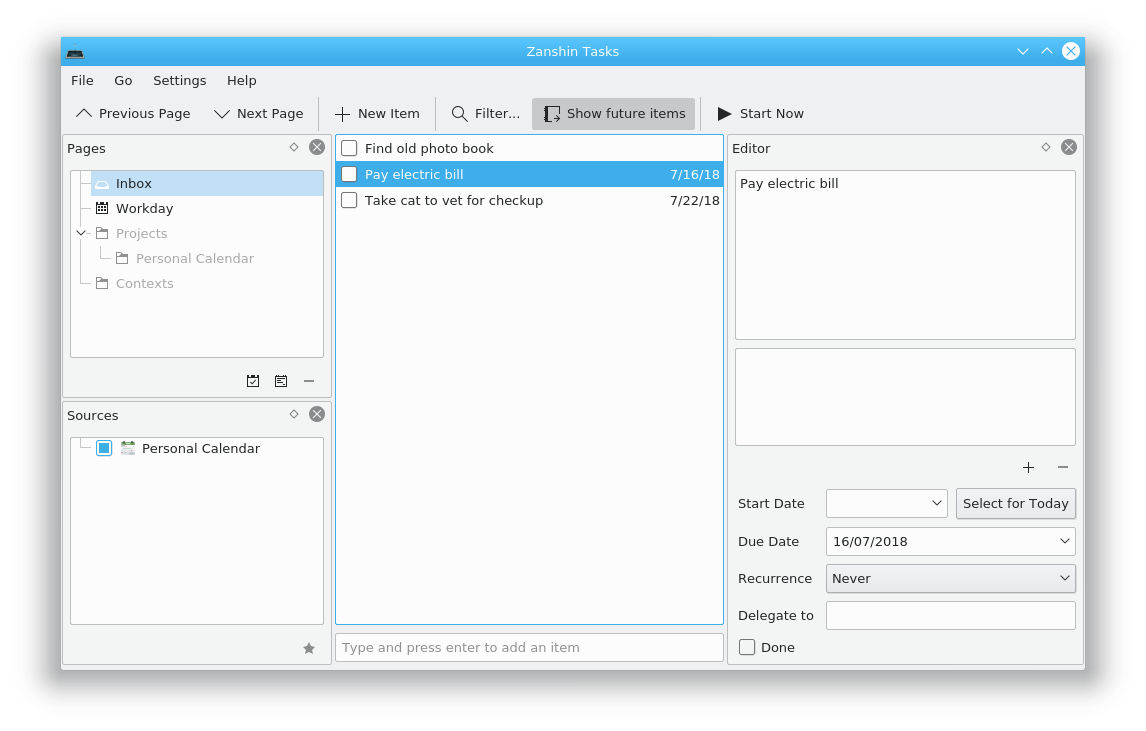
If you are a KDE using productivity fan, you may enjoy Zanshin. This organizer helps you plan your actions across multiple projects. It has a full featured interface, and lets you browse across your various tasks to see what’s most important to do next.

Screenshot of Zanshin on Fedora 28

Zanshin is extremely keyboard friendly, so you can be efficient during hacking sessions. It also integrates across numerous KDE applications as well as the Plasma Desktop. You can use it inline with KMail, KOrganizer, and KRunner.

To install, run this command:

sudo dnf install zanshin

Photo by Cathryn Lavery on Unsplash.

Posted on Leave a comment

Boost your typing with emoji in Fedora 28 Workstation

Fedora 28 Workstation ships with a feature that allows you to quickly search, select and input emoji using your keyboard. Emoji, cute ideograms that are part of Unicode, are used fairly widely in messaging and especially on mobile devices. You may have heard the idiom “A picture is worth a thousand words.” This is exactly what emoji provide: simple images for you to use in communication. Each release of Unicode adds more, with over 200 new ones added in past releases of Unicode. This article shows you how to make them easy to use in your Fedora system.

It’s great to see emoji numbers growing. But at the same time it brings the challenge of how to input them in a computing device. Many people already use these symbols for input in mobile devices or social networking sites.

[Editors’ note: This article is an update to a previously published piece on this topic.]

Enabling Emoji input on Fedora 28 Workstation

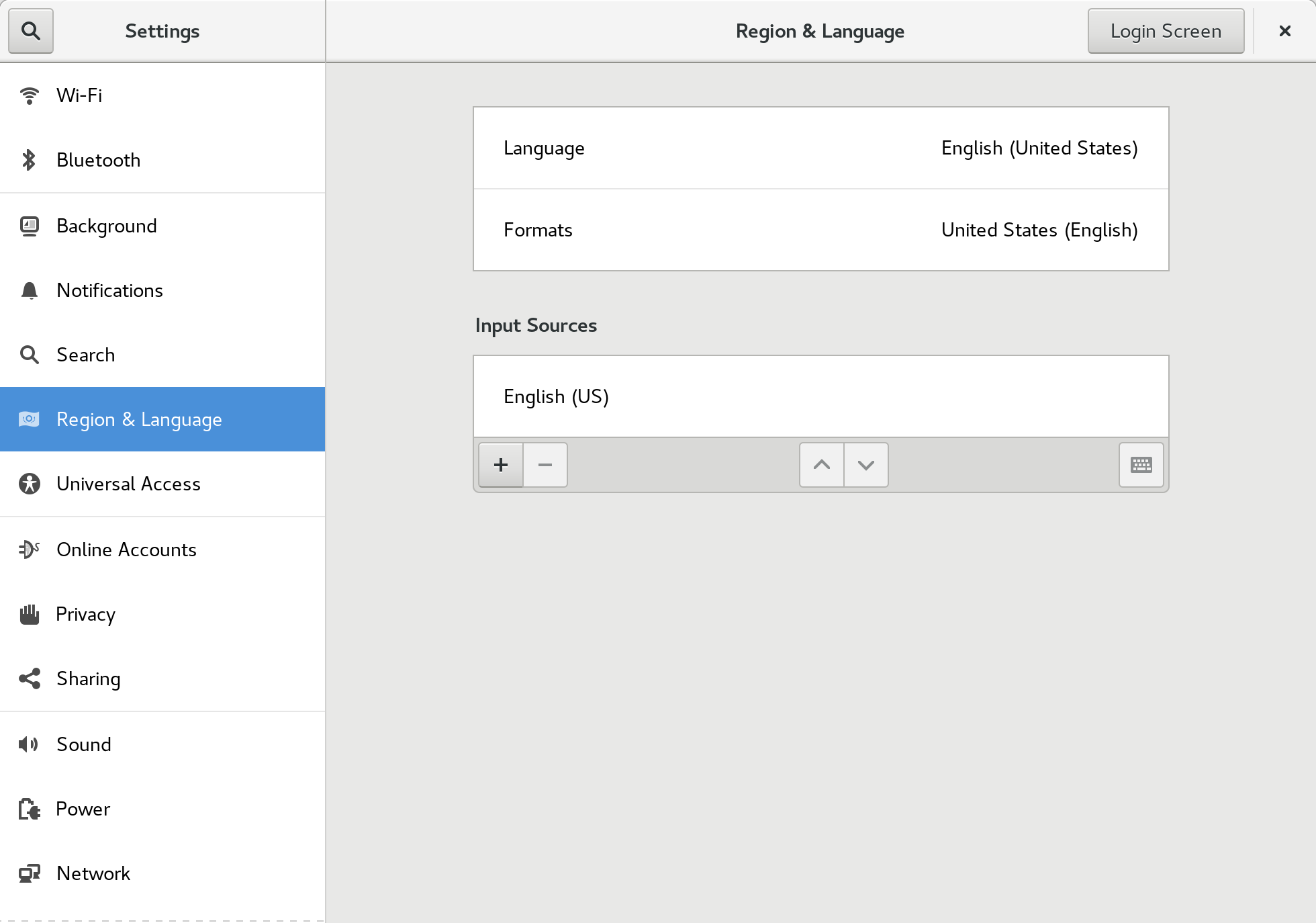
The new emoji input method ships by default in Fedora 28 Workstation. To use it, you must enable it using the Region and Language settings dialog. Open the Region and Language dialog from the main Fedora Workstation settings, or search for it in the Overview.

Region & Language settings tool

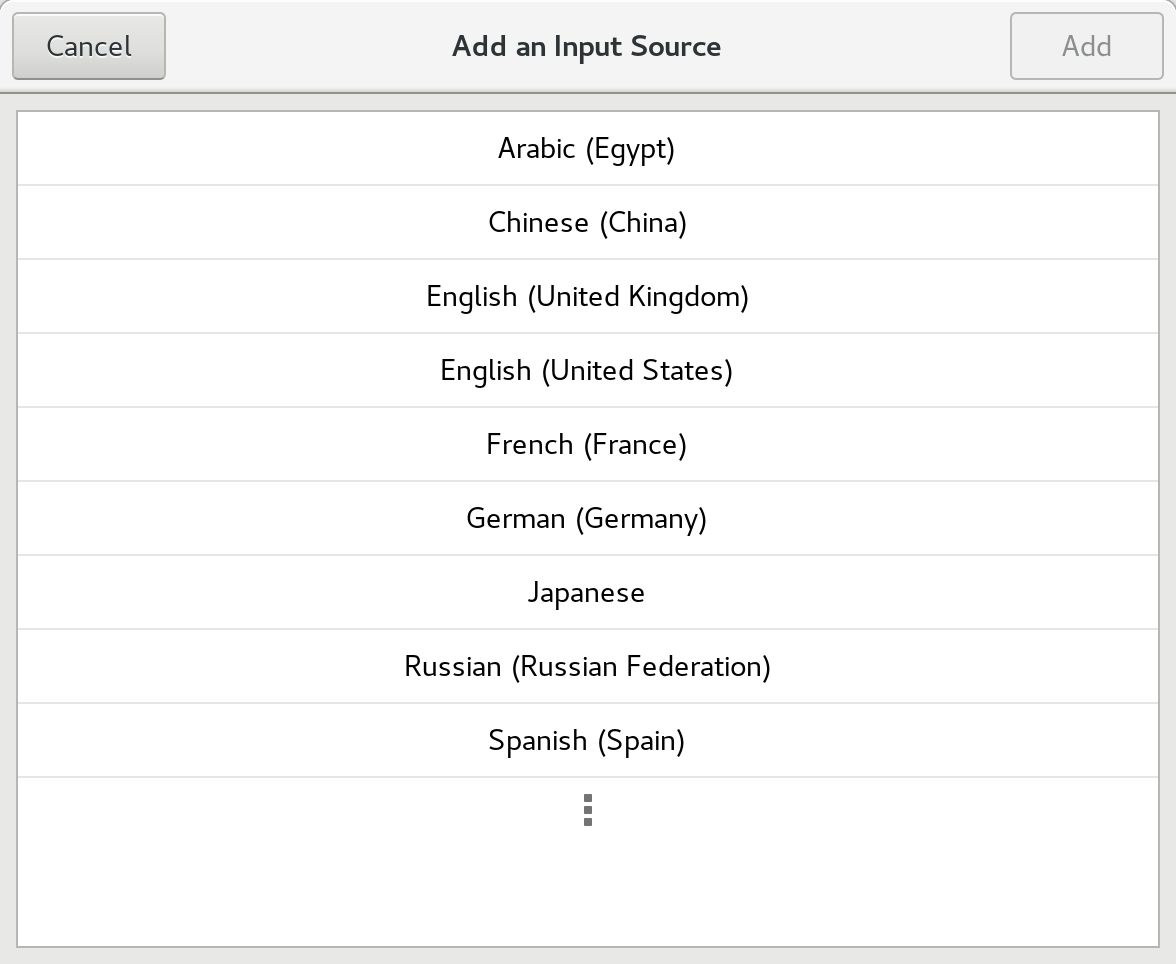
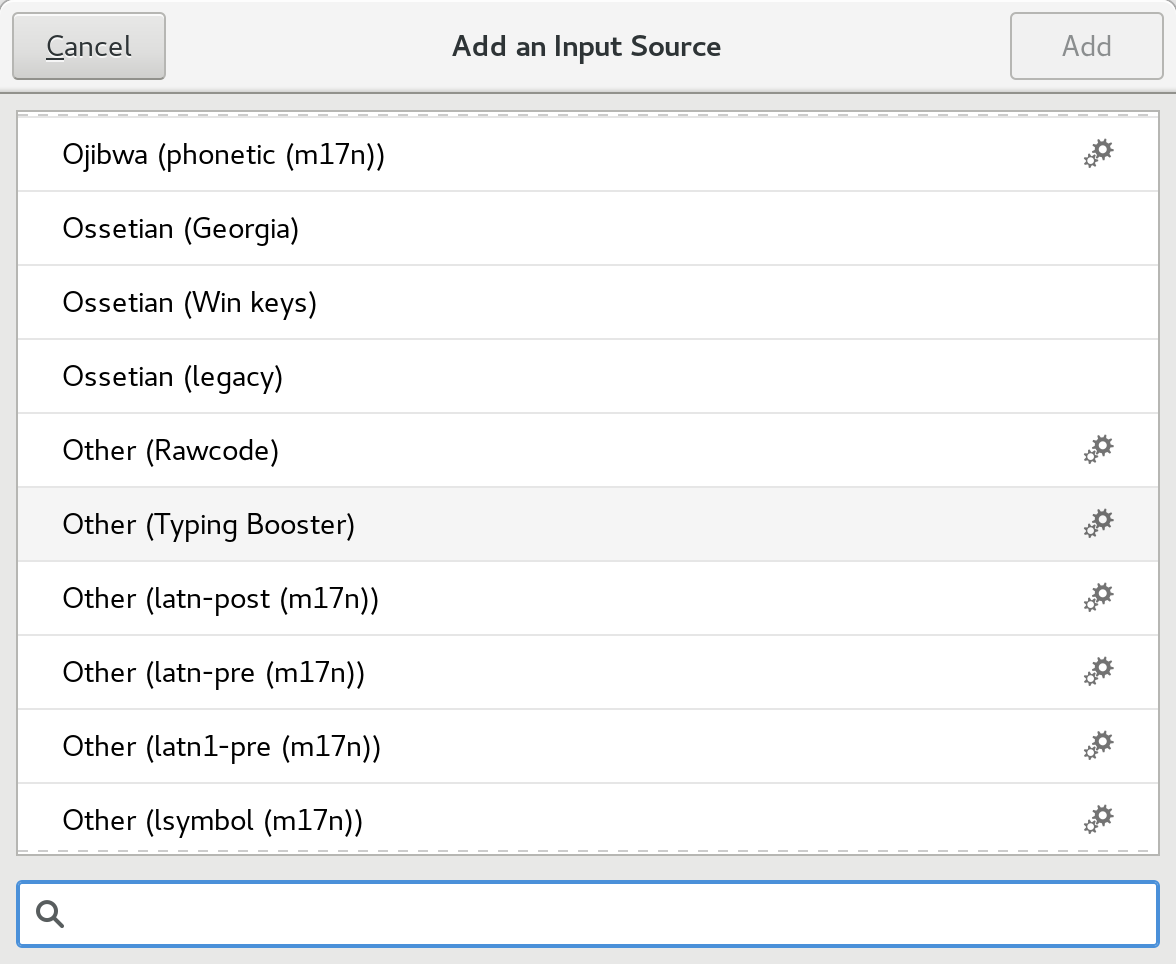
Choose the + control to add an input source. The following dialog appears:

Adding an input source

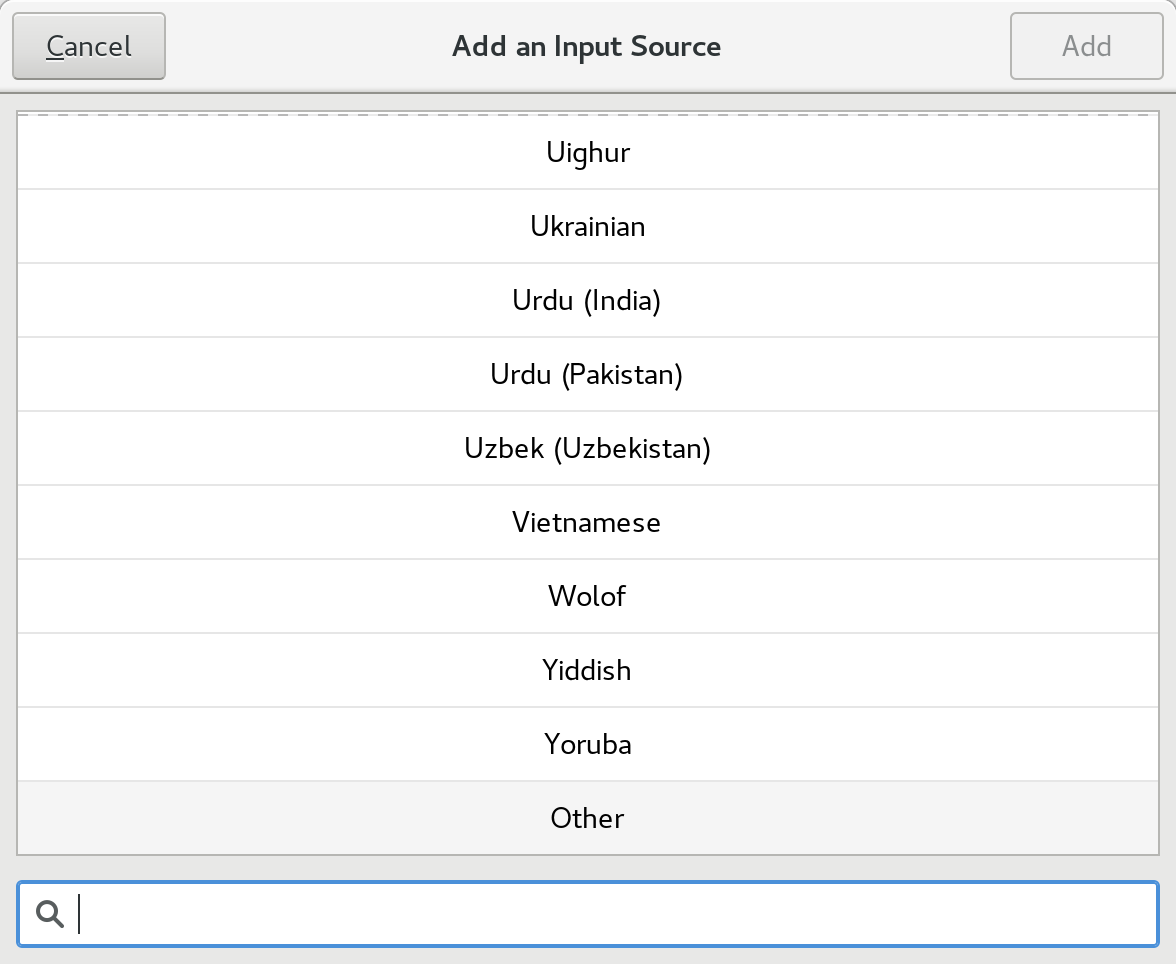
Choose the final option (three dots) to expand the selections fully. Then, find Other at the bottom of the list and select it:

Selecting other input sources

In the next dialog, find the Typing booster choice and select it:

This advanced input method is powered behind the scenes by iBus. The advanced input methods are identifiable in the list by the cogs icon on the right of the list.

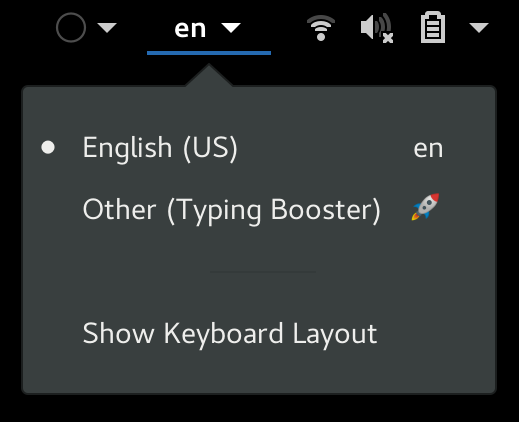
The Input Method drop-down automatically appears in the GNOME Shell top bar. Ensure your default method — in this example, English (US) — is selected as the current method, and you’ll be ready to input.

Input method dropdown in Shell top bar

Using the new Emoji input method

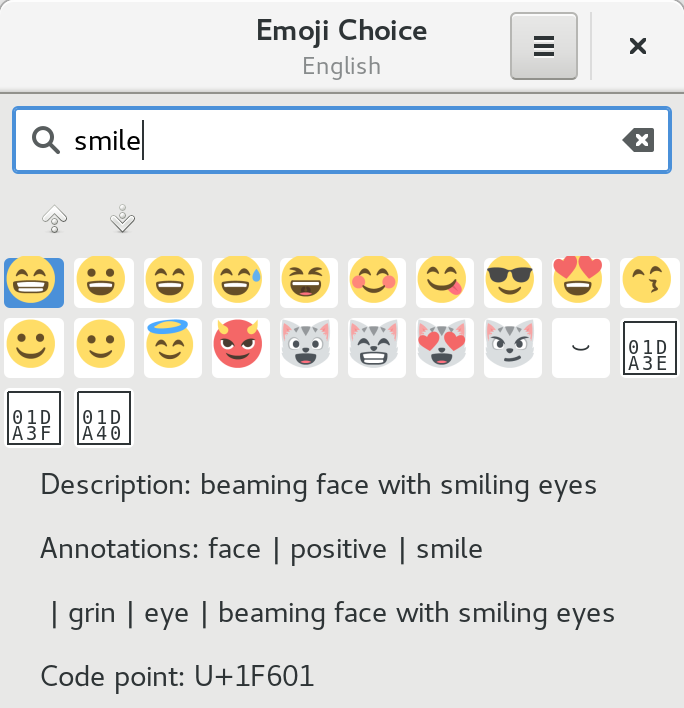
Now the Emoji input method is enabled, search for emoji by pressing the keyboard shortcut Ctrl+Shift+E. A pop-over dialog appears where you can type a search term, such as smile, to find matching symbols.

Searching for smile emoji

Use the arrow keys to navigate the list. Then, hit Enter to make your selection, and the glyph will be placed as input.

Posted on Leave a comment

Install an NVIDIA GPU on almost any machine

Whether for research or recreation, installing a new GPU can bolster your computer’s performance and enable new functionality across the board. This installation guide uses Fedora 28’s brand-new third-party repositories to install NVIDIA drivers. It walks you through the installation of both software and hardware, and covers everything you need to get your NVIDIA card up and running. This process works for any UEFI-enabled computer, and any modern NVIDIA GPU.

Preparation

This guide relies on the following materials:

  • A machine that is UEFI capable. If you’re uncertain whether your machine has this firmware, run sudo dmidecode -t 0.  If “UEFI is supported” appears anywhere in the output, you are all set to continue. Otherwise, while it’s technically possible to update some computers to support UEFI, the process is often finicky and generally not recommended.
  • A modern, UEFI-enabled NVIDIA card
  • A power source that meets the wattage and wiring requirements for your NVIDIA card (see the Hardware & Modifications section for details)
  • Internet connection
  • Fedora 28

Example setup

This example installation uses:

Hardware and modifications

PSU

Open up your desktop case and check the maximum power output printed on your power supply. Next, check the documentation on your NVIDIA GPU and determine the minimum recommended power (in watts). Further, take a look at your GPU and see if it requires additional wiring, such as a 6-pin connector. Most entry-level GPUs only draw power directly from the motherboard, but some require extra juice. You’ll need to upgrade your PSU if:

  1. Your power supply’s max power output is below the GPU’s suggested minimum power. Note: According to some NVIDIA card manufacturers, pre-built systems may require more or less power than recommended, depending on the system’s configuration. Use your discretion to determine your requirements if you’re using a particularly power-efficient or power-hungry setup.
  2. Your power supply does not provide the necessary wiring to power your card.

PSUs are straightforward to replace, but make sure to take note of the wiring layout before detaching your current power supply. Additionally, make sure to select a PSU that fits your desktop case.

CPU

Although installing a high-quality NVIDIA GPU is possible in many old machines, a slow or damaged CPU can “bottleneck” the performance of the GPU. To calculate the impact of the bottlenecking effect for your machine, click here. It’s important to know your CPU’s performance to avoid pairing a high-powered GPU with a CPU that can’t keep up. Upgrading your CPU is a potential consideration.

Motherboard

Before proceeding, ensure your motherboard is compatible with your GPU of choice. Your graphics card should be inserted into the PCI-E x16 slot closest to the heat-sink. Ensure that your setup contains enough space for the GPU. In addition, note that most GPUs today employ PCI-E 3.0 technology. Though these GPUs will run best if mounted on a PCI-E 3.0 x16 slot,  performance should not suffer significantly with an older version slot.

Installation

1. First, open up a terminal, and update your package-manager (if you have not done so already), by running:

sudo dnf update 

2. Next, reboot with the simple command:

reboot 

<!– Authors left out code or an app in this step, so since it's optional…

3. (Optional) If you’d like, check your system’s current GPU performance to compare against:
To verify that your NVIDIA card performs better than your current setup, you may want to record your current GPU’s performance before installation. To do so, scroll down to the “Run GLMark2” section under “Verification.” Record your current GLMark2 score, then proceed to the next steps.
–>

3. After reboot, install the Fedora 28 workstation repositories:

sudo dnf install fedora-workstation-repositories 

4. Next, enable the NVIDIA driver repository:

sudo dnf config-manager --set-enabled rpmfusion-nonfree-nvidia-driver 

5. Then, reboot again.

6. After the reboot, verify the addition of the repository via the following command:

sudo dnf repository-packages rpmfusion-nonfree-nvidia-driver info 

If several NVIDIA tools and their respective specs are loaded, then proceed to the next step. If not, you may have encountered an error when adding the new repository and you should give it another shot.

7. Login, connect to the internet, and open the software app. Click Add-ons> Hardware Drivers> NVIDIA Linux Graphics Driver> Install.

Then, reboot once again.

8. After reboot, go to ‘Show Applications’ on the side bar, and open up the newly added NVIDIA X Server Settings application. A GUI should open up, and a dialog box will appear with the following message:

NVIDIA X Server Prompt

Take the application’s advice, but before doing so, ensure you have your NVIDIA GPU on-hand and are ready to install. Please note that running nvidia xconfig as root and powering off without installing your GPU immediately  may cause drastic damage. Doing so may prevent your computer from booting, and force you to repair the system through the reboot screen. A fresh install of Fedora may fix these issues, but the effects can be much worse.

If you’re ready to proceed, enter the command:

sudo nvidia-xconfig 

If the system prompts you to perform any downloads, accept them and proceed.

9. Once this process is complete, close all applications and shut down the computer. Unplug the power supply to your machine. Then, press the power button once to drain any residual power to protect yourself from electric shock. If your PSU has a power switch, switch it off.

10. Finally, install the graphics card. Remove the old GPU and insert your new NVIDIA graphics card into the proper PCI-E x16 slot, with the fans facing down. If there is no space for the fans to ventilate in this position, place the graphics card face up instead, if possible. When you have successfully installed the new GPU, close your case, plug in the PSU, and turn the computer on. It should successfully boot up.

NOTE: To disable the NVIDIA driver repository used in this installation, or to disable all fedora workstation repositories, consult The Fedora Wiki Page.

Verification

1. If your newly installed NVIDIA graphics card is connected to your monitor and displaying correctly, then your NVIDIA driver has successfully established a connection to the GPU.

If you’d like to view your settings, or verify the driver is working (in the case that you have two GPUs installed on the motherboard), open up the NVIDIA X Server Settings app again. This time, you should not be prompted with an error message, and information on the X configuration file and your NVIDIA GPU should be available (see screenshot below).

NVIDIA X Server Settings

Through this app, you may alter your X configuration file should you please, and may monitor the GPU’s performance, clock speed, and thermal information.

2. To ensure the new card is working at capacity, a GPU performance test is needed. GL Mark 2, a benchmarking tool that provides information on buffering, building, lighting, texturing, etc, offers an excellent solution. GL Mark 2 records frame rates for a variety of different graphical tests, and outputs an overall performance score (called the glmark2 score).

Note: glxgears will only test the performance of your screen or monitor, not the graphics card itself. Use GL Mark 2 instead.

To run GLMark2:

  1. Open up a terminal and close all other applications
  2. sudo dnf install glmark2
  3. glmark2
  4. Allow the test to run to completion for best results. Check to see if the frame rates match your expectation for your NVIDA card. If you’d like additional verification, consult the web to determine if a glmark2 benchmark has been previously conducted on your NVIDA card model and published to the web. Compare scores to assess your GPUs performance.
  5. If your framerates and/or glmark2 score are below expected, consider potential causes. CPU-induced bottlenecking? Other issues?

Assuming the diagnostics look good, enjoy using your new GPU.

References:

Posted on Leave a comment

Discover hidden gems in LibreOffice

LibreOffice is the most popular free and open source office suite. It’s included by default in many Linux distributions, such as Fedora Workstation. Chances are that you use it fairly often, but how many of its features have you really explored? What hidden gems are there in LibreOffice that not so many people know about?

This article explores some lesser-known features in the suite, and shows you how to make the most of them. Then it wraps up with a quick look at the LibreOffice community, and how you can help to make the software even better.

Notebookbar

Recent versions of LibreOffice have seen gradual improvements to the user interface, such as reorganized menus and additional toolbar buttons. However, the general layout hasn’t changed drastically since the software was born back in 2010. But now, a completely new (and optional!) user interface called the Notebookbar is under development, and it looks like this:

LibreOffice's (experimental) Notebookbar

LibreOffice’s (experimental) Notebookbar

Yes, it’s substantially different to the current “traditional” design, and there are a few variants. Because LibreOffice’s design team is still working on the Notebookbar, it’s not available by default in current versions of the suite. Instead, it’s an experimental option.

To try it, make sure you’re running a recent release of LibreOffice, such as 5.4 or 6.0. (LibreOffice 6.x is already available in Fedora 28.) Then go to Tools > Options in the menu. In the dialog box that appears, go to Advanced on the left-hand side. Tick the Enable experimental features box, click OK, and then you’ll be prompted to restart LibreOffice. Go ahead and do that.

Now, in Writer, Calc and Impress, go to View > Toolbar Layout in the menu, and choose Notebookbar. You’ll see the new interface straight away. Remember that this is still experimental, though, and not ready for production use, so don’t be surprised if you see some bugs or glitches in places!

The default Notebookbar layout is called “tabbed”, and you can see tabs along the top of the window to display different sets of buttons. But if you go to View > Notebookbar in the menu, you’ll see other variants of the design as well. Try them out! If you need to access the familiar menu bar, you’ll find an icon for it in the top-right of the window. And to revert back to the regular interface, just go to View > Toolbar Layout > Default.

Command line tips and tricks

Yes, you can even use LibreOffice from the Bash prompt. This is most useful if you want to perform batch operations on large numbers of files. For instance, let’s say you have 20 .odt (OpenDocument Text) files in a directory, and want to make PDFs of them. Via LibreOffice’s graphical user interface, you’d have to do a lot of clicking to achieve this. But at the command line, it’s simple:

libreoffice --convert-to pdf *.odt

Or take another example: you have a set of Microsoft Office documents, and you want to convert them all to ODT:

libreoffice --convert-to odt *.docx

Another useful batch operation is printing. If you have a bunch of documents and want to print them all in one fell swoop, without manually opening them and clicking on the printer icon, do this:

libreoffice -p *.odt

It’s also worth noting some of the other command line flags that LibreOffice uses. For instance, if you want to create a launcher in your program menu that starts Calc directly, instead of showing the opening screen, use:

libreoffice --calc

It’s also possible to launch Impress and jump straight into the first slide of a presentation, without showing the LibreOffice user interface:

libreoffice --show presentation.odp

Extra goodies in Draw

Writer, Calc and Impress are the most popular components of LibreOffice. But Draw is a capable tool as well for creating diagrams, leaflets and other materials. When you’re working with multiple objects, there are various tricks you can do to speed up your work.

For example, you probably know you can select multiple objects by clicking and dragging a selection area around them. But you can also select and deselect objects in the group by holding down the Shift key while clicking.

When moving individual shapes or groups of shapes, you can use keyboard modifiers to change the movement speed. Try it out: select a bunch of objects, then use the cursor keys to move them around. Now try holding Shift to move them in greater increments, or Alt for fine-tuning. (The Ctrl key comes in useful here too, for panning around inside a document without moving the shapes.)

LibreOffice 5.1 added a useful feature to equalize the widths and heights of multiple shapes. Select them with the mouse, right-click on the selection, and then go to the Shapes part of the context menu. There you’ll see the Equalize options. This is good for making objects more consistent, and it works in Impress too!

Equalizing shape sizes in Draw

Equalizing shape sizes in Draw

Lastly, here’s a shortcut for duplicating objects: the Ctrl key. Try clicking and dragging on an object, with Ctrl held down, and you’ll see that a copy of the object is made immediately. This is quicker and more elegant than using the Duplicate dialog box.

Over to you!

So those are some features and tricks in LibreOffice you can now use in your work. But there’s always room for improvement, and the LibreOffice community is working hard on the next release, LibreOffice 6.1, which is due in early August. Give them a hand! You can help to test the beta releases, trying out new features and reporting bugs. Or get involved in other areas such as design, marketing, documentation, translations and more.


Photo by William Iven on Unsplash.