Posted on Leave a comment

Automatically decrypt your disk using TPM2

This article demonstrates how to configure clevis and systemd-cryptenroll using a Trusted Platform Module 2 chip to automatically decrypt your LUKS-encrypted partitions at boot.

If you just want to get automatic decryption going you may skip directly to the Prerequisites section.

Motivation

Disk encryption protects your data (private keys and critical documents) through direct access of your hardware. Think of selling your notebook / smartphone or it being stolen by an opportunistic evil actor. Any data, even if “deleted”, is recoverable and hence may fall into the hands of an unknown third party.

Disk encryption does not protect your data from access on the running system. For example, disk encryption does not protect your data from access by malware running as your user or in kernel space. It’s already decrypted at that point.

Entering the passphrase to decrypt the disk at boot can become quite tedious. On modern systems a secure hardware chip called “TPM” (Trusted Platform Module) can store a secret and automatically decrypt your disk. This is an alternative factor, not a second factor. Keep that in mind. Done right, this is an alternative with a level of security similar to a passphrase.

Background

A TPM2 chip is a little hardware module inside your device which basically provides APIs for either WRITE-only or READ-only information. This way you might write a secret onto it, but you can never read it out later (but the TPM may use it later internally). Or you write info at one point that you only read out later. The TPM2 provides something called PCRs (Platform Configuration Registers). These registers take SHA1 or SHA256 hashes and contain measurements used to assert integrity of, for example, the UEFI configuration.

Enable or disable Secure Boot in the system’s UEFI. Among other things, Secure Boot computes hashes of every component in the boot chain (UEFI and its configuration, bootloader, etc.) and chains them together such that a change in one of those components changes the computed and stored hashes in all following PCRs. This way you can build up trust about the environment you are in. Having a measure of the trustworthiness of your environment is useful, for example, when decrypting your disk. The UEFI Secure Boot specification defines PCRs 0 – 7. Everything beyond that is free for the OS and applications to use.

A summary of what is measured into which PCRs according to the spec

  • PCR 0: the EFI Firmware info like its version
  • PCR 1: additional config and info related to the EFI Firmware
  • PCR 2: EFI drives from hardware components (like RAID controller)
  • PCR 3: additional config and info to drivers stored in 2
  • PCR 4: pre-OS diagnostics and the EFI OS Loader
  • PCR 5: config of the EFI OS Loader and GPT table
  • PCR 6: is reserved for host platform manufacturer variables and is not used by EFI
  • PCR 7: stores secure boot policy configuration

Some examples on what is measured into which PCR

  • Changes to the initramfs measure into PCRs 9 and 10. So if you regenerate the initramfs using dracut -f you have to rebind. This will happen on every update to the kernel.
  • Changes to the Grub configuration, like adding kernel arguments, kernels, etc. measure into PCRs 8, 9 and 10.
  • Storage devices measure into PCRs 8 and 10. However, Hubs and YubiKeys do not seem to measure in any PCR.
  • Additional operating systems measure into PCR 1. This occurs, for example, when attaching a USB stick before boot with a Fedora Linux live image.
  • Booting into a live image changes PCRs 1, 4, 5, 8, 9 and 10.

A tool called clevis generates a new decryption secret for the LUKS encrypted disk, stores it in the TPM2 chip and configures the TPM2 to only return the secret if the PCR state matches the one at configuration time. Clevis will attempt to retrieve the secret and automatically decrypt the disk at boot time only if the state is as expected.

Security implications

As you establish an alternative unlock method using only the on-board hardware of your platform, you have to trust your platform manufacturer to do their job right. This is a delicate topic. There is trust in a secure hardware and firmware design. Then there is trust that the UEFI, bootloader, kernel, initramfs, etc. are all unmodified. Combined you expect a trustworthy environment where it is OK to automatically decrypt the disk.

That being said you have to trust (or better, verify) that the manufacturer did not mess anything up in the overall platform design for this to be considered a fairly safe decryption alternative. There are a range of cases where things did not work out as planned. For example, when security researches showed that BitLocker on a Lenovo notebook would use unencrypted SPI communication with the TPM2 leaking the LUKS passphrase in plain text without even altering the system, or that BitLocker used the native encryption features of SSD drives that you can by-pass through factory reset.

These examples are all about BitLocker but it should make it clear that if the overall design is broken, then the secret is accessible and this alternative method less secure than a passphrase only present in your head (and somewhere safe like a password manager). On the other hand, keep in mind that in most cases elaborate research and attacks to access a drive’s data are not worth the effort for an opportunistic bad actor. Additionally, not having to enter a passphrase on every boot should help adoption of this technology as it is transparent but adds additional hurdles to unwanted access.

Prerequisites

First check that:

  • Secure Boot is enabled and working
  • A TPM2 chip is available
  • The clevis package is installed

Clevis is where the magic happens. It’s a tool you use in the running OS to bind the TPM2 as an alternative decryption method and use it inside the initramfs to read the decryption secret from the TPM2.

Check that secure boot is enabled. The output of dmesg should look like this:

$ dmesg | grep Secure
[ 0.000000] secureboot: Secure boot enabled
[ 0.000000] Kernel is locked down from EFI Secure Boot mode; see man kernel_lockdown.7
[ 0.005537] secureboot: Secure boot enabled
[ 1.582598] integrity: Loaded X.509 cert 'Fedora Secure Boot CA: fde32599c2d61db1bf5807335d7b20e4cd963b42'
[ 35.382910] Bluetooth: hci0: Secure boot is enabled

Check dmesg for the presence of a TPM2 chip:

$ dmesg | grep TPM
[ 0.005598] ACPI: TPM2 0x000000005D757000 00004C (v04 DELL Dell Inc 00000002 01000013)

Install the clevis dependencies and regenerate your initramfs using dracut.

sudo dnf install clevis clevis-luks clevis-dracut clevis-udisks2 clevis-systemd
sudo dracut -fv --regenerate-all
sudo systemctl reboot

The reboot is important to get the correct PCR measurements based on the new initramfs image used for the next step.

Configure clevis

To bind the LUKS-encrypted partition with the TPM2 chip. Point clevis to your (root) LUKS partition and specify the PCRs it should use.

Enter your current LUKS passphrase when asked. The process uses this to generate a new independent secret that will tie your LUKS partition to the TPM2 for use as an alternative decryption method. So if it does not work you will still have the option to enter your decryption passphrase directly.

sudo clevis luks bind -d /dev/nvme... tpm2 '{"pcr_ids":"1,4,5,7,9"}'

As mentioned previously, PCRs 1, 4 and 5 change when booting into another system such as a live disk. PCR 7 tracks the current UEFI Secure Boot policy and PCR 9 changes if the initramfs loaded via EFI changes.

Note: If you just want to protect the LUKS passphrase from live images but don’t care about more “elaborate” attacks such as altering the unsigned initramfs on the unencrypted boot partition, then you might omit PCR 9 and save yourself the trouble of rebinding on updates.

Automatically decrypt additional partitions

In case of secondary encrypted partitions use /etc/crypttab.

Use systemd-cryptenroll to register the disk for systemd to unlock:

sudo systemd-cryptenroll /dev/nvme0n1... --tpm2-device=auto --tpm2-pcrs=1,4,5,7,9

Then reflect that config in your /etc/crypttab by appending the options tpm2-device=auto,tpm2-pcrs=1,4,5,7,9.

Unbind, rebind and edit

List all current bindings of a device:

$ sudo clevis luks list -d /dev/nvme0n1... tpm2
1: tpm2 '{"hash":"sha256","key":"ecc","pcr_bank":"sha256","pcr_ids":"0,1,2,3,4,5,7,9"}'

Unbind a device:

sudo clevis luks unbind -d /dev/nvme0n1... -s 1 tpm2

The -s parameter specifies the slot of the alternative secret for this disk stored in the TPM. It should be 1 if you always unbind before binding again.

Regenerate binding, in case the PCRs have changed:

sudo clevis luks regen -d /dev/nvme0n1... -s 1 tpm2

Edit the configuration of a device:

sudo clevis luks edit -d /dev/nvme0n1... -s 1 -c '{"pcr_ids":"0,1,2,3,4,5,7,9"}'

Troubleshooting

Disk decryption passphrase prompt shows at boot, but goes away after a while:

Add a sleep command to the systemd-ask-password-playmouth.service file using systemctl edit to avoid requests to the TPM before its kernel module is loaded:

[Service]
ExecStartPre=/bin/sleep 10

Add the following to the config file /etc/dracut.conf.d/systemd-ask-password-plymouth.conf:

install_items+=" /etc/systemd/system/systemd-ask-password-plymouth.service.d/override.conf "

Then regenerate dracut via sudo dracut -fv –regenerate-all.

Reboot and then regenerate the binding:

sudo systemctl reboot
...
sudo clevis luks regen -d /dev/nvme0n1... -s 1

Resources

Posted on Leave a comment

Using .NET 7 on Fedora Linux

.NET 7 is now available in Fedora Linux. This article briefly describes what .NET is, some of its recent and interesting features, how to install it, and presents some examples showing how it can be used.

.NET 7

.NET is a platform for building cross platform applications. It allows you to write code in C#, F#, or VB.NET. You can easily develop applications on one platform and deploy and execute them on another platform or architecture.

In particular, you can develop applications on Windows and run them on Fedora Linux instead! This is one less hurdle if you want to move from a proprietary platform to Fedora Linux. It’s also possible to develop on Fedora and deploy to Windows. Please note that in this last scenario, some Windows-specific application types, such as GUI Windows applications, are not available.

.NET 7 includes a number of new and exciting features. It includes a large number of performance enhancements to the runtime and the .NET libraries, better APIs for working with Unix file permissions and tar files, better support for observability via OpenTelemetry, and compiling applications ahead-of-time. For more details about all the new features in .NET 7, see https://learn.microsoft.com/en-us/dotnet/core/whats-new/dotnet-7.

Fedora Linux builds of .NET 7 can even run on the IBM Power (ppc64le) architecture. This is in addition to support for 64-bit ARM/Aarch64 (which Fedora Linux calls aarch64 and .NET calls arm64), IBM Z (s390x) and 64-bit Intel/AMD platforms (which Fedora Linux calls x86_64 and .NET calls x64).

.NET 7 is a Standard Term Support (STS) release, which means upstream will stop maintaining it on May 2024. .NET in Fedora Linux will follow that end date. If you want to use a Long Term Support (LTS) release, please use .NET 6 instead. .NET 6 reaches its end of Life on November 2024. For more details about the .NET lifecycle, see https://dotnet.microsoft.com/en-us/platform/support/policy/dotnet-core.

If you are looking to set up a development environment for developing .NET applications on Fedora Linux, take a look at https://fedoramagazine.org/set-up-a-net-development-environment/.

The .NET Special Interest Group (DotNetSIG) maintains .NET in Fedora Linux. Please come and join us to improve .NET on Fedora Linux! You can reach us via IRC (#fedora-devel) or mailing lists ([email protected]) if you have any feedback, questions, ideas or suggestions.

How to install .NET 7

To build C#, F# or VB.NET code on Fedora Linux, you will need the .NET SDK. If you only want to run existing applications, you will only need the .NET Runtime.

Install the .NET 7 Software Development Kit (SDK) using this command:

sudo dnf install -y dotnet-sdk-7.0

This installs all the dependencies, including a .NET runtime.

If don’t want to install the entire SKD but just want to run .NET 7 applications, you can install either the ASP.NET Core runtime or the .NET runtime using one of the following commands:

sudo dnf install -y aspnetcore-runtime-7.0
sudo dnf install -y dotnet-runtime-7.0

This style of package name applies to all versions of .NET on all versions of Fedora Linux. For example, you can install .NET 6 using the same style of package name:

sudo dnf install -y dotnet-sdk-6.0

To make certain .NET 7 is installed, run dotnet –info to see all the SDKs and Runtimes installed.

License and Telemetry

The .NET packages in Fedora Linux are built from fully Open Source source code. The primary license is MIT. The .NET packages in Fedora Linux do not contain any closed source or proprietary software. The Fedora .NET team builds .NET offline in the Fedora Linux build system and removes all binaries present in the source code repositories before building .NET. This gives us a high degree of confidence that .NET is built from reviewed sources.

The .NET packages in Fedora Linux do not collect any data from users. All telemetry is disabled in the Fedora builds of .NET. No data is collected from anyone running .NET and no data is sent to Microsoft. We run tests to verify this for every build of .NET in Fedora Linux.

“Hello World” in .NET

After installing .NET 7, you can use it to create and run applications. For example, you can use the following steps to create and run the classic “Hello World” application.

Create a new .NET 7 project in the C# language:

dotnet new console -o HelloWorldConsole

This will create a new directory named HelloWorldConsole and create a trivial C# Hello World that prints hello world.

Then, switch to the project directory:

cd HelloWorldConsole

Finally, build and run your the application:

dotnet run

.NET 7 will build your program and run it. You should see a “Hello world” output from your program.

“Hello Web” in .NET

You can also use .NET to create web applications. Lets do that now.

First, create a new web project, in a separate directory (not under our previous project):

dotnet new web -o HelloWorldWeb

This will create a simple Hello-World style application based on .NET’s built-in web (Empty ASP.NET Core) template.

Now, switch to that directory:

cd HelloWorldWeb

Finally, build and run the application:

dotnet run

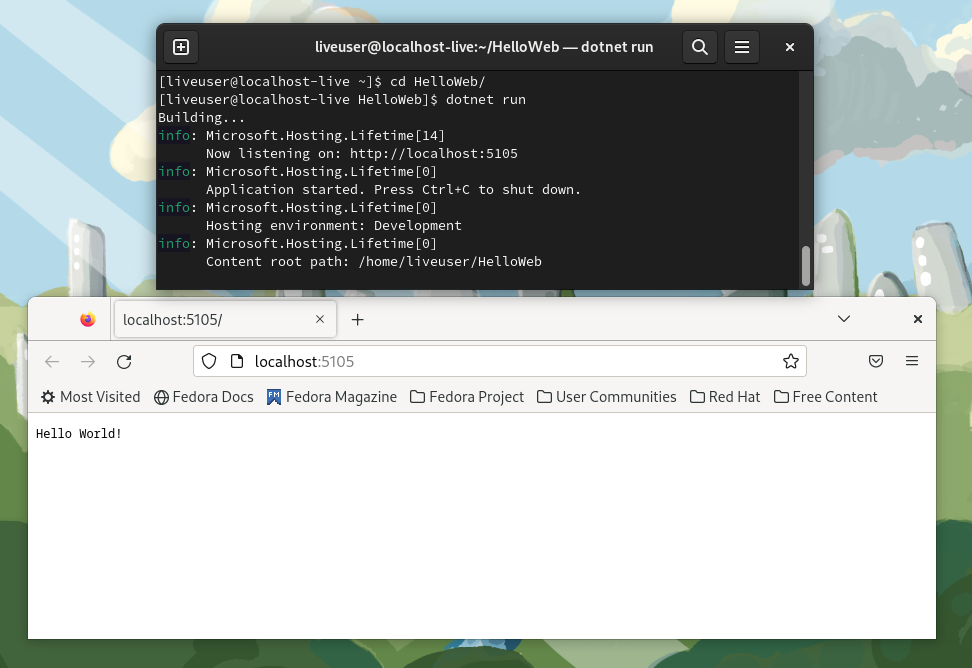
You should see output like the following that shows the web application is running.

Building…
info: Microsoft.Hosting.Lifetime[14]
Now listening on: http://localhost:5105
info: Microsoft.Hosting.Lifetime[0]
Application started. Press Ctrl+C to shut down.
info: Microsoft.Hosting.Lifetime[0]
Hosting environment: Development
info: Microsoft.Hosting.Lifetime[0]
Content root path: /home/omajid/temp/HelloWorldWeb

Use a web browser to access the application. You can find the URL in the output at the “Now listening on:” line. In my case that’s http://localhost:5105:

firefox http://localhost:5105

You should see a “Hello World” message in your browser.

Using .NET with containers

At this point, you have successfully created, built and run .NET applications locally. What if you want to isolate your application and everything about it? What if you want to run it in a non-Fedora OS? Or deploy it to a public/private/hybrid cloud? You can use containers! Let’s build a container image for running your .NET program and test it out.

First, create a new project:

dotnet new web -o HelloContainer

Then, switch to that project directory:

cd HelloContainer

Then add a Dockerfile that describes how to build a container for our application.

FROM fedora:37
RUN dnf install -y dotnet-sdk-7.0 && dnf clean all
RUN mkdir /HelloContainer/
WORKDIR /HelloContainer/
COPY . /HelloContainer/
RUN dotnet publish -c Release
ENV ASPNETCORE_URLS="http://0.0.0.0:8080"
CMD ["dotnet" , "bin/Release/net7.0/publish/HelloContainer.dll"]

This will start with a default Fedora Linux container, install .NET 7 in it, copy your source code into it and use the .NET in the container to build the application. Finally, it will set things up so that running the container runs your application and exposes it via port 8080.

You can build and run this container directly. However, if you are familiar with Dockerfiles, you might have noticed that it is quite inefficient. It will re-download all dependencies and re-build everything on any change to any source file. It produces a large container image at the end which even contains the full .NET SDK. An option is to use a multi-stage build to make it faster to iterate on the source code. You can also produce a smaller container at the end that contains just your application and .NET dependencies.

Overwrite the Dockerfile with this:

FROM registry.fedoraproject.org/fedora:37 as dotnet-sdk
RUN dnf install -y dotnet-sdk-7.0 && dnf clean all FROM registry.fedoraproject.org/fedora:37 as aspnetcore-runtime
RUN dnf install -y aspnetcore-runtime-7.0 && dnf clean all FROM dotnet-sdk as build-env
RUN mkdir /src
WORKDIR /src
COPY *.csproj .
RUN dotnet restore
COPY . .
RUN dotnet publish -c Release -o /publish FROM aspnetcore-runtime as app
WORKDIR /publish
COPY --from=build-env /publish .
ENV ASPNETCORE_URLS="http://0.0.0.0:8080"
EXPOSE 8080
ENTRYPOINT ["dotnet", "HelloContainer.dll"]

Now install podman so you can build and run the Dockerfile:

sudo dnf install -y podman

Build the container image:

podman build -t hello-container .

Now, run the container we just built:

podman run -it -p 8080:8080 hello-container

A note about the arguments. The port is configured with the -p flag so that port 8080 from inside the container is available as port 8080 outside too. This allows you to connect to the application directly. The container is run interactively (-it) so you can see the output and any errors that come up. Running interactively is usually not needed when deploying an application to production.

Finally, connect to the container using a web browse. For example:

firefox http://localhost:8080

You should see a “Hello World” message.

Congratulations! You now have a .NET application running inside a Fedora container!

Conclusion

This was a whirlwind overview of .NET 7 in Fedora Linux and covers building and running an application using plain Fedora RPM packages as well as creating an application for a .NET application using only Fedora Linux.

If you have an interest in using or improving .NET on Fedora Linux, please join us!

Posted on Leave a comment

Fedora Project at FOSDEM 2023

Fedora Project will be present at FOSDEM 2023. This article describes this gathering and a few of the events on the agenda. I assume if you are reading the Fedora Magazine, you already know what FOSDEM is, but I’ll start with a small intro anyway.

Define FOSDEM

FOSDEM is the biggest event in the known universe for free/libre and open-source developers and enthusiasts.

Many good people from around the world meet and discuss common topics and define the future of F/LOSS. The event is held in Brussels at the beginning of February. Some of us, who are coming from a bit warmer countries, are calling it FrOSDEM, because it’s usually freezing 🙂

Why attend?

If you are a contributor already or you want to start doing good with your skills for the F/LOSS universe, this event is a must. 

I know everyone has their reason for visiting, but I’ll share the most common ones:

  • You meet the people creating and supporting the products that power the Internet that you already use.
  • If you are a contributor already, you have a chance to meet with your team and people using your product.
  • You learn so much new stuff quickly.
  • You enlarge your horizons by looking at something outside your bubble. If you are a fan of Fedora, go and learn more about Security or Javascript.
  • You have a chance to talk to others with the same passion as yours and even become friends for life. A good friend is always a commodity!
  • You achieve your daily steps goal because the ULB campus is enormous, and you will have to move a lot to get to the room you would like to visit.
  • You have a chance to volunteer and help the community if this is what drives you.
  • You attend an event with a great Code of Conduct.

Fedora at FOSDEM 2023

It’s a tradition for the Fedora Project team to be there to present some of our work from the last year and to allow you to share your feedback on what we do well and how we can improve.

Meet, greet, and see our community in action

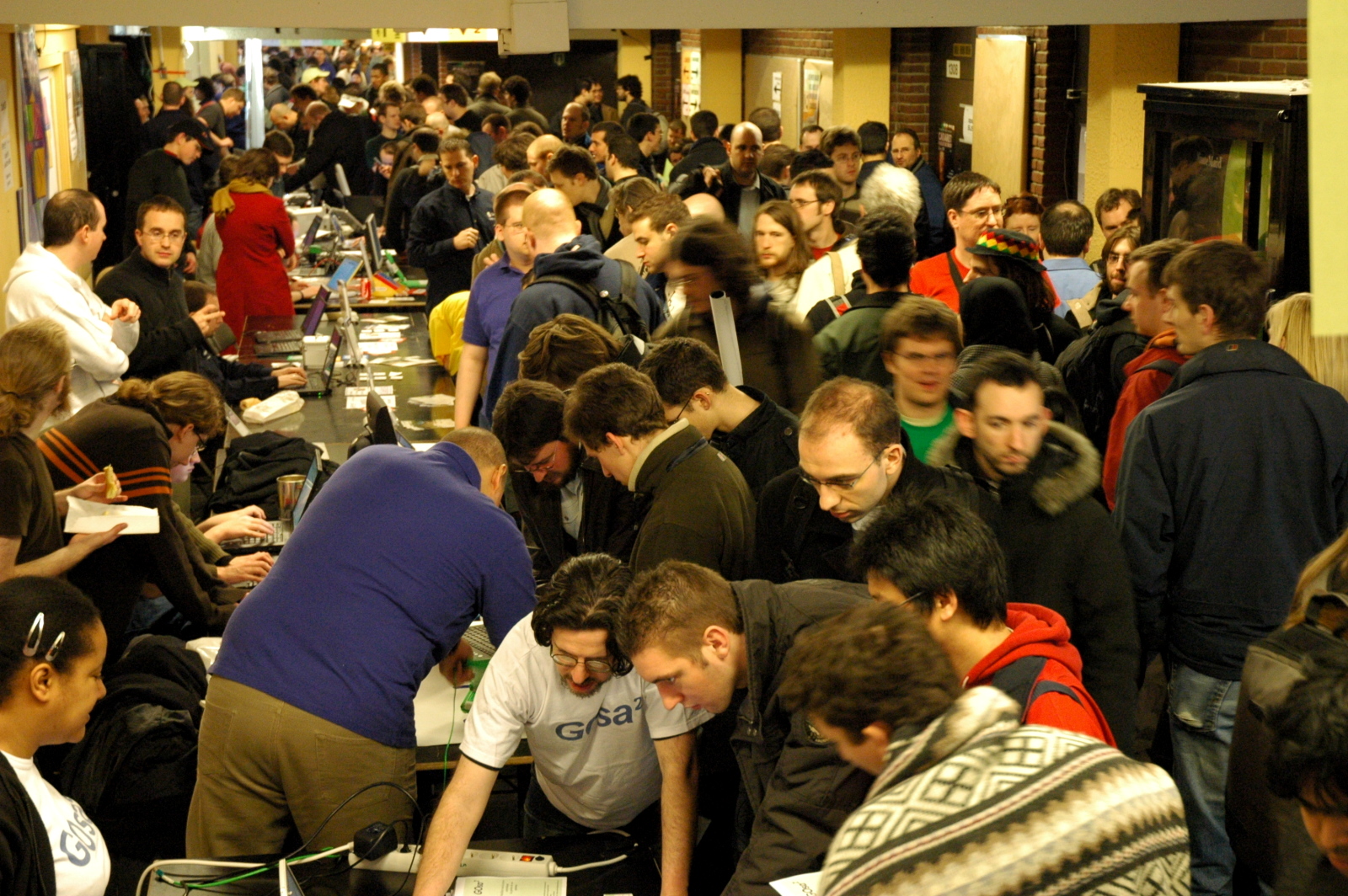
One of the most extraordinary things at FOSDEM, which I deliberately didn’t mention in the previous section, is the project booths. In almost every building, you will see people behind a branded table, ready to talk to you about their project, its values, and its mission.

People at the Fedora booth looking at something.
Image by Francesco Crippa under Attribution 2.0 Generic (CC BY 2.0)

 I have to mention the goodies here, as well. You will return home with many items from your favorite projects. Be sure to continue supporting them further.  

We at Fedora will be happy to welcome you to our booth as well. You can talk to the community members, give us constructive feedback, and see some of the things we prepared.

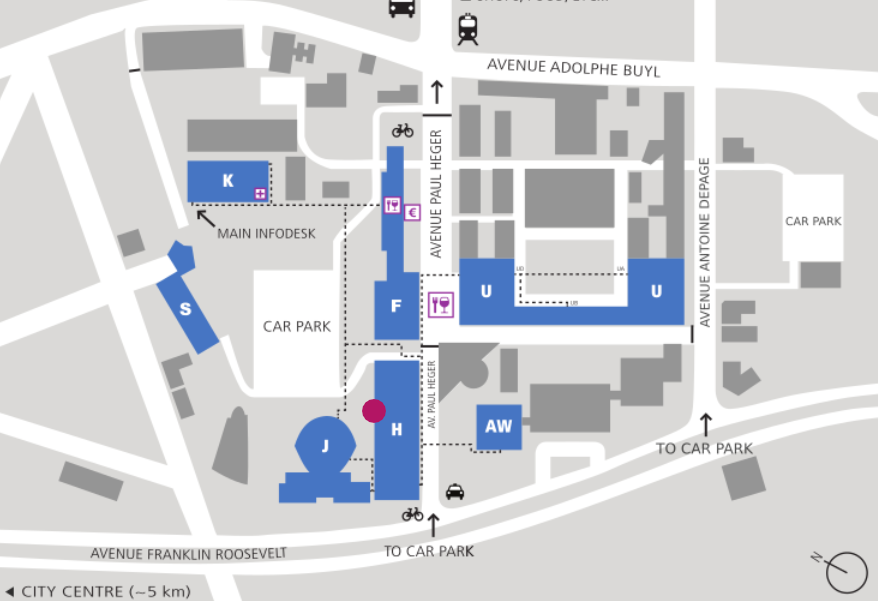
Our booth location is in building H, alongside the rest of the Linux Distros.

Map of the ULB campus with a mark of the building H, where the Fedora Project booth will be
Building H, ULB Campus.

Stop by and say hi in your language! We are looking forward to talking to you!

We want to share what makes our work exceptional

At each FOSDEM we have a good number of talks related to what we do at Fedora. I am listing only some of them to make it enjoyable for you to browse the agenda and discover the rest yourself.

1: Fedora CoreOS – Your Next Multiplayer Homelab Distro

Using Fedora CoreOS in a Selfhosted Homelab to setup a Multiplayer Server

Speakers

Akashdeep Dhar
 Objective Lead for Fedora Websites & Apps, Fedora Council
 Software Engineer, Red Hat Community Platform Engineering

Sumantro Mukherjee
 Elected Representative, Fedora Council
 Software Quality Engineer, Red Hat

Intro

Fedora CoreOS is an essential, monolithic, automatically updating operating system optimized for running containers. It focuses on offering the best container host for executing containerized workloads securely and at scale. We will show a case study of setting up Fedora CoreOS as a self-hosted Homelab distribution for globally accessible (using secure network tunneling) multiplayer servers for video games (namely Minecraft, Valheim, etc.).

When and Where

Saturday, Feb-4 at the Containers devroom from 11:30 to 12:00


2: Creative Freedom Summit Retrospective

Speakers

Emma Kidney

Part of Red Hat’s Community Platform Engineering team since 2021. 
Designer at Red Hat’s Community Design Team. 

Jess Chitas 

Part of Red Hat’s Community Platform Engineering team.
Creator of Fedora’s mascot – Colúr, and Fedora Brand Guidelines Booklet.

Intro

The Creative Freedom Summit is a virtual event focused on promoting Open Source tools, spreading knowledge of how to use them, and connecting creatives across the FOSS ecosystem. The summit’s accomplishments and shortcomings will be examined in light of the event’s first year and potential changes for the following years.

When and Where

Sunday, Feb-5 at the Open Source Design Dev Room from 14:30 to 14:55


Where to find more related talks?

Our wiki page is a good start, but FOSDEM’s schedule catalog is even better. One life hack: select a good 30 min slot, go through all the rooms which might get your attention, and create a personal schedule in your favorite calendar app. Make sure you have a backup plan because some rooms might be fully occupied, and you cannot enter.

I want to interest you in a challenge

If you know more than I do about FOSDEM 2023 and have already prepared your schedule, share a single paragraph comment about your FOSDEM plan and list a few of your favorite talks. You will help the community understand the greatness of the event and find more reasons to make the trip to frosty Brussels.

See you there!

Posted on Leave a comment

How to become a Shortwave listener (SWL) with Fedora Linux and Software Defined Radio

Catching signals from others is how we have started communicating as human beings. It all started, of course, with our vocal cords. Then we moved to smoke signals for long-distance communication. At some point, we discovered radio waves and are still using them for contact. This article will describe how you can tune in using Fedora Linux and an SDR dongle.

My journey

I got interested in radio communication as a hobby when I was a kid, while my local club, LZ2KRS, was still a thing. I was so excited to be able to listen and communicate with people worldwide. It opened a whole new world for me. I was living in a communist country back then and this was a way to escape just for a bit. It also taught me about ethics and technology.  

Year after year my hobby grew and now, in the Internet era with all the cool devices you can use, it’s getting even more exciting. So I want to show you how to do it with Fedora Linux and a hardware dongle.

What is Ham Radio

Amateur Radio (ham radio) is a popular hobby and service that brings people, electronics, and communication together. People use ham radio to talk across town, worldwide, or even into space, without the Internet or cell phones. 

What’s SWLing?

To broadcast with your ham radio or SDR system, you need to obtain a license from a governmental body. But to intercept signals and listen to the open communication between two amateur radio stations, you don’t need one.

The term SWLing comes from the abbreviation of Short Wave Listener, where you listen to stations communicating in the shortwave bands between 3 and 30 MHz. This can be used for long-distance communication using the ionosphere, a layer of the Earth’s atmosphere. 

To get started, you don’t need a license. Still, I recommend getting yourself an SWL sign to identify yourself in a listening contest. These are competitions for categories like who will discover the most connections in a month or who can listen to contacts from each country in the world. 

How to get an SWL Sign?

There are two options:

  • Contact your national radio club and ask them to issue one for you. I got my Czech one, OK1-36568, after a few weeks.
  • Join the Short Wave Amateur Radio Listening community and request a sign there.

You will get more information and help from either of these locations if you get stuck in some fashion! 

QSL Cards

You can also use your sign to send QSL cards via post or electronically. This is a great way to communicate with people worldwide and make friends.

Per Wikipedia, QSL card is a written confirmation of either a two-way radio communication between two amateur radio or citizens band stations; a one-way reception of a signal from an AM radio, FM radio, television, or shortwave broadcasting station; or the reception of a two-way radio communication by a third party listener (in our case). 

A typical QSL card is the same size and made from the same material as a regular postcard; most are sent through snail mail. 

Replace the radio receiver with your Fedora Linux.

The focal point of the ham radio hobby is the radio transmitter/receiver. Most of the time, enthusiasts build their radio from scratch, but this differs from what I will write about here. 

SDR

A software-defined radio (SDR) system is a radio communication system that uses software for the modulation and demodulation of radio signals. In other words, a piece of hardware and software takes the place of a radio transmitter/receiver. This helps you discover more in a way that you are familiar with – a User Interface with built-in functions instead of the limited interface of a radio receiver. 

My explanation oversimplifies things, so if you want to go deep and read more about SDR, here is an excellent start.

SDR Set Up under Fedora Linux

Choosing the proper hardware

If you search the Internet for an SDR dongle, you’ll find tons of ideas depending on your budget. In this tutorial, I’ll work with the one I have, which works well under Fedora 37 – it is available from Nooelec.

A note: The dongle covers frequencies from 25MHz to 1750MHz, which doesn’t cover the Short Wave bands. You would need an additional device to listen to them. This is included in the package I linked above. Some other hardware providers offer all-in-one products.

Check if the dongle is visible

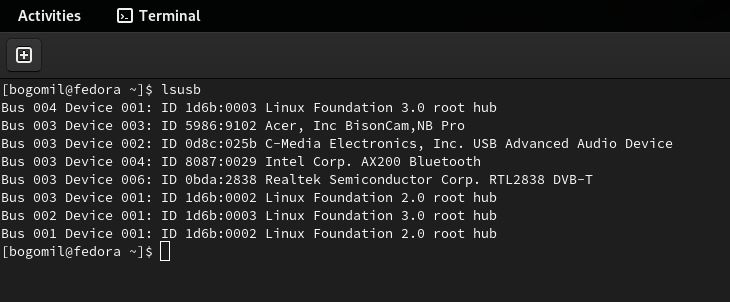
Before installing anything, detect whether Fedora Linux recognizes your USB dongle. I hope you didn’t buy a fake one :-). Use the following command to list the USB devices on your system.

lsusb

One of the output lines (in the case of Nooelec) should be

Realtek Semiconductor Corp. RTL2838 DVB-T

A screen from Fedora Linux showing the results of the lsusb command listing the Realtek Device we will be using in this exercise.

Now proceed by installing the software you need

Fedora offers a set of tools and drivers packaged as a group. Even though you would not use all the components in this package from the beginning, I recommend installing it. You’ll have more software to play with.

sudo dnf group install 'Electronic Lab'

I advise you to explore what’s in the group by running this command:

sudo dnf group info 'Electronic Lab'

Now check if you have everything set up correctly by running:

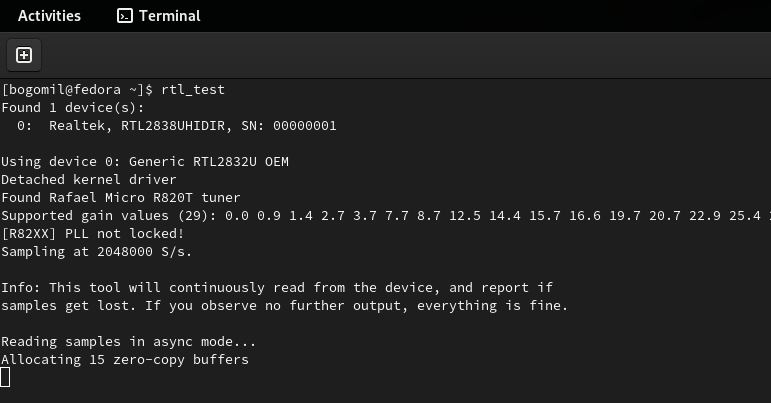
rtl_test

You should see something like this:

A screen from Fedora Linux console showing the results of the previous command listing the device and its properties.

Do not forget to kill this process because the device will be busy and cannot be used in the next step. A simple Ctrl + c works.

Gqrx

You have the dongle already in your device’s USB port and all the software you need to get started. 

 Now it’s time to intercept your first signal. Start the program called Gqrx. Don’t be alarmed by the strange interface. You’ll get used to it. 

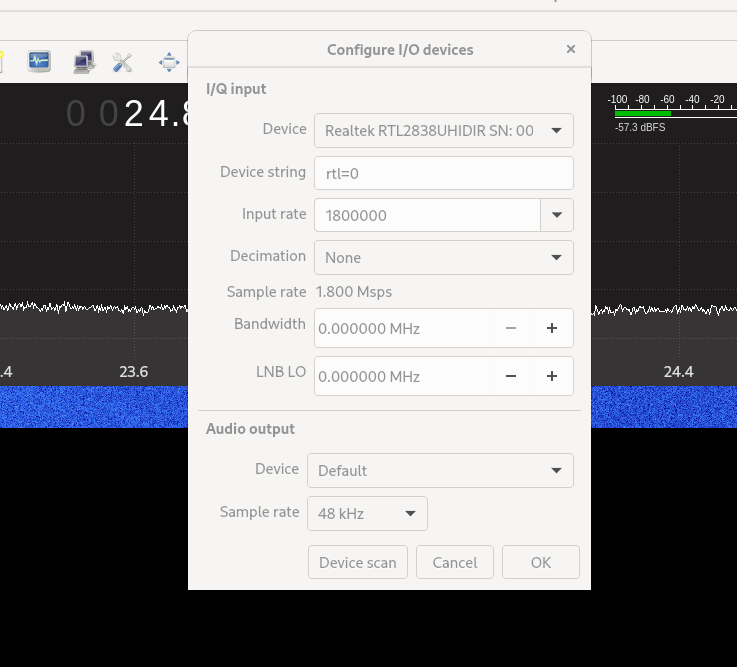
Configure the I/O Device Screen

A screen showing the settings panel of the software Gqrx, for the device we use.

From the “Device” Dropdown, select the ‘RealtekRTL2838...’

Leave the rest untouched for the moment.

If you don’t see your device there, click the “Device Scan” button at the bottom of the screen.

When your device is selected, click “OK” and the dialogue will close.

Configure the frequency screen

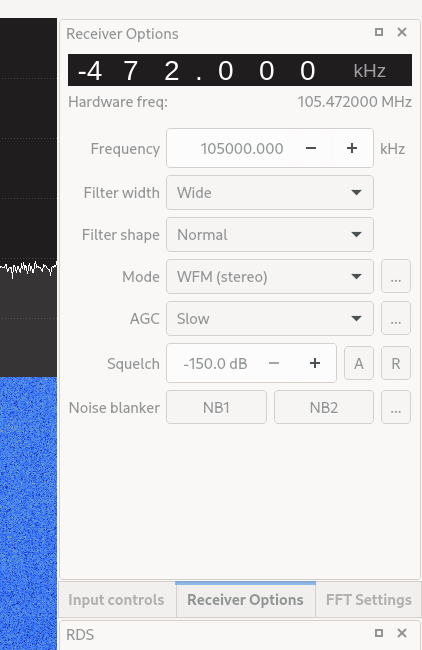
Before you start intercepting signals, ensure there is something out there that proves that everything works correctly. Since the dongle covers the FM radio band as well, do this:

  • Locate your favorite radio station’s frequency. Mine is 105MHZ
  • Set it in the Frequency field
  • Select WFM (stereo) in the “Mode” dropdown. If you don’t do this, you will not hear a sound.
A screen from the gqrx software helping us to se the frequency to our favorite FM station.

Play

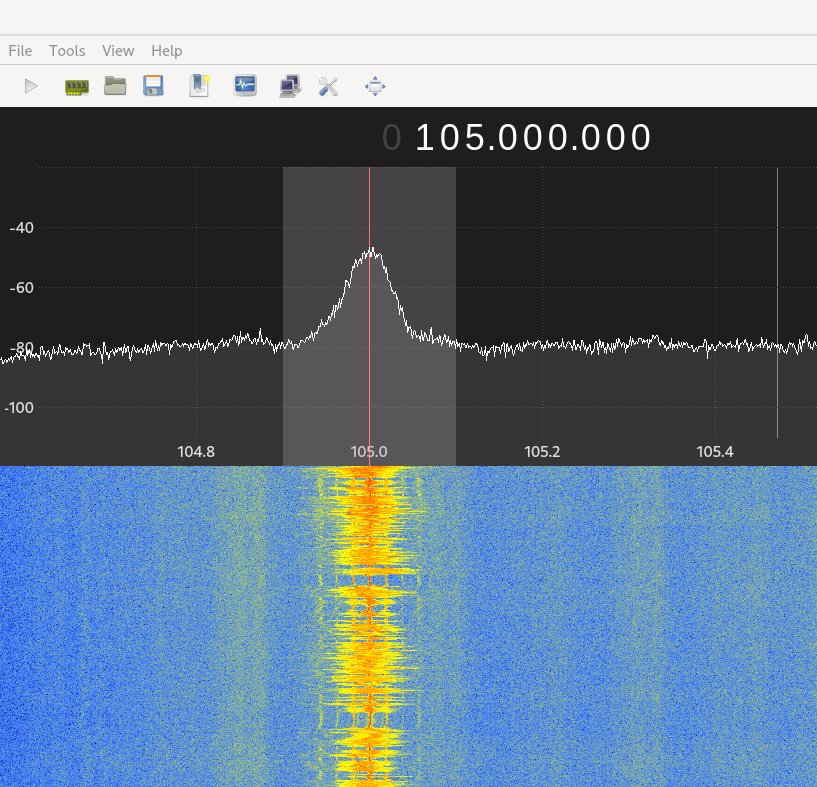
And now, you need to start the reception by clicking the “play button” in your main menu. You will see the frequency visualized like this:

A screen from gqrz displaying the signal received.

If you hear a sound, everything is ready to move to the next step.

If you don’t hear anything, check if everything is set up correctly. You may ask a questions in the comments for this article; I can direct you to the proper forum to solve this.

Feel free to play with some more FM broadcasts. You have the antenna for it in your pack.

Let’s go Short Wave

In the case of the Nooelec, you need to add one more device to the USB dongle and turn it on. Instructions on how to do that are included in the package you receive.  

In short, you plug the “Up Converter” into your USB dongle and make sure the switch is in the “convert” position. Some videos are available on how to do it if you get stuck.

You will need an antenna and a good location

Now things get trickier. If you live in an area where you don’t see an open space out your window or other buildings surround your building, you might have trouble catching a Short Wave radio amateur signal. 

Let’s try this to see if it works

Try to be in the open. I usually listen from my terrace, which could be better but works under particular conditions.

Apart from the hardware, you would need a long wire to act as your antenna. Try the antenna that comes with the hardware initially – the telescoping one from Nooelec, but it will catch only powerful signals.

Let’s go back to Gqrx

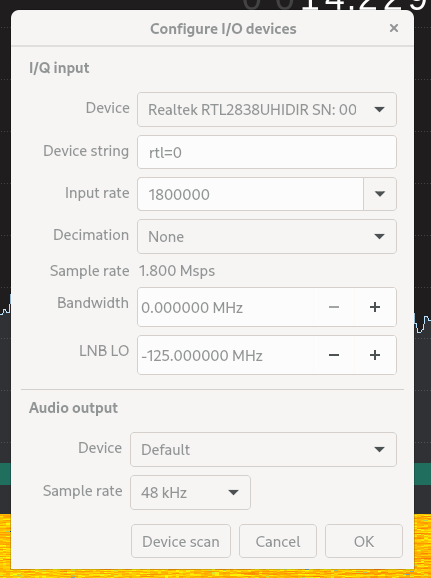
Now with the converter, you need to make some changes to your device screen:

A screen from gqrx showing how to set up the SDR with the up Converter, You need to add the value of -125Mhz to the LNB LO Field.

Please note the –125Mhz for the LNB LO field. This is required for the Up Converter to work.

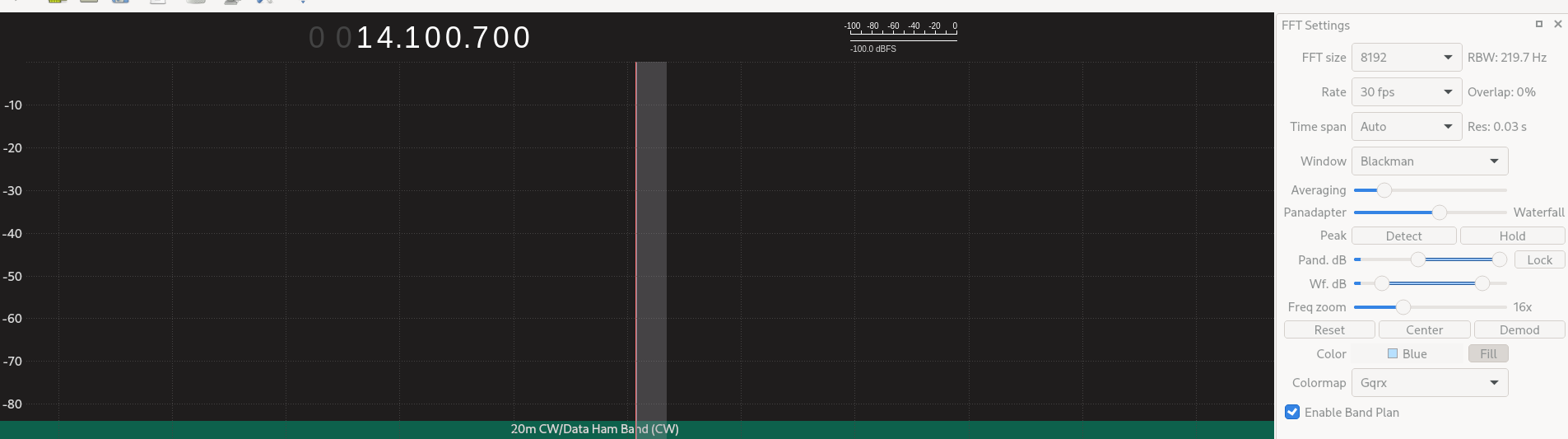
Tune your frequency to 14.100 Mhz and make sure your Mode is USB (standing for Upper sideband) because this is this band’s main demodulation option.

Then go to your FFT Settings screen, use the zoom slider, and set it to see about 100 kHz. In our case, you should have between 14.05 to 14.15 Mhz on your screen.

Also, click the “Enable Band Plan” to see the information about the SW bands you are exploring.

Then hit the play button and start exploring the space between 14.0 and 14.3 Mhz to get any amateur radio transmission.

A screen showing the gqrc signal receiver in work with the setting described in this section.

When intercepting a transmission, adjust your settings to improve your listening experience. It’s a journey that you have already started.

Most probably, you will hear something like this:

“CQ CQ CQ this is ..(followed by the radio license number spelled with the ham radio phonetic alphabet). 

Listen very carefully, and by the call sign, you will be able to determine the location of the radio amateurs’ country.

You can visit the QRZCQ website to learn more about them and even send them a QSL card confirming their connection.

Keep the momentum going.

Now you have some tools and ideas for starting Short Wave Listening. 

This is the first step of an incredible and exciting journey you can have together with your Fedora Linux OS. 

You will discover the pleasure of building your antenna for the specific band, reading more about how the ionosphere helps, how to be a part of a listening competition, and what those Q-codes mean.

73

Posted on Leave a comment

Anaconda Web UI storage feedback requested!

As you might know, the Anaconda Web UI preview image has a simple “erase everything” partitioning right now because partitioning is a pretty big and problematic topic. On one hand, Linux guru people want to control everything; on the other hand, we also need to support beginner users. We are also constrained by the capabilities of the existing backend and storage tooling and consistency with the rest of Anaconda. Anaconda team is looking for your storage feedback to help us with design of the Web UI!

In general, partitioning is one of the most complex, problematic, and controversial parts of what Anaconda is doing. Because of that and the great feedback from the last blog, we decided to ask you for feedback again to know where we should focus. We’re looking for feedback from everyone. More answers are better here. We’d like to get input if you’re using Fedora, RHEL, Debian, OpenSUSE, Windows, or Linux, even if it’s just for a week. All these inputs are valuable!

Please help us shape one of the most complex parts of the Anaconda installer!

With just a few minutes of your time filling out the questionnaire, you can help us decide which path we’d like to choose for partitioning.

Questionnaire link: https://redhatdg.co1.qualtrics.com/jfe/form/SV_87bPLycfp1ueko6 

Posted on Leave a comment

Build a kiosk with Fedora Silverblue

This article will describe the process of creating a kiosk or information “station” using Fedora Silverblue.

What is a kiosk

If you’ve had the occasion to visit a museum, you might have used a touchscreen monitor with useful information and insights of the items on display. Or if you’ve attended a public library, you might have used a workstation with a browser or a software aimed to the consultation of the book’s catalog. Or even in public places like train stations or public squares, you might have spotted big screens or televisions where you can see advertisement videos, or interacted with them in order to obtain information and services. These devices are kiosks. They are locked down environments, generally running a full screen application.

Under the hood there is usually a small PC (maybe a fan-less device or a so called industrial PC, capable of staying powered on without issues for long periods of time) or perhaps a Raspberry Pi. Many times they are powered by Linux!

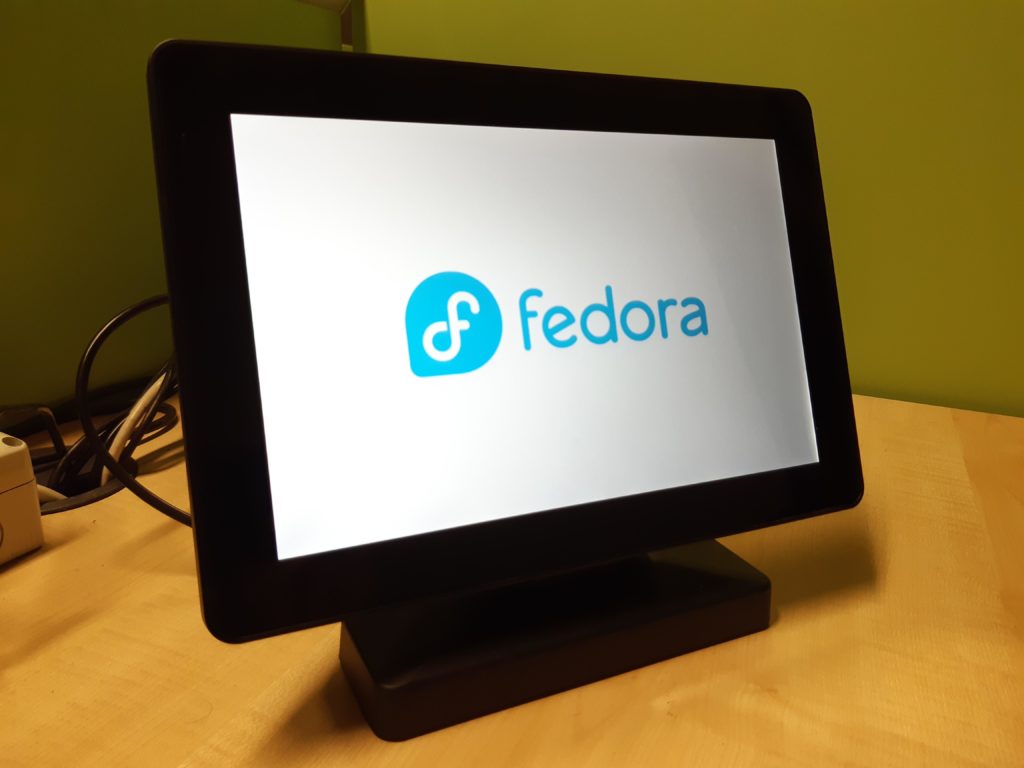
A 10″ Capacitive Touch Display showing the Fedora logo

Why Fedora Silverblue

Fedora Silverblue is a new generation of the desktop operating system. The main benefits of the system are atomic updates and immutability.

Atomic updates means that the update process will complete successfully and if not the operation will be abandoned and the system reverted to the previous state. This prevents situations where some packages are upgraded while others are not. This might occur, for example, due to a power loss in the middle of the update process, leading to an unstable or unbootable system.

In this context, immutability means part of the filesystem is read-only and the system files cannot be modified (at least not in the usual ways, read below). The term has been criticized by several parties: in fact, if you can update the system and install things, the system is actually mutable, so another term should be coined for these kinds of operating systems where there is a clearly defined distinction between the system, the applications and the changes made by the user. However this is not the topic of this article.

You can find more information about Fedora Silverblue in this article: What is Silverblue?

These features make the system more robust and secure. This is an important consideration since a kiosk is usually located in a remote place, accessible to the public (even if hidden inside some box or behind a TV), and difficult to reach in case of malfunctions.

If you have heard about Fedora IoT, you might think that it would be the perfect solution for this kind of operations. However, Fedora IoT, although sharing the same technologies as Fedora Silverblue (immutability, rpm-ostree, etc.), is not designed for and it doesn’t provide a graphical environment. Running headless is the expected use case for Fedora IoT.

GNOME Kiosk

GNOME Kiosk is a special GNOME session that “provides a desktop environment suitable for a fixed purpose, or single application deployments like wall displays and point-of-sale systems”. It provides a locked down GNOME session, without activities, dock, top bar, etc.

The required bits are available in the Fedora repository.

How to proceed

As a basic example, we will create a simple slideshow.

First of all let’s install Fedora Silverblue.

The first user created during initial setup becomes the administrator.

Go to Settings. Enable Sharing and enable Remote Login (that is SSH) in order to access the kiosk for remote management.

In Settings, go to Users and add a new user. Let’s call it “kiosk” and assign it a password.

Install GNOME Kiosk

Even though Fedora Silverblue is an immutable system, rpm-ostree still allows you to install packages from the DNF repositories. This is called layering. Read more on How I Customize Fedora Silverblue and Fedora Kinoite.

Open the terminal and issue the following command.

sudo rpm-ostree install gnome-kiosk gnome-kiosk-script-session

To activate the layered packages, you will have to reboot the system.

Automatic login

We have to set the system to automatically log in as the “kiosk” user.

After the reboot, log in as the administrator user. Then go to Settings, Users, select the “kiosk” user, and enable Automatic Login.

Then log out (don’t reboot yet).

For reference you can enable automatic login from the command line. To do so, edit the file /etc/gdm/custom.conf, and add the following two lines to the [daemon] section.

[daemon]
AutomaticLoginEnable=True
AutomaticLogin=kiosk

Configure the kiosk

At the login screen, select the “kiosk” user.

As a basic example, let’s create a slideshow of images. To do that we will use the GNOME image viewer (Eye of GNOME or eog). This is already installed on Fedora Silverblue as a Flatpak package. (Yes, you can run Flatpak applications from the command line.)

Put some images in the Pictures folder.

In the activities overview, you can find an application called Kiosk Script. Actually Gedit will open it and let you edit the script that will start when you select the Kiosk session at login. For reference, this script is named gnome-kiosk-script and it is located in the home directory under .local/bin.

Read the comments. Pay attention to the last line. If the program that you want to use in the kiosk session exits as soon as it is launched (or it runs in the background), you risk creating an infinite loop that will start a new window each second!

The slideshow script will look like this:

#!/bin/sh if [ ! "$(pidof eog)" ]
then flatpak run org.gnome.eog -s /home/kiosk/Pictures
fi sleep 1.0
exec "$0" "$@"

The above example script, will run eog in slideshow mode (indicated by the “-s” option) only if a process called eog isn’t already running. Make certain to take into account that the script can invoke itself in an infinite loop (it is instructed to do so by the last line). Note that if for some reason Eye of GNOME crashes, it will be launched again because of the “if” statement.

Save the script. And the full screen slideshow will start immediately! Don’t worry, you are not yet in the kiosk session. Press the super key and you can still use the dash and the applications overview.

Logout.

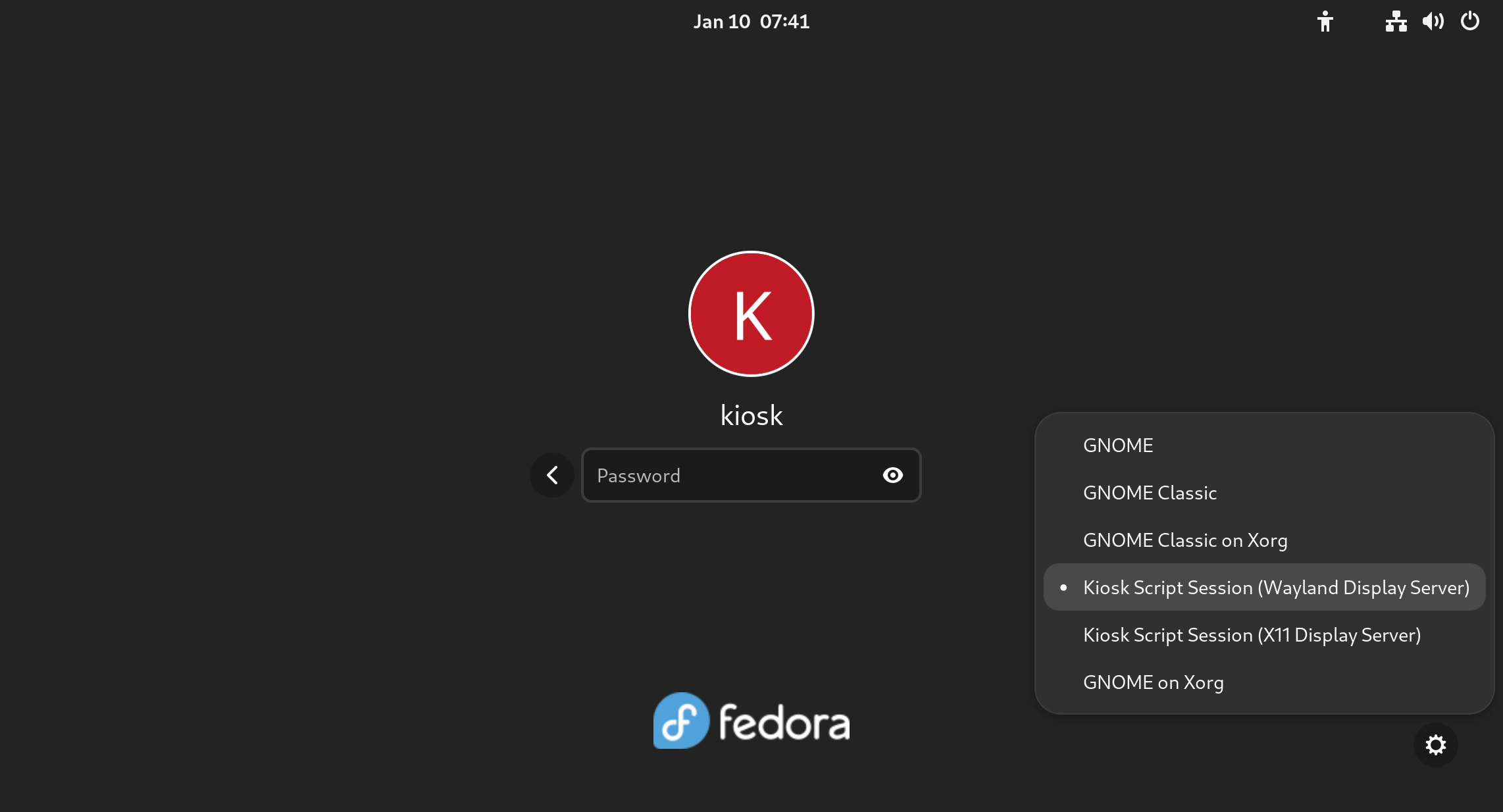
At the login screen click on the gear icon at the bottom right of the login page. Select “Kiosk Script Session (Wayland Display Server)”.

Insert the password and the full screen slideshow will start.
You will be in the locked down GNOME session, so you can’t use any application or desktop functions. If needed, you can still switch to a TTY to gain the command line using a combination like CTRL+ALT+F3

For reference, the file containing the user’s default session is /var/lib/AccountsService/users/kiosk

Session=gnome-kiosk-script-wayland

The last step is to reboot the machine.

Other types of kiosk

Other ideas could be:

  • a full screen Firefox session (take a look at the gnome-kiosk-search-appliance RPM package)
  • a video loop
  • your own software specifically crafted for this purpose
  • any application

Further improvements

You might modify the script to show the slideshow only at certain times of the day.

To make the system more robust and secure, you might add a password to GRUB and to the BIOS. You might also disable the TTYs.

Other useful ideas might be to enable automatic updates, and especially to implement greenboot, a health check framework developed for Fedora IoT.

Posted on Leave a comment

Using OpenSearch in Fedora Linux

OpenSearch is Amazon’s open-source search engine and analytics suite. Individuals, businesses, and organizations can use the service to search for a wide range of information and use visualization tools to better understand user behavior and search trends. This article will discuss how you can use OpenSearch in Fedora Linux.

Prerequisites

What can OpenSearch do?

OpenSearch provides several features and tools. These are:

  • Applications that monitor and debug your cluster.
  • Manage security and event information.
  • Enable seamless, personalized search results.
  • A web-based user interface for searching and browsing search results.
  • The ability to search for specific terms or phrases within a document or webpage.
  • The ability to filter search results by date, relevance, or other criteria.
  • The ability to create and save searches for later use.
  • The ability to customize the appearance and functionality of the search results page.
  • Advanced analytics and reporting tools to help users understand and analyze search traffic and user behavior.

The following sections will guide you through the basics of creating a domain, uploading test data, and visualizing your information with OpenSearch Dashboards.

What is an OpenSearch Service domain?

An OpenSearch Service domain is a service provided by AWS that allows you to create, manage, and configure your cluster(s) using either the AWS console or the AWS command-line interface (CLI). This tutorial, will use the AWS console to create and configure your domain.

Getting started

To begin the domain setup, launch your preferred browser and log in to your AWS console. Navigate to the Amazon OpenSearch Service page, then click Create domain.

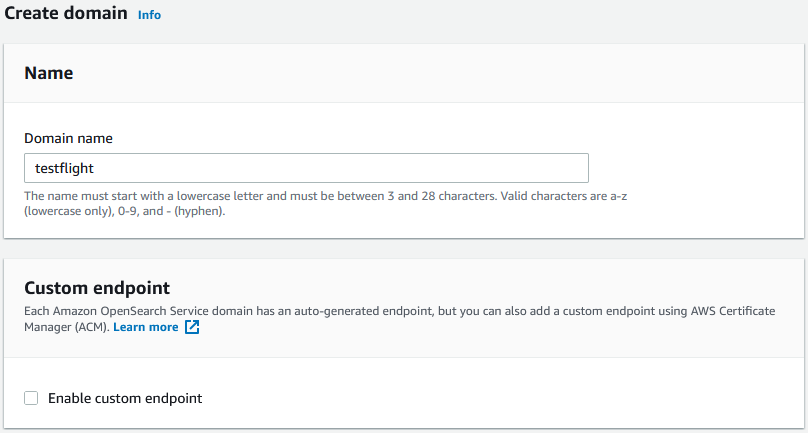
Create domain page segment which features options to choose your domain name and create a custom endpoint.

Choose your domain name and leave the Enable custom endpoint box unmarked.

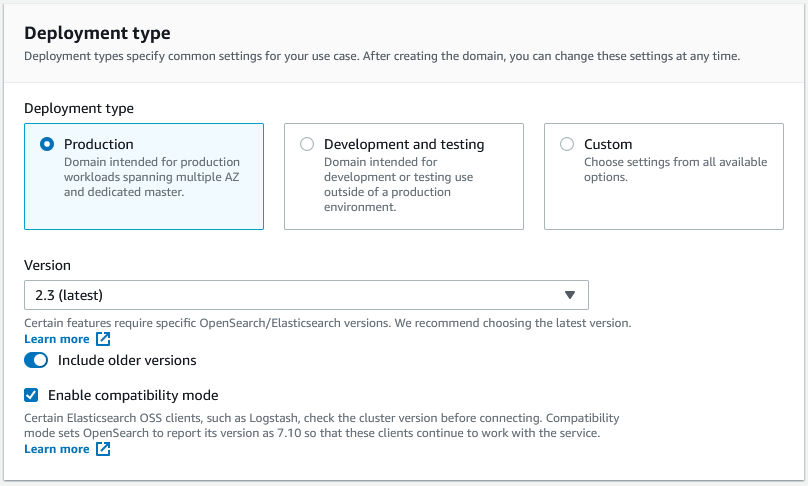
Create domain page segment which features options to choose your deployment type, which version of OpenSearch or Elastic search you'd like to use, and enable compatibility mode.

OpenSearch is a fork of Elasticsearch version 7.10. You can choose any version up to Elasticsearch version 7.10 in addition to OpenSearch versions.

Choose Development and testing for your deployment type, the most recent OpenSearch version, and enable compatibility.

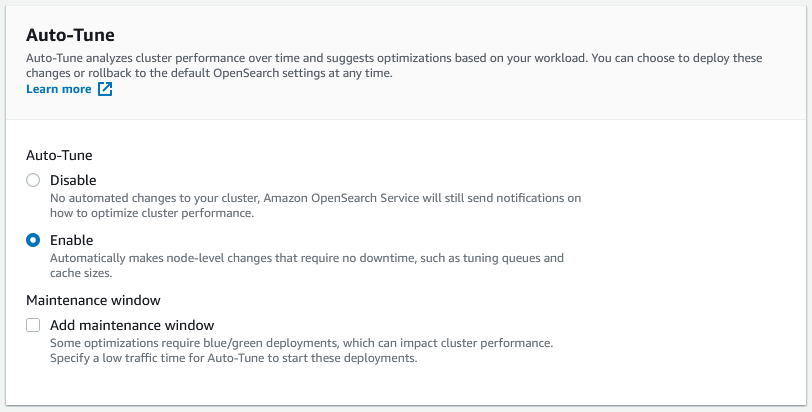
Create domain page segment which features options to enable Auto-Tune or add a maintenance window.

Leave Auto-Tune enabled and Add maintenance window unmarked.

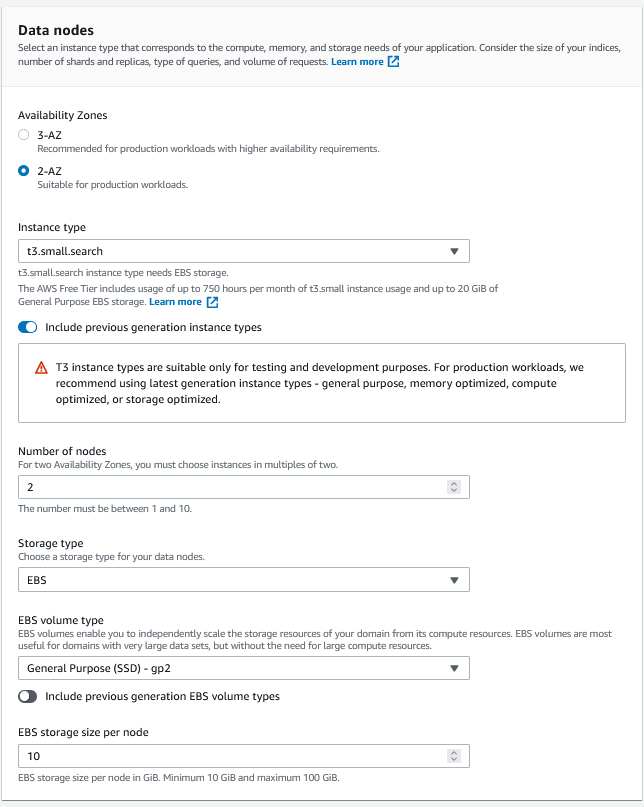
Create domain page segment which features options to configure your nodes based on the needs for you application.

The Data nodes options allows you to customize your nodes based on the needs of your applications:

  • Availability Zones (AZ)
    • Amazon Web Services (AWS) Availability Zones are physically separate and isolated data center locations within an AWS region. Each Availability Zone is designed to be fault-tolerant, with redundant power, networking, and cooling infrastructure.
  • Instance type:
    • Refers to the type of virtual server you’d like to use for your application.
  • Number of nodes:
    • The number of nodes you’d like to allocate to each of your AZs.

Since we’re running in a small development setting, set your AZ to 2, your Instance type to t3.small.search, and Number of nodes to 2. Don’t change the default settings for your Storage type, EBS volume type, and EBS storage size per node.

Create domain page segment which features options to select Warm and cold data storage and the number of master nodes you'd like to use. Warm and cold data storage are cost effective solutions for storing large amounts of data and the default frequency of snapshots taken of your cluster is hourly.

Ignore these options for now, but read on for more information:

  • Warm and cold data storage:
    • For use cases that require a cost effective solution for storing large amounts of non-mutable data.
  • Dedicated master nodes
    • Allows you to choose how many master nodes you’d like to use for your domain.
  • Snapshot configuration:
    • Set to hourly by default.
Create domain page segment which features options to set what type of network access you'd like to use and enable granular level control over your data.

VPC access is recommended for production environments. You’ll also need to create a master user login to access OpenSearch Dashboards, OpenSearch’s data visualization tool. We’ll discuss how to use OpenSearch dashboards after you configure your domain.

Select Public access and Create master user, and set up your login.

Create domain page segment which features options to integrate your already existing authentication and Amazon Cognito authentication and set your domain's access policy.

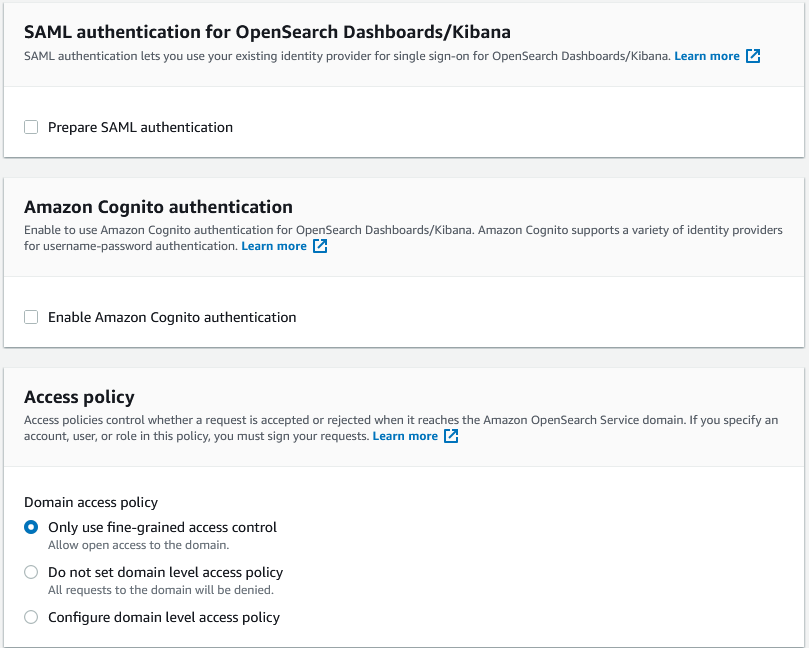
Leave Prepare SAML authentication and Enable Amazon Cognito authentication option boxes unchecked and select Only use fine-grained access control for your access policy.

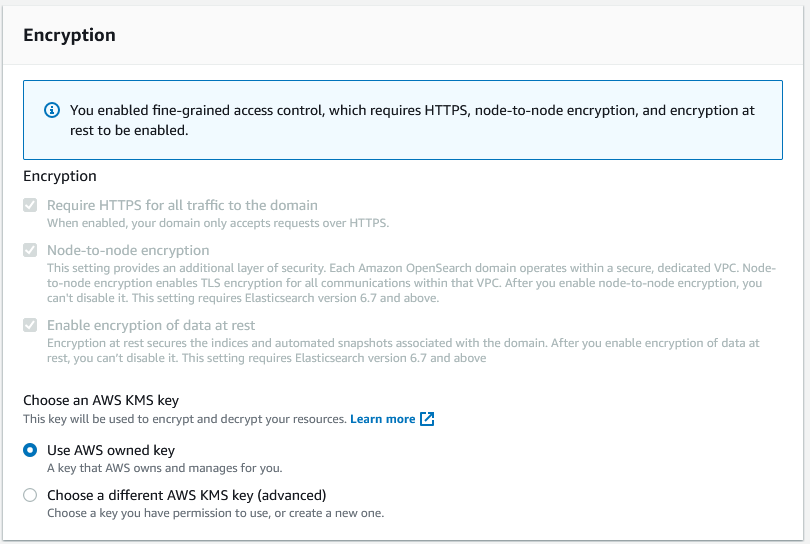
Create domain page segment which features option to set what type of encryption you'd like your domain to use.

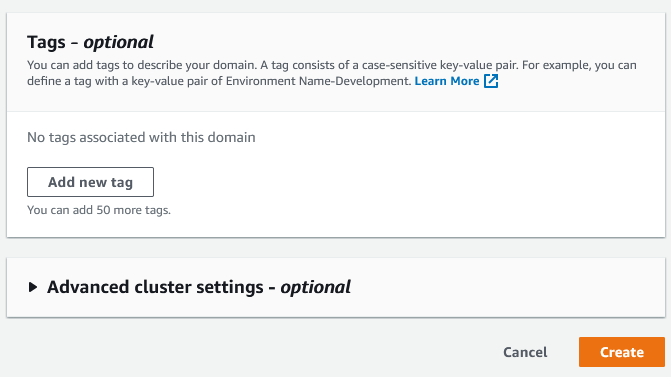
Select Use AWS owned key, ignore the optional configurations, click Create to create your domain, then wait for your domain to activate.

Using OpenSearch Dashboards

OpenSearch Dashboards is a tool that allows you to create and customize interactive dashboards to visualize the data your site receives from user interaction. These dashboards are visual representations of data from various sources such as logs, metrics, and security events, which can be customized to meet your specific needs, including:

  • Dragging and dropping different types of visualizations, such as graphs, maps, and tables, onto a dashboard.
  • Filtering and manipulating data to highlight specific trends or patterns.
  • Sharing dashboards with other users or embedding them in other applications.
  • Collaborating with other users in real-time on the same dashboard.

Navigate to domains and select it from the list.

A list of your domains that provides information on metrics such as Cluster Health, Searchable documents, Total free space, and more.

Click OpenSearch Dashboards URL to access your OpenSearch Dashboard.

Your domain page that lists general information (such as name and Cluster health) and cluster configuration.

You’ll be presented with one of the following screens after you’ve logged into your dashboard:

OpenSearch Dashboard initial login prompt. The prompt asks if you would like to add data or explore the platform.
Upon first login
OpenSearch Dashboards home page. Has options to add sample data or interact with the OpenSearch API
Upon subsequent logins

Visualization options

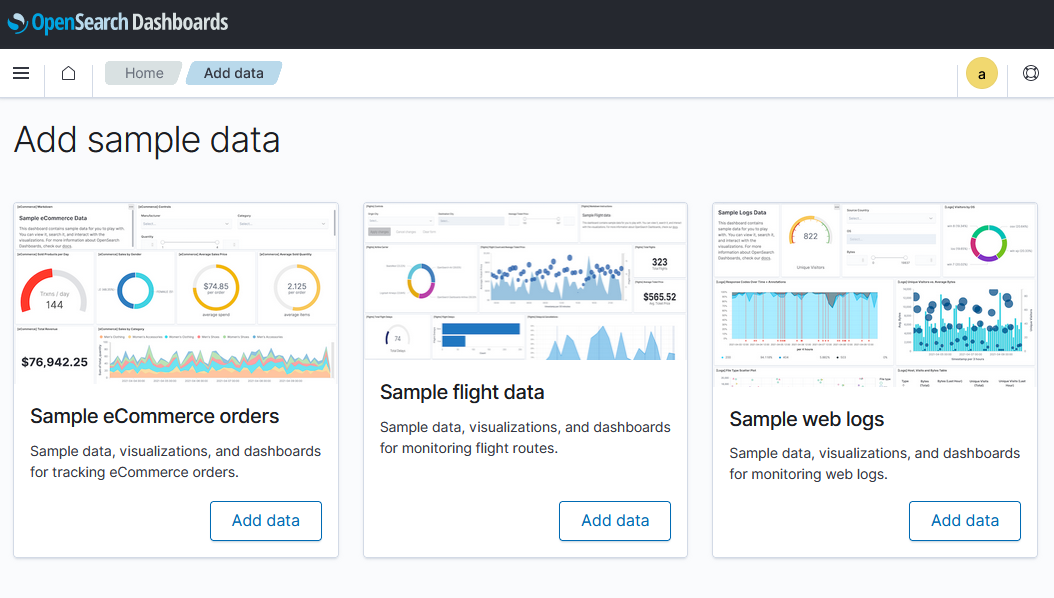
Click Add sample data to add sample data provided by AWS.

Page showing 3 options of sample data you can upload to your domain. The options are eCommerce orders. flight data, and web logs.

You may select any of the three options. The Sample web logs option will be used, here, to view examples of types of visualization options you can use to analyze your data.

OpenSearch Dashboard visualizations which include Unique visitors, Visitors by OS, and a search query to search for what OS users use in other countries.
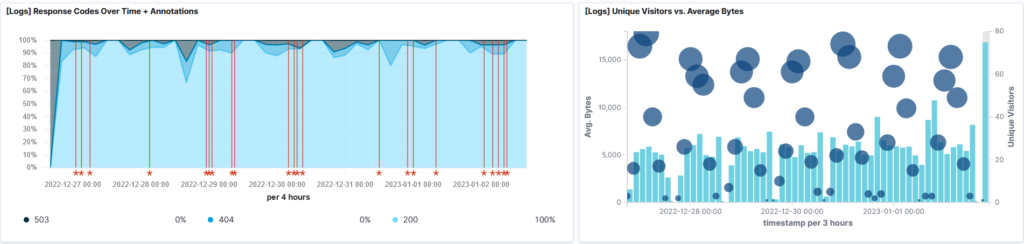
OpenSearch Dashboard visualizations which include response codes over time + Annotations and Unique Visitors vs Average Bytes.
OpenSearch Dashboard visualizations which include a file type scatter plot, and a table that shows what hosts, and how many bytes and unique vists the site received in the last hour.
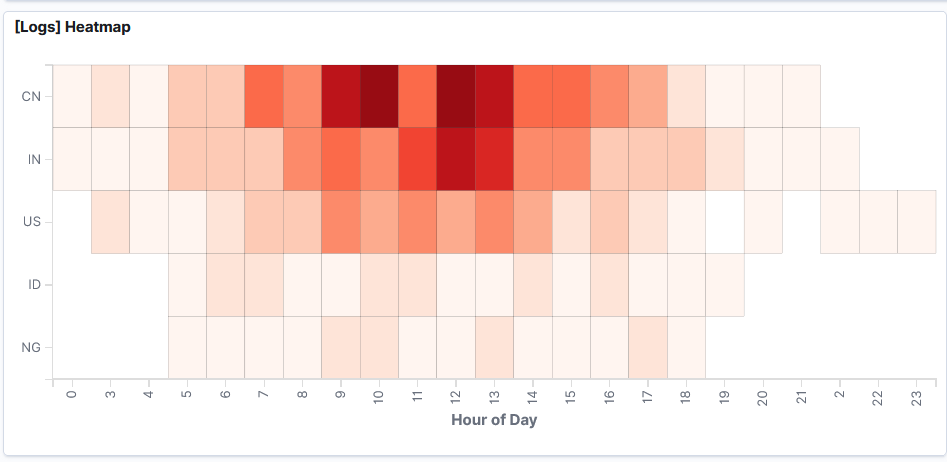
OpenSearch Dashboard visualizations which that shows a heatmap of what country a visitor came from throughout the day.
OpenSearch Dashboard visualizations which that shows a map of which part of the world visitors viewed the site from.
OpenSearch Dashboard visualizations which that shows a Source and Destination Sankey Chart.

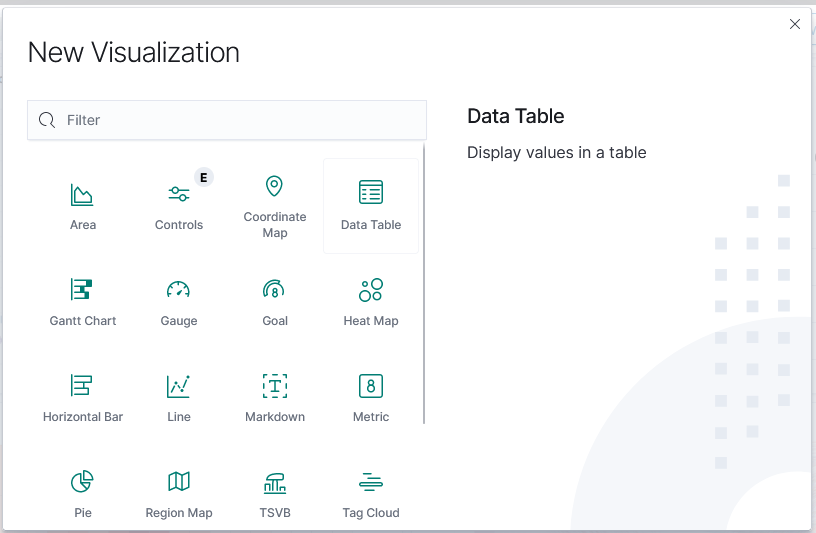
Click Create new to add more visualization options:

Analyze your own data to analyze

You can upload one or more of your documents by entering commands through a CLI.

Add a single document

curl -XPUT -u 'master-user:[master-user-password]' 'domain-endpoint/[domain name]/_doc/1' -d '{"field1": "string1", "field2": ["string3","string4"]}' -H 'Content-Type: application/json'

Add multiple documents

Create a JSON file with your documents and run a command to add multiple documents:

JSON file format:

{ "index" : { "_index": "indexname", "_id" : "2" } }
{"field1": "string1", "field2": ["string2", "string3", "string4"], "field3": 1234, "field4": ["String, 5", "String, 6"]}
{ "index" : { "_index": "indexname", "_id" : "3" } }
{"field5": "string7", "field6": ["string8", "string9", "string10"], "field7": 5678, "field8": ["String, 11", "String, 12"]}
{ "index" : { "_index": "indexname", "_id" : "4" } }
{"field9": "string13", "field10": ["string14", "string15", "string16"], "field11": 1011, "field12": ["String, 17", "String, 18"]}

JSON file naming restrictions:

  • All letters must be lowercase.
  • Index names cannot begin with _ or – .
  • Index names can’t contain spaces, commas, : , ” , * , + , / , \ , | , ? , # , > , or < .

Command to run:

curl -XPOST -u 'master-user:[master-user-password]' 'domain-endpoint/_bulk' --data-binary @bulk_[domain name].json -H 'Content-Type: application/json'

You can now create and configure your own domain and use OpenSearch Dashboards to visualize the data your domain receives.

Posted on Leave a comment

Contribute at the Fedora Linux Test Week for Kernel 6.1

The kernel team is working on final integration for Linux kernel 6.1. This version was just recently released, and will arrive soon in Fedora Linux. As a result, the Fedora Linux kernel and QA teams have organized a test week from Tuesday, Jan 03, 2023 to Sunday, Jan 07, 2023. Refer to the wiki page for links to the test images you’ll need to participate. Continue reading for details.

How does a test week work?

A test week is an event where anyone can help make sure changes in Fedora Linux work well in an upcoming release. Fedora community members often participate, and the public is welcome at these events. If you’ve never contributed before, this is a perfect way to get started.

To contribute, you only need to be able to do the following things:

- Download test materials, which include some large files
- Read and follow directions step by step

The wiki page for the kernel test day has a lot of good information on what and how to test. After you’ve done some testing, you can log your results in the test day web application. If you’re available on or around the days of the event, please do some testing and report your results. We have a document which provides all the necessary steps.

Happy testing, and we hope to see you on test day.

Posted on Leave a comment

Docker and Fedora 37: Migrating to Podman

In previous installments (Fedora 32, Fedora 35), there was a strong focus on making things work with Docker on Fedora Linux. This article will focus on the final stage of this long journey. It will focus on migrating a cross-platform production set-up from Docker to Podman.

Background

Docker and Podman use the same open standard for containers. On top of this container standard, there are multiple ways of organizing containers together. Docker-Compose and Kubernetes are the two main technologies for this, although tools like Ansible are also popular.

On the business side though, there are strong differences. Docker is distributed with a non-free application called Docker Desktop, while Podman historically never had a UI. Docker started live in 2013 and had its rise to prominence in 2016. Podman started in 2018 and it has only become more popular in the last two years.

Podman was certainly not the first on the scene, and it has been fighting an uphill battle. Still, in many ways, this has been an opportunity. Podman can avoid some of the architectural errors that Docker made, and it can integrate with other tools that didn’t exist yet when Docker started.

Personal background

The previous articles about Docker and Fedora are based on the author’s professional life. At the company were I work, we heavily relied on Docker when I came on board. This meant that I needed Docker, and I started to document my struggles which ultimately lead to the first article. The second article was a follow-up to inform readers that most hurdles from the past were no longer a problem.

Podman Destkop

The game-changer in this whole story is Podman Desktop. It is a cross-platform UI that allows teams on Linux, macOS and Windows to collaborate. It works the same way as Docker Desktop, including a bundled VM and WSL support. This also means that Podman now offers a complete package for software companies. While software developers on Linux could use Podman in the past, it’s now possible to migrate an entire team across environments!

Migrating Docker

So, let’s start migrating from Docker to Podman. First, you’ll need to make sure that you have podman and podman-compose installed. You can easily download Podman Desktop from Flathub.

Image files

Image files are good as they are! They are identical because of the open standards behind containers.

One thing that you will see now is that there are a plethora of companies and groups that offer their own image-repositories.

  • hub.docker.com (alias, docker.io) is the offering from Docker, which their tooling conveniently defaults to.
  • registry.gitlab.com is the registry of GitLab’s commercial offering. Community editions follow this same syntax resulting in, for example: registry.gitlab.gnome.org
  • registry.fedoraproject.org is Fedora’s Registry. This registry is also used for flatpaks from the Fedora repository.
  • Quay.io is the offering from Red Hat, which contains all of Podman’s tooling, but also CentOS images.

The biggest change that you’ll have to adapt to, when switching from Docker to Podman, is that you’ll be encouraged to write full image addresses instead of just stubs: `postgres:14-alpine` becomes `docker.io/library/postgres:14-alpine`.

Docker-Compose files

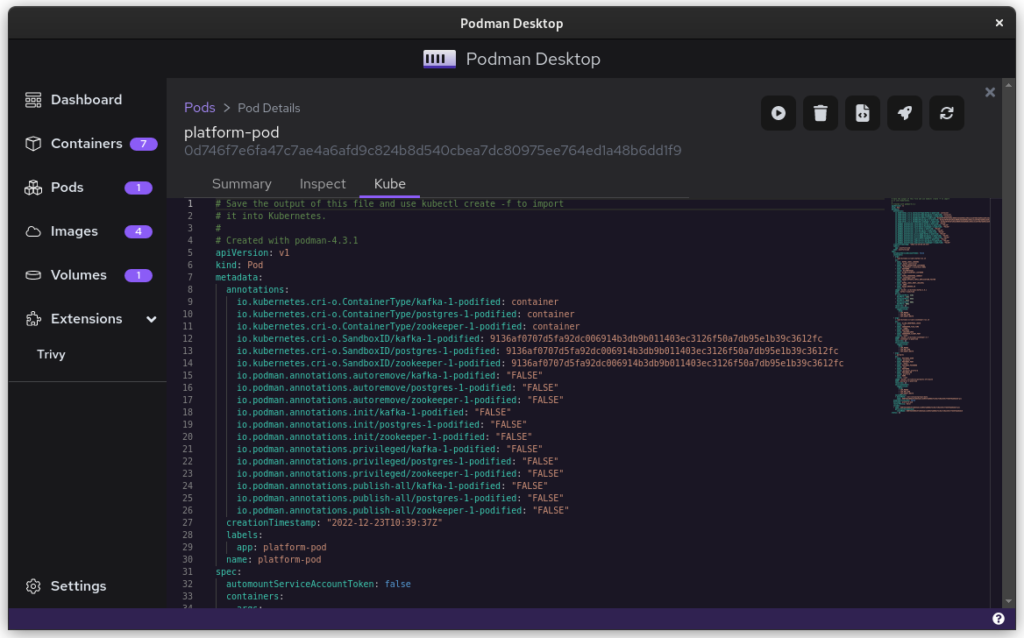
Compose files are Docker specific and they can’t be used with Podman. What you can use, though, is podman-compose. Better yet, you can start your docker-based platform and then use Podman Desktop to export your current configuration to a Kubernetes file.

$ podman-compose -f ./docker-compose-platform.yaml up --detach

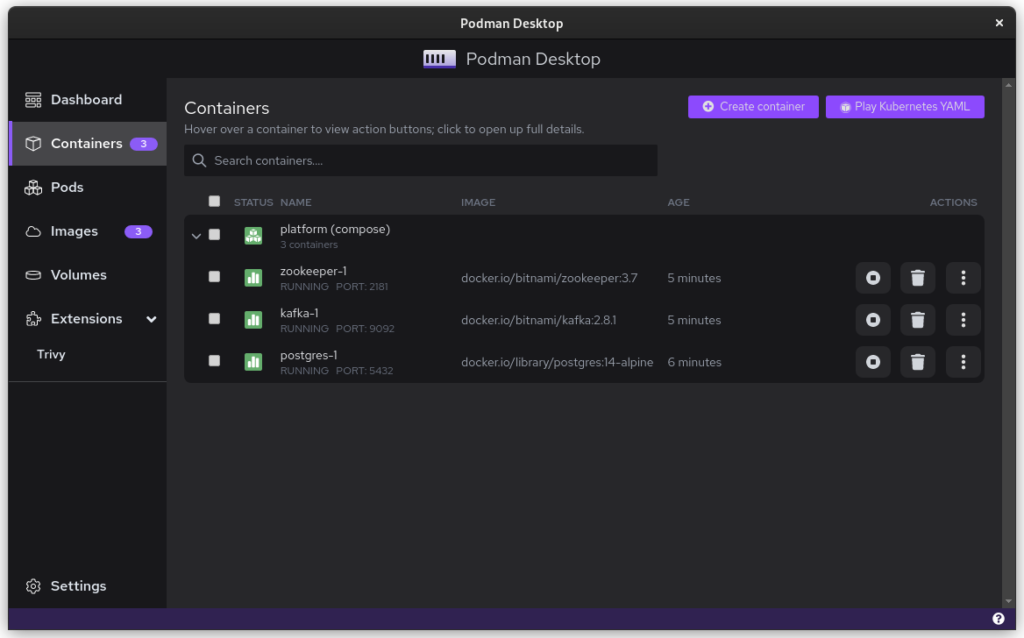
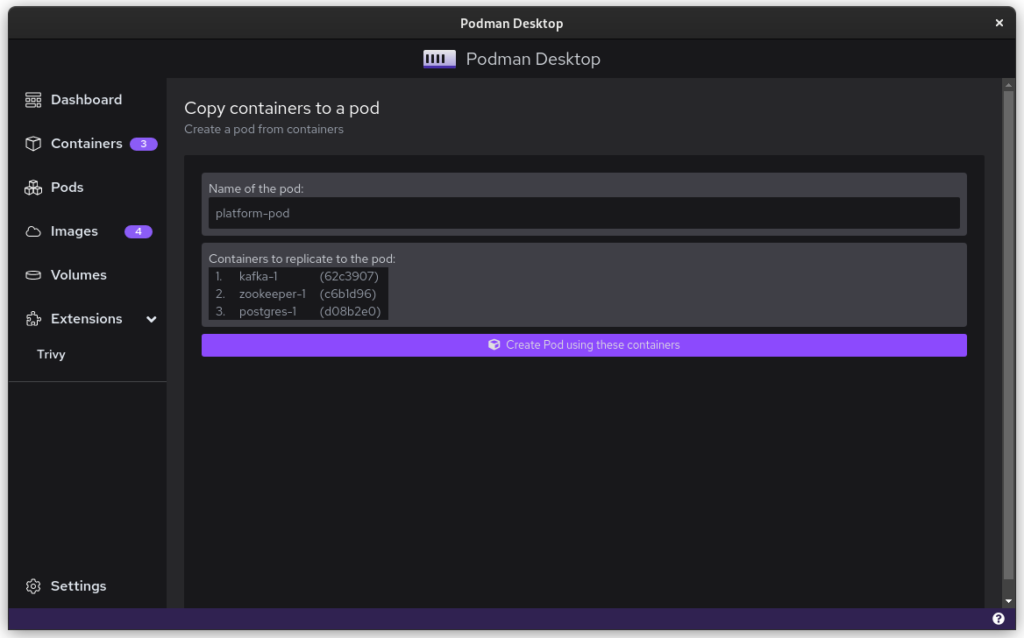
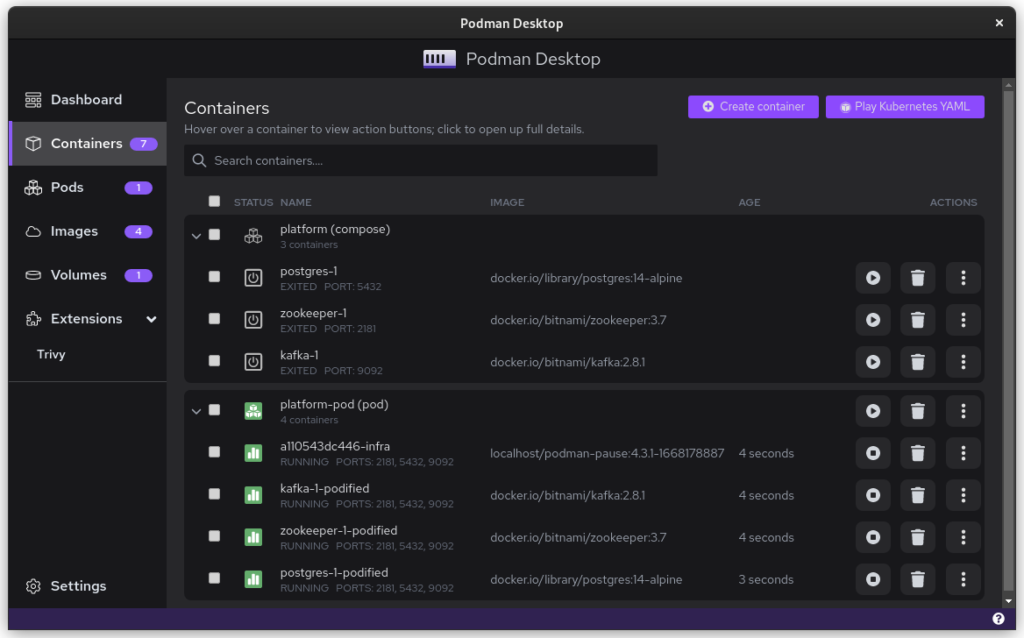
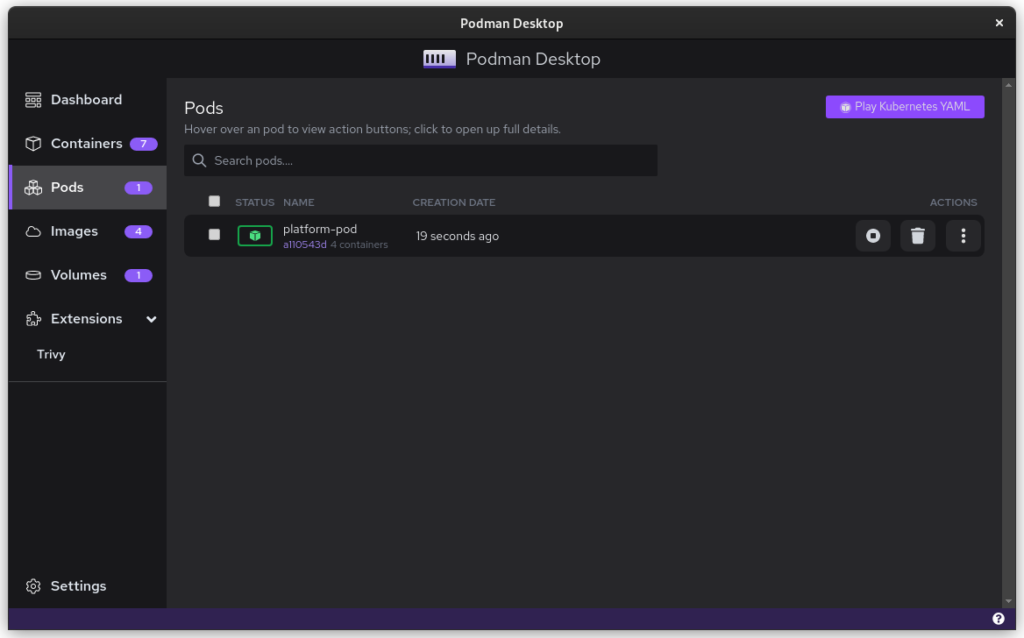
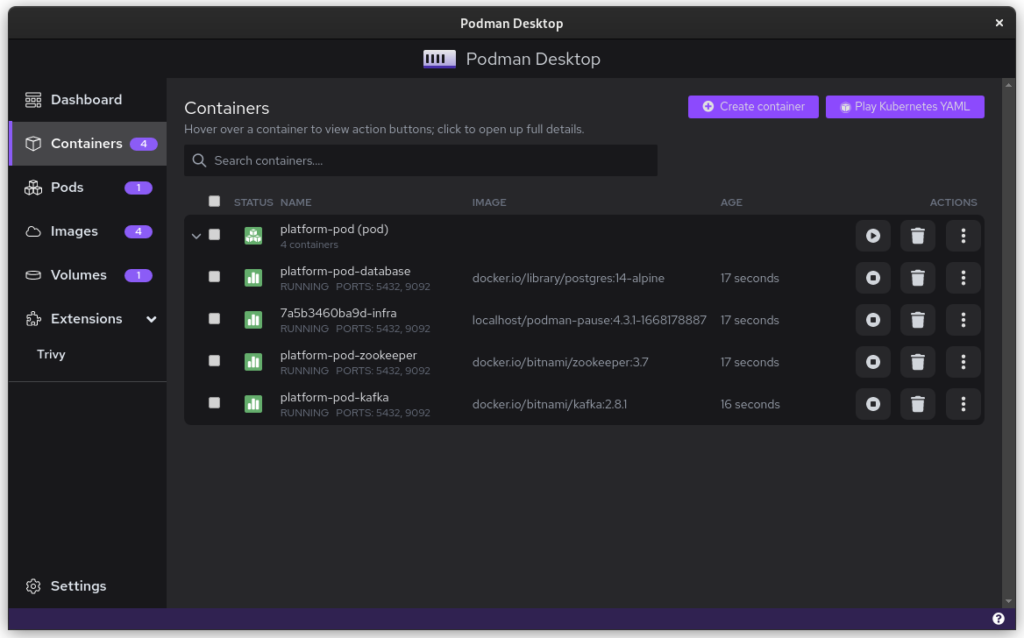
Once you start podman-compose with your old docker-compose .yaml file, you’ll see that you have a number of containers running in one ‘compose’ group. This is how things translate into the world of Podman. From here, you can select the containers and create a Pod. A Pod is a collection of containers that run in their own network.

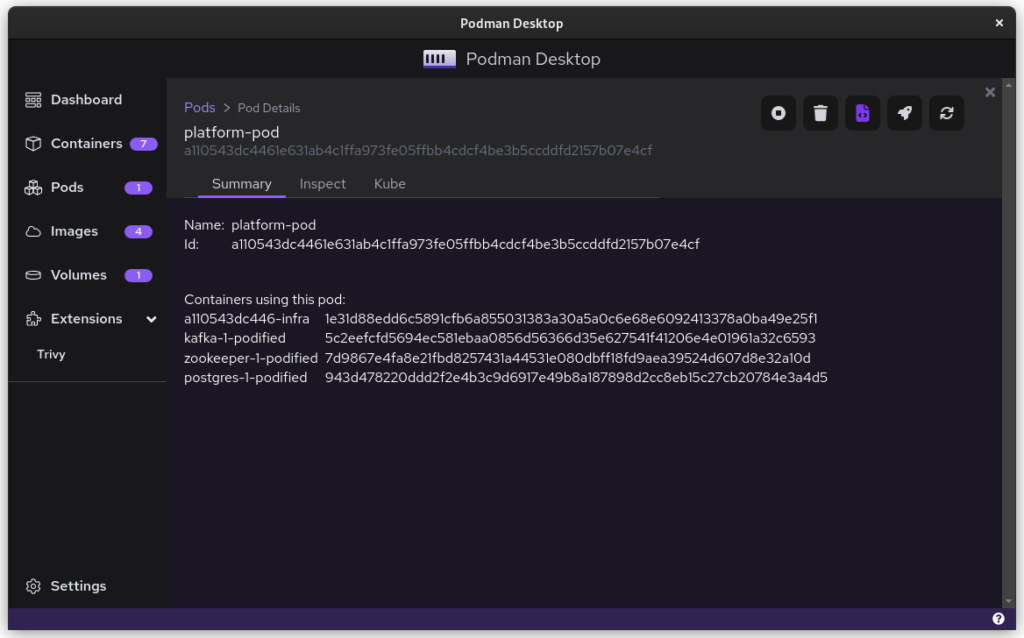
Once you inspect the Pod, you have a Kube file that represents this container collection. Save it somewhere and give it another critical look. You can likely remove some stuff without impacting the functioning of the system. After all, auto-generated documents will have some artifacts.

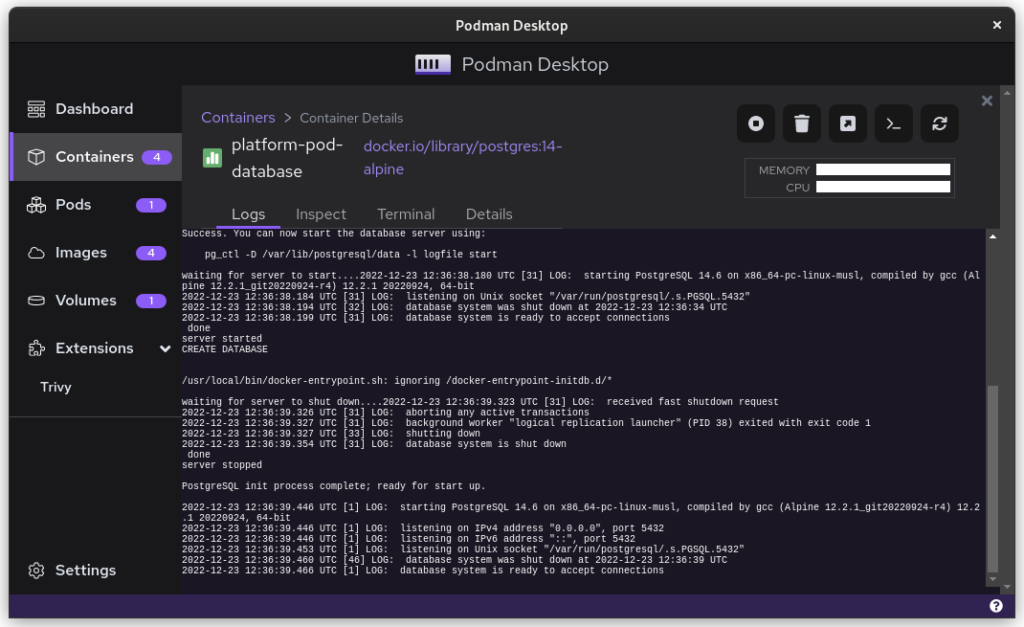
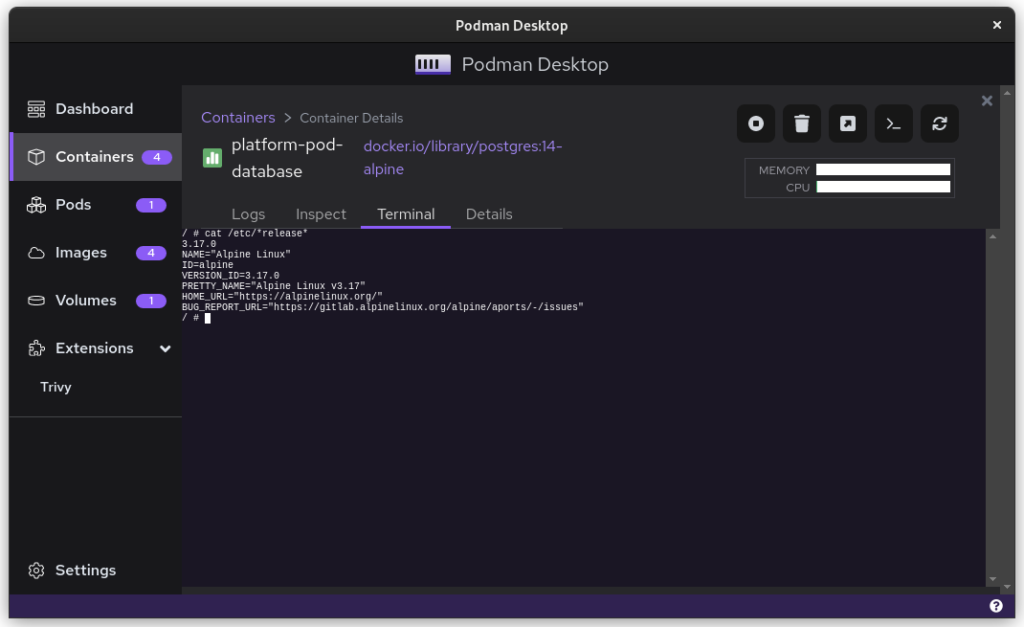
All three files from the demonstration can be seen here:

That’s it. You have now migrated from Docker to Podman. To start up Podman with the Kubernetes file simply do:

$ podman play kube podman-kube-platform-cleanup.yaml --replace

GitLab CI/CD

GitLab has a great set of open source and commercial offerings that allow you to automatically deploy and test your system. In the past, people working with Docker inside GitLab had to resort to a Docker-in-Docker solution. That gives many engineers headaches. A migration from Docker to Podman will resolve that problem.

For example, you can use Podman’s official image to easily build your own product image:

runner-setup: image: quay.io/podman/stable:latest stage: setup script: - podman login registry.gitlab.com -u ${COMPANY_CI_USERNAME} -p ${COMPANY_CI_PASSWORD} - podman build --pull --no-cache -t registry.gitlab.com/company/platform:latest -f ./distribute/image . - podman push registry.gitlab.com/company/platform:latest

In this example we use the official Podman stable image based on Fedora Linux 37. We use that to build the latest version of our platform based on the ./distribute/image file. We can do this all without ever having to set up Docker.

Tooling and integrations

Finally, we have to talk about certain tooling. Not all tooling will work equally well from the start. For example, the login that Amazon’s AWS CLI provides is hardcoded for Docker. Still, you can easily login to AWS by doing this:

$ aws ecr get-login-password --region $REGION | podman login --username AWS --password-stdin $AWS_REPO_NAME

Similarly, you can cache your registry credentials for both Podman and Docker. Do this with a single command like:

$ podman login registry.gitlab.com –authfile=${HOME}/.docker/config.json

Alternatives/Workarounds

Perhaps all of this sounds good, but you need more time to convince your team and company that embracing open source tools is great. In that case, you can add the following snippet to .bashrc and use Podman without changing the tooling of your team.

#Ensure that these aliases also affect other scripts
shopt -s expand_aliases alias docker=podman
alias docker-compose=podman-compose

This also offers you a chance to test the set-up that you have, in case of technical incompatibilities. You can also use the package podman-docker (available via dnf) to automatically convert Docker commands into Podman commands.

Company experience

The migration from Docker to Podman has been well received within my development team. The desktop experience for macOS and Windows users has improved since they no longer have to struggle with a tool that is closed source. The improvements to the CI system also help in maintaining the pipeline and it makes the integration tests run faster.

In day to day work, the team is really enthusiastic about the ease with which they can inspect running containers, manage images, and clean temporary volumes.

In the big picture, the migration from Docker to Podman further aids the company in limiting financial liabilities. Developers on macOS and Windows are no longer dependent on a closed-source product. Finally, it also means that the team gets some experience in Kubernetes, which will certainly pay off in the future.

Summary

The gains from switching to Podman really outweigh the bit of time it takes to set up and to migrate. The future is bright for Podman and Podman Desktop, and it offers a great solution to the problems that come with Docker.

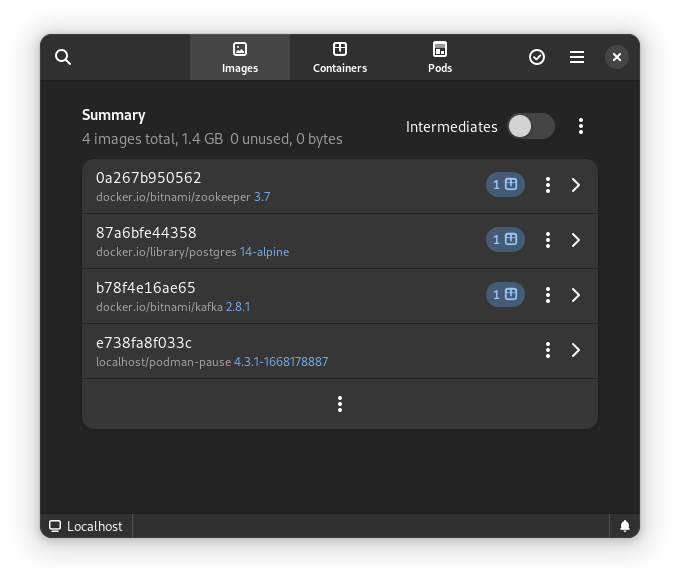
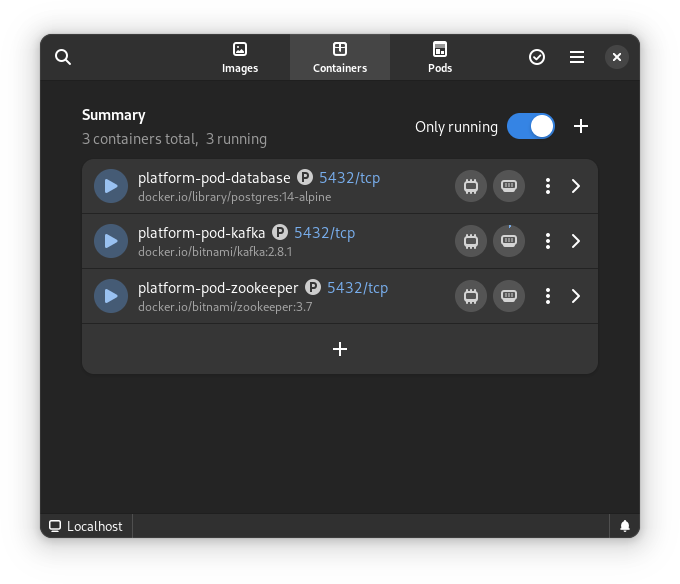
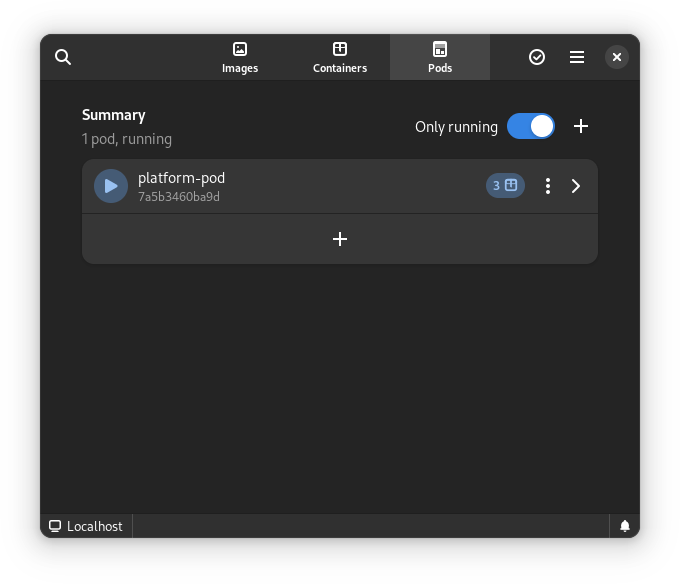
Finally, for us Fedora Linux users, there is another great benefit. There is some beautiful tooling in development that can make our lives so much easier. The following screenshots are of the application Pods. This is currently in active development but will certainly prove to be a useful tool in the future.

This article has been made possible by my employer, Bold Security Technologies. Got your own migration stories to share? Let us know in the comments.

Posted on Leave a comment

Working with Btrfs – Snapshots

This article will explore what Btrfs snapshots are, how they work, and how you can benefit from taking snapshots in every-day situations. This is part of a series that takes a closer look at Btrfs, the default filesystem for Fedora Workstation and Fedora Silverblue since Fedora Linux 33.

In case you missed it, here’s the previous article from this series: https://fedoramagazine.org/working-with-btrfs-subvolumes/

Introduction

Imagine you work on a file over extended periods of time, repeatedly adding changes and undoing them. Then, at some point you realize: Parts of the changes you undid two hours ago would be very helpful now. And yesterday you had already changed this particular bit, too, before you trashed that design. But of course, because you regularly save your files, old changes are lost. Many people have probably experienced a situation like this before. Wouldn’t it be great if you could recover old file versions without having to manually copy them at regular intervals?

This is just one typical situation where Btrfs snapshots can help you out. When used correctly, snapshots also give you a great backup solution for your PC.

Below you will find a lot of examples related to snapshots. If you want to follow along, you must have access to a Btrfs filesystem and root access. You can check the file system of a directory using the following command:

$ findmnt -no FSTYPE /home
btrfs

Here the findmnt command shows the type of filesystem for your /home/ directory. If it says btrfs, you’re all set. Let’s create a new directory in which to perform some experiments:

$ mkdir ~/btrfs-snapshot-test
$ cd ~/btrfs-snapshot-test

In the text below, you will find lots of command responses in boxes such as shown above. Please keep in mind while reading/comparing command output that the box contents may be wrapped at the end of the line. This may make it difficult to recognize long lines that are broken across multiple lines for readability. When in doubt, try to resize your browser window and see how the text behaves!

Snapshots in Btrfs

Let’s start with an elementary question: What is a Btrfs snapshot? If you look in the Docs [1] and Wiki [2], you won’t immediately find an answer to this question. In fact, it is nowhere to be found in the “Features” section. If you search a little, you will find snapshots mentioned extensively along with Btrfs subvolumes [3]. So now what?

Remember that snapshots were both mentioned in the previous articles of this series? There it said:

What is the advantage of CoW? In simple terms: a history of the modified and edited files can be kept. Btrfs will keep the references to the old file versions (inodes) somewhere they can be easily accessed. This reference is a snapshot: An image of the filesystem state at some point in time.

Working with Btrfs: General Concepts

and also:

Another advantage of separating / and /home is that you can take snapshots separately. A subvolume is a boundary for snapshots, and snapshots will never contain the contents of other subvolumes below the subvolume that the snapshot is taken of.

Working with Btrfs: Subvolumes

It seems snapshots have something to do with Btrfs subvolumes. You may have heard about snapshots in other contexts before, for example with LVM, the Logical Volume Manager. While technically they serve the same purpose, they are different in terms of how they reach their goal.

Every Btrfs snapshot is a subvolume. However, not every subvolume is a snapshot. The difference is in what the subvolume contains. A snapshot is a subvolume with added content: it holds references to current and/or past versions of files (inodes). Let’s see where snapshots come from!

Creating Btrfs snapshots

To use snapshots, you need a Btrfs subvolume to take snapshots of. Let’s create one inside our test folder (~/btrfs-snapshot-test):

$ cd ~/btrfs-snapshot-test
$ sudo btrfs subvolume create demo
Create subvolume './demo'
$ sudo chown -R $(id -u):$(id -g) demo/
$ cd demo

Since by default Btrfs subvolumes are owned by root, you must call chown to modify the files in the subvolume to be owned by a regular user. Now add a few files inside it:

$ touch foo bar baz
$ echo "Lorem ipsum dolor sit amet, " > foo

Your directory now looks something like this:

$ ls -l
total 4
-rw-r--r--. 1 hartan hartan 0 Dec 20 08:11 bar
-rw-r--r--. 1 hartan hartan 0 Dec 20 08:11 baz
-rw-r--r--. 1 hartan hartan 29 Dec 20 08:11 foo

Let’s create the very first snapshot from that:

$ cd ..
$ sudo btrfs subvolume snapshot demo demo-1
Create a snapshot of 'demo' in './demo-1'

And that’s it. Let’s see what was achieved:

$ ls -l
total 0
drwxr-xr-x. 1 hartan hartan 18 Dec 20 08:11 demo
drwxr-xr-x. 1 hartan hartan 18 Dec 20 08:11 demo-1
$ tree
.
├── demo
│   ├── bar
│   ├── baz
│   └── foo
└── demo-1 ├── bar ├── baz └── foo 2 directories, 6 files

It seems it made a copy! To verify, let’s read the contents of foo from the snapshot:

$ cat demo/foo
Lorem ipsum dolor sit amet,
$ cat demo-1/foo
Lorem ipsum dolor sit amet,

The real effect becomes apparent when we modify the original file:

$ echo "consectetur adipiscing elit, " >> demo/foo
$ cat demo/foo
Lorem ipsum dolor sit amet, consectetur adipiscing elit,
$ cat demo-1/foo
Lorem ipsum dolor sit amet,

This shows that the snapshot still holds the “old” version of the data: The content of foo hasn’t changed. So far, you could have achieved the exact same thing with a simple file copy. You can now go ahead and continue working on the old file, too:

$ echo "sed do eiusmod tempor incididunt" >> demo-1/foo
$ cat demo-1/foo
Lorem ipsum dolor sit amet, sed do eiusmod tempor incididunt

Under the hood, however, our snapshot is in fact a new Btrfs subvolume. You can verify this with the following command:

$ sudo btrfs subvolume list -o .
ID 259 gen 265 top level 256 path home/hartan/btrfs-snapshot-test/demo
ID 260 gen 264 top level 256 path home/hartan/btrfs-snapshot-test/demo-1

Btrfs snapshots vs. file copies

So what’s the point of all this? Up until now snapshots seem to be a complicated way to copy files around. In fact, there is more to snapshots than meets the eye. Let’s create a bigger file:

$ dd if=/dev/urandom of=demo/bigfile bs=1M count=512
512+0 records in
512+0 records out
536870912 bytes (537 MB, 512 MiB) copied, 1.3454 s, 399 MB/s

There is now a new file demo/bigfile that is 512 MiB in size. Let’s make another snapshot so you don’t lose it when you modify the data:

$ sudo btrfs subvolume snapshot demo demo-2
Create a snapshot of 'demo' in './demo-2'

Now let’s simulate some changes by appending a small string to the file:

$ echo "small changes" >> demo/bigfile

Here’s the resulting file structure:

$ tree
.
├── demo
│   ├── bar
│   ├── baz
│   ├── bigfile
│   └── foo
├── demo-1
│   ├── bar
│   ├── baz
│   └── foo
└── demo-2 ├── bar ├── baz ├── bigfile └── foo 3 directories, 11 files

But the real magic happens somewhere else. Had you copied demo/bigfile, you would now have two files of about 512 MiB in size with mostly the same content. However, since they are distinct copies, they would occupy about 1 GiB of storage total. Keep in mind that the difference between both files is hardly more than 10 Bytes – that’s almost nothing compared to the original file size.

Btrfs snapshots work different than file copies: They keep references to current and past inodes instead. When you appended the change to the file, under the hood Btrfs allocated some more space to store the changes in and added a reference to this new data to the original inode. The previous contents remain untouched. If it helps your mental model, you can think of this as “storing” merely the difference between the original file and the modified version.

Let’s have a look at the effect of this:

$ sudo compsize .
Processed 11 files, 5 regular extents (9 refs), 3 inline.
Type Perc Disk Usage Uncompressed Referenced TOTAL 100% 512M 512M 1.0G none 100% 512M 512M 1.0G

The interesting figure here is seen in line “TOTAL”:

  • “Referenced” is the total size of all the files in the current directory, summed up
  • “Disk Usage” is the amount of storage space allocated on your disk to store the files

While you have a total of 1 GiB files, it takes merely 512 MiB to store them.

Btrfs snapshots and backups

So far, in this article, you have seen how to create Btrfs snapshots and what makes them so special. One may be tempted to think: If I take a series of Btrfs snapshots locally on my PC, I have a solid backup strategy. This is not the case. If the underlying data, which is shared by Btrfs subvolumes, is accidentally damaged (by something outside of Btrfs’ influence, e.g. cosmic rays), all the subvolumes pointing to this data contain the same error.

To turn the snapshots into real backups you should store them on a different Btrfs filesystem, such as on an external drive. For the purposes of this article let’s create a new Btrfs filesystem contained inside a file and mount it to simulate an external drive. If you have an external drive formatted with Btrfs lying around, feel free to substitute all the paths mentioned in the following commands to try it out! Let’s create a new Btrfs filesystem:

Note: The commands below will create a new file of 8 GB size on your filesystem. If you want to follow the steps below, please ensure you have at least 8 GB of disk space available. Do not allocate less than 8 GB to the file, as Btrfs may otherwise encounter issues during mounting.

$ truncate -s 8G btrfs_filesystem.img
$ sudo mkfs.btrfs -L "backup-drive" btrfs_filesystem.img
btrfs-progs v5.18
See http://btrfs.wiki.kernel.org for more information. [ ... ] Devices: ID SIZE PATH 1 8.00GiB btrfs_filesystem.img

These commands created a new file of 8 GB in size named btrfs_filesystem.img and formatted a Btrfs filesystem inside it. Now you can mount it as if it were an external drive:

$ mkdir backup-drive
$ sudo mount btrfs_filesystem.img backup-drive
$ sudo chown -R $(id -u):$(id -g) backup-drive
$ ls -lh
total 4.7M
drwxr-xr-x. 1 hartan hartan 0 Dec 20 08:35 backup-drive
-rw-r--r--. 1 hartan hartan 8.0G Dec 20 08:37 btrfs_filesystem.img
drwxr-xr-x. 1 hartan hartan 32 Dec 20 08:14 demo
drwxr-xr-x. 1 hartan hartan 18 Dec 20 08:11 demo-1
drwxr-xr-x. 1 hartan hartan 32 Dec 20 08:14 demo-2

Great, now there is an independent Btrfs filesystem mounted under backup-drive! Let’s try to take another snapshot and place it there:

$ sudo btrfs subvolume snapshot demo backup-drive/demo-3
Create a snapshot of 'demo' in 'backup-drive/demo-3'
ERROR: cannot snapshot 'demo': Invalid cross-device link

What happened? Well, you tried to take a snapshot of demo and store it in a different Btrfs filesystem (a different device from Btrfs’ point of view). Remember that a Btrfs subvolume only holds references to files and their contents (inodes)? This is exactly the problem: The files and contents exist in our home filesystem, but not in the newly-created backup-drive. You have to find a way to transfer the subvolume along with its contents to the new filesystem.

Storing snapshots on a different Btrfs filesystem

The Btrfs utilities include two special commands for this purpose. Let’s see how they work first:

$ sudo btrfs send demo | sudo btrfs receive backup-drive/
ERROR: subvolume /home/hartan/btrfs-snapshot-test/demo is not read-only
ERROR: empty stream is not considered valid

Another error! This time it tells you that the subvolume we’re trying to transfer is not read-only. This is true: You can write new contents to all of the snapshots/subvolumes created so far. You can create read-only snapshots like this:

$ sudo btrfs subvolume snapshot -r demo demo-3-ro
Create a readonly snapshot of 'demo' in './demo-3-ro'

Unlike previously, here the -r option is added to the snapshot subcommand. This creates a read-only snapshot, which is easily verified:

$ touch demo-3-ro/another-file
touch: cannot touch 'demo-3-ro/another-file': Read-only file system

Now you can retry transferring the subvolumes:

$ sudo btrfs send demo-3-ro | sudo btrfs receive backup-drive/
At subvol demo-3-ro
At subvol demo-3-ro
$ tree ├── backup-drive
│   └── demo-3-ro
│   ├── bar
│   ├── baz
│   ├── bigfile
│   └── foo
├── btrfs_filesystem.img
├── demo
[ ... ]
└── demo-3-ro ├── bar ├── baz ├── bigfile └── foo 6 directories, 20 files

It worked! You have successfully transferred a read-only snapshot of our original subvolume demo to an external Btrfs filesystem.

Storing snapshots on non-Btrfs filesystems

Above you have seen how you can store Btrfs subvolumes/snapshots on another Btrfs filesystem. But what can you do if you do not have another Btrfs filesystem and cannot create one, for example because the external drives need a filesystem that allows compatibility with Windows or MacOS hosts? In such cases you can store subvolumes in files:

$ sudo btrfs send -f demo-3-ro-subvolume.btrfs demo-3-ro
At subvol demo-3-ro
$ ls -lh demo-3-ro-subvolume.btrfs -rw-------. 1 root root 513M Dec 21 10:39 demo-3-ro-subvolume.btrfs

The file demo-3-ro-subvolume.btrfs now contains everything that is needed to recreate the demo-3-ro subvolume at a later point in time.

Incrementally sending subvolumes

If you perform this action repeatedly for different subvolumes, you will notice at some point that the different subvolumes do not share their file contents any more. This is because when sending a subvolume such as above, all the data needed to recreate this standalone subvolume is transferred to the target. You can, however, instruct Btrfs to only send the difference between two subvolumes to the target! This so-called incremental send will ensure that shared references remain shared between the subvolumes. To demonstrate this, add a few more changes to our original subvolume:

$ echo "a few more changes" >> demo/bigfile

Next create another read-only snapshot:

$ sudo btrfs subvolume snapshot -r demo demo-4-ro
Create a readonly snapshot of 'demo' in './demo-4-ro'

And now send it:

$ sudo btrfs send -p demo-3-ro demo-4-ro | sudo btrfs receive backup-drive
At subvol demo-4-ro
At snapshot demo-4-ro

In the command above, the -p option specifies a parent subvolume, against which the differences are calculated. It is important to keep in mind that both the source and target Btrfs filesystem must contain the same, unmodified parent subvolume! Ensure that the new subvolume is really there:

$ ls backup-drive/
demo-3-ro demo-4-ro
$ ls -lR backup-drive/demo-4-ro/
backup-drive/demo-4-ro/:
total 524296
-rw-r--r--. 1 hartan hartan 0 Dec 20 08:11 bar
-rw-r--r--. 1 hartan hartan 0 Dec 20 08:11 baz
-rw-r--r--. 1 hartan hartan 536870945 Dec 21 10:49 bigfile
-rw-r--r--. 1 hartan hartan 59 Dec 20 08:13 foo

But how do you know whether the incremental send only transferred the difference between both subvolumes? Let’s transfer the data stream to a file and see how big it is:

$ sudo btrfs send -f demo-4-ro-diff.btrfs -p demo-3-ro demo-4-ro
At subvol demo-4-ro
$ ls -l demo-4-ro-diff.btrfs -rw-------. 1 root root 315 Dec 21 10:55 demo-4-ro-diff.btrfs

According to ls, the file is merely 315 bytes in size! This means that the incremental send only transferred the changes between the two subvolumes, along with additional Btrfs-specific metadata.

Restoring subvolumes from snapshots

Before continuing, let’s do some cleaning up of the things you don’t need at the moment:

$ sudo rm -rf demo-4-ro-diff.btrfs demo-3-ro-subvolume.btrfs
$ sudo btrfs subvolume delete demo-1 demo-2 demo-3-ro demo-4-ro
$ ls -l
total 531516
drwxr-xr-x. 1 hartan hartan 36 Dec 21 10:50 backup-drive
-rw-r--r--. 1 hartan hartan 8589934592 Dec 21 10:51 btrfs_filesystem.img
drwxr-xr-x. 1 hartan hartan 32 Dec 20 08:14 demo

So far you have managed to create read/write and read-only snapshots of Btrfs subvolumes and send them to an external location. In order to turn this into a backup strategy, however, there has to be a way to send the subvolumes back to the original filesystem and make them writable again. For this purpose, let’s move the demo subvolume somewhere else and try to recreate it from the most recent snapshot. First: Rename the “broken” subvolume. It will be deleted once the restore was successful:

$ mv demo demo-broken

Second: Transfer the most recent snapshot back to this filesystem:

$ sudo btrfs send backup-drive/demo-4-ro | sudo btrfs receive .
At subvol backup-drive/demo-4-ro
At subvol demo-4-ro
[hartan@fedora btrfs-snapshot-test]$ ls
backup-drive btrfs_filesystem.img demo-4-ro demo-broken

Third: Create a read-write subvolume from the snapshot:

$ sudo btrfs subvolume snapshot demo-4-ro demo
Create a snapshot of 'demo-4-ro' in './demo'
$ ls
backup-drive btrfs_filesystem.img demo demo-4-ro demo-broken

The last step is important: You cannot just rename demo-4-ro to demo, because it would still be a read-only subvolume! Finally you can check whether everything you need is there:

$ tree demo
demo
├── bar
├── baz
├── bigfile
└── foo 0 directories, 4 files
$ tail -c -19 demo/bigfile a few more changes

The last command above tells you that the last 19 characters in bigfile are in fact the change last performed. At this point, you may want to copy recent changes from demo-broken to the new demo subvolume. Since you didn’t perform any other changes, you can now delete the obsolete subvolumes:

$ sudo btrfs subvolume delete demo-4-ro demo-broken
Delete subvolume (no-commit): '/home/hartan/btrfs-snapshot-test/demo-4-ro'
Delete subvolume (no-commit): '/home/hartan/btrfs-snapshot-test/demo-broken'

And that’s it! You have successfully restored the demo subvolume from a snapshot that was previously stored on a different Btrfs filesystem (external media).

Subvolumes as boundary for snapshots

In the second article of this series I mentioned that subvolumes are boundaries for snapshots, but what exactly does that mean? In simple terms, a snapshot of a subvolume will only contain the content of this particular subvolume, and none of the nested subvolumes below. Let’s have a look at this:

$ sudo btrfs subvolume create demo/nested
Create subvolume 'demo/nested'
$ sudo chown -R $(id -u):$(id -g) demo/nested
$ touch demo/nested/another_file

Let’s take a snapshot as before:

$ sudo btrfs subvolume snapshot demo demo-nested
Create a snapshot of 'demo' in './demo-nested'

And check out the contents:

$ tree demo-nested
demo-nested
├── bar
├── baz
├── bigfile
├── foo
└── nested 1 directory, 4 files $ tree demo
demo
├── bar
├── baz
├── bigfile
├── foo
└── nested └── another_file 1 directory, 5 files

Notice that another_file is missing, even though the folder nested is present. This happens because nested is a subvolume: The snapshot of demo contains the folder (mountpoint) for the nested subvolume, but its contents aren’t present. Currently there is no way to perform snapshots recursively to include nested subvolumes. However, we can take advantage of this to exclude folders from snapshots! This is typically useful for data that you can reproduce easily, or that will rarely change. Examples include virtual machine or container images, movies, game files and more.

Before we wrap up the article, let’s remove everything we created while testing:

$ sudo btrfs subvolume delete demo/nested demo demo-nested
Delete subvolume (no-commit): '/home/hartan/btrfs-snapshot-test/demo/nested'
Delete subvolume (no-commit): '/home/hartan/btrfs-snapshot-test/demo'
Delete subvolume (no-commit): '/home/hartan/btrfs-snapshot-test/demo-nested'
$ sudo umount backup-drive
$ cd ..
$ rm -rf btrfs-snapshot-test/

Final thoughts on Btrfs-based backups

If you decide you want to use Btrfs to perform regular backups of your data, you may want to use a tool that automates this task for you. The Btrfs wiki has a list of backup tools specialized on Btrfs [4]. On this page you will also find another summary of the steps to perform Btrfs backups by hand. Personally, I have had a lot of good experiences with btrbk [5] and I am using it to perform my own backups. In addition to backups, btrbk can also keep a list of Btrfs snapshots locally on your PC. I use this to safeguard against accidental data deletion.
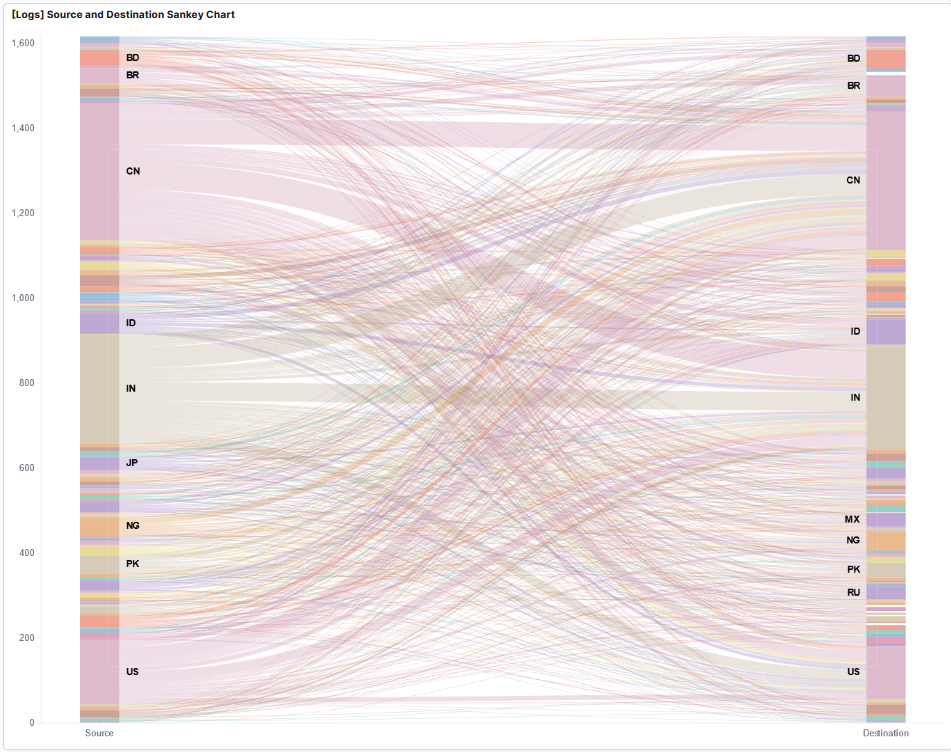
If you want to know more about performing backups using Btrfs, leave a comment below and I’ll consider writing a follow-up article that deals exclusively with this topic.

Conclusion

This article investigated Btrfs snapshots, which are Btrfs subvolumes under the hood. You learned how to create read/write and read-only snapshots, and how this mechanism can help safeguard against data loss.

The next articles in this series will deal with:

  • Compression – Transparently saving storage space
  • Qgroups – Limiting your filesystem size
  • RAID – Replace your mdadm configuration

If there are other topics related to Btrfs that you want to know more about, have a look at the Btrfs Wiki [2] and Docs [1]. Don’t forget to check out the first two articles of this series, if you haven’t already! If you feel that there is something missing from this article series, let me know in the comments below. See you in the next article!
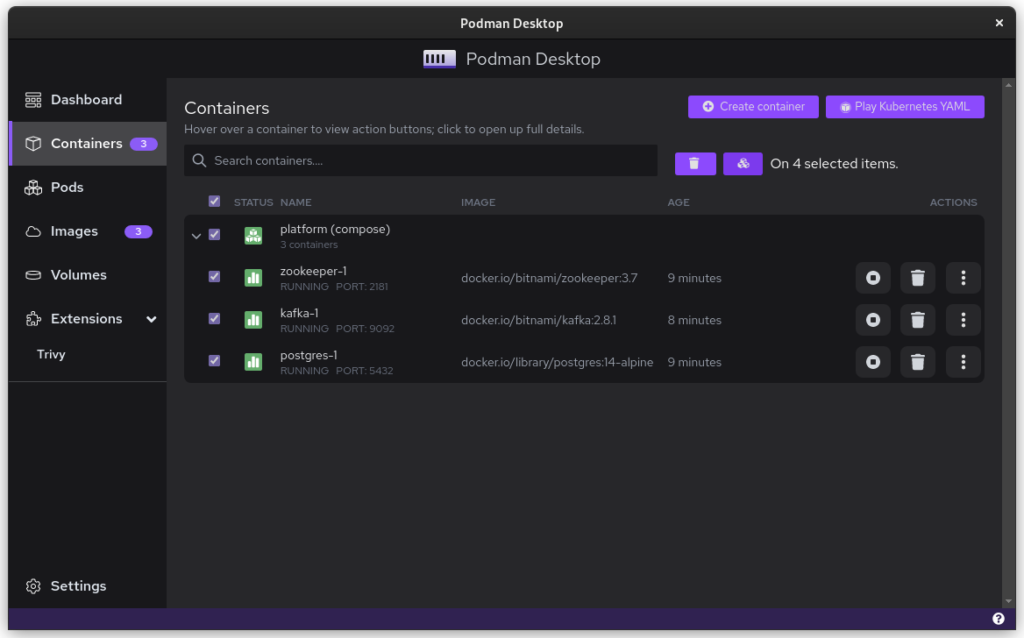
Sources

[1]: https://btrfs.readthedocs.io/en/latest/Introduction.html
[2]: https://btrfs.wiki.kernel.org/index.php/Main_Page
[3]: https://btrfs.readthedocs.io/en/latest/Subvolumes.html
[4]: https://btrfs.wiki.kernel.org/index.php/Incremental_Backup#Available_Backup_Tools
[5]: https://github.com/digint/btrbk