Posted on Leave a comment

Manage tasks and projects on Fedora with Taskwarrior

There are a multitude of applications to manage your todo list. One of these apps is Taskwarrior, it allows you to manage your task in the terminal without a GUI. This article will show you how to get started using it.

What is Taskwarrior?

Taskwarrior is CLI task manager and organizer. It is flexible, fast, and unobtrusive. It does its job then gets out of your way.

Taskwarrior uses $HOME/.taskrc and $HOME/.task to store your settings and tasks respectively.

Getting started with Taskwarrior

It’s easy to use the Taskwarrior to add your daily missions. These are some simple commands. To add tasks:

$ task add buy milk Created task 1. $ task add buy eggs Created task 2. $ task add bake cake Created task 3.

To list your tasks, you can use the task command on its own for the simplest listing:

$ task ID Age Description Urg 1 17s buy milk 0 2 14s buy eggs 0 3 11s bake cake 0 3 tasks.

To mark a task as complete, use the done keyword:

$ task 1 done Completed task 1 'buy milk'. Completed 1 task.
$ task 2 done Completed task 2 'buy eggs'. Completed 1 task.
$ task [task next] ID Age Description Urg 1 57s bake cake 0 1 task

Diving deeper into Taskwarrior

Priority management

Taskwarrior (task) is designed to help prioritize your tasks. To do this, task has multiple implicit and explicit variables it can use to determine an “Urgency” value.

Consider the following list.

$ task [task next] ID Age Description Urg 1 2min buy eggs 0 2 2min buy flour 0 3 2min bake cake 0 4 2min pay rent 0 5 3s install fedora 0 5 tasks

One could argue that paying your rent and installing Fedora have a higher priority than baking a cake. You can tell task about this by using the pri modifier.

$ task 4 mod pri:H Modifying task 4 'pay rent'. Modified 1 task.
$ task 5 mod pri:M Modifying task 5 'install fedora'. Modified 1 task.
$ task [task next] ID Age P Description Urg  4 4min H pay rent 6
 5 2min M install fedora 3.9 1 4min buy eggs 0 2 4min buy flour 0 3 4min bake cake 0 5 tasks

Rent is very important, it has a due date that we need to pay it by, such as within 3 days from the 1st of the month. You can tell task this by using the due modifier.

$ task 4 mod due:3rd Modifying task 4 'pay rent'. Modified 1 task.
$ task [task next] ID Age P Due Description Urg 4 12min H 2d pay rent 13.7 5 10min M install fedora 3.9 1 12min buy eggs 0 2 12min buy flour 0 3 12min bake cake 0 5 tasks
$ date Sat Feb 29 11:59:29 STD 2020

Because the 3rd of next month is nearby, the urgency value of rent has skyrocketed, and will continue to do so once we have reached and passed the due date.

However, not all tasks need to be done right away. Say for example you don’t want to worry about paying your rent until it is posted on the first of the month. You can tell taskwarrior about this using the wait modifier. (Hint: in the following example, som is short for “start of month,” one of the shortcuts taskwarrior understands.)

$ task 4 mod wait:som Modifying task 4 'pay rent'. Modified 1 task.
$ task [task next] ID Age P Description Urg 5 14min M install fedora 3.9 1 16min buy eggs 0 2 16min buy flour 0 3 16min bake cake 0 4 tasks

You will no longer be able to see the pay rent task until the start of the month. You can view waiting tasks by using task waiting:

$ task waiting ID Age P Wait Remaining Due Description 4 18min H 2020-03-01 11h 2020-03-03 pay rent 1 task

There are a few other modifiers you can define. Schedule and until will place a “start” date and remove a task after a date respectfully.

You may have tasks that require other tasks to be completed. To add a dependency for other tasks, use the dep modifier:

$ task [task next] ID Age P Description Urg 5 30min M install fedora 3.9 1 33min buy eggs 0 2 33min buy flour 0 3 33min bake cake 0 4 tasks
$ task 3 mod dep:1,2 Modifying task 3 'bake cake'. Modified 1 task. $ task [task next] ID Age Deps P Description Urg 1 33min buy eggs 8 2 33min buy flour 8 5 31min M install fedora 3.9 3 33min 1 2 bake cake -5 4 tasks

This will modify the priorities of any tasks that is blocking a task. Now buying eggs and flour is more urgent because it is preventing you from performing a task.

Annotations

You can add notes to a task using task <number> annotate:

$ task 3 anno No blueberries Annotating task 3 'bake cake'. Annotated 1 task. $ task [task next] ID Age Deps P Description Urg 1 1h buy eggs 8 2 1h buy flour 8 5 1h M install fedora 3.9 3 1h 1 2 bake cake -4.2 2020-02-29 No blueberries 4 tasks

Organizing tasks

Tasks can being assigned to projects and tags by using the project modifier and adding a tag using the + sign followed by the tag name, such as +problem.

Putting it all together

You can combine everything you learned to create a task in one line with all the required options.

$ task add Write Taskwarrior post \
pri:M due:1m wait:som until:due+2w sche:15th \
project:magazine +taskwarrior +community +linux Created task 6. The project 'magazine' has changed. Project 'magazine' is 0% complete (1 task remaining).
$ task 6 No command specified - assuming 'information'. Name Value ID 6 Description Write Taskwarrior post Status Waiting Project magazine Entered 2020-02-29 13:50:27 (6s) Waiting until 2020-03-01 00:00:00 Scheduled 2020-03-15 00:00:00 Due 2020-03-30 14:50:27 Until 2020-04-13 14:50:27 Last modified 2020-02-29 13:50:27 (6s) Tags taskwarrior community linux Virtual tags SCHEDULED TAGGED UDA UNBLOCKED UNTIL WAITING YEAR LATEST PROJECT PRIORITY UUID 27768737-f6a2-4515-af9d-4f58773c76a5 Urgency 5.3 Priority M

Installing Taskwarrior on Fedora

Taskwarrior is available in the default Fedora repository. To install it use this command with sudo:

$ sudo dnf install task

For rpm-ostree based distributions like Fedora Silverblue:

$ sudo rpm-ostree install task 

Tips and tricks

  • Taskwarrior has a hook system, meaning that there are many tools you can plug in, such as bugwarrior!
  • Taskwarrior can connect to a taskserver for server/client setups. (This is left as an exercise for the reader for now.)

Photo by Bogdan Kupriets on Unsplash.

Posted on Leave a comment

GNOME 3.34 released — coming soon in Fedora 31

Today the GNOME project announced the release of GNOME 3.34. This latest release of GNOME will be the default desktop environment in Fedora 31 Workstation. The Beta release of Fedora 31 is currently expected in the next week or two, with the Final release scheduled for late October.

GNOME 3.34 includes a number of new features and improvements. Congratulations and thank you to the whole GNOME community for the work that went into this release! Read on for more details.

GNOME 3.34 desktop environment at work

Notable features

The desktop itself has been refreshed with a pleasing new background. You can also compare your background images to see what they’ll look like on the desktop.

There’s a new custom application folder feature in the GNOME Shell Overview. It lets you combine applications in a group to make it easier to find the apps you use.

You already know that Boxes lets you easily download an OS and create virtual machines for testing, development, or even daily use. Now you can find sources for your virtual machines more easily, as well as boot from CD or DVD (ISO) images more easily. There is also an Express Install feature available that now supports Windows versions.

Now that you can save states when using GNOME Games, gaming is more fun. You can snapshot your progress without getting in the way of the fun. You can even move snapshots to other devices running GNOME.

More details

These are not the only features of the new and improved GNOME 3.34. For an overview, visit the official release announcement. For even more details, check out the GNOME 3.34 release notes.

The Fedora 31 Workstation Beta release is right around the corner. Fedora 31 will feature GNOME 3.34 and you’ll be able to experience it in the Beta release.

Posted on Leave a comment

5 GNOME keyboard shortcuts to be more productive

For some people, using GNOME Shell as a traditional desktop manager may be frustrating since it often requires more action of the mouse. In fact, GNOME Shell is also a desktop manager designed for and meant to be driven by the keyboard. Learn how to be more efficient with GNOME Shell with these 5 ways to use the keyboard instead of the mouse.

GNOME activities overview

The activities overview can be easily opened using the Super key from the keyboard. (The Super key usually has a logo on it.) This is really useful when it comes to start an application. For example, it’s easy to start the Firefox web browser with the following key sequence Super + f i r + Enter.

Message tray

In GNOME, notifications are available in the message tray. This is also the place where the calendar and world clocks are available. To open the message tray using the keyboard use the Super+m shortcut. To close the message tray simply use the same shortcut again.

Managing workspaces in GNOME

Gnome Shell uses dynamic workspaces, meaning it creates additional workspaces as they are needed. A great way to be more productive using Gnome is to use one workspace per application or per dedicated activity, and then use the keyboard to navigate between these workspaces.

Let’s look at a practical example. To open a Terminal in the current workspace press the following keys: Super + t e r + Enter. Then, to open a new workspace press Super + PgDn. Open Firefox (Super + f i r + Enter). To come back to the terminal, use Super + PgUp.

Managing an application window

Using the keyboard it is also easy to manage the size of an application window. Minimizing, maximizing and moving the application to the left or the right of the screen can be done with only a few key strokes. Use Super+🠝 to maximize, Super+🠟 to minimize, Super+🠜 and Super+🠞 to move the window left and right.

Multiple windows from the same application

Using the activities overview to start an application is very efficient. But trying to open a new window from an application already running only results in focusing on the open window. To create a new window, instead of simply hitting Enter to start the application, use Ctrl+Enter.

So for example, to start a second instance of the terminal using the application overview, Super + t e r + (Ctrl+Enter).

Then you can use Super+` to switch between windows of the same application.

As shown, GNOME Shell is a really powerful desktop environment when controlled from the keyboard. Learning to use these shortcuts and train your muscle memory to not use the mouse will give you a better user experience, and make you more productive when using GNOME. For other useful shortcuts, check out this page on the GNOME wiki.


Photo by 1AmFcS on Unsplash.

Posted on Leave a comment

3 cool productivity apps for Fedora 28

Productivity apps are especially popular on mobile devices. But when you sit down to do work, you’re often at a laptop or desktop computer. Let’s say you use a Fedora system for your platform. Can you find apps that help you get your work done? Of course! Read on for tips on apps to help you focus on your goals.

All these apps are available for free on your Fedora system. And they also respect your freedom. (Many also let you use existing services where you may have an account.)

FocusWriter

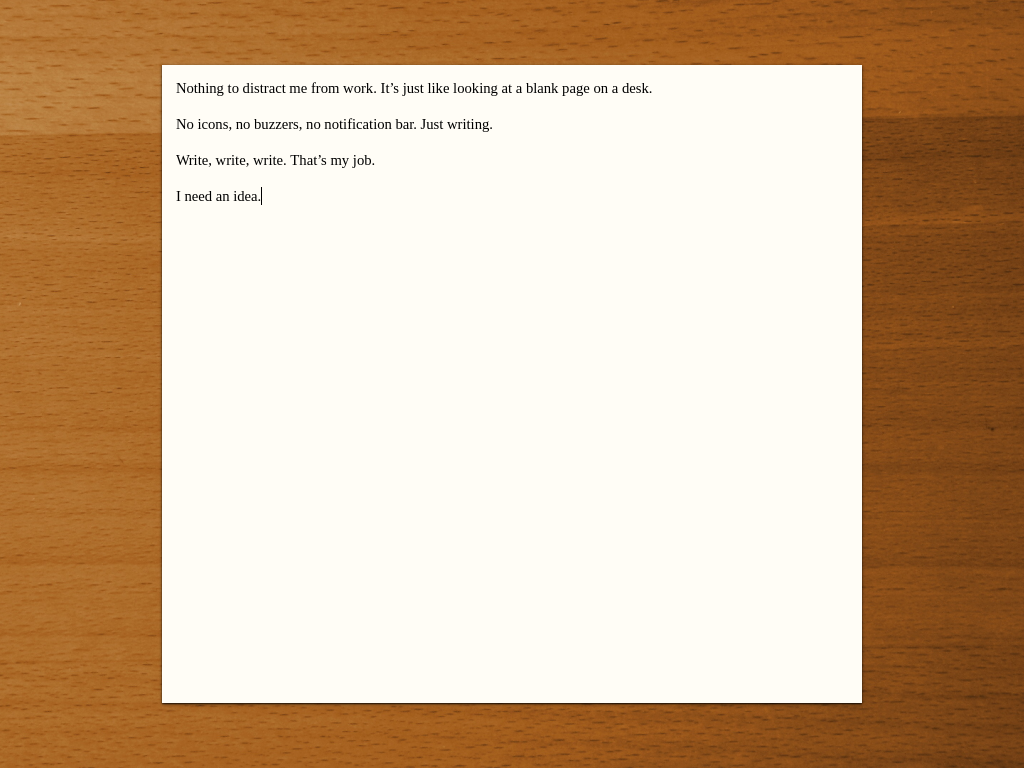
FocusWriter is simply a full screen word processor. The app makes you more productive because it covers everything else on your screen. When you use FocusWriter, you have nothing between you and your text. With this app at work, you can focus on your thoughts with fewer distractions.

Screenshot of FocusWriter

FocusWriter lets you adjust fonts, colors, and theme to best suit your preferences. It also remembers your last document and location. This feature lets you jump right back into focusing on writing without delay.

To install FocusWriter, use the Software app in your Fedora Workstation. Or run this command in a terminal using sudo:

sudo dnf install focuswriter

GNOME ToDo

This unique app is designed, as you can guess, for the GNOME desktop environment. It’s a great fit for your Fedora Workstation for that reason. ToDo has a simple purpose: it lets you make lists of things you need to get done.

Screenshot from GNOME ToDo on Fedora 28

Using ToDo, you can prioritize and schedule deadlines for all your tasks. You can also build as many tasks lists as you want. ToDo has numerous extensions for useful functions to boost your productivity. These include GNOME Shell notifications, and list management with a todo.txt file. ToDo can even interface with a Todoist or Google account if you use one. It synchronizes tasks so you can share across your devices.

To install, search for ToDo in Software, or at the command line run:

sudo dnf install gnome-todo

Zanshin

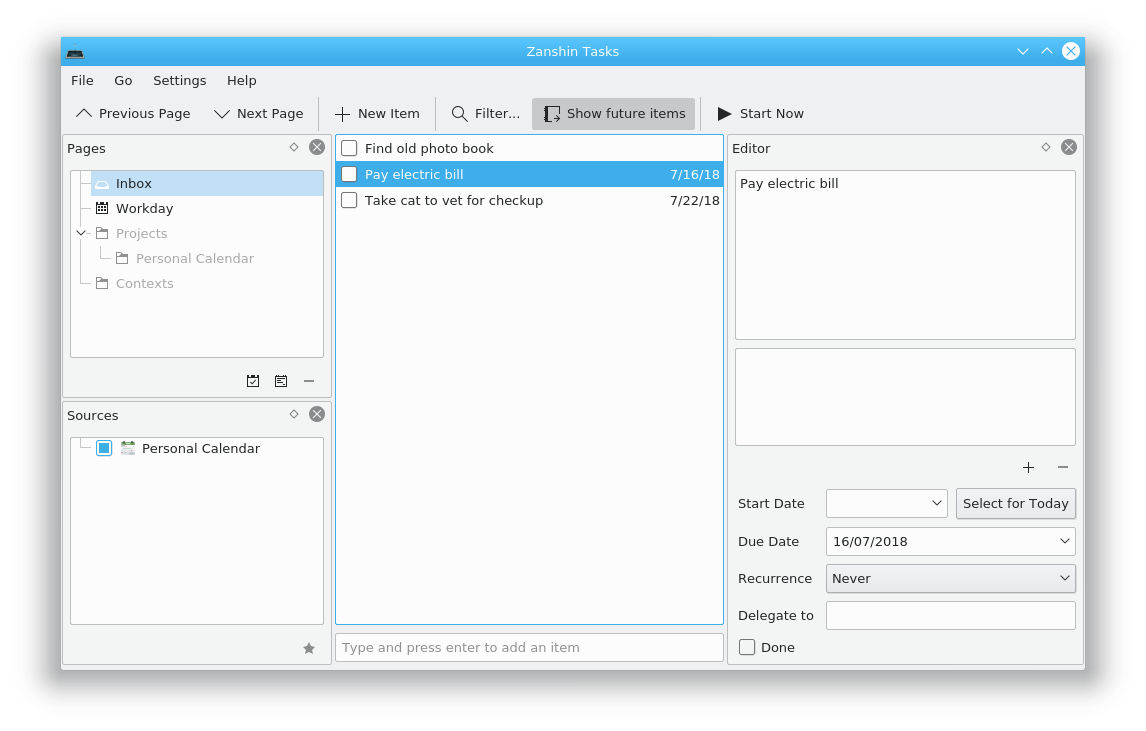
If you are a KDE using productivity fan, you may enjoy Zanshin. This organizer helps you plan your actions across multiple projects. It has a full featured interface, and lets you browse across your various tasks to see what’s most important to do next.

Screenshot of Zanshin on Fedora 28

Zanshin is extremely keyboard friendly, so you can be efficient during hacking sessions. It also integrates across numerous KDE applications as well as the Plasma Desktop. You can use it inline with KMail, KOrganizer, and KRunner.

To install, run this command:

sudo dnf install zanshin

Photo by Cathryn Lavery on Unsplash.