Fedora Silverblue is an operating system for your desktop built on Fedora Linux. It’s excellent for daily use, development, and container-based workflows. It offers numerous advantages such as being able to roll back in case of any problems. If you want to update or rebase to Fedora Linux 38 on your Fedora Silverblue system (these instructions are similar for Fedora Kinoite), this article tells you how. It not only shows you what to do, but also how to revert things if something unforeseen happens.
Update your existing system
Prior to actually doing the rebase to Fedora Linux 38, you should apply any pending updates. Enter the following in the terminal:
$ rpm-ostree update
or install updates through GNOME Software and reboot.
Rebasing using GNOME Software
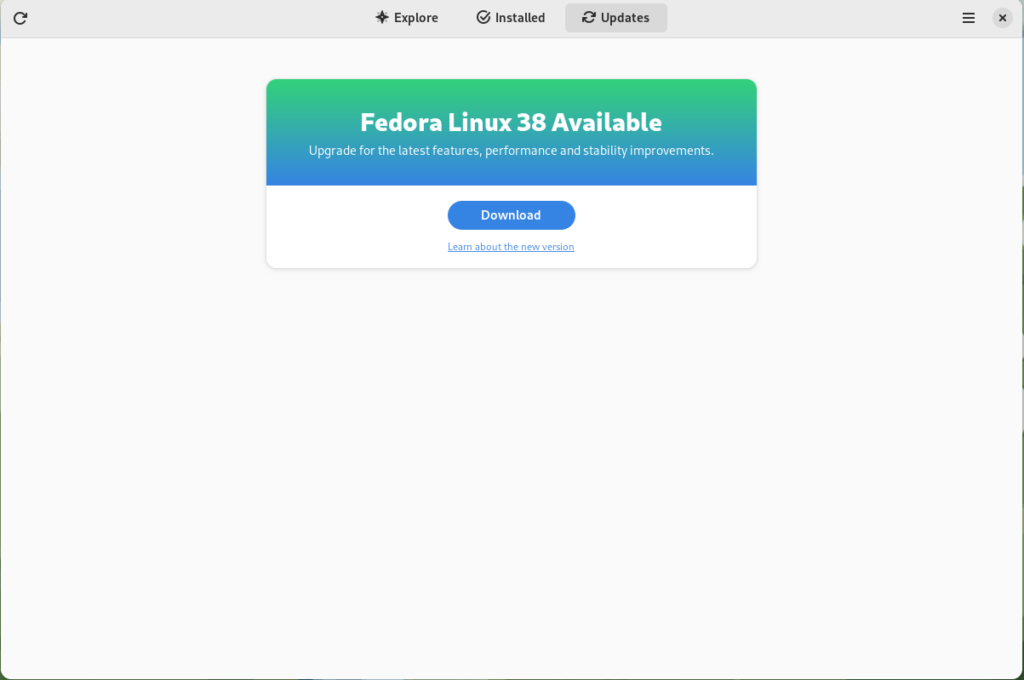
GNOME Software shows you that there is new version of Fedora Linux available on the Updates screen.
Fedora 38 update available
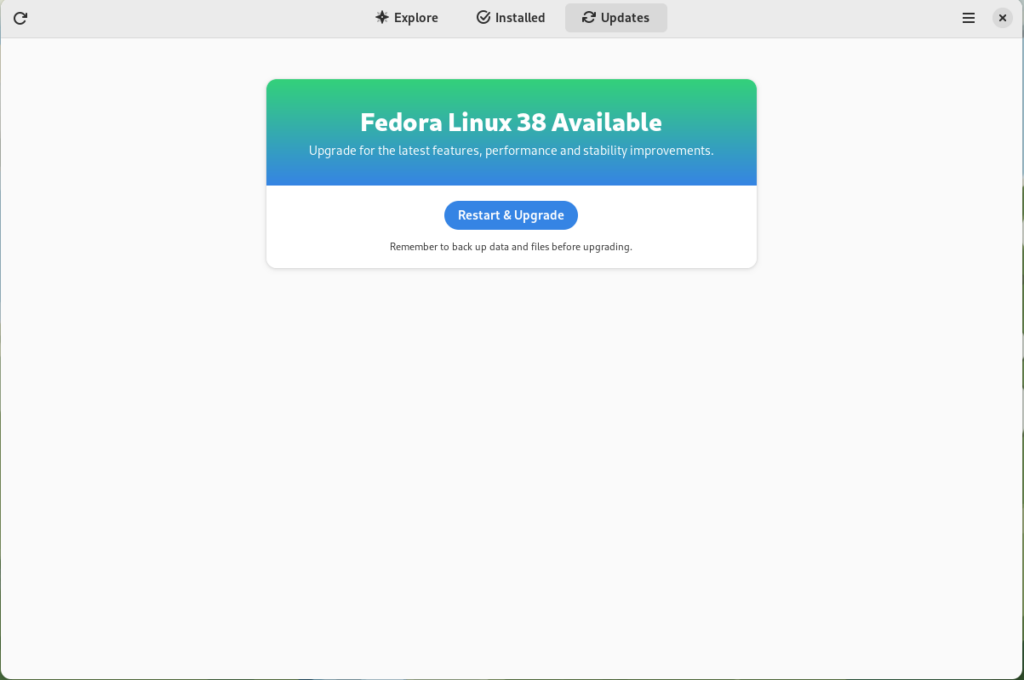
First thing you need to do is download the new image, so click on the Download button. This will take some time. When it’s done you will see that the update is ready to install.
Fedora 38 update ready to install
Click on the Restart & Upgrade button. This step will take only a few moments and the computer will be restarted when the update is completed. After the restart you will end up in new and shiny release of Fedora Linux 38. Easy, isn’t it?
Rebasing using terminal
If you prefer to do everything in a terminal, then this part of the guide is for you.
Rebasing to Fedora Linux 38 using the terminal is easy. First, check if the 38 branch is available:
$ ostree remote refs fedora
You should see the following in the output:
fedora:fedora/38/x86_64/silverblue
If you want to pin the current deployment (meaning that this deployment will stay as an option in GRUB until you remove it), you can do it by running:
# 0 is entry position in rpm-ostree status
$ sudo ostree admin pin 0
To remove the pinned deployment use the following command:
# 2 is entry position in rpm-ostree status
$ sudo ostree admin pin --unpin 2
Next, rebase your system to the Fedora Linux 38 branch.
$ rpm-ostree rebase fedora:fedora/38/x86_64/silverblue
Finally, the last thing to do is restart your computer and boot to Fedora Linux 38.
How to roll back
If anything bad happens—for instance, if you can’t boot to Fedora Linux 38 at all—it’s easy to go back. At boot time, pick the entry in the GRUB menu for the version prior to Fedora Linux 38 and your system will start in that previous version rather than Fedora Linux 38. If you don’t see the GRUB menu, try to press ESC during boot. To make the change to the previous version permanent, use the following command:
$ rpm-ostree rollback
That’s it. Now you know how to rebase Fedora Silverblue to Fedora Linux 38 and roll back. So why not do it today?
FAQ
Because there are similar questions in comments for each article about rebasing to newer version of Silverblue I will try to answer them in this section.
Question: Can I skip versions during rebase of Fedora? For example from Fedora 36 Silverblue to Fedora 38 Silverblue?
Answer: Although it could be sometimes possible to skip versions during rebase, it is not recommended. You should always update to one version above (37->38 for example) to avoid unnecessary errors.
Question: I have rpm-fusion layered and I got errors during rebase. How should I do the rebase?
Answer: If you have rpm-fusion layered on your Silverblue installation, you should do the following before rebase:
This article will describe the process of creating a kiosk or information “station” using Fedora Silverblue.
What is a kiosk
If you’ve had the occasion to visit a museum, you might have used a touchscreen monitor with useful information and insights of the items on display. Or if you’ve attended a public library, you might have used a workstation with a browser or a software aimed to the consultation of the book’s catalog. Or even in public places like train stations or public squares, you might have spotted big screens or televisions where you can see advertisement videos, or interacted with them in order to obtain information and services. These devices are kiosks. They are locked down environments, generally running a full screen application.
Under the hood there is usually a small PC (maybe a fan-less device or a so called industrial PC, capable of staying powered on without issues for long periods of time) or perhaps a Raspberry Pi. Many times they are powered by Linux!
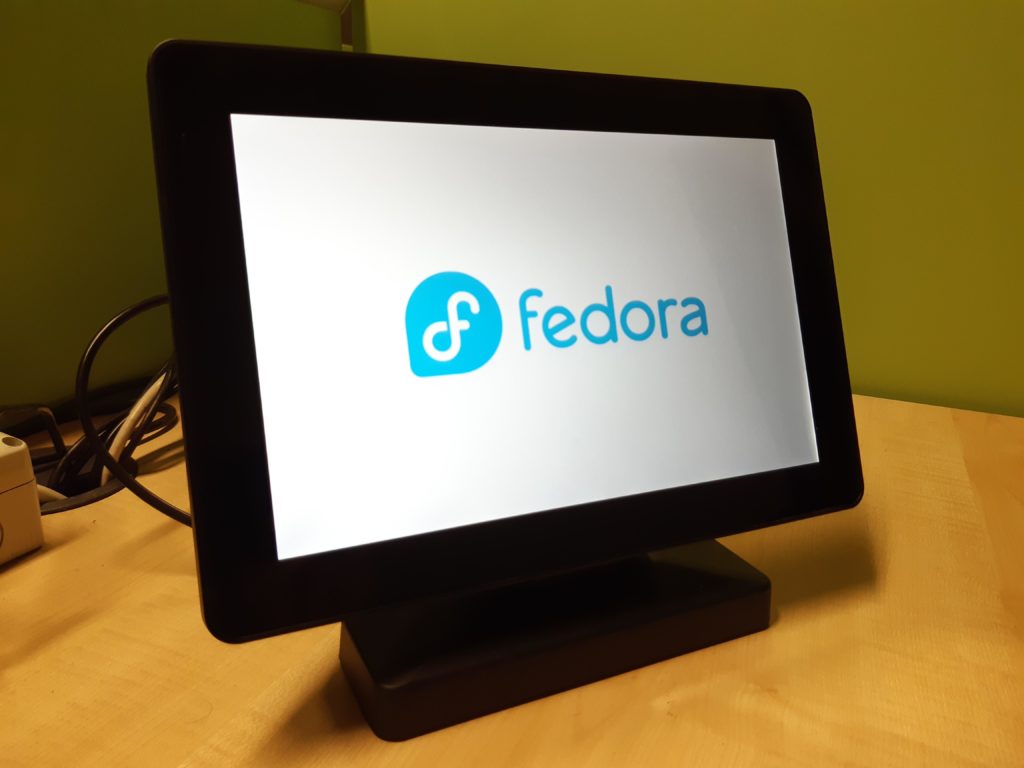
A 10″ Capacitive Touch Display showing the Fedora logo
Why Fedora Silverblue
Fedora Silverblue is a new generation of the desktop operating system. The main benefits of the system are atomic updates and immutability.
Atomic updates means that the update process will complete successfully and if not the operation will be abandoned and the system reverted to the previous state. This prevents situations where some packages are upgraded while others are not. This might occur, for example, due to a power loss in the middle of the update process, leading to an unstable or unbootable system.
In this context, immutability means part of the filesystem is read-only and the system files cannot be modified (at least not in the usual ways, read below). The term has been criticized by several parties: in fact, if you can update the system and install things, the system is actually mutable, so another term should be coined for these kinds of operating systems where there is a clearly defined distinction between the system, the applications and the changes made by the user. However this is not the topic of this article.
You can find more information about Fedora Silverblue in this article: What is Silverblue?
These features make the system more robust and secure. This is an important consideration since a kiosk is usually located in a remote place, accessible to the public (even if hidden inside some box or behind a TV), and difficult to reach in case of malfunctions.
If you have heard about Fedora IoT, you might think that it would be the perfect solution for this kind of operations. However, Fedora IoT, although sharing the same technologies as Fedora Silverblue (immutability, rpm-ostree, etc.), is not designed for and it doesn’t provide a graphical environment. Running headless is the expected use case for Fedora IoT.
GNOME Kiosk
GNOME Kiosk is a special GNOME session that “provides a desktop environment suitable for a fixed purpose, or single application deployments like wall displays and point-of-sale systems”. It provides a locked down GNOME session, without activities, dock, top bar, etc.
The required bits are available in the Fedora repository.
How to proceed
As a basic example, we will create a simple slideshow.
First of all let’s install Fedora Silverblue.
The first user created during initial setup becomes the administrator.
Go to Settings. Enable Sharing and enable Remote Login (that is SSH) in order to access the kiosk for remote management.
In Settings, go to Users and add a new user. Let’s call it “kiosk” and assign it a password.
Install GNOME Kiosk
Even though Fedora Silverblue is an immutable system, rpm-ostree still allows you to install packages from the DNF repositories. This is called layering. Read more on How I Customize Fedora Silverblue and Fedora Kinoite.
Open the terminal and issue the following command.
To activate the layered packages, you will have to reboot the system.
Automatic login
We have to set the system to automatically log in as the “kiosk” user.
After the reboot, log in as the administrator user. Then go to Settings, Users, select the “kiosk” user, and enable Automatic Login.
Then log out (don’t reboot yet).
For reference you can enable automatic login from the command line. To do so, edit the file /etc/gdm/custom.conf, and add the following two lines to the [daemon] section.
As a basic example, let’s create a slideshow of images. To do that we will use the GNOME image viewer (Eye of GNOME or eog). This is already installed on Fedora Silverblue as a Flatpak package. (Yes, you can run Flatpak applications from the command line.)
Put some images in the Pictures folder.
In the activities overview, you can find an application called Kiosk Script. Actually Gedit will open it and let you edit the script that will start when you select the Kiosk session at login. For reference, this script is named gnome-kiosk-script and it is located in the home directory under .local/bin.
Read the comments. Pay attention to the last line. If the program that you want to use in the kiosk session exits as soon as it is launched (or it runs in the background), you risk creating an infinite loop that will start a new window each second!
The slideshow script will look like this:
#!/bin/sh if [ ! "$(pidof eog)" ]
then flatpak run org.gnome.eog -s /home/kiosk/Pictures
fi sleep 1.0
exec "$0" "$@"
The above example script, will run eog in slideshow mode (indicated by the “-s” option) only if a process called eog isn’t already running. Make certain to take into account that the script can invoke itself in an infinite loop (it is instructed to do so by the last line). Note that if for some reason Eye of GNOME crashes, it will be launched again because of the “if” statement.
Save the script. And the full screen slideshow will start immediately! Don’t worry, you are not yet in the kiosk session. Press the super key and you can still use the dash and the applications overview.
Logout.
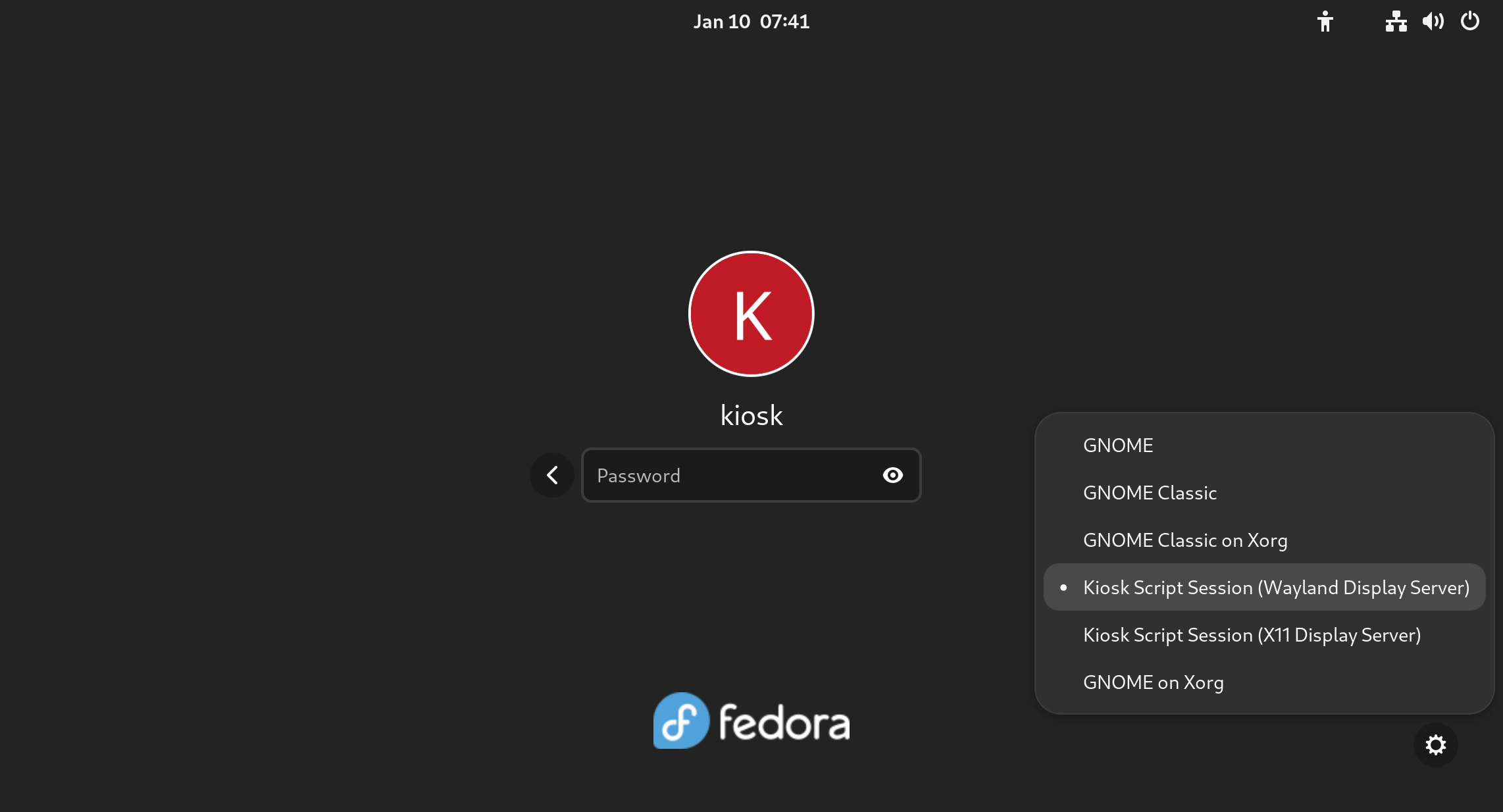
At the login screen click on the gear icon at the bottom right of the login page. Select “Kiosk Script Session (Wayland Display Server)”.
Insert the password and the full screen slideshow will start. You will be in the locked down GNOME session, so you can’t use any application or desktop functions. If needed, you can still switch to a TTY to gain the command line using a combination like CTRL+ALT+F3
For reference, the file containing the user’s default session is /var/lib/AccountsService/users/kiosk
Session=gnome-kiosk-script-wayland
The last step is to reboot the machine.
Other types of kiosk
Other ideas could be:
a full screen Firefox session (take a look at the gnome-kiosk-search-appliance RPM package)
a video loop
your own software specifically crafted for this purpose
any application
Further improvements
You might modify the script to show the slideshow only at certain times of the day.
To make the system more robust and secure, you might add a password to GRUB and to the BIOS. You might also disable the TTYs.
Other useful ideas might be to enable automatic updates, and especially to implement greenboot, a health check framework developed for Fedora IoT.
Fedora Silverblue is an operating system for your desktop built on Fedora Linux. It’s excellent for daily use, development, and container-based workflows. It offers numerous advantages such as being able to roll back in case of any problems. If you want to update or rebase to Fedora Linux 37 on your Fedora Silverblue system (these instructions are similar for Fedora Kinoite), this article tells you how. It not only shows you what to do, but also how to revert things if something unforeseen happens.
Prior to actually doing the rebase to Fedora Linux 37, you should apply any pending updates. Enter the following in the terminal:
$ rpm-ostree update
or install updates through GNOME Software and reboot.
Rebasing using GNOME Software
GNOME Software shows you that there is new version of Fedora Linux available on the Updates screen.
Fedora 37 update available
First thing you need to do is download the new image, so click on the Download button. This will take some time. When it’s done you will see that the update is ready to install.
Fedora 37 update ready to install
Click on the Restart & Upgrade button. This step will take only a few moments and the computer will be restarted at the end. After restart you will end up in new and shiny release of Fedora Linux 37. Easy, isn’t it?
Rebasing using terminal
If you prefer to do everything in a terminal, then this part of the guide is for you.
Rebasing to Fedora Linux 37 using the terminal is easy. First, check if the 37 branch is available:
$ ostree remote refs fedora
You should see the following in the output:
fedora:fedora/37/x86_64/silverblue
If you want to pin the current deployment (this deployment will stay as option in GRUB until you remove it), you can do it by running:
# 0 is entry position in rpm-ostree status
$ sudo ostree admin pin 0
To remove the pinned deployment use the following command:
# 2 is entry position in rpm-ostree status
$ sudo ostree admin pin --unpin 2
where 2 is the position in the rpm-ostree status.
Next, rebase your system to the Fedora Linux 37 branch.
$ rpm-ostree rebase fedora:fedora/37/x86_64/silverblue
Finally, the last thing to do is restart your computer and boot to Fedora Linux 37.
How to roll back
If anything bad happens—for instance, if you can’t boot to Fedora Linux 37 at all—it’s easy to go back. Pick the previous entry in the GRUB menu at boot (if you don’t see it, try to press ESC during boot), and your system will start in its previous state before switching to Fedora Linux 37. To make this change permanent, use the following command:
$ rpm-ostree rollback
That’s it. Now you know how to rebase Fedora Silverblue to Fedora Linux 37 and roll back. So why not do it today?
Fedora Silverblue is an operating system for your desktop built on Fedora Linux. It’s excellent for daily use, development, and container-based workflows. It offers numerous advantages such as being able to roll back in case of any problems. If you want to update or rebase to Fedora Linux 36 on your Fedora Silverblue system (these instructions are similar for Fedora Kinoite), this article tells you how. It not only shows you what to do, but also how to revert things if something unforeseen happens.
Prior to actually doing the rebase to Fedora Linux 36, you should apply any pending updates. Enter the following in the terminal:
$ rpm-ostree update
or install updates through GNOME Software and reboot.
Rebasing using GNOME Software
GNOME Software shows you that there is new version of Fedora Linux available on the Updates screen.
Fedora 36 update available
First thing you need to do is download the new image, so click on the Download button. This will take some time. When it’s done you will see that the update is ready to install.
Fedora 36 update ready to install
Click on the Restart & Upgrade button. This step will take only a few moments and the computer will be restarted at the end. After restart you will end up in new and shiny release of Fedora Linux 36. Easy, isn’t it?
Rebasing using terminal
If you prefer to do everything in a terminal, then this part of the guide is for you.
Rebasing to Fedora Linux 36 using the terminal is easy. First, check if the 36 branch is available:
$ ostree remote refs fedora
You should see the following in the output:
fedora:fedora/36/x86_64/silverblue
If you want to pin the current deployment (this deployment will stay as option in GRUB until you remove it), you can do it by running:
$ sudo ostree admin pin 0
To remove the pinned deployment use the following command:
$ sudo ostree admin pin --unpin 2
where 2 is the position in the $rpm-ostree status
Next, rebase your system to the Fedora Linux 36 branch.
$ rpm-ostree rebase fedora:fedora/36/x86_64/silverblue
Finally, the last thing to do is restart your computer and boot to Fedora Linux 36.
How to roll back
If anything bad happens—for instance, if you can’t boot to Fedora Linux 36 at all—it’s easy to go back. Pick the previous entry in the GRUB menu at boot (if you don’t see it, try to press ESC during boot), and your system will start in its previous state before switching to Fedora Linux 36. To make this change permanent, use the following command:
$ rpm-ostree rollback
That’s it. Now you know how to rebase Fedora Silverblue to Fedora Linux 36 and roll back. So why not do it today?
Silverblue is an operating system for your desktop built on Fedora. It’s excellent for daily use, development, and container-based workflows. It offers numerous advantages such as being able to roll back in case of any problems. If you want to update to Fedora 33 on your Silverblue system, this article tells you how. It not only shows you what to do, but also how to revert things if something unforeseen happens.
Prior to actually doing the rebase to Fedora 33, you should apply any pending updates. Enter the following in the terminal:
$ rpm-ostree update
or install updates through GNOME Software and reboot.
Rebasing using GNOME Software
The GNOME Software shows you that there is new version of Fedora available on the Updates screen.
Fedora 33 is available
First thing you need to do is to download the new image, so click on the Download button. This will take some time and after it’s done you will see that the update is ready to install.
Fedora 33 is ready for installation
Click on the Install button. This step will take only a few moments and then you will be prompted to restart your computer.
Restart is needed to rebase to Fedora 33 Silverblue
Click on Restart button and you are done. After restart you will end up in new and shiny release of Fedora 33. Easy, isn’t it?
Rebasing using terminal
If you prefer to do everything in a terminal, than this next guide is for you.
Rebasing to Fedora 33 using terminal is easy. First, check if the 33 branch is available:
$ ostree remote refs fedora
You should see the following in the output:
fedora:fedora/33/x86_64/silverblue
Next, rebase your system to the Fedora 33 branch.
$ rpm-ostree rebase fedora:fedora/33/x86_64/silverblue
Finally, the last thing to do is restart your computer and boot to Fedora 33.
How to roll back
If anything bad happens—for instance, if you can’t boot to Fedora 33 at all—it’s easy to go back. Pick the previous entry in the GRUB menu at boot, and your system will start in its previous state before switching to Fedora 33. To make this change permanent, use the following command:
$ rpm-ostree rollback
That’s it. Now you know how to rebase Silverblue to Fedora 33 and roll back. So why not do it today?
Fedora Silverblue provides a useful workstation build on an immutable operating system. In “What is Silverblue?“, you learned about the benefits that an immutable OS provides. But what pieces go into making it? This article examines some of the technology that powers Silverblue.
The filesystem
Fedora Workstation users may find the idea of an immutable OS to be the most brain-melting part of Silverblue. What does that mean? Find some answers by taking a look at the filesystem.
At first glance, the layout looks pretty much the same as a regular Fedora file system. It has some differences, like making /home a symbolic link to /var/home. And you can get more answers by looking at how libostree works. libostree treats the whole tree like it’s an object, checks it into a code repository, and checks out a copy for your machine to use.
libostree
The libostree project supplies the goods for managing Silverblue’s file system. It is an upgrade system that the user can control using rpm-ostree commands.
libostree knows nothing about packages—an upgrade means replacing one complete file system with another complete file system. libostree treats the file system tree as one atomic object (an unbreakable unit). In fact, the forerunner to Silverblue was named Project Atomic.
The libostree project provides a library and set of tools. It’s an upgrade system that carries out these tasks.
Pull in a new file system
Store the new file system
Deploy the new file system
Pull in a new file system
Pulling in a new file system means copying an object (the entire file system) from a remote source to its own store. If you’ve worked with virtual machine image files, you already understand the concept of a file system object that you can copy.
Store the new file system
The libostree store has some source code control qualities—it stores many file system objects, and checks one out to be used as the root file system. libostree’s store has two parts:
a repository database at /sysroot/ostree/repo/
file systems in /sysroot/ostree/deploy/fedora/deploy/
libostree keeps track of what’s been checked in using commit IDs. Each commit ID can be found in a directory name, nested deep inside /sysroot .A libostree commit ID is a long checksum, and looks similar to a git commit ID.
$ ls -d /sysroot/ostree/deploy/fedora/deploy/*/
/sysroot/ostree/deploy/fedora/deploy/c4bf7a6339e6be97d0ca48a117a1a35c9c5e3256ae2db9e706b0147c5845fac4.0/
rpm-ostree status gives a little more information about that commit ID. The output is a little confusing; it can take a while to see this file system is Fedora 31.
$ rpm-ostree status
State: idle
AutomaticUpdates: disabled
Deployments:
● ostree://fedora:fedora/31/x86_64/silverblue Version: 31.1.9 (2019-10-23T21:44:48Z) Commit: c4bf7a6339e6be97d0ca48a117a1a35c9c5e3256ae2db9e706b0147c5845fac4 GPGSignature: Valid signature by 7D22D5867F2A4236474BF7B850CB390B3C3359C4
Deploy the new filesystem
libostree deploys a new file system by checking out the new object from its store. libostree doesn’t check out a file system by copying all the files—it uses hard links instead. If you look inside the commit ID directory, you see something that looks suspiciously like the root directory. That’s because it is the root directory. You can see these two directories are pointing to the same place by checking their inodes.
$ ls -di1 / /sysroot/ostree/deploy/fedora/deploy/*/
260102 /
260102 /sysroot/ostree/deploy/fedora/deploy/c4bf7a6339e6be97d0ca48a117a1a35c9c5e3256ae2db9e706b0147c5845fac4.0/
This is a fresh install, so there’s only one commit ID. After a system update, there will be two. If more copies of the file system are checked into libostree’s repo, more commit IDs appear here.
Upgrade process
Putting the pieces together, the update process looks like this:
libostree checks out a copy of the file system object from the repository
DNF installs packages into the copy
libostree checks in the copy as a new object
libostree checks out the copy to become the new file system
You reboot to pick up the new system files
In addition to more safety, there is more flexibility. You can do new things with libostree’s repo, like store a few different file systems and check out whichever one you feel like using.
Silverblue’s root file system
Fedora keeps its system files in all the usual Linux places, such as /boot for boot files, /etc for configuration files, and /home for user home directories. The root directory in Silverblue looks much like the root directory in traditional Fedora, but there are some differences.
The filesystem has been checked out by libostree
Some directories are now symbolic links to new locations. For example, /home is a symbolic link to /var/home
/usr is a read-only directory
There’s a new directory named /sysroot. This is libostree’s new home
Juggling file systems
You can store many file systems and switch between them. This is called rebasing, and it’s similar to git rebasing. In fact, upgrading Silverblue to the next Fedora version is not a big package install—it’s a pull from a remote repository and a rebase.
You could store three copies with three different desktops: one KDE, one GNOME, and one XFCE. Or three different OS versions: how about keeping the current version, the nightly build, and an old classic? Switching between them is a matter of rebasing to the appropriate file system object.
The Flatpak project provides a way of installing applications like LibreOffice. Applications are pulled from remote repositories like Flathub. It’s a kind of package manager, although you won’t find the word package in the docs. Traditional Fedora variants like Fedora Workstation can also use Flatpak, but the sandboxed nature of flatpaks make it particularly good for Silverblue. This way you do not have to do the entire ostree update process every time you wish to install an application.
Flatpak is well-suited to desktop applications, but also works for command line applications. You can install the vim editor with the command flatpak install flathub org.vim.Vim and run it with flatpak run org.vim.Vim.
toolbox
The toolbox project provides a traditional operating system inside a container. The idea is that you can mess with the mutable OS inside your toolbox (the Fedora container) as much as you like, and leave the immutable OS outside your toolbox untouched. You pack as many toolboxes as you want on your system, so you can keep work separated. Behind the scenes, the executable /usr/bin/toolbox is a shell script that uses podman.
A fresh install does not include a default toolbox. The toolbox create command checks the OS version (by reading /usr/lib/os-release), looks for a matching version at the Fedora container registry, and downloads the container.
$ toolbox create
Image required to create toolbox container.
Download registry.fedoraproject.org/f31/fedora-toolbox:31 (500MB)? [y/N]: y
Created container: fedora-toolbox-31
Enter with: toolbox enter
Hundreds of packages are installed inside the toolbox. The dnf command and the usual Fedora repos are set up, ready to install more. The ostree and rpm-ostree commands are not included – no immutable OS here.
Each user’s home directory is mounted on their toolbox, for storing content files outside the container.
Put the pieces together
Spend some time exploring Fedora Silverblue and it will become clear how these components fit together. Like other Fedora variants, all these of tools come from open source projects. You can get as up close and personal as you want, from reading their docs to contributing code. Or you can contribute to Silverblue itself.
Silverblue is an operating system for your desktop built on Fedora. It’s excellent for daily use, development, and container-based workflows. It offers numerous advantages such as being able to roll back in case of any problems. If you want to update to Fedora 32 on your Silverblue system, this article tells you how. It not only shows you what to do, but also how to revert back things if anything unforeseen happens.
Prior to actually doing the rebase to Fedora 32, it is recommended to perform any pending updates. This is accomplished by entering the following at the terminal
rpm-ostree update
or installing updates through GNOME Software and following with a system reboot.
Rebasing using GNOME Software
The GNOME Software shows you that there is new version of Fedora available on the Updates screen.
Fedora 32 is available
First thing you need to do is to download the new image, so click on the Download button. This will take some time and after it’s done you will see that update is ready for install.
Fedora 32 is ready for installation
Click on the Install button. This step will take only a few moments and then you will be prompted to restart your computer.
Restart is needed to rebase to Fedora 32 Silverblue
Click on Restart button and you are done. After restart you will end up in new and shiny release of Fedora 32. Easy, isn’t it?
Rebasing using terminal
If you prefer to do everything in a terminal, than this next guide is for you.
Rebasing to Fedora 32 using terminal is easy. First, check if the 32 branch is available, which should be true now:
$ ostree remote refs fedora
You should see the following in the output:
fedora:fedora/32/x86_64/silverblue
Next, rebase your system to the Fedora 32 branch.
$ rpm-ostree rebase fedora:fedora/32/x86_64/silverblue
Finally, the last thing to do is restart your computer and boot to Fedora 32.
How to revert things back
If anything bad happens — for instance, if you can’t boot to Fedora 32 at all — it’s easy to go back. Just pick the previous entry in GRUB, and your system will start in its previous state before switching to Fedora 32. To make this change permanent, use the following command:
$ rpm-ostree rollback
That’s it. Now you know how to rebase Silverblue to Fedora 32 and back. So why not do it today?
Silverblue is an operating system for your desktop built on Fedora. It’s excellent for daily use, development, and container-based workflows. It offers numerous advantages such as being able to roll back in case of any problems. If you want to update to Fedora 31 on your Silverblue system, this article tells you how. It not only shows you what to do, but also how to revert back if anything unforeseen happens.
Prior the the update to Fedora 31 it is better to do any pending upgrades.
Updating using GNOME Software
Unfortunately the update can’t be done in GNOME Software right now, because of a bug in GNOME Software itself. For additional information please look at upstream issue.
Updating using terminal
If you do not like GNOME Software or like to do everything in terminal, than this next guide is for you.
Updating to Fedora 31 using terminal is easy. First, check if the 31 branch is available, which should be true now:
$ ostree remote refs fedora
You should see the following in the output:
fedora:fedora/31/x86_64/silverblue
Next, rebase your system to the Fedora 31 branch.
$ rpm-ostree rebase fedora:fedora/31/x86_64/silverblue
Finally, the last thing to do is restart your computer and boot to Fedora 31.
How to revert things back
If anything bad happens — for instance, if you can’t boot to Fedora 31 at all — it’s easy to go back. Just pick the previous entry in GRUB, and your system will start in its previous state before switching to Fedora 31. To make this change permanent, use the following command:
$ rpm-ostree rollback
That’s it. Now you know how to rebase to Fedora 31 and back. So why not do it today?
Toolbox allows you to sort and manage your development environments in containers without requiring root privileges or manually attaching volumes. It creates a container where you can install your own CLI tools, without installing them on the base system itself. You can also utilize it when you do not have root access or cannot install programs directly. This article gives you an introduction to toolbox and what it does.
Installing Toolbox
Silverblue includes Toolbox by default. For the Workstation and Server editions, you can grab it from the default repositories using dnf install toolbox.
Creating Toolboxes
Open your terminal and run toolbox enter. The utility will automatically request permission to download the latest image, create your first container, and place your shell inside this container.
$ toolbox enter
No toolbox containers found. Create now? [y/N] y
Image required to create toolbox container.
Download registry.fedoraproject.org/f30/fedora-toolbox:30 (500MB)? [y/N]: y
Currently there is no difference between the toolbox and your base system. Your filesystems and packages appear unchanged. Here is an example using a repository that contains documentation source for a resume under a ~/src/resume folder. The resume is built using the pandoc tool.
$ pwd /home/rwaltr $ cd src/resume/ $ head -n 5 Makefile all: pdf html rtf text docx pdf: init pandoc -s -o BUILDS/resume.pdf markdown/* $ make pdf
bash: make: command not found
$ pandoc -v
bash: pandoc: command not found
This toolbox does not have the programs required to build the resume. You can remedy this by installing the tools with dnf. You will not be prompted for the root password, because you are running in a container.
$ cd BUILDS/
$ pandoc --version || ls
pandoc 2.2.1
Compiled with pandoc-types 1.17.5.4, texmath 0.11.1.2, skylighting 0.7.5
...
for a particular purpose.
resume.docx resume.html resume.pdf resume.rtf resume.txt
$ exit logout
$ pandoc --version || ls
bash: pandoc: command not found...
resume.docx resume.html resume.pdf resume.rtf resume.txt
You retain the files created by your toolbox in your home directory. None of the programs installed in your toolbox will be available outside of it.
Tips and tricks
This introduction to toolbox only scratches the surface. Here are some additional tips, but you can also check out the official documentation.
Toolbox –help will show you the man page for Toolbox
You can have multiple toolboxes at once. Use toolbox create -c Toolboxname and toolbox enter -c Toolboxname
Toolbox uses Podman to do the heavy lifting. Use toolbox list to find the IDs of the containers Toolbox creates. Podman can use these IDs to perform actions such as rm and stop. (You can also read more about Podman in this Magazine article.)
Silverblue is an operating system for your desktop built on Fedora. It’s excellent for daily use, development, and container-based workflows. It offers numerous advantages such as being able to roll back in case of any problems. If you want to test Fedora 30 on your Silverblue system, this article tells you how. It not only shows you what to do, but also how to revert back if anything unforeseen happens.
Switching to Fedora 30 branch
Switching to Fedora 30 on Silverblue is easy. First, check if the 30 branch is available, which should be true now:
ostree remote refs fedora-workstation
You should see the following in the output:
fedora-workstation:fedora/30/x86_64/silverblue
Next, import the GPG key for the Fedora 30 branch. Without this step, you won’t be able to rebase.
rpm-ostree rebase fedora-workstation:fedora/30/x86_64/silverblue
Finally, the last thing to do is restart your computer and boot to Fedora 30.
How to revert things back
Remember that Fedora 30’s still in beta testing phase, so there could still be some issues. If anything bad happens — for instance, if you can’t boot to Fedora 30 at all — it’s easy to go back. Just pick the previous entry in GRUB, and your system will start in its previous state before switching to Fedora 30. To make this change permanent, use the following command:
rpm-ostree rollback
That’s it. Now you know how to rebase to Fedora 30 and back. So why not test it today?