Posted on Leave a comment

Fedora and Parental Controls

We all have people around us, whom we hold dear. Some of them might even rely on you to keep them save. And since the world is constantly changing, that can be a challenge. No more is this apparent than with children, and Linux has long been lacking simple tools to help parents. But that is changing, and here we’ll talk about the new parental controls that Fedora Linux provides.

Users and permissions

First, it’s important to know that any Linux system has a lot of options for user, group, and permission management. Many of these advanced tools are aimed at professional users, though, and we won’t be talking about those here. In this article we’ll focus on home users.

Additionally, parental controls are not just useful for parents. You can use them when helping family members who are technically illiterate. Or perhaps you want to configure a basic workstation for simple administrative tasks. Either way, parental control can offer many security and reliability benefits.

Creating users

From the Settings panel, you can navigate to Users and from there you can select Add User… (after unlocking) to add a new user. You can give them a personal name, a username and their own icon. You can even decide if somebody else should also be an administrator.

Adding a user to your machine is as simple as going to settings, users, and clicking Add User…

You can also set a default password, or even allow a computer to automatically log in. You should help others understand digital security and the value of passwords, but for some people it might be better to just auto-login.

Admin rights

When you give somebody administrator rights, that user will have the same powers as you have on the system. They will be able to make any system change they prefer, and they can also add and remove users themselves.

Users who do not have admin rights, will not be able to make fundamental changes to the computer. They can still use all applications that are already on the system, and they can even download applications from the internet to their home folder. Still, they are ultimately blocked from doing anything that could damage the system.

Accessing the user-directories of others. Only administrator users will be able to do this.

Don’t forget that as an administrator, you can always reset a password. You can also enter another user’s home directory in case you have to. As with all ‘sudo’ rights, you should be careful and you should be considerate of other’s privacy.

Application control

Once one or multiple users are created, you can choose to tweak and control what applications somebody can use. This is done from within Settings > Users by selecting the new user then selecting Parental Controls and then Restrict Applications. Other options are available there, as well.

changing Parental Controls for a single user.

However, there is a big caveat

Parental controls come with a big caveat: If you want a simple home-user solution, you MUST use Flatpaks.

The problem is as follows. The existing Linux application landscape is quite complex, and it would be almost impossible to introduce a new user-friendly application-control system this late into its life cycle. Thus, the second best solution is to ensure that the next generation of packaging has such functionality from the start.

To use Flatpaks, you can use the Fedora’s repository, or the Flathub repository. If you want to know all the fine details about those projects, then don’t forget to read this recent comparison.

Compromise and limitations

No article would be complete without mentioning the inherit limitations of the parental controls. Besides all the obvious limits of computers not knowing right from wrong, there are also some technical limits to parental controls.

Parental Control’s limits

The security that Parental Controls provides will only work as long as Fedora Linux is running in working order. One could easily bypass all controls by flashing Fedora on a USB stick and starting from a clean, root-powered, installation image. At this point, human supervision is still superior to the machine’s rules.

Adding to that, there are the obvious issues of browsers, store fronts like Steam, and other on-line applications. You can’t block just parts of these applications. Minecraft is a great game for children, but it also allows direct communication with other people. Thus, you’ll have to constantly juggle permissions. Here too, it is better to focus on the human element instead of relying to much on the tools.

Finally, don’t forget about protecting the privacy and well-being of others online. Blocking bad actors with Ublock Origin and/or a DNS based blocker will also help a lot.

Legacy applications

As mentioned before, Fedora and Parental Controls only work with Flatpaks. Every application that is already on the system can be started by users who otherwise don’t have the permissions.

As a rule of thumb; If you want to share a computer with vulnerable family members, don’t install any software that’s inappropriate using the RPM Repositories. Instead, consider using a Flatpak.

Starting the system-wide installation of Firefox from the Terminal. The Flatpak version of Firefox though, will not start.

Summary

There is much that you can do to help those who are less experienced with computers. By simply giving these users their own account and using Flatpaks, you can make their lives a lot easier. Age restrictions can even offer additional benefits. But it’s not all perfect, and good communication and supervision will still be important.

The Parental Controls will improve over time. They have been given more priority in the past few years and there are additional plans. Time-tracking is, for example planned. As the migration to Flatpaks continues, you can expect that more software will respect age-restrictions in the future.

Additional US and UK resources

Sharing Fedora Linux with Parental Controls

So, let’s start a small collaboration here. We’ve all been younger, so how did you escape your parents’ scrutiny? And for those who are taking care of others… how are you helping others? Let’s see what we can learn from each other.

Posted on Leave a comment

Recover your files from Btrfs snapshots

As you have seen in a previous article, Btrfs snapshots are a convenient and fast way to make backups. Please note that these articles do not suggest that you avoid backup software or well-tested backup plans. Their goals are to show a great feature of this file system, snapshots, and to inspire curiosity and invite you to explore, experiment and deepen the subject. Read on for more about how to recover your files from Btrfs snapshots.

A subvolume for your project

Let’s assume that you want to save the documents related to a project inside the directory $HOME/Documents/myproject.

As you have seen, a Btrfs subvolume, as well as a snapshot, looks like a normal directory. Why not use a Btrfs subvolume for your project, in order to take advantage of snapshots? To create the subvolume, use this command:

btrfs subvolume create $HOME/Documents/myproject

You can create an hidden directory where to arrange your snapshots:

mkdir $HOME/.snapshots

As you can see, in this case there’s no need to use sudo. However, sudo is still needed to list the subvolumes, and to use the send and receive commands.

Now you can start writing your documents. Each day (or each hour, or even minute) you can take a snapshot just before you start to work:

btrfs subvolume snapshot -r $HOME/Documents/myproject $HOME/.snapshots/myproject-day1

For better security and consistency, and if you need to send the snapshot to an external drive as shown in the previous article, remember that the snapshot must be read only, using the -r flag.

Note that in this case, a snapshot of the /home subvolume will not snapshot the $HOME/Documents/myproject subvolume.

How to recover a file or a directory

In this example let’s assume a classic error: you deleted a file by mistake. You can recover it from the most recent snapshot, or recover an older version of the file from an older snapshot. Do you remember that a snapshot appears like a regular directory? You can simply use the cp command to restore the deleted file:

cp $HOME/.snapshots/myproject-day1/filename.odt $HOME/Documents/myproject

Or restore an entire directory:

cp -r $HOME/.snapshots/myproject-day1/directory $HOME/Documents/myproject

What if you delete the entire $HOME/Documents/myproject directory (actually, the subvolume)? You can recreate the subvolume as seen before, and again, you can simply use the cp command to restore the entire content from the snapshot:

btrfs subvolume create $HOME/Documents/myproject
cp -rT $HOME/.snapshots/myproject-day1 $HOME/Documents/myproject

Or you could restore the subvolume by using the btrfs snapshot command (yes, a snapshot of a snapshot):

btrfs subvolume snapshot $HOME/.snapshots/myproject-day1 $HOME/Documents/myproject

How to recover btrfs snapshots from an external drive

You can use the cp command even if the snapshot resides on an external drive. For instance:

cp /run/media/user/mydisk/bk/myproject-day1/filename.odt $HOME/Documents/myproject

You can restore an entire snapshot as well. In this case, since you will use the send and receive commands, you must use sudo. In addition, consider that the restored subvolume will be created as read only. Therefore you need to also set the read only property to false:

sudo btrfs send /run/media/user/mydisk/bk/myproject-day1 | sudo btrfs receive $HOME/Documents/
mv Documents/myproject-day1 Documents/myproject
btrfs property set Documents/myproject ro false

Here’s an extra explanation. The command btrfs subvolume snapshot will create an exact copy of a subvolume in the same device. The destination has to reside in the same btrfs device. You can’t use another device as the destination of the snapshot. In that case you need to take a snapshot and use the send and receive commands.

For more information, refer to some of the online documentation:

man btrfs-subvolume
man btrfs-send
man btrfs-receive
Posted on Leave a comment

Create virtual machines with Cockpit in Fedora

This article shows you how to install the software you need to use Cockpit to create and manage virtual machines on Fedora 31. Cockpit is an interactive admin interface that lets you access and manage systems from any supported web browser. With virt-manager being deprecated users are encouraged to use Cockpit instead, which is meant to replace it.

Cockpit is an actively developed project, with many plugins available that extend how it works. For example, one such plugin is “Machines,” which interacts with libvirtd and lets users create and manage virtual machines.

Installing software

The required software prerequisites are libvirt, cockpit and cockpit-machines. To install them on Fedora 31, run the following command from a terminal using sudo:

$ sudo dnf install libvirt cockpit cockpit-machines

Cockpit is also included as part of the “Headless Management” package group. This group is useful for a Fedora based server that you only access through a network. In that case, to install it, use this command:

$ sudo dnf groupinstall "Headless Management"

Setting up Cockpit services

After installing the necessary packages it’s time to enable the services. The libvirtd service runs the virtual machines, while Cockpit has a socket activated service to let you access the Web GUI:

$ sudo systemctl enable libvirtd --now
$ sudo systemctl enable cockpit.socket --now

This should be enough to run virtual machines and manage them through Cockpit. Optionally, if you want to access and manage your machine from another device on your network, you need to expose the service to the network. To do this, add a new rule in your firewall configuration:

$ sudo firewall-cmd --zone=public --add-service=cockpit --permanent
$ sudo firewall-cmd --reload

To confirm the services are running and no issues occurred, check the status of the services:

$ sudo systemctl status libvirtd
$ sudo systemctl status cockpit.socket

At this point everything should be working. The Cockpit web GUI should be available at https://localhost:9090 or https://127.0.0.1:9090. Or, enter the local network IP in a web browser on any other device connected to the same network. (Without SSL certificates setup, you may need to allow a connection from your browser.)

Creating and installing a machine

Log into the interface using the user name and password for that system. You can also choose whether to allow your password to be used for administrative tasks in this session.

Select Virtual Machines and then select Create VM to build a new box. The console gives you several options:

  • Download an OS using Cockpit’s built in library
  • Use install media already downloaded on the system you’re managing
  • Point to a URL for an OS installation tree
  • Boot media over the network via the PXE protocol

Enter all the necessary parameters. Then select Create to power up the new virtual machine.

At this point, a graphical console appears. Most modern web browsers let you use your keyboard and mouse to interact with the VM console. Now you can complete your installation and use your new VM, just as you would via virt-manager in the past.


Photo by Miguel Teixeira on Flickr (CC BY-SA 2.0).

Posted on Leave a comment

Command line quick tips: More about permissions

A previous article covered some basics about file permissions on your Fedora system. This installment shows you additional ways to use permissions to manage file access and sharing. It also builds on the knowledge and examples in the previous article, so if you haven’t read that one, do check it out.

Symbolic and octal

In the previous article you saw how there are three distinct permission sets for a file. The user that owns the file has a set, members of the group that owns the file has a set, and then a final set is for everyone else. These permissions are expressed on screen in a long listing (ls -l) using symbolic mode.

Each set has r, w, and x entries for whether a particular user (owner, group member, or other) can read, write, or execute that file. But there’s another way to express these permissions: in octal mode.

You’re used to the decimal numbering system, which has ten distinct values (0 through 9). The octal system, on the other hand, has eight distinct values (0 through 7). In the case of permissions, octal is used as a shorthand to show the value of the r, w, and x fields. Think of each field as having a value:

  • r = 4
  • w = 2
  • x = 1

Now you can express any combination with a single octal value. For instance, read and write permission, but no execute permission, would have a value of 6. Read and execute permission only would have a value of 5. A file’s rwxr-xr-x symbolic permission has an octal value of 755.

You can use octal values to set file permissions with the chmod command similarly to symbolic values. The following two commands set the same permissions on a file:

chmod u=rw,g=r,o=r myfile1
chmod 644 myfile1

Special permission bits

There are several special permission bits also available on a file. These are called setuid (or suid), setgid (or sgid), and the sticky bit (or delete inhibit). Think of this as yet another set of octal values:

  • setuid = 4
  • setgid = 2
  • sticky = 1

The setuid bit is ignored unless the file is executable. If that’s the case, the file (presumably an app or a script) runs as if it were launched by the user who owns the file. A good example of setuid is the /bin/passwd utility, which allows a user to set or change passwords. This utility must be able to write to files no user should be allowed to change. Therefore it is carefully written, owned by the root user, and has a setuid bit so it can alter the password related files.

The setgid bit works similarly for executable files. The file will run with the permissions of the group that owns it. However, setgid also has an additional use for directories. If a file is created in a directory with setgid permission, the group owner for the file will be set to the group owner of the directory.

Finally, the sticky bit, while ignored for files, is useful for directories. The sticky bit set on a directory will prevent a user from deleting files in that directory owned by other users.

The way to set these bits with chmod in octal mode is to add a value prefix, such as 4755 to add setuid to an executable file. In symbolic mode, the u and g can be used to set or remove setuid and setgid, such as u+s,g+s. The sticky bit is set using o+t. (Other combinations, like o+s or u+t, are meaningless and ignored.)

Sharing and special permissions

Recall the example from the previous article concerning a finance team that needs to share files. As you can imagine, the special permission bits help to solve their problem even more effectively. The original solution simply made a directory the whole group could write to:

drwxrwx---. 2 root finance 4096 Jul 6 15:35 finance

One problem with this directory is that users dwayne and jill, who are both members of the finance group, can delete each other’s files. That’s not optimal for a shared space. It might be useful in some situations, but probably not when dealing with financial records!

Another problem is that files in this directory may not be truly shared, because they will be owned by the default groups of dwayne and jill — most likely the user private groups also named dwayne and jill.

A better way to solve this is to set both setgid and the sticky bit on the folder. This will do two things — cause files created in the folder to be owned by the finance group automatically, and prevent dwayne and jill from deleting each other’s files. Either of these commands will work:

sudo chmod 3770 finance
sudo chmod u+rwx,g+rwxs,o+t finance

The long listing for the file now shows the new special permissions applied. The sticky bit appears as T and not t because the folder is not searchable for users outside the finance group.

drwxrws--T. 2 root finance 4096 Jul 6 15:35 finance

Posted on Leave a comment

Understand Fedora memory usage with top

Have you used the top utility in a terminal to see memory usage on your Fedora system? If so, you might be surprised to see some of the numbers there. It might look like a lot more memory is consumed than your system has available. This article will explain a little more about memory usage, and how to read these numbers.

Memory usage in real terms

The way the operating system (OS) uses memory may not be self-evident. In fact, some ingenious, behind-the-scenes techniques are at play. They help your OS use memory more efficiently, without involving you.

Most applications are not self contained. Instead, each relies on sets of functions collected in libraries. These libraries are also installed on the system. In Fedora, the RPM packaging system ensures that when you install an app, any libraries on which it relies are installed, too.

When an app runs, the OS doesn’t necessarily load all the information it uses into real memory. Instead, it builds a map to the storage where that code is stored, called virtual memory. The OS then loads only the parts it needs. When it no longer needs portions of memory, it might release or swap them out as appropriate.

This means an app can map a very large amount of virtual memory, while using less real memory on the system at one time. It might even map more RAM than the system has available! In fact, across a whole OS that’s often the case.

In addition, related applications may rely on the same libraries. The Linux kernel in your Fedora system often shares memory between applications. It doesn’t need to load multiple copies of the same library for related apps. This works similarly for separate instances of the same app, too.

Without understanding these details, the output of the top application can be confusing. The following example will clarify this view into memory usage.

Viewing memory usage in top

If you haven’t tried yet, open a terminal and run the top command to see some output. Hit Shift+M to see the list sorted by memory usage. Your display may look slightly different than this example from a running Fedora Workstation:

There are three columns showing memory usage to examine: VIRT, RES, and SHR. The measurements are currently shown in kilobytes (KB).

The VIRT column is the virtual memory mapped for this process. Recall from the earlier description that virtual memory is not actual RAM consumed. For example, the GNOME Shell process gnome-shell is not actually consuming over 3.1 gigabytes of actual RAM. However, it’s built on a number of lower and higher level libraries. The system must map each of those to ensure they can be loaded when necessary.

The RES column shows you how much actual (resident) memory is consumed by the app. In the case of GNOME Shell, that’s about 180788 KB. The example system has roughly 7704 MB of physical memory, which is why the memory usage shows up as 2.3%.

However, of that number, at least 88212 KB is shared memory, shown in the SHR column. This memory might be, for example, library functions that other apps also use. This means the GNOME Shell is using about 92 MB on its own not shared with other processes. Notice that other apps in the example share an even higher percentage of their resident memory. In some apps, the shared portion is the vast majority of the memory usage.

There is a wrinkle here, which is that sometimes processes communicate with each other via memory. That memory is also shared, but can’t necessarily be detected by a utility like top. So yes — even the above clarifications still have some uncertainty!

A note about swap

Your system has another facility it uses to store information, which is swap. Typically this is an area of slower storage (like a hard disk). If the physical memory on the system fills up as needs increase, the OS looks for portions of memory that haven’t been needed in a while. It writes them out to the swap area, where they sit until needed later.

Therefore, prolonged, high swap usage usually means a system is suffering from too little memory for its demands. Sometimes an errant application may be at fault. Or, if you see this often on your system, consider upgrading your machine’s memory, or restricting what you run.


Photo courtesy of Stig Nygaard, via Flickr (CC BY 2.0).

Posted on Leave a comment

4 tips for better tmux sessions

The tmux utility, a terminal multiplexer, lets you treat your terminal as a multi-paned window into your system. You can arrange the configuration, run different processes in each, and generally make better use of your screen. We introduced some readers to this powerful tool in this earlier article. Here are some tips that will help you get more out of tmux if you’re getting started.

This article assumes your current prefix key is Ctrl+b. If you’ve remapped that prefix, simply substitute your prefix in its place.

Set your terminal to automatically use tmux

One of the biggest benefits of tmux is being able to disconnect and reconnect to sesions at wilI. This makes remote login sessions more powerful. Have you ever lost a connection and wished you could get back the work you were doing on the remote system? With tmux this problem is solved.

However, you may sometimes find yourself doing work on a remote system, and realize you didn’t start a session. One way to avoid this is to have tmux start or attach every time you login to a system with in interactive shell.

Add this to your remote system’s ~/.bash_profile file:

if [ -z "$TMUX" ]; then tmux attach -t default || tmux new -s default fi

Then logout of the remote system, and log back in with SSH. You’ll find you’re in a tmux session named default. This session will be regenerated at next login if you exit it. But more importantly, if you detach from it as normal, your work is waiting for you next time you login — especially useful if your connection is interrupted.

Of course you can add this to your local system as well. Note that terminals inside most GUIs won’t use the default session automatically, because they aren’t login shells. While you can change that behavior, it may result in nesting that makes the session less usable, so proceed with caution.

Use zoom to focus on a single process

While the point of tmux is to offer multiple windows, panes, and processes in a single session, sometimes you need to focus. If you’re in a process and need more space, or to focus on a single task, the zoom command works well. It expands the current pane to take up the entire current window space.

Zoom can be useful in other situations too. For instance, imagine you’re using a terminal window in a graphical desktop. Panes can make it harder to copy and paste multiple lines from inside your tmux session. If you zoom the pane, you can do a clean copy/paste of multiple lines of data with ease.

To zoom into the current pane, hit Ctrl+b, z. When you’re finished with the zoom function, hit the same key combo to unzoom the pane.

Bind some useful commands

By default tmux has numerous commands available. But it’s helpful to have some of the more common operations bound to keys you can easily remember. Here are some examples you can add to your ~/.tmux.conf file to make sessions more enjoyable:

bind r source-file ~/.tmux.conf \; display "Reloaded config"

This command rereads the commands and bindings in your config file. Once you add this binding, exit any tmux sessions and then restart one. Now after you make any other future changes, simply run Ctrl+b, r and the changes will be part of your existing session.

bind V split-window -h bind H split-window

These commands make it easier to split the current window across a vertical axis (note that’s  Shift+V) or across a horizontal axis (Shift+H).

If you want to see how all keys are bound, use Ctrl+B, ? to see a list. You may see keys bound in copy-mode first, for when you’re working with copy and paste inside tmux. The prefix mode bindings are where you’ll see ones you’ve added above. Feel free to experiment with your own!

Use powerline for great justice

As reported in a previous Fedora Magazine article, the powerline utility is a fantastic addition to your shell. But it also has capabilities when used with tmux. Because tmux takes over the entire terminal space, the powerline window can provide more than just a better shell prompt.

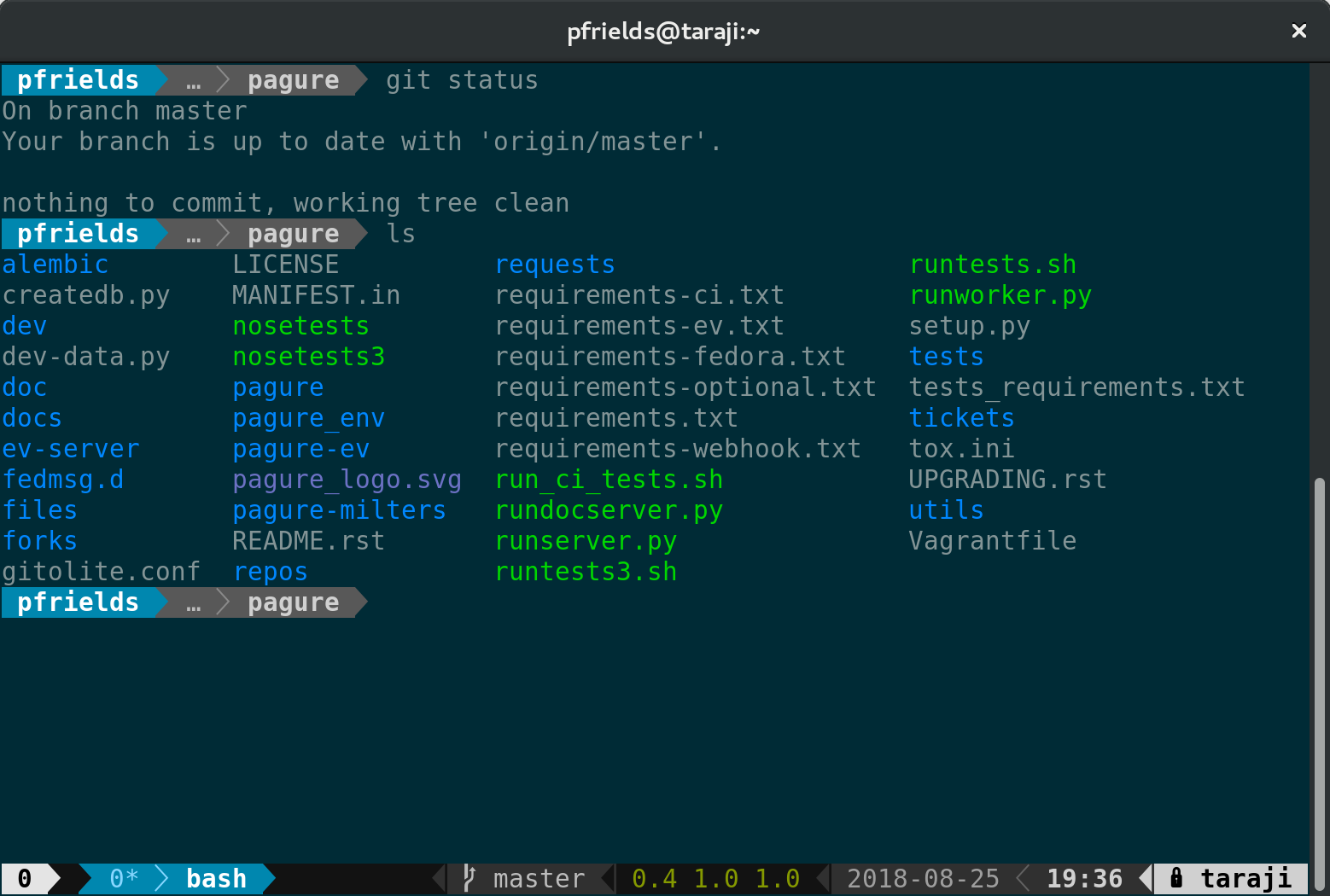
Screenshot of tmux powerline in git folder

If you haven’t already, follow the instructions in the Magazine’s powerline article to install that utility. Then, install the addon using sudo:

sudo dnf install tmux-powerline

Now restart your session, and you’ll see a spiffy new status line at the bottom. Depending on the terminal width, the default status line now shows your current session ID, open windows, system information, date and time, and hostname. If you change directory into a git-controlled project, you’ll see the branch and color-coded status as well.

Of course, this status bar is highly configurable as well. Enjoy your new supercharged tmux session, and have fun experimenting with it.


Photo by Pamela Saunders on Unsplash.