Posted on Leave a comment

How to clean AirPods and the AirPods Charging Case

The cases get scuffed in your pocket or bag, and then there’s the matter of ear wax. Whatever the cause, those gorgeous AirPods of yours —and their charging cases —soon get dirty. Here’s what to do about it.

How to clean Apple AirPods


Keep your AirPods looking as good as the day you bought them.

Maybe you see an iPhone 11 as a working tool, and you’re not that fussed about keeping it looking shiny and new. You’ll live with the finger marks on your iPad as well, because you can only see them when the screen is off, and it’s never off. But you need, and want to keep those AirPods clean.

After all, you’re sticking them in your ears all the time. Those AirPods get mucky, and then you put them in their charging case, so that gets dirty too.

You could buy a case for your AirPods, or indeed one for your AirPods Pro, but that’s chiefly going to protect them from exterior scuff marks. Not ear wax.

Fortunately, cleaning any edition of the AirPods, or their case, is not a long job —even if that’s partly because these things are so small that there’s not to scrub at anyway.

Don’t scrub. In fact, more important than how you do clean these things is what you must not do to them.

How not to clean your AirPods

  • Never run them under water
  • Never use a pin to work ear wax detritus loose
  • Never get any liquid in the speaker grill or microphone
  • Never put anything at all in the charging ports at the bottom of the AirPods

With that said, here’s what you should do.

How to clean the AirPods Charging Case

Wipe the case with cloth that is soft, dry and lint-free. Apple gear does not get on well with lint, and anything abrasive is as likely to scratch the material as it is to shift that dirt.

However, soft and gentle wiping may not be enough to restore these cases to their glory. If you have any kind of stain on it, or the wiping just doesn’t shift the problem, you can do one more thing.

You can try wiping the case again, but this time with the same lint-free cloth ever so slightly dampened with isopropyl alcohol.

If you do that, though, take extra special care not to get any of that liquid into any of the charging case’s holes.

Compare your charging case to this one and tell us you don't need to clean it.

Compare your charging case to this one and tell us you don’t need to clean it.

How to clean AirPods or AirPods Pro

The first job is to wipe them, and that’s again —and always —with your stash of soft, dry, lint-free cloths.

That’s typically enough to clean the stem, and the earpiece part, but you do also have both microphone and speaker grills. The microphone one is so small that there’s little you can do, but the speaker grill, the part that goes in your ear, that’s different.

Not only is that a bigger target when you’re cleaning, it’s a bigger area that is the most likely to attract dirt and wax. They’re just also the most delicate parts, so wipe carefully.

If they get more than typical wear and tear grubbiness, if they get exposed to detergent, or sun cream, or if you drop them in your food, you need to do more.

Do not put them back in the charging case. You’re just going to spread the problem to the case if you put the AirPods back in there. So instead, keep them out, both while cleaning, and then as they dry.

That speaker grill is how AirPods sound so good, but they are also what gets clogged up with dirt the most easily

That speaker grill is how AirPods sound so good, but they are also what gets clogged up with dirt the most easily

For the stems, the earbuds, and the greater part of the AirPods, do the following.

  • Very slightly dampen the AirPods using a cloth with fresh water
  • Dry them immediately with a soft, lint-free cloth
  • Allow them to dry
  • Do not use them until they are dried out

This leaves the speaker, and the microphone. Use a dry cotton swab to clean those.

Treat your AirPods gently when you clean them. If you also treat them gently in use, though, you’ll hopefully keep them looking new for longer.

Posted on Leave a comment

Tips, tricks, and customizations for your new AirPods Pro

Here’s how to get the most out of your new AirPods Pro with AppleInsider’s extensive list of tips, tricks, and customizations.

AirPods Pro in wireless battery case

AirPods Pro in wireless battery case

Apple’s new AirPods Pro are packed with new features, and it can be a bit overwhelming to make sure you take advantage of everything it has to offer.

The basics

Let’s talk about the basics of AirPods Pro use.

First, is controlling playback. Apple ditched the tapping gesture for the Pro and replaced it with force sensors in the stems. A simple short squeeze is all that’s needed to control your music or video.

A single squeeze plays/pauses the current content. Two squeezes will jump to the next track and a triple squeeze goes backward.

The force sensors in AirPods Pro stem

The force sensors in AirPods Pro stem

The highlight feature —active noise cancellation (ANC) —can be toggled by squeezing either of the AirPods Pro stems and holding for a long moment until an audio chime confirms the mode switching.

“Hey Siri” support is here, allowing you to summon the virtual assistant with the keyphrase.

AirPods Pro in iPhone battery widget

AirPods Pro in iPhone battery widget

Battery life can be ascertained by opening the case near your iPhone, as well as from the battery widget in the Today view. If you have an Apple Watch, tapping on the battery icon in Control Center will also give you your AirPods Pro battery life. Siri too can chime in on this if you choose to go hands-free.

Make them your own

AirPods Pro can be customized and personalized extensively. Adjustments range from the fit, to the controls, to using them on all your devices.

AirPods Pro fit test results

AirPods Pro fit test results

Customizing the fit is crucial. With an improper fit, the audio quality will suffer. Instead of relying on your initial perception, a quick test will give you a better idea of the headphones seal using the internal microphone.

Head to Settings, Bluetooth, and find your AirPods Pro. Tap the i next to them while connected. Then just tap on the fit test. Apple recommends trying all three sizes and trying different sizes on different ears. When swapping the silicone tips, pay attention to orientation because they aren’t a circle, but rather an oval.

Multiple sizes may test fine, so it is then up to you to decide which is most comfortable.

AirPods Pro Settings menu

In that same settings menu, you can do a lot more. For example, you can change the name of your AirPods Pro.

AirPods Pro settings menu

AirPods Pro settings menu

You can also adjust the controls for each of the AirPods Pro earpieces. You can choose between either Siri or noise control and if you choose noise control, it will cycle between transparency, ANC, and off —or any combination of those three. These can be set up differently for each ear. So maybe the right toggles ANC and the left toggles transparency or perhaps the right is set up for noise control and the left is set up for Siri.

Lastly, in those settings is also where you can choose which microphone to prefer. AirPods Pro automatically choose the mic it thinks is best, but you can always have it default to one or the other.

Announce Messages with Siri

Announce Messages with Siri

Speaking of Siri, AirPods Pro can automatically announce messages with Siri as they come in making for far easier communication using only the headphones.

AirPods Pro uses Apple’s H1 chip and work seamlessly with all of your other Apple devices. It can be connected straight to Apple Watch for when you leave your phone behind, transferred to your Mac or iPad, and even can be great for watching content on your Apple TV.

Get more out of AirPods Pro

Now let’s look at how you can get even more from your AirPods Pro.

Charging AirPods Pro from iPad Pro

Charging AirPods Pro from iPad Pro

In the box, Apple includes a USB-C Lightning cable to charge the headphones. Using that cable, you can charge AirPods Pro direct from the latest iPad Pro which has a USB-C port on the bottom. You can also ditch the cables altogether and charge the case with any Qi charger.

Looking again at noise canceling, there are many ways that it can be controlled. You can ask Siri to turn audio transparency or noise cancelation on and off. Or you can jump into Control Center and dive into the audio slider to go between all three modes.

If you have an Apple Watch, tapping the AirPlay icon with AirPods Pro connected is yet another way to toggle ANC on/off.

Knowing what the lights on your AirPods mean can be helpful. For example, when you remove your AirPods and the light goes amber, this means there is less than one full charge in the case remaining. When you remove AirPods and the light is green, it means there is at least one full charge left in the tank.

The light is also used when pairing AirPods to other devices. Just hold the button on the back of the AirPods case for a few seconds until the light flashes white. This means it is in pairing mode and can be paired to any non-Apple device such as a Samsung Galaxy phone, a Windows PC, and more.

Live Listen using AirPods Pro

Live Listen using AirPods Pro

AirPods Pro also has a feature called Live Listen that allows you to use a single AirPod as a listening device. It is designed for accessibility, focused on users who need help hearing —but a single earbud could also be used for listening in on a room, or as a baby monitor in a pinch.

Place an earbud where you want to listen, place the other in your ear, move away, and toggle the feature on in Control Center. Enable it by going to Settings, Control Center, Customize Controls, and tap on the Hearing control.

Finding misplaced AirPods Pro in the Find My app

Finding misplaced AirPods Pro in the Find My app

If you ever misplace your AirPods Pro, the last known location will show in the Find My app. Furthermore, if you misplace an individual earbud —or both —you can see if they are nearby and even play a noise to help locate them. You can play the noise on both, or choose one specifically.

Audio sharing with AirPods

Audio sharing with AirPods

Finally, new in iOS 13.2, is audio sharing. While listening to music, bring another device or the device it is connected to near yours to open the Share Audio modal. Or simply open the AirPlay menu and choose “Share Audio…”

This allows the audio to go to two sets of AirPods at the same time so a pair of people can jointly listen to music, watch a movie, or even play a game together.

AirPods Pro

AirPods Pro

Available now

Apple AirPods Pro retail for $249 and are carried by these top retailers:

AirPods and AirPods Pro specifications

AirPods (Second Generation) AirPods Pro
Dimensions (inches) 1.59 x 0.65 x 0.71 1.22 x 0.86 x 0.94
Weight (ounces) 0.14 0.19
Case Dimensions (inches) 2.11 x 1.74 x 0.84 1.78 x 2.39 x 0.85
Case Weight (ounces) 1.41 1.61
Battery Life (AirPods) 5 Hours 4.5 House with ANC, 5 with ANC off
Battery Life (with Case) More than 24 Hours More than 24 Hours
Connectivity Bluetooth 5.0 Bluetooth 5.0
Microphones Dual Beamforming Dual Beamforming, Single Inward-Facing
Sensors Dual Optical Sensors, Motion-Detecting Accelerometer, Speech-Detecting Accelerometer Dual Optical Sensors, Motion-Detecting Accelerometer, Speech-Detecting Accelerometer, Force Sensor
Sweat and Water Resistance No IPX4
Active Noise Cancellation No Yes
Posted on Leave a comment

How to master the Camera app on iPhone 11 and iPhone 11 Pro

The Camera app has been updated for the iPhone 11 and iPhone 11 Pro to take advantage of the new ultra-wide lenses. AppleInsider explains how to use the new features to take the best pictures you can on the go.

The iPhone 11 and iPhone 11 Pro received major camera overhauls to the joy of photographers everywhere. Both handsets were bestowed new ultra-wide-angle lenses, upgraded selfie cams, and a host of new software-specific features.

With all of these changes comes a swath of changes to the native iOS Camera app. Some features are obvious, while others fly a bit under the radar, so let’s walk through all the changes in the Camera app to make you a photo-snapping pro.

QuickTake

Demonstrated on stage during the iPhone 11 launch event, QuickTake is perfect for when a photo-op unexpectedly turns into a video-op.

Swipe right to capture a video with QuickTake

Swipe right to capture a video with QuickTake

On other iPhones, holding the shutter button will fire off a series of burst images until the shutter is released. With the iPhone 11 and iPhone 11 Pro, holding the shutter button will immediately start recording a video.

You can then swipe to the right to lock it into the video so you don’t have to continue to hold the shutter button,

Capturing burst photos is still easy, just press the button and quickly swipe to the left and hold. The shutter button silhouette will turn to an incrementing count of the burst photos being taken.

Capture outside the frame

Lossless cropping thanks to Capture Outside the Frame

Lossless cropping thanks to Capture Outside the Frame

Capture Outside the Frame is a subtle, and initially disabled, feature on the iPhone 11 and iPhone 11 Pro.

When shooting with the wide or tele lens, it also captures an image using the ultra-wide or wide lens respectively. When laid atop one another, the wider shot is essentially captured “outside the frame.”

This comes into play when cropping or leveling out a shot. You can correct an angled horizon or crop out slightly without any loss of image quality.

Settings toggle for Capture Outside the Frame

Settings toggle for Capture Outside the Frame

To enable, head to the Settings app > Camera > and enabled Photos Capture Outside the Frame.

If the photos aren’t used, they will automatically be deleted after 30 days to reduce the necessary storage.

Night mode

Night mode is automatically triggered in the camera app whenever it is necessary. It does so based on the available light in your scene.

Night mode toggle for iPhone 11

Night mode toggle for iPhone 11

The icon appears in the top left-hand corner, or the adjustments tray above the shutter.

When on, Camera will do its best to choose an exposure time based on how much you are moving, the light, and the subject. The more movement there is, the faster the shutter has to be to reduce blur.

Users can manually override this by sliding the exposure counter that appears above the shutter when enabled.

Apple does these Night mode shots by capturing a series of shots then combining them. In this scenario, there would be little motion blur. Avid photographers know when using a DSLR or mirrorless camera, keeping the shutter open for longer can create motion blur and light trails.

For this, the iPhone will automatically detect when it is placed on a tripod rather than held freehand, and then allow these light trails to be captured without the risk of the camera moving.

Changing aspect ratios

Alternate aspect ratios on iPhone 11

Alternate aspect ratios on iPhone 11

With previous iPhones, Apple allowed users to switch between standard 4:3 or 1:1 square photos. iPhone 11 shuns this by now allocating three options for photos — 4:3, 1:1, and 16:9.

Even better, if a photo is shot in 16:9 it can be cropped back to 4:3 after the fact without any loss of quality.

Adjusting scope

Another change to the iPhone 11 is how to switch between the different levels of zoom. Instead of a 1X that could be tapped to become 2X, a .5 1X and 2X are prominent above the shutter button.

Adjusting zoom scope with iPhone 11

Adjusting zoom scope with iPhone 11

Each of the three can be tapped to move between, or you can swipe along the numbers to open up the zoom wheel to scroll between the three lens presets or smaller increments in between. Apple also labels the lens equivalents below them.

To get back to the three original options, just swipe down on the adjustment wheel.

Wide Portrait mode

Apple’s implementation of Portrait mode requires two lenses to operate at its best. iPhone XR cheated this by using software, but it was limited to portraits of people.

1X Portrait mode (left) versus 2X Portrait mode (right)

1X Portrait mode (left) versus 2X Portrait mode (right)

A limitation for the iPhone XS and iPhone XS Max was that it always required users to be zoomed in to 2X as it used the tele lens.

The iPhone 11, and its newfound ultra-wide lens, finally allows the more affordable handset to capture true stereoscopic Portrait mode shots of objects and pets alongside humans. For the iPhone 11 Pro and iPhone 11 Pro Max, the addition of the third ultra-wide lens means Apple is now able to capture these Portrait shots with a wider angle.

When lining up a Portrait mode shot on the iPhone 11 Pro or iPhone 11 Pro Max, a 1X/2X button will appear in the lower left-hand corner to alternate between these modes, allowing you to get much closer to the subject or capture a wider image.

Not all hardware, not all software

These improvements are great. They add a lot to the photography experience on the iPhone. But, better hardware and software isn’t enough, and the enhancements won’t magically make you a better photographer.

Take those shots. Experiment with lighting. See if that office cat will hold still for a Portrait mode shot. Keep what’s good, and mercilessly delete what’s not.

The only thing that makes a better photographer is practice.

Posted on Leave a comment

How to get your Mac or iPhone ready before you take it to Apple’s Genius Bar

Depending on the problem your device has, you may have to leave it with the Genius Bar —and they may have to send it off to Apple. Make the process easier for yourself and for them plus protect your sensitive data by taking a few steps in advance.

Apple is still unrivalled at how easily you can bring devices in to a Genius Bar and have them repaired. Yet it’s hard enough getting one Genius Bar appointment so make sure you cut down the risk of having to book a second. Prepare your devices and take a few steps before you head into the Apple Store and you’ll make the whole process go as quickly and painlessly as possible.

Nothing will prepare you if the answer to your issue turns out to be an expensive repair. However, at least you will be able to hand over your device and know that you have all of your data safe. You’ll be able to know that even if Apple ends up completely replacing the device, you’ll be back up and working quickly.

You do have to go through a lot of steps before you can book a Genius Bar appointment.

You do have to go through a lot of steps before you can book a Genius Bar appointment.

Plus you may have a serious problem but the poor Apple Genius has been dealing with hundreds of them. Make their job easier, too.

Devices

Some of what you should do varies depending on whether it’s a Mac, an iOS device or an Apple Watch that you’re having trouble with. However, several steps are the same.

Regardless of what device you have, make sure you know your Apple ID before you head to the store. That does mean knowing the password but also the email address. This sounds obvious but if you’re a longtime Apple user then you are likely to have several Apple IDs and we have spent a confused few minutes entering the right password for the wrong ID before.

Plus your Mac will have a different login password to your Apple ID and your iOS device will have a passcode. So get all of these ready. You may not know until you talk to the Genius whether the problem is something they can fix right in front of you or whether it’s going to take some time. If you have to leave the device with them, they will absolutely require the passwords to log in to it.

If it’s an iOS device that they’re going to send away or take apart, they’ll also need to know the passcode in order to disable the Find My iPhone security so that they can wipe the phone if needed.

It's called Find My iPhone but it actually locates all of your Apple devices

It’s called Find My iPhone but it actually locates all of your Apple devices

Apple also asks that you bring a sales receipt with you. We wouldn’t be bothered if we know the device is out of AppleCare or even if we just bought it at an Apple Store. If you got your device from anywhere else, though, bring the receipt just in case.

Next, you have to back up your data and the way you do that is slightly different depending on your device.

Mac specific

Don’t wait for a problem before you backup your Mac. If you haven’t already done so, though, cross your fingers that your Mac will work enough to let you back it up now.

You’re probably using a cloud service such as iCloud or Dropbox and that will mean some of your data is saved off the machine, but it won’t be anywhere near everything. So use something like Carbon Copy Cloner to make a clone copy of your hard drive.

It’s possible that the Mac you get back from an Apple repair won’t be the same Mac. If the problem wasn’t quite so serious, it’s still quite possible that the drive in the Mac won’t be the same one. And even if it still is, part of the repair process may have meant Apple had to wipe the drive.

Do create a clone backup of your drive using something like Carbon Copy Cloner but do it before you have problems

Do create a clone backup of your drive using something like Carbon Copy Cloner but do it before you have problems

So if you have a clone copy on an external drive, you can plug that into your Mac when you get it back. You could be up and running again in no longer time than it takes to boot the Mac. Or you could use the same backup software to clone that external drive back on to the Mac’s own internal one.

Apple Watch and iOS

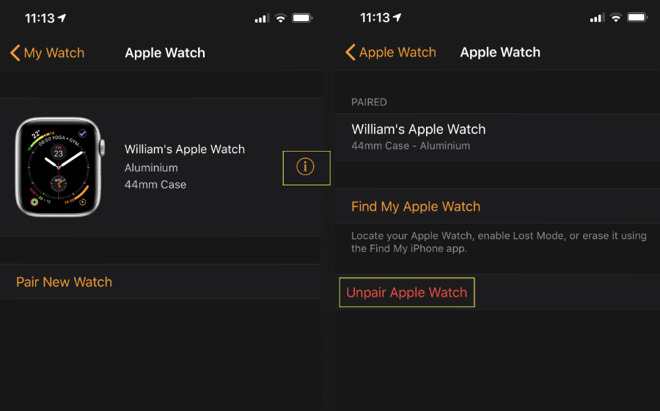
If you have an Apple Watch then whether the problem is with that or your iOS device, unpair them.

As well as making it easier for both you and Apple when your Watch or your iOS device is replaced, there’s an extra benefit. Unpairing your Apple Watch automatically backs it up. You can’t backup your Apple Watch data as easily as you can your Mac or iOS device but if you unpair one, that starts backing it up automatically.

Unpair your Apple Watch whether the problem is with that or with your iPhone

Unpair your Apple Watch whether the problem is with that or with your iPhone

It’s not as if you store a lot of data on your Apple Watch, and it’s not as if changing to a new one means losing even all that activity information you’ve accrued. It does mean that swapping to a new one is faster, and with a few taps you’ll end up back with the same Faces and complications you like.

In comparison, your iOS device is already far more backed up than your Watch is. While you’re using that device, it’s being regularly backed up to iCloud. It’s still the case that an iCloud backup doesn’t save absolutely everything, but it’s no longer the case that you have to back it up to iTunes to get the rest.

Both iCloud and iTunes backups now do pretty much the same thing. What you could do, though, is make an extra copy of the data by backing up the iOS device to an external drive.

The real benefit of that, though, is to save space on your Mac’s internal hard drive. So if you’re not backing up to your Mac, this is an unnecessary extra step. Just make sure that you do backups to iCloud or iTunes.

Data is key

Some of your data is irreplaceable. Some of it is a royal pain to reinstall or redownload. And the some of it is sensitive.

We’re not paranoid about Apple service centers, we don’t remove 1Password or other password managers before we send something in for repair. Yet we will remove company documents, financial statements, and medical information.

Not only do we trust Apple’s service people, we also know they’re swamped and the last thing they care about is digging into your holiday snaps. However, we also know that drives get replaced and when they are, the old one has to go somewhere. Rather than examining the entire chain of companies that may be involved in disposing or repurposing drives, we remove sensitive data first.

That’s easy to do if you can start up your Mac or iOS device. Just copy the files off to somewhere else safe and erase the device.

If your Mac or iOS device is in such a bad state that you can’t even start it, though, you can look as if you’re stuck. However, there is still something you can do. You can wipe the entire device —and you can do it remotely.

This is a little bit of overkill if you’ve only taken your iPhone in to the Genius Bar because you couldn’t get it to set the clock to the right time zone. For more serious issues, though, go to iCloud.com, sign in with your Apple ID and wipe the whole device.

Use iCloud.com and you can remote-wipe your Macs and iOS devices

Use iCloud.com and you can remote-wipe your Macs and iOS devices

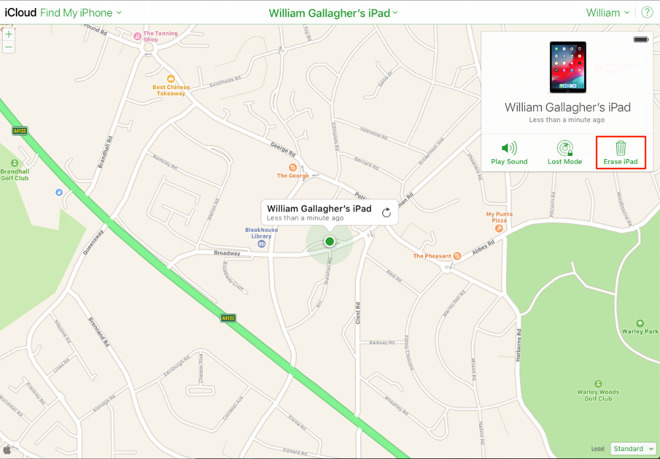
Whether it’s a Mac or an iOS device, you do it in the same way. On iCloud.com, you click on Find My iPhone. Despite the name, this actually finds all your Apple devices of any kind. You need to have turned on the Find My iPhone (or Mac or iPad) feature before but as long as you have, you will now see a map with the devices shown on it.

If the device is powered on and connected to the internet right now then you’ll see a dot for it with a description saying the location was updated “Less than a minute ago.”

When your device is in such need of repair that it can’t even switch on, you’ll still see it shown on Find My iPhone, just with the date it was last seen.

Whatever that date is, there will always be an I for Information button. Click on that and you can choose to erase the device.

Again, if the device is on and connected to the internet then this will happen right away. If it isn’t, then the next time the device powers up and gets online, it will be wiped.

Genius

You’re hopefully only going into the Store with one problem and the Geniuses are dealing with hundreds or even thousands. They know all of these steps, they know why you need to do it —and they also know that most people won’t have done any of them.

Consequently they will ask you whether you’ve got backups, whether you have your Apple ID details, whether you’ve unpaired the Watch and so on. All the way through they are hoping you’ll say yes because otherwise this is going to take a long time.

Be the person who has done everything. As well as making their job easier, you’ll get out of there faster. You’ll get out of there knowing that no matter what happens, your data is both safe and is going to be immediately available for you to get back to work.

Keep up with AppleInsider by downloading the AppleInsider app for iOS, and follow us on YouTube, Twitter @appleinsider and Facebook for live, late-breaking coverage. You can also check out our official Instagram account for exclusive photos.

Posted on Leave a comment

How to create simple, one-step taks in Automator to save you time on your Mac

It doesn’t have to be difficult to make your Mac automatically perform repetitive or tedious tasks for you. Apple’s free Automator app on every Mac has a plethora of functions that take one step to set up and then work for you forever.

None of us have that much time in the day to fiddle about adjusting some setting or other on our Macs. Yet, if you do make yourself take a few minutes today, you can save much more time every single day from now on. You will unquestionably get through your work faster and you very easily may be able to save time for your colleagues too.

The Mac is able to take over tasks that are tedious and you do every day with Automator. Macs can also take over tasks that you do so rarely that you always have to ask someone how to do it.

If you’re ever stopping to think that you may have got some important step wrong, you need to do this. When you find yourself wishing there were a faster way to do something, you should look at this.

Anything that speeds up your work on a Mac is called automation and usually when you hear that word, it’s followed by a supremely powerful, delightfully clever and unfortunately a bit fiddly series of instructions.

Except today. Call this a handy guide, call it a way to ease you into the power of automation, but today we’re going to show you a slew of one-step jobs. Each one does something really handy. Each one requires you to do precisely one thing. And each one is using Automator, a tool that comes on every Mac.

Get this into your head first

Everything we’re about to tell you works exactly the same way. You’ll open Automator, you’ll tell it the one thing you want it to do, and then you’ll save that instruction. You’ll save it to somewhere you’ll always remember, somewhere you’ll always be able to find. Frankly, you’re going to save it to your Desktop.

For all of the following, you’re going to be saving an application. It’s a very small application but it’s one that you will later be able to drag files onto.

To create an application, launch Automator from your Applications folder.

Make sure you choose Application. This is what makes something you can later drag files onto instead of always opening Automator

Make sure you choose Application. This is what makes something you can later drag files onto instead of always opening Automator

This is what you’ll see when you open Automator, except that it will have defaulted to highlighting Workflow. Ignore that. Click on Application instead, and then Choose.

Whatever you chose, the next screen would look the same and it would act the same. All you’ve chosen here is what you will eventually save to your desktop. If you click Choose and then have any doubt that you may have slipped and picked something other than Application, look at the top line of the next screen.

The main screen of Apple's free Automator app

The main screen of Apple’s free Automator app

That top line will say Untitled (Application) or Untitled (Workflow), something like that. If it says anything but the Application one, close it and choose File, New to start again.

You’re thinking that it’s a pretty big Application button to click on, you’re not likely to miss it. Yet look at the large, blank right hand side of the Automator window. Regardless of whether you’ve chosen Workflow or not, it will always say Drag actions or files here to build your workflow and that will throw you.

Despite having that large empty area, Automator has otherwise quite a busy window. In the top corner there are buttons marked Library and Media. Make sure that Library is selected and then forget these two.

Similarly, right underneath these you have sections called Actions and Variables. For what we want, just check that it’s Actions that is highlighted.

Then right below that word, there is a second Library heading. This is a word that has a disclosure triangle next to it and yours may or may not be open. Whether it is or not, make sure that the line saying Library is highlighted.

This Library is part of Automator’s plan to make things easy. If you click to open that disclosure triangle, you’ll see two dozen different sections underneath it. Each one contains ten, twenty or more different actions that Automator can do for you. So in theory if you knew which section you wanted, you’d just go to that. Most of the time, though, you’re either not sure yet what you’re looking for or you are but Automator’s put it in an unexpected section.

So invariably, we ignore all of this and instead once we’ve made sure that Library, Actions and then the word Library are selected, we go to the search box that’s on the right of the word Variables.

In each of the following examples, you will type a word into that search box and then Automator will show you every action that matches.

Example search

Search for a word to do with your task rather than trying to categorize what you want

Search for a word to do with your task rather than trying to categorize what you want

In this case we’ve typed ‘event’ into the search box and Automator has shown us six things it can do. You may see more, depending on what other applications you have on your Mac, but you’ll always get a short list.

We’ll tell you the key ones to pick in a moment, but in every case what you’ll do when you’ve chosen an action, is you’ll move it to the large blank area. You can do that either by dragging the action over to it. However, you can also just double-click on it and Automator will move it for you.

That doesn’t sound like a difference that makes much of a difference but today we’re only looking at single steps. For a single step, you can drag or double-click as you like. If you get into Automator more, you’ll end up making lists of actions and there the sequence of them will be vital so dragging one to precisely where you want it is best.

Again, though, we’re only doing Automator actions that require precisely one step so just dragging or double-clicking means you’re practically finished. Some of the following examples will have little details or options that you might want to adjust, but the next step is always to save the application.

Once you’ve done that, you end up with Automator applications wherever you saved them and you may never need to go back into this app ever again. You’ll certainly not need to think about how they work, you’ll just drag a document or a file on top of their icon and let them do what they do.

And with all that said, here our favorite and most-used single-step Automator actions.

Quickly create thumbnail images

If you’re a Photoshop user then you might already have made your own Droplet where you can automatically create small thumbnail versions of any image you drop on it. Photoshop’s Droplets are like everything else in that app, though, in that alongside immense power there does come quite a bit of complexity.

Not with Automator. When you open a new Application, click in the search box and look for ‘thumbnail’. You’ll get a couple of options including Create Thumbnail Images.

Remember, you just move that action over to the large, blank window and you’re done.

There’s not a lot to this Automator action. The only things you can adjust are how Automator names these thumbnail versions of the image —you don’t want it overwriting the full-size original so it automatically saves back with a new name —and the size. Even the size isn’t a comprehensive choice. You can’t enter any value you like, you can solely pick from 72, 96 or 128 pixels wide.

Save this Automator application. Then find any images you like on your Mac and drag them all to the icon for this Automator application. Before you’re even sure that you’ve let go of dragging these images, there will now be new thumbnail images. They’ll be wherever your original images were.

Set desktop wallpaper

It’s not as if it’s arduous having to open System Preferences, choose Desktop & Screen Saver and then schlep through the options —but it is a bit of a pain. Enough so that it’s handier to just have an application that you can drag any image onto and know that it your Mac will immediately display it as your wallpaper.

Search for ‘Desktop’ and Automator will offer you Set the Desktop Picture and that’s the action you want. Incidentally, this is one of the cases where Automator has put the action somewhere you might not expect. Rather than being in Automator’s Photos section, it comes under Files & Folders.

It’s things like that which just make us automatically use the search feature instead of hunting around through the sections.

Do this and from now on you can just drag an image to set your wallpaper

Do this and from now on you can just drag an image to set your wallpaper

Save this new Automator application and from now on, any time you drag any image onto your application’s icon, it will become your Mac’s wallpaper.

Create PDFs

Macs are great. From any application and with any document, you can create a PDF version just by choosing File, Print and selecting PDF. That’s not so great when what you want the PDF to be is a collection of images.

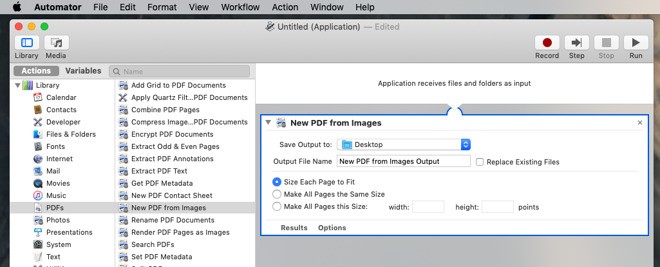
Rather than opening each image in, say, Pixelmator Pro, and saving them out as a PDF, you can run an Automator action instead.

Take two, ten, a thousand images and make a single PDF out of them

Take two, ten, a thousand images and make a single PDF out of them

Combine PDFs

There are many PDF apps for the Mac and even Apple gets in on the act with Preview. If you’re compiling one new PDF out of many existing ones, then actually Preview is the way to go. It lets you drag individual pages from one PDF to another.

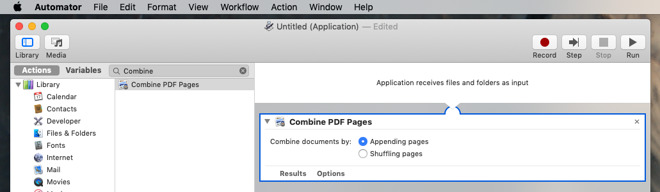
When you just want to join a few PDFs together, though, that’s fiddly enough to be irritating. So just search for the word ‘combine’ and then pick Combine PDF Pages.

Combine multiple PDFs into one

Combine multiple PDFs into one

When you do pick this action, though, one of the options you get is to combine the PDF documents by Shuffling pages. We can’t think of an occasion when you’d want to do that but clearly you can.

Renaming files

We can easily think of occasions when you want to rename files but keep the originals too. Automator knows that’s pretty common, too, because if you pick Rename Finder items then it will give you a warning about how you are going to, well, rename Finder items.

It offers to set up your Automator application so that before it renames anything, it makes a copy. That can be extremely handy but it does turn this into a two-step application and we don’t need that for now.

So when you ignore the warning, you get detailed options of how you want to do this file renaming.

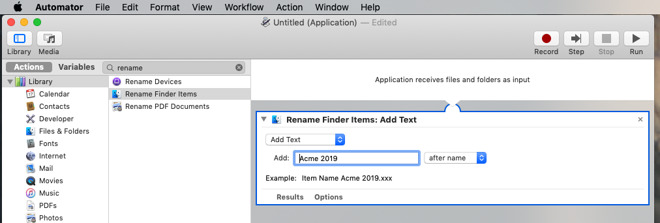
Rename any file you drag onto your new app

Rename any file you drag onto your new app

Say you’re organized or maybe your boss is and now you’re going to be including your company name in every single file you ever create. Choose this Rename Finder Items action and then from the many, many options inside it, select Add Text from the dropdown menu.

You can say that you want files to keep their existing name but have Acme at the end plus a year. If you then save this action, you can have an application on your desktop that renames any file you like. Drag one, drag all, it makes no difference —except to their filename.

Unfortunately, Acme just got bought out by Emca Corporation. Go back into Automator, create a new Application and use this same Rename Finder Items but choose Replace Text from the drop down.

Now if you drag one or a thousand files onto this application and they have Acme in their names, they will now have Emca instead.

Deep breath

That Rename Finder Items is a useful single-step tool you can create for yourself using Automator but it does have dozens of different options.

The more you dig into all of this, the more options and choices you get. And Automator is a very powerful tool —but we’re not just showing you the one-step option because it’s simple.

Automator has rather fallen behind and it feels as if even Apple isn’t paying a great deal of attention to it. So while we use it for these one-step actions and it is extremely useful for them, if we want more, we do go elsewhere.

So try these or any other one-step actions that you find on the way. See how quick they are to set up and how much time they save. You could and probably will dig a little deeper to find two- and three-step applications you can create, but after that, stop.

To do work with files and folders, consider Automator an on-ramp to Hazel. This is a third-party app which overall is actually easier to use than Automator and is geometrically more powerful. We do have Hazel settings that rename files for us, but they automatically rename them to include the name of the folder the file was in —and then archive them off somewhere else.

Or Keyboard Maestro. We’d be here all day if you let us talk about Keyboard Maestro. You can use that for everything we’ve described here, including the Hazel actions, and then do so much more that we’re still learning it.

That’s all very nice for us, though, and it could be very nice for you. For now, though, just take a few minutes to look at the possibilities in even one-step Automator actions and you will get hooked.

Keep up with AppleInsider by downloading the AppleInsider app for iOS, and follow us on YouTube, Twitter @appleinsider and Facebook for live, late-breaking coverage. You can also check out our official Instagram account for exclusive photos.